SVG to WebP Converter

Use WPS’s online SVG to WebP converter to create a raster copy of vector artwork. Set output dimensions, compression, and background options, then review and download the WebP image for your publishing workflow.

or drag and drop files here

SVG, up to 5 MB

SVG file · —
Output settings
px
Leave blank to use the SVG size when available.
px
Set both values for exact output dimensions.
Used when width and height are not both specified.
80%
1%100%
Encoding mode
Lossless keeps exact pixels. Lossy creates smaller files.
Transparentkeeps the original alpha channel. Pick a color to flatten transparent areas.
Convert the current SVG into a WebP image.
0%
Preparing conversion…
Your file is being uploaded and converted.
Converted WebP
Preview the output and download the optimized image.
Converted WebP preview
Output size
—
File size
—
Filename
—
Background
Transparent
Free to Use
No Sign-Up
No Ads
Any Browser
Free to Use
No Sign-Up
No Ads
Any Browser

How to Convert SVG to WebP in 3 Steps

  1. Step 1: Upload SVG artwork

    Choose the vector file you want to render. Keep the SVG original for future shape or layout edits.

  2. Step 2: Choose output settings

    Set the dimensions or scale, compression options, and background behavior. Select Convert to WebP to generate the result.

  3. Step 3: Inspect and download

    Check the preview, transparent areas, and file details. Download the WebP after confirming that it suits the intended display size.

Convert SVG to WebP for Website Assets

Convert SVG to WebP for Website Assets

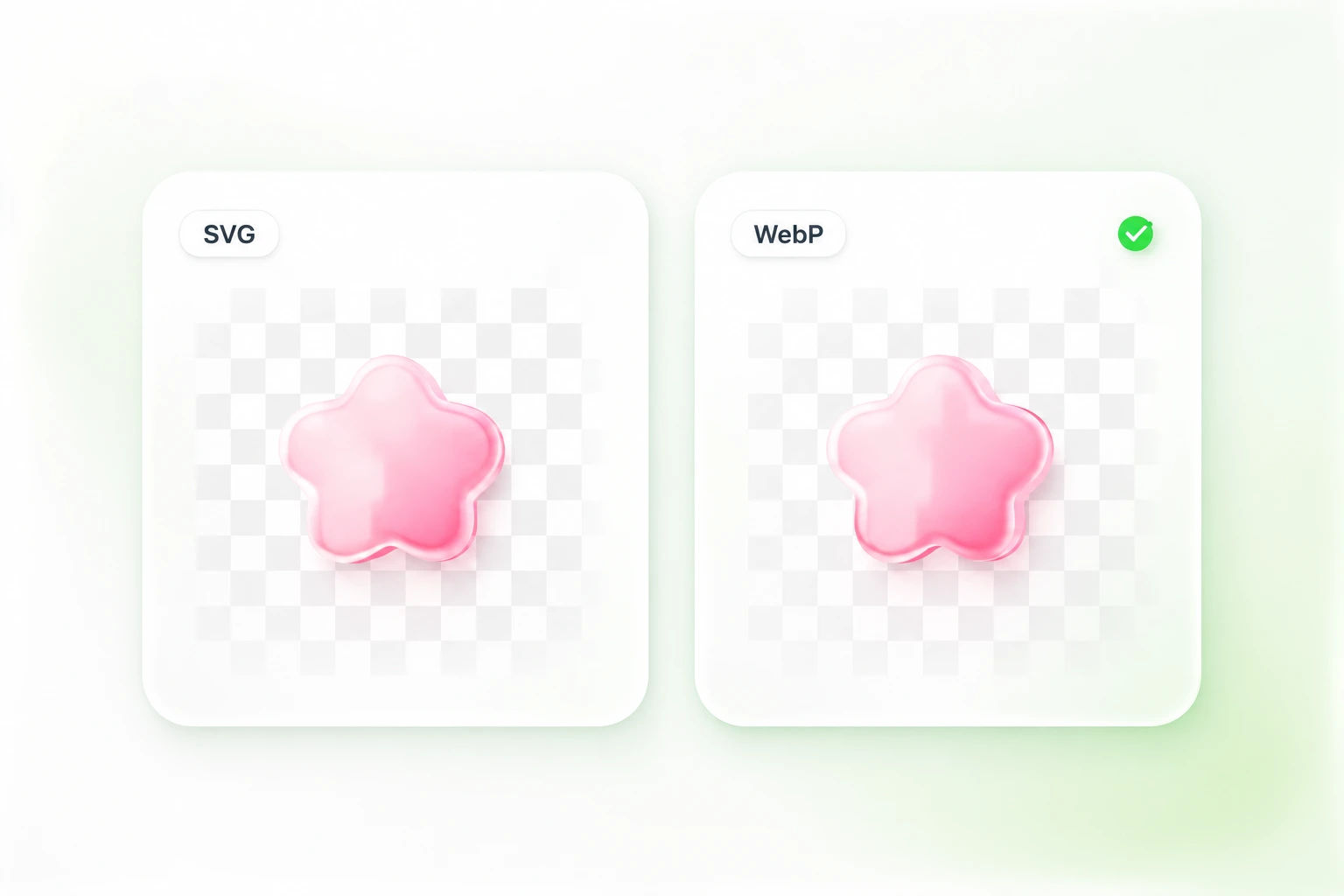
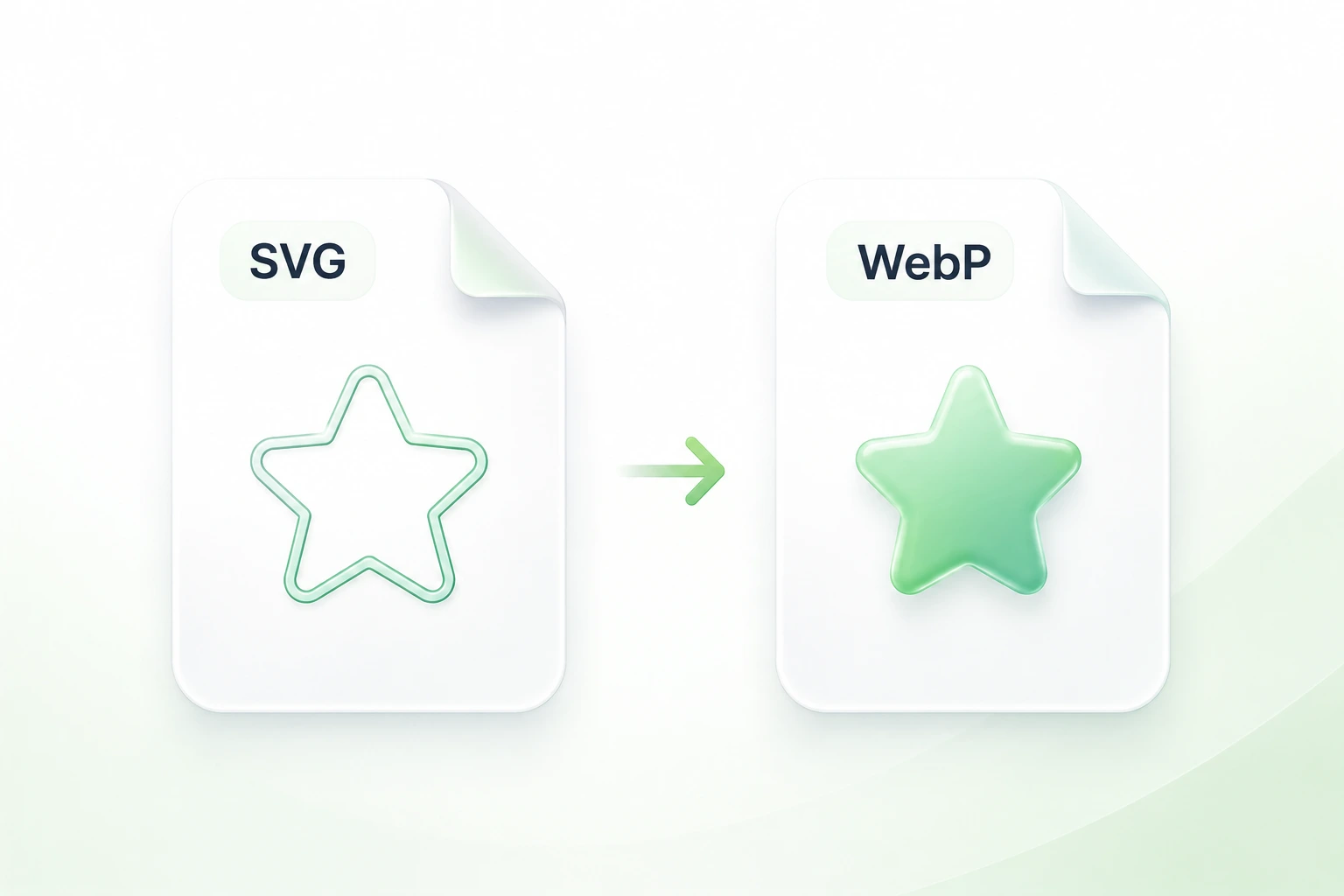
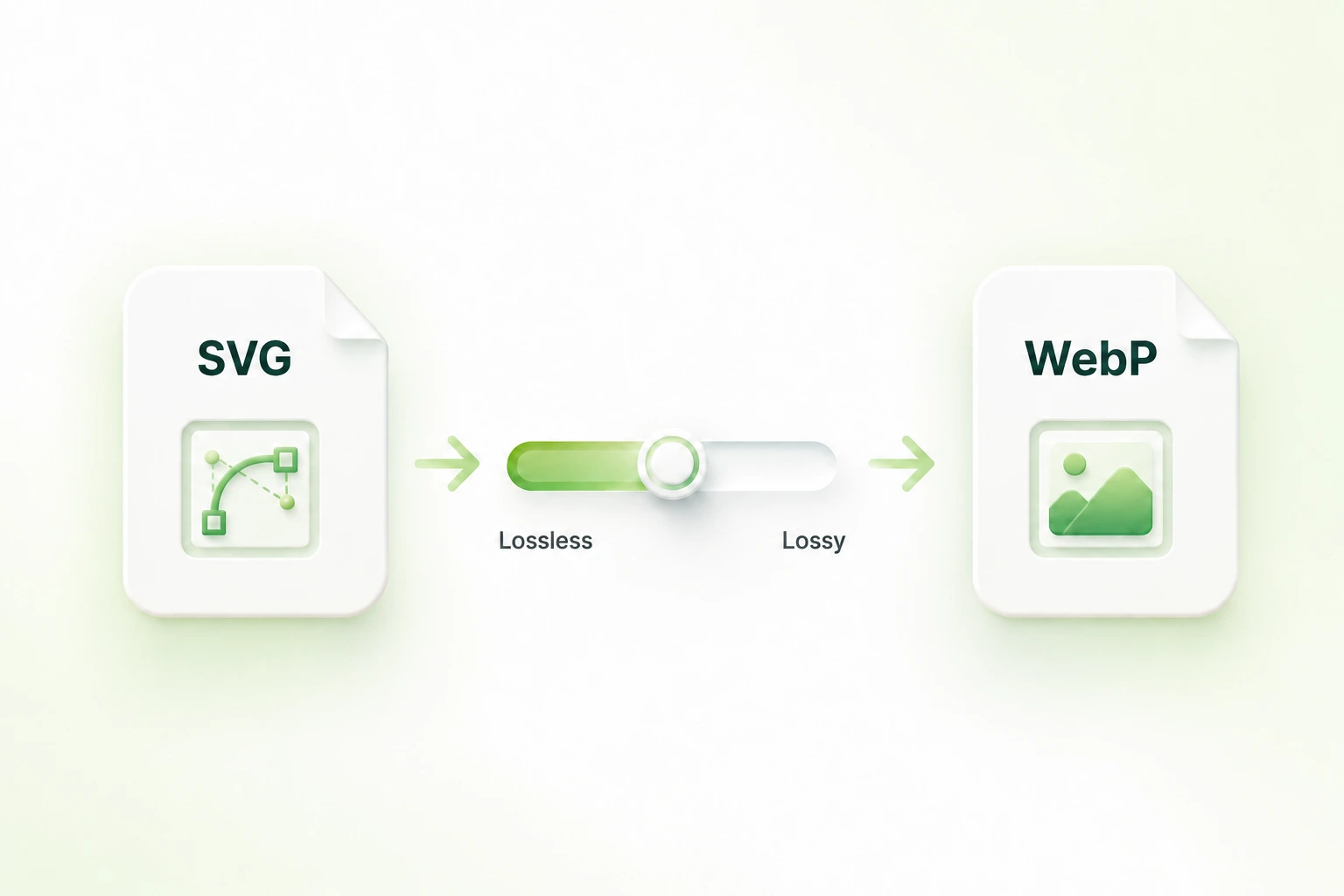
A content workflow may request WebP even when the source artwork is SVG. WPS’s SVG to WebP converter rasterizes the vector file into an image, so you can prepare the required output while retaining the SVG master.
Try It Now
Set WebP Dimensions for Your Image Layout

Set WebP Dimensions for Your Image Layout

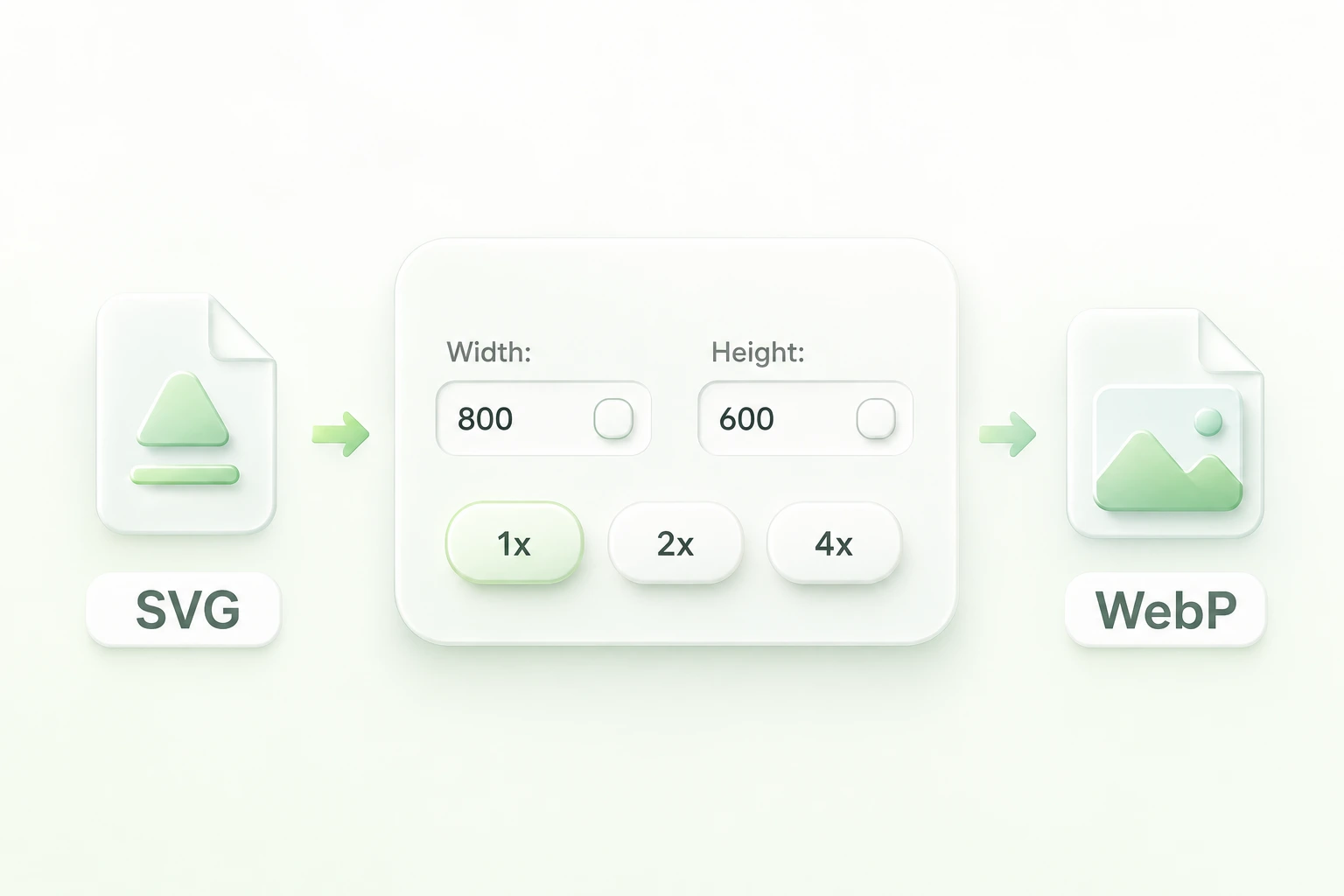
A raster export needs a defined pixel size. Dimension and scaling controls let you set that size before conversion, so you can prepare a version for the intended image slot rather than resize an unsuitable copy later.

Try It Now
Choose Lossy or Lossless WebP Compression

Choose Lossy or Lossless WebP Compression

A detailed graphic and a simple icon can respond differently to compression. Lossy, lossless, and quality options let you choose an output approach, so you can compare the result with the requirements of the image instead of relying on one default.

Try It Now
Keep SVG Transparency in WebP Output

Keep SVG Transparency in WebP Output

A transparent asset can look different when placed over another color. Alpha support and preview controls let you inspect the output background, so you can keep existing transparent areas or deliberately choose a fill for the final image.

Try It Now

Why Users Choose Our SVG to WebP Converter

Flexible dimensions, compression controls, and transparency support for website image workflows.

CMS image slots

Convert SVG to WebP online when the publishing workflow requests WebP. Confirm the target dimensions and inspect the uploaded result in the actual page.

CMS image slots

Web content teams

Transparent illustrations

Use the SVG to WebP transparent background workflow for source artwork with clear areas. Check edge appearance against the backgrounds used in your layout.

Transparent illustrations

Designers

Consistent image exports

Render vector source artwork at the pixel dimensions requested for a handoff. Keep the editable SVG separately and label the WebP as a raster export.

Consistent image exports

Product and marketing teams

SVG to WebP FAQ

01

How do I convert SVG to WebP?

Upload the SVG, choose the size, compression, and background settings, then select Convert to WebP. Review the preview and download the image.

02

Will the WebP remain a vector image?

No. The conversion renders the SVG into pixels. Keep the original SVG for editable paths or future vector scaling.

03

Can I keep an SVG to WebP transparent background?

The tool supports existing alpha transparency in the rendered output. Check the preview and background setting; a solid shape in the source is still part of the artwork.

04

Should I choose lossy or lossless output?

Choose based on the source graphic and its intended use. Lossy compression can alter detail; lossless output avoids that compression trade-off. Compare the actual image and file size.

05

Will WebP always be smaller than SVG?

No. Simple vector artwork can be very compact as SVG. Rasterizing it can increase file size. Convert when you need WebP output, and compare the actual files rather than assuming a size benefit.

06

Can I enlarge the exported WebP like the SVG?

The WebP has fixed pixel dimensions. Choose an appropriate output size before conversion and return to the SVG for a larger render when needed. Embedded raster images inside the SVG still have their own detail limits.