

'%3e%3cpath%20d='M8%200C12.4183%200%2016%203.58172%2016%208C16%2012.4183%2012.4183%2016%208%2016C3.58172%2016%200%2012.4183%200%208C0%203.58172%203.58172%200%208%200ZM11.6162%204.38379C11.2257%203.99337%2010.5927%203.99338%2010.2021%204.38379L8%206.58594L5.79785%204.38379C5.40732%203.99334%204.77429%203.99329%204.38379%204.38379C3.99331%204.77429%203.99335%205.40733%204.38379%205.79785L6.58594%208L4.38379%2010.2021C3.99348%2010.5927%203.99341%2011.2257%204.38379%2011.6162C4.77426%2012.0066%205.40734%2012.0065%205.79785%2011.6162L8%209.41406L10.2021%2011.6162C10.5927%2012.0066%2011.2257%2012.0067%2011.6162%2011.6162C12.0067%2011.2257%2012.0066%2010.5927%2011.6162%2010.2021L9.41406%208L11.6162%205.79785C12.0066%205.40735%2012.0066%204.77429%2011.6162%204.38379Z'%20fill='%23080E17'%20fill-opacity='0.46'/%3e%3c/g%3e%3cdefs%3e%3cclipPath%20id='clip0_3761_713'%3e%3crect%20width='16'%20height='16'%20fill='white'/%3e%3c/clipPath%3e%3c/defs%3e%3c/svg%3e)



'%3e%3cpath%20fill-rule='evenodd'%20clip-rule='evenodd'%20d='M21.4999%2010.9993C21.4999%205.20009%2016.7986%200.498901%2010.9993%200.498901C5.19994%200.498901%200.498657%205.20009%200.498657%2010.9993C0.498657%2016.2404%204.33858%2020.5844%209.35855%2021.3722V14.0346H6.69238V10.9993H9.35855V8.68594C9.35855%206.05427%2010.9262%204.60062%2013.3248%204.60062C14.4736%204.60062%2015.6753%204.80571%2015.6753%204.80571V7.38979H14.3512C13.0468%207.38979%2012.64%208.19921%2012.64%209.0296V10.9993H15.5523L15.0867%2014.0346H12.64V21.3722C17.66%2020.5844%2021.4999%2016.2404%2021.4999%2010.9993Z'%20fill='%231568EA'/%3e%3c/g%3e%3c/svg%3e)


'%3e%3cpath%20d='M2.42045%2022.1876H6.31818V12.7217L0.75%208.54553V20.5171C0.75%2021.4414%201.49892%2022.1876%202.42045%2022.1876Z'%20fill='%234285F4'/%3e%3cpath%20d='M19.682%2022.1876H23.5797C24.5041%2022.1876%2025.2502%2021.4387%2025.2502%2020.5171V8.54553L19.682%2012.7217'%20fill='%2334A853'/%3e%3cpath%20d='M19.682%205.48293V12.7216L25.2502%208.54543V6.31816C25.2502%204.25236%2022.8921%203.07469%2021.2411%204.31361'%20fill='%23FBBC04'/%3e%3cpath%20d='M6.31824%2012.7217V5.48303L13.0001%2010.4944L19.6819%205.48303V12.7217L13.0001%2017.733'%20fill='%23EA4335'/%3e%3cpath%20d='M0.75%206.31816V8.54543L6.31818%2012.7216V5.48293L4.75909%204.31361C3.10534%203.07469%200.75%204.25236%200.75%206.31816Z'%20fill='%23C5221F'/%3e%3c/g%3e%3cdefs%3e%3cclipPath%20id='clip0_2954_7305'%3e%3crect%20width='24.5'%20height='18.375'%20fill='white'%20transform='translate(0.75%203.8125)'/%3e%3c/clipPath%3e%3c/defs%3e%3c/svg%3e)


Social media folks and creators are constantly chasing a dependable gif combiner to effortlessly mash up those laugh-out-loud reaction bits, killer meme series, or bite-sized story loops, ditching the hassle of buggy apps and wonky frame mismatches. You need a gif combiner tool online that's super speedy, zero-cost, and churns out sharp, ready-to-post gems for Instagram Stories, X threads, or snappy email zingers. This 2025 roundup hits the spot by dissecting the best gif combiner tool online free standouts, letting you snag the right fit and amp up your GIF vibes with clever prep tricks.


Part 1: What is a GIF
A GIF (that's Graphics Interchange Format if you're curious) is basically a clever image file that plays little animated loops like a silent mini-movie. It kicked off way back in 1987 from CompuServe, and folks love it for nailing those quick reactions, wild memes, or step-by-step tutorials, super light on data and works everywhere from your phone to any social app.
The Benefits of GIFs
GIFs are eye-catching and fun: They add visual pop to posts, helping you stand out.
GIFs are easy to share: Just copy a link for Twitter or Instagram.
GIFs are versatile: Perfect for emotions, humor, or moments.
GIFs are easy to create: From videos or photos, no pro skills needed.
GIFs boost engagement: They increase interaction rates in emails and social media by up to 100% in some studies.
Part 2: Top 5 Best Gif Combiner
1. Clideo

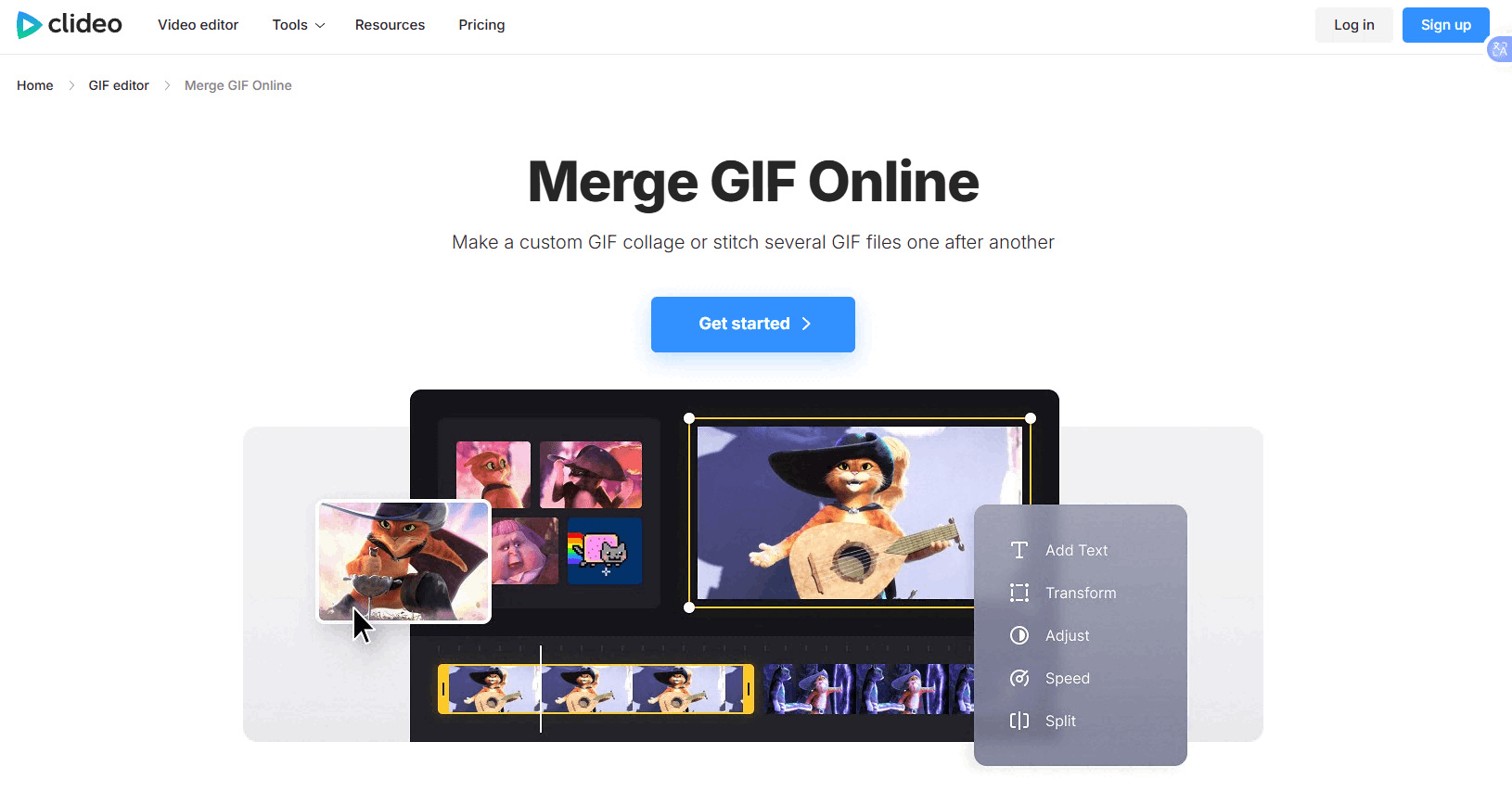
Clideo stands out as a user-friendly gif combiner tool online designed for quick merges without any downloads. It handles multiple GIFs in one go, making it perfect for beginners who want results fast. The interface is clean, and processing happens in the cloud, so your device stays light.
Features
Merge multiple GIFs end-to-end.
Adjust loop count and speed.
Add music or crop frames.
Price
Free with watermark; Pro at $9/month removes it.
How to use
Step 1: Go to Clideo's Merge GIF tool.
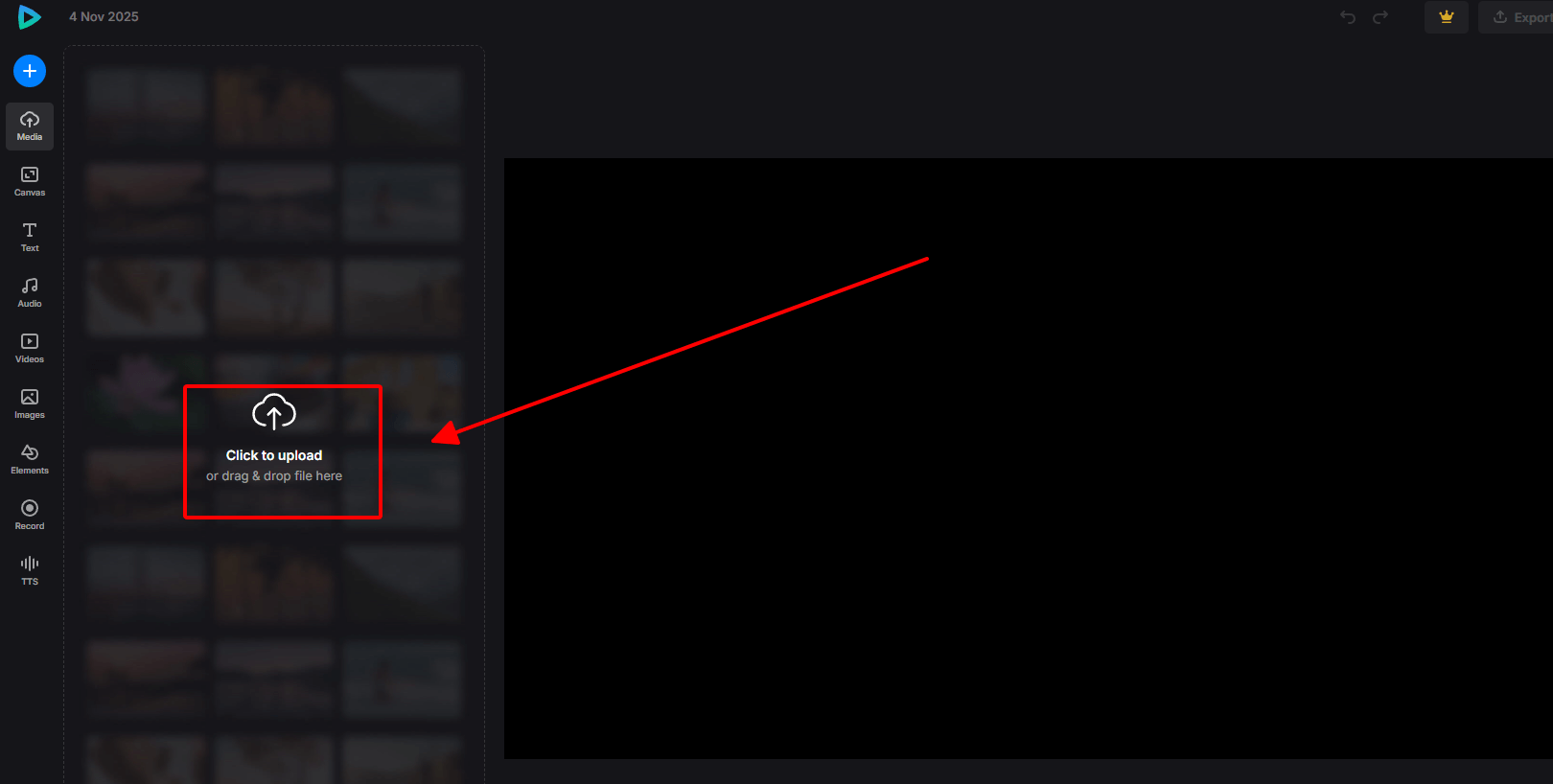
Step 2: Upload your GIFs via drag-and-drop.
Step 3: Arrange order and tweak settings.
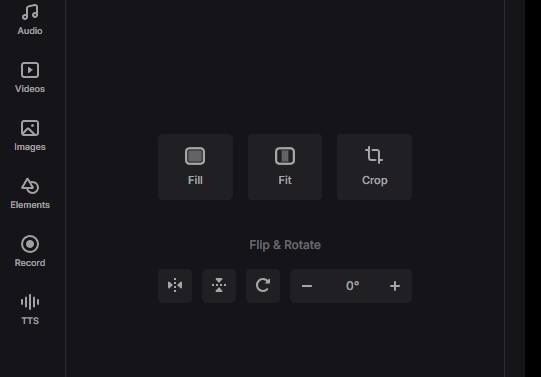
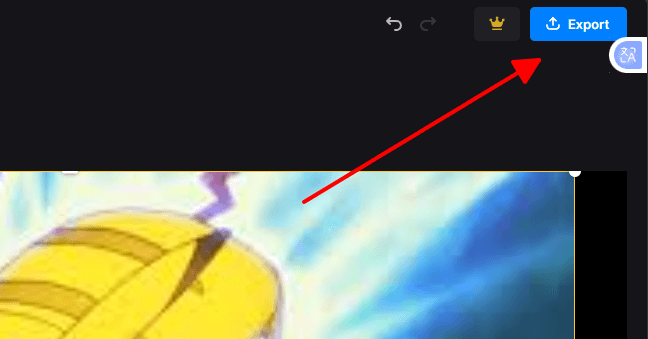
Step 4: Click "Export" to download.
Pros
Super intuitive for beginners.
Fast processing.
Cons
Watermark on free version.
Limited advanced edits.
I've used Clideo for quick client mocks, merged three reaction GIFs in under a minute, and it felt effortless. But the watermark? It's a bit annoying for professional shares; I'd upgrade if you're doing this often. Compared to the others, it's the straightforward choice when you just need to get it done without fuss.
2. Kapwing
Kapwing elevates GIF merging with its professional timeline editor, acting as a best gif combiner tool online free for creative layouts. You can go beyond simple sequencing to collages or overlays, all in a browser. It's built for social media pros who need precise control over aspect ratios and elements.
Features
Timeline-Based Editing.
Multiple Layout Options.
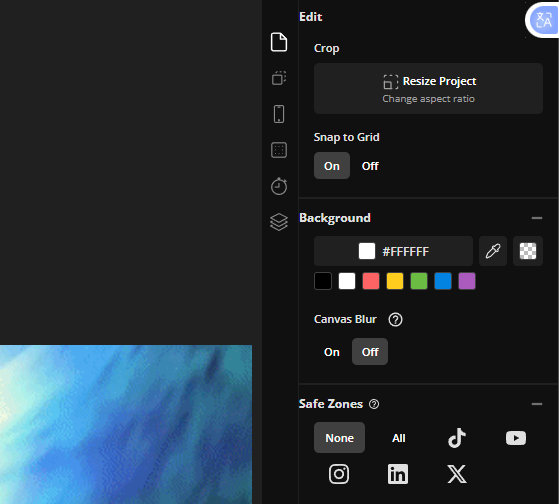
Canvas & Aspect Ratio Control.
Text and Element Overlays.
Cloud-Based.
Versatile Export Options.
Price
Free with watermark; Pro $16/month.
How to use
Step 1: Open Kapwing GIF Merger.
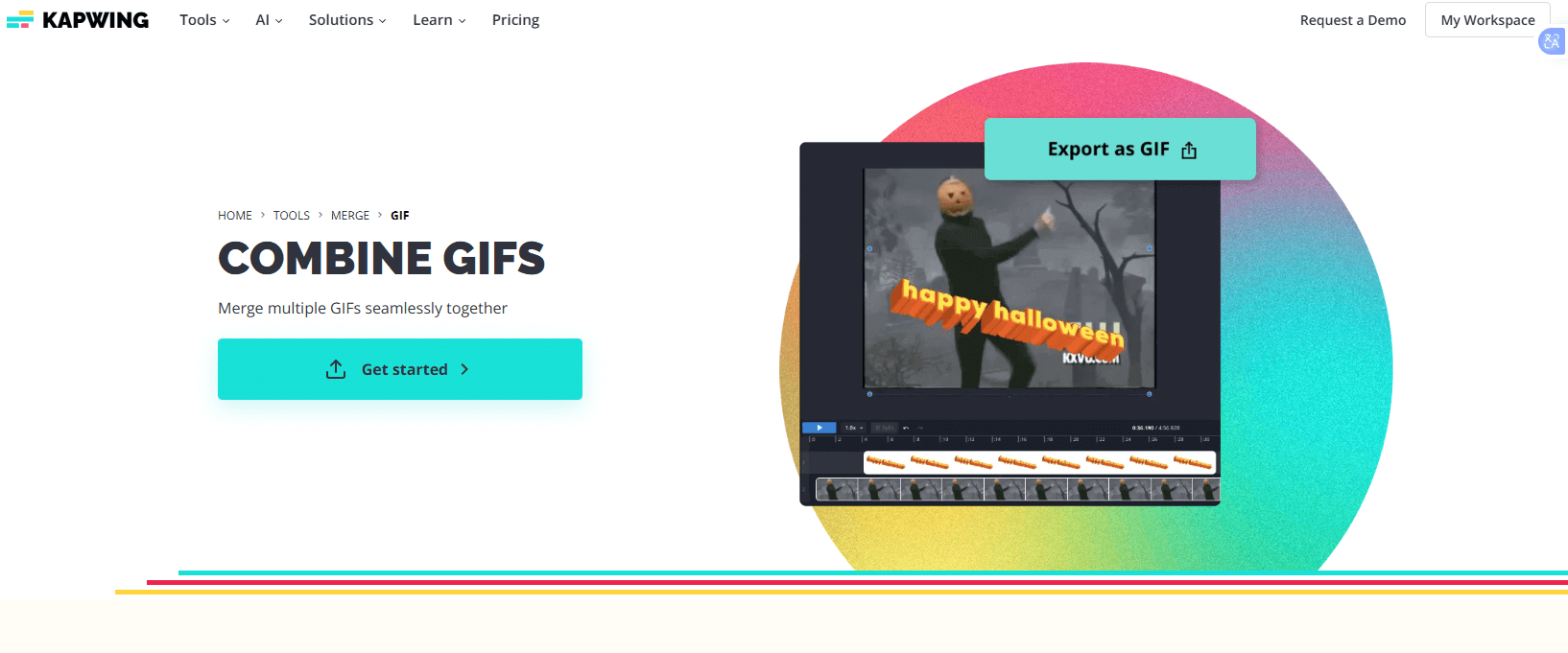
Step 2: Upload GIFs to the timeline.
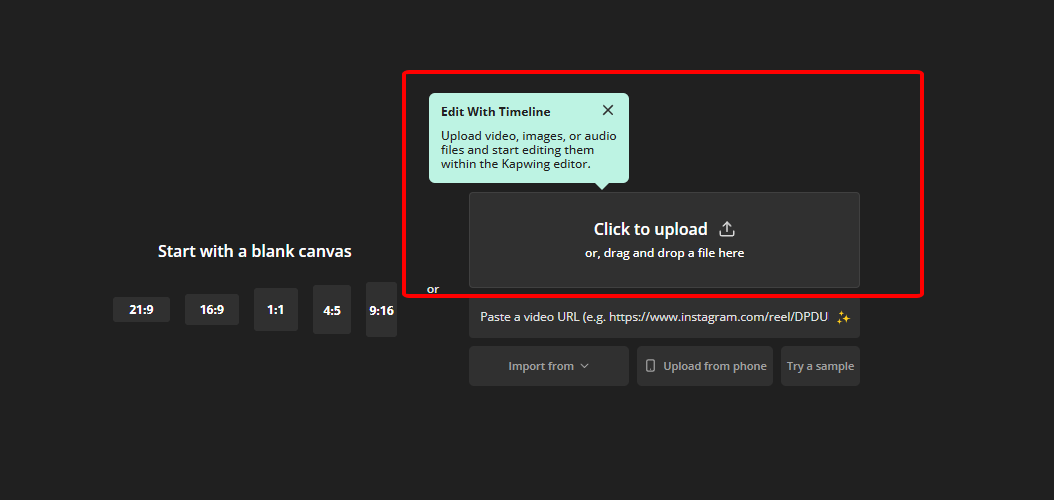
Step 3: Drag to arrange, trim, or overlay.
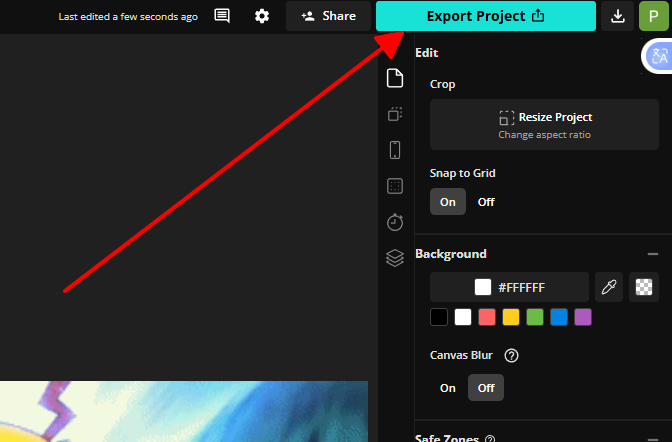
Step 4: Export as GIF.
Pros
High Flexibility.
All-in-One Tool.
High-Quality Output.
Collaborative Features.
Cons
Watermark on Free Version.
Can Be Overwhelming.
Requires Registration.
Slower Processing.
Kapwing saved a team project for me once, I overlaid GIFs side-by-side for a hilarious meme sequence, and the results popped. The control is incredible, but if you're new, it might feel like too much at first. It's way more creative than basic tools like Ezgif, though it takes a little getting used to.
3. Ezgif

Ezgif is a no-frills gif combiner tool online that excels at frame-by-frame assembly without requiring any account. It supports uploads from files or URLs, ideal for rapid sequential animations. The tool integrates with other editors on the site for optimizations, keeping everything simple and ad-supported.
Features
Multi-File Upload.
Frame-Level Control.
Drag-and-Drop Reordering.
No Registration Required.
Integrated Toolset.
URL Upload.
Price Free.
How to use
Step 1: Visit Ezgif Combine.
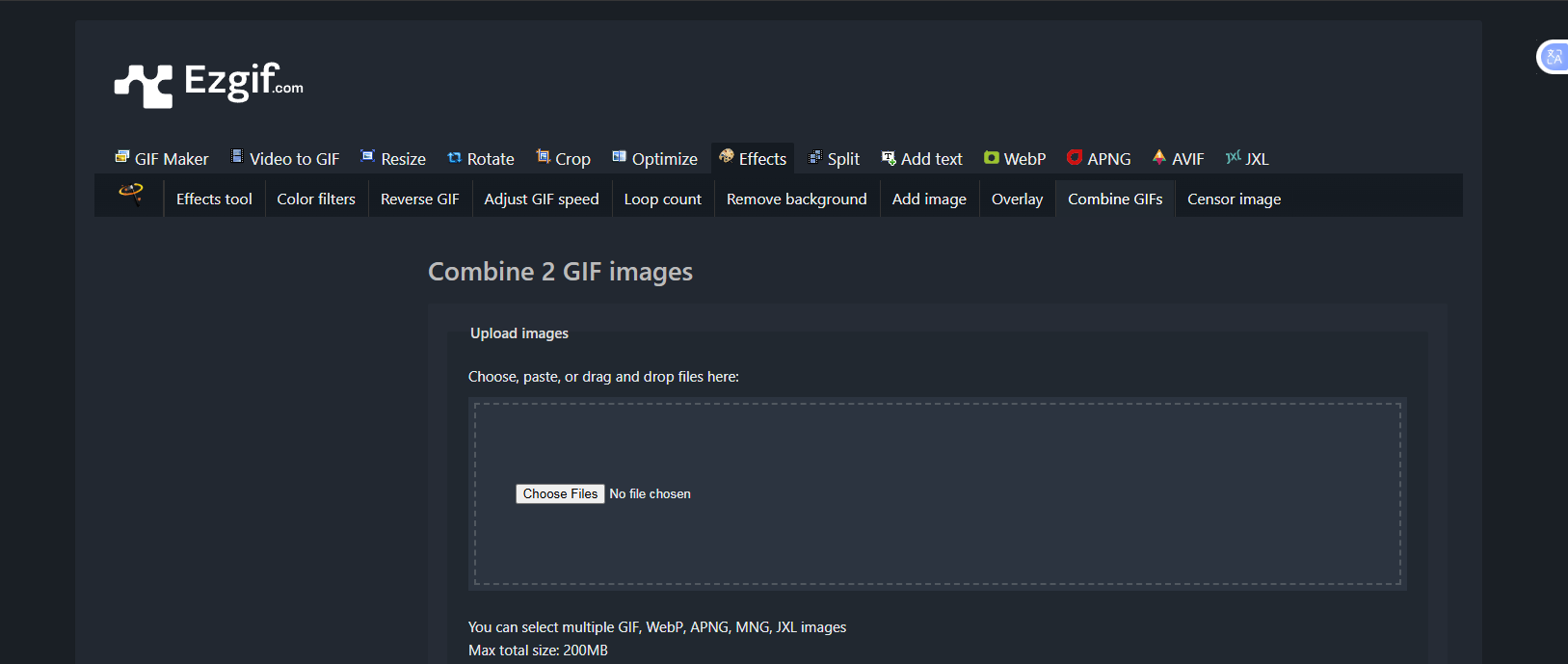
Step 2: Upload GIFs or paste URLs.
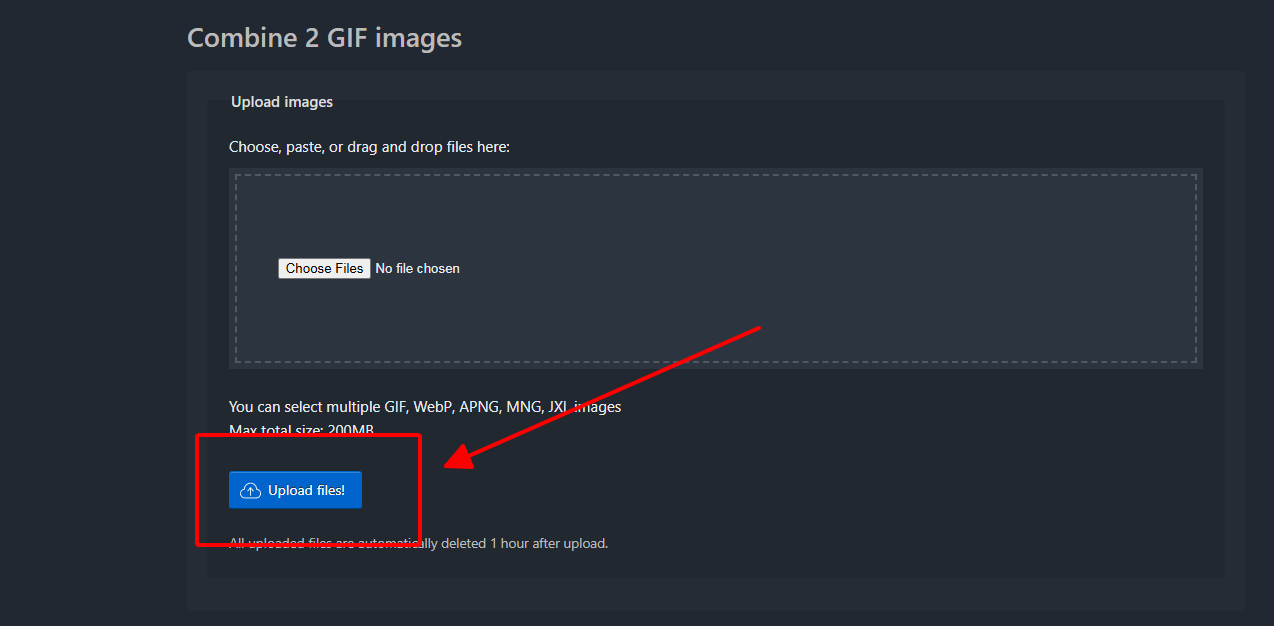
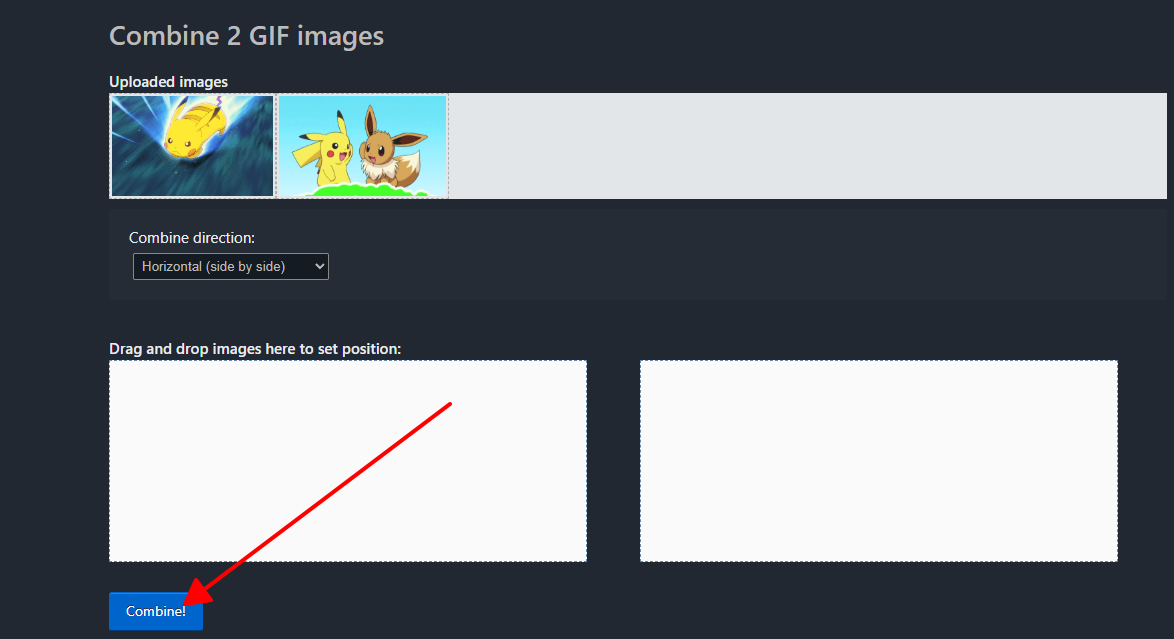
Step 3: Reorder frames and set delays.
Step 4: Click "Make a GIF!"
Pros
Extremely Simple and Fast.
Completely Free with No Watermarks.
Lightweight and Accessible.
Granular Frame Control.
Cons
Dated and Cluttered Interface.
No Simultaneous Combining.
Lacks Creative Features.
File Size Limitations.
Ezgif is my go-to for pure speed, I once combined 10 frames from photos, and it was done in seconds flat. The ads can be a bit of a drag, but hey, zero cost and no watermarks beat Kapwing's restrictions every time. It's simpler than Veed and doesn't pretend to be fancy.
4. Veed

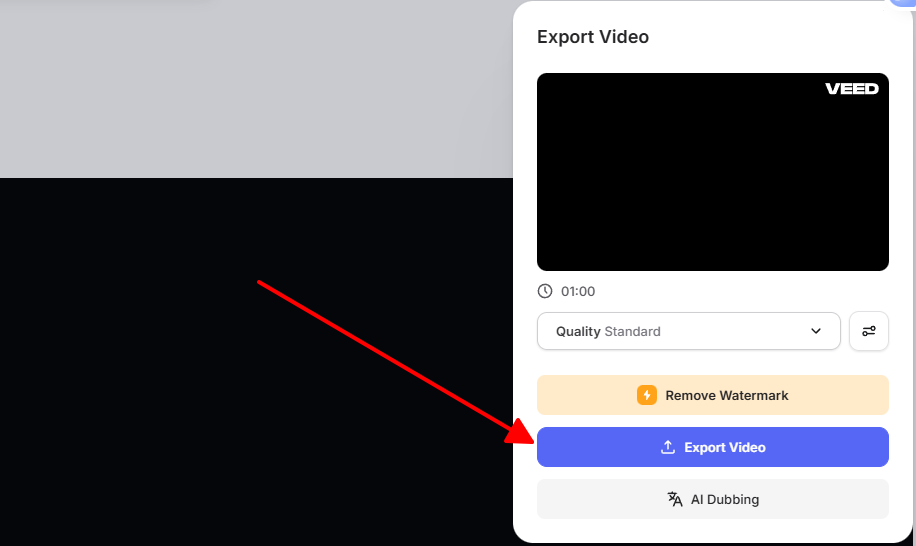
Veed brings video editing prowess to GIF combining as a versatile gif combiner tool online. It uses a drag-and-drop timeline for seamless joins with added effects like transitions. Great for users transitioning from video clips to animations, it ensures high-quality outputs every time.
Features
Drag-and-drop timeline.
Add transitions, text, subtitles.
Speed adjustments.
Multi-format support.
Price Free with limits; Basic $18/month.
How to use
Step 1: Open Veed GIF Joiner.
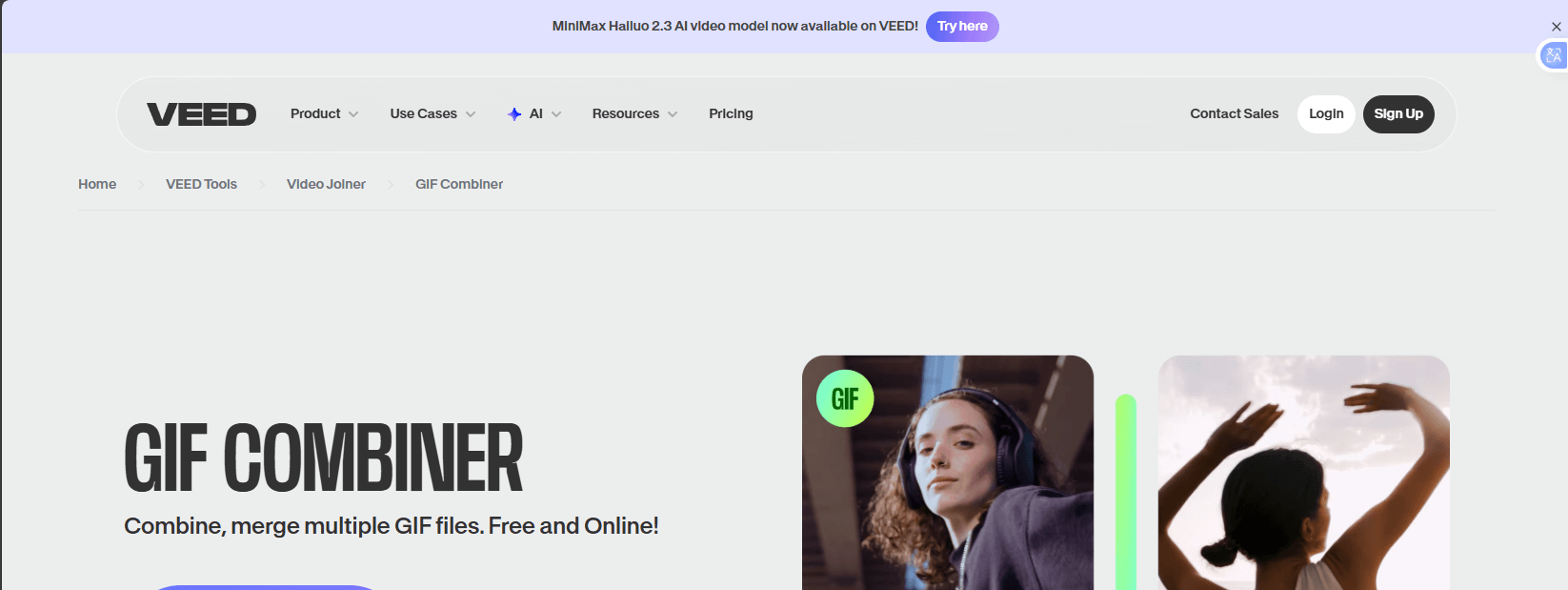
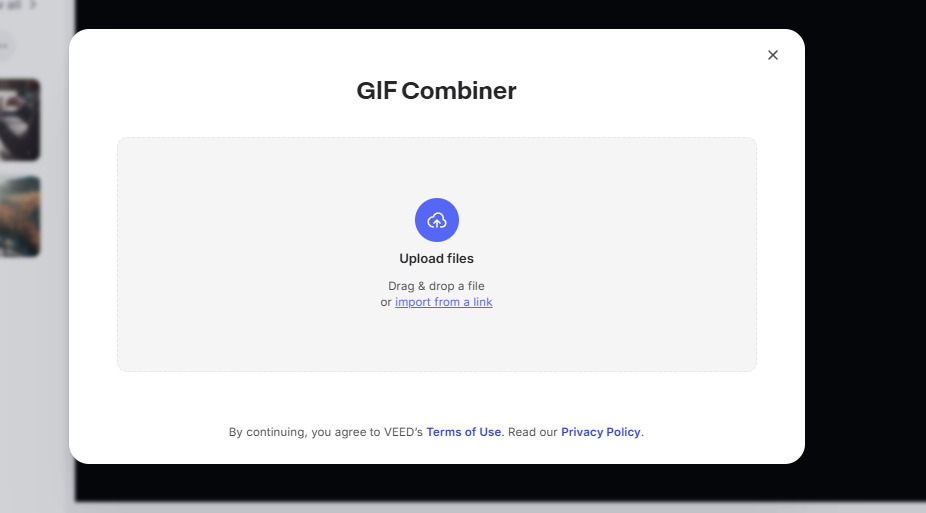
Step 2: Upload GIFs.
Step 3: Arrange on timeline, add effects.
Step 4: Export GIF.
Pros
Intuitive for video pros.
High-quality exports.
Collaboration.
Cons
Free version limits exports.
Steeper learning for GIF-only.
Veed really shone when I merged GIFs with a few audio snippets, the transitions were smooth and natural. But if you're just doing plain GIFs, it feels like overkill compared to Ezgif's no-nonsense approach. Still, the quality makes it worth the extra steps.
5. Flixier
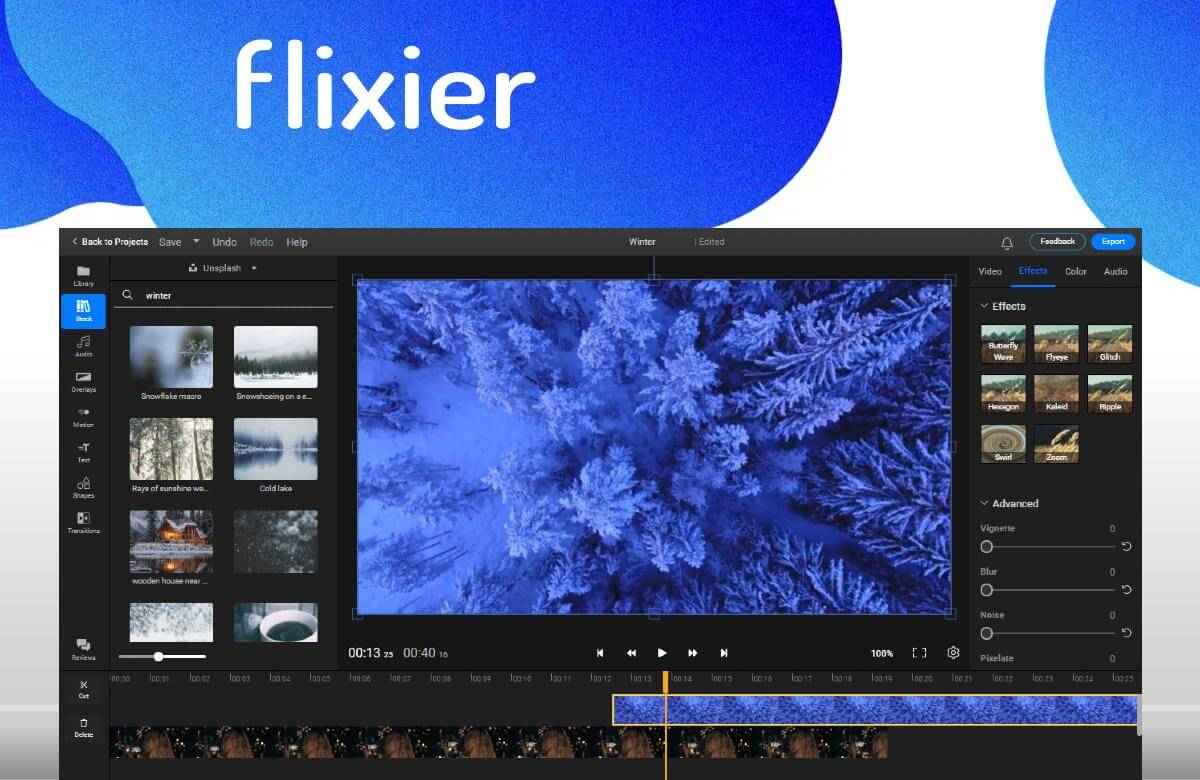
Flixier is a cloud-powered best gif combiner tool online free focused on speed and collaboration. It renders merges quickly using server-side processing, perfect for teams. The interface includes stock assets and advanced timelines for polished results.
Features
Cloud timeline.
Stock library integration.
Speed ramps.
Collaborative editing.
Price Free trial; Pro $14/month.
How to use
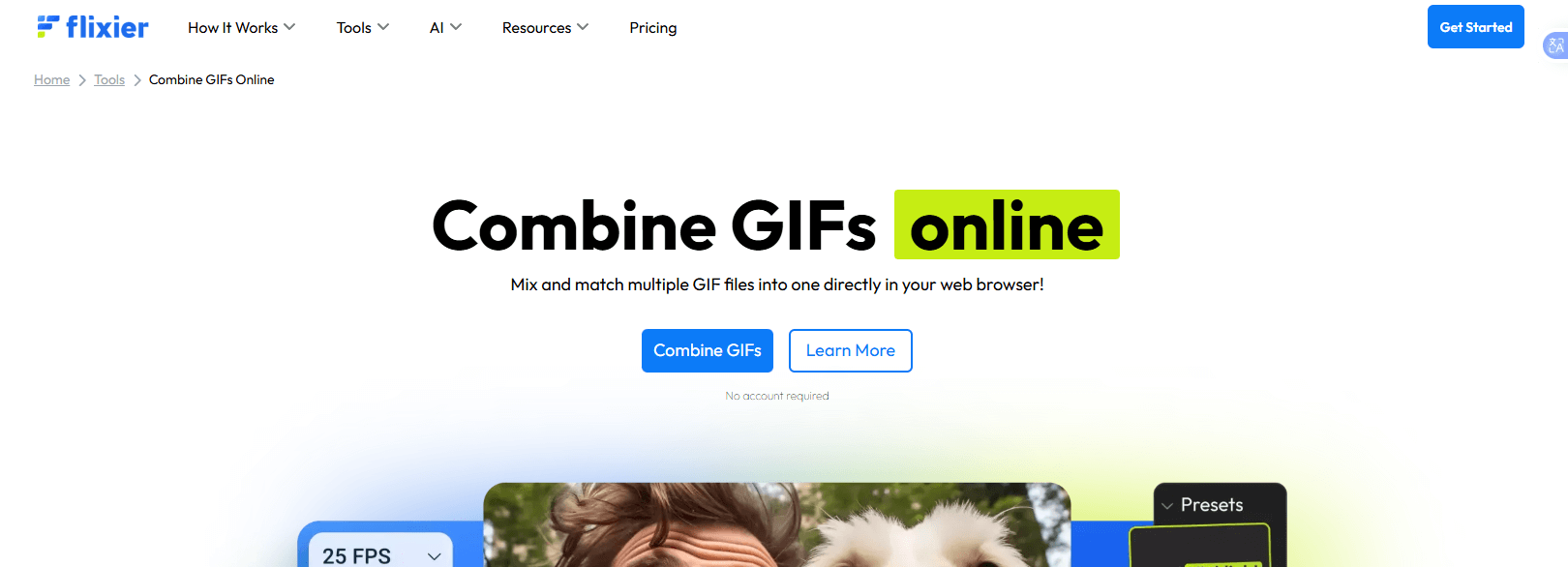
Step 1: Start in Flixier Combine GIF.
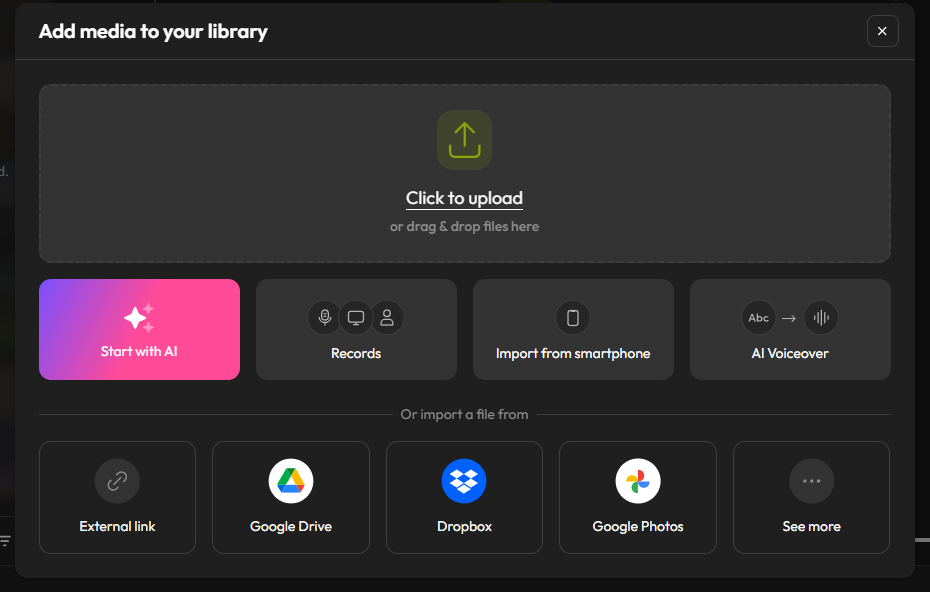
Step 2: Import GIFs.
Step 3: Edit timeline.
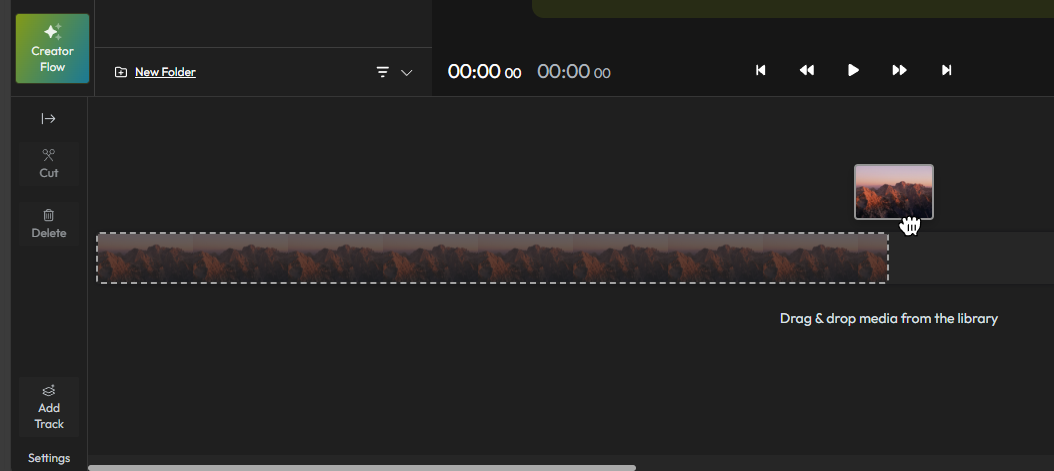
Step 4: Render and download.
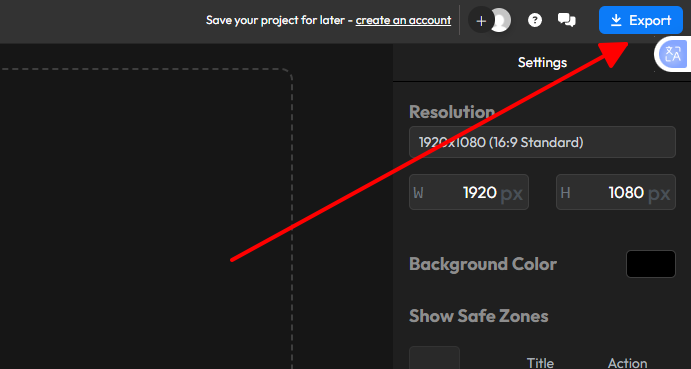
Pros
Blazing fast.
Pro effects.
Cons
Subscription heavy.
Interface busy.
Flixier sped up a bulk job for me, merged 10 GIFs in minutes without lagging my laptop. It's faster than Kapwing in rendering, but the push for subscriptions can feel aggressive if you're on a budget.
Part 3: Comparison of the Five Tools
| Tool | Features | Pros | Cons | Price |
|---|---|---|---|---|
| Clideo | Merge, loop, crop | Intuitive, fast | Watermark free | Free/Pro $9/mo |
| Kapwing | Timeline, layouts, overlays | Flexible, all-in-one | Watermark, overwhelming | Free/Pro $16/mo |
| Ezgif | Frame control, URL upload | Free no watermark, simple | Dated UI, no layouts | Free |
| Veed | Transitions, subtitles | Quality exports, collab | Export limits free | Free/Basic $18/mo |
| Flixier | Cloud render, stock | Super fast | Subscription focus | Free trial/Pro $14/mo |
Part 4: Enhance Your Gif by WPS Photo
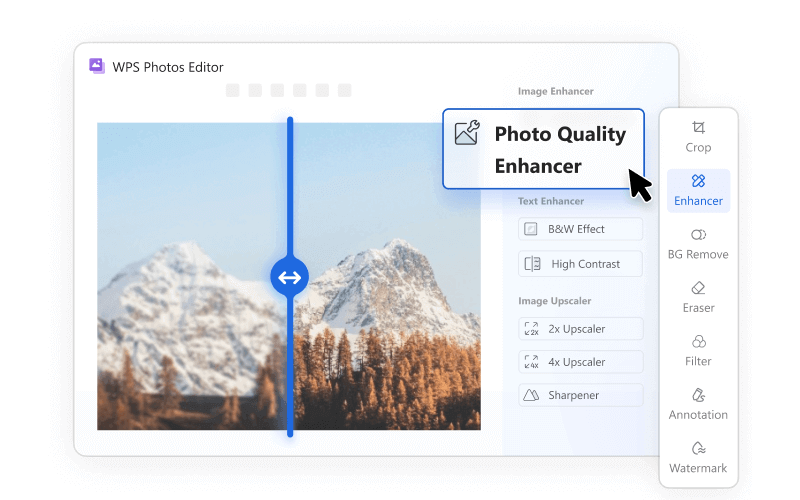
You've nailed the basics on choosing a gif combiner, whether speed's your jam, you crave creative bells and whistles, or you just hate watermarks. But want your GIFs to really pop? It starts with killer source images; nothing tanks a cool animation like blurry pics, junk in the background, or bad lighting. Grab a good editor to tweak those frames upfront, and boom, pro-level results.
WPS AI Photo: Your All-in-One Creative Partner
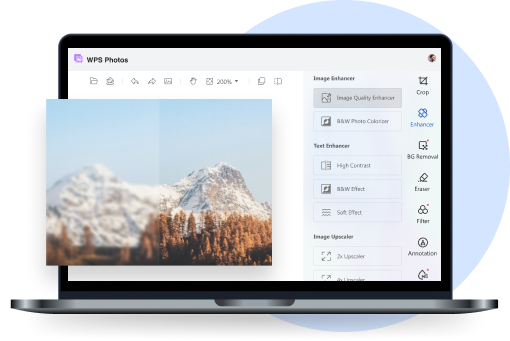
WPS AI Photo is part of WPS Office, a free suite I've relied on for years. It uses AI to edit images effortlessly, perfect for prepping GIF frames.
For example, I had some blurry phone pics from a team event that looked meh. Uploaded them to WPS AI Photo, zapped the backgrounds, sharpened everything up. Then tossed them into Ezgif, boom, crisp pro GIF that got tons of likes.
AI-driven editor for photos in WPS Office.
Features
Background remover.
Object removal.
Upscaling.
Pros
One-click magic.
Free core tools.
Cons
Advanced needs premium.
How to Edit and Prepare Your GIF Frames with WPS AI Photo
Step 1: Grab Your Starting Images
First off, round up what you're working with. Pull frames from a video or old GIF (Ezgif's great for that), or just pick some photos from your phone or computer that you wanna turn into animation.
Step 2: Load It Up in WPS AI Photo
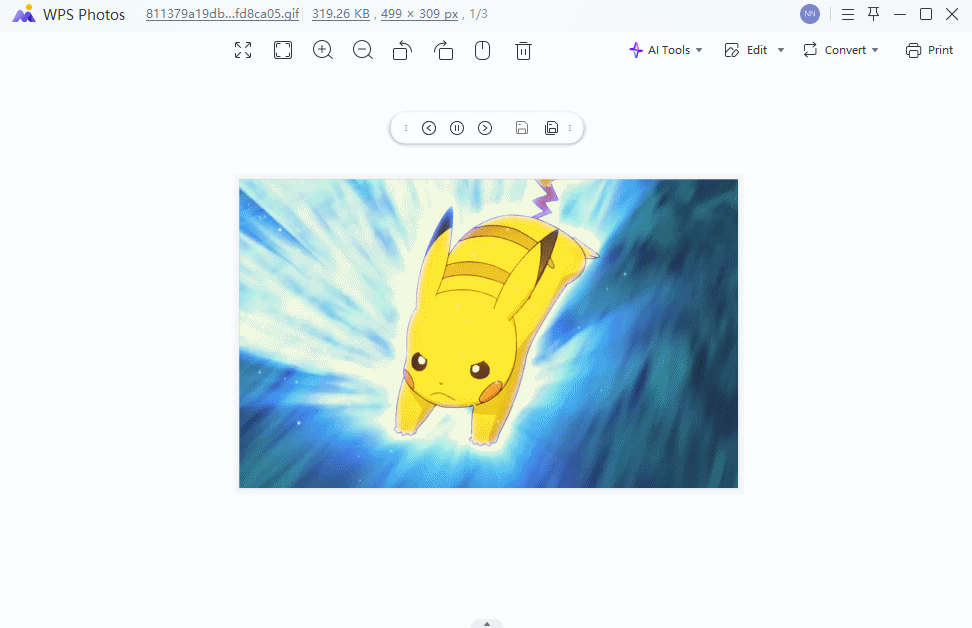
Fire up WPS Office, hop into the AI Photo editor, and upload your first pic or frame. The setup's super straightforward, no hunting around.
Step 3: Let the AI Do the Heavy Lifting
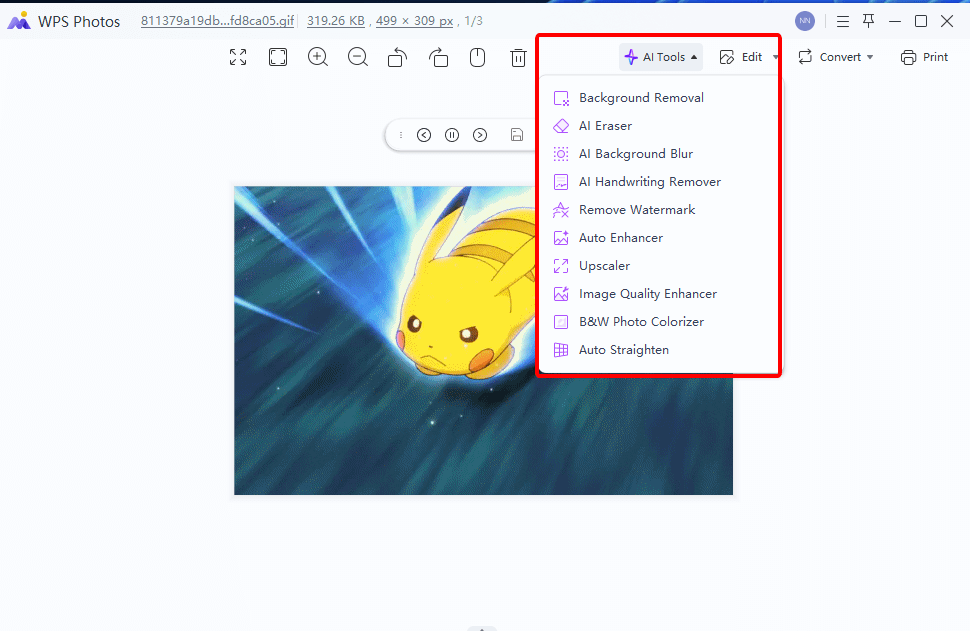
Here's the fun part: skip the fiddly manual tweaks and hit those one-click AI buttons.
Clean Cutouts: Zap the background with AI Remover for sticker-like transparents that layer anywhere.
Ditch Distractions: Circle unwanted stuff (like a photobomber), and AI fills it in smartly.
Sharpen Up: Blurry mess? AI Enhancement ups the res and crisps details for that pro vibe.
Step 4: Save Your Upgraded Pics
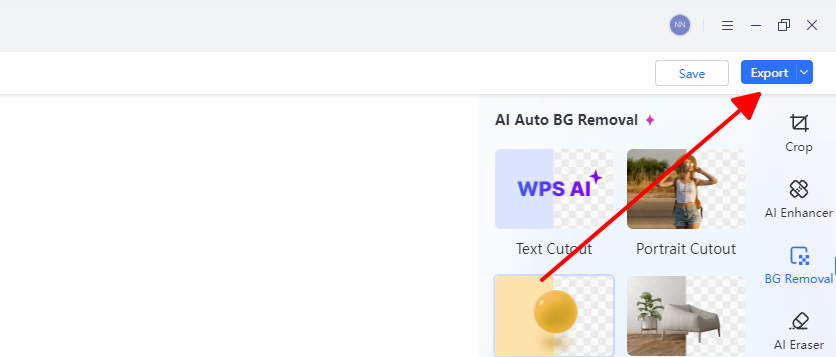
Happy with it? Download the fixed version. Do the same for every frame you're using.
Step 5: Merge 'Em into a GIF
Now take those polished frames back to your fave gif combiner from earlier. Upload in order, hit go, and a slick, high-quality GIF. Prepping in WPS first? Total game-changer for eye-popping results.
FAQs
Q1: Why is my combined GIF file size so large?
GIF file sizes increase with every frame, color, and pixel added. Combining multiple high-resolution GIFs will naturally result in a large file. To reduce the size, you can use a GIF optimizer to lower the resolution, reduce the number of colors, or cut down the frame rate.
Q2: How can I control the speed of the combined GIF?
Most GIF combiners give you options to control timing. You can often set a universal frame delay for the entire animation or, in some tools, adjust the speed of individual frames or clips before you merge them.
Q3: Can I combine GIFs on mobile?
Yes, tools like Ezgif and Kapwing work in browsers; for apps, try WPS mobile for prep.
Q4: What's the best for side-by-side GIFs?
Kapwing or Veed excel at layouts, unlike sequential-only Ezgif.

'%3e%3cpath%20d='M19.9911%204.11386V6.471H18.5894C18.0775%206.471%2017.7322%206.57814%2017.5536%206.79243C17.3751%207.00671%2017.2858%207.32814%2017.2858%207.75671V9.44421H19.9019L19.5536%2012.0871H17.2858V18.8639H14.5536V12.0871H12.2769V9.44421H14.5536V7.49779C14.5536%206.39064%2014.8632%205.53201%2015.4822%204.92189C16.1013%204.31177%2016.9257%204.00671%2017.9554%204.00671C18.8304%204.00671%2019.509%204.04243%2019.9911%204.11386Z'%20fill='%23333333'/%3e%3c/g%3e%3cdefs%3e%3cclipPath%20id='clip0_2938_8199'%3e%3crect%20width='16'%20height='16'%20fill='white'%20transform='translate(8%204.00671)'/%3e%3c/clipPath%3e%3c/defs%3e%3c/svg%3e)
'%3e%3cpath%20d='M17.5237%2010.7813L23.4811%204H22.0699L16.8949%209.88693L12.7648%204H8L14.2469%2012.9029L8%2020.0133H9.4112L14.8725%2013.7952L19.2352%2020.0133H24M9.92053%205.04213H12.0885L22.0688%2019.0224H19.9003'%20fill='%23333333'/%3e%3c/g%3e%3cdefs%3e%3cclipPath%20id='clip0_2938_8200'%3e%3crect%20width='16'%20height='16.0134'%20fill='white'%20transform='translate(8%204)'/%3e%3c/clipPath%3e%3c/defs%3e%3c/svg%3e)


