

'%3e%3cpath%20d='M8%200C12.4183%200%2016%203.58172%2016%208C16%2012.4183%2012.4183%2016%208%2016C3.58172%2016%200%2012.4183%200%208C0%203.58172%203.58172%200%208%200ZM11.6162%204.38379C11.2257%203.99337%2010.5927%203.99338%2010.2021%204.38379L8%206.58594L5.79785%204.38379C5.40732%203.99334%204.77429%203.99329%204.38379%204.38379C3.99331%204.77429%203.99335%205.40733%204.38379%205.79785L6.58594%208L4.38379%2010.2021C3.99348%2010.5927%203.99341%2011.2257%204.38379%2011.6162C4.77426%2012.0066%205.40734%2012.0065%205.79785%2011.6162L8%209.41406L10.2021%2011.6162C10.5927%2012.0066%2011.2257%2012.0067%2011.6162%2011.6162C12.0067%2011.2257%2012.0066%2010.5927%2011.6162%2010.2021L9.41406%208L11.6162%205.79785C12.0066%205.40735%2012.0066%204.77429%2011.6162%204.38379Z'%20fill='%23080E17'%20fill-opacity='0.46'/%3e%3c/g%3e%3cdefs%3e%3cclipPath%20id='clip0_3761_713'%3e%3crect%20width='16'%20height='16'%20fill='white'/%3e%3c/clipPath%3e%3c/defs%3e%3c/svg%3e)




'%3e%3cpath%20fill-rule='evenodd'%20clip-rule='evenodd'%20d='M21.4999%2010.9993C21.4999%205.20009%2016.7986%200.498901%2010.9993%200.498901C5.19994%200.498901%200.498657%205.20009%200.498657%2010.9993C0.498657%2016.2404%204.33858%2020.5844%209.35855%2021.3722V14.0346H6.69238V10.9993H9.35855V8.68594C9.35855%206.05427%2010.9262%204.60062%2013.3248%204.60062C14.4736%204.60062%2015.6753%204.80571%2015.6753%204.80571V7.38979H14.3512C13.0468%207.38979%2012.64%208.19921%2012.64%209.0296V10.9993H15.5523L15.0867%2014.0346H12.64V21.3722C17.66%2020.5844%2021.4999%2016.2404%2021.4999%2010.9993Z'%20fill='%231568EA'/%3e%3c/g%3e%3c/svg%3e)


'%3e%3cpath%20d='M2.42045%2022.1876H6.31818V12.7217L0.75%208.54553V20.5171C0.75%2021.4414%201.49892%2022.1876%202.42045%2022.1876Z'%20fill='%234285F4'/%3e%3cpath%20d='M19.682%2022.1876H23.5797C24.5041%2022.1876%2025.2502%2021.4387%2025.2502%2020.5171V8.54553L19.682%2012.7217'%20fill='%2334A853'/%3e%3cpath%20d='M19.682%205.48293V12.7216L25.2502%208.54543V6.31816C25.2502%204.25236%2022.8921%203.07469%2021.2411%204.31361'%20fill='%23FBBC04'/%3e%3cpath%20d='M6.31824%2012.7217V5.48303L13.0001%2010.4944L19.6819%205.48303V12.7217L13.0001%2017.733'%20fill='%23EA4335'/%3e%3cpath%20d='M0.75%206.31816V8.54543L6.31818%2012.7216V5.48293L4.75909%204.31361C3.10534%203.07469%200.75%204.25236%200.75%206.31816Z'%20fill='%23C5221F'/%3e%3c/g%3e%3cdefs%3e%3cclipPath%20id='clip0_2954_7305'%3e%3crect%20width='24.5'%20height='18.375'%20fill='white'%20transform='translate(0.75%203.8125)'/%3e%3c/clipPath%3e%3c/defs%3e%3c/svg%3e)


If you shoot RAW, you've likely hit this snag: your camera's CR2, NEF, or ARW files won't open in your editor. Maybe older Lightroom skips new cameras, or a basic app ignores them entirely. Every brand changes formats, making workflows messy and archives risky. Adobe DNG Converter fixes it by converting RAWs to universal DNG for easy editing, JPG export, and quick polish in WPS Photo, giving you stable, future-proof files.
Part 1. Overview of Adobe DNG Converter

Adobe DNG Converter is a free little standalone tool from Adobe. It takes those picky proprietary RAW files and turns them into the open DNG format. Think of it as your fix for reliability, compatibility headaches, and keeping photos safe for the long haul.
It handles tons of camera brands and models. You can convert one file or a whole folder with just a few clicks. No fuss, just results.
Features
Batch conversion for entire folders of RAW images at once.
Works with CR2, NEF, ARW, RAF, and lots more camera formats.
Lossless compression to make files smaller without losing quality.
Option to embed the original RAW inside the DNG for backup.
Keeps all your EXIF data and camera settings intact.
Pick compatibility modes for older software.
Gets regular updates for new cameras.
Nothing fancy here, but it nails the basics. You get files that open everywhere, save space, and hold onto all the info your editor needs for tweaks like exposure or white balance.
Pricing
It's totally free to download and use. No subscription, no catch. Just grab it and add it to your toolkit. Perfect for those times a new camera throws a curveball.
Part 2. How to convert DNG to JPG on Adobe
Quick note on adobe dng converter: the tool itself makes DNG from camera RAWs. To get to JPG, you hop into Photoshop, Camera Raw, or Lightroom next. The full flow? RAW to DNG, edit in Adobe, export JPG. Simple as that.
Here's how it goes in real life.
Step 1: Fire up Adobe DNG Converter. Pick the folder with your original RAW files. Choose where to save the new DNGs.
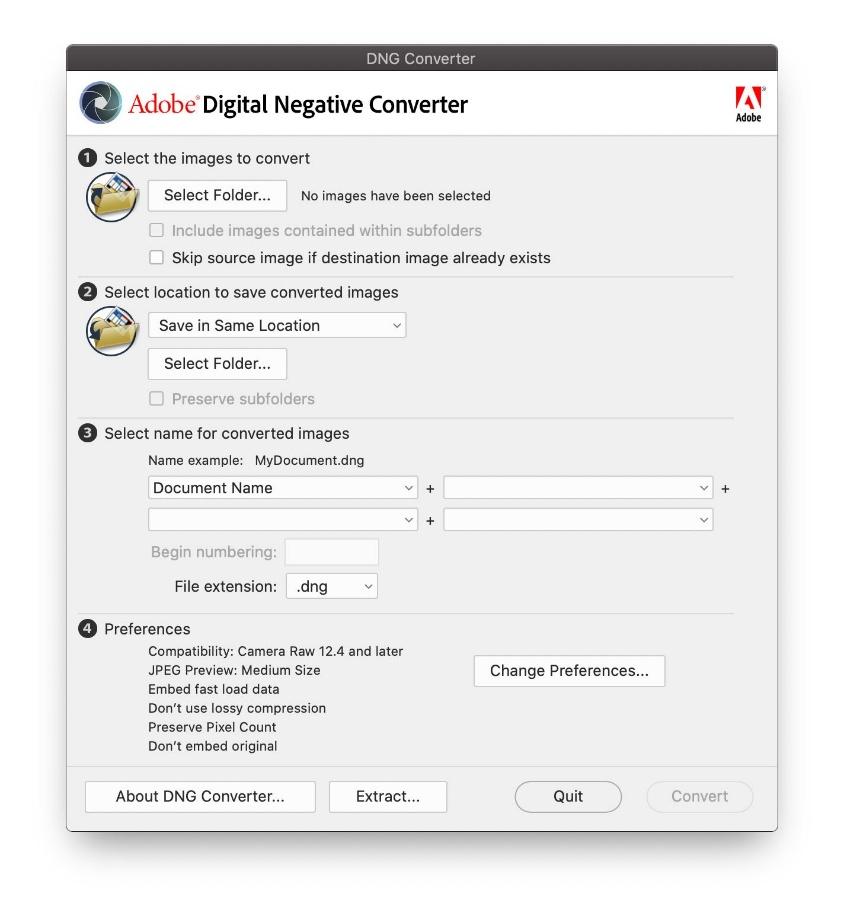
Step 2: Hit preferences. Set your Camera Raw version, naming, compression, and if you want the original RAW tucked inside.
Step 3: Click convert and let it run. Your originals stay safe; new DNGs pop out ready to go.
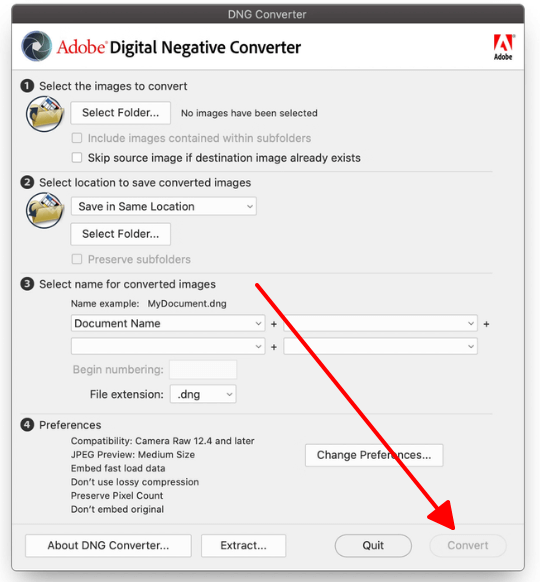
Step 4: Open those DNGs in Photoshop or another Adobe app. Tweak colors or whatever, then export as JPG.
Step 5: Check your JPGs. If they need a nudge, tweak and re-export a few.
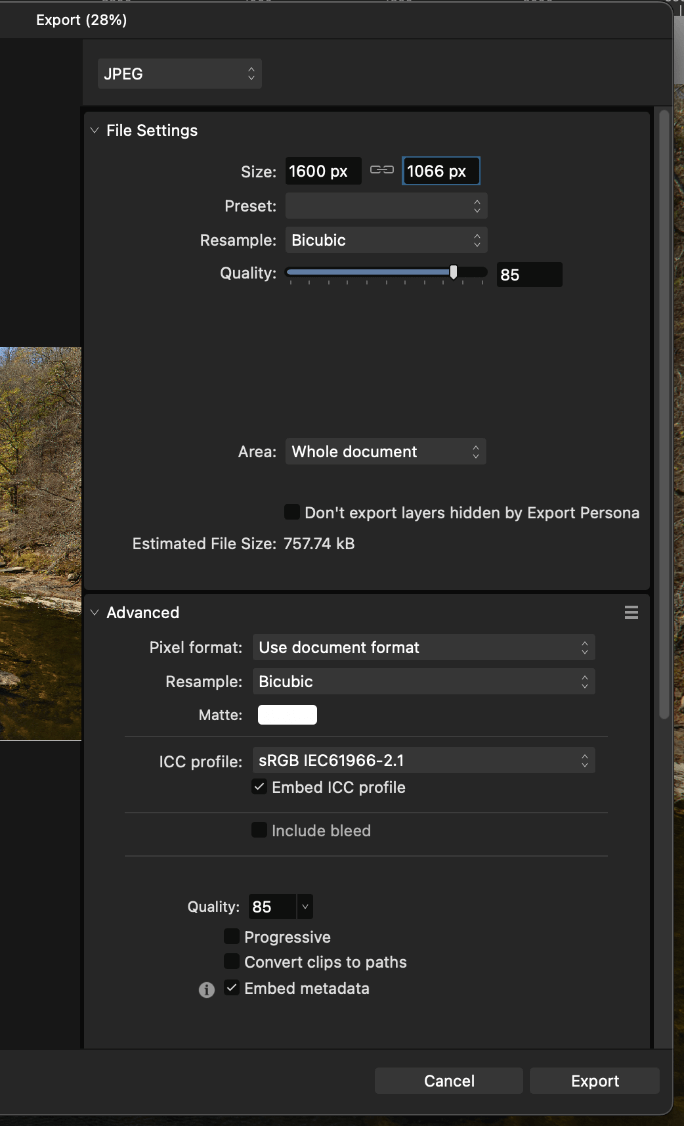
In practice, this flow feels smooth once you have done it a couple of times. Opening in Camera Raw first gives good control over the look, and then exporting as JPG keeps everything simple for sharing or using in documents. For larger batches, the grouped export is a big time saver and helps keep results consistent across all your photos.
Part 3. Pros and cons of converting DNG to JPG on Adobe
Converting DNG to JPG in Adobe gives you solid results, but like any workflow, it has upsides and downsides. Here's a quick look at what works well and what might trip you up, especially if you're aiming for speed in daily tasks.
Pros
Top-notch control over tones, colors, and details.
Edits stay non-destructive till you export.
Batch exports for big jobs.
Handles metadata and color profiles like a pro.
Plays nice with other Adobe stuff for designs.
Cons
Lots of steps and apps for basic jobs.
Steep if you're new to RAW stuff.
Eats more system power than lightweight tools.
Slow if you just want quick previews.
It works great when quality counts. But for daily office tweaks? You might want something lighter after the heavy Adobe lift.
Part 4. Best workflow companion: WPS Photo
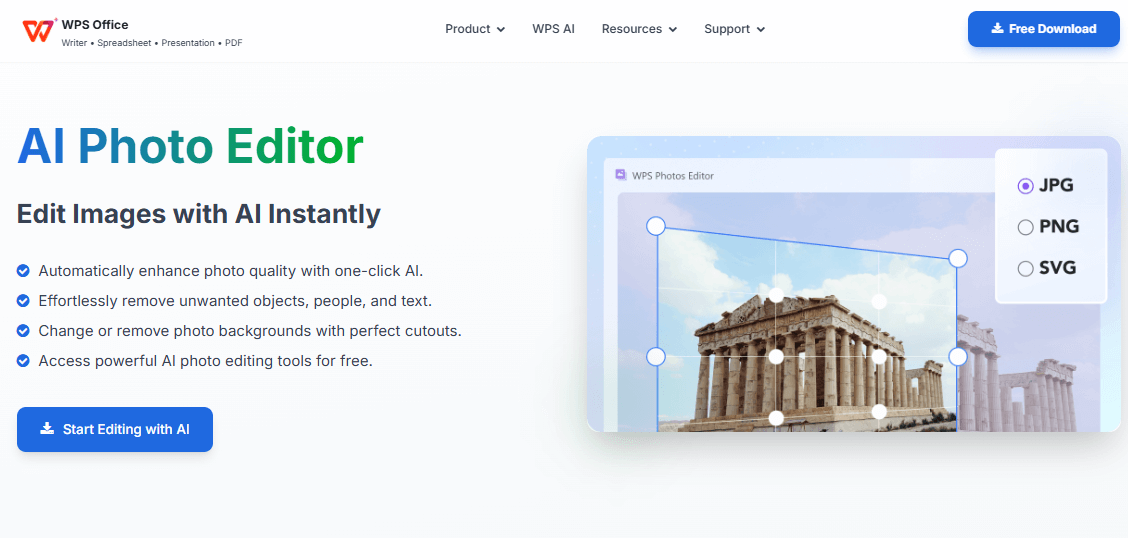
After Adobe does the hard RAW work, how do you actually use those images? In docs, slides, reports, web stuff? WPS Photo from the WPS Office family is made for that. Quick AI edits that slot right into your office files, no deep RAW dives needed.
If you're prepping pics for slides or posts, you don't want a beast of an editor every time. WPS Photo handles the final sprint where fast and easy win.
Unique Advantage
AI does the heavy lifting: one-click fixes for exposure and contrast, zap backgrounds, erase junk. No slider wars.
Plus, it's baked into WPS Office. Edit a pic, drop it into a doc or slide. No jumping apps, huge time saver under deadline.
Functions and Features
AI auto-enhance for instant brightness, contrast, and sharpness fixes.
One-tap background removal to cut out subjects cleanly.
AI eraser that wipes away unwanted objects or blemishes.
Smart upscaling to make images bigger without blur.
Easy crop, rotate, and color tweaks for fine control.
Direct drag-and-drop into WPS Writer, Sheets, or Presentations.
Why you still need an extra tool after using Adobe DNG Converter
Adobe DNG Converter and its editing apps crush the RAW-to-JPG heavy lifting, but they feel bulky for simple polishes like resizing for a report or cleaning up a product shot. WPS Photo picks up there with lightweight, fast tools tailored for office use, keeping your flow speedy after the big Adobe work.
WPS Photo as a practical viewer for RAW and converted images
Once you're past conversion, WPS Photo lets you preview RAW previews or JPGs right in your workspace. Sort, zoom, and lightly edit without firing up another program. It's perfect for teams juggling shared folders of images for proposals or decks.
Recommended Workflow: Adobe + WPS
Here's a smooth combo:
Step 1: Adobe DNG Converter turns camera RAWs into DNG.
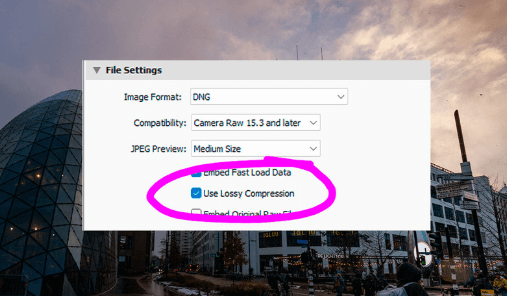
Step 2: Edit DNGs in Adobe, export solid JPGs.
Step 3: WPS Photo for AI boosts, cleanups, resizes.
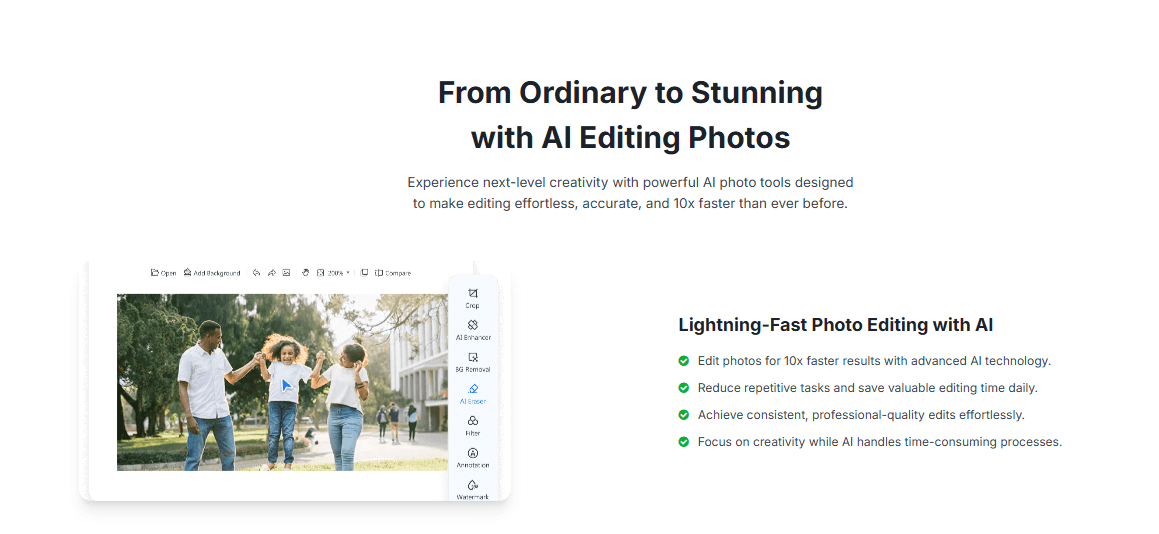
Step 4: Drop into WPS docs, sheets, slides, cloud it up.

This combo plays to each tool's strength: Adobe for precision, WPS for speed.
FAQs
1. What is a good tool to use after converting DNG files?
WPS Photo is perfect post-DNG. It does fast AI tweaks and slides right into office docs, slides, cloud work. No more app switching for simple enhancements.
2. Does Adobe DNG Converter work with every camera?
It covers most with updates. If your RAW won't open, DNG usually saves the day. Adobe keeps adding support for new models regularly.
3. Why do some software programs prefer or require DNG?
They skip chasing every brand's format. DNG is one open standard that just works. Easier for developers to support universally.
4. Does converting RAW to DNG reduce image quality?
Nope, lossless keeps everything. Just repacks for better access. All your editing control stays intact afterward.
5. Is Adobe DNG Converter really free?
Yep, no sub needed. Free compatibility win. Download and use without any Adobe account hassle.
6. Can WPS Photo replace Adobe for all photo work?
Great for quick office edits, not full RAW pro work. Complements Adobe nicely in the final stages. Best as a team player.
7. Do I still need to keep my original RAW files after converting to DNG?
Keep 'em if space allows, especially key shots. DNG is solid, but originals are insurance. Smart backup strategy either way.
Summary
This article explains Adobe DNG Converter as the simple fix for camera RAW files that won't open in your editor. It turns CR2, NEF, ARW and others into universal DNG for easy compatibility and long-term archiving. You get step-by-step guides on converting to JPG via Adobe tools, full pros/cons lists, and why it fits everyday workflows. WPS Photo Converter shines as the ideal follow-up. It uses AI for one-click enhancements, background removal, object erasing, and seamless integration into WPS docs, slides, or cloud projects. This makes your JPGs presentation-ready fast without app-switching. Grab it free at wps.com for smoother photo-to-productivity flow.

'%3e%3cpath%20d='M19.9911%204.11386V6.471H18.5894C18.0775%206.471%2017.7322%206.57814%2017.5536%206.79243C17.3751%207.00671%2017.2858%207.32814%2017.2858%207.75671V9.44421H19.9019L19.5536%2012.0871H17.2858V18.8639H14.5536V12.0871H12.2769V9.44421H14.5536V7.49779C14.5536%206.39064%2014.8632%205.53201%2015.4822%204.92189C16.1013%204.31177%2016.9257%204.00671%2017.9554%204.00671C18.8304%204.00671%2019.509%204.04243%2019.9911%204.11386Z'%20fill='%23333333'/%3e%3c/g%3e%3cdefs%3e%3cclipPath%20id='clip0_2938_8199'%3e%3crect%20width='16'%20height='16'%20fill='white'%20transform='translate(8%204.00671)'/%3e%3c/clipPath%3e%3c/defs%3e%3c/svg%3e)
'%3e%3cpath%20d='M17.5237%2010.7813L23.4811%204H22.0699L16.8949%209.88693L12.7648%204H8L14.2469%2012.9029L8%2020.0133H9.4112L14.8725%2013.7952L19.2352%2020.0133H24M9.92053%205.04213H12.0885L22.0688%2019.0224H19.9003'%20fill='%23333333'/%3e%3c/g%3e%3cdefs%3e%3cclipPath%20id='clip0_2938_8200'%3e%3crect%20width='16'%20height='16.0134'%20fill='white'%20transform='translate(8%204)'/%3e%3c/clipPath%3e%3c/defs%3e%3c/svg%3e)


