

'%3e%3cpath%20d='M8%200C12.4183%200%2016%203.58172%2016%208C16%2012.4183%2012.4183%2016%208%2016C3.58172%2016%200%2012.4183%200%208C0%203.58172%203.58172%200%208%200ZM11.6162%204.38379C11.2257%203.99337%2010.5927%203.99338%2010.2021%204.38379L8%206.58594L5.79785%204.38379C5.40732%203.99334%204.77429%203.99329%204.38379%204.38379C3.99331%204.77429%203.99335%205.40733%204.38379%205.79785L6.58594%208L4.38379%2010.2021C3.99348%2010.5927%203.99341%2011.2257%204.38379%2011.6162C4.77426%2012.0066%205.40734%2012.0065%205.79785%2011.6162L8%209.41406L10.2021%2011.6162C10.5927%2012.0066%2011.2257%2012.0067%2011.6162%2011.6162C12.0067%2011.2257%2012.0066%2010.5927%2011.6162%2010.2021L9.41406%208L11.6162%205.79785C12.0066%205.40735%2012.0066%204.77429%2011.6162%204.38379Z'%20fill='%23080E17'%20fill-opacity='0.46'/%3e%3c/g%3e%3cdefs%3e%3cclipPath%20id='clip0_3761_713'%3e%3crect%20width='16'%20height='16'%20fill='white'/%3e%3c/clipPath%3e%3c/defs%3e%3c/svg%3e)




'%3e%3cpath%20fill-rule='evenodd'%20clip-rule='evenodd'%20d='M21.4999%2010.9993C21.4999%205.20009%2016.7986%200.498901%2010.9993%200.498901C5.19994%200.498901%200.498657%205.20009%200.498657%2010.9993C0.498657%2016.2404%204.33858%2020.5844%209.35855%2021.3722V14.0346H6.69238V10.9993H9.35855V8.68594C9.35855%206.05427%2010.9262%204.60062%2013.3248%204.60062C14.4736%204.60062%2015.6753%204.80571%2015.6753%204.80571V7.38979H14.3512C13.0468%207.38979%2012.64%208.19921%2012.64%209.0296V10.9993H15.5523L15.0867%2014.0346H12.64V21.3722C17.66%2020.5844%2021.4999%2016.2404%2021.4999%2010.9993Z'%20fill='%231568EA'/%3e%3c/g%3e%3c/svg%3e)


'%3e%3cpath%20d='M2.42045%2022.1876H6.31818V12.7217L0.75%208.54553V20.5171C0.75%2021.4414%201.49892%2022.1876%202.42045%2022.1876Z'%20fill='%234285F4'/%3e%3cpath%20d='M19.682%2022.1876H23.5797C24.5041%2022.1876%2025.2502%2021.4387%2025.2502%2020.5171V8.54553L19.682%2012.7217'%20fill='%2334A853'/%3e%3cpath%20d='M19.682%205.48293V12.7216L25.2502%208.54543V6.31816C25.2502%204.25236%2022.8921%203.07469%2021.2411%204.31361'%20fill='%23FBBC04'/%3e%3cpath%20d='M6.31824%2012.7217V5.48303L13.0001%2010.4944L19.6819%205.48303V12.7217L13.0001%2017.733'%20fill='%23EA4335'/%3e%3cpath%20d='M0.75%206.31816V8.54543L6.31818%2012.7216V5.48293L4.75909%204.31361C3.10534%203.07469%200.75%204.25236%200.75%206.31816Z'%20fill='%23C5221F'/%3e%3c/g%3e%3cdefs%3e%3cclipPath%20id='clip0_2954_7305'%3e%3crect%20width='24.5'%20height='18.375'%20fill='white'%20transform='translate(0.75%203.8125)'/%3e%3c/clipPath%3e%3c/defs%3e%3c/svg%3e)


AI presentation tools are evolving quickly, and Gamma is one of the platforms many users turn to for fast, AI-generated slides. But when it’s time to present formally, share files with teams, or make last-minute edits, PowerPoint still dominates real-world workflows. That’s where things can get frustrating, especially if exports don’t behave as expected. In this guide, I’ll break down Gamma AI export to PowerPoint step by step, explaining how the process works, what limitations you might face, and how to avoid common formatting issues. I’ll also introduce a practical alternative for anyone who wants smoother .pptx control without sacrificing AI assistance.
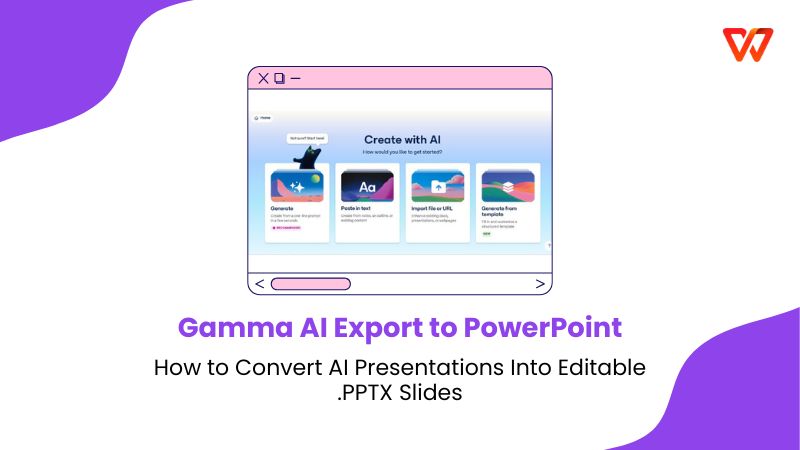
What Is Gamma AI
Gamma AI is a web‑first presentation builder designed around cards instead of traditional slides. When I first used it, what stood out was how quickly it turned plain text into a clean, structured story. It focuses heavily on flow, readability, and modern layoutsrather than pixel‑level slide design. This makes it excellent for brainstorming, pitching ideas, and building narratives fast.

Unlike PowerPoint, Gamma is not built around offline editing or complex animations. It assumes your presentation lives on the web and is shared through links or presented directly in the browser. That design choice explains both its strengths and its export limitations.
Gamma feels refreshing and fast, but I immediately noticed the gap once I needed traditional slide control.
Key Features:
AI‑driven content generation: You can paste an outline or prompt, and Gamma builds a full deck in minutes. It helps you focus on ideas instead of layout.
Card‑based structure: Each section flows naturally into the next, which makes storytelling easier compared to rigid slide grids.
Web‑first sharing: Presentations are optimized for browser viewing, making collaboration and feedback quick and simple.
These features shine during early drafts, especially when speed matters more than polish.
How to Export Gamma AI Presentations to PowerPoint
Gamma AI export to PowerPoint allows you to export your presentation into a Microsoft PowerPoint (.pptx) file directly from the web interface. This is the core of gamma export to ppt functionality. The export captures the visual structure from Present Mode and converts it into slides that you can open and edit in PowerPoint. It works well for basic layouts, text, and images, but it is not a perfect mirror of the web version.
Before starting, it helps to think of this as a conversion, not a clone. Knowing that upfront sets realistic expectations. The export works reliably, but it rewards simple, clean decks.
Step‑by‑Step Export Instructions:
Before you click export, take a minute to review your deck in Present Mode. This is exactly what Gamma converts into slides, so small tweaks here can save time later.
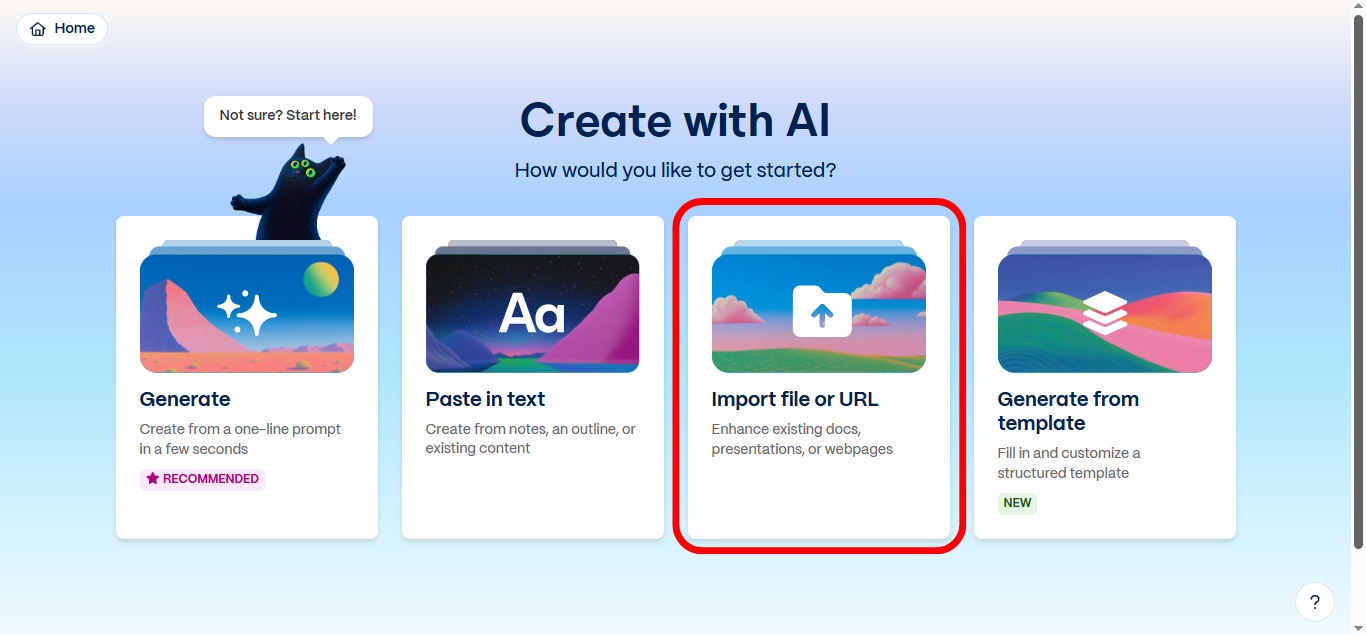
Step 1: First of all, on the main interface, click"Import File or URL” and upload your presentation.
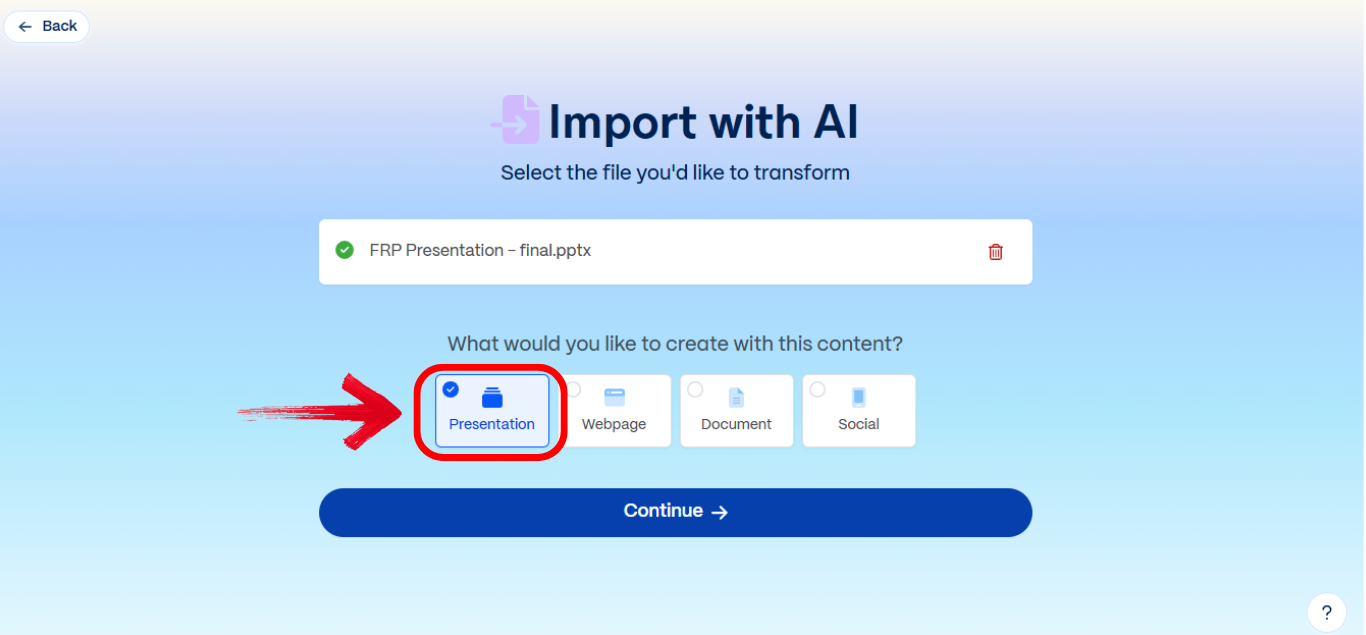
Step 2: Now click “Presentation”and then click “Continue”.
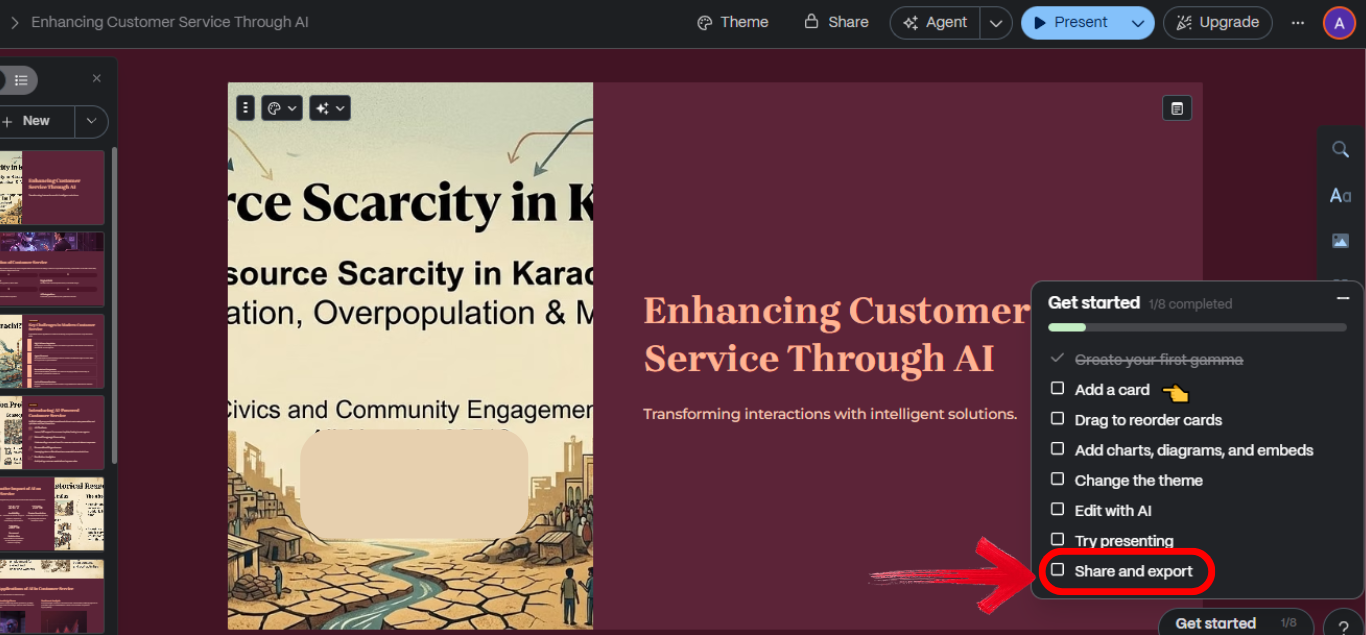
Step 3: Once you are done editing, open the menu and select “Share and Export”. Choose the PowerPoint (.pptx) option from the available formats.
Clean decks convert faster and need fewer fixes. When you keep layouts simple and avoid overcrowding cards, the exported PPTX stays closer to the original design. I’ve found that trimming extra visuals and keeping text concise before export can easily save 10–15 minutes of manual adjustments in PowerPoint.
Export Limitations & User Expectations
Before exporting, it helps to set the right expectations about how a gamma ai presentation to powerpoint conversion actually works. Gamma is optimized for web-based storytelling, and that focus shapes the available gamma ai ppt export options and their results. When you understand these limits upfront, the process feels far less frustrating. Instead of chasing perfection, you can plan small adjustments and keep your workflow efficient.
Common Challenges:
Minor formatting shifts: Text spacing and alignment can change slightly, especially on dense slides. I usually budget time for a quick cleanup.
Static content replacement: Interactive cards or embedded elements turn into static images after export.
Branding on free plans: Free exports include Gamma branding, which you can remove by upgrading.
These issues are normal for AI‑to‑PPT conversions and not unique to Gamma. None of these are deal‑breakers, but they matter for client‑facing decks.
When Export Might Not Be Ideal:
Formal presentations with heavy animations:PowerPoint handles complex transitions better than convertedfiles.
Highly interactive web decks: Gamma’s web strengths do not fully translate into offline slides.
If your workflow depends on advanced PowerPoint features, you may feel constrained after export. I avoid exporting animation‑heavy decks and rebuilding key slides manually.
Recommended Alternative – WPS AI Slides
WPS AI Slides is built for users who want AI assistance without leaving the PowerPoint ecosystem. Instead of converting later, it generates slides that are already native to .pptx. That difference changes the entire workflow. You stay in control of layouts, fonts, and animations from the start. When I tested it, the biggest advantage was confidence. I knew the file would behave exactly like a standard PowerPoint presentation.
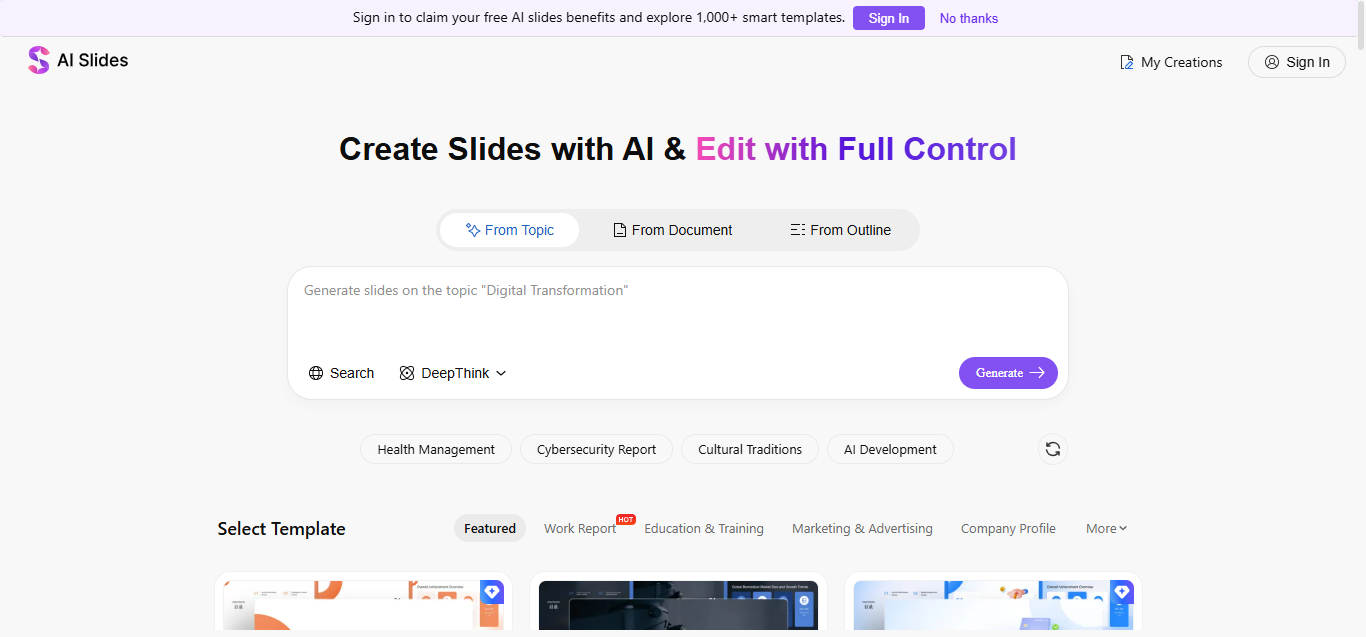
WPS AI Slides combines prompt-based generation with full editing inside WPS Office. You start with an idea, let the AI structure your deck, and then refine everything using familiar slide tools. If you’ve followed a gamma pptx export tutorial before, this approach feels more direct because you are building native slides instead of converting them later. It supports real templates, editable shapes, and native slide elements, which keeps formatting stable from start to finish.
This makes it especially useful for academic, corporate, and offline presentations where formatting matters. I spend less time fixing exports and more time refining content.
Features:
Editable AI‑generated slides: Every element remains fully editable after generation.
Multiple export formats: You can export directly to PPT, PDF, and other formats.
Template flexibility: Custom templates and branding work smoothly without breaking layouts.
How to Use WPS AI Slides
Using WPS AI Slides feels like a natural next step after exploring how to export gamma slides to pptx, especially when you want more control from the start. Compared to Gamma’s gamma ai ppt export options, WPS shifts the workflow by generating native slides instead of converting them later. This makes the process smoother if your goal is clean, fully editable PowerPoint files without post-export fixes.
Steps:
Here’s an easy step by step guide on how to use WPS AI Slides.
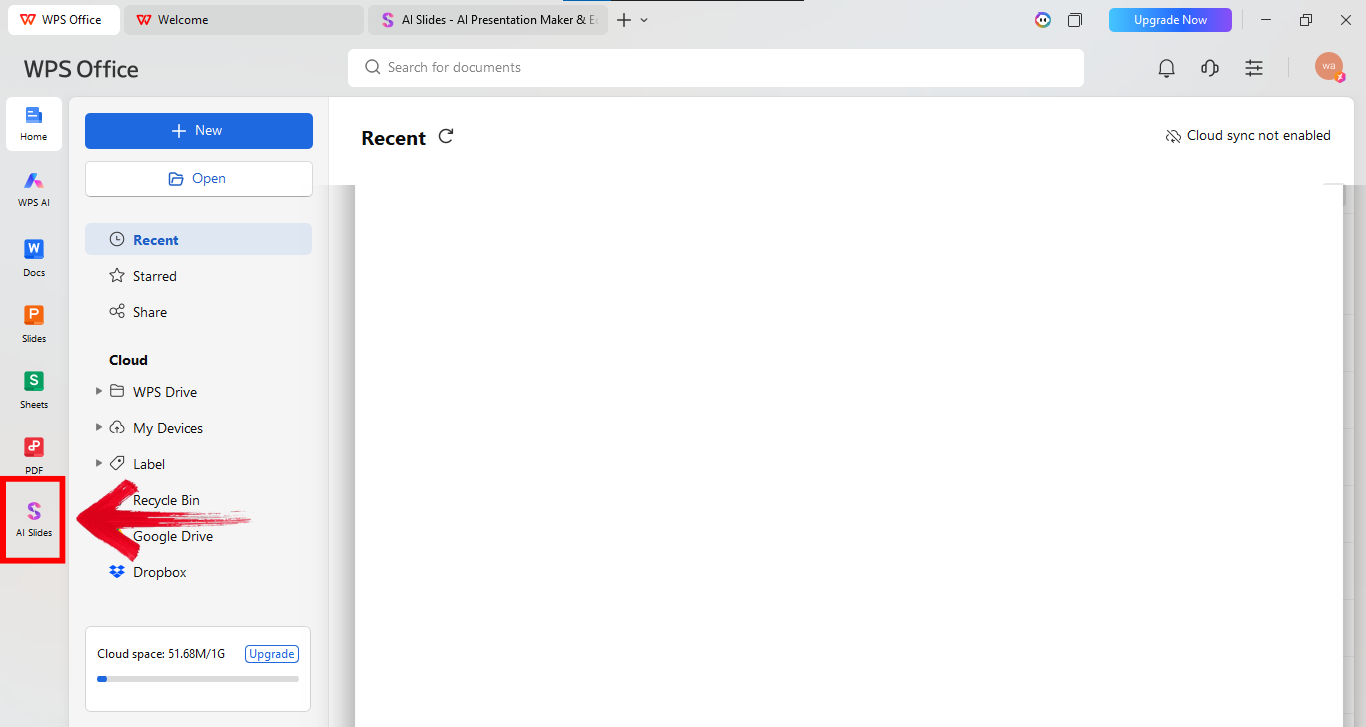
Step 1: First of all, open WPS office and click AI Slides from the panel on the left side of your screen.
Step 2: Now explain your startup in the prompt box. Give details about the audience, and goal. Longer prompts work better here. Once done, click “Generate” to bring the presentation to life.

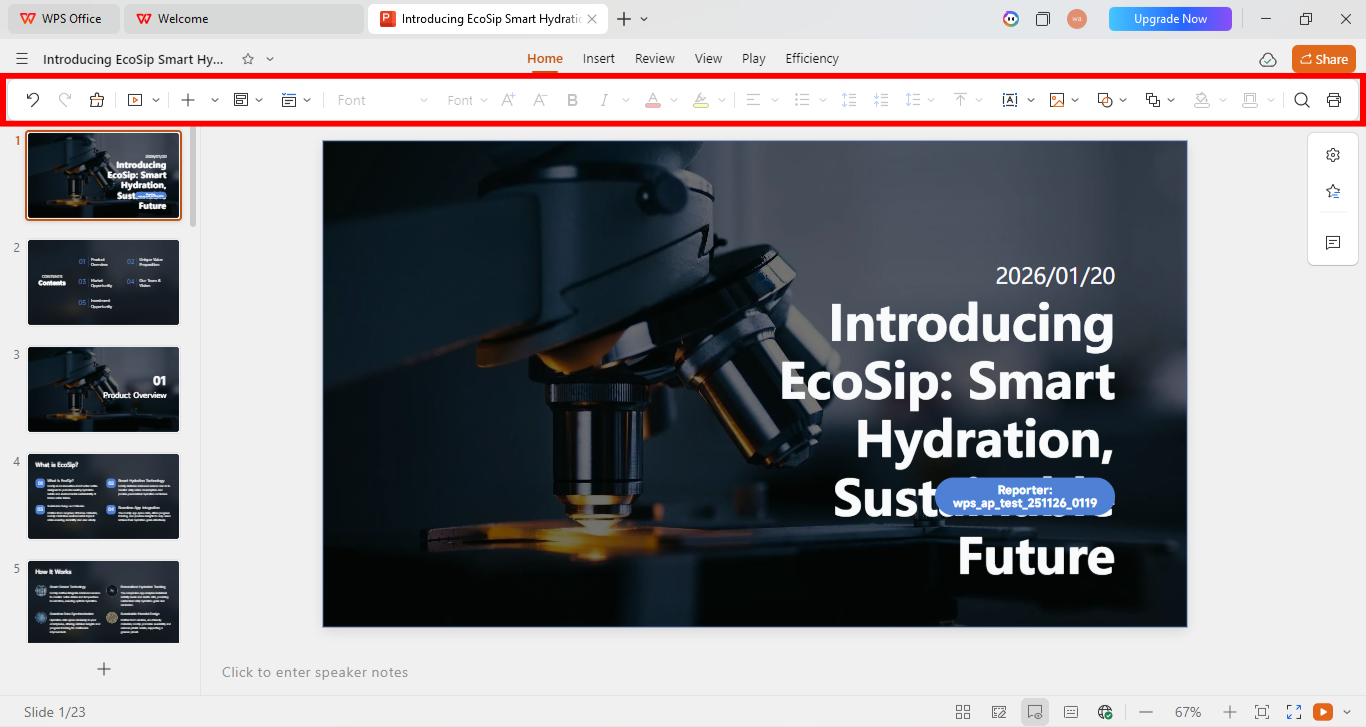
Step 3: Once the presentation is there, use the editing panel above your presentation to make relevant changes.
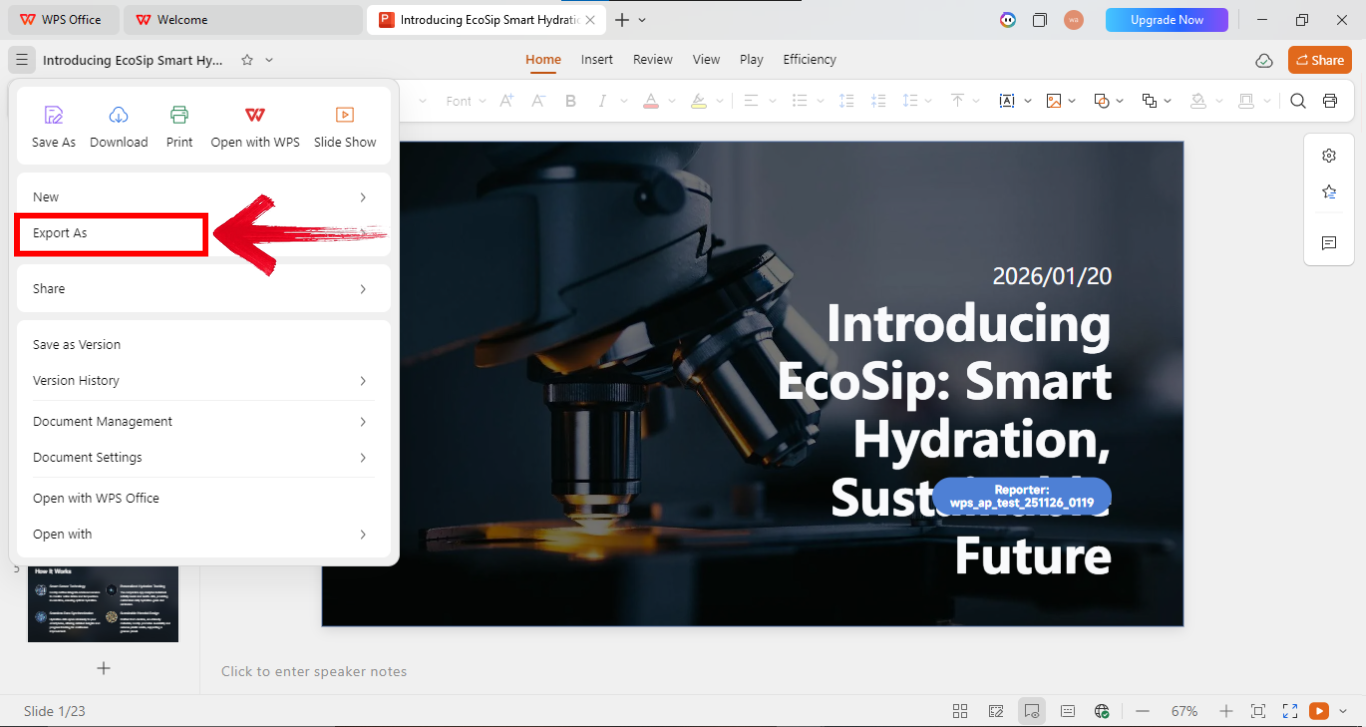
Step 4: Now go to the options on the top left of your screen and click “Export as” to export the file in your preferred file type.
The workflow feels natural, especially for PowerPoint users. The tools and layout follow familiar slide-building logic, so there’s almost no learning curve. I can focus on refining content and structure instead of figuring out how the editor works or fixing unexpected formatting issues.
Pros:
Native PowerPoint compatibility from the start
Strong editing control
Reliable formatting for formal decks
Cons
Fewer web‑first storytelling features than Gamma
AI prompts need clarity for best results
Requires WPS Office installation
FAQs
Q1: Does Gamma AI support PowerPoint export?
Yes. Gamma allows exporting presentations to .pptx through its export menu.
Q2: Will the exported PPTX be editable?
Yes, though some layouts may need adjustment after export.
Q3: Can I remove Gamma branding in exports?
Branding removal is available on paid plans.
Q4: Can I export Gamma slides to Google Slides?
Yes. Export as PPTX, then upload to Google Slides.
Choosing the Right Path From AI Slides to PowerPoint
Gamma is excellent for fast, web-based storytelling, letting users generate slides quickly and efficiently. However, exporting those decks to PowerPoint can introduce challenges, especially when heavy editing or precise formatting is required. Using pre-made solutions can simplify the process and reduce frustration. WPS AI Slides fills this gap by creating fully editable .pptx files from the start, giving users both AI-generated content and full control over every slide. Lightweight, flexible, and compatible with traditional workflows, it makes managing presentations smoother and more reliable for business, education, and professional use.

'%3e%3cpath%20d='M19.9911%204.11386V6.471H18.5894C18.0775%206.471%2017.7322%206.57814%2017.5536%206.79243C17.3751%207.00671%2017.2858%207.32814%2017.2858%207.75671V9.44421H19.9019L19.5536%2012.0871H17.2858V18.8639H14.5536V12.0871H12.2769V9.44421H14.5536V7.49779C14.5536%206.39064%2014.8632%205.53201%2015.4822%204.92189C16.1013%204.31177%2016.9257%204.00671%2017.9554%204.00671C18.8304%204.00671%2019.509%204.04243%2019.9911%204.11386Z'%20fill='%23333333'/%3e%3c/g%3e%3cdefs%3e%3cclipPath%20id='clip0_2938_8199'%3e%3crect%20width='16'%20height='16'%20fill='white'%20transform='translate(8%204.00671)'/%3e%3c/clipPath%3e%3c/defs%3e%3c/svg%3e)
'%3e%3cpath%20d='M17.5237%2010.7813L23.4811%204H22.0699L16.8949%209.88693L12.7648%204H8L14.2469%2012.9029L8%2020.0133H9.4112L14.8725%2013.7952L19.2352%2020.0133H24M9.92053%205.04213H12.0885L22.0688%2019.0224H19.9003'%20fill='%23333333'/%3e%3c/g%3e%3cdefs%3e%3cclipPath%20id='clip0_2938_8200'%3e%3crect%20width='16'%20height='16.0134'%20fill='white'%20transform='translate(8%204)'/%3e%3c/clipPath%3e%3c/defs%3e%3c/svg%3e)


