

'%3e%3cpath%20d='M8%200C12.4183%200%2016%203.58172%2016%208C16%2012.4183%2012.4183%2016%208%2016C3.58172%2016%200%2012.4183%200%208C0%203.58172%203.58172%200%208%200ZM11.6162%204.38379C11.2257%203.99337%2010.5927%203.99338%2010.2021%204.38379L8%206.58594L5.79785%204.38379C5.40732%203.99334%204.77429%203.99329%204.38379%204.38379C3.99331%204.77429%203.99335%205.40733%204.38379%205.79785L6.58594%208L4.38379%2010.2021C3.99348%2010.5927%203.99341%2011.2257%204.38379%2011.6162C4.77426%2012.0066%205.40734%2012.0065%205.79785%2011.6162L8%209.41406L10.2021%2011.6162C10.5927%2012.0066%2011.2257%2012.0067%2011.6162%2011.6162C12.0067%2011.2257%2012.0066%2010.5927%2011.6162%2010.2021L9.41406%208L11.6162%205.79785C12.0066%205.40735%2012.0066%204.77429%2011.6162%204.38379Z'%20fill='%23080E17'%20fill-opacity='0.46'/%3e%3c/g%3e%3cdefs%3e%3cclipPath%20id='clip0_3761_713'%3e%3crect%20width='16'%20height='16'%20fill='white'/%3e%3c/clipPath%3e%3c/defs%3e%3c/svg%3e)




'%3e%3cpath%20fill-rule='evenodd'%20clip-rule='evenodd'%20d='M21.4999%2010.9993C21.4999%205.20009%2016.7986%200.498901%2010.9993%200.498901C5.19994%200.498901%200.498657%205.20009%200.498657%2010.9993C0.498657%2016.2404%204.33858%2020.5844%209.35855%2021.3722V14.0346H6.69238V10.9993H9.35855V8.68594C9.35855%206.05427%2010.9262%204.60062%2013.3248%204.60062C14.4736%204.60062%2015.6753%204.80571%2015.6753%204.80571V7.38979H14.3512C13.0468%207.38979%2012.64%208.19921%2012.64%209.0296V10.9993H15.5523L15.0867%2014.0346H12.64V21.3722C17.66%2020.5844%2021.4999%2016.2404%2021.4999%2010.9993Z'%20fill='%231568EA'/%3e%3c/g%3e%3c/svg%3e)


'%3e%3cpath%20d='M2.42045%2022.1876H6.31818V12.7217L0.75%208.54553V20.5171C0.75%2021.4414%201.49892%2022.1876%202.42045%2022.1876Z'%20fill='%234285F4'/%3e%3cpath%20d='M19.682%2022.1876H23.5797C24.5041%2022.1876%2025.2502%2021.4387%2025.2502%2020.5171V8.54553L19.682%2012.7217'%20fill='%2334A853'/%3e%3cpath%20d='M19.682%205.48293V12.7216L25.2502%208.54543V6.31816C25.2502%204.25236%2022.8921%203.07469%2021.2411%204.31361'%20fill='%23FBBC04'/%3e%3cpath%20d='M6.31824%2012.7217V5.48303L13.0001%2010.4944L19.6819%205.48303V12.7217L13.0001%2017.733'%20fill='%23EA4335'/%3e%3cpath%20d='M0.75%206.31816V8.54543L6.31818%2012.7216V5.48293L4.75909%204.31361C3.10534%203.07469%200.75%204.25236%200.75%206.31816Z'%20fill='%23C5221F'/%3e%3c/g%3e%3cdefs%3e%3cclipPath%20id='clip0_2954_7305'%3e%3crect%20width='24.5'%20height='18.375'%20fill='white'%20transform='translate(0.75%203.8125)'/%3e%3c/clipPath%3e%3c/defs%3e%3c/svg%3e)


Writing an academic or professional document already takes enough brainpower, and references are usually the part that trips people up. You might know your sources are solid, but figuring out how to add references in Word can feel confusing and time-consuming at first. Many writers end up formatting citations manually or skipping Word’s built-in tools altogether. That’s exactly what this guide fixes. I’ll show you how to add references in Word step by step, covering both manual and automatic methods, so you can cite sources cleanly, stay credible, and let Word handle the heavy lifting.
How to Add References in Word
Before jumping into steps, let me clarify the goal here. This section focuses on how to insert a reference in Word using the official referencing tools. You’ll be working inside the References tab, storing sources, and placing citationsexactly where they belong.
Step-by-Step Tutorial:
Here’s how to add references in Word using built-in tools:
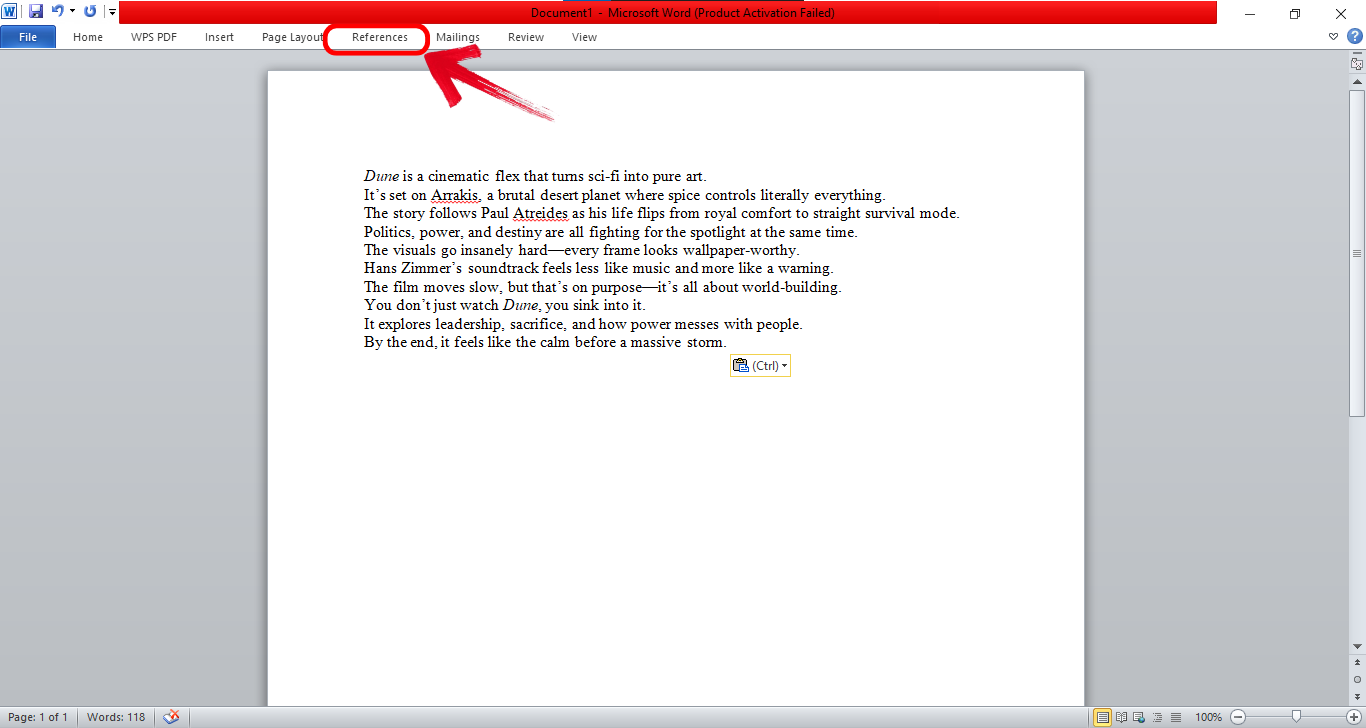
Step 1: Open your document and click on the“References” tab in the top ribbon. This is where Word keeps all citation and bibliography tools.
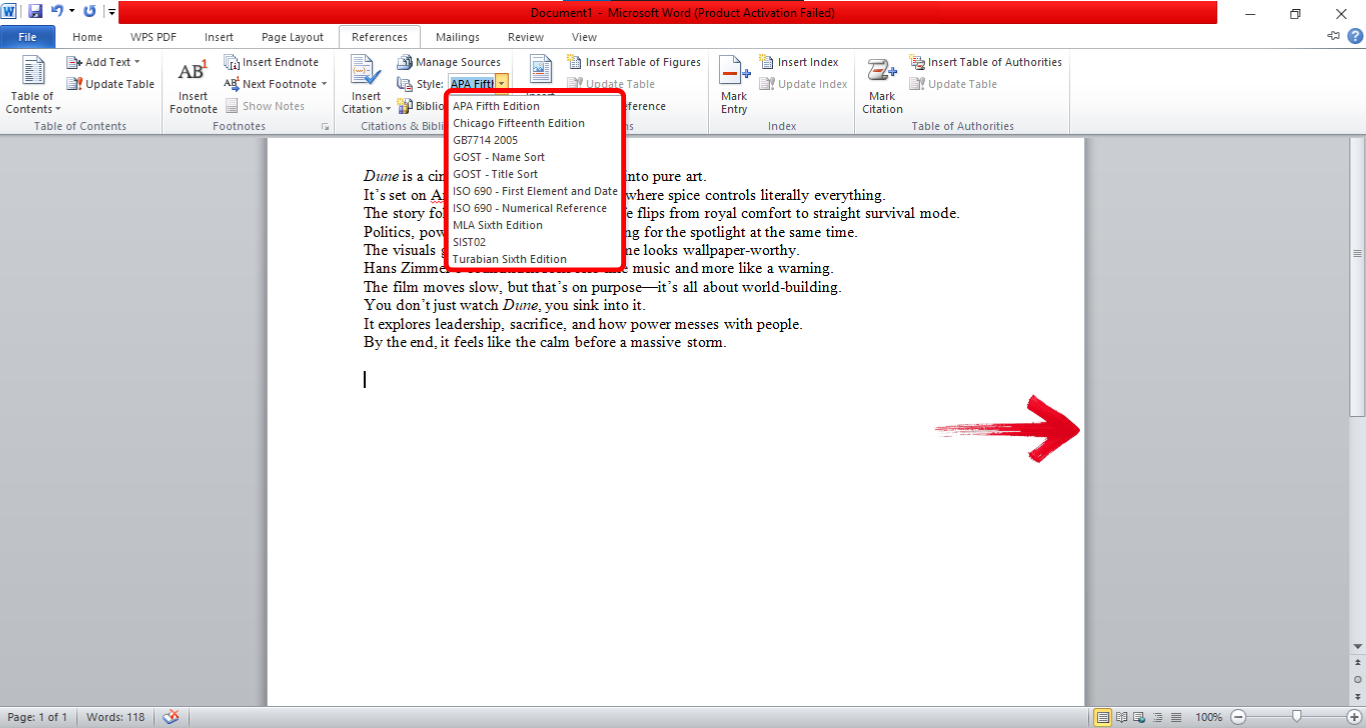
Step 2: Click on the “Style”dropdown and select APA, MLA, Chicago, or IEEE. Word instantly applies this style to every citation you add.
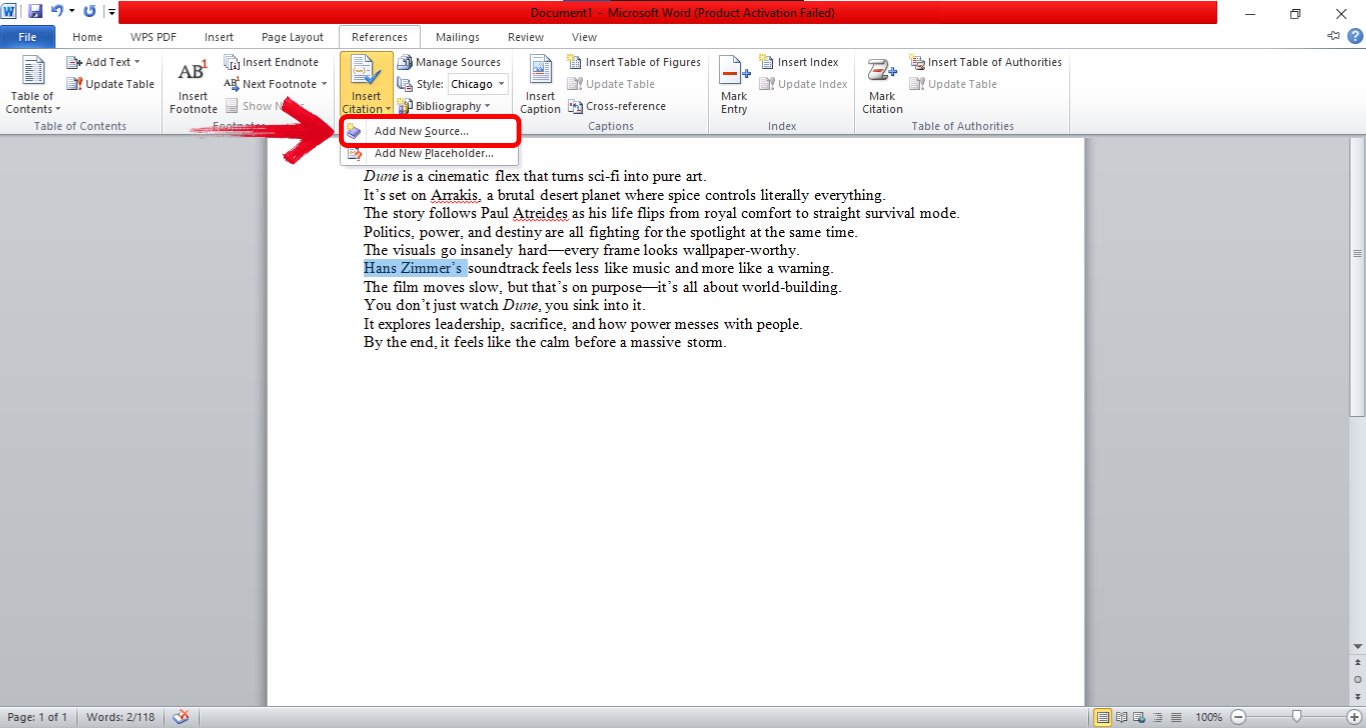
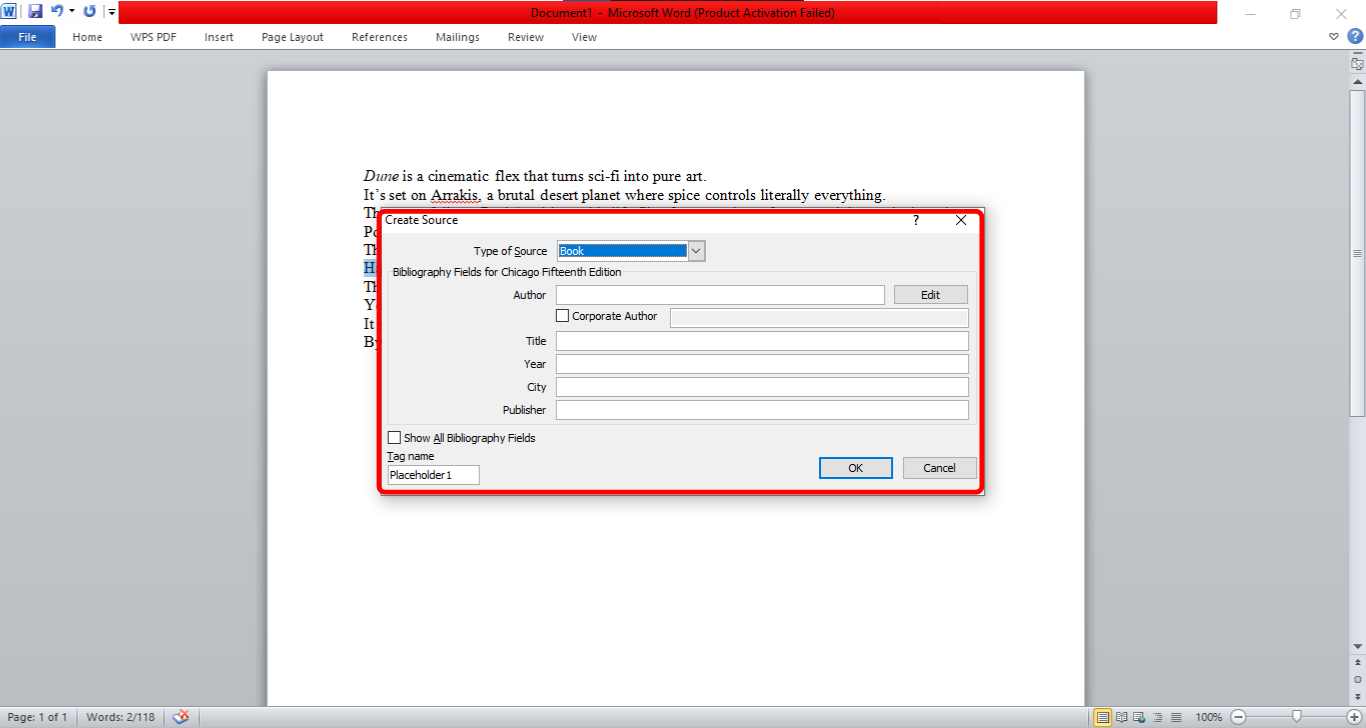
Step 3: Place your cursor where the citation should appear. Click “Insert Citation” and choose “Add New Source”.
Step 4: Enter author, title, year, and publisher details. I recommend filling this carefully because Word pulls this data directly into the reference list later.
Pros of Using Word for References:
Built-in citation manager saves time across long documents.
Automatic formatting reduces human error.
Supports multiple academic citation styles.
Cons of Using Word for References:
Interface feels crowded for first-time users.
Limited flexibility for custom citation formats.
Advanced reference control takes practice.
How to Automatically Generate References in Word
Once citations are inserted, Word can do the heavy lifting. This part explains how to link references in Word and generate a complete bibliographyautomatically.
Automatic Bibliography Generation:
This feature works best after you’ve inserted citations throughout your document. Word already knows your sources, so generating a reference list becomes a one-click task. Each citation you add is saved inside Word’s Source Manager. I suggest inserting citations as you write instead of waiting until the end.
Step 1: Move your cursor to the page where the reference list should appear. Under the “References”tab, click “Bibliography”. Choose Bibliography or Works Cited from the dropdown menu.
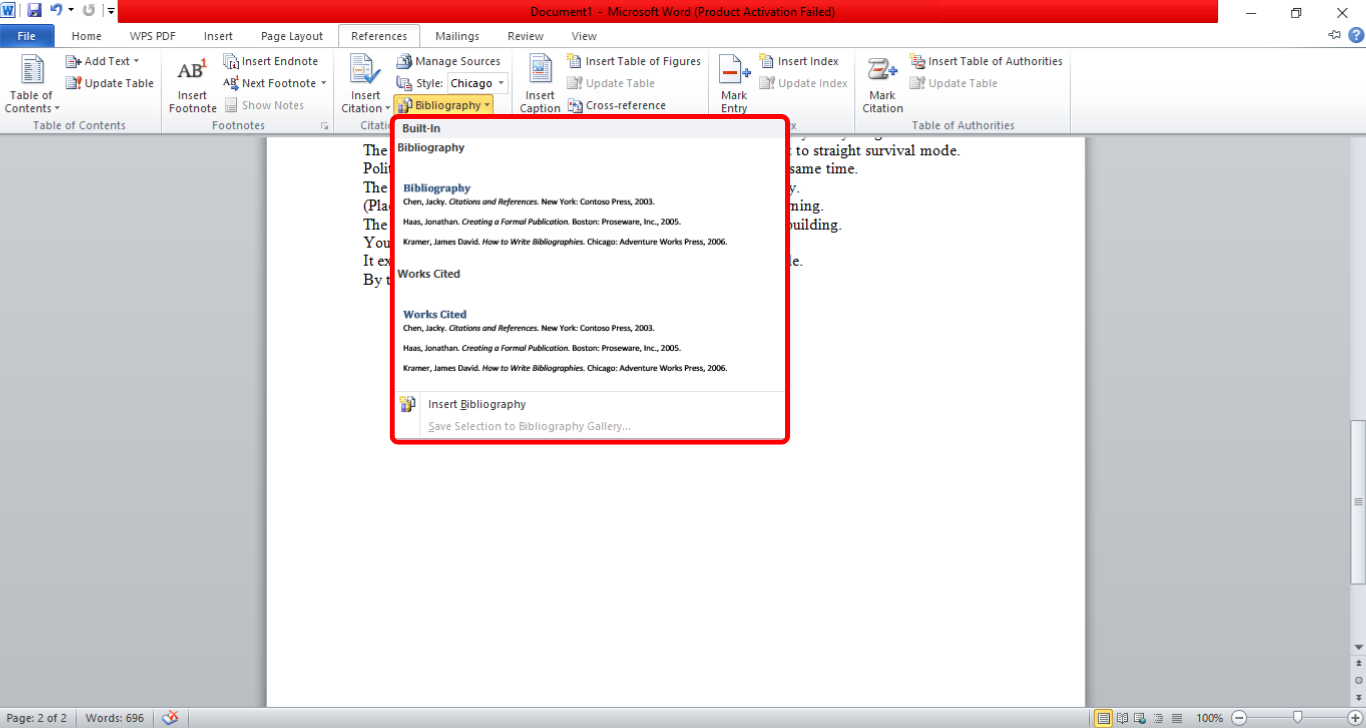
Word instantly compiles all cited sources into a formattedlist. This is the fastest way to understand how to add references in Word efficiently.
This feature changed how I approach long papers. Knowing that Word updates references automatically gave me more focus on content instead of formatting stress.
Pros of Automatic References in Word
Saves hours on manual bibliography formatting.
Keeps references synced with in-text citations.
Ideal for academic and research-heavy documents.
Cons of Automatic References in Word
Formatting glitches appear if sources are incomplete.
Limited customization for non-standard styles.
Errors can propagate if one source entry is wrong.
Best Alternative: Adding References in WPS Word
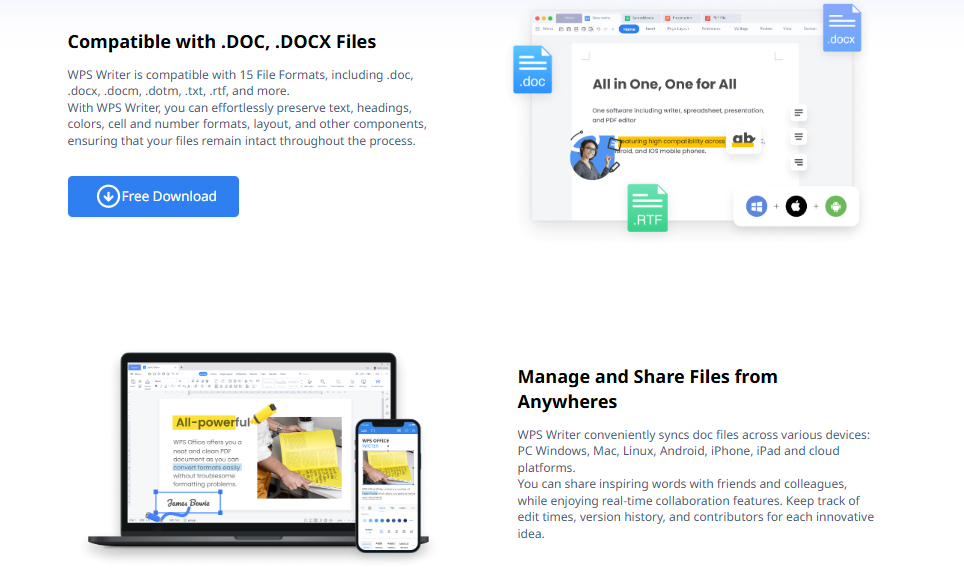
Sometimes Word is not accessible or feels restrictive. I’ve used WPS Word as a practical alternative, especially when working across devices or on a budget. WPS Word supports Word (.docx) files seamlessly, which means your existing documents open without formatting damage. I found its referencing tools intuitive, especially for users who want clean citation management without paying for premium software. Its AI-assisted editing helps catch formatting inconsistencies early. The interface feels lighter, making it easier to focus on writing. It works well for both academic and business documents. Compatibility has never been an issue in my experience.
Advantages of WPS Word
Free and cross-platform for desktop and mobile use.
AI-assisted proofreading and formatting support.
Supports APA, MLA, and IEEE citation styles.
Steps to Add References in WPS Word:
Here’s a step by step guide on how to add references to WPS Word.
Step 1: Open WPS Word and your document. Start with the document where your citation will go. Make sure it’s in the correct citation format (APA, MLA, or Chicago).
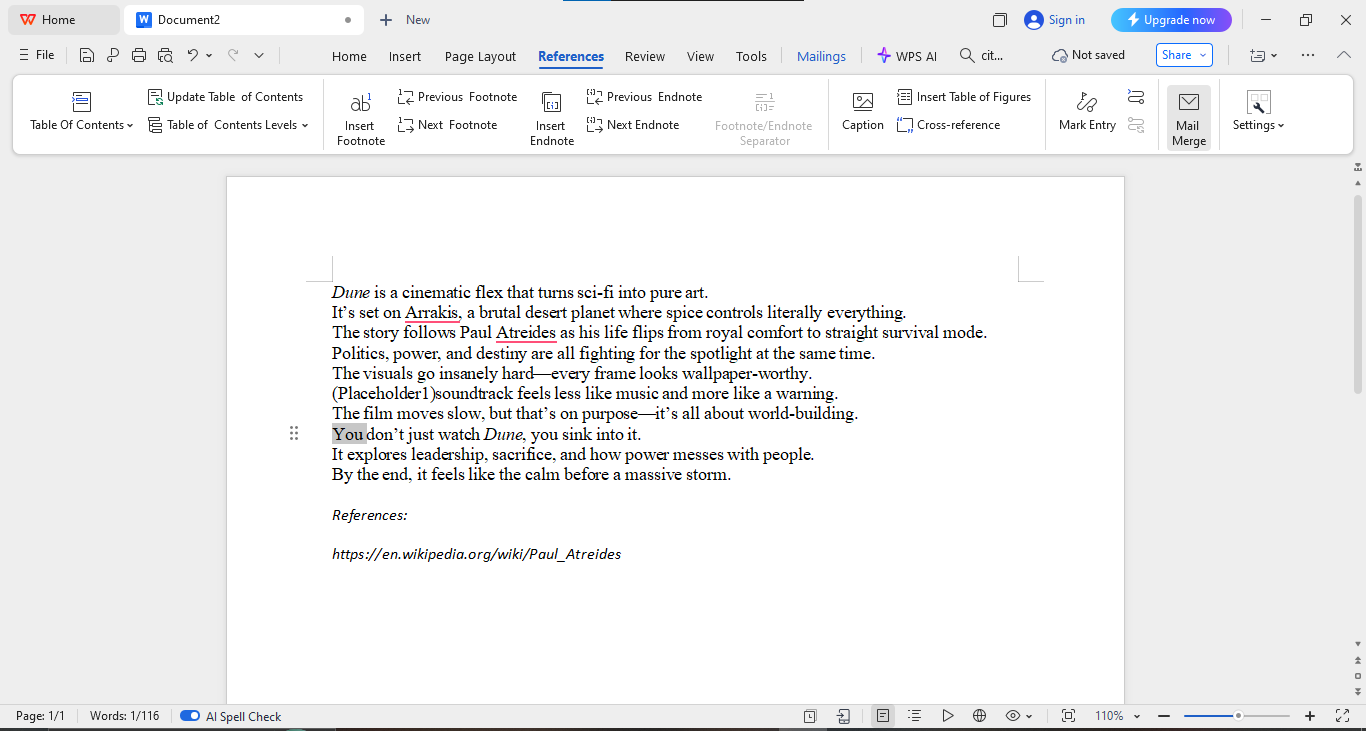
Step 2: Copy your citation from the generator. Use Ctrl+C to copy it from any of the tools you've used. Make sure it looks correct and has the needed elements like author, date, title.
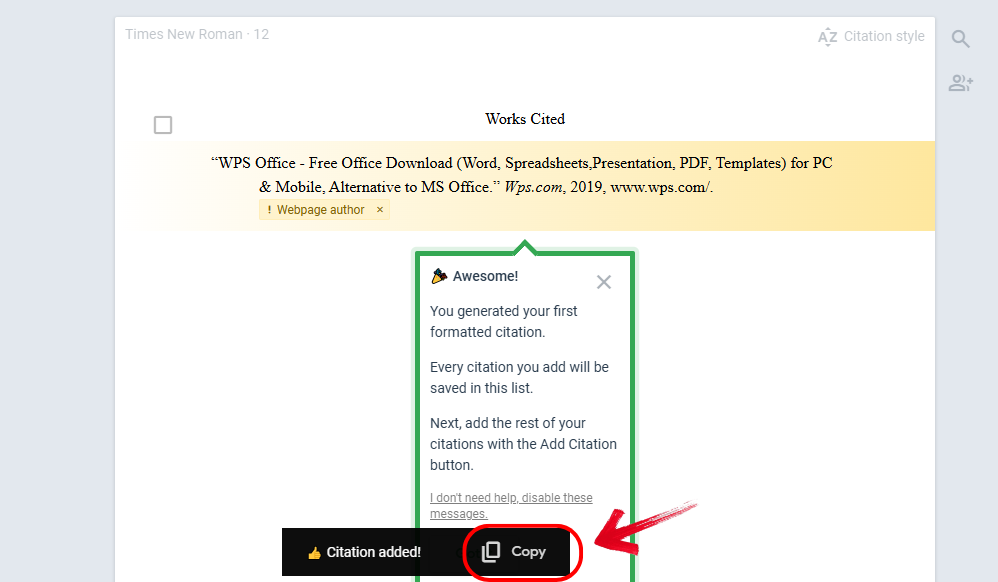
Step 3: Paste it into your References or Bibliography section. Now go to your reference section andCtrl+V that citation in place.
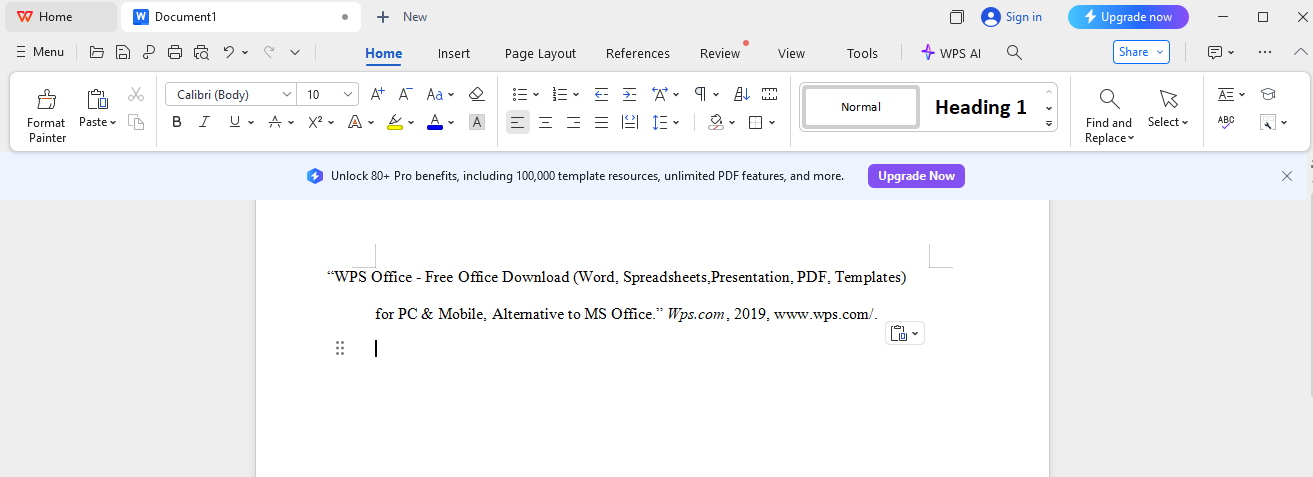
WPS Word felt refreshingly straightforward. I appreciated how it balanced automation with simplicity, especially when working quickly or teaching students citation basics.
Pros of WPS Word
Free access without feature lock-ins.
Clean interface reduces the learning curve.
Strong compatibility with Word documents.
Cons of WPS Word
Fewer advanced customization options.
Smaller citation style library.
AI features depend on internet access.
FAQs
Q1: What’s the difference between citations and references?
Citations appear within the text to credit a source, while references list full source details at the end.
Q2: Can I switch citation styles midway?
Yes, Word automatically reformats all citations and references when you change the style.
Q3: Is WPS Word compatible with MS Word citations?
Yes, WPS Word maintains citation structures in .docx files.
Q4: Can I manually edit auto-generated references?
Yes, but I recommend editing source data instead to avoid formatting conflicts.
Q5: Do references update automatically after edits?
They update once you select the update option in Word or WPS.
Smart Referencing Made Simple
Learning how to add references in Word is a skill that strengthens both academic and professional writing by improving clarity and credibility. Word’s built-in tools make it easy to manage citations, store sources, and generate bibliographies without manual effort. For those who want a lighter, free option, I’ve found WPS Writer to be a reliable alternative that offers similar referencing features with a simpler workflow. Together, these tools help you focus more on your ideas and less on formatting, making your writing feel confident and polished.

'%3e%3cpath%20d='M19.9911%204.11386V6.471H18.5894C18.0775%206.471%2017.7322%206.57814%2017.5536%206.79243C17.3751%207.00671%2017.2858%207.32814%2017.2858%207.75671V9.44421H19.9019L19.5536%2012.0871H17.2858V18.8639H14.5536V12.0871H12.2769V9.44421H14.5536V7.49779C14.5536%206.39064%2014.8632%205.53201%2015.4822%204.92189C16.1013%204.31177%2016.9257%204.00671%2017.9554%204.00671C18.8304%204.00671%2019.509%204.04243%2019.9911%204.11386Z'%20fill='%23333333'/%3e%3c/g%3e%3cdefs%3e%3cclipPath%20id='clip0_2938_8199'%3e%3crect%20width='16'%20height='16'%20fill='white'%20transform='translate(8%204.00671)'/%3e%3c/clipPath%3e%3c/defs%3e%3c/svg%3e)
'%3e%3cpath%20d='M17.5237%2010.7813L23.4811%204H22.0699L16.8949%209.88693L12.7648%204H8L14.2469%2012.9029L8%2020.0133H9.4112L14.8725%2013.7952L19.2352%2020.0133H24M9.92053%205.04213H12.0885L22.0688%2019.0224H19.9003'%20fill='%23333333'/%3e%3c/g%3e%3cdefs%3e%3cclipPath%20id='clip0_2938_8200'%3e%3crect%20width='16'%20height='16.0134'%20fill='white'%20transform='translate(8%204)'/%3e%3c/clipPath%3e%3c/defs%3e%3c/svg%3e)


