

'%3e%3cpath%20d='M8%200C12.4183%200%2016%203.58172%2016%208C16%2012.4183%2012.4183%2016%208%2016C3.58172%2016%200%2012.4183%200%208C0%203.58172%203.58172%200%208%200ZM11.6162%204.38379C11.2257%203.99337%2010.5927%203.99338%2010.2021%204.38379L8%206.58594L5.79785%204.38379C5.40732%203.99334%204.77429%203.99329%204.38379%204.38379C3.99331%204.77429%203.99335%205.40733%204.38379%205.79785L6.58594%208L4.38379%2010.2021C3.99348%2010.5927%203.99341%2011.2257%204.38379%2011.6162C4.77426%2012.0066%205.40734%2012.0065%205.79785%2011.6162L8%209.41406L10.2021%2011.6162C10.5927%2012.0066%2011.2257%2012.0067%2011.6162%2011.6162C12.0067%2011.2257%2012.0066%2010.5927%2011.6162%2010.2021L9.41406%208L11.6162%205.79785C12.0066%205.40735%2012.0066%204.77429%2011.6162%204.38379Z'%20fill='%23080E17'%20fill-opacity='0.46'/%3e%3c/g%3e%3cdefs%3e%3cclipPath%20id='clip0_3761_713'%3e%3crect%20width='16'%20height='16'%20fill='white'/%3e%3c/clipPath%3e%3c/defs%3e%3c/svg%3e)




'%3e%3cpath%20fill-rule='evenodd'%20clip-rule='evenodd'%20d='M21.4999%2010.9993C21.4999%205.20009%2016.7986%200.498901%2010.9993%200.498901C5.19994%200.498901%200.498657%205.20009%200.498657%2010.9993C0.498657%2016.2404%204.33858%2020.5844%209.35855%2021.3722V14.0346H6.69238V10.9993H9.35855V8.68594C9.35855%206.05427%2010.9262%204.60062%2013.3248%204.60062C14.4736%204.60062%2015.6753%204.80571%2015.6753%204.80571V7.38979H14.3512C13.0468%207.38979%2012.64%208.19921%2012.64%209.0296V10.9993H15.5523L15.0867%2014.0346H12.64V21.3722C17.66%2020.5844%2021.4999%2016.2404%2021.4999%2010.9993Z'%20fill='%231568EA'/%3e%3c/g%3e%3c/svg%3e)


'%3e%3cpath%20d='M2.42045%2022.1876H6.31818V12.7217L0.75%208.54553V20.5171C0.75%2021.4414%201.49892%2022.1876%202.42045%2022.1876Z'%20fill='%234285F4'/%3e%3cpath%20d='M19.682%2022.1876H23.5797C24.5041%2022.1876%2025.2502%2021.4387%2025.2502%2020.5171V8.54553L19.682%2012.7217'%20fill='%2334A853'/%3e%3cpath%20d='M19.682%205.48293V12.7216L25.2502%208.54543V6.31816C25.2502%204.25236%2022.8921%203.07469%2021.2411%204.31361'%20fill='%23FBBC04'/%3e%3cpath%20d='M6.31824%2012.7217V5.48303L13.0001%2010.4944L19.6819%205.48303V12.7217L13.0001%2017.733'%20fill='%23EA4335'/%3e%3cpath%20d='M0.75%206.31816V8.54543L6.31818%2012.7216V5.48293L4.75909%204.31361C3.10534%203.07469%200.75%204.25236%200.75%206.31816Z'%20fill='%23C5221F'/%3e%3c/g%3e%3cdefs%3e%3cclipPath%20id='clip0_2954_7305'%3e%3crect%20width='24.5'%20height='18.375'%20fill='white'%20transform='translate(0.75%203.8125)'/%3e%3c/clipPath%3e%3c/defs%3e%3c/svg%3e)


Preface
Presenters, teachers, and professionals often lose track of time during live presentations, especially when switching between slides and notes. Manual timing is distracting and breaks focus, while external timers feel disconnected from the presentation itself.
Many users search for a slides timer Chrome extension that works smoothly inside Google Slides without clutter or instability. This guide explores practical tools and workflows to help you control timing confidently and present with discipline.
Part 1. Nice Tool for Timing: Slides timer for Google Slides
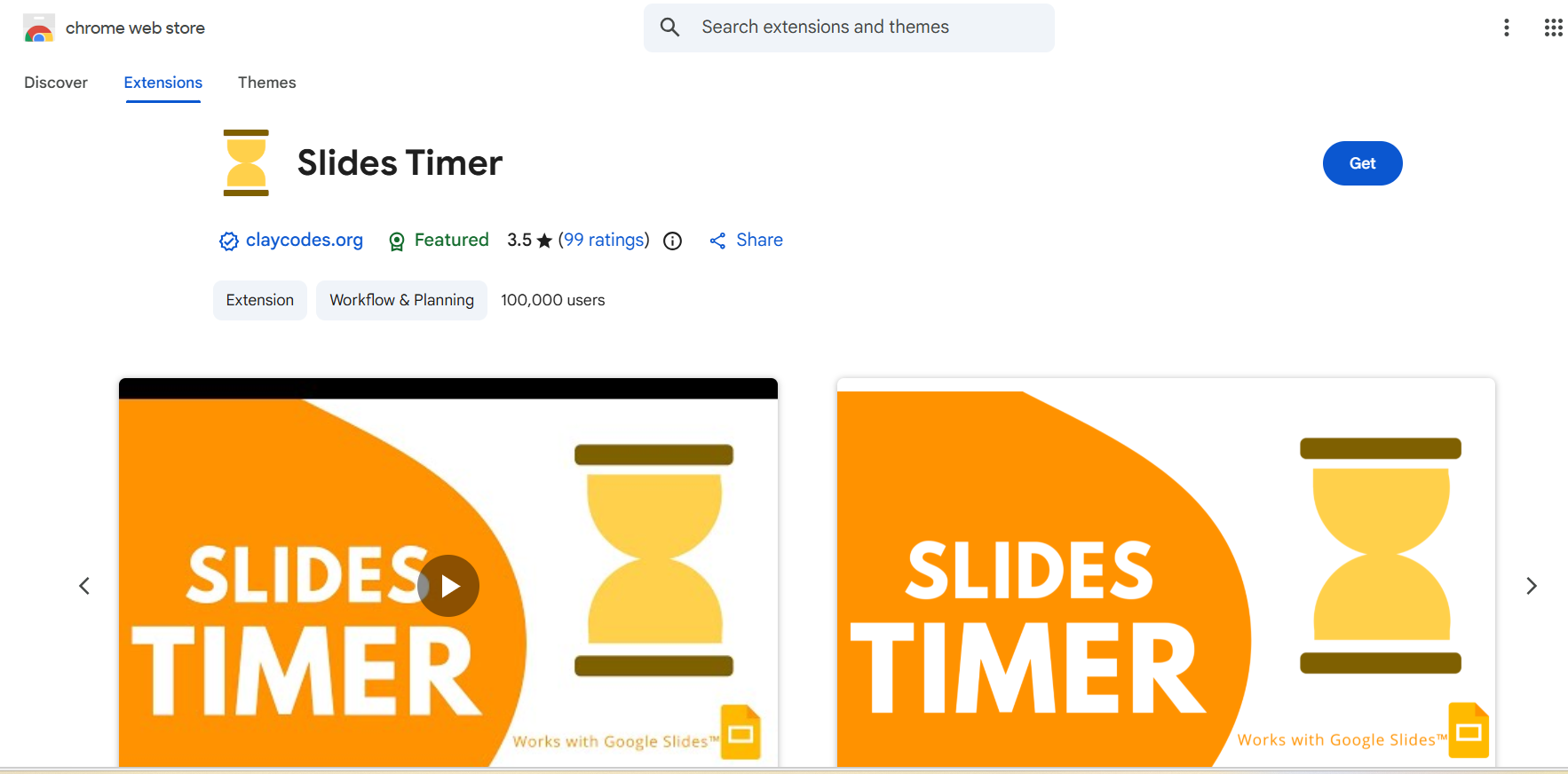
Slides Timer is a lightweight yet reliable slides timer Chrome extension built specifically for Google Slides. It adds a clean, on-screen timer that helps presenters manage pace during rehearsals and live sessions without disrupting slide content or audience focus. If your goal is simple, accurate timing inside Google Slides, this tool does the job without unnecessary complexity.
Key Features
Customizable Display
You can adjust the timer’s position, size, and color so it stays visible but unobtrusive during your presentation.
Flexible Timing Modes
Set a countdown for the entire deck or control timing slide by slide, which is useful for structured talks and classroom sessions.
Speaker View Integration
The timer appears in presenter view and stays hidden from the audience, making it ideal for professional presentations.
Easy Controls
Start, pause, or reset the timer with minimal interaction, so you are not distracted while speaking.
Non-intrusive Design
The extension does not modify your slides or layout. It works as an overlay, keeping your original deck untouched.
I see Slides timer as the go-to choice for anyone who wants a dependable presentation timer for Google Slides without changing their workflow. It focuses on one job only, timing, and does it well. For speakers who do not need advanced automation or design tools, this extension feels stable, practical, and easy to trust.
Why Start with a Dedicated Timer?
Before exploring advanced presentation suites, it makes sense to address the most immediate need: staying on time. A focused tool like Slides timer solves the core problem quickly and helps users understand how to add a timer to Google Slides without extra setup or learning curves. This builds confidence and sets a clear baseline before considering more feature-rich solutions later.
Part 2. How to Use Slides Timer with Google Slides
This section explains how to use the Slides Timer Chrome extension in a simple, practical way. Even if you have never used a Google Slides timer add-on before, the setup takes only a few minutes.
Step-by-Step Tutorial
Step 1: Install the Extension
Open the Slides timer page on the Chrome Web Store.
Click Add to Chrome and confirm the installation.
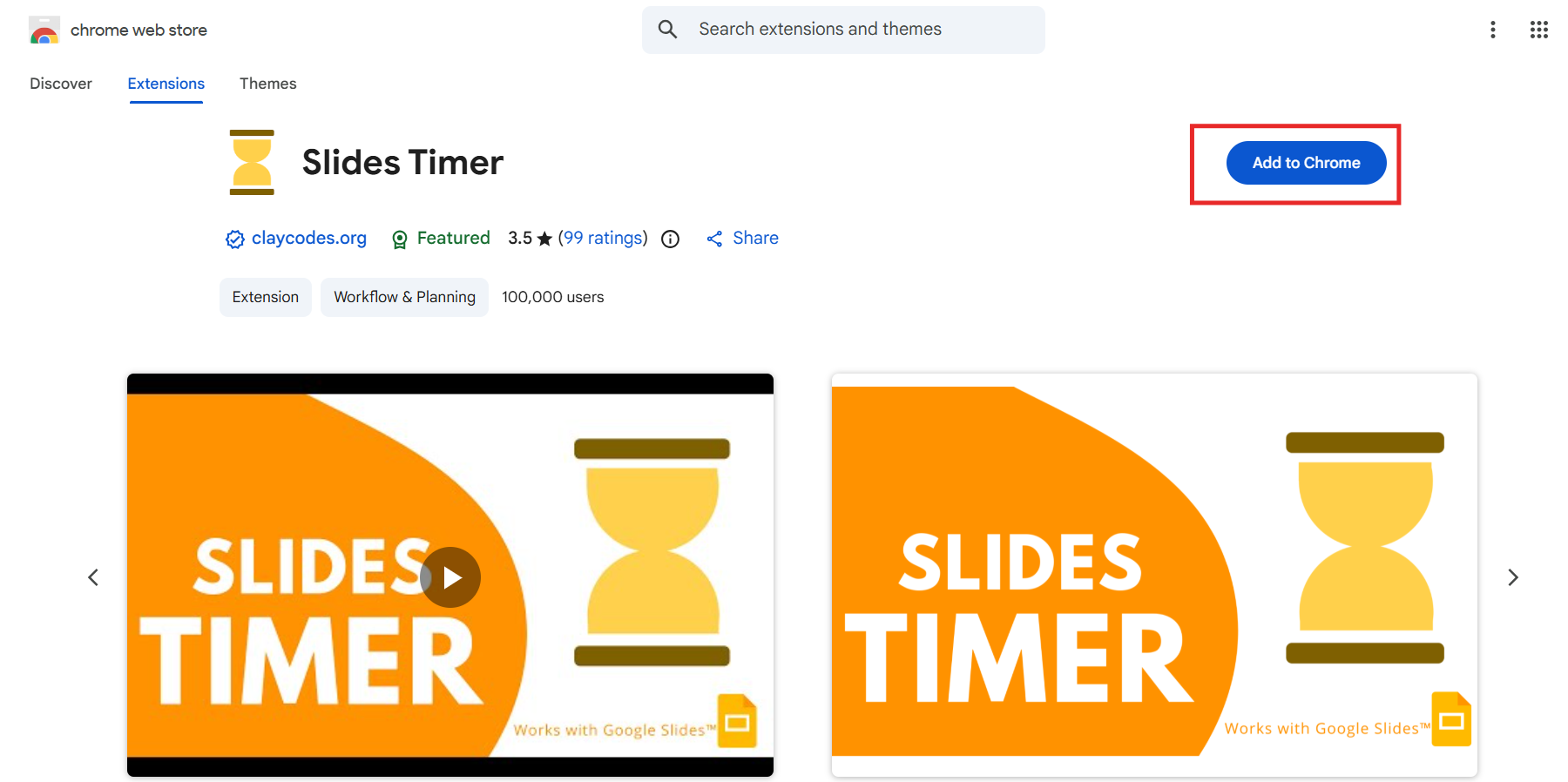
Once installed, the extension will appear in your Chrome toolbar.
This step is straightforward and does not require any Google Workspace permissions beyond basic access.
Step 2: Open Your Google Slides Presentation
Go to Google Slides and open your presentation.
Click Slideshow to enter presentation mode.
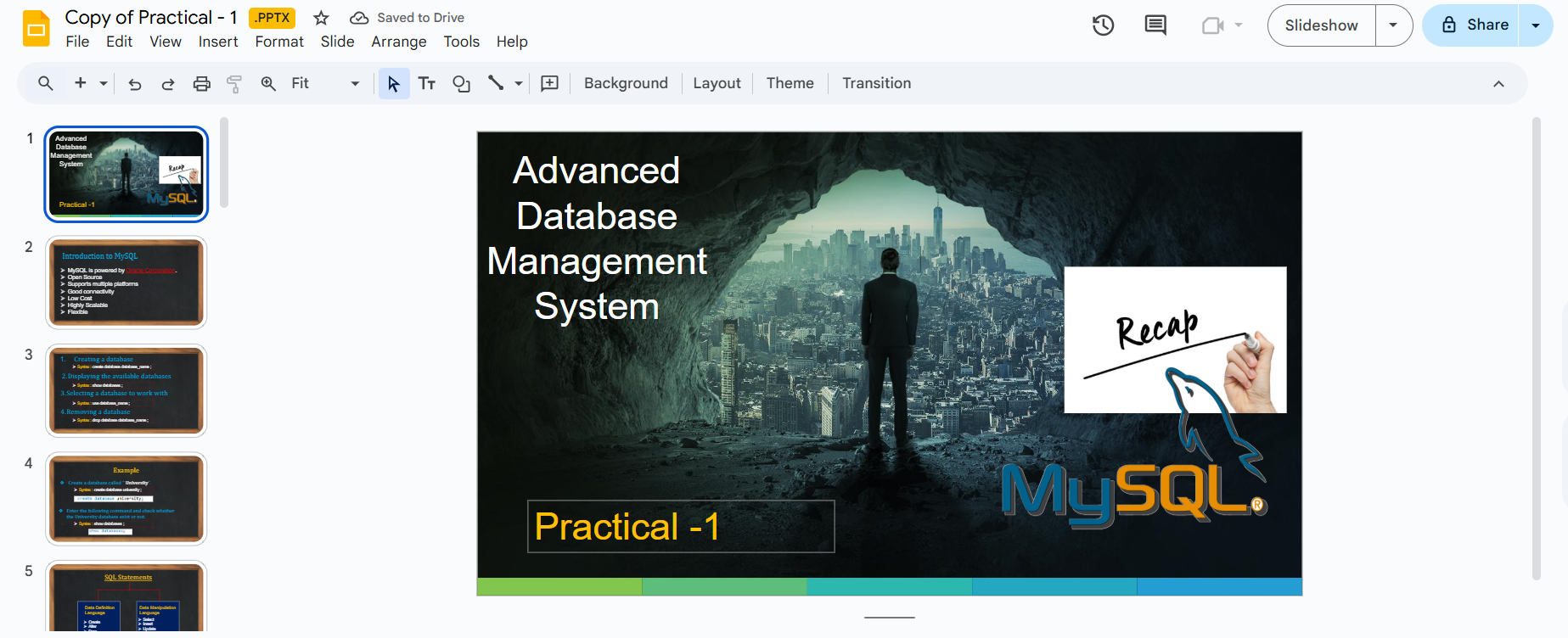
Look for the Slides timer icon, which appears either in the browser toolbar or within the presentation controls.
This is where many users realize how smoothly the tool integrates. There is no separate dashboard or app to manage.
Step 3: Add a Timer to a Slide
Click on the slide where you want the timer.
Insert a text box anywhere on the slide.
Type a timer command using this format: >
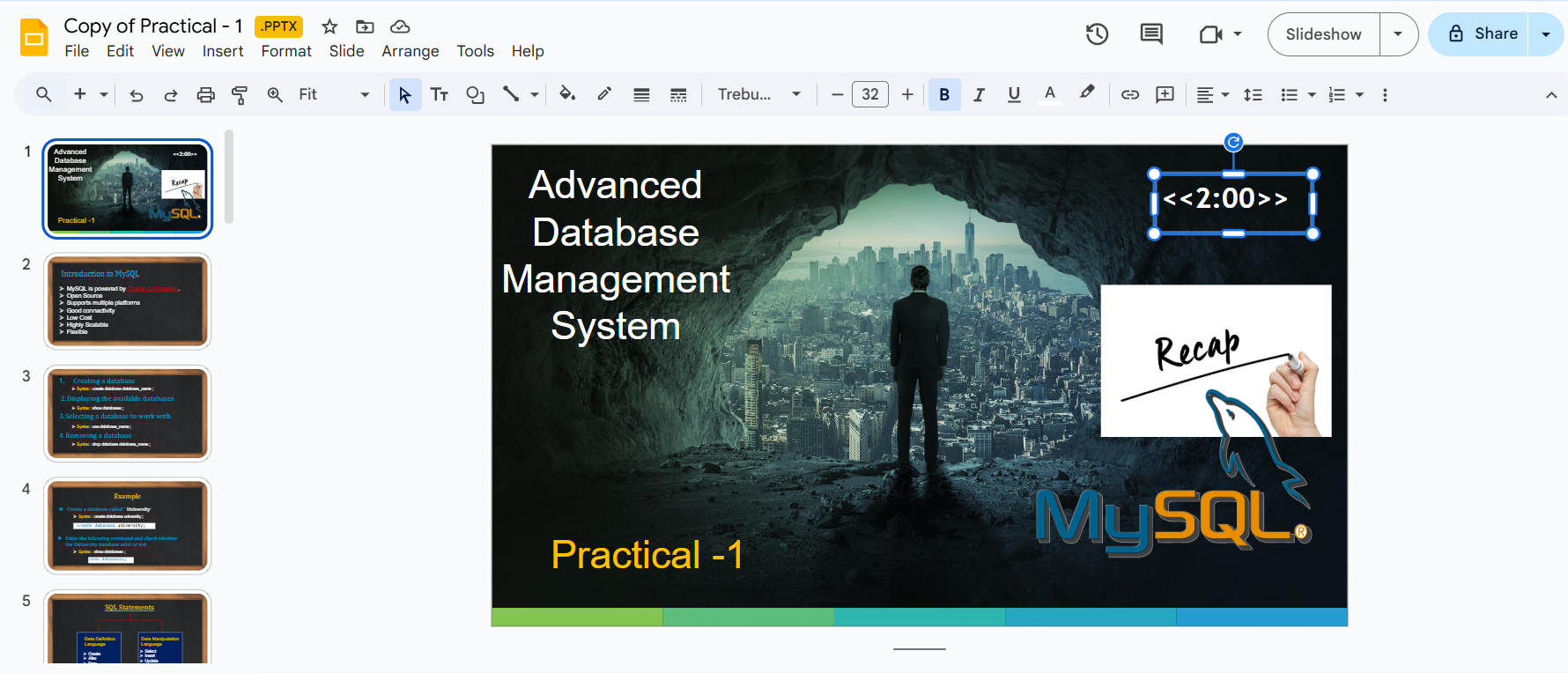
This example starts a 2-minute countdown when the slide appears. You can change the duration based on your needs, which clearly answers how to add a timer to Google Slides using the Slides timer.
Step 4: Start the Presentation
Click Slideshow to begin presenting.
When the slide loads, the countdown timer starts automatically.
The timer runs quietly in the background and keeps time accurately.

There is no need to click buttons or manage controls during the presentation.
Step 5: Monitor Time Without Distracting the Audience
The timer logic runs internally and does not interfere with slide design.
You stay aware of timing while the audience remains focused on the content.
This makes it ideal for classrooms, meetings, and structured talks.
From my experience, this method feels cleaner than floating overlays and works well when you want predictable timing without manual interaction.
Practical Experience Note
From my experience, the Slides timer works best for speakers who want real-time awareness rather than automation. It feels more like a guide than a controller. Compared to methods that rely on external clocks or even a slide timer PowerPoint setup, this approach feels more natural when presenting directly in Google Slides. It also avoids visual clutter, which is important in professional or classroom environments.
Part 3. Beyond Timing: Elevate Your Workflow with WPS AI Slides
A slides timer Chrome extension works well when you only need a visible countdown. However, many presenters want more control before they even start presenting. This is where WPS AI Slides changes the workflow. Instead of reacting to time during a presentation, you design your timing in advance, creating a smoother and more professional flow.
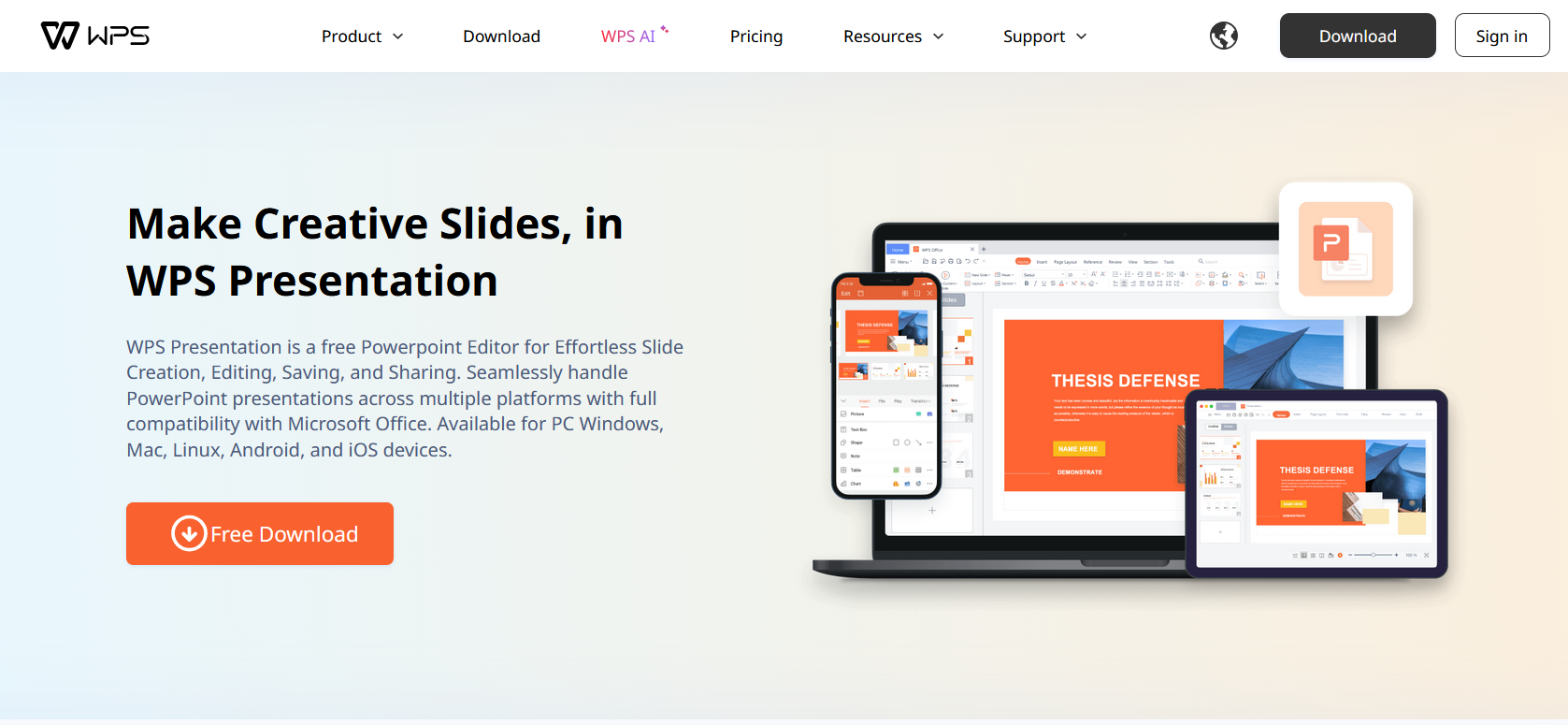
From my experience, this proactive approach removes pressure during delivery and helps speakers focus fully on content and audience engagement.
1. Integrated Timing and Animation Suite
Unlike browser-based tools, WPS Presentation includes native timing controls similar to desktop software.
Precise Slide Timing
You can set automatic transition times for each slide. This works well when practicing fixed-length talks or timed classroom lessons and avoids relying on an external presentation timer for Google Slides.
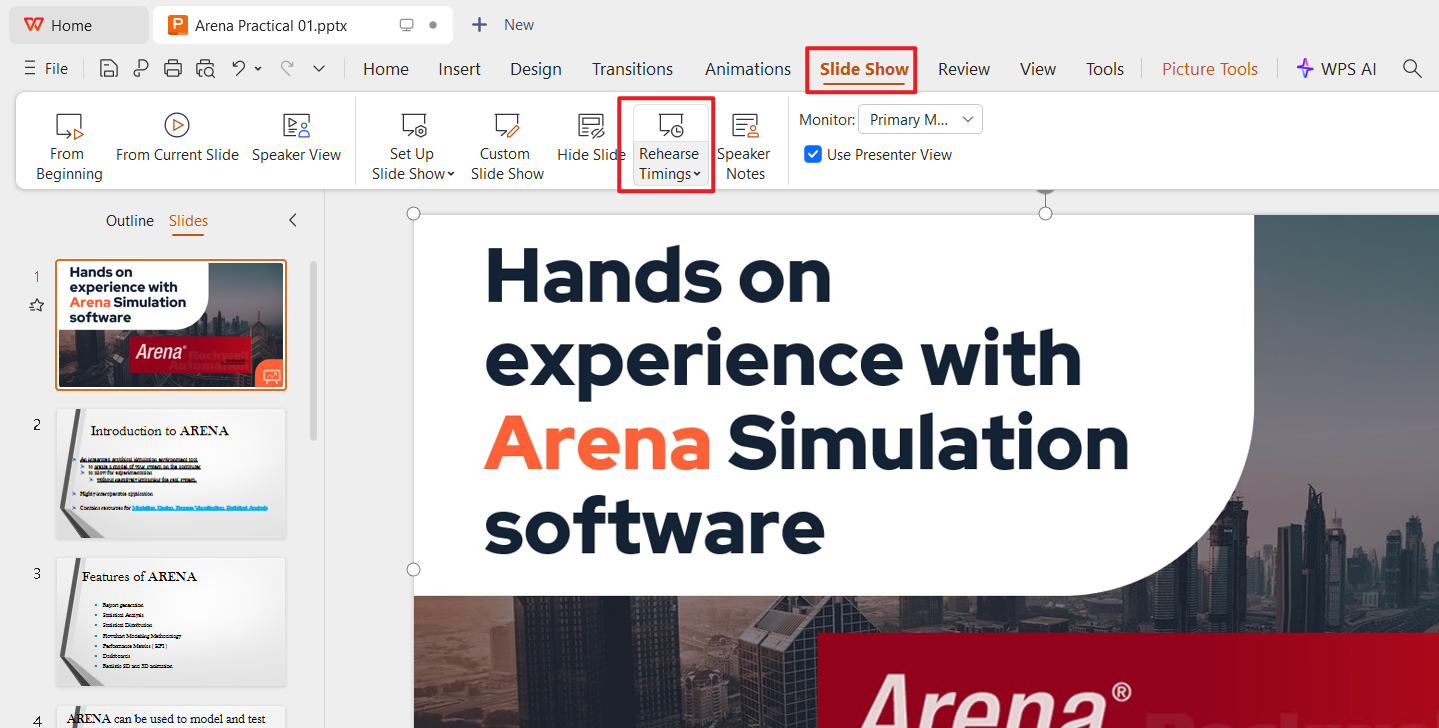
Rehearse Timings
The Rehearse Timings feature records your natural pacing as you practice. Once saved, slides advance automatically using your real speaking rhythm.
Animation Sequencing
Text and objects can appear exactly when you need them. You control duration and delay down to fine detail, which is not possible with most extensions.
No Extensions Needed
Everything runs inside the software. This removes browser instability and avoids conflicts that sometimes occur with Chrome add-ons.
2. AI-Powered Creation and Design
Beyond timing, WPS AI Slides supports the entire presentation creation process.
Generate slide structure and content from a simple prompt
Receive layout, color, and font suggestions automatically
Maintain consistent design across large presentations
This combination is especially useful for professionals who want time control and content efficiency in one place.
3. Seamless Google Slides Compatibility
One concern users often have is compatibility. WPS solves this cleanly.
You can export your presentation as a PowerPoint file with all animations and timings preserved. When uploaded to Google Drive and opened in Google Slides, automatic slide transitions continue to work. This allows timed playback directly inside Google Slides without installing a Google Slides timer add-on.
This workflow effectively answers users searching for how to add a timer to Google Slides while avoiding real-time countdown pressure.
How to Set Up Timed Animations in WPS AI Slides for Google Slides
Step 1: Create and Design in WPS AI Slides
Use AI features to generate your slide outline and content
Adjust layouts and visuals as needed
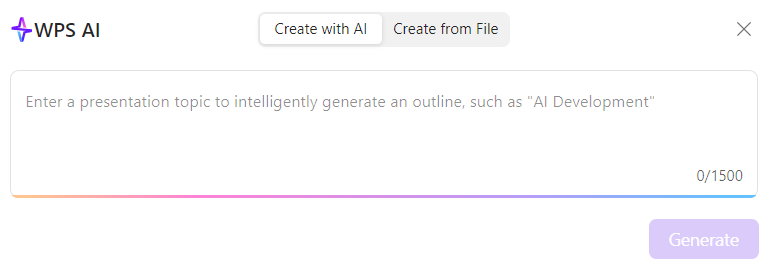
Step 2: Add Animations and Set Timings
Select text or objects
Open the Animations tab
Choose an effect and set Start, Duration, and Delay
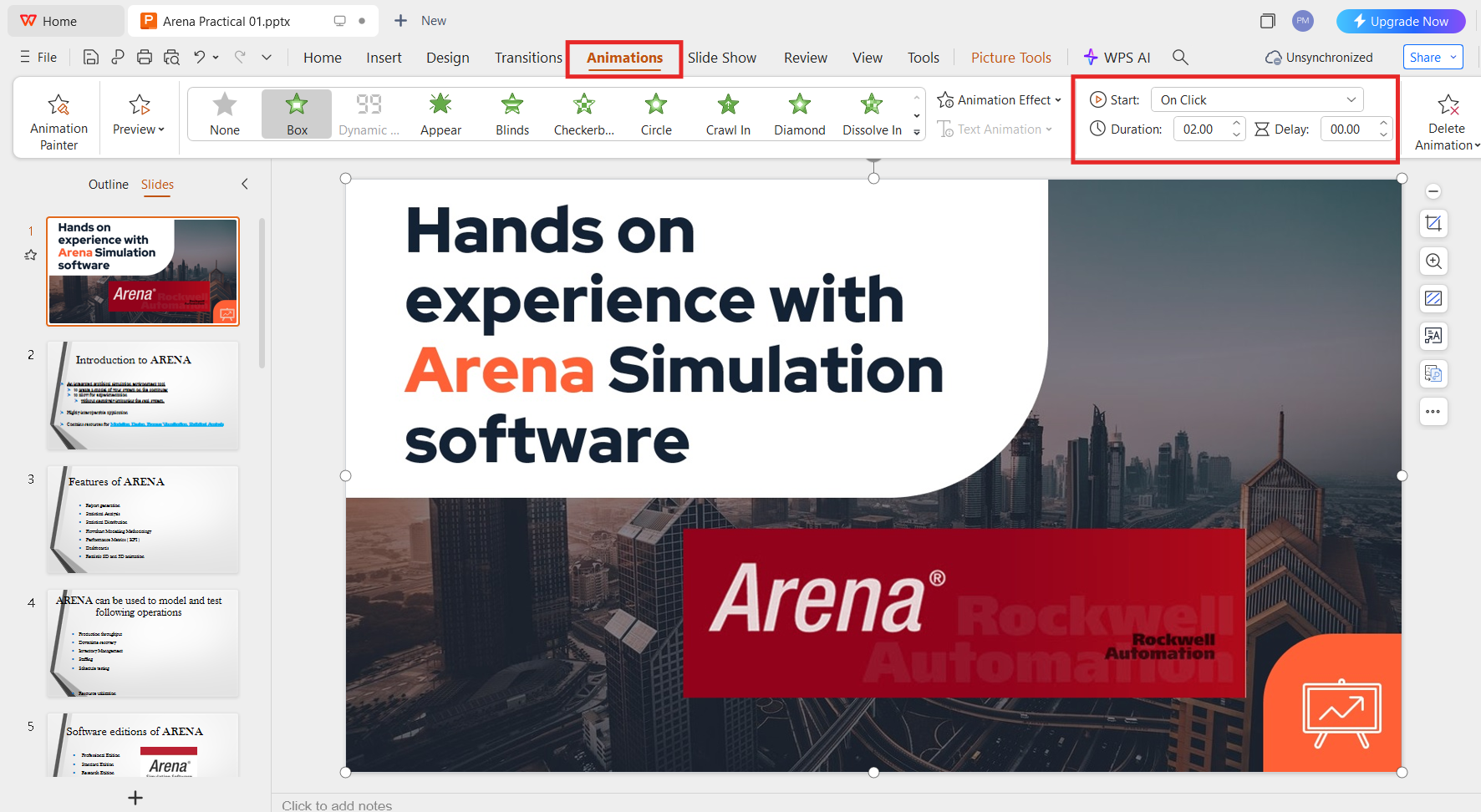
This approach replaces the need for a reactive overlay timer.
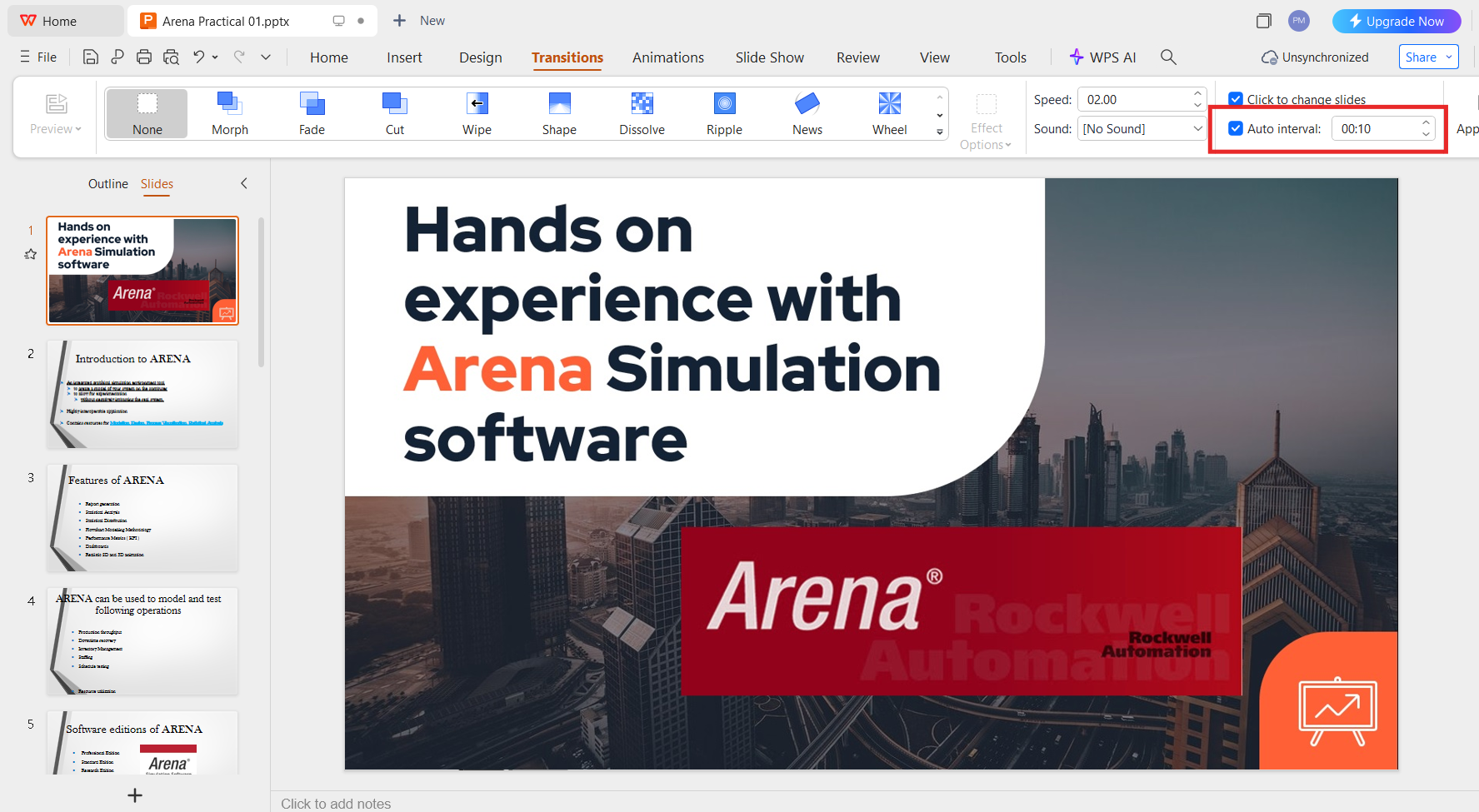
Step 3: Set Automatic Slide Transitions
Go to the Transitions tab
Enable Auto Interval
Set seconds per slide or customize individually
This is closer to a slide timer PowerPoint experience, but it works seamlessly for Google Slides playback.
Step 4: Rehearse and Fine-Tune
Use Rehearse Timings
Practice once or twice
Let the system capture your ideal pacing
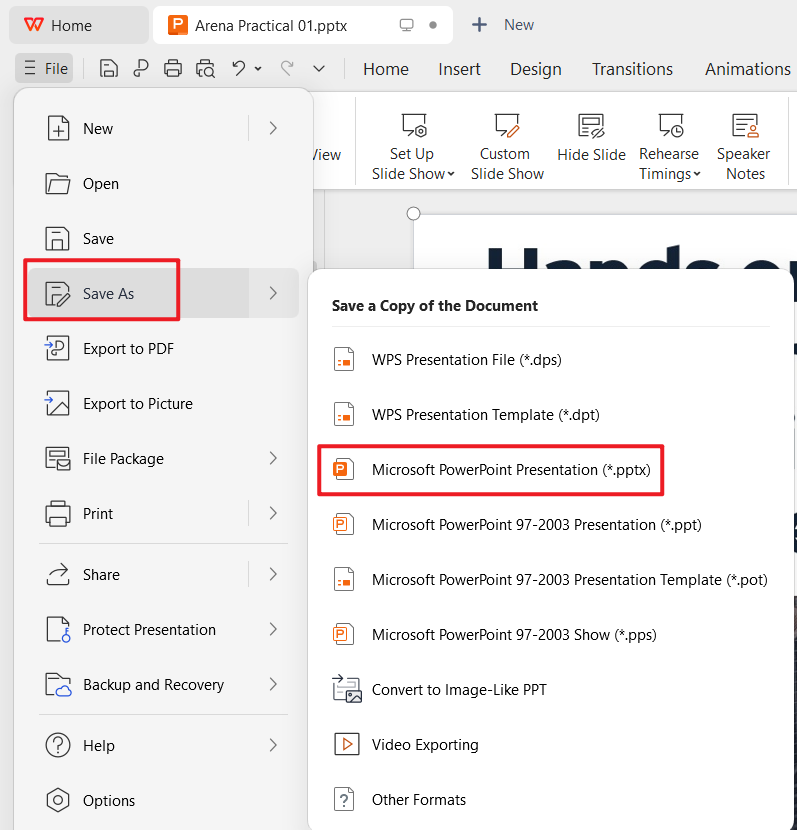
Step 5: Export for Google Slides
Save as a .pptx file
Upload to Google Drive
Open with Google Slides and start presenting
Slides advance automatically, creating a polished, hands-free flow.
Personal Perspective
I see Slides timer as a reactive solution that keeps you aware of time. WPS AI Slides is proactive. You design the timing before presenting, which reduces mental load and improves delivery quality. For speakers who present often or need consistent pacing, this approach feels more controlled and professional than relying on a visible countdown.
FAQs
1. What is the best timer extension for Google Slides?
If you only need timing during a presentation, the Slides timer is one of the most reliable options. It is simple, stable, and focuses purely on timing. For users who want more than a countdown and prefer planning timing in advance, WPS AI Slides offers a broader workflow that combines design, pacing, and automation.
2. Can I use a timer in Google Slides without an add-on?
Yes, but the options are limited. You can rely on an external timer, such as a phone or desktop clock, or use presenter tools like speaker notes. However, these methods are less efficient. A built-in overlay or pre-set slide timing provides a smoother experience and avoids breaking focus during delivery.
3. Is there a free timer for Google Slides?
Yes. Tools like Slides timer and other basic Google Workspace add-ons are available for free. They work well for simple timing needs and are suitable for classrooms, meetings, and short presentations.
4. How to add a timer to Google Slides for classroom use?
For live classroom sessions, a slides timer Chrome extension works best because it keeps the timing visible to the presenter only. If you want lessons to run automatically without manual control, setting slide transitions in WPS AI Slides and then opening the file in Google Slides is a more structured solution.
5. Are there cute timers for Google Slides?
Some timer extensions offer minimal visual customization, but most focus on clarity rather than design. If aesthetics matter, it is better to design visual cues directly into your slides or animations. For professional settings, subtle and clean timers tend to be less distracting than decorative ones.
Summary
Managing time is one of the biggest challenges in presentations, whether in classrooms, meetings, or professional talks. A dedicated slides timer Chrome extension, like Slides timer, helps presenters stay aware of pacing without disrupting their workflow. It is a practical solution for real-time control and quick setup.
For users who want deeper control, WPS AI Slidesprovides a more advanced approach. Instead of reacting to time during delivery, you plan timing in advance using slide transitions, animations, and rehearsal features. This creates a polished, consistent flow that still works smoothly when opened in Google Slides.
If you present occasionally, a timer extension is enough. If presentation timing is a regular part of your work, WPS AI Slides offers a more complete and future-proof solution.

'%3e%3cpath%20d='M19.9911%204.11386V6.471H18.5894C18.0775%206.471%2017.7322%206.57814%2017.5536%206.79243C17.3751%207.00671%2017.2858%207.32814%2017.2858%207.75671V9.44421H19.9019L19.5536%2012.0871H17.2858V18.8639H14.5536V12.0871H12.2769V9.44421H14.5536V7.49779C14.5536%206.39064%2014.8632%205.53201%2015.4822%204.92189C16.1013%204.31177%2016.9257%204.00671%2017.9554%204.00671C18.8304%204.00671%2019.509%204.04243%2019.9911%204.11386Z'%20fill='%23333333'/%3e%3c/g%3e%3cdefs%3e%3cclipPath%20id='clip0_2938_8199'%3e%3crect%20width='16'%20height='16'%20fill='white'%20transform='translate(8%204.00671)'/%3e%3c/clipPath%3e%3c/defs%3e%3c/svg%3e)
'%3e%3cpath%20d='M17.5237%2010.7813L23.4811%204H22.0699L16.8949%209.88693L12.7648%204H8L14.2469%2012.9029L8%2020.0133H9.4112L14.8725%2013.7952L19.2352%2020.0133H24M9.92053%205.04213H12.0885L22.0688%2019.0224H19.9003'%20fill='%23333333'/%3e%3c/g%3e%3cdefs%3e%3cclipPath%20id='clip0_2938_8200'%3e%3crect%20width='16'%20height='16.0134'%20fill='white'%20transform='translate(8%204)'/%3e%3c/clipPath%3e%3c/defs%3e%3c/svg%3e)


