Google Slides is a go-to tool in both classrooms and meeting rooms
because it makes creating and sharing presentations easy. But simple
slides can only hold attention for so long, and many people hit a wall
when they try to make their decks more engaging. While Google Slides is
approachable, things like text animations, object motion, and slide
transitions aren’t always obvious, especially if you’re new to the
platform. In this Google Slides animation tutorial, you’ll learn how to
add animation to Google Slides, how you can keep your audience
interested, and what is the distinction between Google Slides
transitions vs animations.
How to Add Animation to Google Slides
What Is Google Slides
Google
Slides is a free, cloud-based presentation software included in
the Google Workspace suite. It allows users to create, edit, and present
slideshows directly from a web browser without installing any software.
Its primary strength lies in collaboration, enabling multiple users to
work on a single deck simultaneously, making it a favorite for team
projects and remote work. When you add animation in Google Slides, it
instantly gives your presentation more credibility and makes it more
interesting.
Google Slides
Key Features:
Real-time Collaboration: Multiple users can edit
the same slide deck at the same time, with changes saving
automatically.
Cloud Accessibility: Presentations are stored in
Google Drive, accessible from any device with an internet
connection.
Browser-Based: No software installation is
required; it runs entirely within Chrome, Firefox, or Safari.
Version History: Users can track changes and
revert to previous versions of the presentation easily.
How to Add Animation to
Google Slides
In Google Slides, animationsare visual effects applied to individual elements, like text boxes,
images, or shapes, that control how they appear, move, or disappear on
the slide. Unlike transitions,
which control how one slide changes to the next, animations focus on the
specific content within a single slide, helping to control the flow of
information and emphasize key points.
Below are the essential Google Slides animation steps you can follow
to apply motion effects to any object on your slide in a clear and
controlled way. Here’s how to add animation to Google Slides:
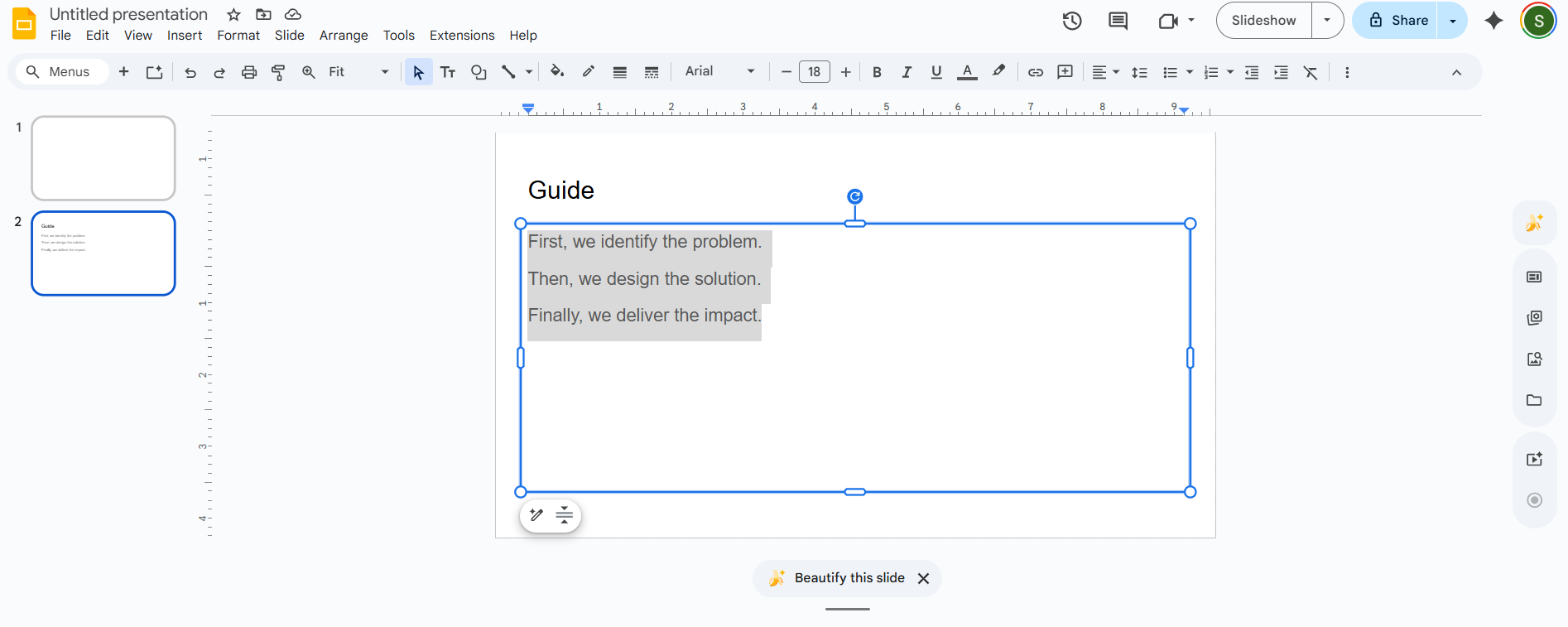
Step 1: Open your slide and click on the text box,
image, or shape you wish to animate. You will see a blue border appear
around the element to confirm it is currently selected.
Text box selected with a blue border
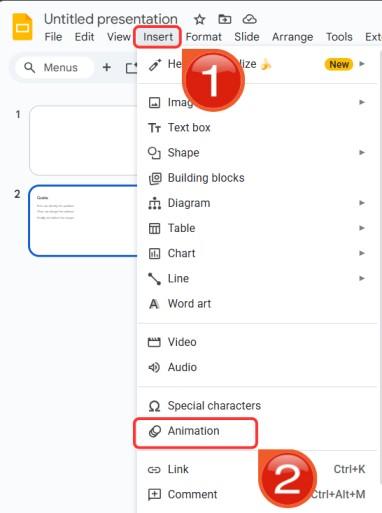
Step 2: Navigate to the top menu bar and click
“Insert” followed by “Animation”.
Alternatively, you can right-click the selected object directly and
choose “Animate” from the menu to open the settings
panel on the right side of the screen.
Insert dropdown menu
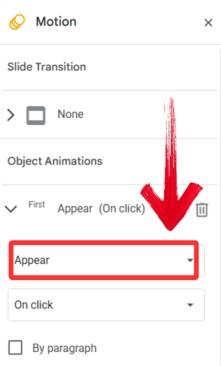
Step 3: Look at the Motion panel on the right side
of the screen under the “Object Animations” section.
Click the dropdown menu to select a specific Google Slides effects
animation.
Animation style dropdown menu
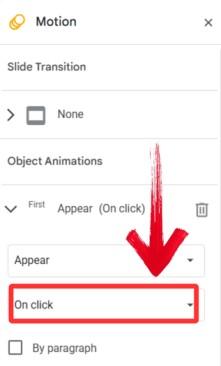
Step 4: Decide when the animation should begin by
clicking the "Start condition" dropdown menu below the
effect type.
Start condition dropdown menu
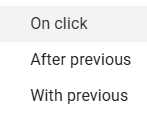
Step 5: You can select "On click"to trigger it manually, "After previous" to play it
automatically in sequence, or "With previous" to play
it simultaneously with another effect.
Start Conditions
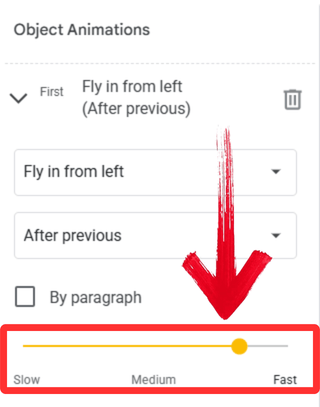
Step 6: Drag the duration slider left or right to
fine-tune the speed of the movement so it matches the pace of your
speech.
Speed slider being adjusted
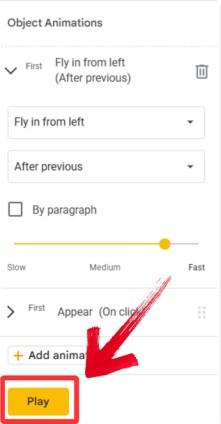
Step 7: Click the “Play” button
located at the bottom of the Motion panel to test the animation
immediately. This allows you to watch the timing and visual effect in
real-time without launching the full presentation mode.
Play and apply Animations
Alternative
Recommendation of Google Slides – WPS AI Slides
Learning to use the Motion animations in Google Slides makes your
presentations better, but it also takes too long to start your
presentations from scratch every time. Spending hours tweaking layouts,
transitions, and entrance effects often pulls your focus away from the
message you actually want to share. This is where WPS AI
Slides handles the structure and design upfront so you can focus
on shaping your ideas instead of formatting slides.
WPS AI Slides
Built into the WPS Office suite, WPS AI Slides acts like a smart
design partner. You can start with a simple prompt or upload a document,
and it automatically turns your content into clean, professional, fully
editable slides with consistent styling. You also get access to a large
template library and reliable exports in PPTX or PDF formats that work
perfectly with PowerPoint. The result is faster creation, less manual
work, and polished
presentations without the usual setup headaches.
Features:
AI-Assisted Slide Creation: Instantly generates
a full slide deck with structured content and layouts from a simple text
prompt or topic, eliminating the need to start from scratch.
Editable PowerPoint-Style Slides: Produces fully
editable .pptx files, allowing you to fine-tune animations, fonts, and
images just like in standard presentation software.
Rich Template Library: Provides access to a vast
collection of professional themes and designs, ensuring your
presentation looks polished without manual formatting.
Flexible Export Options: Supports seamless
exporting to PPT, PDF, and image formats, ensuring compatibility across
different platforms and devices.
Hybrid Workflow: Combines the speed of AI
generation with the precision of manual editing, giving you the best of
both automated and traditional design tools.
How to Use:
Getting started is easy. Instead of struggling with manual
formatting, you can let the AI handle the heavy lifting in just a few
clicks.
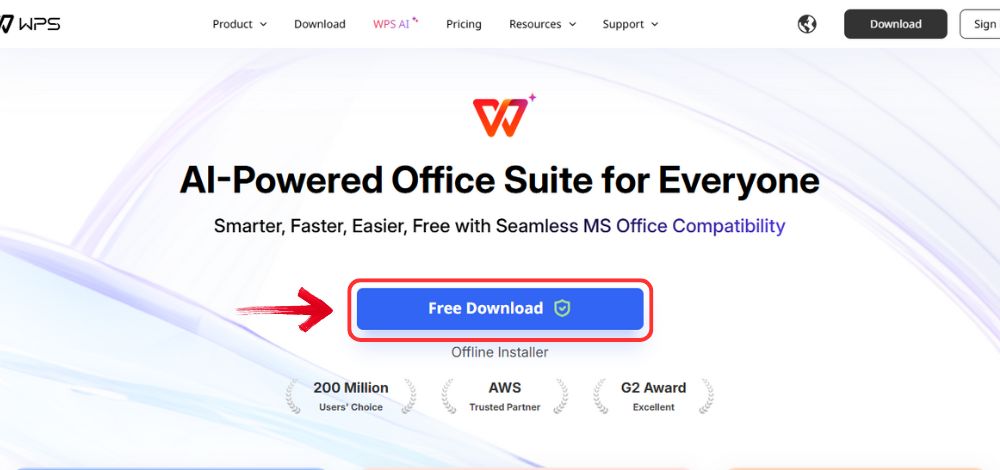
Step 1: Open your browser to visit WPS Office and click the"Free Download" button to start the download.
Download WPS Office
Step 2: The download will finish in a few seconds.
Once done, run the installation file like you would for any other app or
software.
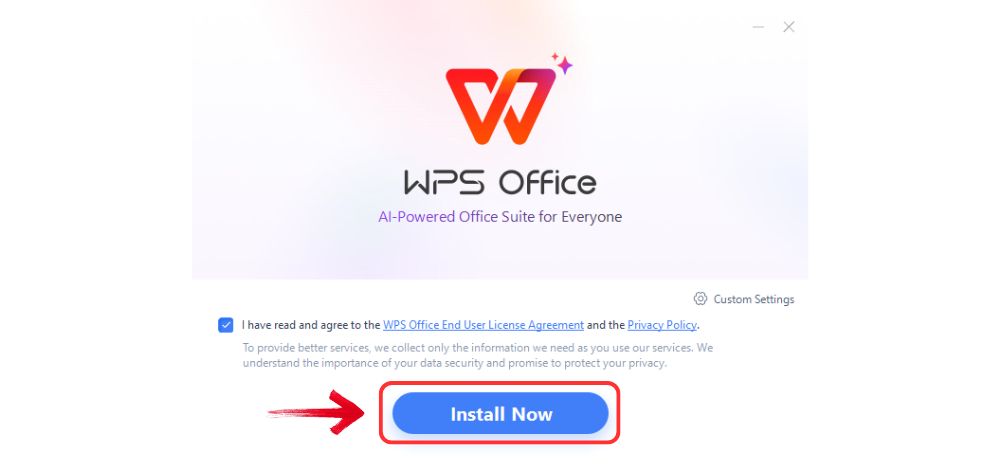
Step 3: WPS Office will show you a few simple terms
and conditions. Accept them, then click the "Install
Now" button to begin the installation.
Install WPS Office
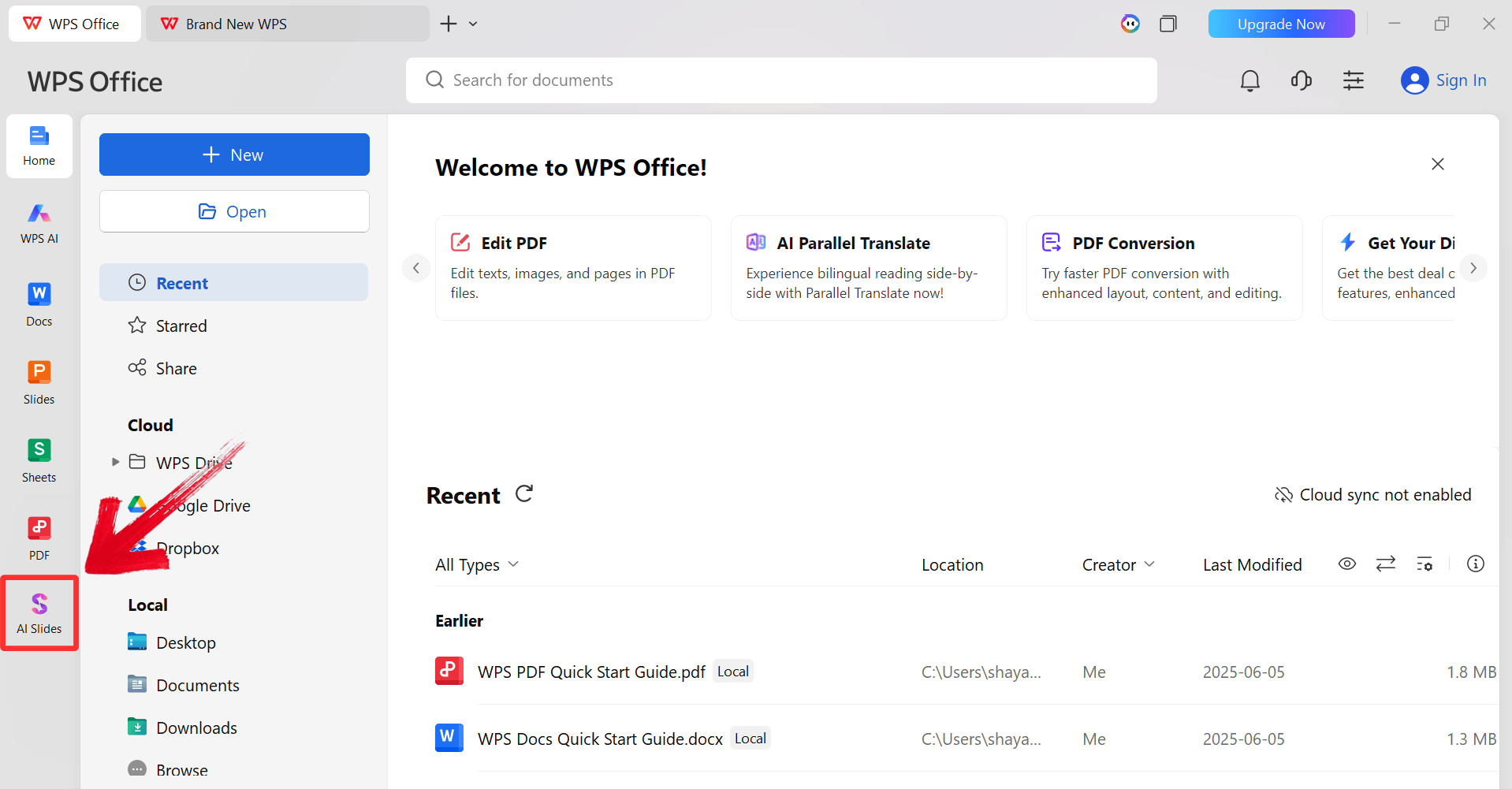
Step 4: After installation, in WPS Office, click“Slides” from the left sidebar.
WPS Slides Dashboard
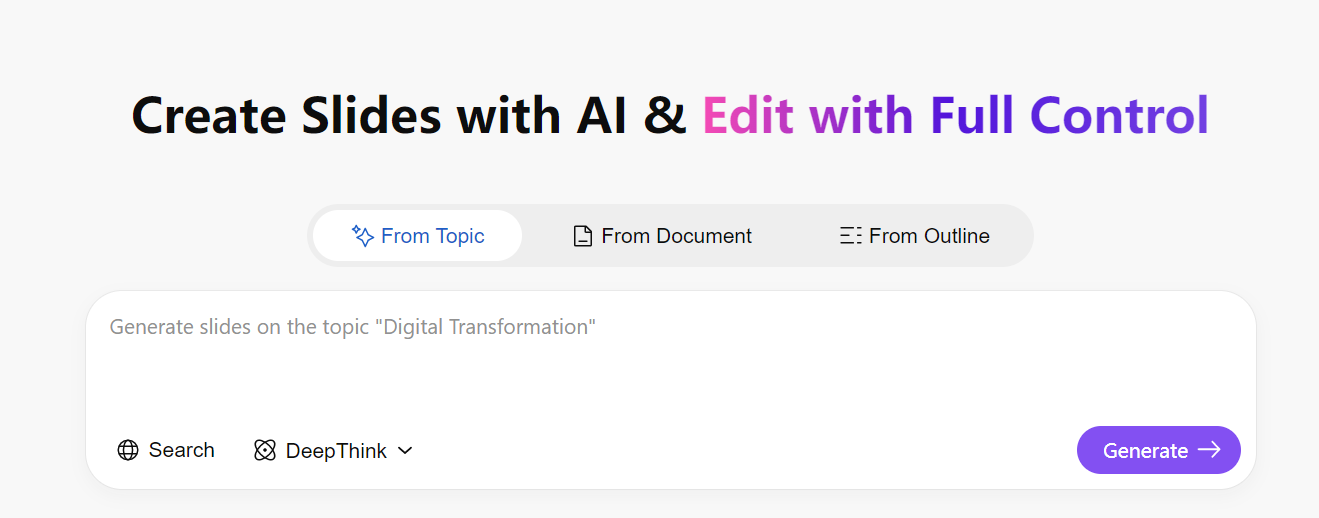
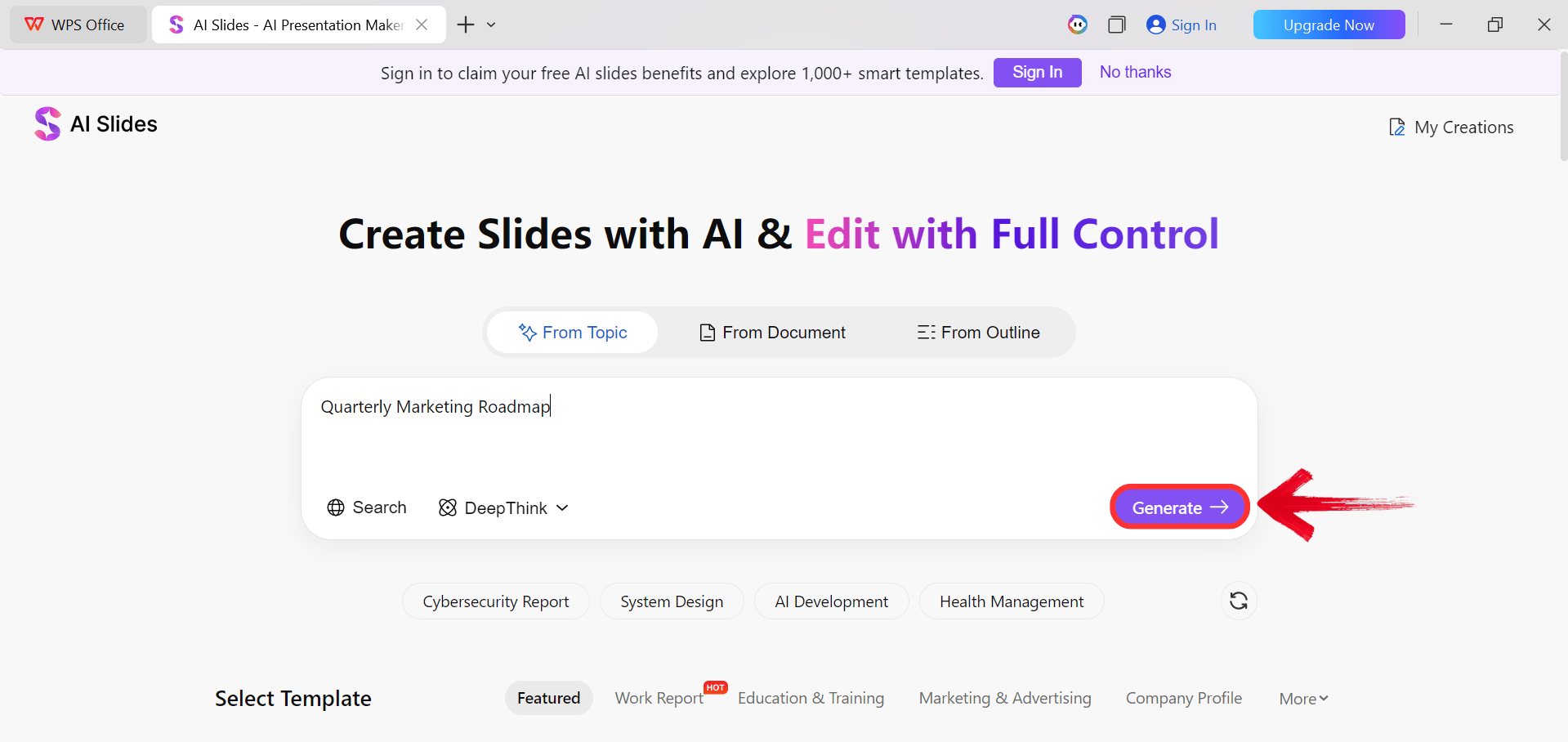
Step 5: Enter your presentation topic (e.g.,
"Quarterly Marketing Roadmap") into the dialogue box and click“Generate” to create the outline.
Click Generate
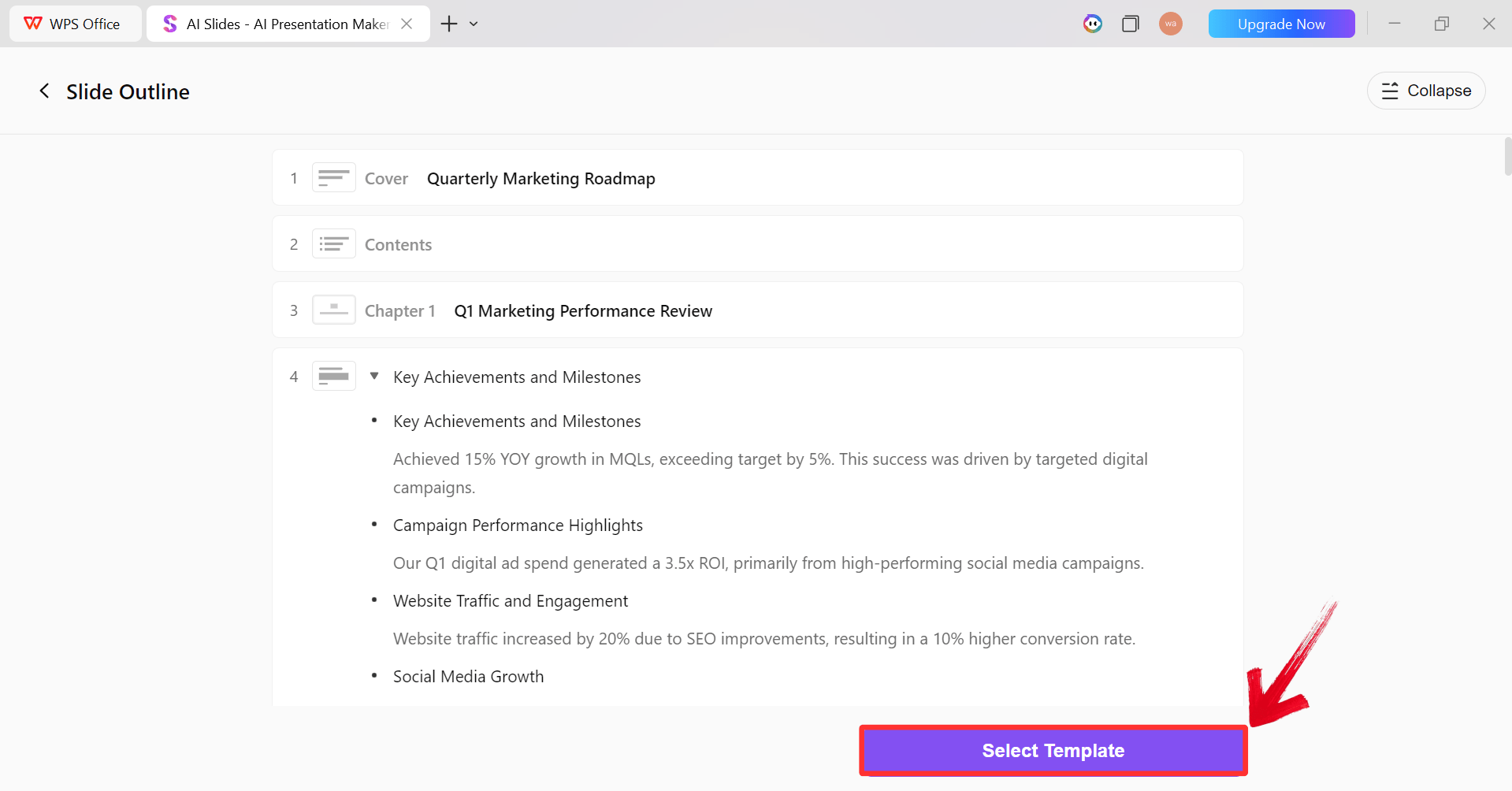
Step 6: After the AI creates the outline,
click “Select Template” to pick a template from the
already available ones.
AI Generated Outline
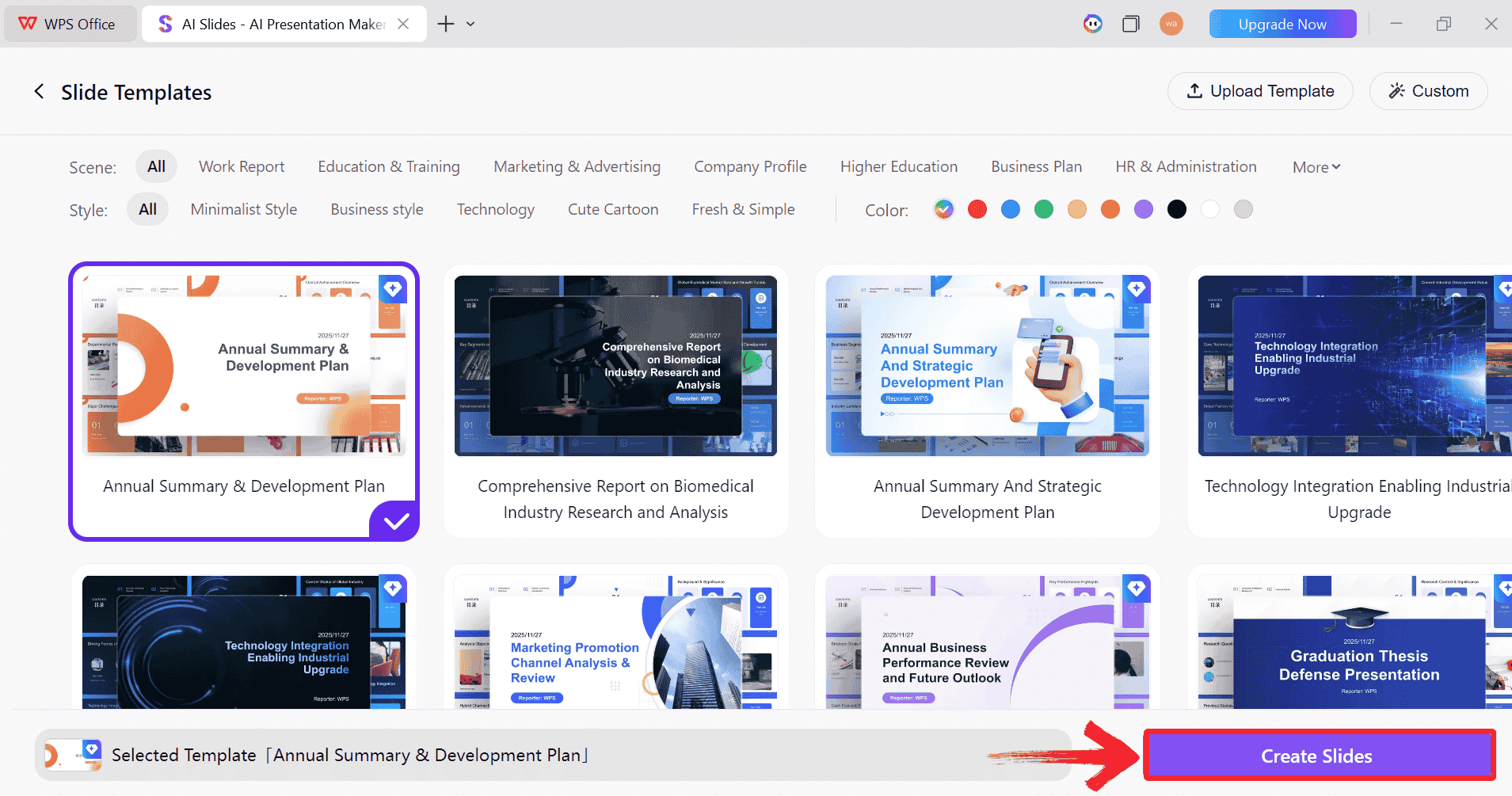
Step 7: Choose from the Wide template library and
click “Create Slides” to generate your
presentation.
Pick a Template
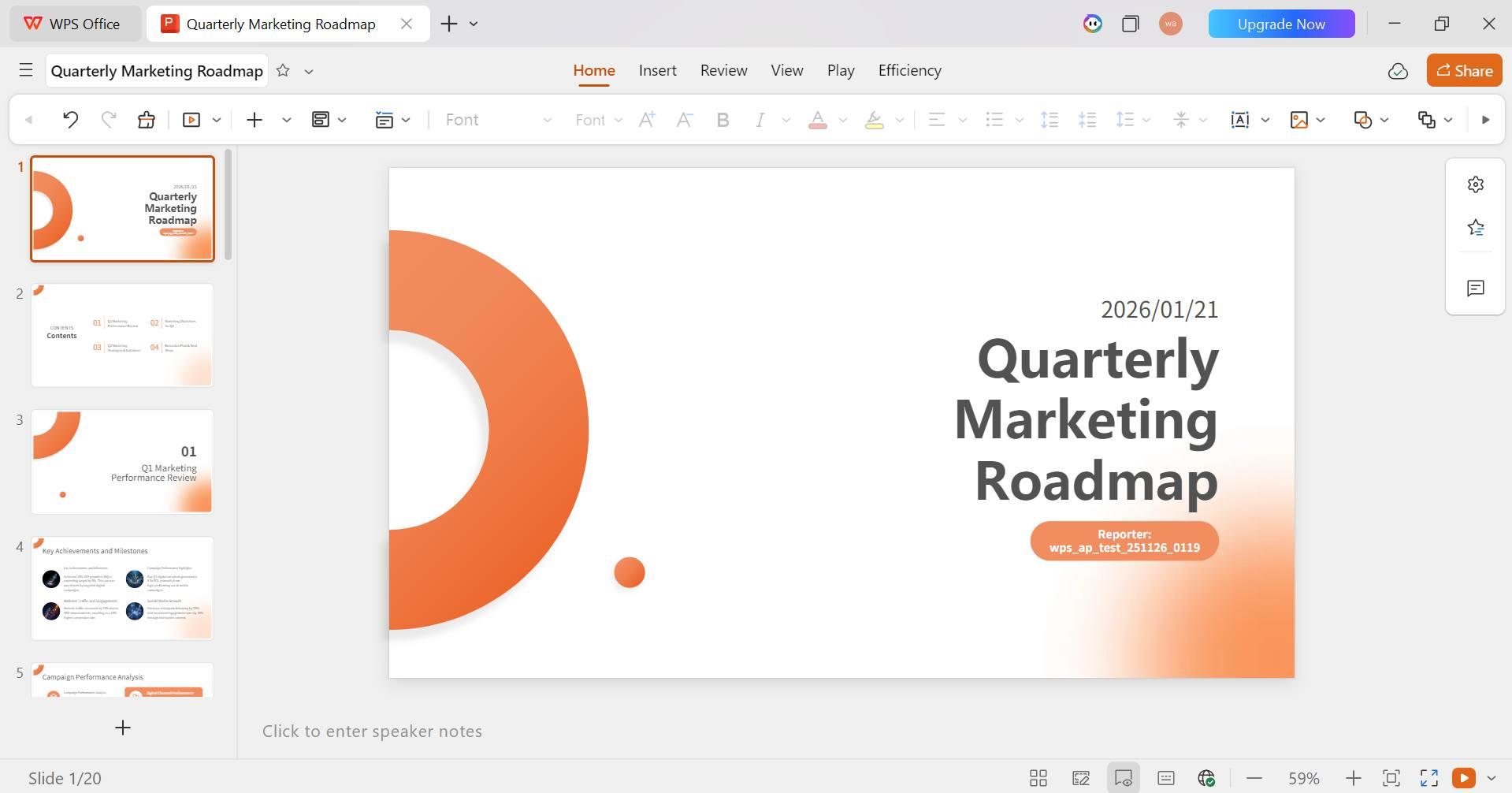
Step 8: Finally, your Slide deck will be generated
with the accurate content.
AI-generated PPT
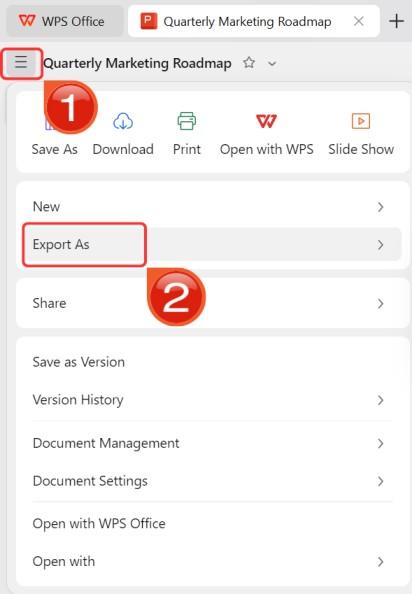
Step 9: Click on the File menu and then click“Export as” to download your PPT.
Export and Download
Comparison
Between Google Slides and WPS AI Slides
To help you decide which tool fits your workflow better, we have
compared the core capabilities, usability, and technical requirements ofGoogle
Slides against the AI-powered features of WPS Office.
Feature
Google Slides
WPS AI Slides
Primary Focus
Collaborative manual editing
AI-assisted creation & design
Installation
None (Browser-based)
Required (Desktop/Mobile App)
Ease of Use
Simple, intuitive for beginners
High (AI automates structure)
Creation Speed
Slower (Manual build)
Fast (AI generation)
Animation Control
Basic (Motion Pane)
Advanced (PPT-style effects)
Collaboration
Real-time, seamless
Cloud-based sharing
Offline Access
Limited (Requires setup)
Full (Native application)
File Compatibility
Native Google format
Excellent .pptx & .pdf support
Best For
Real-time team projects
Speed & professional formatting
FAQs
Q1: Can you add
animations in Google Slides?
Yes, Google Slides supports a variety of animations that can be
applied to text, images, and shapes. These are managed through the
Motion pane, where you can control the effect type, speed, and trigger
timing.
Q2: Do animations
work on mobile Google Slides?
While you can view animations on the mobile app during a
presentation, editing and adding complex animations is primarily a
desktop feature. The mobile interface has limited support for creating
these effects.
Q3:
What’s the difference between animation and transition?
An animation affects individual objects on a single
slide (e.g., a bullet point flying in). A transition is
the visual effect that occurs when you move from one slide to the next
(e.g., the slide fading to black before the new one appears).
Q4: Why use WPS AI Slides
instead?
WPS AI
Slides is ideal if you want to save time on the initial
build. While Google Slides requires you to create every element
manually, WPS AI generates the structure, content, and design for you
instantly, which you can then polish and animate.
Engaging Slides Without
the Extra Work
Knowing how to add animation to Google Slides is a straightforward
way to make your presentations more dynamic and engaging. By mastering
the Motion pane, you can control the flow of information and keep your
audience focused. However, if you find the manual process of building
slides tedious, WPS AI
Slides offers a powerful alternative. By leveraging AI to
generate your deck's structure and design, you can achieve professional
results in a fraction of the time, leaving you free to focus on your
delivery.
Khadija Khan is a tech writer who explores office suites and creates content to simplify everyday tools. She teaches and inspires through clear, engaging writing.


'%3e%3cpath%20d='M8%200C12.4183%200%2016%203.58172%2016%208C16%2012.4183%2012.4183%2016%208%2016C3.58172%2016%200%2012.4183%200%208C0%203.58172%203.58172%200%208%200ZM11.6162%204.38379C11.2257%203.99337%2010.5927%203.99338%2010.2021%204.38379L8%206.58594L5.79785%204.38379C5.40732%203.99334%204.77429%203.99329%204.38379%204.38379C3.99331%204.77429%203.99335%205.40733%204.38379%205.79785L6.58594%208L4.38379%2010.2021C3.99348%2010.5927%203.99341%2011.2257%204.38379%2011.6162C4.77426%2012.0066%205.40734%2012.0065%205.79785%2011.6162L8%209.41406L10.2021%2011.6162C10.5927%2012.0066%2011.2257%2012.0067%2011.6162%2011.6162C12.0067%2011.2257%2012.0066%2010.5927%2011.6162%2010.2021L9.41406%208L11.6162%205.79785C12.0066%205.40735%2012.0066%204.77429%2011.6162%204.38379Z'%20fill='%23080E17'%20fill-opacity='0.46'/%3e%3c/g%3e%3cdefs%3e%3cclipPath%20id='clip0_3761_713'%3e%3crect%20width='16'%20height='16'%20fill='white'/%3e%3c/clipPath%3e%3c/defs%3e%3c/svg%3e)




'%3e%3cpath%20fill-rule='evenodd'%20clip-rule='evenodd'%20d='M21.4999%2010.9993C21.4999%205.20009%2016.7986%200.498901%2010.9993%200.498901C5.19994%200.498901%200.498657%205.20009%200.498657%2010.9993C0.498657%2016.2404%204.33858%2020.5844%209.35855%2021.3722V14.0346H6.69238V10.9993H9.35855V8.68594C9.35855%206.05427%2010.9262%204.60062%2013.3248%204.60062C14.4736%204.60062%2015.6753%204.80571%2015.6753%204.80571V7.38979H14.3512C13.0468%207.38979%2012.64%208.19921%2012.64%209.0296V10.9993H15.5523L15.0867%2014.0346H12.64V21.3722C17.66%2020.5844%2021.4999%2016.2404%2021.4999%2010.9993Z'%20fill='%231568EA'/%3e%3c/g%3e%3c/svg%3e)


'%3e%3cpath%20d='M2.42045%2022.1876H6.31818V12.7217L0.75%208.54553V20.5171C0.75%2021.4414%201.49892%2022.1876%202.42045%2022.1876Z'%20fill='%234285F4'/%3e%3cpath%20d='M19.682%2022.1876H23.5797C24.5041%2022.1876%2025.2502%2021.4387%2025.2502%2020.5171V8.54553L19.682%2012.7217'%20fill='%2334A853'/%3e%3cpath%20d='M19.682%205.48293V12.7216L25.2502%208.54543V6.31816C25.2502%204.25236%2022.8921%203.07469%2021.2411%204.31361'%20fill='%23FBBC04'/%3e%3cpath%20d='M6.31824%2012.7217V5.48303L13.0001%2010.4944L19.6819%205.48303V12.7217L13.0001%2017.733'%20fill='%23EA4335'/%3e%3cpath%20d='M0.75%206.31816V8.54543L6.31818%2012.7216V5.48293L4.75909%204.31361C3.10534%203.07469%200.75%204.25236%200.75%206.31816Z'%20fill='%23C5221F'/%3e%3c/g%3e%3cdefs%3e%3cclipPath%20id='clip0_2954_7305'%3e%3crect%20width='24.5'%20height='18.375'%20fill='white'%20transform='translate(0.75%203.8125)'/%3e%3c/clipPath%3e%3c/defs%3e%3c/svg%3e)




'%3e%3cpath%20d='M19.9911%204.11386V6.471H18.5894C18.0775%206.471%2017.7322%206.57814%2017.5536%206.79243C17.3751%207.00671%2017.2858%207.32814%2017.2858%207.75671V9.44421H19.9019L19.5536%2012.0871H17.2858V18.8639H14.5536V12.0871H12.2769V9.44421H14.5536V7.49779C14.5536%206.39064%2014.8632%205.53201%2015.4822%204.92189C16.1013%204.31177%2016.9257%204.00671%2017.9554%204.00671C18.8304%204.00671%2019.509%204.04243%2019.9911%204.11386Z'%20fill='%23333333'/%3e%3c/g%3e%3cdefs%3e%3cclipPath%20id='clip0_2938_8199'%3e%3crect%20width='16'%20height='16'%20fill='white'%20transform='translate(8%204.00671)'/%3e%3c/clipPath%3e%3c/defs%3e%3c/svg%3e)
'%3e%3cpath%20d='M17.5237%2010.7813L23.4811%204H22.0699L16.8949%209.88693L12.7648%204H8L14.2469%2012.9029L8%2020.0133H9.4112L14.8725%2013.7952L19.2352%2020.0133H24M9.92053%205.04213H12.0885L22.0688%2019.0224H19.9003'%20fill='%23333333'/%3e%3c/g%3e%3cdefs%3e%3cclipPath%20id='clip0_2938_8200'%3e%3crect%20width='16'%20height='16.0134'%20fill='white'%20transform='translate(8%204)'/%3e%3c/clipPath%3e%3c/defs%3e%3c/svg%3e)


