

'%3e%3cpath%20d='M8%200C12.4183%200%2016%203.58172%2016%208C16%2012.4183%2012.4183%2016%208%2016C3.58172%2016%200%2012.4183%200%208C0%203.58172%203.58172%200%208%200ZM11.6162%204.38379C11.2257%203.99337%2010.5927%203.99338%2010.2021%204.38379L8%206.58594L5.79785%204.38379C5.40732%203.99334%204.77429%203.99329%204.38379%204.38379C3.99331%204.77429%203.99335%205.40733%204.38379%205.79785L6.58594%208L4.38379%2010.2021C3.99348%2010.5927%203.99341%2011.2257%204.38379%2011.6162C4.77426%2012.0066%205.40734%2012.0065%205.79785%2011.6162L8%209.41406L10.2021%2011.6162C10.5927%2012.0066%2011.2257%2012.0067%2011.6162%2011.6162C12.0067%2011.2257%2012.0066%2010.5927%2011.6162%2010.2021L9.41406%208L11.6162%205.79785C12.0066%205.40735%2012.0066%204.77429%2011.6162%204.38379Z'%20fill='%23080E17'%20fill-opacity='0.46'/%3e%3c/g%3e%3cdefs%3e%3cclipPath%20id='clip0_3761_713'%3e%3crect%20width='16'%20height='16'%20fill='white'/%3e%3c/clipPath%3e%3c/defs%3e%3c/svg%3e)



'%3e%3cpath%20fill-rule='evenodd'%20clip-rule='evenodd'%20d='M21.4999%2010.9993C21.4999%205.20009%2016.7986%200.498901%2010.9993%200.498901C5.19994%200.498901%200.498657%205.20009%200.498657%2010.9993C0.498657%2016.2404%204.33858%2020.5844%209.35855%2021.3722V14.0346H6.69238V10.9993H9.35855V8.68594C9.35855%206.05427%2010.9262%204.60062%2013.3248%204.60062C14.4736%204.60062%2015.6753%204.80571%2015.6753%204.80571V7.38979H14.3512C13.0468%207.38979%2012.64%208.19921%2012.64%209.0296V10.9993H15.5523L15.0867%2014.0346H12.64V21.3722C17.66%2020.5844%2021.4999%2016.2404%2021.4999%2010.9993Z'%20fill='%231568EA'/%3e%3c/g%3e%3c/svg%3e)


'%3e%3cpath%20d='M2.42045%2022.1876H6.31818V12.7217L0.75%208.54553V20.5171C0.75%2021.4414%201.49892%2022.1876%202.42045%2022.1876Z'%20fill='%234285F4'/%3e%3cpath%20d='M19.682%2022.1876H23.5797C24.5041%2022.1876%2025.2502%2021.4387%2025.2502%2020.5171V8.54553L19.682%2012.7217'%20fill='%2334A853'/%3e%3cpath%20d='M19.682%205.48293V12.7216L25.2502%208.54543V6.31816C25.2502%204.25236%2022.8921%203.07469%2021.2411%204.31361'%20fill='%23FBBC04'/%3e%3cpath%20d='M6.31824%2012.7217V5.48303L13.0001%2010.4944L19.6819%205.48303V12.7217L13.0001%2017.733'%20fill='%23EA4335'/%3e%3cpath%20d='M0.75%206.31816V8.54543L6.31818%2012.7216V5.48293L4.75909%204.31361C3.10534%203.07469%200.75%204.25236%200.75%206.31816Z'%20fill='%23C5221F'/%3e%3c/g%3e%3cdefs%3e%3cclipPath%20id='clip0_2954_7305'%3e%3crect%20width='24.5'%20height='18.375'%20fill='white'%20transform='translate(0.75%203.8125)'/%3e%3c/clipPath%3e%3c/defs%3e%3c/svg%3e)


You've got a pile of RAW shots begging for better colors and light, but Lightroom's monthly bill feels like a joke. You just want quick fixes that actually work, lift shadows, save highlights, export crisp files, without the pro-price nonsense. Good news: 2025's free tools now crush Adobe quality and throw in smart AI that beats sliders. Here's the shortlist ranked by real speed, with dead-simple steps you can try tonight. Zero cost, zero catch, killer photos now.


Why People Are Searching for Free Lightroom Alternatives
Searches for "free Lightroom alternative" have doubled year-over-year because the subscription model no longer makes sense for most users. Casual photographers rarely use advanced cataloging or mobile sync, yet they still pay full price. Open-source projects have closed the quality gap, and built-in AI now handles tasks that once required manual masking. You’re looking for a tool that opens RAW files, fixes exposure in seconds, and exports print-ready images without ever asking for a credit card.
Top Lightroom Alternatives in 2025
1. WPS Photos (Best Free Lightroom Alternative for Mac and Windows - AI-Powered)
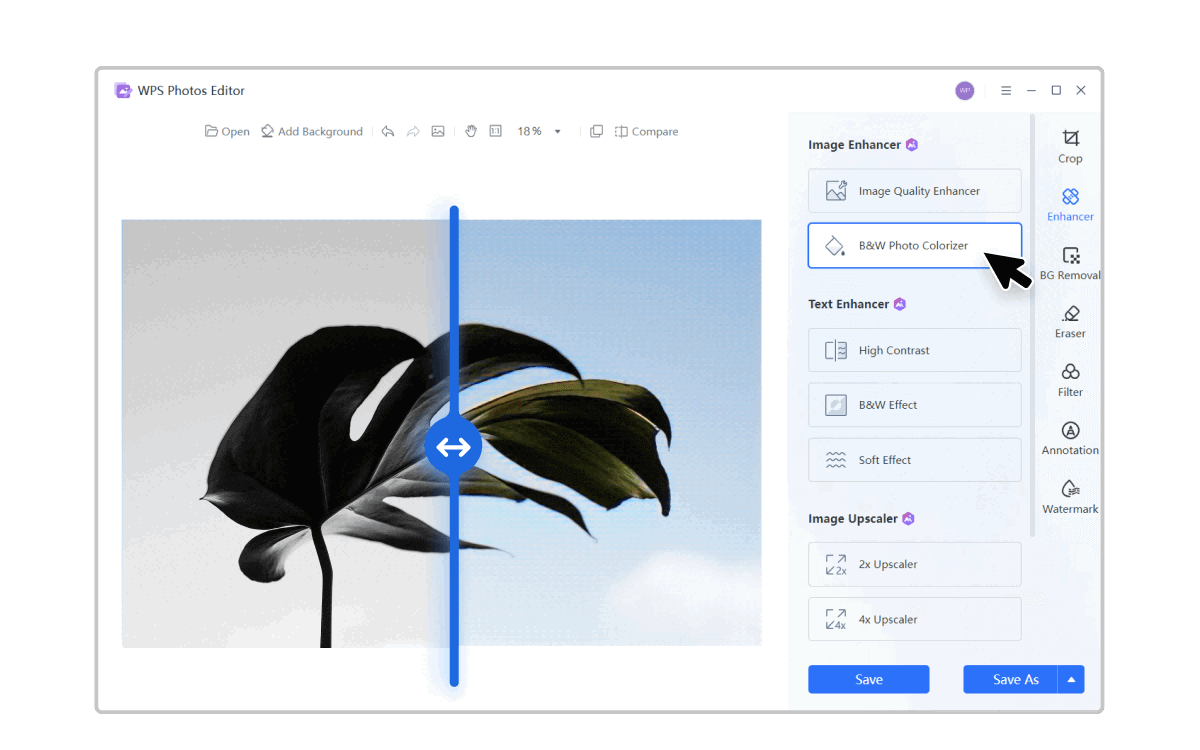
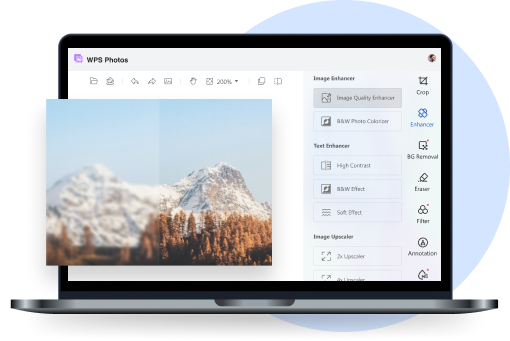
WPS Photos is my new favorite Lightroom killer in 2025. It lives inside the free WPS Office app, and one tap of "AI Enhance" instantly nails exposure, color, and sharpness like magic. Zero learning curve, no ugly watermarks, eats RAW files for breakfast, and blasts through batches. Honestly, millions of us now use it daily because pro-looking shots happen in seconds.
Key Features
One-click AI enhancement (exposure, contrast, color balance)
Smart background remover and object eraser
Full RAW support (CR2, NEF, ARW, DNG) + batch processing
Zero watermarks, zero ads, zero registration
Step-by-Step Tutorial
Step 1: Download WPS Office (free) from wps.com. Launch it, click the AI tab, and select Photos.
Step 2: Drag your image or click Upload. All common formats load instantly.
Step 3: Tap "AI Enhance." In 3-5 seconds the tool lifts shadows, recovers highlights, and sharpens details automatically.
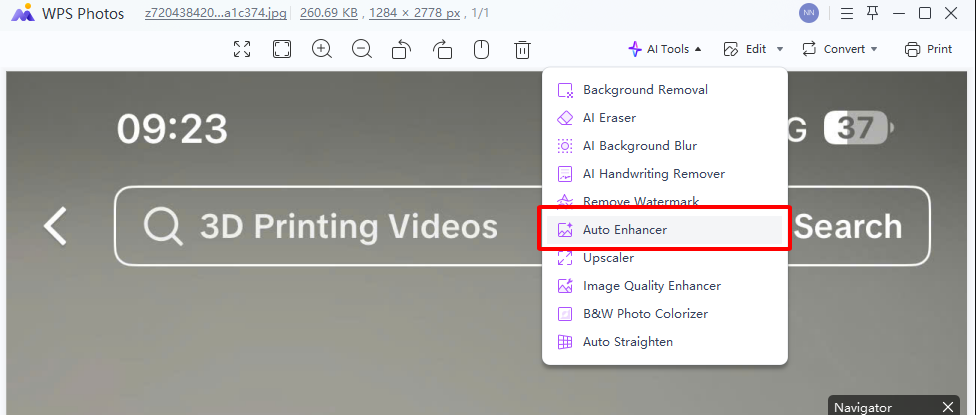
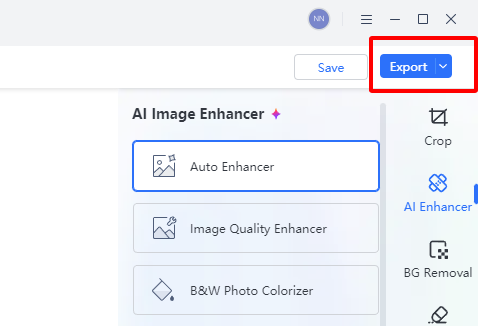
Step 4: Fine-tune with sliders if desired, then click Export. Choose 4K resolution and original quality.
Pros:
Lightning-fast results in seconds
Beginner-friendly with zero learning curve
Scene-aware AI that understands lighting and subjects
Completely free with no hidden limits
Cons:
No manual drawn masks or advanced layering
Fewer pro modules than Darktable
2. Darktable (Open-Source Photo Editing Software Like Lightroom - Pro Grade)
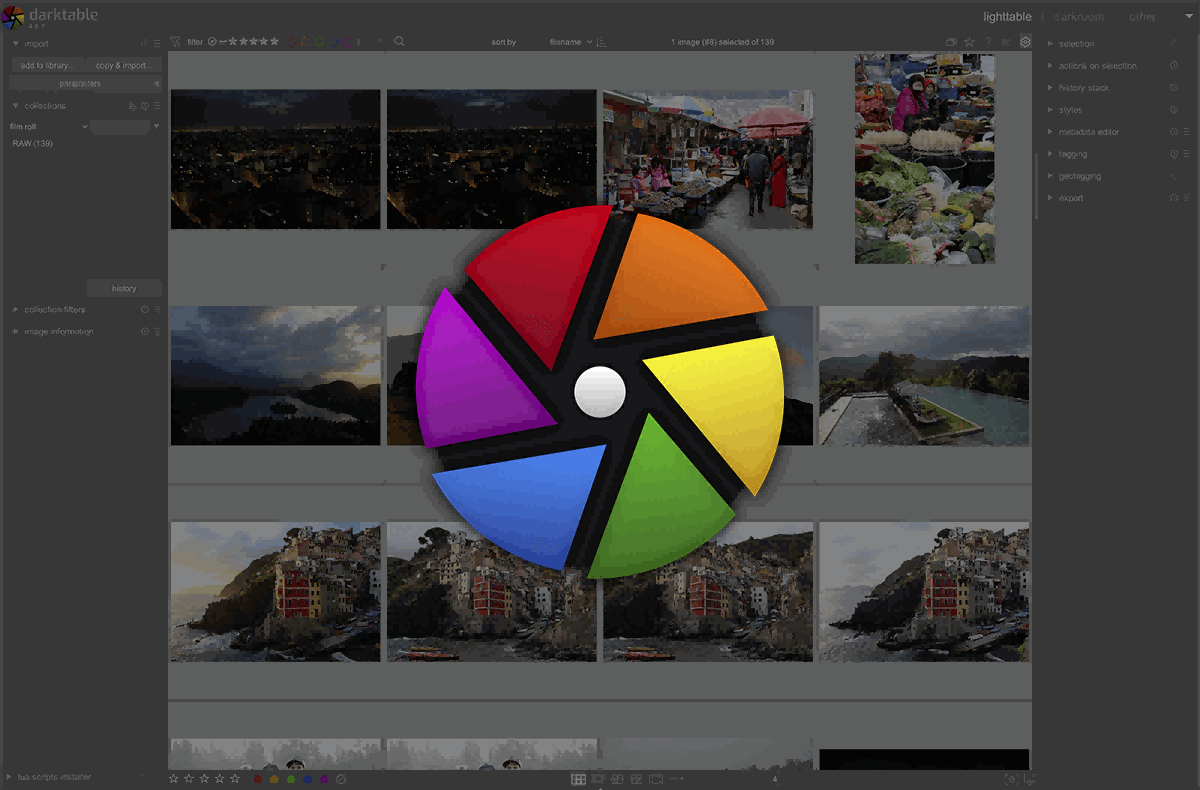
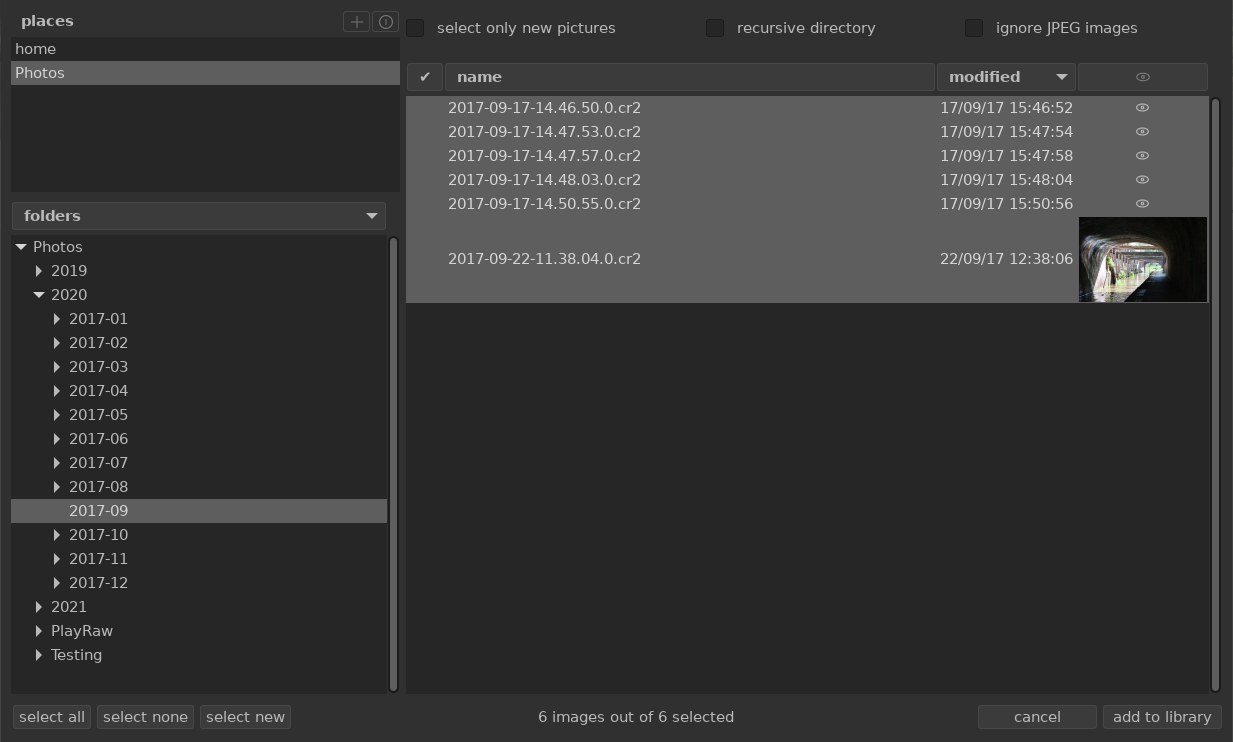
Darktable feels like Lightroom Classic never left, but free forever. It’s this rock-solid open-source beast with non-destructive RAW editing, over 60 pro modules, proper masks, and even tethered shooting. Power users swear by it because the community drops killer updates every couple months, and your wallet stays untouched. If you crave total control without the Adobe tax, this is it.
Key Features
Fully non-destructive RAW development
60+ modules including masked gradients, color zones, film emulation
Tethered shooting and geolocation mapping
Quick Editing Steps
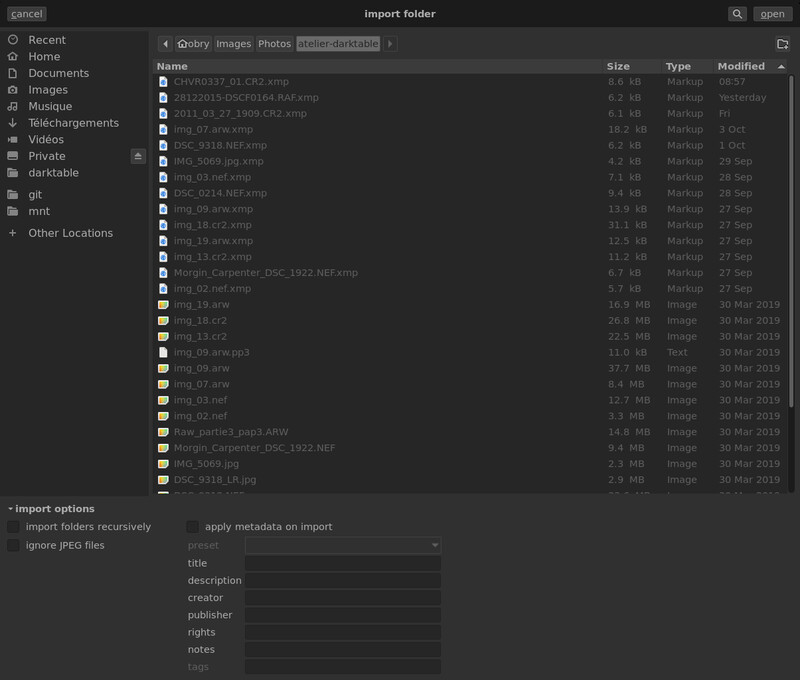
Step 1: Import folder to Lighttable view.
Step 2: Enter Darkroom. Enable Exposure, Tone Curve, and Local Contrast modules.
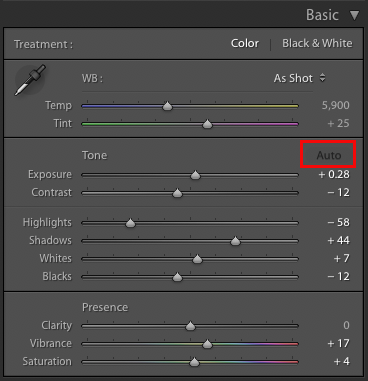
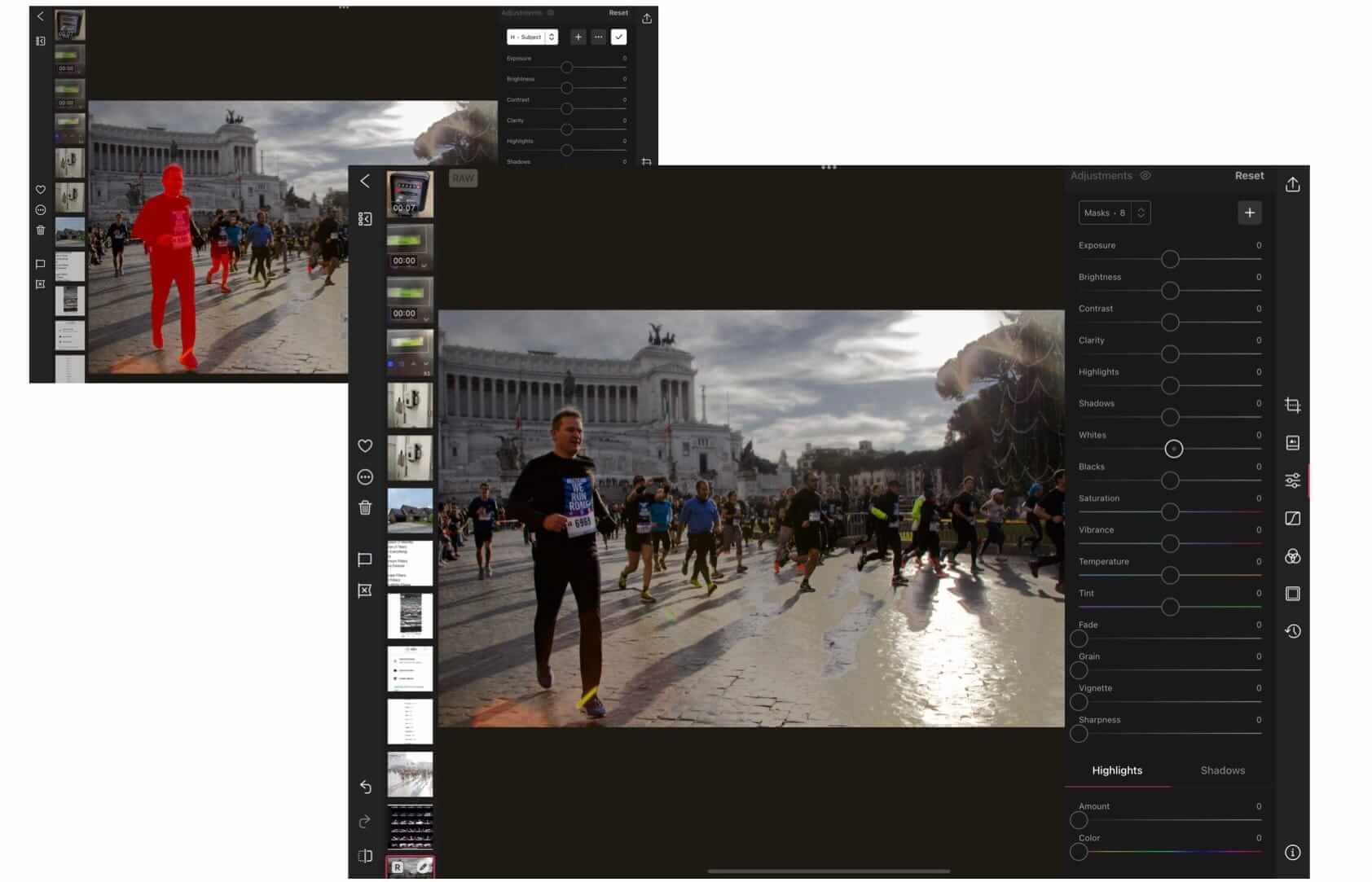
Step 3: Draw masks for selective brightening.
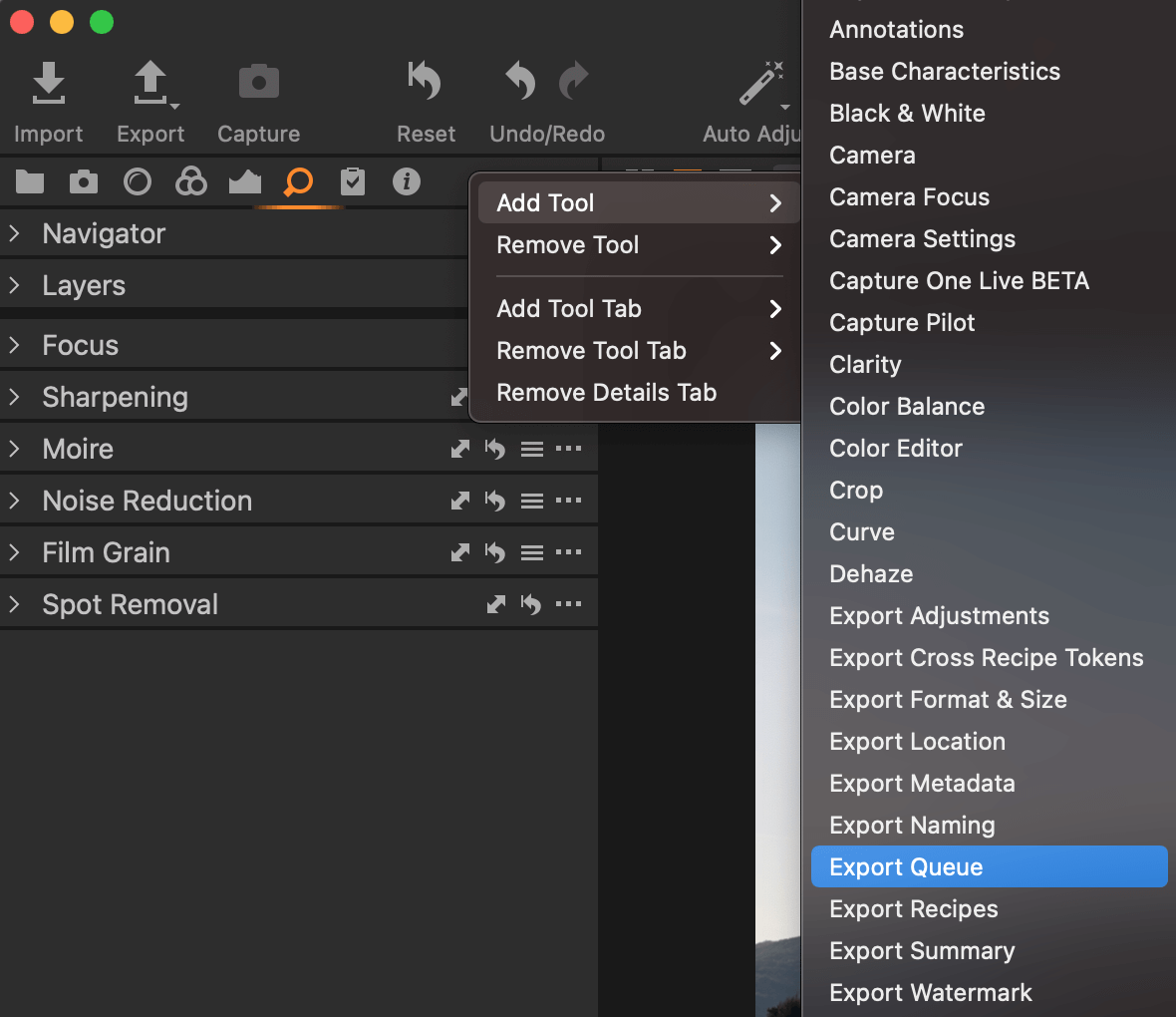
Step 4: Add to export queue and start processing.
Pros:
Unlimited professional depth and customization
Constant community updates and new features
Zero cost forever
Excellent masking and local adjustments
Cons:
Steep learning curve (2-3 days minimum)
Interface feels overwhelming at first
3. RawTherapee
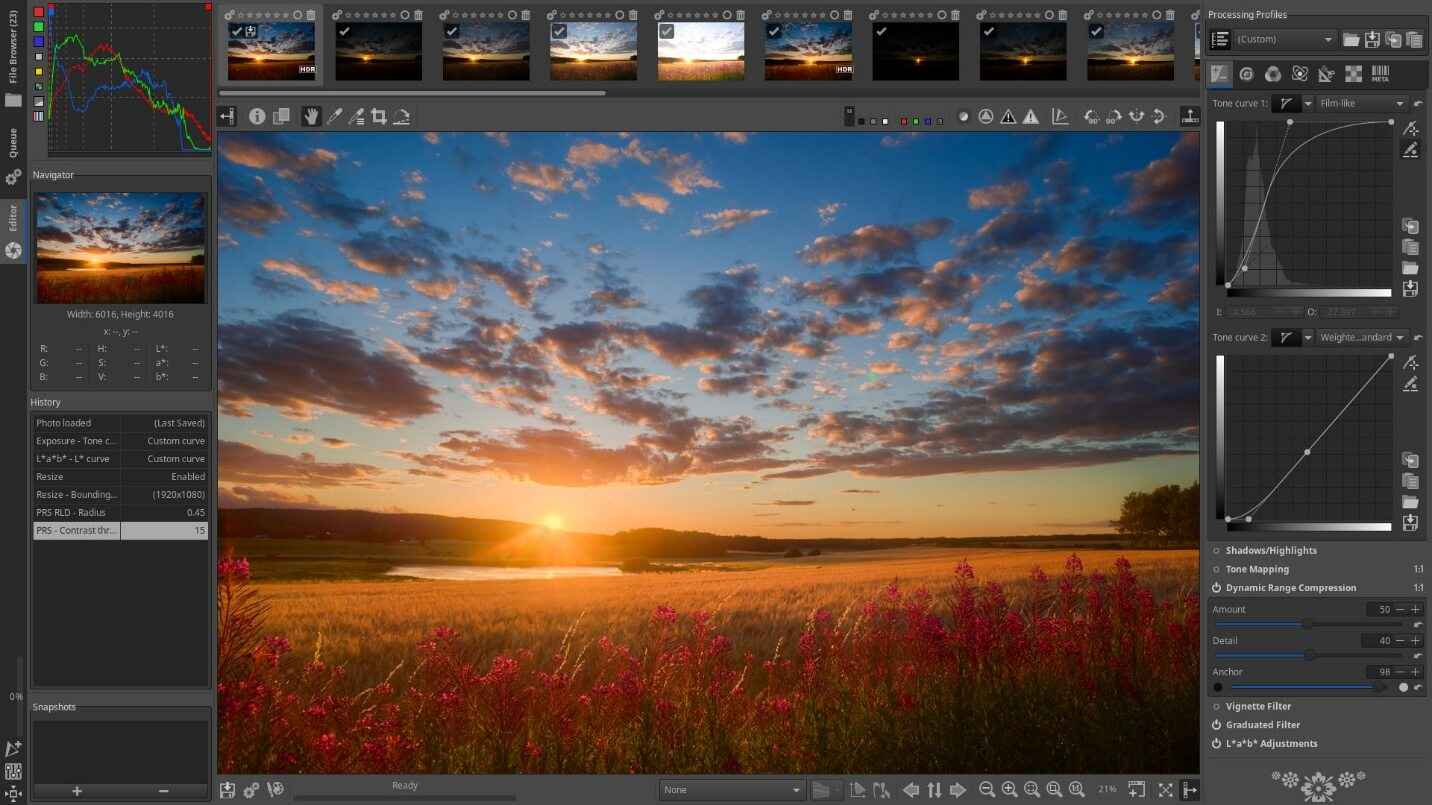
RawTherapee is still the undisputed king when you’re chasing every last drop of detail from your RAW files. Its demosaicing and color science are so good they embarrass most paid apps, and the highlight recovery plus microcontrast tools are pure gold. If you’re the type who zooms to 200% and tweaks until pixels sing, this is your weapon. Free, no compromises.
Key Features
Industry-leading demosaicing and noise reduction
CIECAM02 color appearance model
Batch queue with file-name variables
3-Step Workflow
Step 1: Browse folder and double-click image.
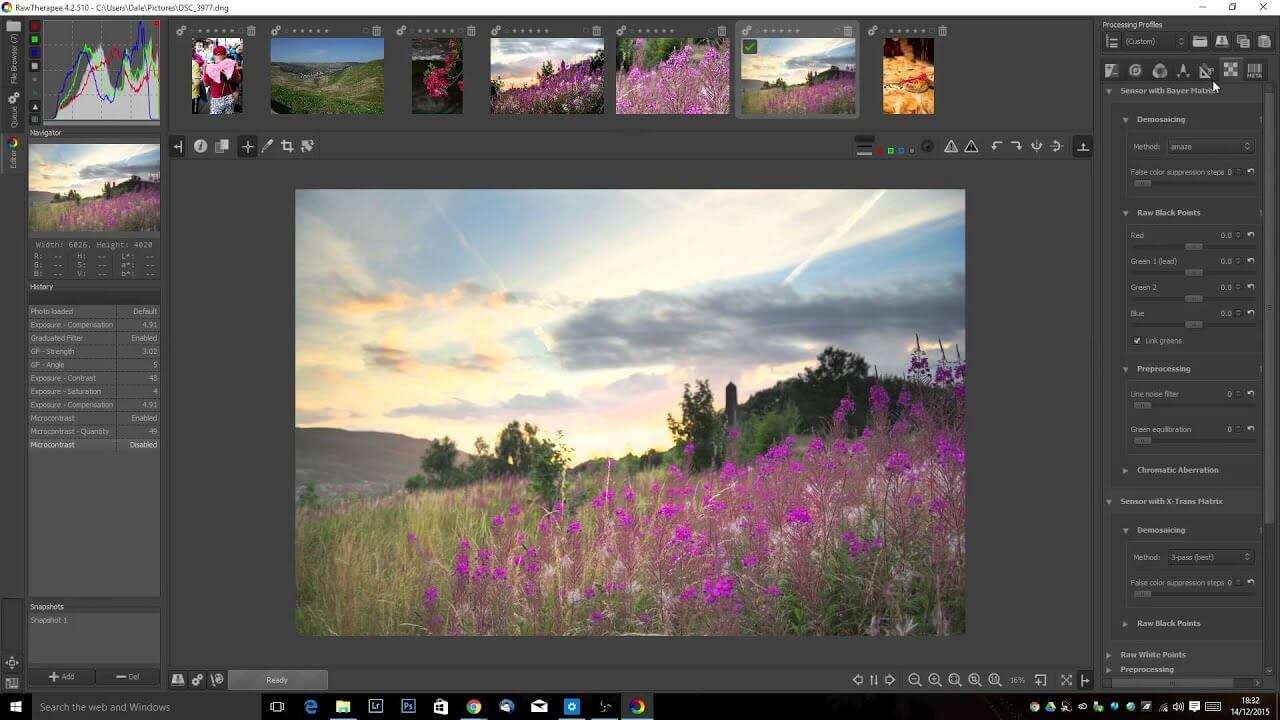
Step 2: Editor tab. Increase Clarity and Microcontrast under Details.
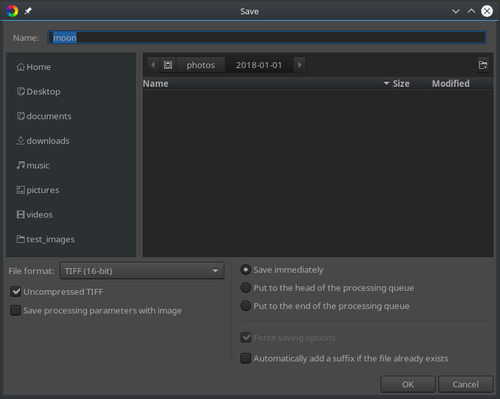
Step 3: Place in queue and Process.
Pros:
Best-in-class highlight and shadow recovery
Superior noise reduction for high-ISO shots
Extremely detailed control over RAW processing
Lightweight and fast on older machines
Cons:
No built-in catalog or library system
Interface looks dated compared to modern apps
4. Photopea (Web-Based, Zero Install)
Photopea is Photoshop and Lightroom rolled into a single browser tab. It opens RAW files natively, supports PSD layers, adjustment masks, and healing tools without installing anything. Travelers and users on locked work computers rely on Photopea because it works on any device with internet and caches for offline use.
Key Features
Native RAW + PSD support
Adjustment layers, smart objects, healing brush
Works offline after first load
Instant Edit
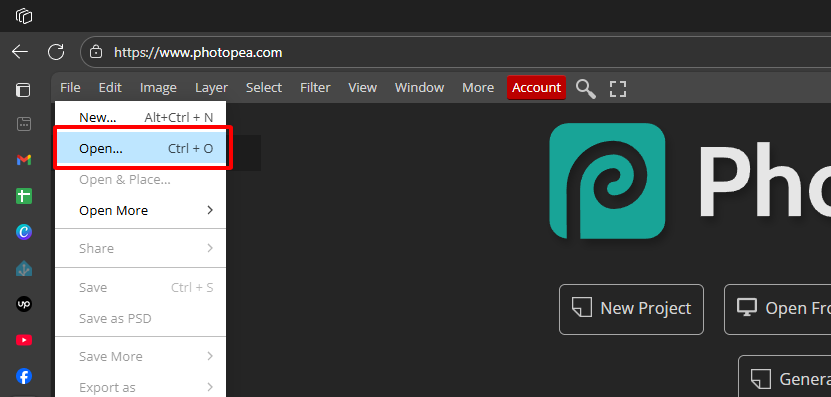
Step 1: Go to photopea.com. Choose File > Open.
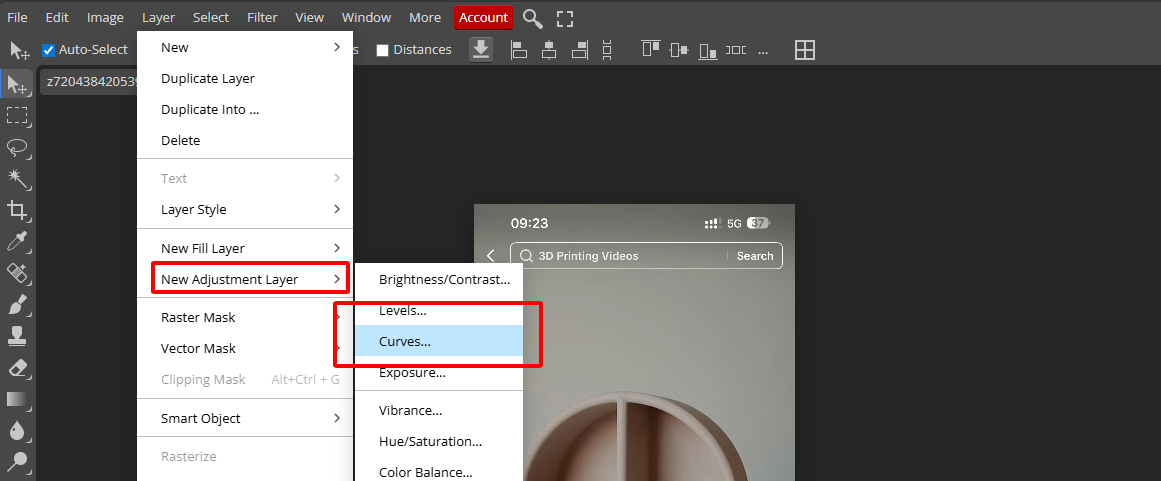
Step 2: Layer > New Adjustment Layer > Curves.
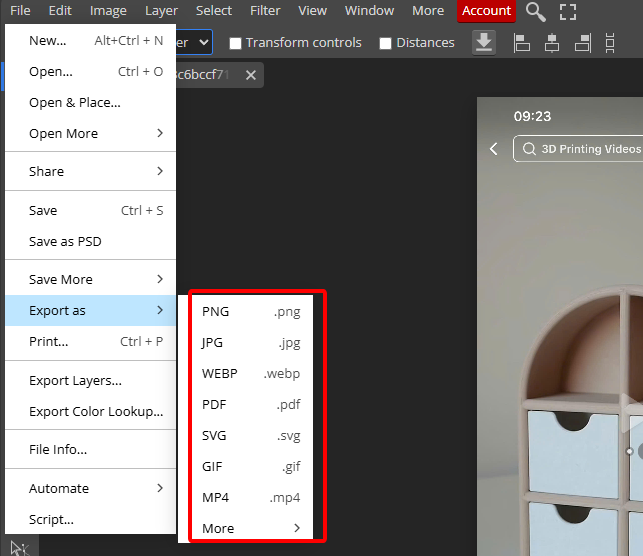
Step 3: File > Export As > PNG/JPG.
Pros:
Zero installation required
Full Photoshop compatibility (PSD, brushes, actions)
Works on tablets and Chromebooks
Offline mode after first visit
Cons:
Ads in free version (can be removed for $5/month)
Dependent on internet speed for large files
5. GIMP + Darktable Combo (Full Adobe Replacement)
GIMP + Darktable is the ultimate free Photoshop + Lightroom combo. Darktable cranks out perfect non-destructive RAW edits and spits out 16-bit TIFFs, then GIMP takes over for skin retouching, compositing, frequency separation, whatever. If you live in Photoshop but hate the bill, this duo gives you the full pro workflow every single day, zero cost.
Workflow
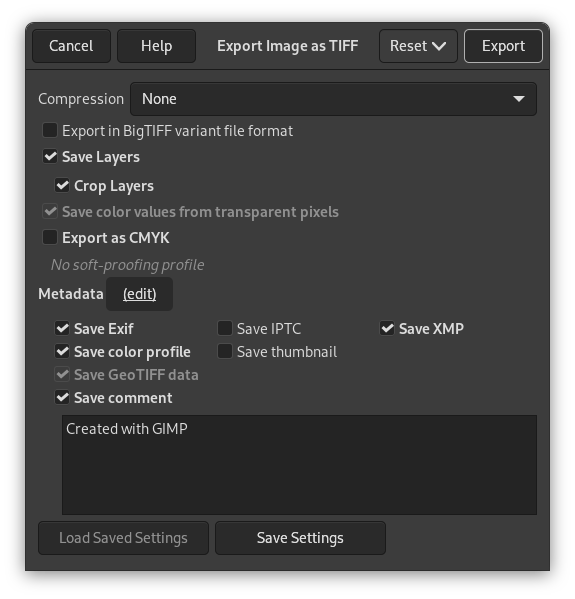
Step 1: Develop RAW in Darktable. Export 16-bit TIFF.
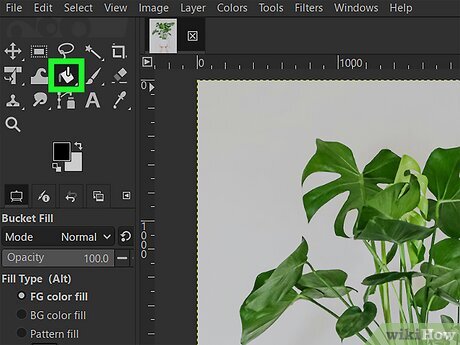
Step 2: Open TIFF in GIMP. Choose Colors > Levels.
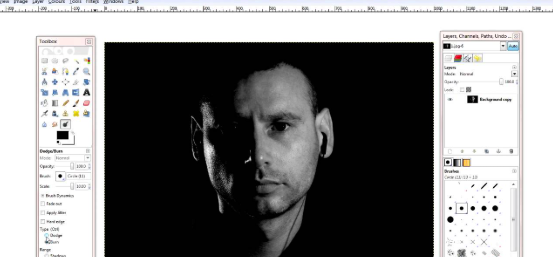
Step 3: Use Heal, Clone, and Dodge/Burn tools.
Step 4: Export final masterpiece.
Pros:
Complete professional suite (RAW + pixel editing)
Thousands of free plugins and scripts
Handles complex composites and retouching
Active community support
Cons:
Requires two separate programs
Steeper learning curve than single-app solutions
Comparison Table - Pick Your Perfect Free Lightroom Alternative
| Tool | Price | Platforms | Learning Curve | AI Features | RAW Support | Best For |
|---|---|---|---|---|---|---|
| WPS Photos | Free | Windows / Mac / Linux | 5 minutes | Yes | Yes | Fast everyday edits, beginners |
| Darktable | Free | Windows / Mac / Linux | 2-3 days | No | Yes | Pro non-destructive workflow |
| RawTherapee | Free | Windows / Mac / Linux | 1 day | No | Yes | Maximum RAW detail recovery |
| Photopea | Free | Any browser | 1 hour | No | Yes | No-install, quick fixes |
| GIMP + Darktable | Free | Windows / Mac / Linux | 1 week | No | Yes | Advanced retouching & composites |
Brighten Dark Photos Perfectly with WPS AI Photo (2025 Update)
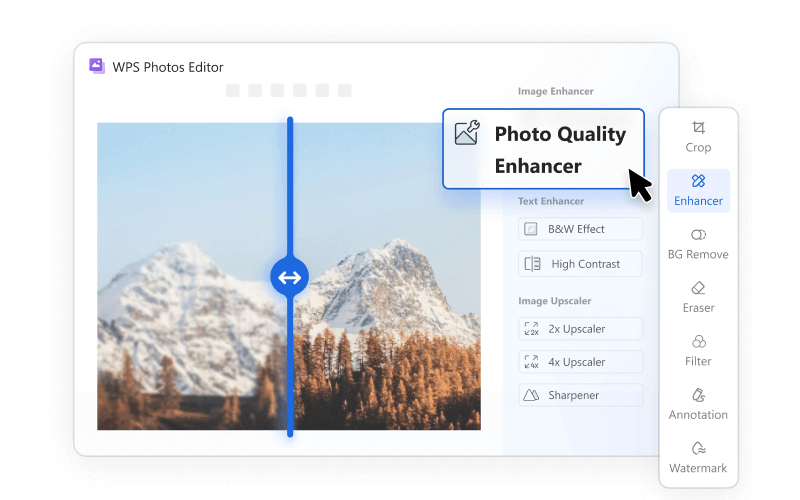
Manual sliders often wreck your shots by blowing out highlights or killing contrast. But WPS AI Photo changes everything. It scans the whole image, understands the scene, and boosts brightness naturally while keeping details sharp and colors true.
I've rescued countless underexposed concert pics and moody evening shots with this tool. Traditional methods left them flat or noisy, but WPS AI nails the balance every time. It's become my secret weapon for quick, pro-level fixes in the best free Lightroom alternative for Mac and Windows.
Step-by-Step Brighten Guide
Step 1: Open WPS Office > AI > Photos. Upload your underexposed shot.
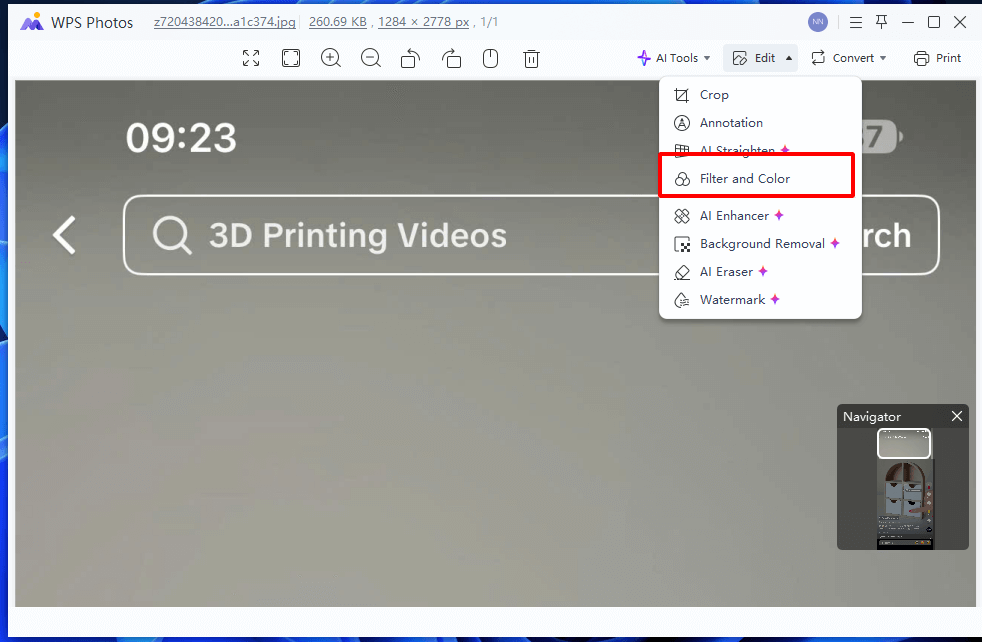
Step 2: Click "Filter and color" Shadows lift, highlights stay intact, colors remain natural.
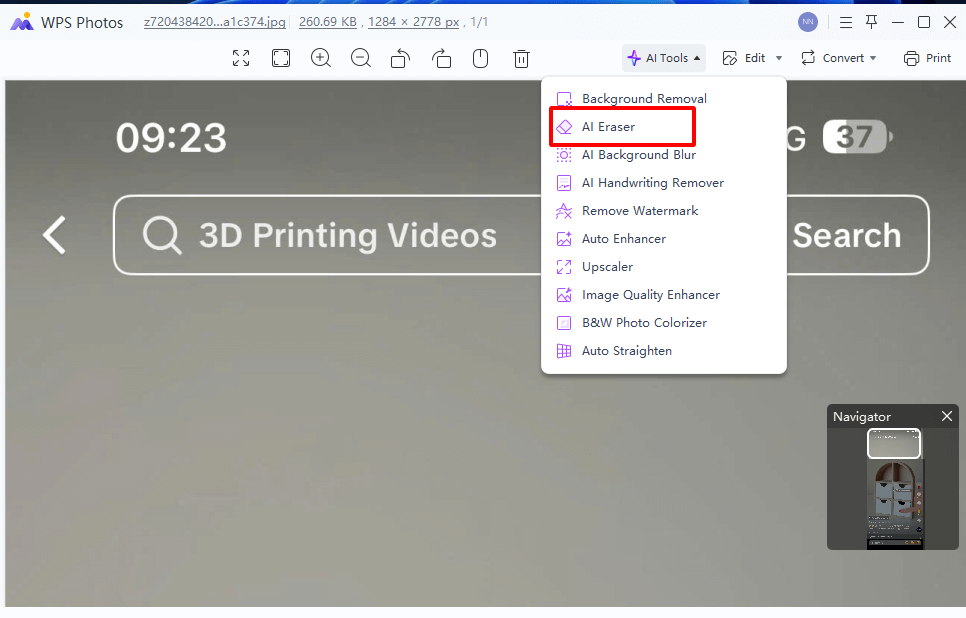
Step 3: Optional. Tap AI Remover to delete distractions in one click.
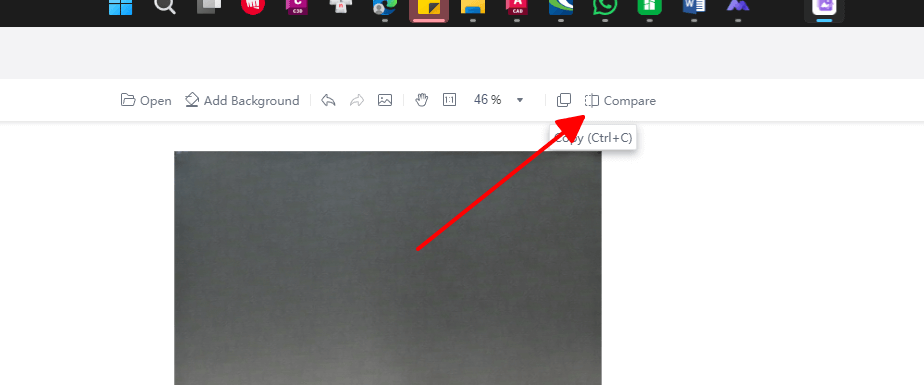
Step 4: Use the split-view slider to compare before/after.
Step 5: Download at full resolution. Ready for print or social in seconds.
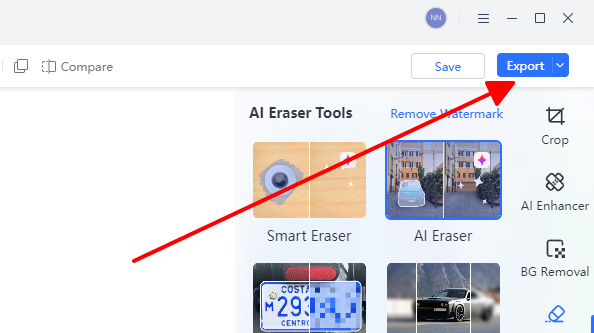
The difference is night-and-day. Try it tonight and see why thousands have switched.
FAQs
Q1: Are these free Lightroom alternatives really 100% free?
Yes. WPS Photos, Darktable, RawTherapee, Photopea, and GIMP never charge for core editing features.
Q2: Which free tool supports RAW files best?
Darktable and RawTherapee deliver paid-level RAW quality. WPS Photos adds AI enhancement on top.
Q3: What’s the easiest free Lightroom alternative for beginners?
WPS Photos. One click and you’re done. No tutorials required.
Q4: Can I run these on both Mac and Windows?
Every tool works perfectly on macOS and Windows. Photopea even runs in any browser.
Q5: Will I lose quality switching from Lightroom?
No. Export at 16-bit depth and you’ll match or exceed Lightroom, especially with WPS AI recovery.

'%3e%3cpath%20d='M19.9911%204.11386V6.471H18.5894C18.0775%206.471%2017.7322%206.57814%2017.5536%206.79243C17.3751%207.00671%2017.2858%207.32814%2017.2858%207.75671V9.44421H19.9019L19.5536%2012.0871H17.2858V18.8639H14.5536V12.0871H12.2769V9.44421H14.5536V7.49779C14.5536%206.39064%2014.8632%205.53201%2015.4822%204.92189C16.1013%204.31177%2016.9257%204.00671%2017.9554%204.00671C18.8304%204.00671%2019.509%204.04243%2019.9911%204.11386Z'%20fill='%23333333'/%3e%3c/g%3e%3cdefs%3e%3cclipPath%20id='clip0_2938_8199'%3e%3crect%20width='16'%20height='16'%20fill='white'%20transform='translate(8%204.00671)'/%3e%3c/clipPath%3e%3c/defs%3e%3c/svg%3e)
'%3e%3cpath%20d='M17.5237%2010.7813L23.4811%204H22.0699L16.8949%209.88693L12.7648%204H8L14.2469%2012.9029L8%2020.0133H9.4112L14.8725%2013.7952L19.2352%2020.0133H24M9.92053%205.04213H12.0885L22.0688%2019.0224H19.9003'%20fill='%23333333'/%3e%3c/g%3e%3cdefs%3e%3cclipPath%20id='clip0_2938_8200'%3e%3crect%20width='16'%20height='16.0134'%20fill='white'%20transform='translate(8%204)'/%3e%3c/clipPath%3e%3c/defs%3e%3c/svg%3e)


