

'%3e%3cpath%20d='M8%200C12.4183%200%2016%203.58172%2016%208C16%2012.4183%2012.4183%2016%208%2016C3.58172%2016%200%2012.4183%200%208C0%203.58172%203.58172%200%208%200ZM11.6162%204.38379C11.2257%203.99337%2010.5927%203.99338%2010.2021%204.38379L8%206.58594L5.79785%204.38379C5.40732%203.99334%204.77429%203.99329%204.38379%204.38379C3.99331%204.77429%203.99335%205.40733%204.38379%205.79785L6.58594%208L4.38379%2010.2021C3.99348%2010.5927%203.99341%2011.2257%204.38379%2011.6162C4.77426%2012.0066%205.40734%2012.0065%205.79785%2011.6162L8%209.41406L10.2021%2011.6162C10.5927%2012.0066%2011.2257%2012.0067%2011.6162%2011.6162C12.0067%2011.2257%2012.0066%2010.5927%2011.6162%2010.2021L9.41406%208L11.6162%205.79785C12.0066%205.40735%2012.0066%204.77429%2011.6162%204.38379Z'%20fill='%23080E17'%20fill-opacity='0.46'/%3e%3c/g%3e%3cdefs%3e%3cclipPath%20id='clip0_3761_713'%3e%3crect%20width='16'%20height='16'%20fill='white'/%3e%3c/clipPath%3e%3c/defs%3e%3c/svg%3e)



'%3e%3cpath%20fill-rule='evenodd'%20clip-rule='evenodd'%20d='M21.4999%2010.9993C21.4999%205.20009%2016.7986%200.498901%2010.9993%200.498901C5.19994%200.498901%200.498657%205.20009%200.498657%2010.9993C0.498657%2016.2404%204.33858%2020.5844%209.35855%2021.3722V14.0346H6.69238V10.9993H9.35855V8.68594C9.35855%206.05427%2010.9262%204.60062%2013.3248%204.60062C14.4736%204.60062%2015.6753%204.80571%2015.6753%204.80571V7.38979H14.3512C13.0468%207.38979%2012.64%208.19921%2012.64%209.0296V10.9993H15.5523L15.0867%2014.0346H12.64V21.3722C17.66%2020.5844%2021.4999%2016.2404%2021.4999%2010.9993Z'%20fill='%231568EA'/%3e%3c/g%3e%3c/svg%3e)


'%3e%3cpath%20d='M2.42045%2022.1876H6.31818V12.7217L0.75%208.54553V20.5171C0.75%2021.4414%201.49892%2022.1876%202.42045%2022.1876Z'%20fill='%234285F4'/%3e%3cpath%20d='M19.682%2022.1876H23.5797C24.5041%2022.1876%2025.2502%2021.4387%2025.2502%2020.5171V8.54553L19.682%2012.7217'%20fill='%2334A853'/%3e%3cpath%20d='M19.682%205.48293V12.7216L25.2502%208.54543V6.31816C25.2502%204.25236%2022.8921%203.07469%2021.2411%204.31361'%20fill='%23FBBC04'/%3e%3cpath%20d='M6.31824%2012.7217V5.48303L13.0001%2010.4944L19.6819%205.48303V12.7217L13.0001%2017.733'%20fill='%23EA4335'/%3e%3cpath%20d='M0.75%206.31816V8.54543L6.31818%2012.7216V5.48293L4.75909%204.31361C3.10534%203.07469%200.75%204.25236%200.75%206.31816Z'%20fill='%23C5221F'/%3e%3c/g%3e%3cdefs%3e%3cclipPath%20id='clip0_2954_7305'%3e%3crect%20width='24.5'%20height='18.375'%20fill='white'%20transform='translate(0.75%203.8125)'/%3e%3c/clipPath%3e%3c/defs%3e%3c/svg%3e)


Converting Word documents to compact JPG images has become an essential task, whether you’re designing social media content, or preparing a professional presentation. However, most of the tools available online tend to be extremely unreliable and end up creating more challenges for you. So, what is the most reliable way to convert Word to JPG? In this guide, I’ll be highlighting some of the best conversion tools to help you avoid any hassle.


Top Word to JPG Conversion
Converting my Word documents to JPGs helps me enhance the accessibility of my files and allows for easy sharing to any social platform without having to run into any compatibility issues. I’ve gone through my fair share of conversion tools online and I know how frustrating it can be to deal with so many inconvenient options. This is why I have narrowed them down to 7 of the best options you can use to format your Word documents, making them much easier to handle.
1. WPS Online Tool
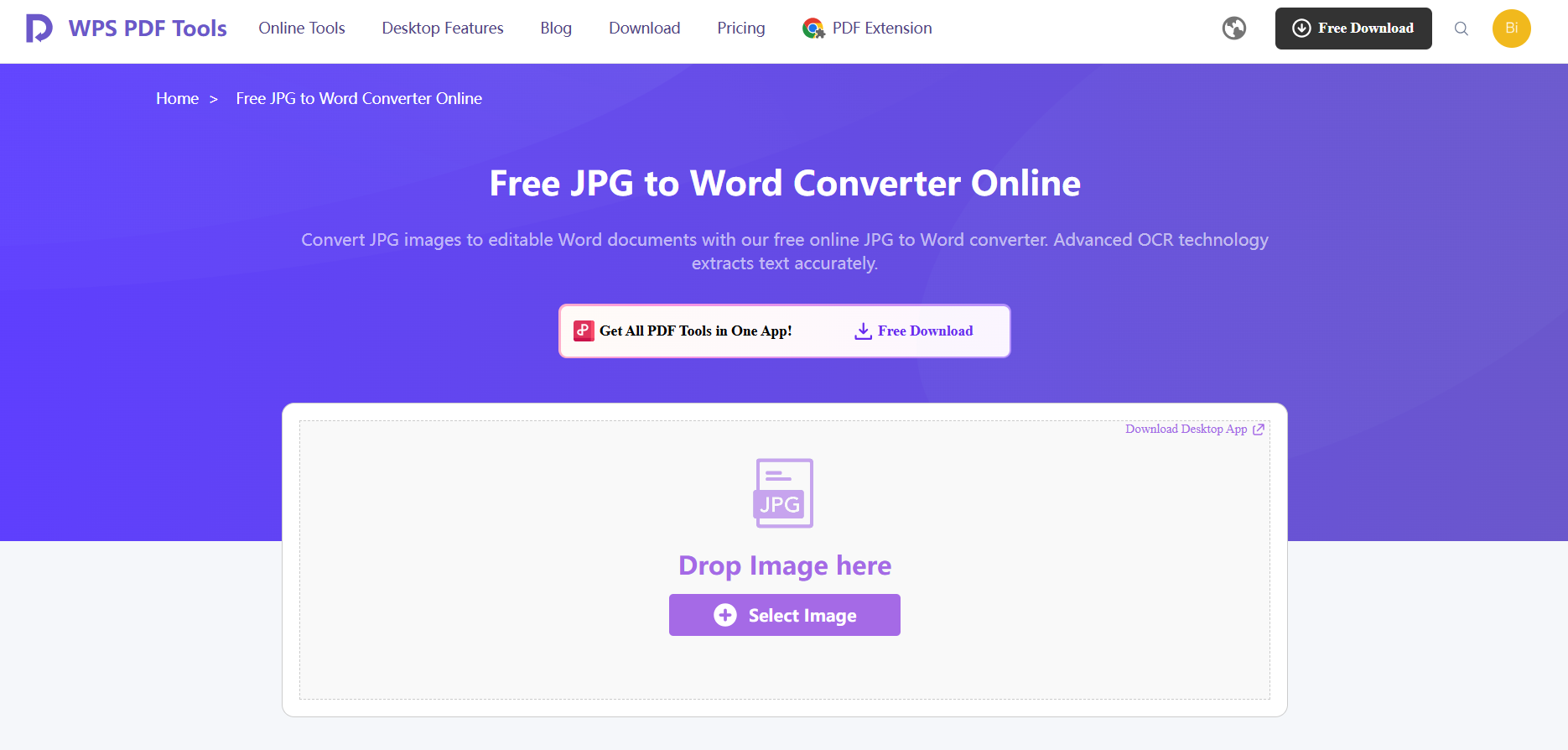
WPS Online Tool is one of the most reliable options I’ve found for converting my Word files to simple JPG images. It features a simple and incredibly beginner-friendly interface that did not confuse me or bombard me with any irrelevant features, making the experience very smooth and seamless. I found it to be an ideal option for those looking for a reliable, hassle-free option for all their document conversion.
Features
AI-Powered OCR: Uses advanced AI tools to deliver flawless text extraction with minimal errors to ensure optimal results.
Format Preservation: Maintains the original document structure, including tables and alignment, making sure you don’t need reformatting.
Data Security: Fully offline conversion which ensures sensitive documents stay private.
Pricing
Completely free-to-use for basic conversions
I’ll be highlighting the steps you need to follow for a smooth and hassle-free conversion process down below.
Step 1: Visit the WPS Online Tool and upload the image you want to convert to get started.
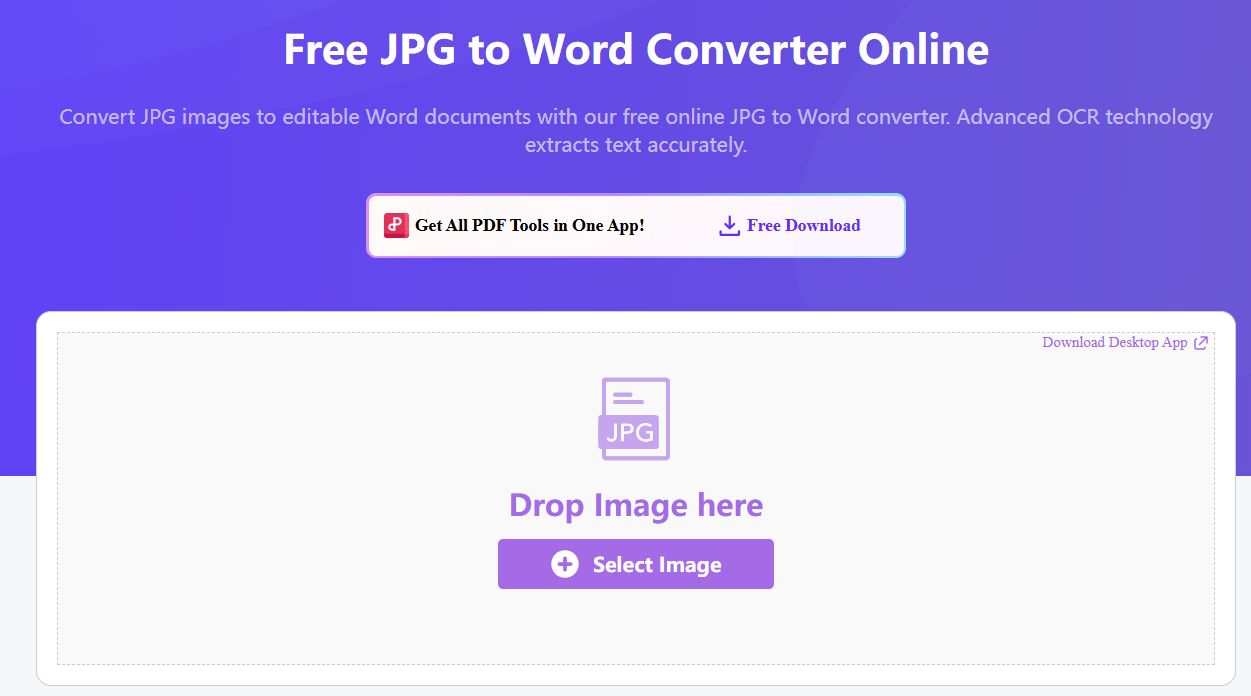
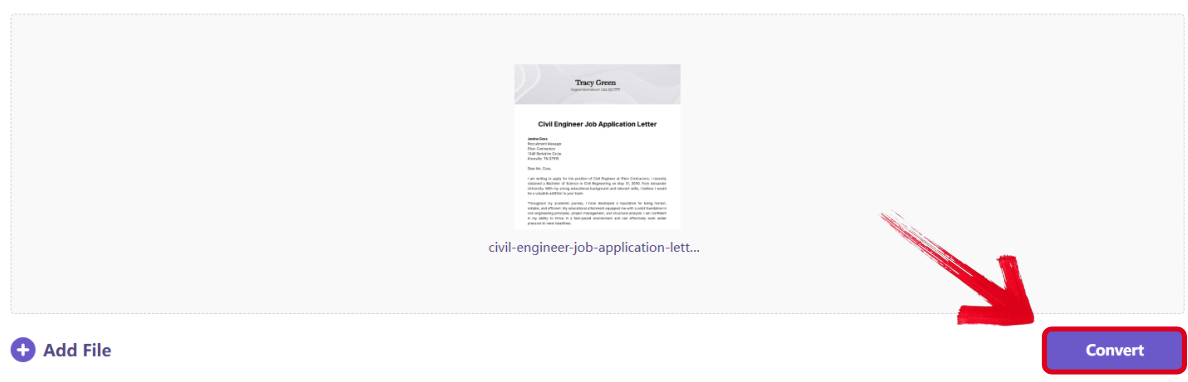
Step 2: Once your image has been uploaded, press the Convert button to start the process.
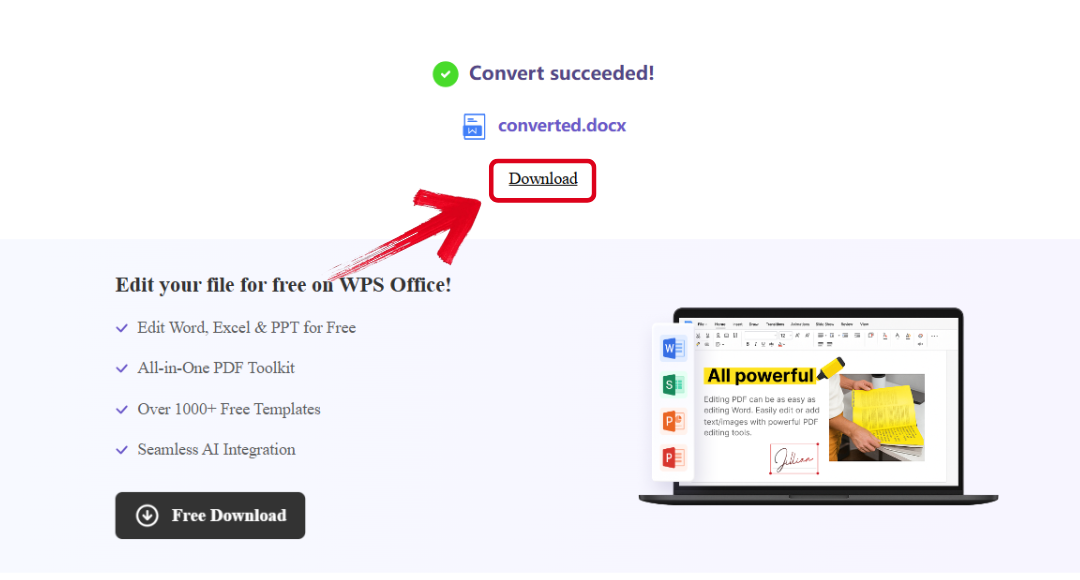
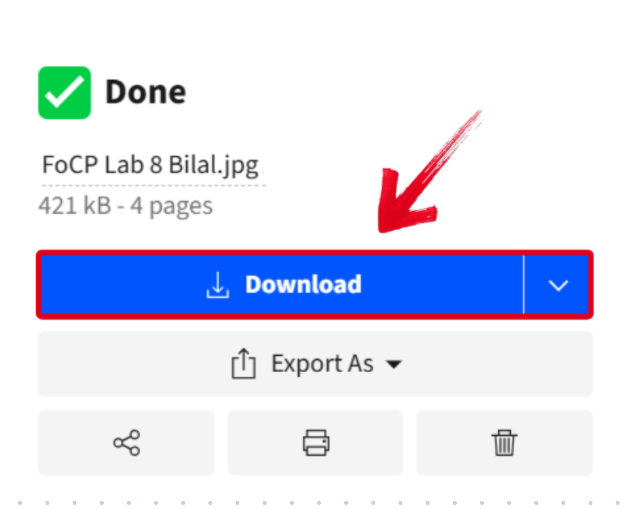
Step 3: If your image is done processing, just press the Download button to export it to your device.
2. WPS Office (Desktop)
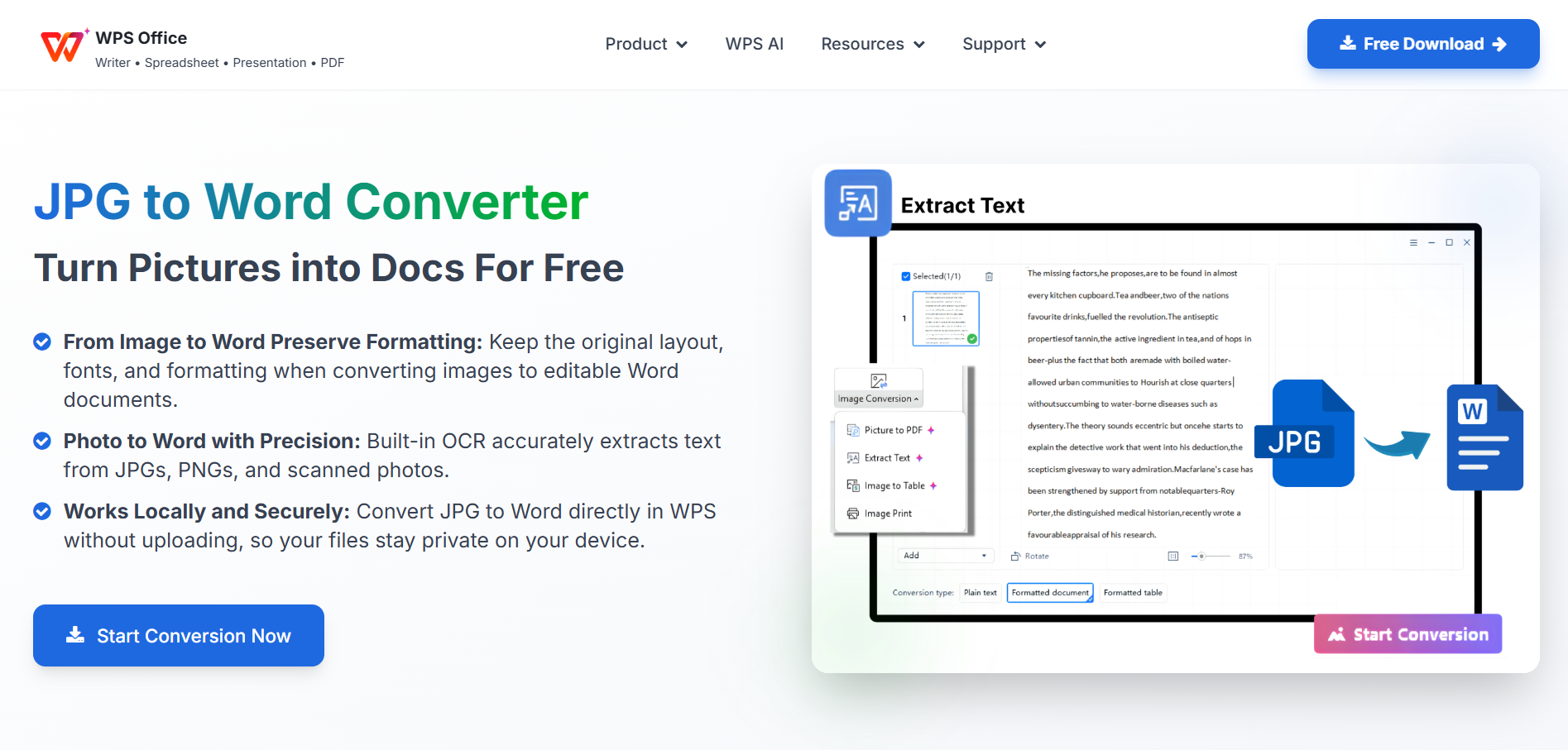
If you want an all-in-one downloadable tool for all your productivity and file conversion needs, then WPS Office would definitely be an option worth exploring. It gave me a smooth and hassle-free experience for all my conversions, providing fast processing speeds along with an easy-to-use interface to provide the optimal experience for all users.
Features
Smart Image Management: Recognizes low-res images and enhances their clarity to deliver clean and accurate results.
Multi File Support: Support for converting multiple JPG images to a single Word document, saving a lot of time and keeping everything organized.
Cross-Platform Compatibility: Works across Windows, Mac, Android and even iOS so you can work on any device without any issues.
Pricing
Completely Free
3. FreeConvert
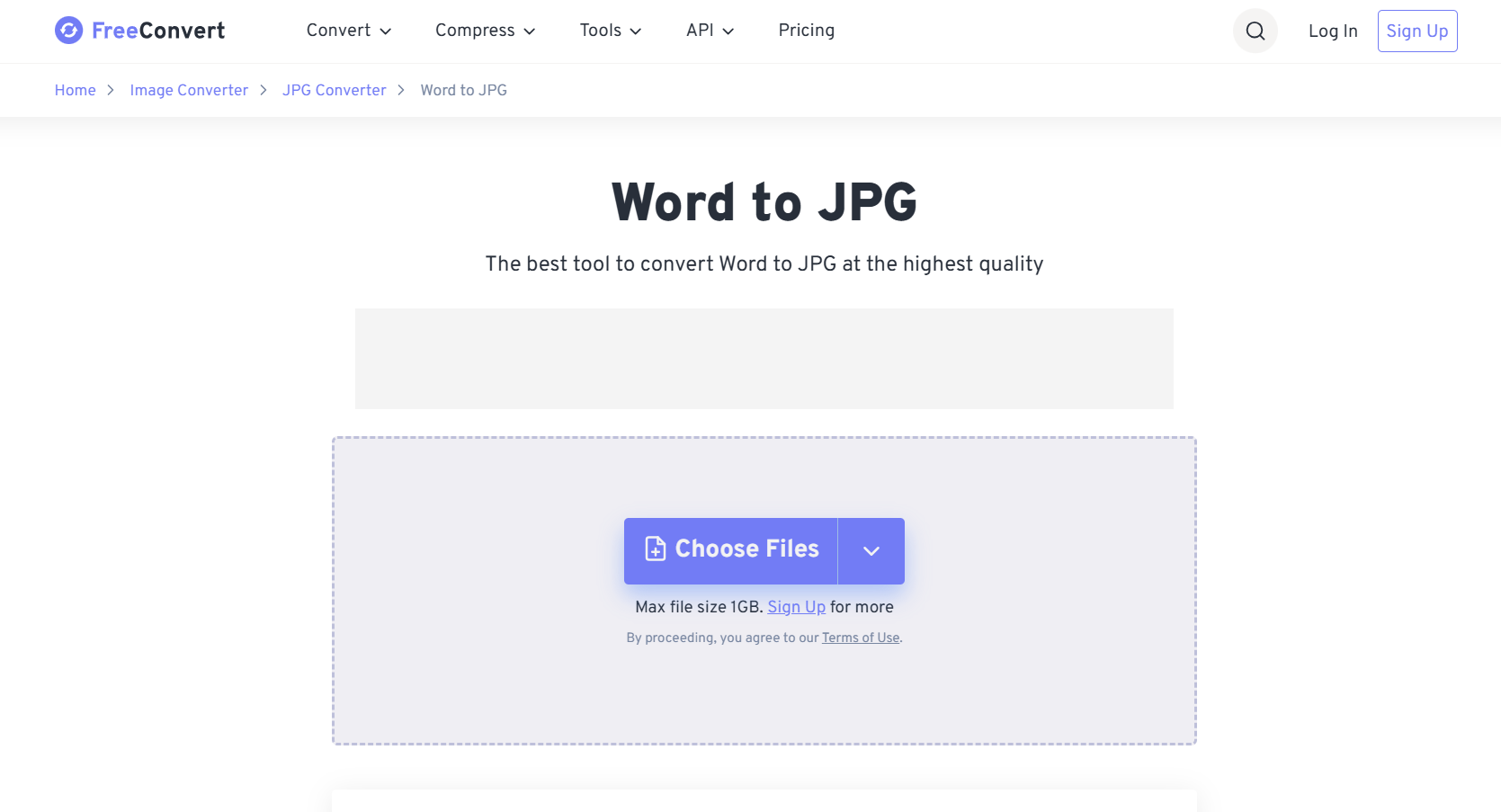
FreeConvert is a great tool for times when you need to quickly get images from your Word files without going through the hassle of inconvenient slowdowns. It’s one of the most straightforward and simple Word to JPG converters I tried, helping me convert all my Word files to high-quality JPG in just a few seconds. It’s the ideal tool for those looking to save time and enhance their productivity.
Features
High Quality Conversion: Converts Word documents into clear and clean JPG images without losing any sharpness or accuracy.
Batch Processing: Offers compatibility for converting multiple Word files to JPG at the same time, saving a lot of time and effort.
Secure Handling: Uses encrypted file transfers so all of your documents stay private and safe.
Pricing
Free with limited conversions
These are the steps you need to follow to ensure a hassle-free conversion process using FreeConvert..
Step 1: Open the FreeConvert tool and upload the file you want to convert to get started.
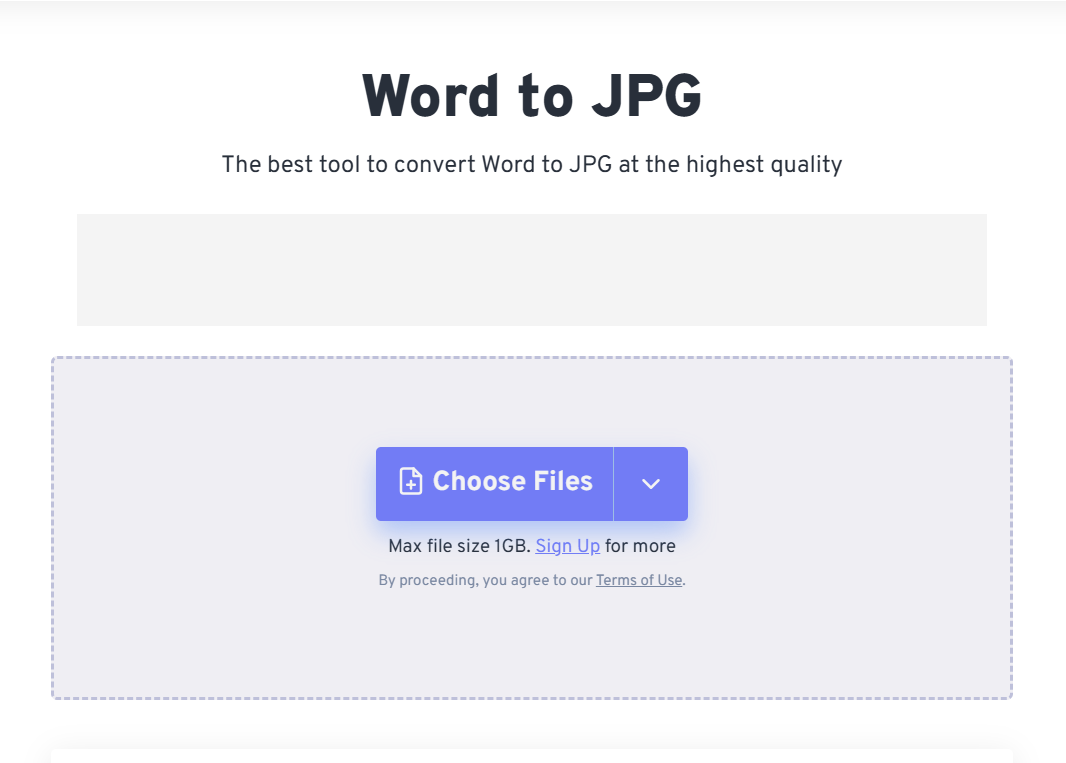
Step 2: After uploading the image, press the Convert button to start the process.
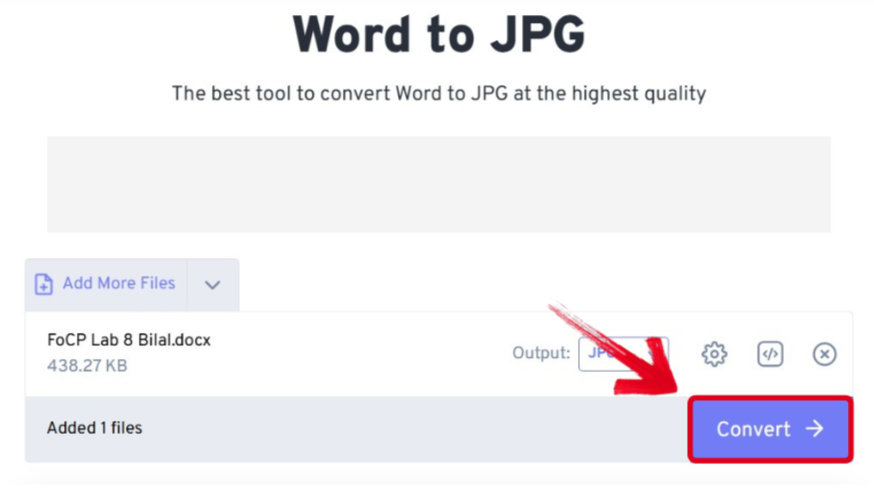
Step 3: Once the conversion is complete, simply press Download to save it to your computer.
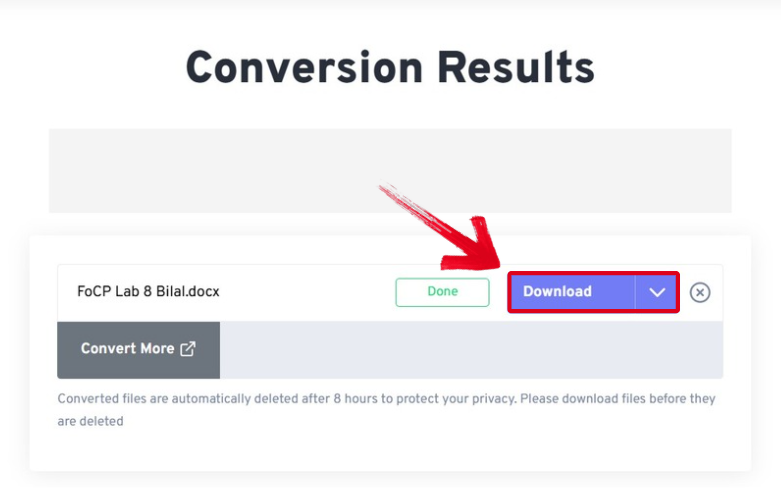
4. ZamZar
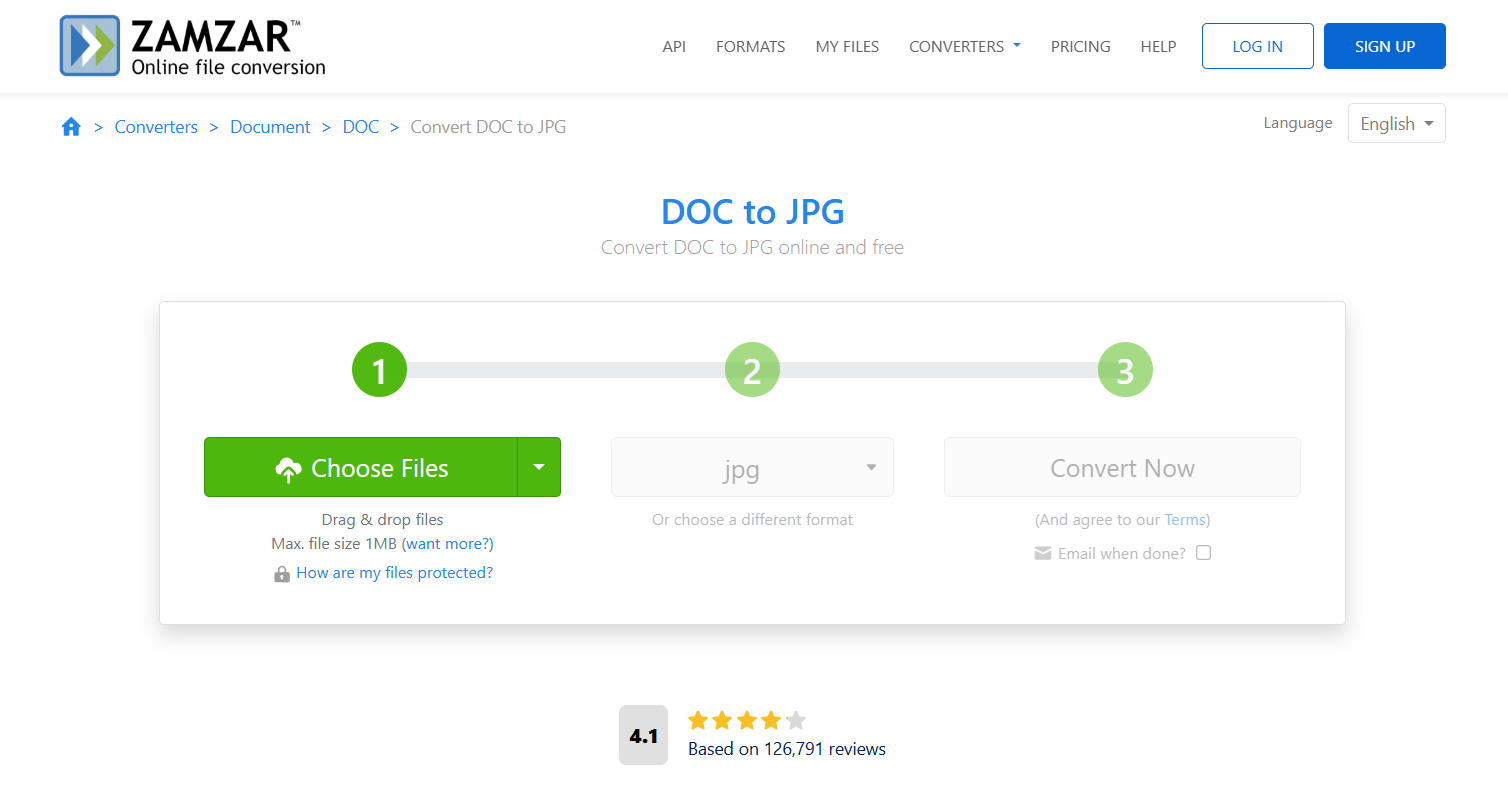
ZamZar is the perfect option for those looking for a versatile all-in-one file conversion tool that offers a variety of different file options for their Word to JPG conversion. The main page featured a straightforward interface prompting me to upload my files, and after a quick conversion process, I got my high-quality JPG results without having to deal with any hassle. The experience was smooth and incredibly reliable, and helped me simplify the conversion process for all my work.
Features
Wide Format Support: Supporting over 1,100 other file types for flexible usage.
Web-Based Conversion: Convert documents directly in your browser without any installation required.
Trusted Platform: Established since 2006, ensuring secure and reliable file conversions for your files every single time.
Pricing
Free conversions of up to 50MB
The following simple and straightforward steps ensure a smooth conversion process using ZamZar.
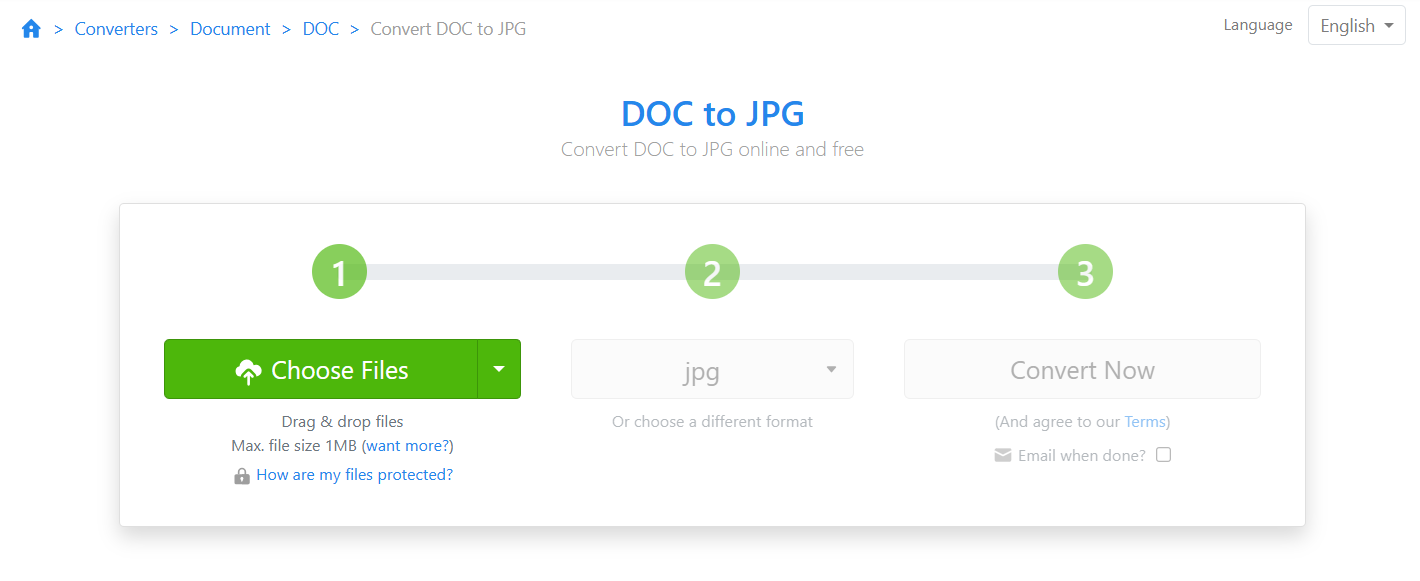
Step 1: Open ZamZar’s DOC to JPG Converter and choose the files you want to use.
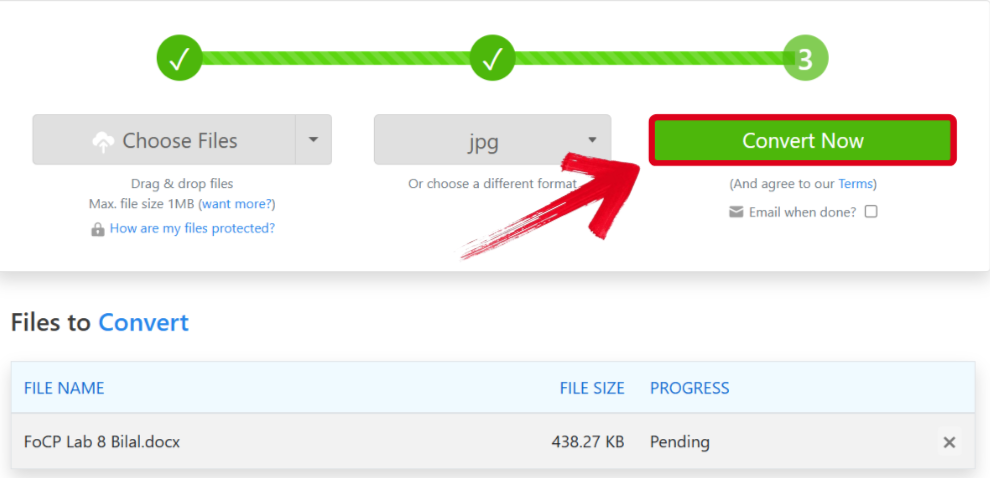
Step 2: Press Convert Now to start the conversion process.
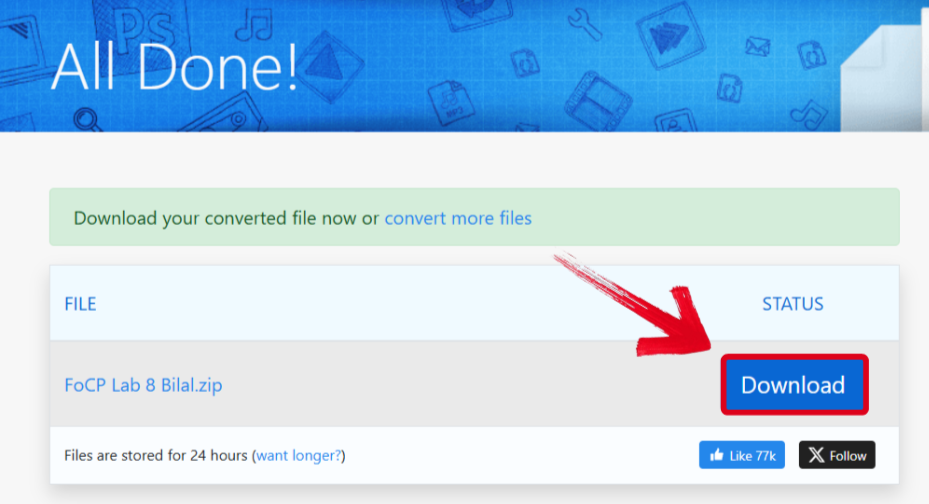
Step 3: Once the conversion process is complete all you need to do is press Download to export it to your device.
5. ImageToText Tool
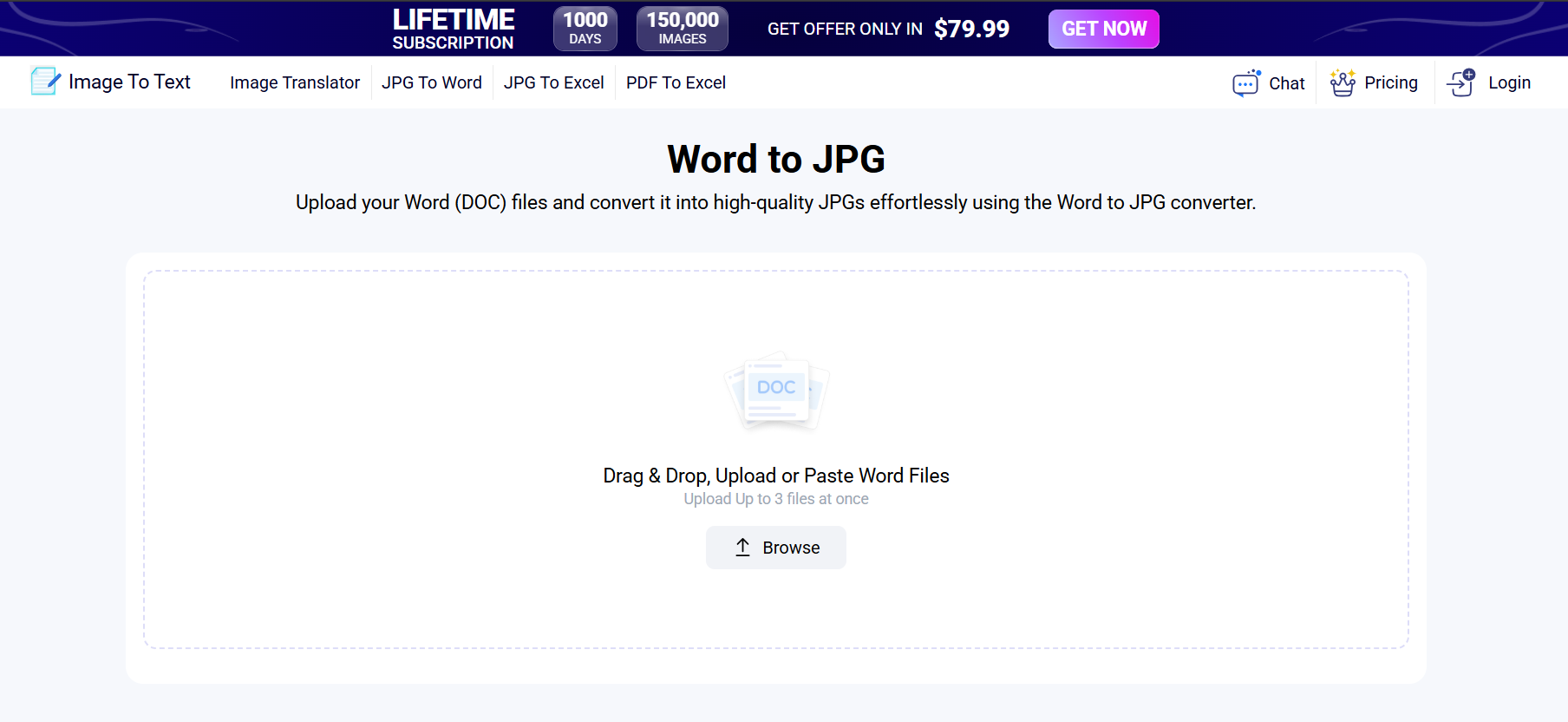
The ImageToText Tool is a great option for professionals and students looking for high-quality JPGs of their DOC files without going through any hassle. My personal experience with it went incredibly smoothly and it made sure I did not go through any delays or slowdowns when it came to my file conversions, making it the ideal option for those looking to save time and maximize efficiency.
Features
High-Quality Outputs: Converts Word documents into high-resolution JPG images that maintain the original format and quality.
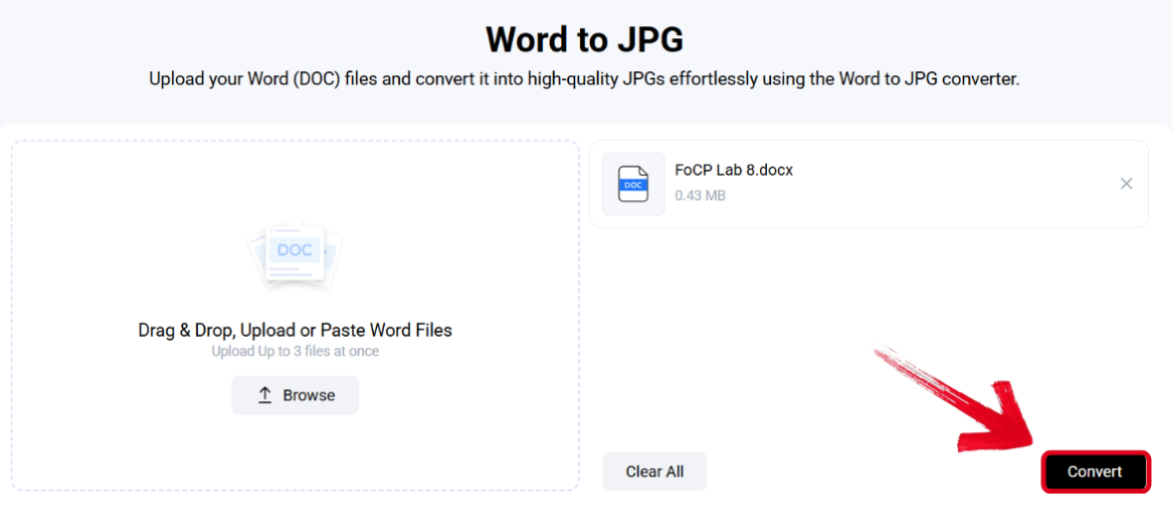
Multiple File Upload: Allows uploading or dragging up to 3 Word files at once to ensure a quick and reliable converting process.
Privacy Protection: Files remain private and secure without any data being stored or transmitted through the cloud.
Pricing
Limited usage on the free plan
Follow the process I’ve highlighted below to quickly and reliably convert all your files with ImageToText Tool.
Step 1: Open the ImageToText Tool and upload the files you want to convert.
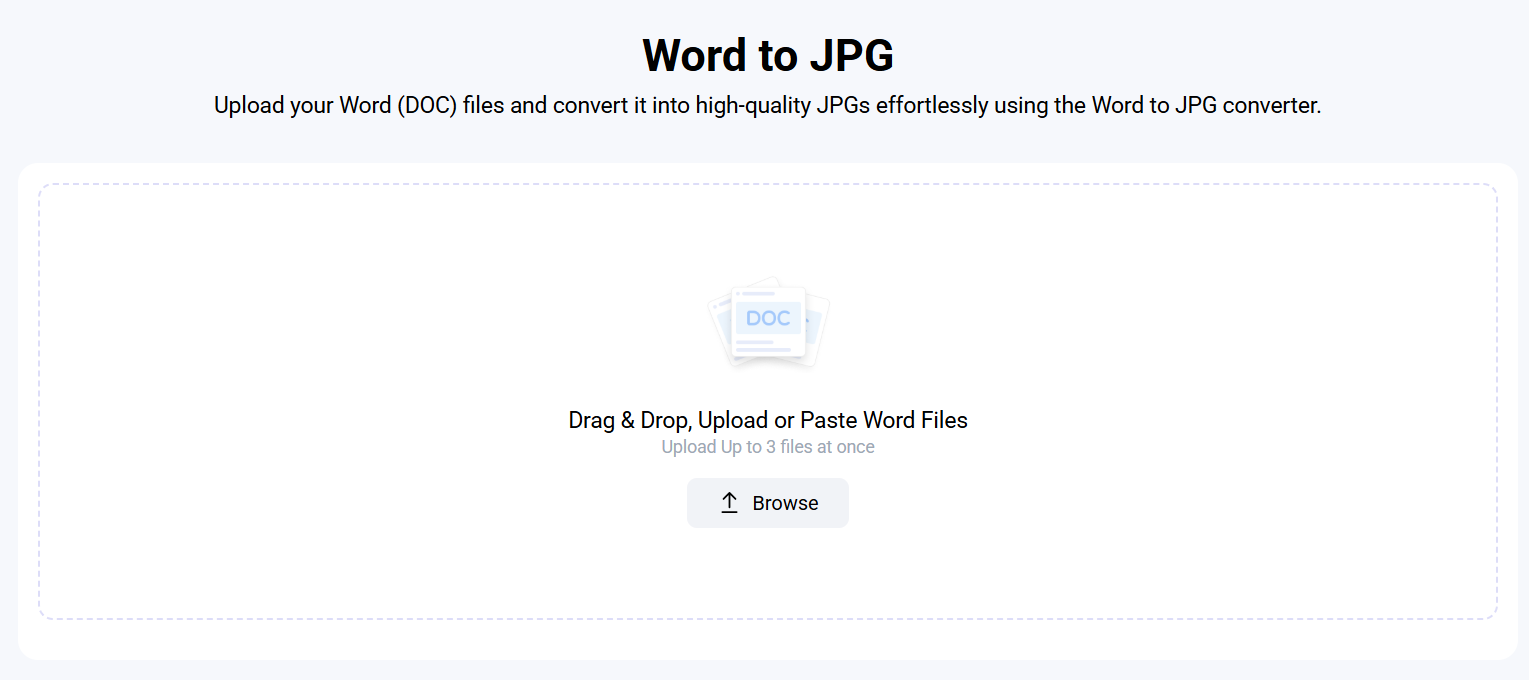
Step 2: After uploading the file, press Convert to start the process.
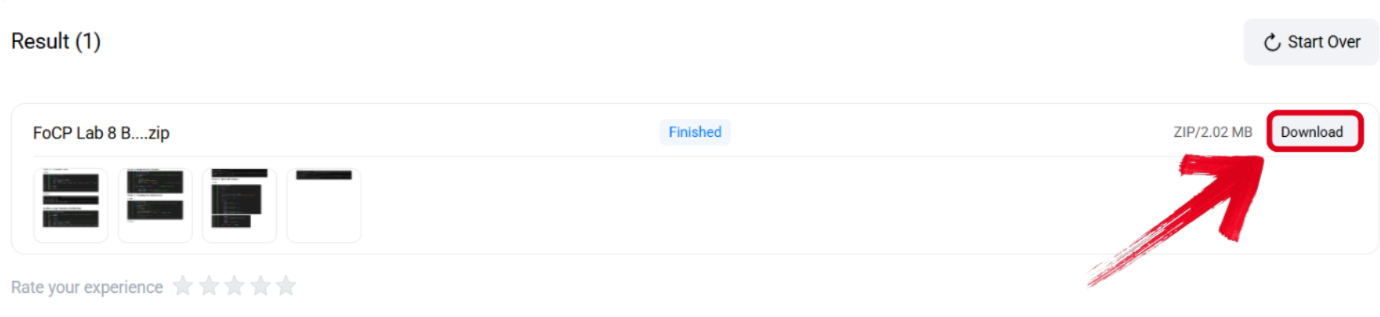
Step 3: Once the process is complete, press Download and save it to your device.
6. SmallPDF
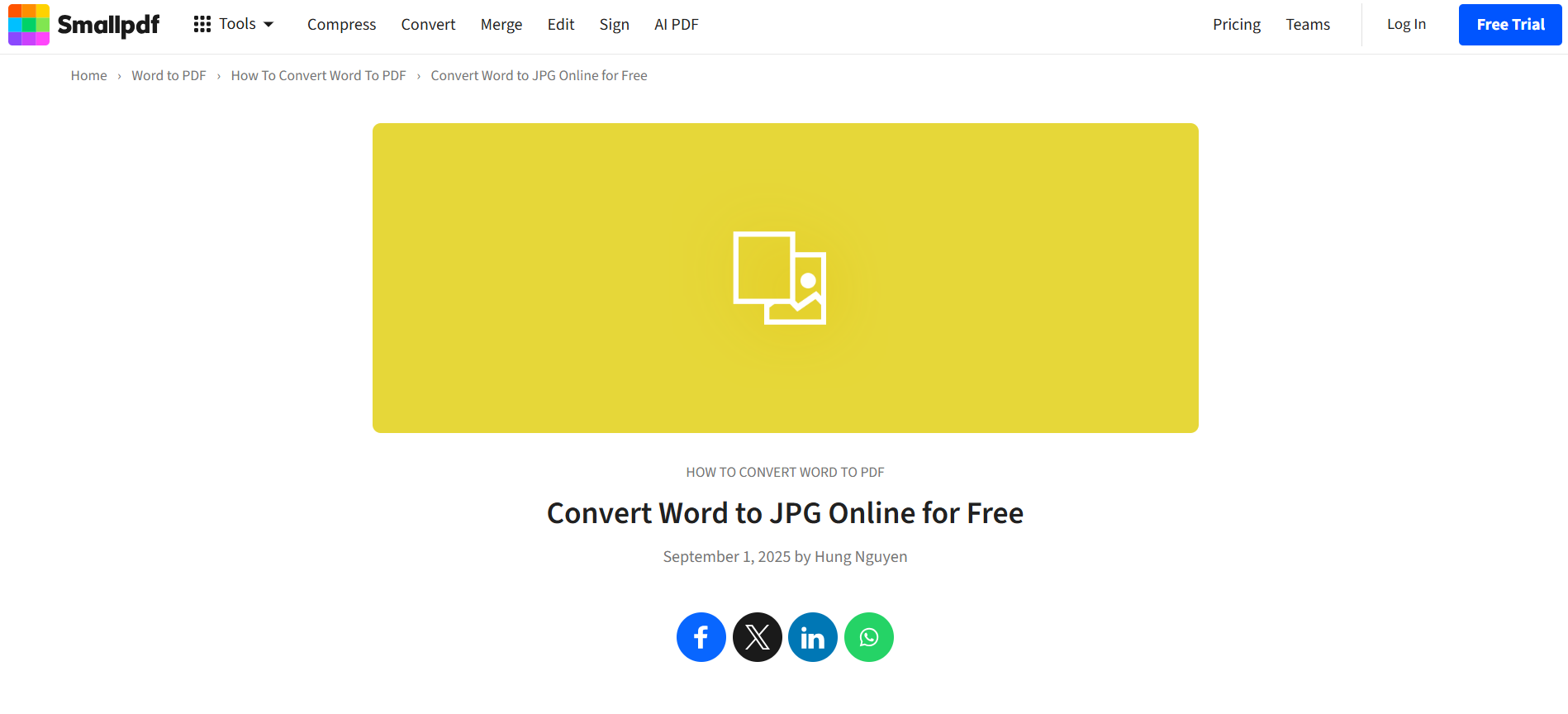
SmallPDF is a smart and reliable tool suite featuring all kinds of different features including compression, file conversion, editing, and even online Word to JPG conversion for completely free. It features a simple drag-and-drop interface that speeds up the whole process and makes it very easy to understand and use, especially if you’re a beginner using it for the first time. I found it to be one of the simplest tools for converting my Word files to JPG.
Features
Precise Format Preservation: Converts every page of the Word document into separate JPG images to ensure the original format and layout stays preserved.
Fast & Browser-Based: Works entirely in the web browser, so you don’t have to download or install any external software for usage.
Secure & Private: Uses encrypted connections and deletes your uploaded files from servers within one hour to ensure full privacy.
Pricing
Limited usage with the free version
I’ve highlighted the step-by-step method for converting Word documents with SmallPDF down below.
Step 1: Visit SmallPDF and upload the files you want to use for the conversion.

Step 2: The conversion process will start on its own. When it’s done, press Download to export the result to your device.
7. Online-Convert
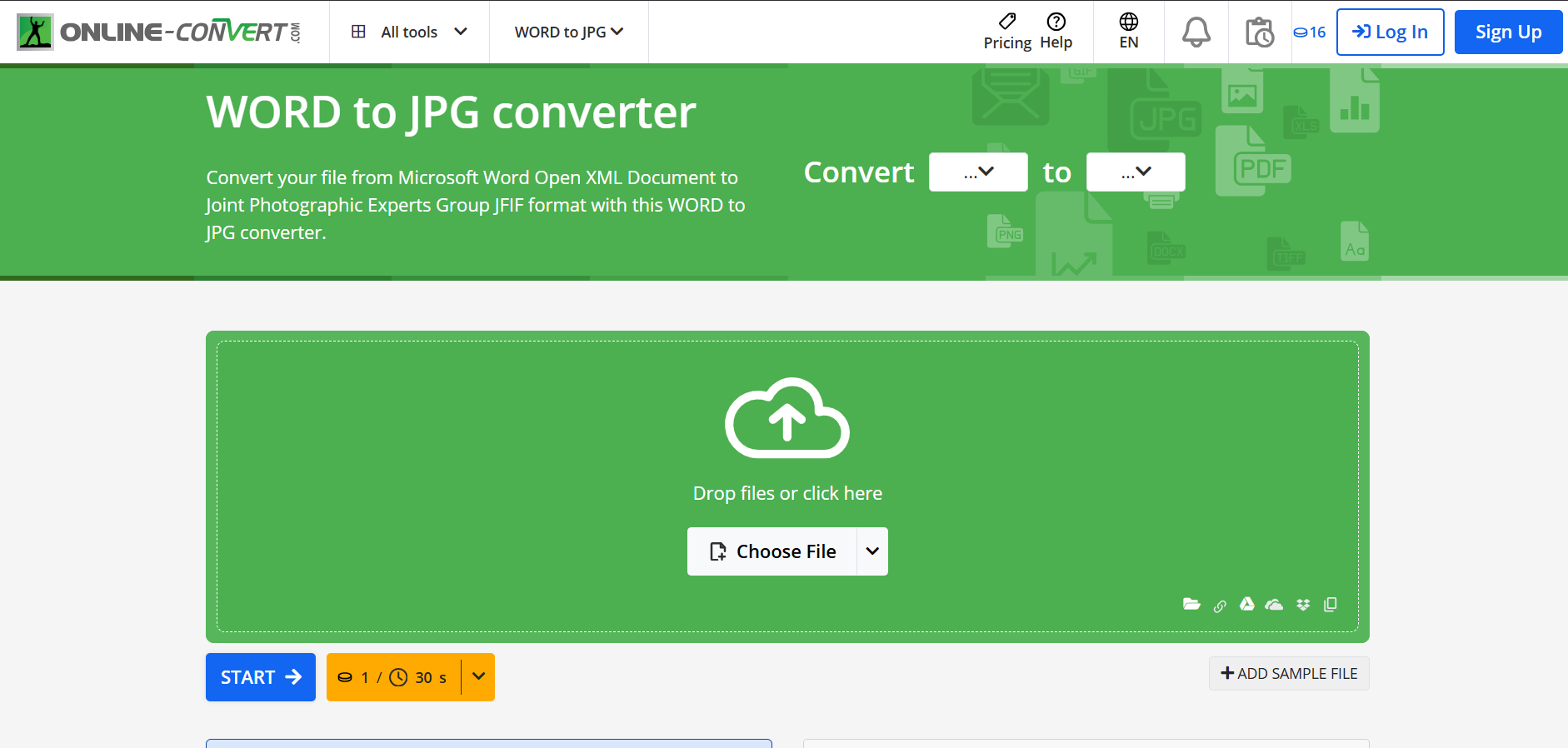
If you want an online converter that gives you full control over your files and offers deep customization features for your results, then the Online-Convert Word to JPG Converter is the best choice for you. It gives me all the tools I need to get high-quality JPG images from my Word files in just a few simple steps while ensuring my original formatting stays intact.
Features
Custom Quality Settings: Customize the quality of the output JPG, letting you balance the file size and clarity.
Image Resizing & Filters: Supports custom physical dimensions, color filters, and image enhancing features like sharpening.
Advanced Output Options: Allows setting DPI, changing color space, cropping pixels, or applying chroma sub-sampling methods.
Pricing
Limited file size with the free version
You can use the steps I’ve mentioned below to efficiently convert your files using Online-Convert.
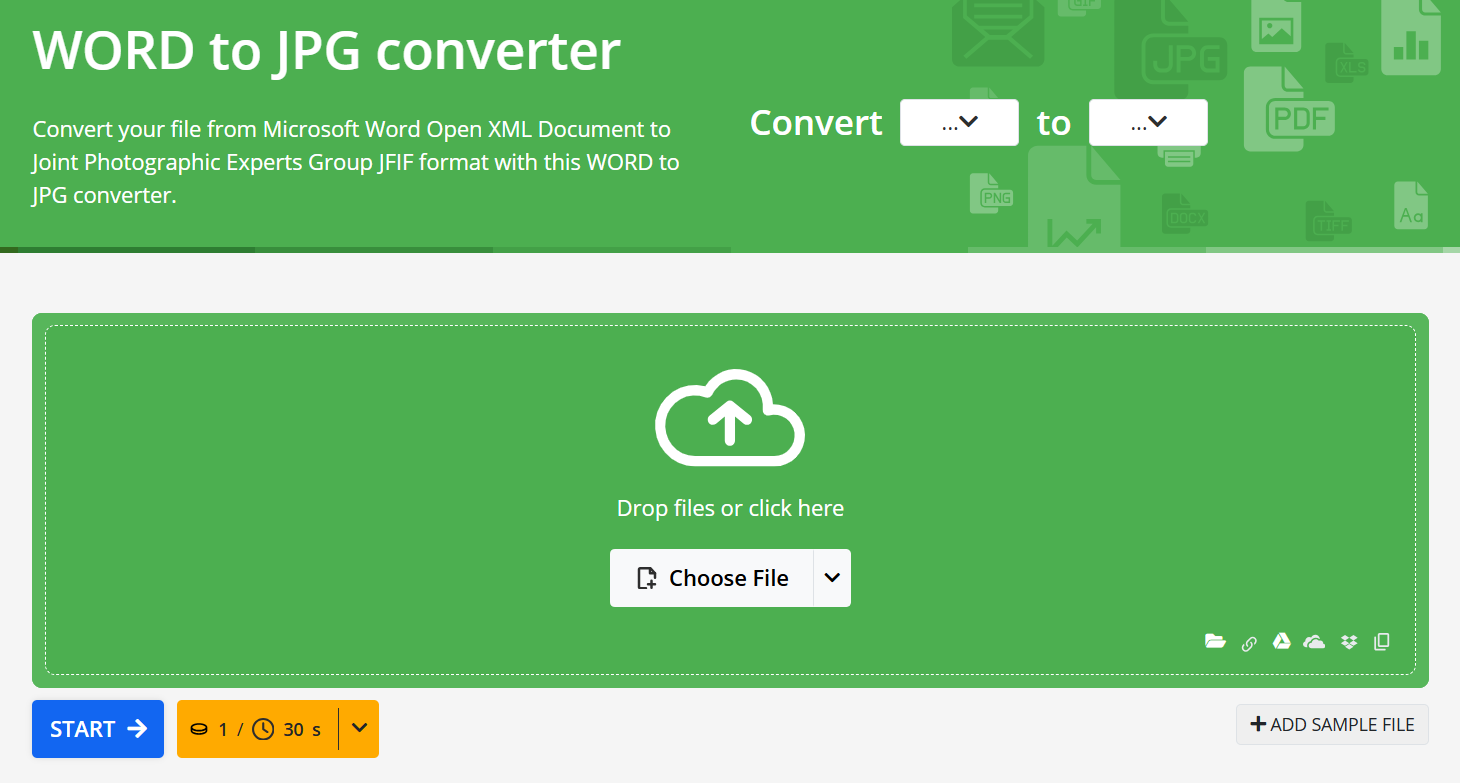
Step 1: Visit Online-Convert on your web browser and select the files you want to convert.
Step 2: Once uploaded, select Start to start the conversion process.

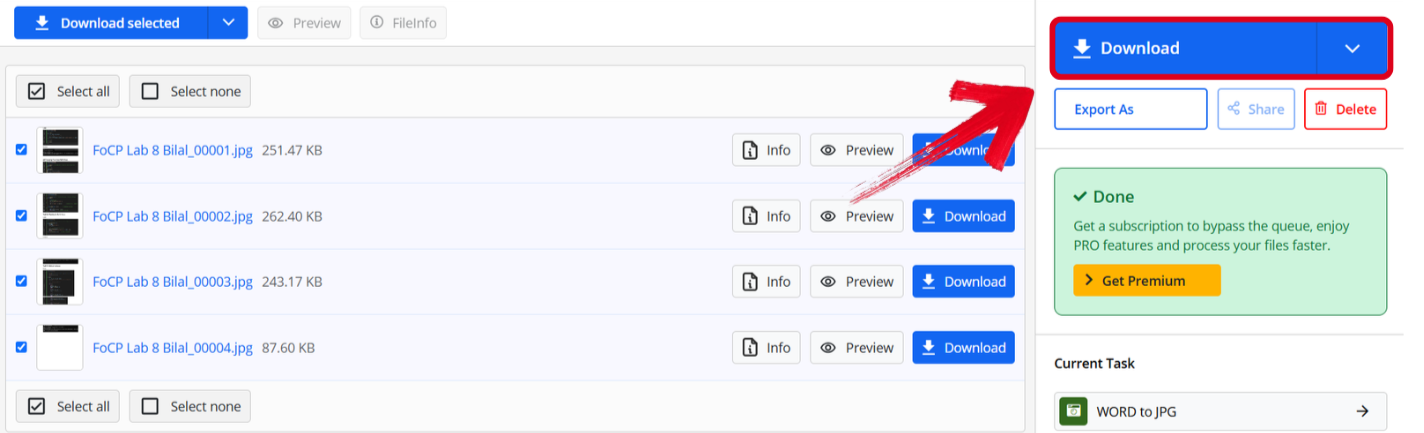
Step 3: Once all the JPG files have been made, press Download to save them to your computer.
Word to JPG Converters Comparison
All of these tools helped me greatly simplify the Word to JPG conversion process, standing out from the usual unreliable and inconvenient options flooding the internet. Each one has its own unique strength and key features that make it distinct from the others, so it can be hard to pick just one option for your conversion needs. This is why I’ll be comparing each option side-by-side and help you decide the right converter for all your productivity needs.
| Feature | WPS PDF Tools | FreeConvert | Zamzar | SmallPDF | Online-Convert |
|---|---|---|---|---|---|
| Conversion Quality | High | Good | Good | Good | Medium |
| Cost | Free | Freemium | Freemium | Freemium | Freemium |
| Batch Support | Yes | Limited | Yes | Limited | No |
| Watermarks | No | Free version | Free version | Free version | Free version |
| File Size Limit | Generous | 1GB free | 50MB free | 5MB free | 100MB free |
| Processing Speed | Fast | Medium | Medium | Fast | Slow |
| Output Options | Multiple quality settings | Basic settings | Email delivery | Cloud storage | Limited settings |
Why WPS PDF Tools is the Optimal Solution
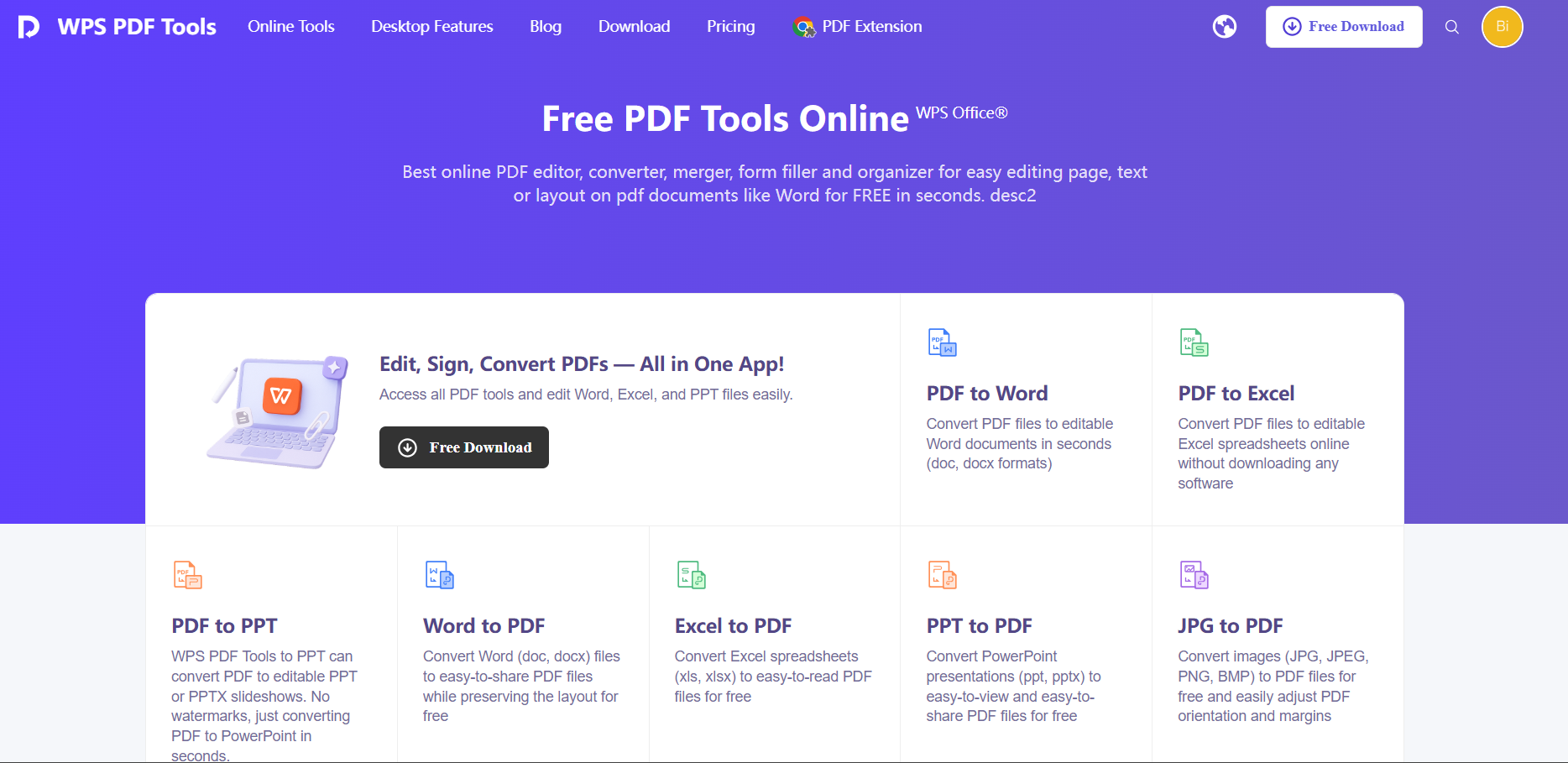
When I’m dealing with files of all kinds of different formats, it can be really frustrating and I often need to convert it into other compatible file types. Most other conversion solutions can be incredibly unreliable and often lock their functionality behind paywalls. This is why WPS PDF Tools stands out to me as the most reliable and effective option. It gives me a comprehensive solution for all my file conversion needs while also being completely free, making it an incredibly valuable asset in my workflow.
Features
Integrated Workflow Efficiency: Offers direct conversion within the native office environment, saving me a lot of time and maintaining workflow continuity.
Consistent High-Quality Output: Maintains excellent image resolution and color accuracy throughout all conversions.
Transparent Free Access: Provides completely free conversion without any paywalls or degraded user experience.
WPS PDF Tools has become my top choice for all my file conversion needs. When I was converting my PDF project into multiple, separate JPGs, it ensured a smooth and seamless process and delivered the optimal results. The countless useful features adn the fully free functionality make it stand out from every other tool I’ve tried during my testing.
FAQs
Q1. Why does my converted JPG look blurry or different from the original Word document?
Quality issues usually occur due to poor rendering engines, low resolution settings, or compression during conversion. Tools like WPS use advanced technology to preserve original quality and clarity.
Q2. Can I convert specific pages from a multi-page Word document to JPG?
Yes, converters like WPS allow selective page conversion, letting you choose specific pages or ranges for JPG output while maintaining individual page quality.
Q3. Is it safe to use online Word to JPG converters with confidential documents?
For sensitive files, desktop solutions like WPS are recommended because they process documents locally without uploading them to external servers, ensuring complete privacy and security.
Q4. How do I maintain the layout and formatting when converting Word to JPG?
Choose a converter that preserves fonts, images, and spacing. Advanced tools render each page as an image exactly as it appears in Word, keeping your layout intact.
Q5. Are there any limits on the file size or number of pages I can convert to JPG?
Some online converters have limits, but desktop tools like WPS generally handle large files and multi-page documents without restrictions, making them suitable for heavy or professional use.

'%3e%3cpath%20d='M19.9911%204.11386V6.471H18.5894C18.0775%206.471%2017.7322%206.57814%2017.5536%206.79243C17.3751%207.00671%2017.2858%207.32814%2017.2858%207.75671V9.44421H19.9019L19.5536%2012.0871H17.2858V18.8639H14.5536V12.0871H12.2769V9.44421H14.5536V7.49779C14.5536%206.39064%2014.8632%205.53201%2015.4822%204.92189C16.1013%204.31177%2016.9257%204.00671%2017.9554%204.00671C18.8304%204.00671%2019.509%204.04243%2019.9911%204.11386Z'%20fill='%23333333'/%3e%3c/g%3e%3cdefs%3e%3cclipPath%20id='clip0_2938_8199'%3e%3crect%20width='16'%20height='16'%20fill='white'%20transform='translate(8%204.00671)'/%3e%3c/clipPath%3e%3c/defs%3e%3c/svg%3e)
'%3e%3cpath%20d='M17.5237%2010.7813L23.4811%204H22.0699L16.8949%209.88693L12.7648%204H8L14.2469%2012.9029L8%2020.0133H9.4112L14.8725%2013.7952L19.2352%2020.0133H24M9.92053%205.04213H12.0885L22.0688%2019.0224H19.9003'%20fill='%23333333'/%3e%3c/g%3e%3cdefs%3e%3cclipPath%20id='clip0_2938_8200'%3e%3crect%20width='16'%20height='16.0134'%20fill='white'%20transform='translate(8%204)'/%3e%3c/clipPath%3e%3c/defs%3e%3c/svg%3e)


