

'%3e%3cpath%20d='M8%200C12.4183%200%2016%203.58172%2016%208C16%2012.4183%2012.4183%2016%208%2016C3.58172%2016%200%2012.4183%200%208C0%203.58172%203.58172%200%208%200ZM11.6162%204.38379C11.2257%203.99337%2010.5927%203.99338%2010.2021%204.38379L8%206.58594L5.79785%204.38379C5.40732%203.99334%204.77429%203.99329%204.38379%204.38379C3.99331%204.77429%203.99335%205.40733%204.38379%205.79785L6.58594%208L4.38379%2010.2021C3.99348%2010.5927%203.99341%2011.2257%204.38379%2011.6162C4.77426%2012.0066%205.40734%2012.0065%205.79785%2011.6162L8%209.41406L10.2021%2011.6162C10.5927%2012.0066%2011.2257%2012.0067%2011.6162%2011.6162C12.0067%2011.2257%2012.0066%2010.5927%2011.6162%2010.2021L9.41406%208L11.6162%205.79785C12.0066%205.40735%2012.0066%204.77429%2011.6162%204.38379Z'%20fill='%23080E17'%20fill-opacity='0.46'/%3e%3c/g%3e%3cdefs%3e%3cclipPath%20id='clip0_3761_713'%3e%3crect%20width='16'%20height='16'%20fill='white'/%3e%3c/clipPath%3e%3c/defs%3e%3c/svg%3e)



'%3e%3cpath%20fill-rule='evenodd'%20clip-rule='evenodd'%20d='M21.4999%2010.9993C21.4999%205.20009%2016.7986%200.498901%2010.9993%200.498901C5.19994%200.498901%200.498657%205.20009%200.498657%2010.9993C0.498657%2016.2404%204.33858%2020.5844%209.35855%2021.3722V14.0346H6.69238V10.9993H9.35855V8.68594C9.35855%206.05427%2010.9262%204.60062%2013.3248%204.60062C14.4736%204.60062%2015.6753%204.80571%2015.6753%204.80571V7.38979H14.3512C13.0468%207.38979%2012.64%208.19921%2012.64%209.0296V10.9993H15.5523L15.0867%2014.0346H12.64V21.3722C17.66%2020.5844%2021.4999%2016.2404%2021.4999%2010.9993Z'%20fill='%231568EA'/%3e%3c/g%3e%3c/svg%3e)


'%3e%3cpath%20d='M2.42045%2022.1876H6.31818V12.7217L0.75%208.54553V20.5171C0.75%2021.4414%201.49892%2022.1876%202.42045%2022.1876Z'%20fill='%234285F4'/%3e%3cpath%20d='M19.682%2022.1876H23.5797C24.5041%2022.1876%2025.2502%2021.4387%2025.2502%2020.5171V8.54553L19.682%2012.7217'%20fill='%2334A853'/%3e%3cpath%20d='M19.682%205.48293V12.7216L25.2502%208.54543V6.31816C25.2502%204.25236%2022.8921%203.07469%2021.2411%204.31361'%20fill='%23FBBC04'/%3e%3cpath%20d='M6.31824%2012.7217V5.48303L13.0001%2010.4944L19.6819%205.48303V12.7217L13.0001%2017.733'%20fill='%23EA4335'/%3e%3cpath%20d='M0.75%206.31816V8.54543L6.31818%2012.7216V5.48293L4.75909%204.31361C3.10534%203.07469%200.75%204.25236%200.75%206.31816Z'%20fill='%23C5221F'/%3e%3c/g%3e%3cdefs%3e%3cclipPath%20id='clip0_2954_7305'%3e%3crect%20width='24.5'%20height='18.375'%20fill='white'%20transform='translate(0.75%203.8125)'/%3e%3c/clipPath%3e%3c/defs%3e%3c/svg%3e)


Extracting text trapped in PDFs and images is something everyone needs to deal with every now and then. However, most free OCR tools available online tend to provide inaccurate results or mess up the original formatting. So, is there a reliable free OCR online tool that can help you simplify the process? In this guide, I’ll be covering the most effective OCR tools, along with detailed comparisons to help you choose the right option.


What is OCR and Why Use Free Online Tools?
An online OCR tool is an image-to-text converter that uses Optical Character Recognition technology to extract characters from scanned PDF documents and photos. It can be a great way to save time and save yourself from the hassle of manually rewriting a scanned document. All you need to do is upload the file, and the tool will use its advanced image processing algorithms to extract text into any editable format for you to use.
Top Free OCR Online Tools
There are many free online OCR tools available for you to use and extract text, but most of them tend to be incredibly unreliable, either failing to deliver polished results or simply locking their functionality behind paywalls. I’ve tested a wide variety of different options myself and have narrowed them down to 4 of the most reliable solutions that have helped me simplify the process and save a lot of time. In this section, I’ll be reviewing each of these tools and breaking them down by their strengths to help you decide the right option.
1. WPS Online Tool
WPS Online Tool is an all-in-one PDF OCR tool suite that offers me countless reliable features for file conversions and text extraction, including a built-in OCR tool. It features an incredibly beginner-friendly and intuitive interface that does not bombard me with any irrelevant features or unnecessary ads, making the experience extremely clean. I found it to be an ideal option for those looking for a reliable, hassle-free option that provides a polished experience for all their needs.
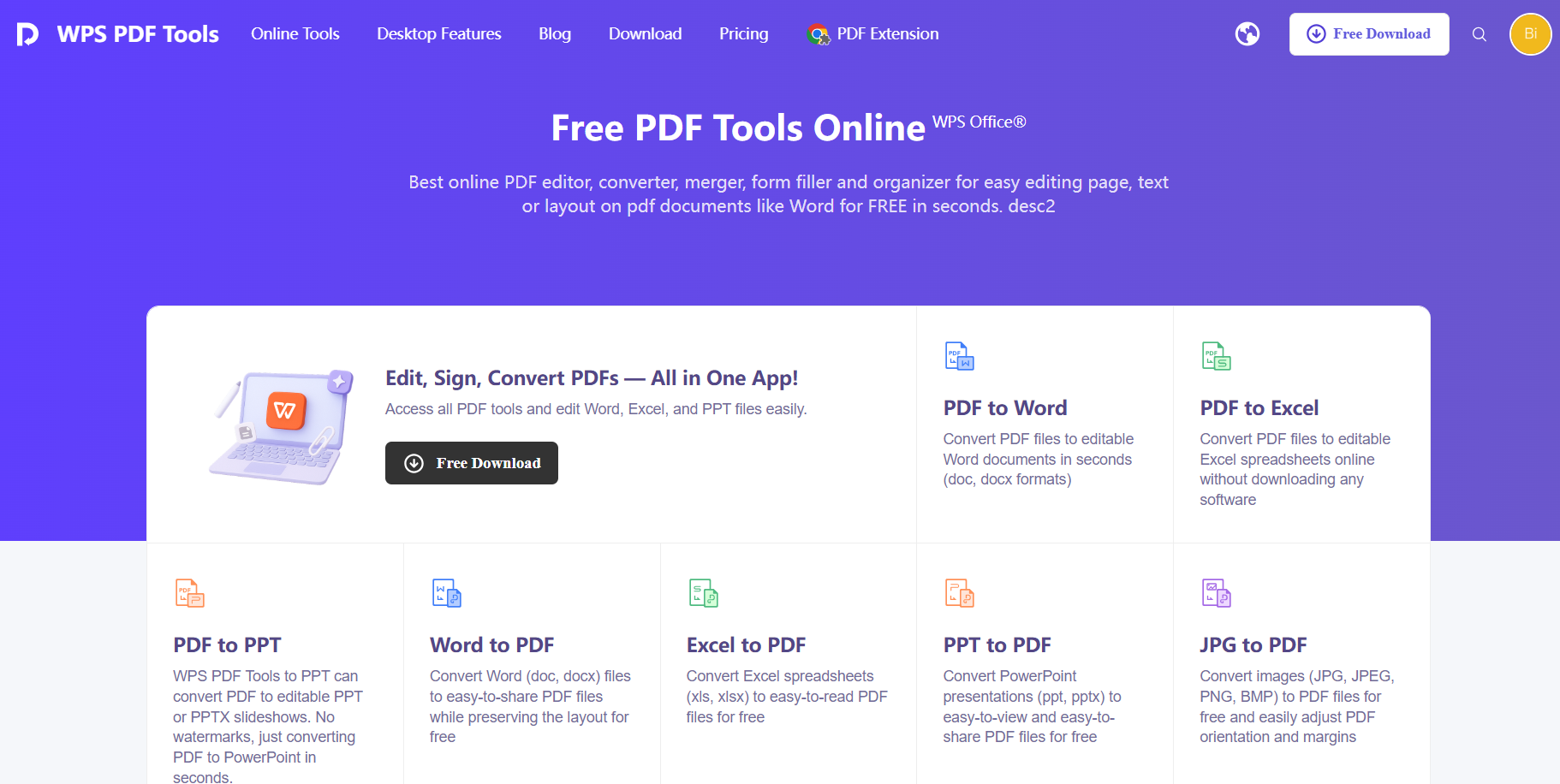
I’ll be highlighting the steps you need to follow for a smooth and hassle-free scanning process down below.
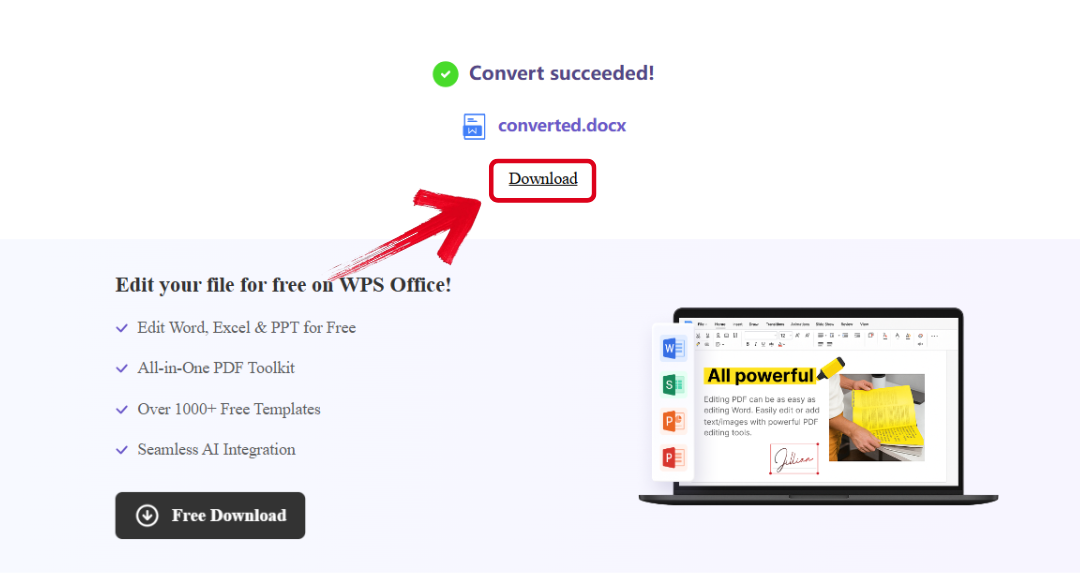
Step 1: Visit the WPS Online Tool and upload the PDF you want to extract to get started.
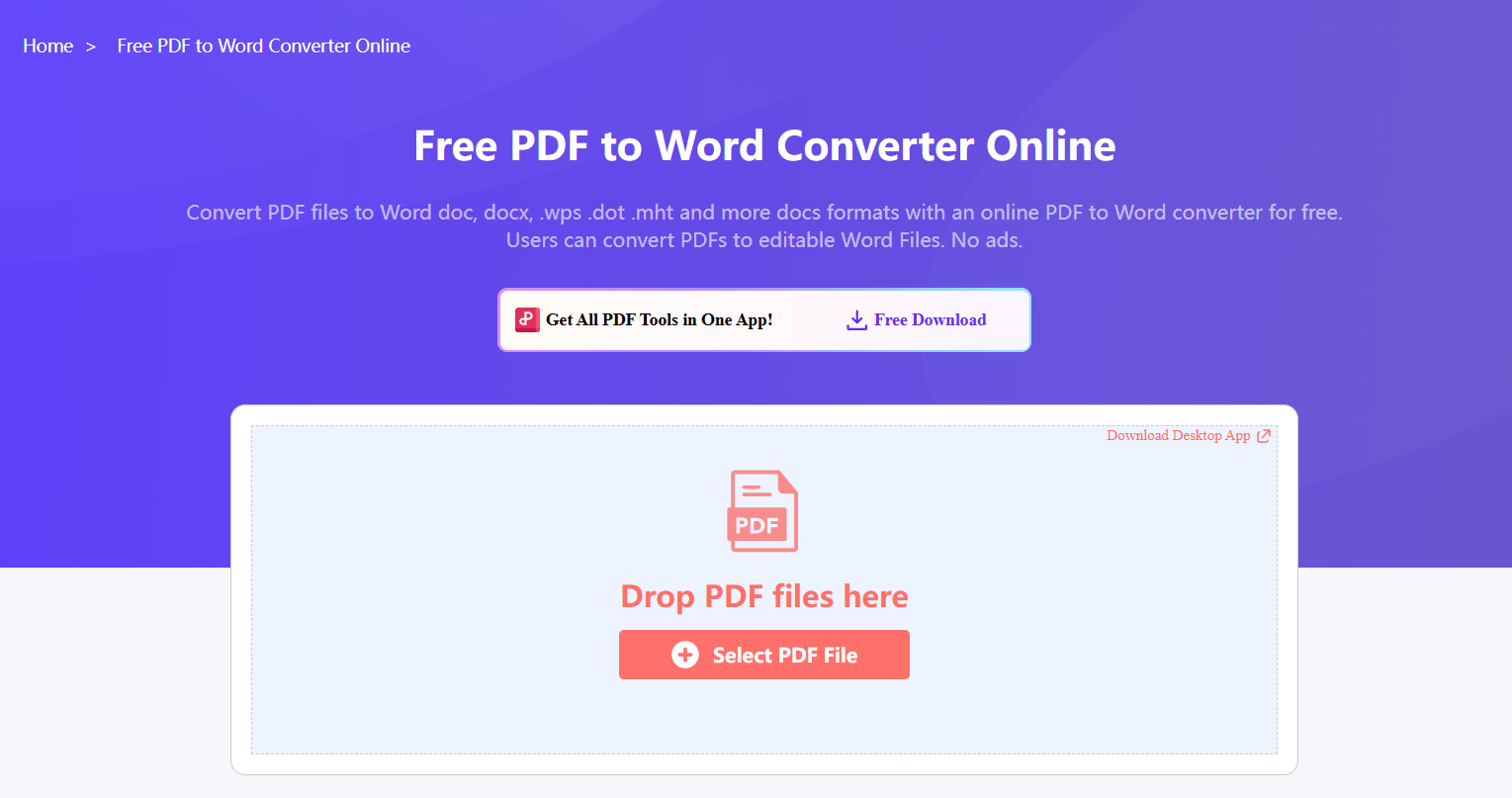
Step 2: The extraction process will begin immediately. Press Download when it’s complete to save it to your device.
2. OnlineOCR.net
OnlineOCR.net is one of the most straightforward options out there when it comes to handling OCR image-to-text conversions, making it the perfect option for those looking to get their work done without any slowdowns or distractions. It features an incredibly simple layout that makes it very easy to understand. All you need to do is upload your picture, and the tool will do everything else for you, delivering high-quality outputs in no time.
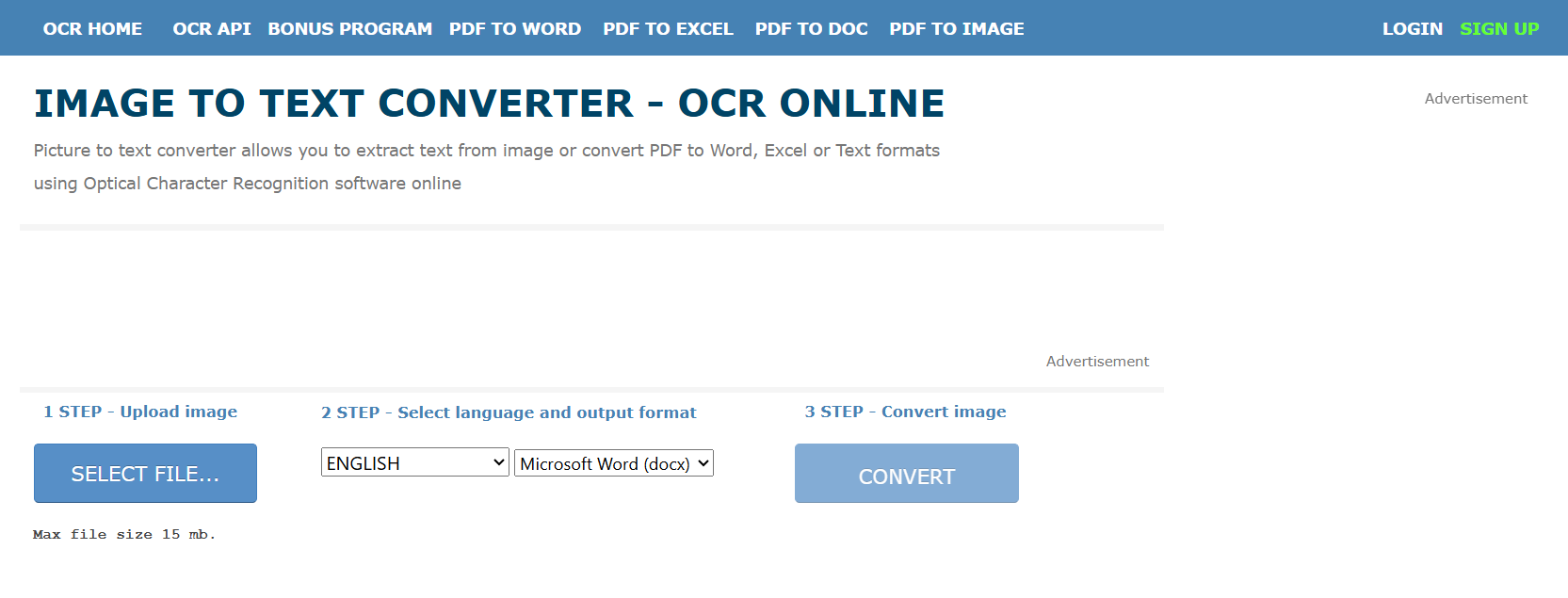
These are the steps you need to follow to ensure a hassle-free extraction process using OnlineOCR.net.
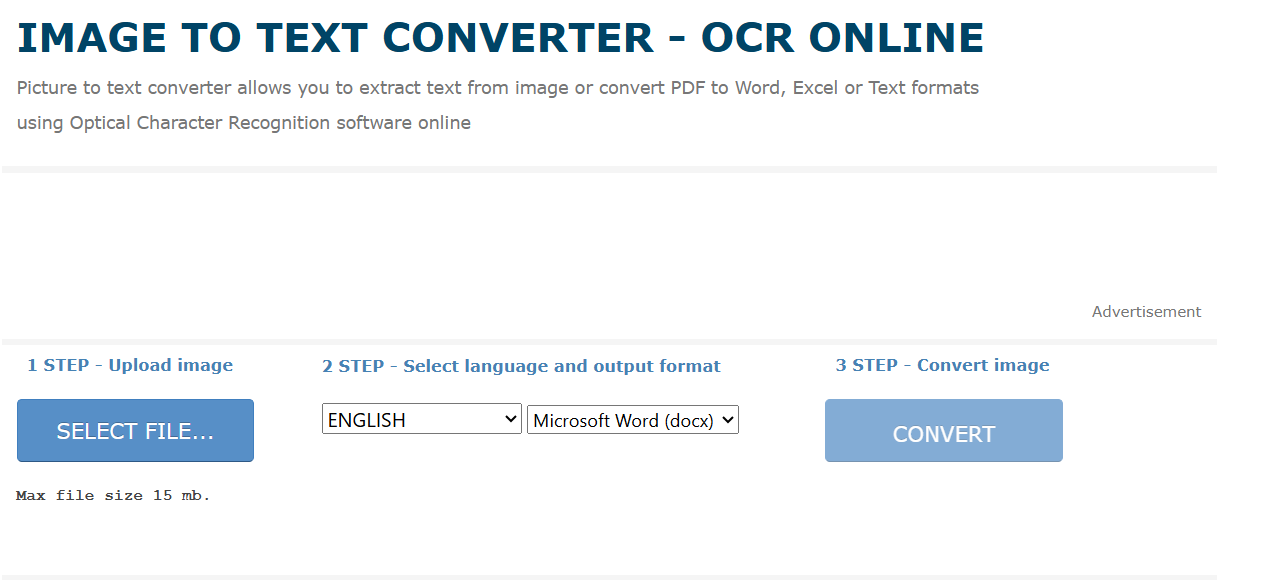
Step 1: Visit OnlineOCR.net on your web browser and upload the file you want to use.
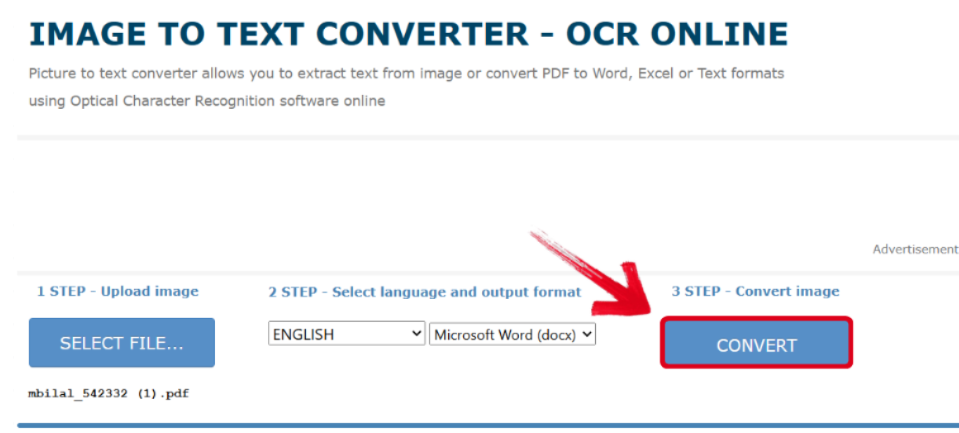
Step 2: Once uploaded, press Convert to start the text extraction process.
Step 3: After your file has finished converting, simply press Download Output File to save it to your computer.
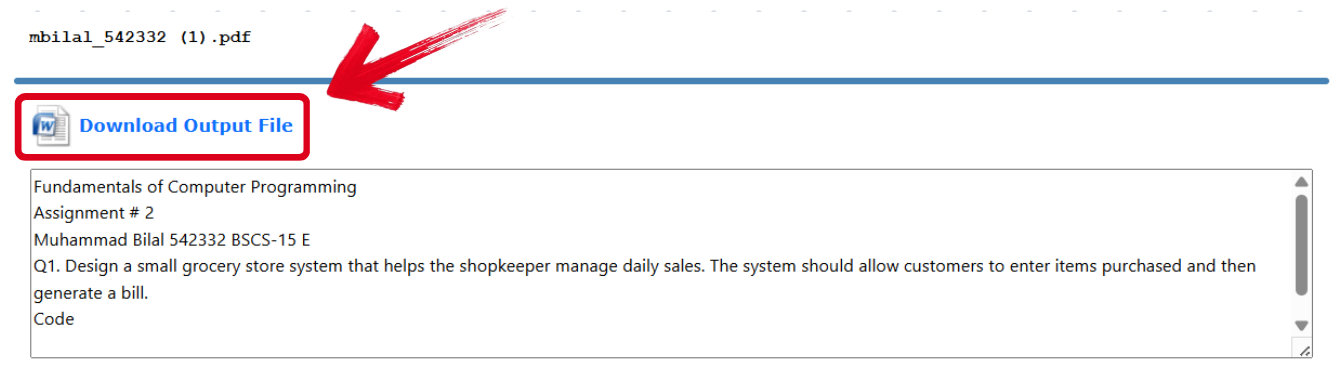
3. NewOCR.com
NewOCR.com is the perfect option for professionals and students who need a quick solution for their text scanning without having to deal with confusing layouts or irrelevant distractions to slow them down. It provided me with a polished and streamlined experience for my text scanning, delivering high-quality outputs in just a few simple steps without making me go through any hassle.
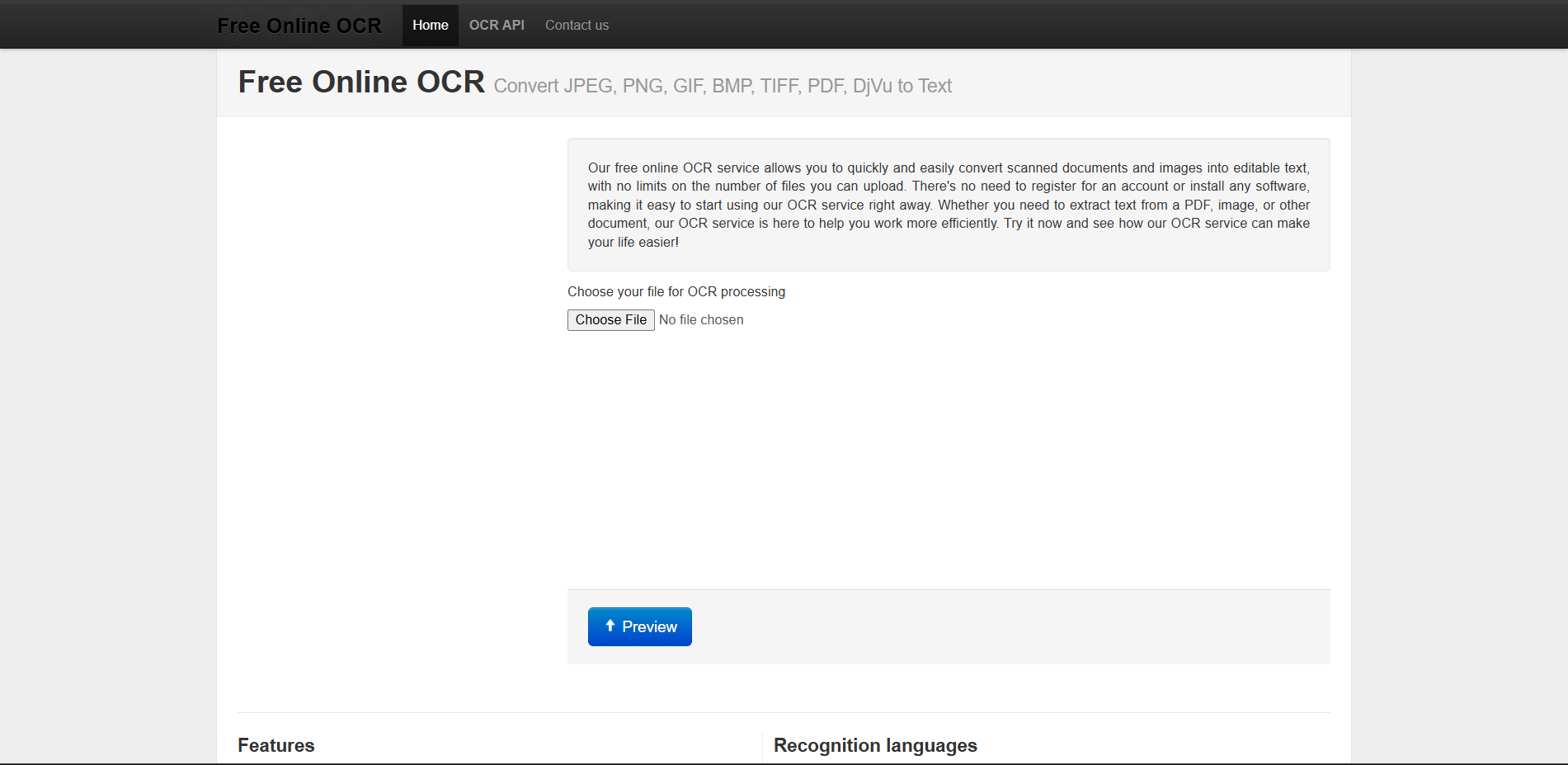
I’ll be highlighting the steps you need to follow to ensure a smooth and hassle-free conversion process with NewOCR.com down below.
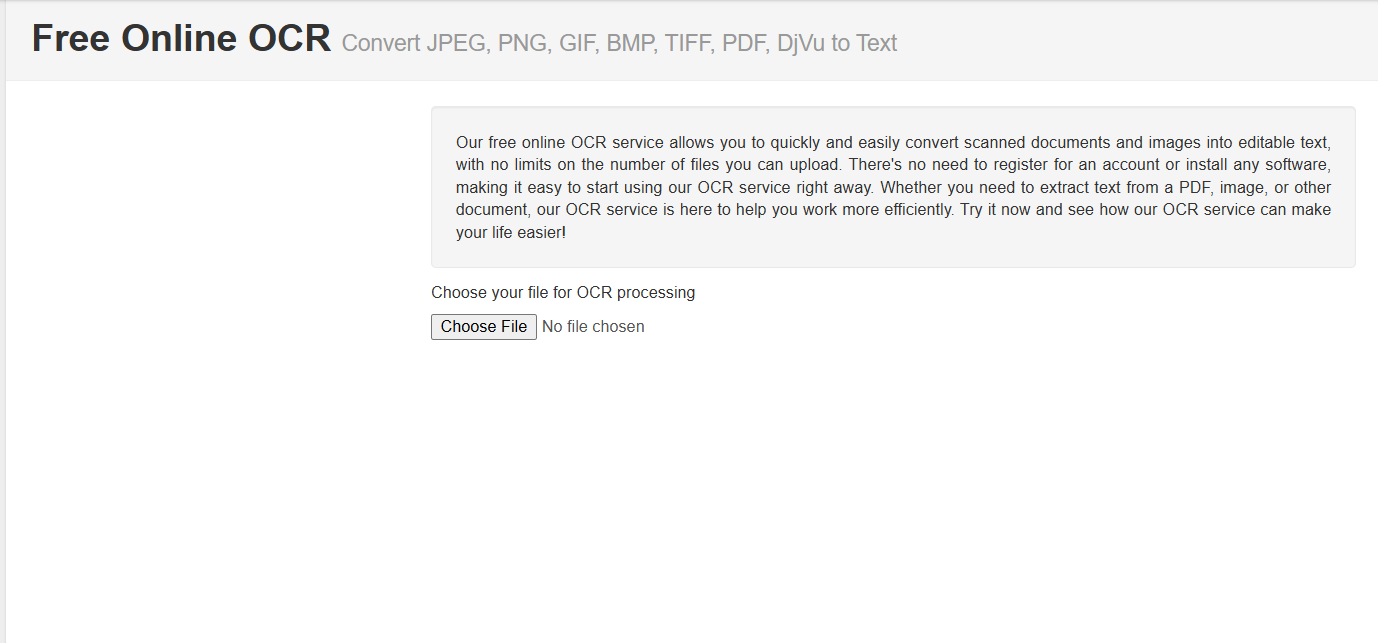
Step 1: Visit NewOCR.com and select the file you want to use for text extraction.
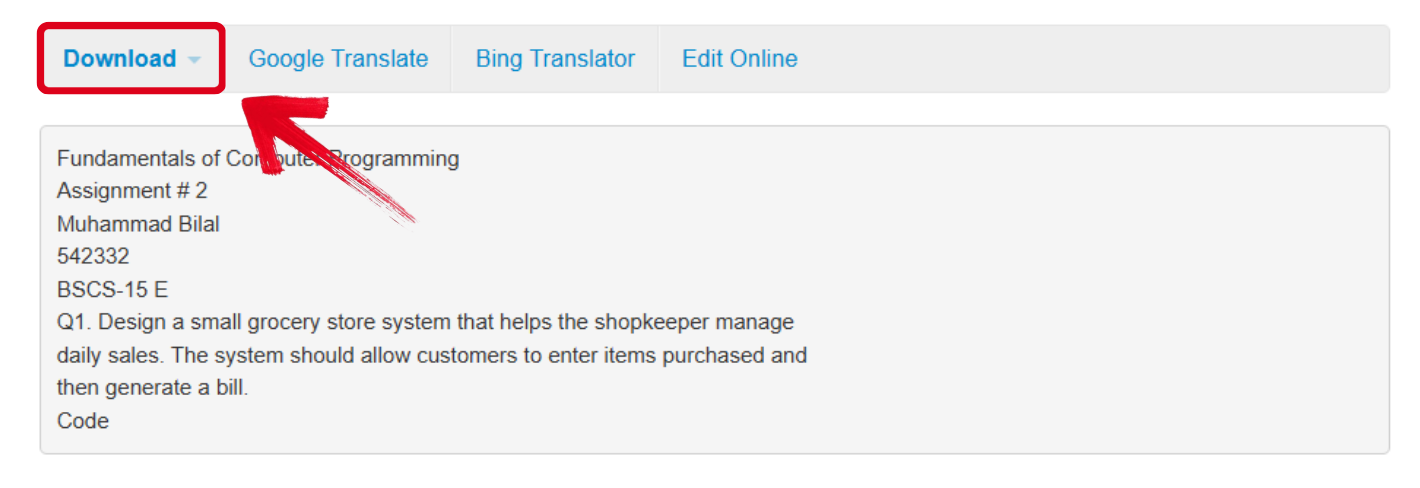
Step 2: The PDF document will immediately be converted to text. Simply press Download to save it to your device.
4. OCR.Space
If you’re a professional who needs full control over all your tools and deep customization features, the OCR. Space is the ideal option for your requirements. While its interface may be overwhelming and potentially confusing for beginners, it allows trained professionals to have maximum personalization over all their documents, leading to more accurate and precise results.
Just follow the steps I’ve covered below to extract your text in just a few seconds from any file you want using OCR.Space.
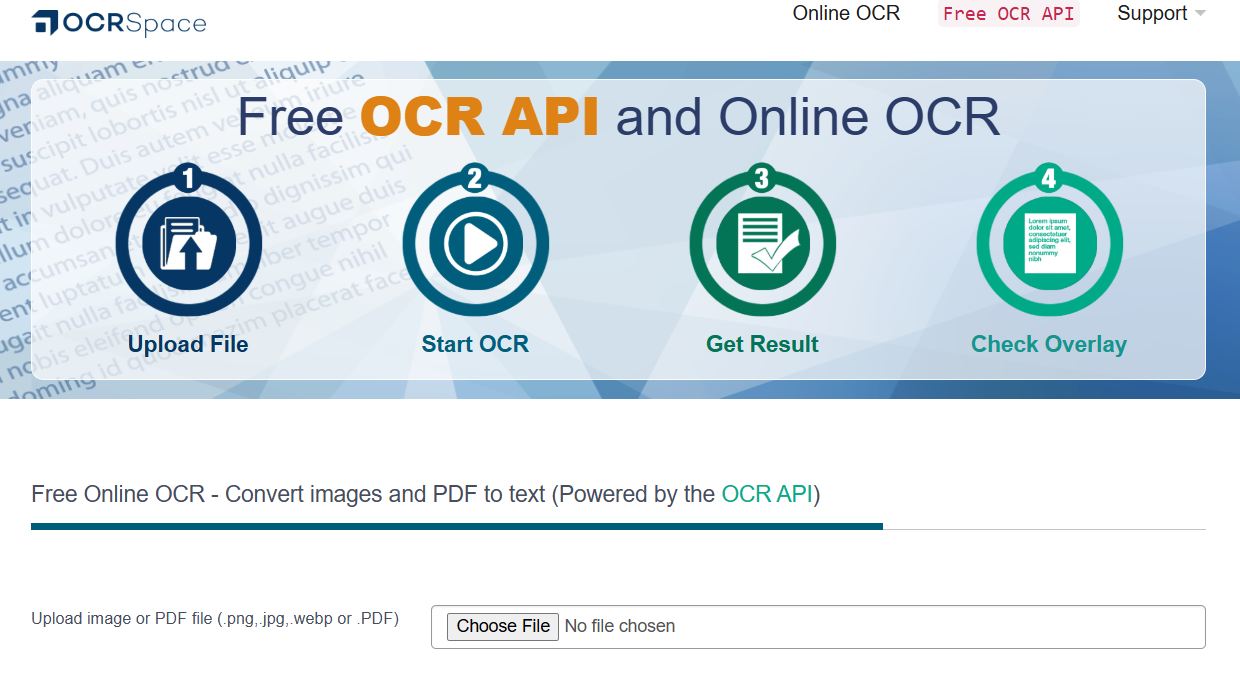
Step 1: Visit OCR.Space and upload the file you want to use for the conversion to get started.
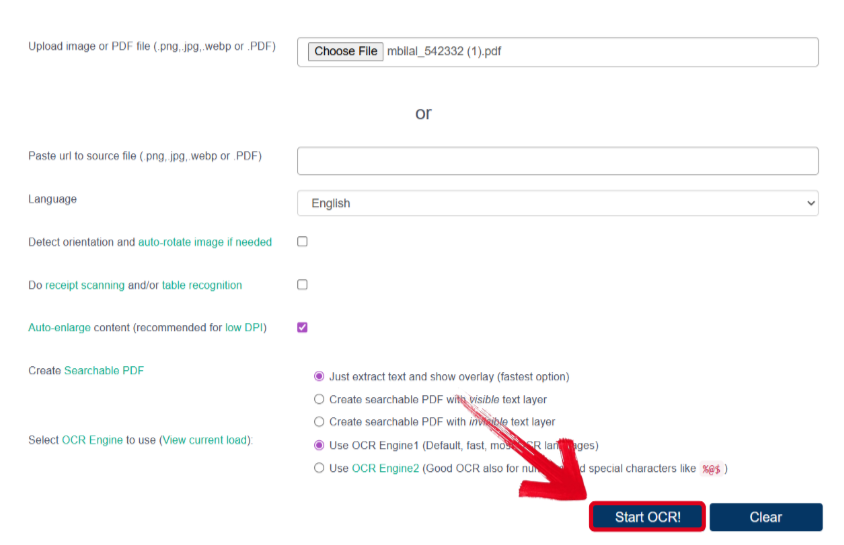
Step 2: Once uploaded, simply press Start OCR! to start the conversion process.
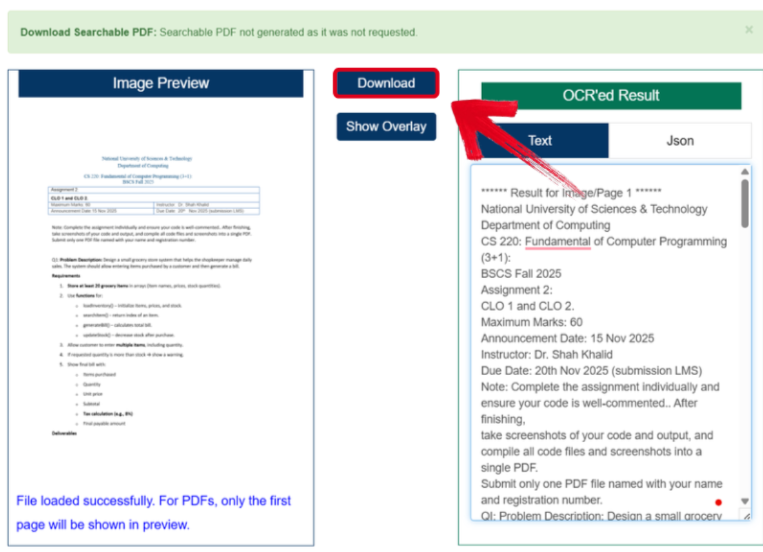
Step 3: Once the processing has been completed, just press Download to save your text file.
Comparison Table
Every single tool covered in this guide has been personally tried and thoroughly tested by me, delivering reliable and polished results to me every single time. But each of them stands out from the others with its own unique strength and advantage, making it hard to pick the right option for your own work. In this section, I’ll be helping you decide the right option for yourself by comparing each one of them side by side, breaking them down by their features and limitations.
| Feature | WPS Online Tool | OnlineOCR.net | NewOCR.com | OCR.Space |
|---|---|---|---|---|
| Accuracy | High (AI-powered) | Medium-High | Medium | Medium-High |
| Supported Languages | 100+ languages | 50+ languages | 120+ languages | 20+ languages |
| File Size Limits | 50MB per file | 15MB per file | 50MB per file | 1MB (free) |
| Output Formats | Word, Excel, PPT, PDF, TXT | Word, Excel, TXT | PDF, Word, TXT | TXT, PDF, DOC |
| Daily Usage Limits | Unlimited free conversions | 15 free conversions per hour | No strict daily limits | 25,000 requests/month (free API) |
Why WPS PDF is a Top Recommendation
Dealing with text trapped inside scanned documents and images can be frustrating, especially when you’re dealing with many kinds of file formats and their conversions. Instead of looking for a different tool for every single task, I simply rely on WPS PDF for all my productivity needs. It features a massive all-in-one tool suite with all the capabilities you’ll ever need to maximize your productivity and make sure you don’t waste any time looking for other tools.
FAQs
Q1. How accurate are free online OCR tools?
Accuracy varies between tools. Basic OCR may struggle with poor-quality scans or unusual fonts, while advanced tools like WPS PDF use AI to achieve higher accuracy, especially for clear documents with standard fonts.
Q2. Are there any limitations when using free OCR online services?
Most free services have limitations such as daily conversion quotas, file size restrictions, or watermarks on output files. Some may also require registration after a certain number of conversions.
Q3. Is it safe to upload sensitive documents to free OCR websites?
Security practices vary by provider. For confidential documents, use tools that mention data encryption or consider desktop-based OCR solutions.
Q4. Which file formats are typically supported by free OCR tools?
Common output formats include Word, PDF, TXT, and sometimes Excel. Some tools also allow image-to-text conversion from formats like JPG or PNG.
Q5. Can free OCR tools handle documents in multiple languages?
Yes, many OCR tools support multiple languages, but the number of supported languages varies. Advanced AI-based tools usually cover more languages accurately.

'%3e%3cpath%20d='M19.9911%204.11386V6.471H18.5894C18.0775%206.471%2017.7322%206.57814%2017.5536%206.79243C17.3751%207.00671%2017.2858%207.32814%2017.2858%207.75671V9.44421H19.9019L19.5536%2012.0871H17.2858V18.8639H14.5536V12.0871H12.2769V9.44421H14.5536V7.49779C14.5536%206.39064%2014.8632%205.53201%2015.4822%204.92189C16.1013%204.31177%2016.9257%204.00671%2017.9554%204.00671C18.8304%204.00671%2019.509%204.04243%2019.9911%204.11386Z'%20fill='%23333333'/%3e%3c/g%3e%3cdefs%3e%3cclipPath%20id='clip0_2938_8199'%3e%3crect%20width='16'%20height='16'%20fill='white'%20transform='translate(8%204.00671)'/%3e%3c/clipPath%3e%3c/defs%3e%3c/svg%3e)
'%3e%3cpath%20d='M17.5237%2010.7813L23.4811%204H22.0699L16.8949%209.88693L12.7648%204H8L14.2469%2012.9029L8%2020.0133H9.4112L14.8725%2013.7952L19.2352%2020.0133H24M9.92053%205.04213H12.0885L22.0688%2019.0224H19.9003'%20fill='%23333333'/%3e%3c/g%3e%3cdefs%3e%3cclipPath%20id='clip0_2938_8200'%3e%3crect%20width='16'%20height='16.0134'%20fill='white'%20transform='translate(8%204)'/%3e%3c/clipPath%3e%3c/defs%3e%3c/svg%3e)


