

'%3e%3cpath%20d='M8%200C12.4183%200%2016%203.58172%2016%208C16%2012.4183%2012.4183%2016%208%2016C3.58172%2016%200%2012.4183%200%208C0%203.58172%203.58172%200%208%200ZM11.6162%204.38379C11.2257%203.99337%2010.5927%203.99338%2010.2021%204.38379L8%206.58594L5.79785%204.38379C5.40732%203.99334%204.77429%203.99329%204.38379%204.38379C3.99331%204.77429%203.99335%205.40733%204.38379%205.79785L6.58594%208L4.38379%2010.2021C3.99348%2010.5927%203.99341%2011.2257%204.38379%2011.6162C4.77426%2012.0066%205.40734%2012.0065%205.79785%2011.6162L8%209.41406L10.2021%2011.6162C10.5927%2012.0066%2011.2257%2012.0067%2011.6162%2011.6162C12.0067%2011.2257%2012.0066%2010.5927%2011.6162%2010.2021L9.41406%208L11.6162%205.79785C12.0066%205.40735%2012.0066%204.77429%2011.6162%204.38379Z'%20fill='%23080E17'%20fill-opacity='0.46'/%3e%3c/g%3e%3cdefs%3e%3cclipPath%20id='clip0_3761_713'%3e%3crect%20width='16'%20height='16'%20fill='white'/%3e%3c/clipPath%3e%3c/defs%3e%3c/svg%3e)




'%3e%3cpath%20fill-rule='evenodd'%20clip-rule='evenodd'%20d='M21.4999%2010.9993C21.4999%205.20009%2016.7986%200.498901%2010.9993%200.498901C5.19994%200.498901%200.498657%205.20009%200.498657%2010.9993C0.498657%2016.2404%204.33858%2020.5844%209.35855%2021.3722V14.0346H6.69238V10.9993H9.35855V8.68594C9.35855%206.05427%2010.9262%204.60062%2013.3248%204.60062C14.4736%204.60062%2015.6753%204.80571%2015.6753%204.80571V7.38979H14.3512C13.0468%207.38979%2012.64%208.19921%2012.64%209.0296V10.9993H15.5523L15.0867%2014.0346H12.64V21.3722C17.66%2020.5844%2021.4999%2016.2404%2021.4999%2010.9993Z'%20fill='%231568EA'/%3e%3c/g%3e%3c/svg%3e)


'%3e%3cpath%20d='M2.42045%2022.1876H6.31818V12.7217L0.75%208.54553V20.5171C0.75%2021.4414%201.49892%2022.1876%202.42045%2022.1876Z'%20fill='%234285F4'/%3e%3cpath%20d='M19.682%2022.1876H23.5797C24.5041%2022.1876%2025.2502%2021.4387%2025.2502%2020.5171V8.54553L19.682%2012.7217'%20fill='%2334A853'/%3e%3cpath%20d='M19.682%205.48293V12.7216L25.2502%208.54543V6.31816C25.2502%204.25236%2022.8921%203.07469%2021.2411%204.31361'%20fill='%23FBBC04'/%3e%3cpath%20d='M6.31824%2012.7217V5.48303L13.0001%2010.4944L19.6819%205.48303V12.7217L13.0001%2017.733'%20fill='%23EA4335'/%3e%3cpath%20d='M0.75%206.31816V8.54543L6.31818%2012.7216V5.48293L4.75909%204.31361C3.10534%203.07469%200.75%204.25236%200.75%206.31816Z'%20fill='%23C5221F'/%3e%3c/g%3e%3cdefs%3e%3cclipPath%20id='clip0_2954_7305'%3e%3crect%20width='24.5'%20height='18.375'%20fill='white'%20transform='translate(0.75%203.8125)'/%3e%3c/clipPath%3e%3c/defs%3e%3c/svg%3e)


Essays, cover letters, grant forms, and blog posts all come with a word limit—and the draft always feels “about right” until you actually count. Count words in Word from the status bar or Review → Word Count in WPS Writer, so you never paste unpublished text into a random website.
Open your .docx, select one paragraph or the whole document, and read the number before you trim or add a conclusion. The steps below use desktop Writer on Windows or Mac. The menus mirror Microsoft Word closely enough that a .docx from school or work opens without a conversion step.
If the limit applies only to the body—not the title page or references—highlight that section first. A whole-file total is the wrong answer when the syllabus names one chapter.
Count Words in Word: How to Count Words in a Selection or Document
Count Words in a Selection or Full Document
The fastest count is the one you never leave the page to get. Keep the file open and watch the bottom of the window.
Open the document in WPS Writer. Double-click a .docx from Word, or use File → Open and pick the draft.
To count the whole file, click once in the body and press Ctrl+A (Windows) or Cmd+A (Mac) if you want the selection to match “everything,” or select nothing and read the document total—either way, confirm what your build shows before you submit.
Look at the status bar at the bottom. Many installs show Words and Characters on the left or right.
If the counts are missing, right-click the status bar and turn on Word Count. You can also open Review → Word Count for the full dialog (menu names can vary slightly by version).
To count one section, highlight that paragraph, abstract, or chapter. The status bar updates for the selection only while the highlight stays active.
For a long draft with headings, tables, and footnotes, open the Word Count dialog once. Note whether headers, footers, and notes are included. That setting explains why your total differs from a classmate’s paste into a web counter.
Click the word count on the status bar when your build offers it—some versions open the same dialog as Review → Word Count, with pages and lines listed beside words.
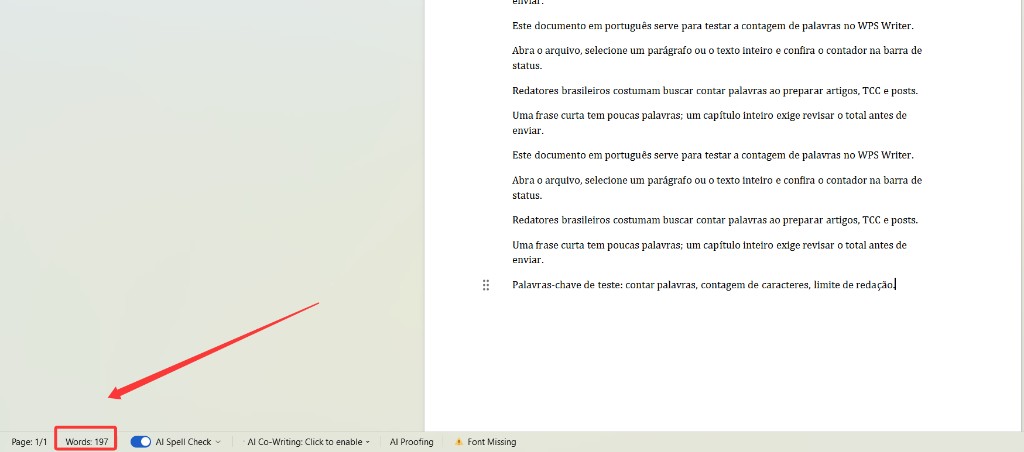
WPS Writer status bar word count
Count Words With and Without Spaces
Words follow the processor’s rules, not your intuition. Hyphenated terms, numbers, symbols, and long URLs may count as one word or several depending on punctuation. Characters with spaces matter for social posts, SMS-style limits, and some application forms. Characters without spaces still shows up in translation briefs and a few journal guidelines.
Open Review → Word Count and read every line in the box: pages, words, characters (with and without spaces), paragraphs, and lines. Change the checkboxes for footnotes, endnotes, text boxes, and header/footer text before you compare the number to the brief.
If your limit is “250 words in the body only,” do not trust the whole-document total. Select the body paragraphs, or temporarily move the reference list to another file while you measure the chapter.
Asian-language drafts mixed with English quotes still run through the same counter. The total is useful for cap compliance even when a human editor later adjusts line breaks.
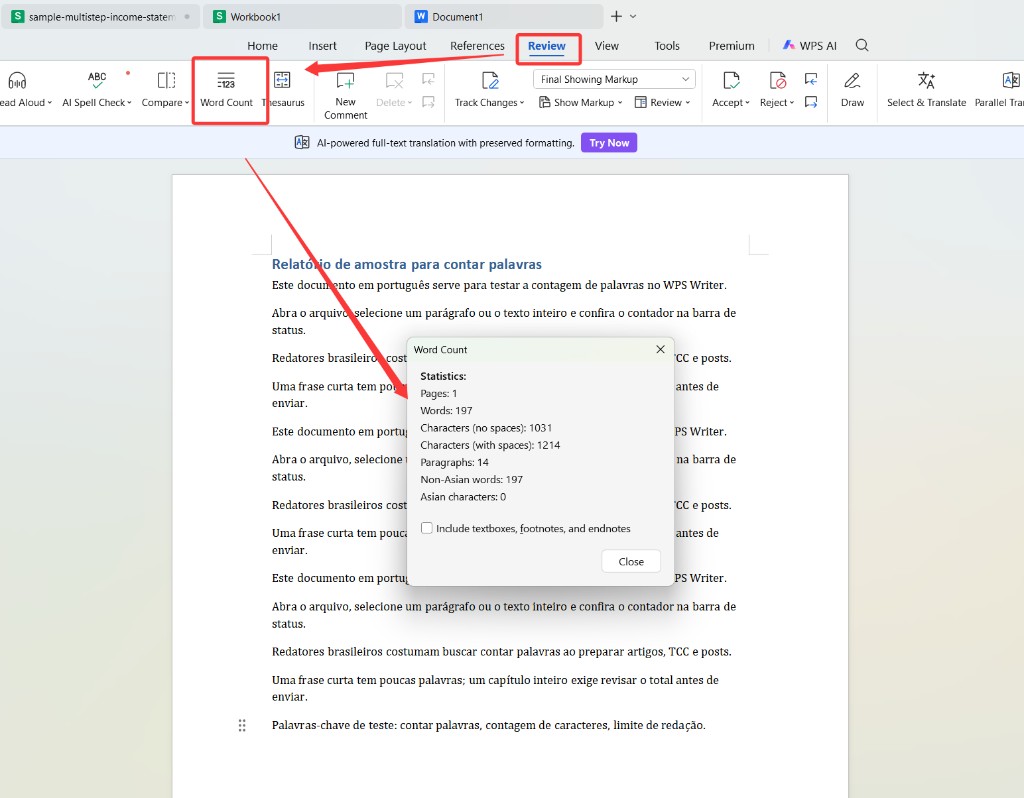
Review Word Count dialog
Count Words in Multiple Documents
Writer counts only the active .docx. A thesis split into chapter files needs a simple tally sheet: filename, date, word total, and whether footnotes were included.
Open chapter one, read the status bar or Word Count dialog, and write the number in a spreadsheet column.
Repeat for each chapter. Use SUM in WPS Spreadsheet if you keep the log there—same install, no upload.
When the cap applies to the full manuscript, paste the chapters into one master .docx or use your school’s template so one Word Count run covers the body.
Exporting to PDF does not replace a count in the editable file when the syllabus says “words in the Word document.” PDF page count is a different metric.
Need a quick check on a phone? Mobile viewers rarely expose footnote-aware counts. Desktop Writer is still the reliable path for selection totals and dialog checkboxes.
Review Word Count Before You Submit
Run this short check so the number you send matches what the reviewer will see.
Scope. Confirm whether the limit covers the abstract, references, and appendices. Select only the required blocks when it does not.
Headers and footers. Title pages often live in the header. Toggle the include options in Word Count if your total looks too high or too low.
Tracked changes. Accept or reject revisions before the final count if the brief asks for a clean version.
Tables and captions. Text inside tables counts as words; figure captions do when they are ordinary paragraphs.
Save a copy of the file with the count noted in the filename or cover email—essay-v3-1847words.docx—so you do not resubmit an older draft by mistake.
The Best Free Office Alternative: WPS Office
Desktop Writer includes word count and opens .docx from Microsoft Word without uploading the file to a counter website. You edit, recount, and save in one place.
| WPS Writer | Paste into a web word counter | |
|---|---|---|
| Privacy | Counts stay on your computer. | You copy unpublished text to a third-party site. |
| Selection count | Status bar and Word Count dialog follow the highlight. | You must paste each section manually. |
| Footnotes | Dialog options match Word-style rules. | Plain paste may drop notes and formatting. |
| File you keep | Save .docx; recount after every edit. | You maintain a separate paste buffer. |
| Cost to start | Free to start on desktop for word count. | Free sites often lack footnote-aware rules. |
Status bar plus Review → Word Count in one install.
Edit and measure in the same app—no round trip through a browser.
Spreadsheet and PDF tools sit in the same suite when you log chapter totals or attach proofs.
Open WPS Writer, load the .docx, and leave the total cells to the built-in counter instead of retyping the essay online.
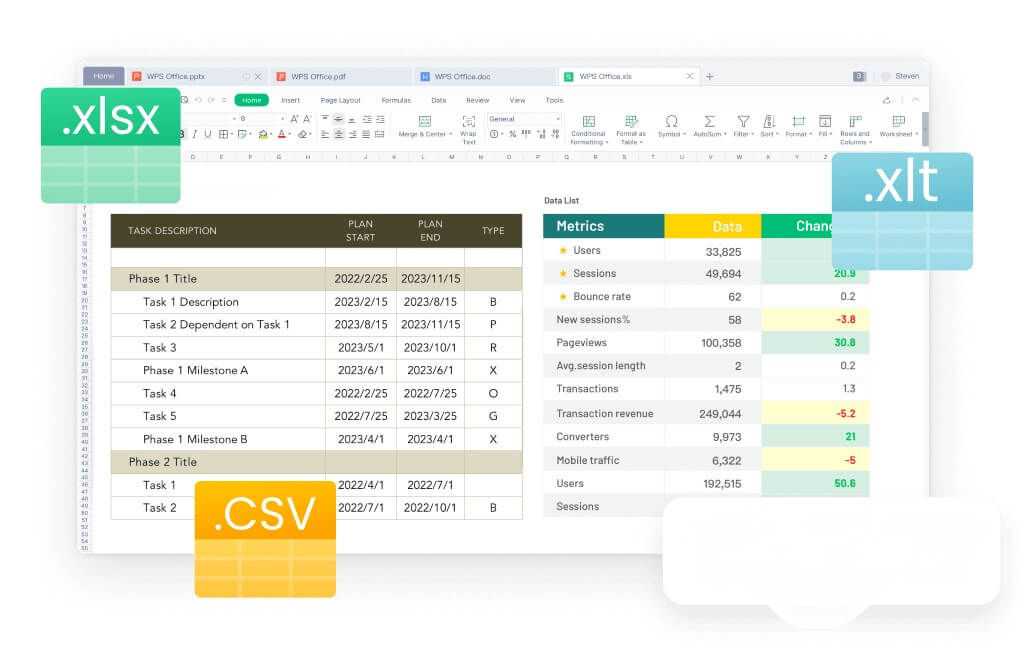
WPS Writer editor and formats
FAQs
How do I count words in a selection?
Highlight the text. The status bar shows the selection total, or open Review → Word Count for the same numbers with character counts.
Do footnotes and headers count?
It depends on the Word Count options. Open the dialog and review the include checkboxes before you submit.
Does this work on .docx from Microsoft Word?
Yes. Open the file in WPS Writer and use the same counters—no conversion step.
Can I count words in a table or text box?
Yes when Word Count includes those regions. Open the dialog and review the include checkboxes before you compare totals to a brief.
Do I need internet to count words?
No for desktop Writer. You only need a connection to download or update WPS—not to run Word Count on a local file.


Summary: Count Words in Word
Open the .docx in WPS Writer, use the status bar or Review → Word Count, and select text when the limit applies to one chapter only. Use the same counters after every revision so the number you report matches the file you attach.
Check footnote and header options in the dialog, log totals when chapters live in separate files, and save the final .docx before you send the number to your instructor or client.

'%3e%3cpath%20d='M19.9911%204.11386V6.471H18.5894C18.0775%206.471%2017.7322%206.57814%2017.5536%206.79243C17.3751%207.00671%2017.2858%207.32814%2017.2858%207.75671V9.44421H19.9019L19.5536%2012.0871H17.2858V18.8639H14.5536V12.0871H12.2769V9.44421H14.5536V7.49779C14.5536%206.39064%2014.8632%205.53201%2015.4822%204.92189C16.1013%204.31177%2016.9257%204.00671%2017.9554%204.00671C18.8304%204.00671%2019.509%204.04243%2019.9911%204.11386Z'%20fill='%23333333'/%3e%3c/g%3e%3cdefs%3e%3cclipPath%20id='clip0_2938_8199'%3e%3crect%20width='16'%20height='16'%20fill='white'%20transform='translate(8%204.00671)'/%3e%3c/clipPath%3e%3c/defs%3e%3c/svg%3e)
'%3e%3cpath%20d='M17.5237%2010.7813L23.4811%204H22.0699L16.8949%209.88693L12.7648%204H8L14.2469%2012.9029L8%2020.0133H9.4112L14.8725%2013.7952L19.2352%2020.0133H24M9.92053%205.04213H12.0885L22.0688%2019.0224H19.9003'%20fill='%23333333'/%3e%3c/g%3e%3cdefs%3e%3cclipPath%20id='clip0_2938_8200'%3e%3crect%20width='16'%20height='16.0134'%20fill='white'%20transform='translate(8%204)'/%3e%3c/clipPath%3e%3c/defs%3e%3c/svg%3e)


