

'%3e%3cpath%20d='M8%200C12.4183%200%2016%203.58172%2016%208C16%2012.4183%2012.4183%2016%208%2016C3.58172%2016%200%2012.4183%200%208C0%203.58172%203.58172%200%208%200ZM11.6162%204.38379C11.2257%203.99337%2010.5927%203.99338%2010.2021%204.38379L8%206.58594L5.79785%204.38379C5.40732%203.99334%204.77429%203.99329%204.38379%204.38379C3.99331%204.77429%203.99335%205.40733%204.38379%205.79785L6.58594%208L4.38379%2010.2021C3.99348%2010.5927%203.99341%2011.2257%204.38379%2011.6162C4.77426%2012.0066%205.40734%2012.0065%205.79785%2011.6162L8%209.41406L10.2021%2011.6162C10.5927%2012.0066%2011.2257%2012.0067%2011.6162%2011.6162C12.0067%2011.2257%2012.0066%2010.5927%2011.6162%2010.2021L9.41406%208L11.6162%205.79785C12.0066%205.40735%2012.0066%204.77429%2011.6162%204.38379Z'%20fill='%23080E17'%20fill-opacity='0.46'/%3e%3c/g%3e%3cdefs%3e%3cclipPath%20id='clip0_3761_713'%3e%3crect%20width='16'%20height='16'%20fill='white'/%3e%3c/clipPath%3e%3c/defs%3e%3c/svg%3e)




'%3e%3cpath%20fill-rule='evenodd'%20clip-rule='evenodd'%20d='M21.4999%2010.9993C21.4999%205.20009%2016.7986%200.498901%2010.9993%200.498901C5.19994%200.498901%200.498657%205.20009%200.498657%2010.9993C0.498657%2016.2404%204.33858%2020.5844%209.35855%2021.3722V14.0346H6.69238V10.9993H9.35855V8.68594C9.35855%206.05427%2010.9262%204.60062%2013.3248%204.60062C14.4736%204.60062%2015.6753%204.80571%2015.6753%204.80571V7.38979H14.3512C13.0468%207.38979%2012.64%208.19921%2012.64%209.0296V10.9993H15.5523L15.0867%2014.0346H12.64V21.3722C17.66%2020.5844%2021.4999%2016.2404%2021.4999%2010.9993Z'%20fill='%231568EA'/%3e%3c/g%3e%3c/svg%3e)


'%3e%3cpath%20d='M2.42045%2022.1876H6.31818V12.7217L0.75%208.54553V20.5171C0.75%2021.4414%201.49892%2022.1876%202.42045%2022.1876Z'%20fill='%234285F4'/%3e%3cpath%20d='M19.682%2022.1876H23.5797C24.5041%2022.1876%2025.2502%2021.4387%2025.2502%2020.5171V8.54553L19.682%2012.7217'%20fill='%2334A853'/%3e%3cpath%20d='M19.682%205.48293V12.7216L25.2502%208.54543V6.31816C25.2502%204.25236%2022.8921%203.07469%2021.2411%204.31361'%20fill='%23FBBC04'/%3e%3cpath%20d='M6.31824%2012.7217V5.48303L13.0001%2010.4944L19.6819%205.48303V12.7217L13.0001%2017.733'%20fill='%23EA4335'/%3e%3cpath%20d='M0.75%206.31816V8.54543L6.31818%2012.7216V5.48293L4.75909%204.31361C3.10534%203.07469%200.75%204.25236%200.75%206.31816Z'%20fill='%23C5221F'/%3e%3c/g%3e%3cdefs%3e%3cclipPath%20id='clip0_2954_7305'%3e%3crect%20width='24.5'%20height='18.375'%20fill='white'%20transform='translate(0.75%203.8125)'/%3e%3c/clipPath%3e%3c/defs%3e%3c/svg%3e)


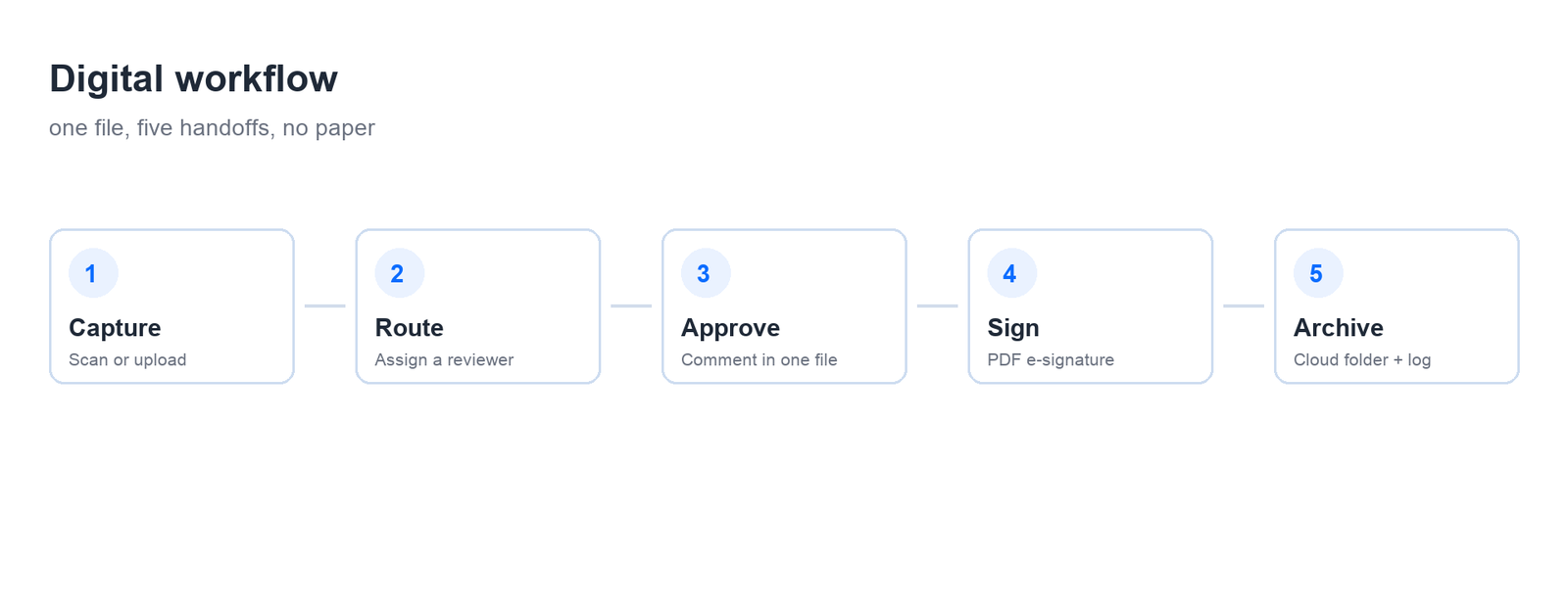
Most teams do not have a tool problem, they have a handoff problem: the contract lives in email, the approval lives in chat, and the signed copy ends up on somebody's desktop with a name like final_v3_SIGNED. A digital workflow fixes that with five steps on one file, and you can set it up in an afternoon:
Capture once — scan or upload the document to one place.
Route to a named owner — one reviewer per step, not a group chat.
Approve in the file — comments and status inside the document, not beside it.
Sign as PDF — the final version leaves as a locked PDF, not a .docx.
Archive with a timestamp — one folder, one log, nothing overwritten.
Digital Workflow: Build One Your Team Actually Follows


Copy This Digital Workflow for Document Review and Sign-off
This is the workflow most offices need first, because it is the one that still runs on email attachments. The version below handles a supplier agreement, a policy update, or any document that needs two approvals and one signature.
Upload the draft to WPS Cloud and share one link. Set edit rights for the reviewers and view-only for everyone else, so a stray comment cannot rewrite the clause it criticises.
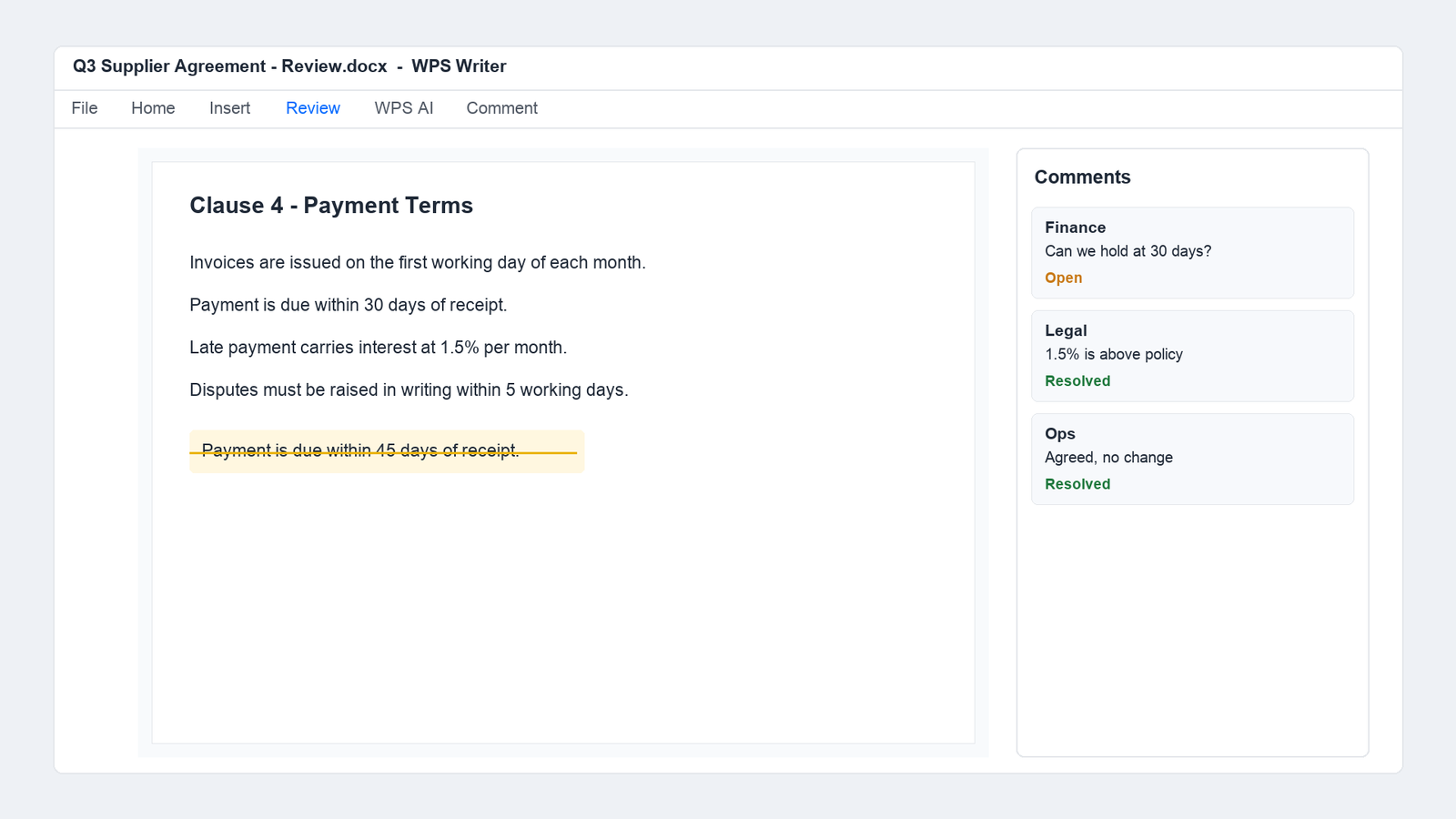
Ask for comments, not marked-up copies. Each reviewer leaves a comment against the sentence they object to, then resolves it when answered. You end with a decision trail instead of three conflicting files.
Freeze the approved version. Export to PDF the moment the last comment is resolved. The PDF is what gets signed and circulated from then on.
Sign inside the PDF. WPS PDF adds a drawn or image signature with a date, and the recipient can see exactly which page was signed and when.
File it before you reply to anyone. Save the signed PDF into the dated folder and send the link, not the attachment. That ordering is what keeps the archive complete on a busy Friday.
Digital workflow document review comments
One caution worth writing into the process: an electronic signature is only as strong as the identity behind it. For contracts that must stand up later, keep the approval trail — who reviewed which version, and when — next to the signed file.
Add AI to the Digital Workflow Without Losing the Audit Trail
The useful AI features in a workflow are unglamorous: summarise a 40-page agreement before review, extract the dates and amounts into a table, and turn a long thread into a list of decisions. None of them should replace the approval step.
Summarise before you read, then read. A one-paragraph summary of payment terms and deadlines tells you where to look; it does not tell you the clause is acceptable.
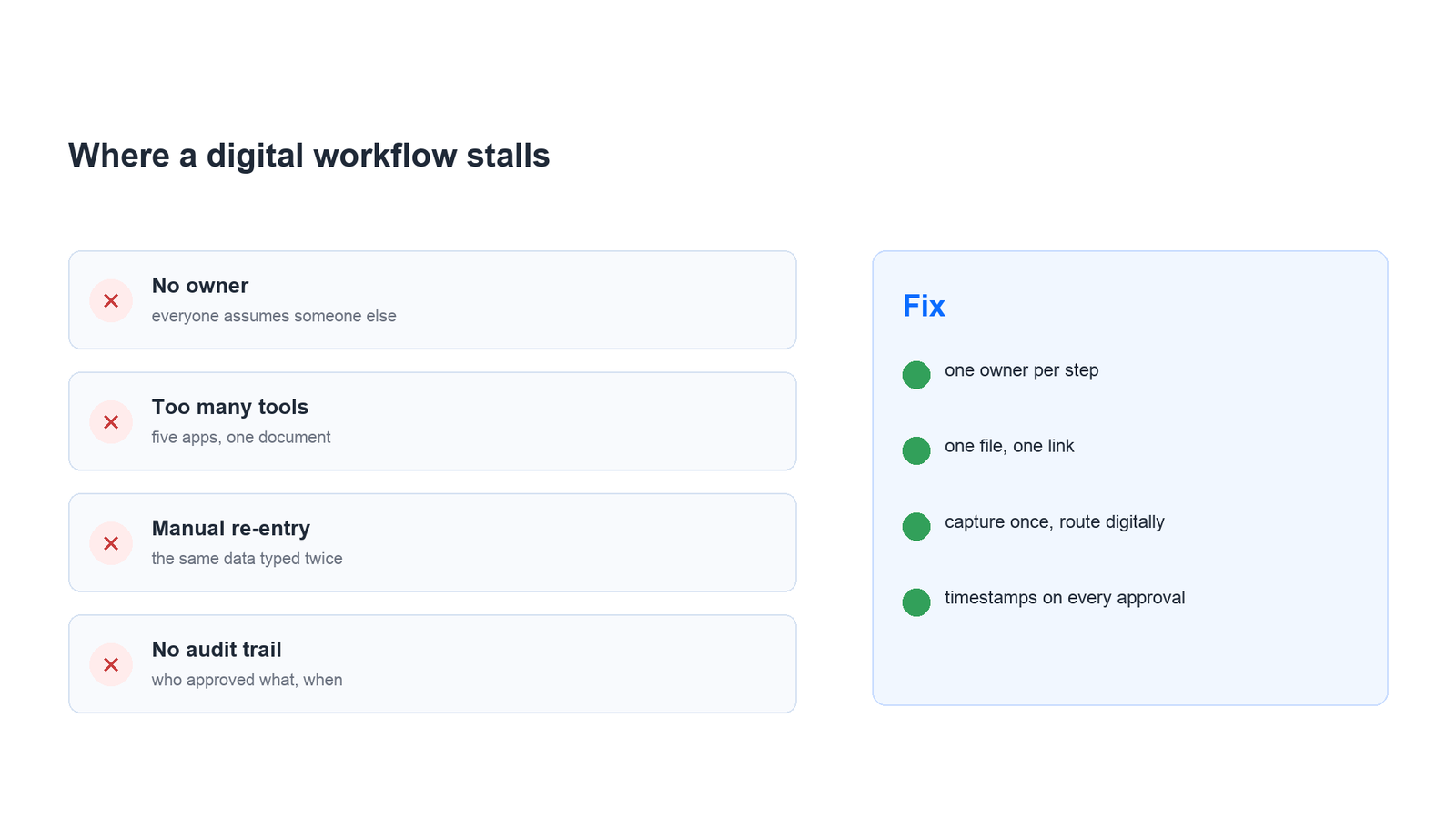
Extract, do not decide. Pulling a due date into a spreadsheet is safe. Approving a clause because an assistant called it standard is not, and the audit trail should record a human name.
Keep the source document next to the summary. A summary without the page it came from is unverifiable the moment someone asks a question in a meeting.
Ask questions of the file, not of memory. Querying the PDF directly — what is the dispute window, what is the notice period — beats hunting through email for the answer.
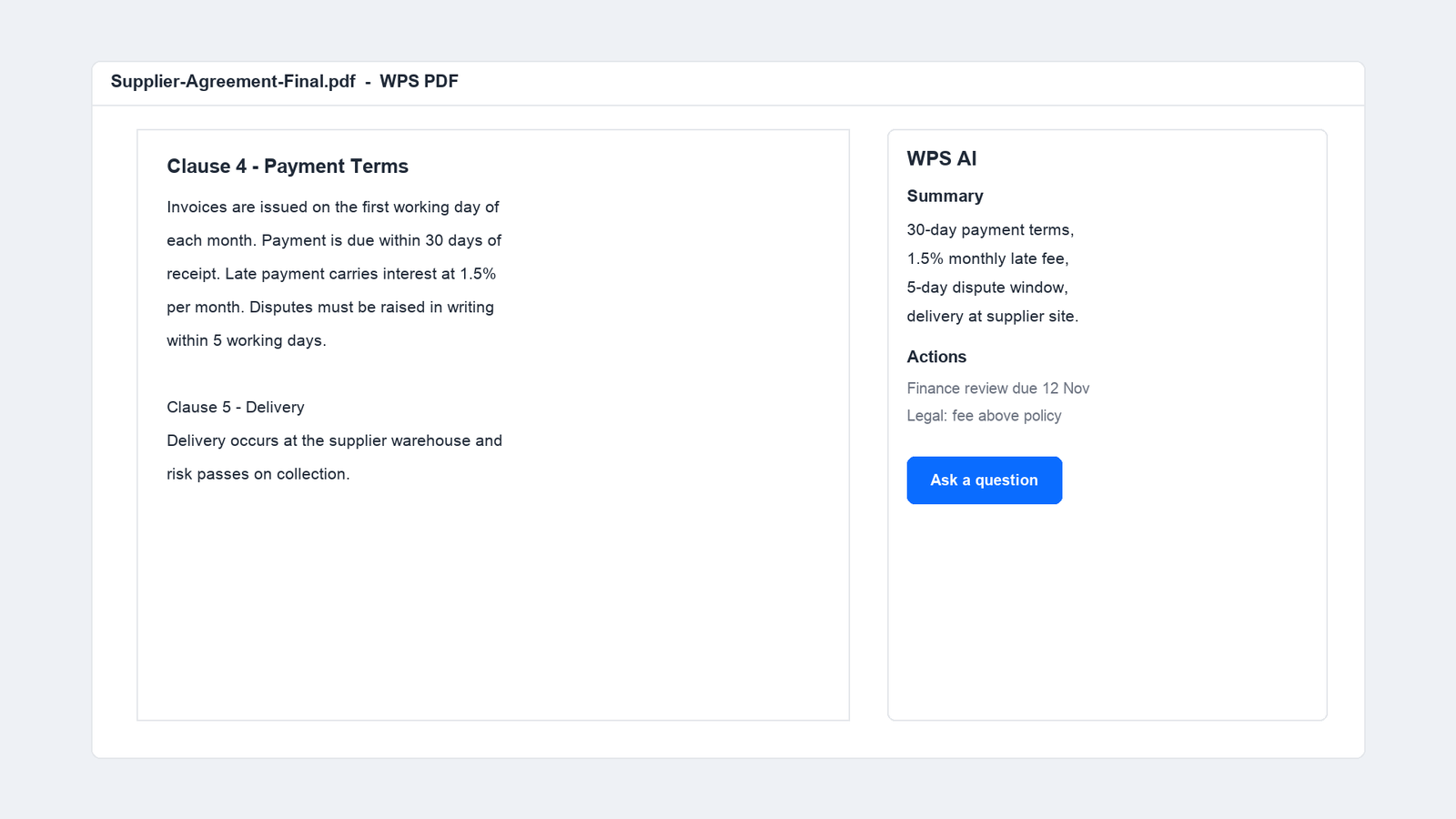
WPS AI summary of a supplier agreement
FAQs
What are the five steps of a digital workflow?
Capture the file once, route it to a named owner, approve it inside the document with comments and a status, sign the frozen PDF, then archive it with a timestamp. Every other step is a variation on these five.
Is a digital workflow the same as workflow automation?
No. A digital workflow replaces paper and attachments with one file moving through defined steps. Automation removes the human step entirely, which suits invoice matching and rarely suits contract approval.
Do I need a paid suite to run this?
No. A free office suite with cloud links, comments and PDF signing covers the review-and-sign-off workflow. Paid tiers matter when you need admin controls, larger storage or audit exports.
How do I prove who approved a document?
Keep the resolved comments, the version history and the signed PDF in the same dated folder. The signature shows who signed, the comment trail shows who reviewed which version, and the folder date shows when it was filed.
Where should AI sit in the workflow?
Before the human review, not instead of it. Use it to summarise, extract fields and answer questions about the file, and keep the approval decision attached to a named person.

Summary

'%3e%3cpath%20d='M19.9911%204.11386V6.471H18.5894C18.0775%206.471%2017.7322%206.57814%2017.5536%206.79243C17.3751%207.00671%2017.2858%207.32814%2017.2858%207.75671V9.44421H19.9019L19.5536%2012.0871H17.2858V18.8639H14.5536V12.0871H12.2769V9.44421H14.5536V7.49779C14.5536%206.39064%2014.8632%205.53201%2015.4822%204.92189C16.1013%204.31177%2016.9257%204.00671%2017.9554%204.00671C18.8304%204.00671%2019.509%204.04243%2019.9911%204.11386Z'%20fill='%23333333'/%3e%3c/g%3e%3cdefs%3e%3cclipPath%20id='clip0_2938_8199'%3e%3crect%20width='16'%20height='16'%20fill='white'%20transform='translate(8%204.00671)'/%3e%3c/clipPath%3e%3c/defs%3e%3c/svg%3e)
'%3e%3cpath%20d='M17.5237%2010.7813L23.4811%204H22.0699L16.8949%209.88693L12.7648%204H8L14.2469%2012.9029L8%2020.0133H9.4112L14.8725%2013.7952L19.2352%2020.0133H24M9.92053%205.04213H12.0885L22.0688%2019.0224H19.9003'%20fill='%23333333'/%3e%3c/g%3e%3cdefs%3e%3cclipPath%20id='clip0_2938_8200'%3e%3crect%20width='16'%20height='16.0134'%20fill='white'%20transform='translate(8%204)'/%3e%3c/clipPath%3e%3c/defs%3e%3c/svg%3e)


15 years of office industry experience, tech lover and copywriter. Follow me for product reviews, comparisons, and recommendations for new apps and software.


