

'%3e%3cpath%20d='M8%200C12.4183%200%2016%203.58172%2016%208C16%2012.4183%2012.4183%2016%208%2016C3.58172%2016%200%2012.4183%200%208C0%203.58172%203.58172%200%208%200ZM11.6162%204.38379C11.2257%203.99337%2010.5927%203.99338%2010.2021%204.38379L8%206.58594L5.79785%204.38379C5.40732%203.99334%204.77429%203.99329%204.38379%204.38379C3.99331%204.77429%203.99335%205.40733%204.38379%205.79785L6.58594%208L4.38379%2010.2021C3.99348%2010.5927%203.99341%2011.2257%204.38379%2011.6162C4.77426%2012.0066%205.40734%2012.0065%205.79785%2011.6162L8%209.41406L10.2021%2011.6162C10.5927%2012.0066%2011.2257%2012.0067%2011.6162%2011.6162C12.0067%2011.2257%2012.0066%2010.5927%2011.6162%2010.2021L9.41406%208L11.6162%205.79785C12.0066%205.40735%2012.0066%204.77429%2011.6162%204.38379Z'%20fill='%23080E17'%20fill-opacity='0.46'/%3e%3c/g%3e%3cdefs%3e%3cclipPath%20id='clip0_3761_713'%3e%3crect%20width='16'%20height='16'%20fill='white'/%3e%3c/clipPath%3e%3c/defs%3e%3c/svg%3e)




'%3e%3cpath%20fill-rule='evenodd'%20clip-rule='evenodd'%20d='M21.4999%2010.9993C21.4999%205.20009%2016.7986%200.498901%2010.9993%200.498901C5.19994%200.498901%200.498657%205.20009%200.498657%2010.9993C0.498657%2016.2404%204.33858%2020.5844%209.35855%2021.3722V14.0346H6.69238V10.9993H9.35855V8.68594C9.35855%206.05427%2010.9262%204.60062%2013.3248%204.60062C14.4736%204.60062%2015.6753%204.80571%2015.6753%204.80571V7.38979H14.3512C13.0468%207.38979%2012.64%208.19921%2012.64%209.0296V10.9993H15.5523L15.0867%2014.0346H12.64V21.3722C17.66%2020.5844%2021.4999%2016.2404%2021.4999%2010.9993Z'%20fill='%231568EA'/%3e%3c/g%3e%3c/svg%3e)


'%3e%3cpath%20d='M2.42045%2022.1876H6.31818V12.7217L0.75%208.54553V20.5171C0.75%2021.4414%201.49892%2022.1876%202.42045%2022.1876Z'%20fill='%234285F4'/%3e%3cpath%20d='M19.682%2022.1876H23.5797C24.5041%2022.1876%2025.2502%2021.4387%2025.2502%2020.5171V8.54553L19.682%2012.7217'%20fill='%2334A853'/%3e%3cpath%20d='M19.682%205.48293V12.7216L25.2502%208.54543V6.31816C25.2502%204.25236%2022.8921%203.07469%2021.2411%204.31361'%20fill='%23FBBC04'/%3e%3cpath%20d='M6.31824%2012.7217V5.48303L13.0001%2010.4944L19.6819%205.48303V12.7217L13.0001%2017.733'%20fill='%23EA4335'/%3e%3cpath%20d='M0.75%206.31816V8.54543L6.31818%2012.7216V5.48293L4.75909%204.31361C3.10534%203.07469%200.75%204.25236%200.75%206.31816Z'%20fill='%23C5221F'/%3e%3c/g%3e%3cdefs%3e%3cclipPath%20id='clip0_2954_7305'%3e%3crect%20width='24.5'%20height='18.375'%20fill='white'%20transform='translate(0.75%203.8125)'/%3e%3c/clipPath%3e%3c/defs%3e%3c/svg%3e)


An ODS file is the default spreadsheet format of LibreOffice and OpenOffice, and Microsoft Excel older than 2016 shows a compatibility warning or refuses to open it. WPS Spreadsheet opens, edits, and saves ODS files directly, and converts them to XLSX or PDF when you need to share with Excel users. Here is the full ODS workflow in WPS Office.
How to Open and Edit an ODS File in WPS Office (Save Back to ODS)
How to Open an ODS File in WPS Spreadsheet
Opening an ODS file in WPS Spreadsheet works exactly like opening an XLSX file, and no conversion step is needed:
Start WPS Spreadsheet and click Open on the home screen, or press Ctrl + O (Cmd + O on Mac).
Browse to the .ods file, select it, and click Open. Files from LibreOffice and OpenOffice appear with the OpenDocument icon.
Edit normally: formulas, formatting, filters, and charts behave the same as in .xlsx files.
The dialog below shows a typical ODS file selected for opening:
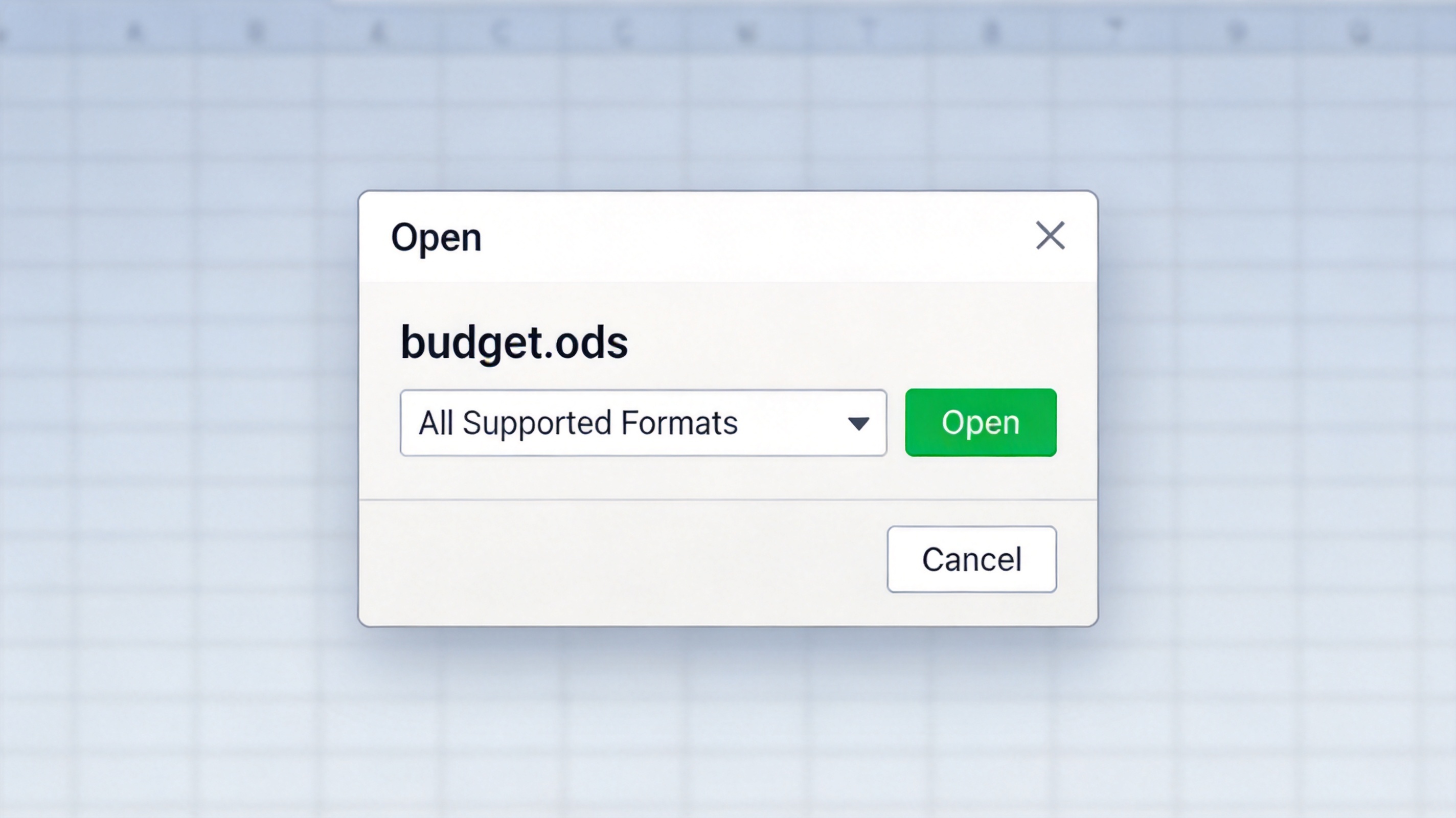
WPS Spreadsheet open ODS file dialog


How to Save a Spreadsheet as an ODS File
When a client or a LibreOffice user needs the original ODS format back, keep the file in ODS instead of exporting to XLSX:
Click Menu > Save As (or File > Save As in the classic view).
In the Save as type dropdown, choose OpenDocument Spreadsheet (*.ods).
Keep the .ods extension in the file name, pick a location, and click Save.
Formulas, cell styles, and sheet names written by WPS Spreadsheet stay compatible when the file is reopened in LibreOffice Calc:
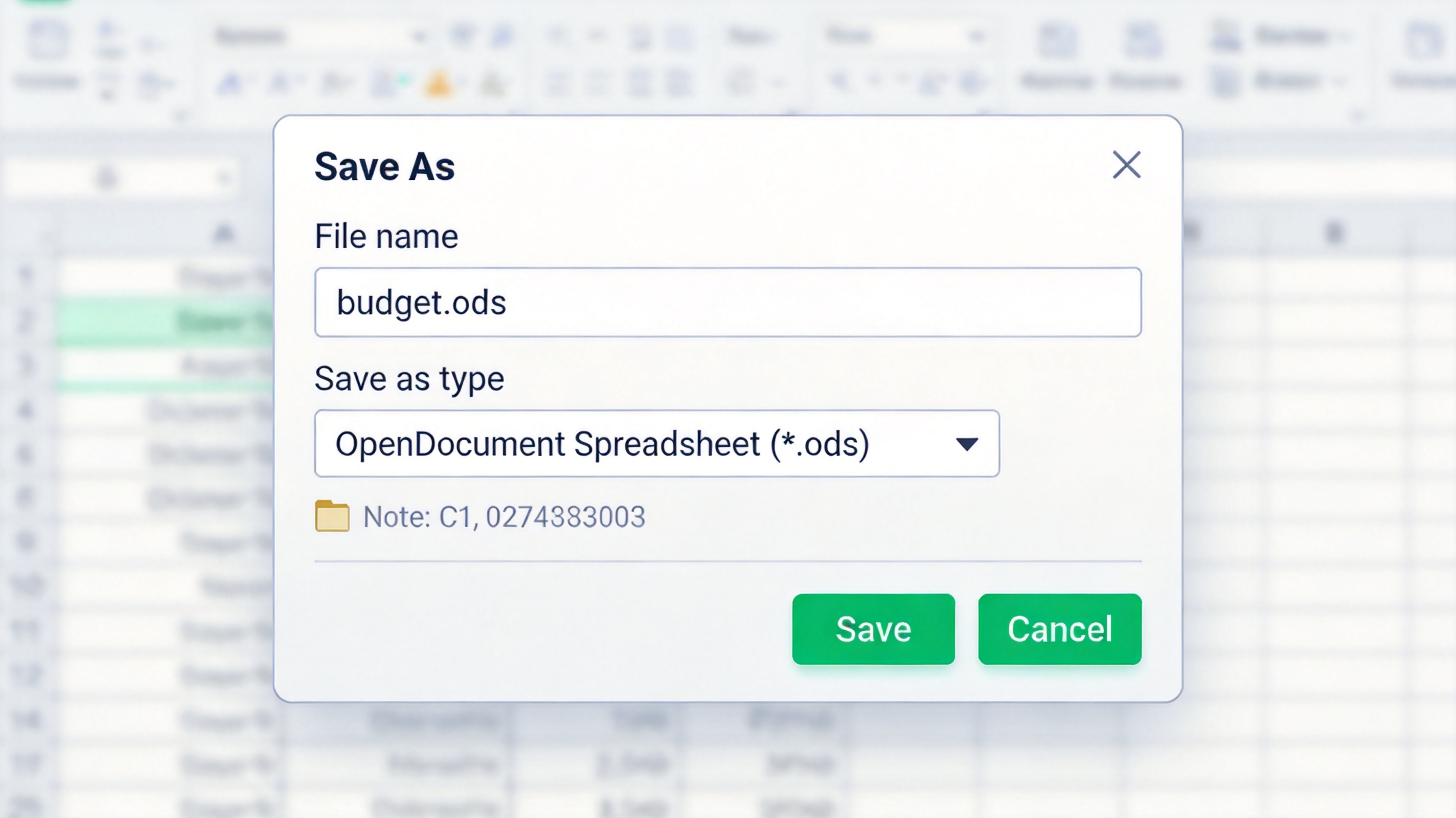
Save As dialog ODS file format
How to Convert an ODS File to XLSX or PDF
Converting ODS to XLSX removes the compatibility warning for Microsoft Excel users, while PDF is the right output for sharing a finished report. Both conversions happen inside WPS Spreadsheet:
To XLSX: open the ODS file, click Menu > Save As, choose Microsoft Excel 2007-2013 Workbook (*.xlsx), and click Save.
To PDF: open the ODS file and click Menu > Export to PDF (or Print, then choose WPS PDF as the printer).
Check the result: open the converted file and verify that merged cells, number formats, and column widths survived the switch.
Complex charts and conditional formatting usually carry over cleanly; macros are not stored in ODS at all, so nothing is lost there. For more on sharing spreadsheet data as a fixed document, see how to convert Excel to PDF offline.
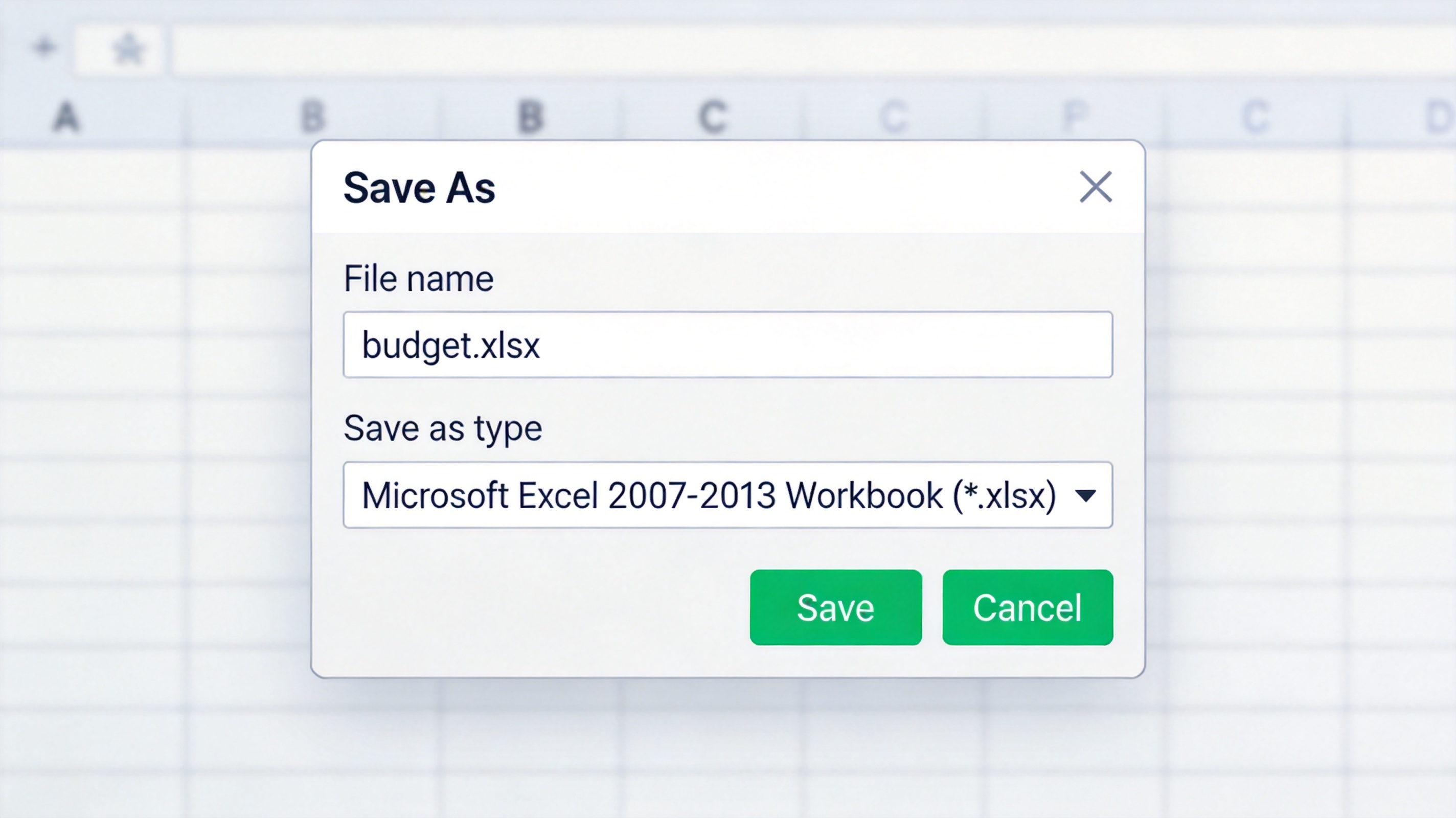
Save As dialog xlsx file format
The Best Free Alternative: WPS Office
If you regularly receive ODS files from LibreOffice users but also work with Excel files, WPS Office removes the format juggling. WPS Spreadsheet opens, edits, and saves both .ods and .xlsx natively, so one app covers every spreadsheet format you are sent. The free suite also includes Writer, Presentation, and a PDF toolkit for exporting and signing spreadsheets.
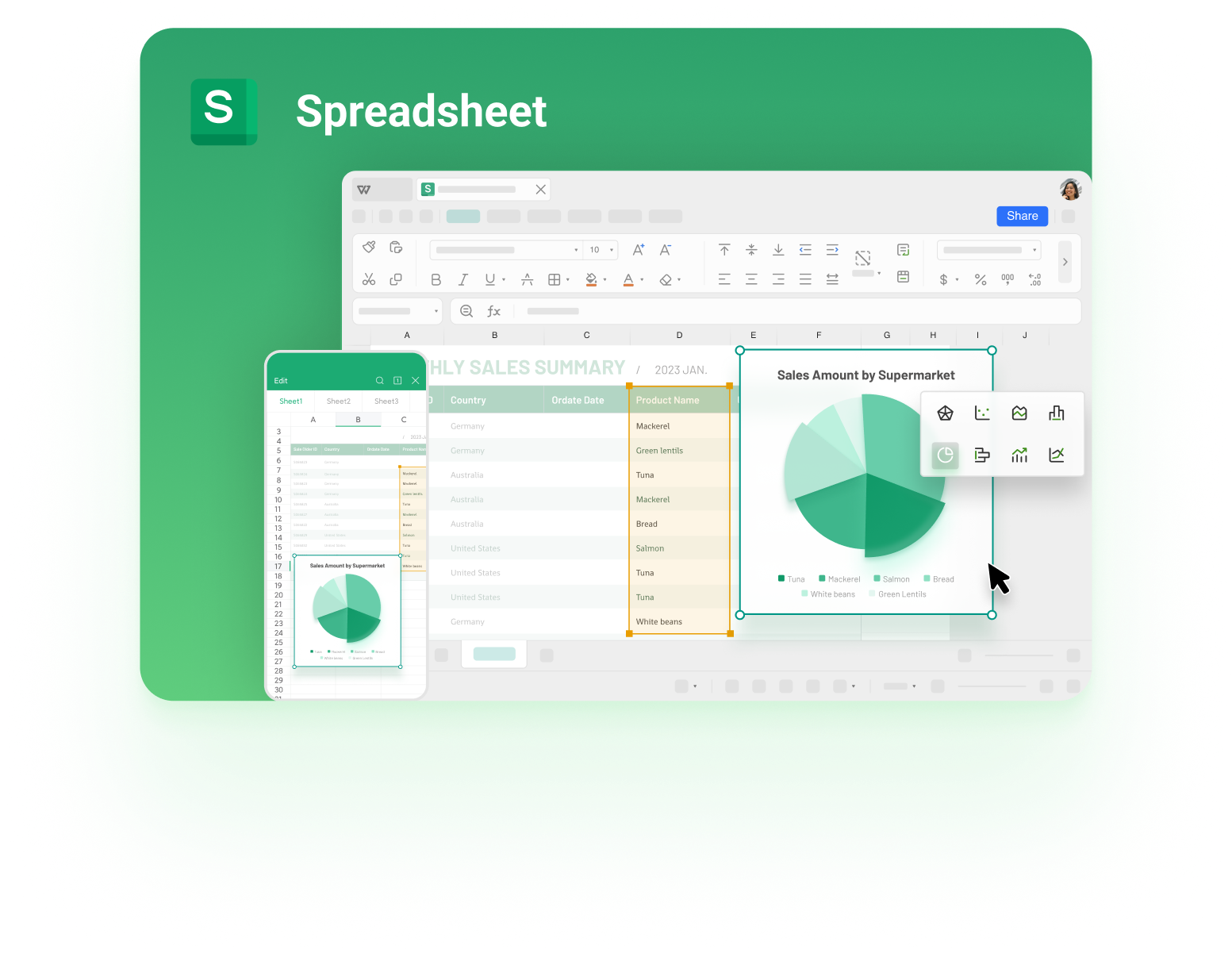
WPS Spreadsheet main interface desktop
FAQs
Can Microsoft Excel open an ODS file?
Excel 2016 and newer open ODS files directly, but older versions show a compatibility warning. WPS Spreadsheet opens ODS files on every supported version without warnings.
Does WPS Spreadsheet save back to ODS?
Yes. Use Menu > Save As and choose OpenDocument Spreadsheet (*.ods). Formulas, cell styles, and sheet names stay compatible with LibreOffice Calc.
Will I lose formatting when converting ODS to XLSX?
Merged cells, number formats, column widths, charts, and conditional formatting usually carry over. Macros are not stored in ODS files, so there is nothing to lose there.
How do I convert an ODS file to PDF?
Open the file in WPS Spreadsheet and use Menu > Export to PDF, or print to the WPS PDF printer for more control over page setup.
Is an ODS file the same as XLSX?
No. ODS is the OpenDocument spreadsheet format used by LibreOffice and OpenOffice, while XLSX is Microsoft's spreadsheet format. Both store the same kind of data, and WPS Spreadsheet handles both natively.


'%3e%3cpath%20d='M19.9911%204.11386V6.471H18.5894C18.0775%206.471%2017.7322%206.57814%2017.5536%206.79243C17.3751%207.00671%2017.2858%207.32814%2017.2858%207.75671V9.44421H19.9019L19.5536%2012.0871H17.2858V18.8639H14.5536V12.0871H12.2769V9.44421H14.5536V7.49779C14.5536%206.39064%2014.8632%205.53201%2015.4822%204.92189C16.1013%204.31177%2016.9257%204.00671%2017.9554%204.00671C18.8304%204.00671%2019.509%204.04243%2019.9911%204.11386Z'%20fill='%23333333'/%3e%3c/g%3e%3cdefs%3e%3cclipPath%20id='clip0_2938_8199'%3e%3crect%20width='16'%20height='16'%20fill='white'%20transform='translate(8%204.00671)'/%3e%3c/clipPath%3e%3c/defs%3e%3c/svg%3e)
'%3e%3cpath%20d='M17.5237%2010.7813L23.4811%204H22.0699L16.8949%209.88693L12.7648%204H8L14.2469%2012.9029L8%2020.0133H9.4112L14.8725%2013.7952L19.2352%2020.0133H24M9.92053%205.04213H12.0885L22.0688%2019.0224H19.9003'%20fill='%23333333'/%3e%3c/g%3e%3cdefs%3e%3cclipPath%20id='clip0_2938_8200'%3e%3crect%20width='16'%20height='16.0134'%20fill='white'%20transform='translate(8%204)'/%3e%3c/clipPath%3e%3c/defs%3e%3c/svg%3e)


