

'%3e%3cpath%20d='M8%200C12.4183%200%2016%203.58172%2016%208C16%2012.4183%2012.4183%2016%208%2016C3.58172%2016%200%2012.4183%200%208C0%203.58172%203.58172%200%208%200ZM11.6162%204.38379C11.2257%203.99337%2010.5927%203.99338%2010.2021%204.38379L8%206.58594L5.79785%204.38379C5.40732%203.99334%204.77429%203.99329%204.38379%204.38379C3.99331%204.77429%203.99335%205.40733%204.38379%205.79785L6.58594%208L4.38379%2010.2021C3.99348%2010.5927%203.99341%2011.2257%204.38379%2011.6162C4.77426%2012.0066%205.40734%2012.0065%205.79785%2011.6162L8%209.41406L10.2021%2011.6162C10.5927%2012.0066%2011.2257%2012.0067%2011.6162%2011.6162C12.0067%2011.2257%2012.0066%2010.5927%2011.6162%2010.2021L9.41406%208L11.6162%205.79785C12.0066%205.40735%2012.0066%204.77429%2011.6162%204.38379Z'%20fill='%23080E17'%20fill-opacity='0.46'/%3e%3c/g%3e%3cdefs%3e%3cclipPath%20id='clip0_3761_713'%3e%3crect%20width='16'%20height='16'%20fill='white'/%3e%3c/clipPath%3e%3c/defs%3e%3c/svg%3e)




'%3e%3cpath%20fill-rule='evenodd'%20clip-rule='evenodd'%20d='M21.4999%2010.9993C21.4999%205.20009%2016.7986%200.498901%2010.9993%200.498901C5.19994%200.498901%200.498657%205.20009%200.498657%2010.9993C0.498657%2016.2404%204.33858%2020.5844%209.35855%2021.3722V14.0346H6.69238V10.9993H9.35855V8.68594C9.35855%206.05427%2010.9262%204.60062%2013.3248%204.60062C14.4736%204.60062%2015.6753%204.80571%2015.6753%204.80571V7.38979H14.3512C13.0468%207.38979%2012.64%208.19921%2012.64%209.0296V10.9993H15.5523L15.0867%2014.0346H12.64V21.3722C17.66%2020.5844%2021.4999%2016.2404%2021.4999%2010.9993Z'%20fill='%231568EA'/%3e%3c/g%3e%3c/svg%3e)


'%3e%3cpath%20d='M2.42045%2022.1876H6.31818V12.7217L0.75%208.54553V20.5171C0.75%2021.4414%201.49892%2022.1876%202.42045%2022.1876Z'%20fill='%234285F4'/%3e%3cpath%20d='M19.682%2022.1876H23.5797C24.5041%2022.1876%2025.2502%2021.4387%2025.2502%2020.5171V8.54553L19.682%2012.7217'%20fill='%2334A853'/%3e%3cpath%20d='M19.682%205.48293V12.7216L25.2502%208.54543V6.31816C25.2502%204.25236%2022.8921%203.07469%2021.2411%204.31361'%20fill='%23FBBC04'/%3e%3cpath%20d='M6.31824%2012.7217V5.48303L13.0001%2010.4944L19.6819%205.48303V12.7217L13.0001%2017.733'%20fill='%23EA4335'/%3e%3cpath%20d='M0.75%206.31816V8.54543L6.31818%2012.7216V5.48293L4.75909%204.31361C3.10534%203.07469%200.75%204.25236%200.75%206.31816Z'%20fill='%23C5221F'/%3e%3c/g%3e%3cdefs%3e%3cclipPath%20id='clip0_2954_7305'%3e%3crect%20width='24.5'%20height='18.375'%20fill='white'%20transform='translate(0.75%203.8125)'/%3e%3c/clipPath%3e%3c/defs%3e%3c/svg%3e)


Office LTSC Preview is Microsoft's early-access build of its long-term servicing Office suite, designed for organizations that want to test a fixed, five-year-supported version before committing to volume licensing. Because the preview is not installed from a normal setup wizard, many users are unsure how to get it onto a PC. In this guide, you will learn what the preview is, what your machine needs, and exactly how to install Office LTSC Preview step by step using the Office Deployment Tool.
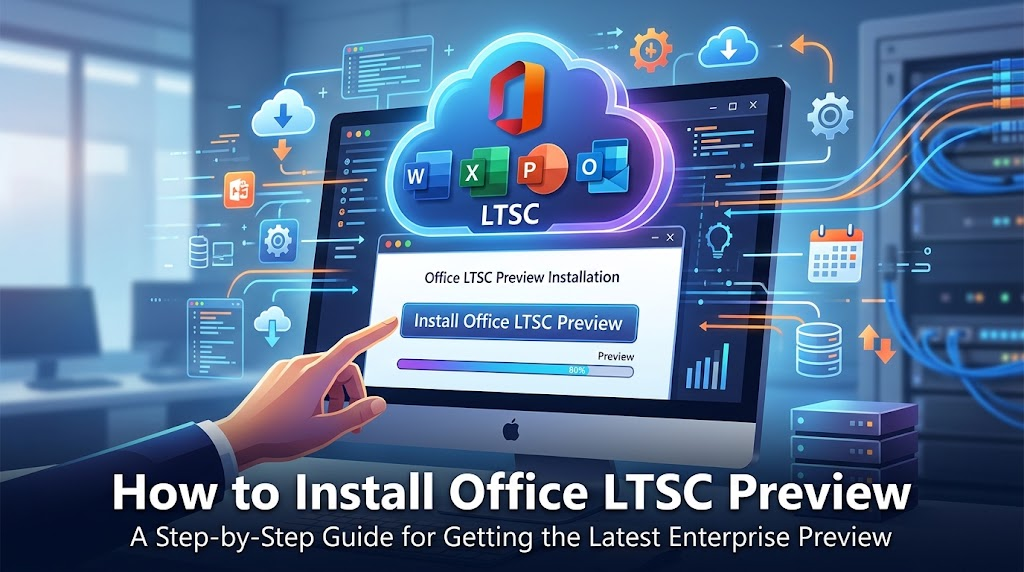
How to Install Office LTSC Preview: A Step-by-Step Guide
Office LTSC Preview: Who Is It For, and What Are the Risks?
Office LTSC (Long-Term Servicing Channel) Preview is a pre-release edition of Microsoft's perpetual-license Office suite. Unlike Microsoft 365, which receives constant feature updates through the cloud, LTSC versions ship with a fixed feature set and are supported with security patches for five years. The preview lets IT teams and individual users evaluate Word, Excel, PowerPoint, and Outlook (plus Visio and Project variants) before the commercial launch, so compatibility issues with add-ins, macros, and line-of-business tools can be found early.
Because it is a volume-license product, the preview is deployed through the Office Deployment Tool rather than a retail installer, and it is activated with KMS or MAK keys. Keep in mind that preview builds are time-limited: when the preview window closes, the software stops working, and you must move to the released LTSC version. For background on how the released version compares, see this Office LTSC 2024 install and activation guide.
What is included in Office LTSC Preview. On Windows, the preview ships as Office LTSC Professional Plus 2024, which bundles Word, Excel, PowerPoint, Outlook, OneNote, and Access; Publisher was dropped from the LTSC 2024 lineup. Microsoft also offered separate Visio LTSC 2024 and Project 2024 preview builds under their own product IDs, and a Mac edition called Office LTSC Standard 2024 that includes Word, Excel, PowerPoint, Outlook, and OneNote.
Key characteristics of the LTSC channel:
Built for offline and weak-network environments: after the installation files are downloaded, the suite runs fully offline, and KMS-activated clients do not need internet access to stay activated.
No frequent feature updates: unlike Microsoft 365, the feature set is frozen at launch; you only receive security and stability patches, so nothing changes under users unexpectedly.
High stability and long support: each LTSC release is supported with security updates for five years, which suits regulated industries, manufacturing floors, kiosks, and government networks where change must be controlled.
Who the preview is for — and the risks to weigh. The preview is aimed at IT administrators and volume-licensed organizations that want to test application compatibility, add-ins, macros, and deployment automation before committing to a five-year license. It is not designed as a daily driver for home users. Before installing, keep these experience risks in mind:
Expiration: preview builds are time-limited and stop working when the evaluation window closes, so plan your testing period in advance.
Pre-release quality: as with any preview, you may encounter bugs, rendering glitches, or add-in incompatibilities that will be fixed in the final release.
Not for production documents: avoid keeping your only copies of important files in preview apps; test on non-critical machines or profiles.
Volume-key requirement: you need a KMS host or a MAK key to activate, which individual consumers usually do not have.
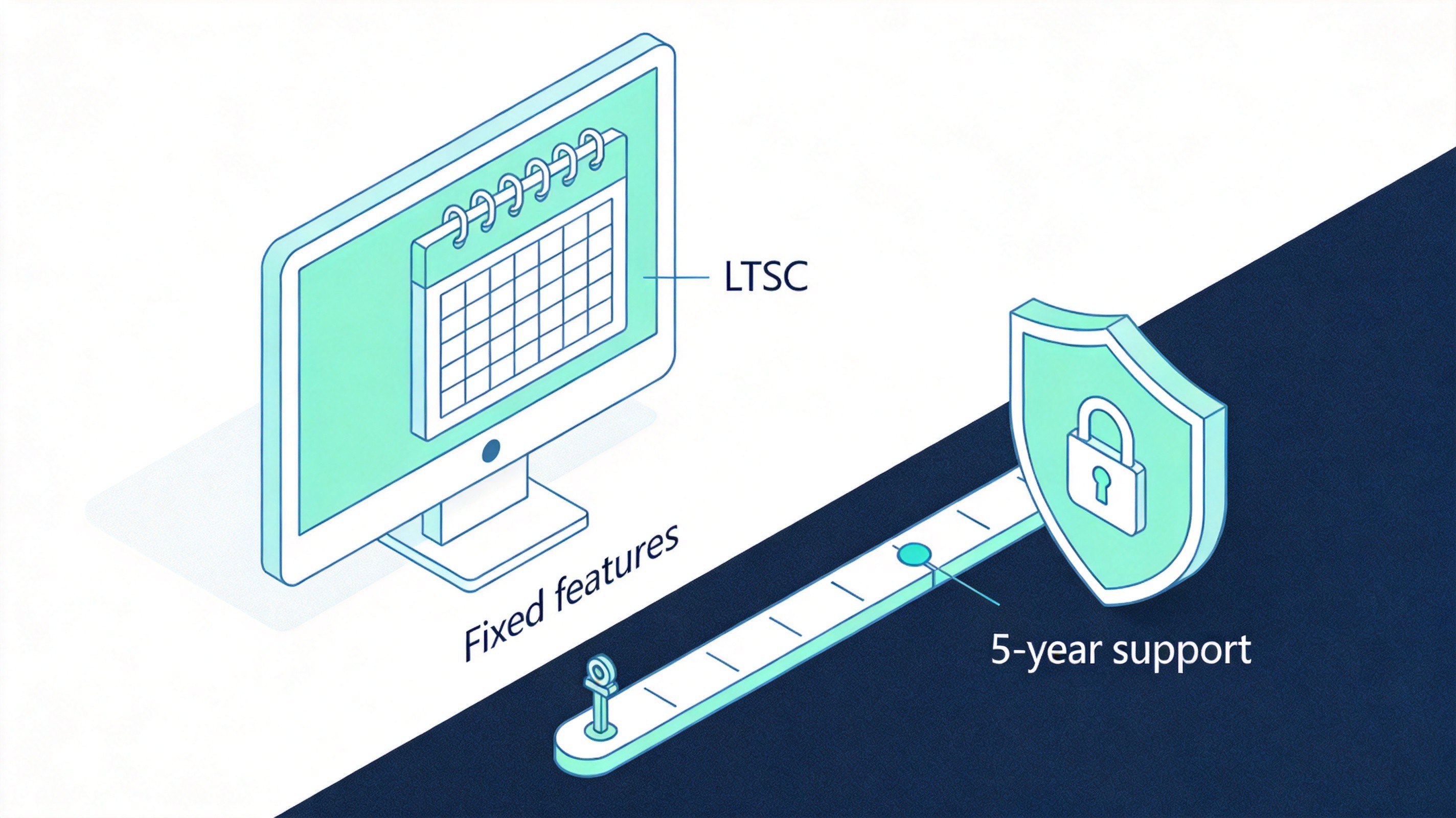
Office LTSC fixed feature timeline


System Requirements for Office LTSC Preview
Before you install Office LTSC Preview, confirm that your machine meets Microsoft's requirements for the preview program:
Supported operating system: Windows 10, Windows 11 (the minimum for ARM-based devices), Windows 10 LTSC 2019 or 2021, or Windows Server 2022.
Memory: at least 4 GB of RAM.
Storage: at least 4 GB of free space on the system drive for each product being installed.
Tool preparation: download the official Microsoft Office Deployment Tool (ODT) in advance from the Microsoft Download Center; the preview has no retail setup wizard, so ODT is the only supported installation path.
Clean environment: all older Office versions must be uninstalled first, or the setup will fail with an error.
Consistent architecture: Office, Visio, and Project must all be installed as 32-bit or all as 64-bit; mixing bitness is not supported.
An internet connection is required for the initial download of the installation files. After the files are on your disk, installation itself works offline; only activation may need network access depending on the key type you use.
How to Install Office LTSC Preview on Windows
The preview is deployed with the Office Deployment Tool (ODT) and a custom configuration file. Follow these steps:
Download the Office Deployment Tool from the official Microsoft Download Center, run it, accept the license terms, and extract the files to a folder such as C:\ODT.
Create a configuration file. Open Notepad and paste a configuration XML that sets Channel="PerpetualVL2024", the appropriate bitness (OfficeClientEdition 64 or 32), and the product IDs you need, such as ProPlus2024Volume, VisioPro2024Volume, or ProjectPro2024Volume.
Add your PIDKEY. Replace the placeholder in the XML with a valid MAK or KMS key from Microsoft's volume licensing documentation.
Save the file as configuration.xml (choose "All files" as the file type) in the same folder as Setup.exe.
Open an elevated Command Prompt: press Win+R, type cmd, then press Ctrl+Shift+Enter.
Navigate to the folder: run cd /d [folder path] to switch to the directory holding Setup.exe and the XML file.
Start the installation: run setup.exe /configure configuration.xml and wait. The progress can appear to stall for a while; do not close the window. The default install location is the C: drive and cannot be changed.
For convenience, here is a standard, copy-ready configuration.xml for the 64-bit Office LTSC 2024 Preview (replace the PIDKEY placeholder with your preview KMS or MAK key, and remove the Visio and Project product blocks if you do not need them):
Save the file as configuration.xml (encoding: ANSI or UTF-8 without BOM) in the same folder as setup.exe. The RemoveMSI element automatically removes older MSI-based Office versions during setup, and AUTOACTIVATE triggers activation as soon as installation completes.
When the setup finishes, open any app such as Word or Excel to confirm the preview build launches correctly. If you need a fuller walkthrough of the released channel, this guide to downloading Office LTSC covers the commercial version in depth.
The Best Free Alternative: WPS Office
If the preview's time limit, volume-license keys, and deployment complexity feel like too much overhead, skip the workarounds and try WPS Office — the free, fully legal office suite trusted by more than 500 million users worldwide.
Why WPS Office is a smart alternative to Office LTSC Preview:
A complete suite, completely free: WPS Office bundles Writer, Spreadsheets, Presentation, and PDF tools in one lightweight package. Even the free version includes OCR, cloud storage, and online editing — no trial limits, no product keys, and no hidden fees.
Safe and legal: unlike preview builds tied to volume-license keys, WPS Office is official software from a listed company. There is no KMS hack, no cracked license, no disabling your antivirus, and no risk of bundled malware.
Full Microsoft file compatibility: it opens and saves .docx, .xlsx, and .pptx with high fidelity, so you can exchange documents with Word, Excel, and PowerPoint users without format breakage or rework.
No expiration and no activation: the LTSC preview stops working when the evaluation window closes; WPS Office's free edition has no deadline, works fully offline, and runs on Windows, macOS, Linux, iOS, Android, and in a browser.
Saving your work in Microsoft formats takes seconds:
Open your file in WPS Writer, Spreadsheets, or Presentation — it reads .doc, .docx, .xls, .xlsx, .ppt, and .pptx directly.
Click Menu → Save As in the top-left corner.
Pick the Microsoft format you need (.docx, .xlsx, or .pptx) and save. The file opens cleanly in Word, Excel, or PowerPoint for colleagues who use Microsoft Office.
For a single writer, a student, or a small team that simply needs dependable documents, spreadsheets, and slides today — without keys, XML configuration files, or an expiry countdown — WPS Office installs in minutes and gets out of your way.
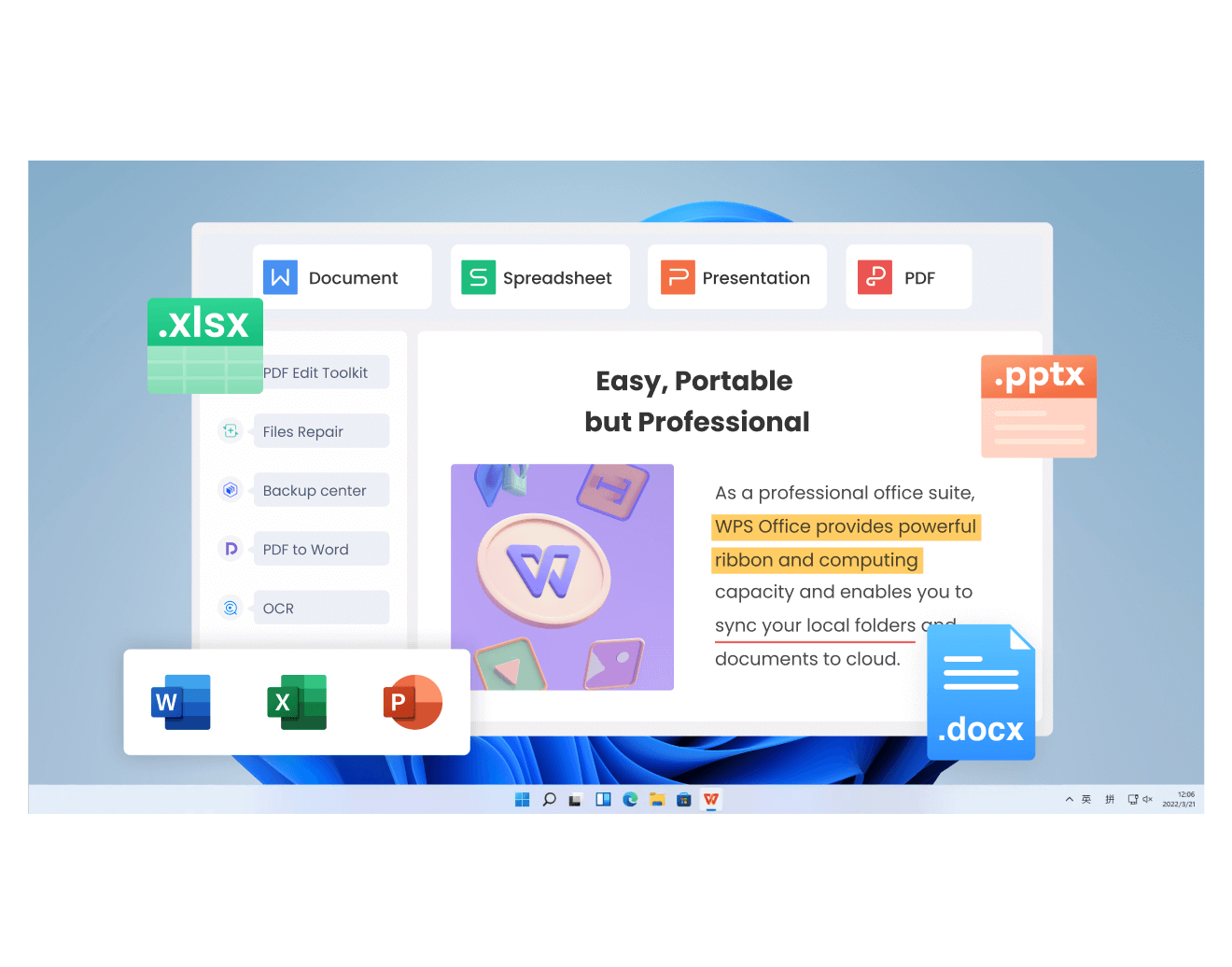
WPS Writer interface with document
FAQs
1. Is Office LTSC Preview free to use?
Yes, the preview itself is free to download and evaluate, but it is aimed at volume-licensed environments and requires KMS or MAK keys for activation. Preview builds also stop working when the preview program ends, so it is not a permanent free option.
2. Can I install Office LTSC Preview alongside Microsoft 365?
No. You must uninstall all existing Office versions first, or the installation will report an error. This includes retail Office, Microsoft 365, and older perpetual versions such as Office 2019 or 2021.
3. What is the Office LTSC Preview channel in the configuration file?
The preview is deployed with the PerpetualVL2024 channel in the Office Deployment Tool configuration XML, together with volume product IDs such as ProPlus2024Volume. The channel setting tells the ODT which build stream to download.
4. Does Office LTSC Preview work without internet?
Partly. The initial download of installation files needs internet, but installation is offline afterward. For activation, KMS-activated clients do not need internet, while MAK activation requires connectivity to Microsoft's activation servers.
5. What happens when the Office LTSC Preview expires?
Preview builds are time-limited and stop functioning when the evaluation window closes. To keep working, uninstall the preview and deploy the released Office LTSC version, or switch to a free suite like WPS Office that has no expiration.
Summary
Installing Office LTSC Preview comes down to three moves: meet the system requirements and clear old Office versions, deploy the build with the Office Deployment Tool and a PerpetualVL2024 configuration file, and activate it with a KMS or MAK key before the preview window closes. The process is manageable for IT teams, but it is clearly built for volume-licensed environments rather than everyday users. If you simply need a stable, free office suite without keys or expiration dates, WPS Office installs in minutes and opens all your existing documents. Weigh your evaluation needs against the deadline, pick the path that fits, and get back to work faster.

'%3e%3cpath%20d='M19.9911%204.11386V6.471H18.5894C18.0775%206.471%2017.7322%206.57814%2017.5536%206.79243C17.3751%207.00671%2017.2858%207.32814%2017.2858%207.75671V9.44421H19.9019L19.5536%2012.0871H17.2858V18.8639H14.5536V12.0871H12.2769V9.44421H14.5536V7.49779C14.5536%206.39064%2014.8632%205.53201%2015.4822%204.92189C16.1013%204.31177%2016.9257%204.00671%2017.9554%204.00671C18.8304%204.00671%2019.509%204.04243%2019.9911%204.11386Z'%20fill='%23333333'/%3e%3c/g%3e%3cdefs%3e%3cclipPath%20id='clip0_2938_8199'%3e%3crect%20width='16'%20height='16'%20fill='white'%20transform='translate(8%204.00671)'/%3e%3c/clipPath%3e%3c/defs%3e%3c/svg%3e)
'%3e%3cpath%20d='M17.5237%2010.7813L23.4811%204H22.0699L16.8949%209.88693L12.7648%204H8L14.2469%2012.9029L8%2020.0133H9.4112L14.8725%2013.7952L19.2352%2020.0133H24M9.92053%205.04213H12.0885L22.0688%2019.0224H19.9003'%20fill='%23333333'/%3e%3c/g%3e%3cdefs%3e%3cclipPath%20id='clip0_2938_8200'%3e%3crect%20width='16'%20height='16.0134'%20fill='white'%20transform='translate(8%204)'/%3e%3c/clipPath%3e%3c/defs%3e%3c/svg%3e)


