

'%3e%3cpath%20d='M8%200C12.4183%200%2016%203.58172%2016%208C16%2012.4183%2012.4183%2016%208%2016C3.58172%2016%200%2012.4183%200%208C0%203.58172%203.58172%200%208%200ZM11.6162%204.38379C11.2257%203.99337%2010.5927%203.99338%2010.2021%204.38379L8%206.58594L5.79785%204.38379C5.40732%203.99334%204.77429%203.99329%204.38379%204.38379C3.99331%204.77429%203.99335%205.40733%204.38379%205.79785L6.58594%208L4.38379%2010.2021C3.99348%2010.5927%203.99341%2011.2257%204.38379%2011.6162C4.77426%2012.0066%205.40734%2012.0065%205.79785%2011.6162L8%209.41406L10.2021%2011.6162C10.5927%2012.0066%2011.2257%2012.0067%2011.6162%2011.6162C12.0067%2011.2257%2012.0066%2010.5927%2011.6162%2010.2021L9.41406%208L11.6162%205.79785C12.0066%205.40735%2012.0066%204.77429%2011.6162%204.38379Z'%20fill='%23080E17'%20fill-opacity='0.46'/%3e%3c/g%3e%3cdefs%3e%3cclipPath%20id='clip0_3761_713'%3e%3crect%20width='16'%20height='16'%20fill='white'/%3e%3c/clipPath%3e%3c/defs%3e%3c/svg%3e)




'%3e%3cpath%20fill-rule='evenodd'%20clip-rule='evenodd'%20d='M21.4999%2010.9993C21.4999%205.20009%2016.7986%200.498901%2010.9993%200.498901C5.19994%200.498901%200.498657%205.20009%200.498657%2010.9993C0.498657%2016.2404%204.33858%2020.5844%209.35855%2021.3722V14.0346H6.69238V10.9993H9.35855V8.68594C9.35855%206.05427%2010.9262%204.60062%2013.3248%204.60062C14.4736%204.60062%2015.6753%204.80571%2015.6753%204.80571V7.38979H14.3512C13.0468%207.38979%2012.64%208.19921%2012.64%209.0296V10.9993H15.5523L15.0867%2014.0346H12.64V21.3722C17.66%2020.5844%2021.4999%2016.2404%2021.4999%2010.9993Z'%20fill='%231568EA'/%3e%3c/g%3e%3c/svg%3e)


'%3e%3cpath%20d='M2.42045%2022.1876H6.31818V12.7217L0.75%208.54553V20.5171C0.75%2021.4414%201.49892%2022.1876%202.42045%2022.1876Z'%20fill='%234285F4'/%3e%3cpath%20d='M19.682%2022.1876H23.5797C24.5041%2022.1876%2025.2502%2021.4387%2025.2502%2020.5171V8.54553L19.682%2012.7217'%20fill='%2334A853'/%3e%3cpath%20d='M19.682%205.48293V12.7216L25.2502%208.54543V6.31816C25.2502%204.25236%2022.8921%203.07469%2021.2411%204.31361'%20fill='%23FBBC04'/%3e%3cpath%20d='M6.31824%2012.7217V5.48303L13.0001%2010.4944L19.6819%205.48303V12.7217L13.0001%2017.733'%20fill='%23EA4335'/%3e%3cpath%20d='M0.75%206.31816V8.54543L6.31818%2012.7216V5.48293L4.75909%204.31361C3.10534%203.07469%200.75%204.25236%200.75%206.31816Z'%20fill='%23C5221F'/%3e%3c/g%3e%3cdefs%3e%3cclipPath%20id='clip0_2954_7305'%3e%3crect%20width='24.5'%20height='18.375'%20fill='white'%20transform='translate(0.75%203.8125)'/%3e%3c/clipPath%3e%3c/defs%3e%3c/svg%3e)


Use External Data With Access: Linked Tables, BDCM, and Refresh Prerequisites
Connecting Access to an outside data source is rarely a formatting problem. It fails because the route was wrong for the environment, because the service behind the connection was never configured, or because the table was created as a snapshot when the goal was to refresh. Choosing the route before you click through any dialog prevents most of that.
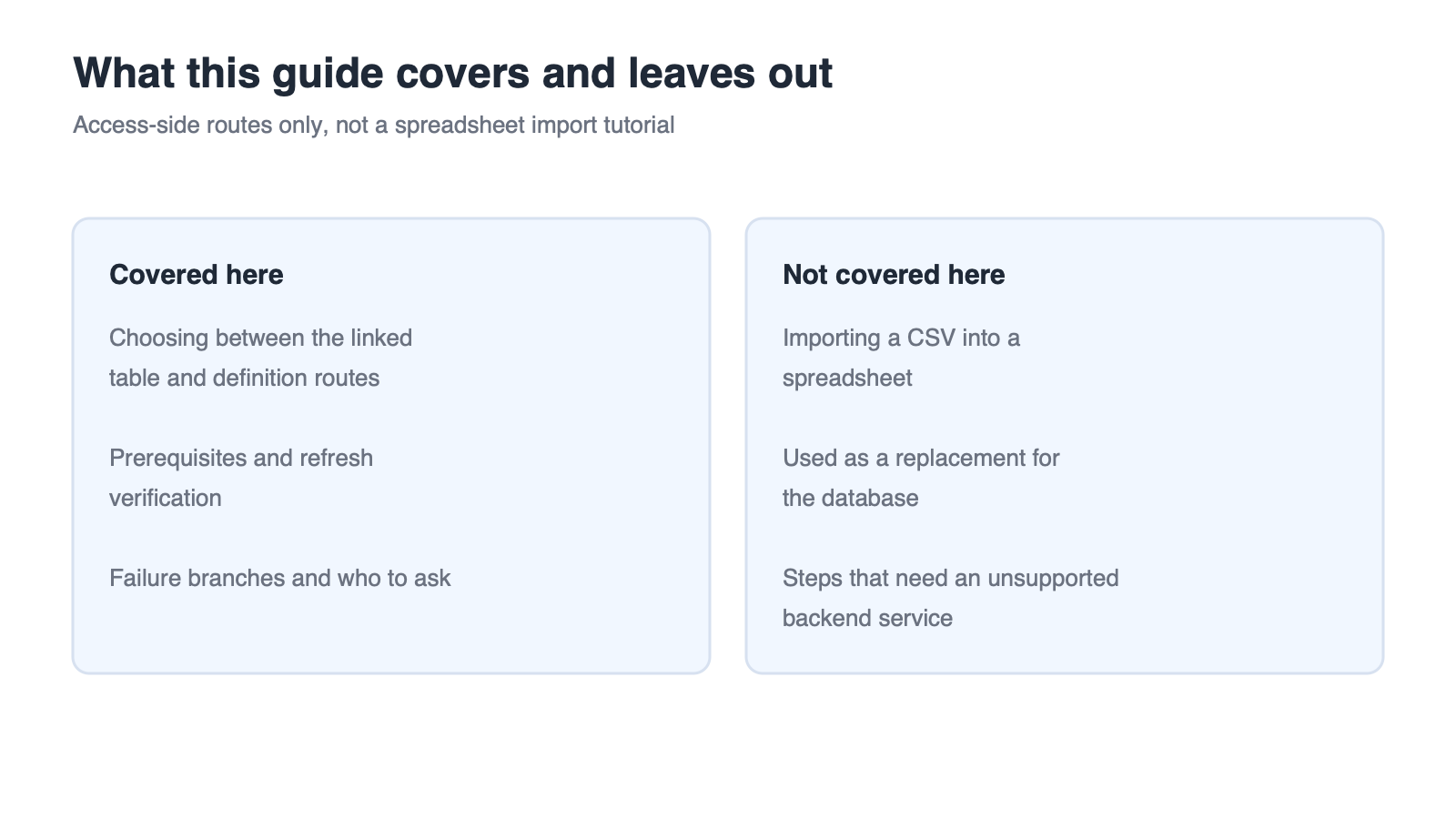
This guide covers the Access side of the job: the three common routes, the prerequisites that decide whether you can take each one, how to build and verify a linked table, the legacy definition-based route, and the symptom branches for refresh failures. Where a step depends on a specific version, it is labelled as an item to verify rather than stated as a certainty.
Use External Data With Access: Linked Tables, BDCM, and Refresh Prerequisites
Use External Data With Access: Pick the Right Route First
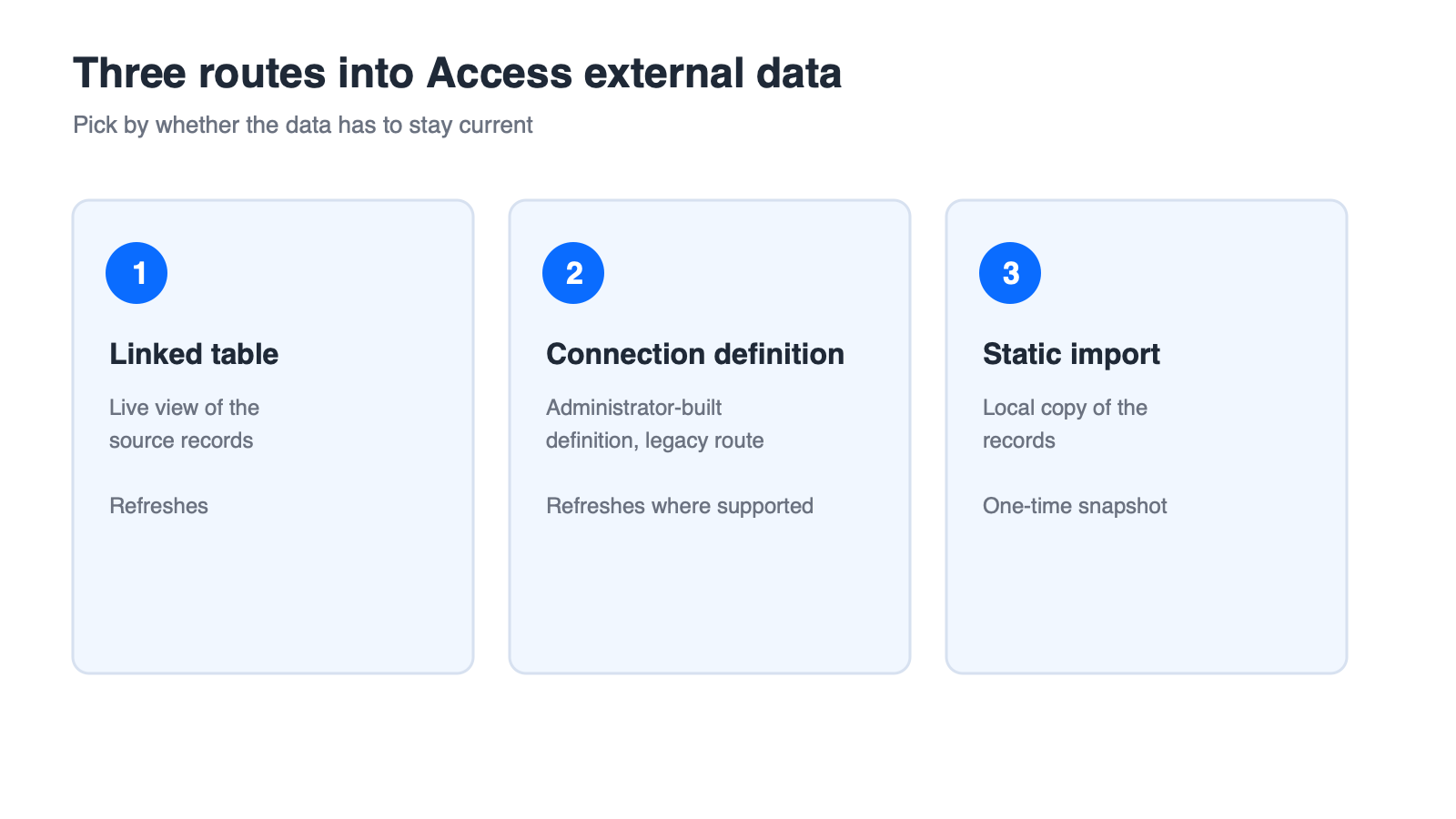
There are three routes worth knowing, and they are not interchangeable. Linked tables keep a live connection you can refresh. A data source definition (the BDCM route described later) is an administrator-oriented route that brings a pre-built connection definition into Access. A plain import copies the data once and takes a snapshot.
Three Access Routes at a Glance
| Route | What it gives you | Can it refresh? |
|---|---|---|
| Linked table | A live view of the source data inside Access | Yes |
| External data source definition | A connection definition imported through the Web Service route | Yes, where the backend service is in place |
| Imported static data | A local copy of the records | No, it is a snapshot |
Two Limits You Cannot Design Around
First, data reached through these external routes is typically read-only in Access, which is the intended behaviour rather than a fault. Second, the definition-based route depends on services an administrator configures for the organisation, including the external content types behind them. A client-side runtime requirement also applies to that route, and the version-specific details are covered in the prerequisites section.
What This Guide Does Not Cover
This is not a guide to opening a CSV in a spreadsheet, and it is not a claim that a spreadsheet application replaces an Access database. The two tools sit at different points in the chain, as the later section on handing data off explains.
What this guide covers and leaves out


Prerequisites Before Any Access External Data Route
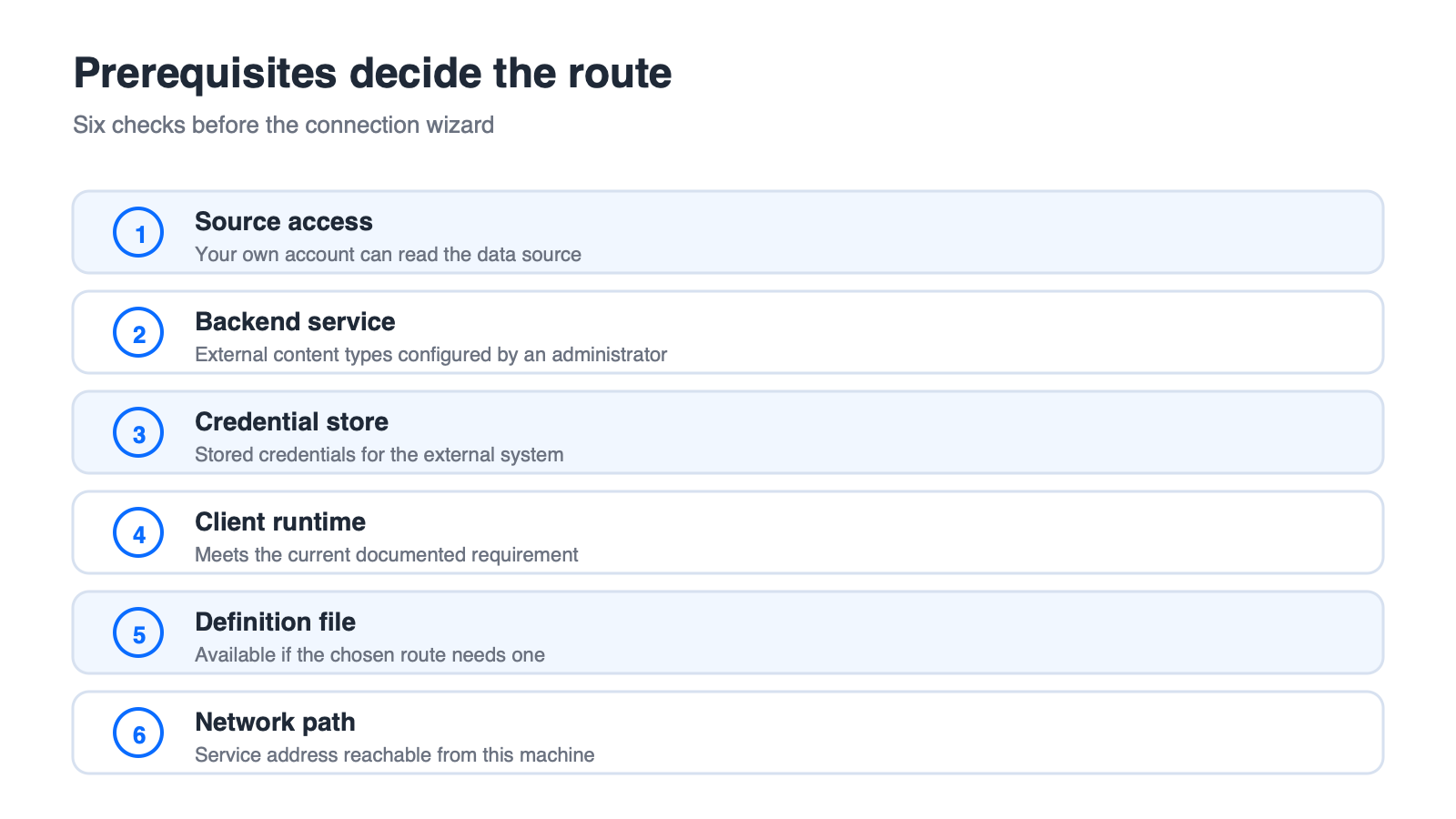
Missing prerequisites are the most common reason a route looks available and then fails halfway through. Work through the six checks below before you open the connection wizard, so that a later error tells you something new.
Permissions and Roles
You need read access to the data source itself, and you need to be allowed to create objects in the Access database. On managed networks, the second permission is often granted through the team that owns the database.
Backend Service and Secure Store
For the definition-based route, the backend service and its external content types must already be configured by an administrator. Credentials for the external system are usually held in a secure credential store rather than typed into each client machine, which is why this step is not something an end user can complete alone.
Runtime and Client Requirements
The documentation behind this route has historically referenced a specific client runtime version and an older product generation. Treat the exact requirement as something to confirm against current vendor documentation for the version you are running.
A Readiness Checklist
You can reach the target data source with your own account.
The backend service and the external content types are already configured.
The client runtime meets whatever the current vendor documentation requires.
You have the connection definition file if your route needs one.
Your network path to the service address is open.
Version Note
The reference material for the definition-based route describes older product generations, and the current equivalent configuration path has not been verified here. Confirm the current steps before you rely on them in production.
Six prerequisites before connecting to data
Create and Refresh a Linked Table
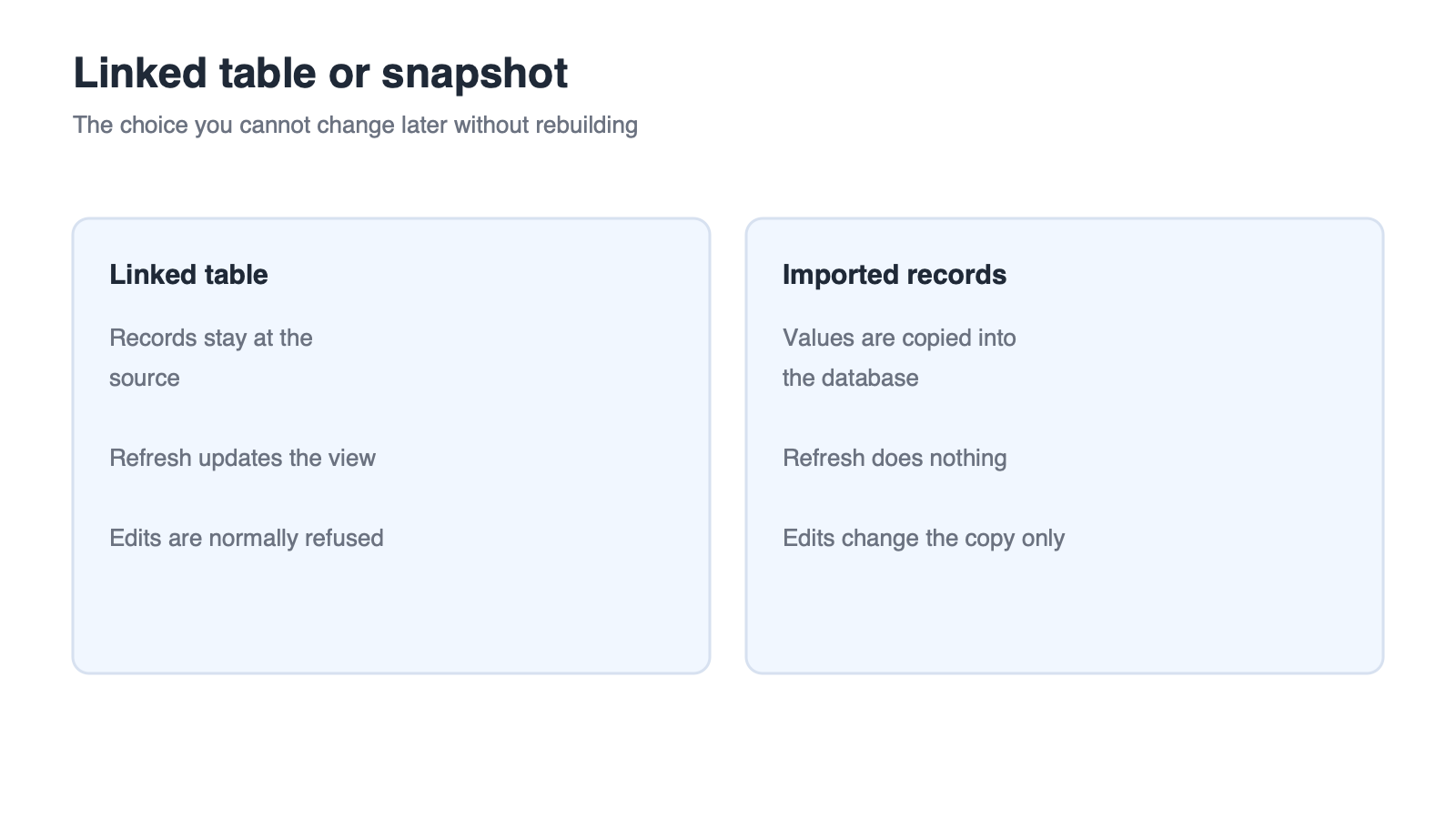
A linked table is the route most people actually want: the records stay at the source, and Access shows a live view of them. Each step below ends with something you can observe, so you know the connection is real before you build anything on top of it.
Step 1: Connect to the Data Source
Start from the External Data group of commands on the ribbon and choose the source type that matches your backend. Confirm the service address or the file location, then authenticate.
Step 2: Choose the Linked Table Option
In the wizard, select the option that links to the data source by creating a linked table rather than importing the records. Importing at this point is what produces the snapshot problem described earlier.
Step 3: Verify and Refresh
After the table appears in the navigation pane, use the refresh command and confirm it completes without an error. Then change a single value at the source and refresh again: if the new value appears, the link is live.
Step 4: Confirm What Stays Read-Only
Try to edit a cell in the linked table. In most configurations the write is refused, which confirms you have a genuine linked table. A table that quietly accepts edits is usually an import.
Failure Triage
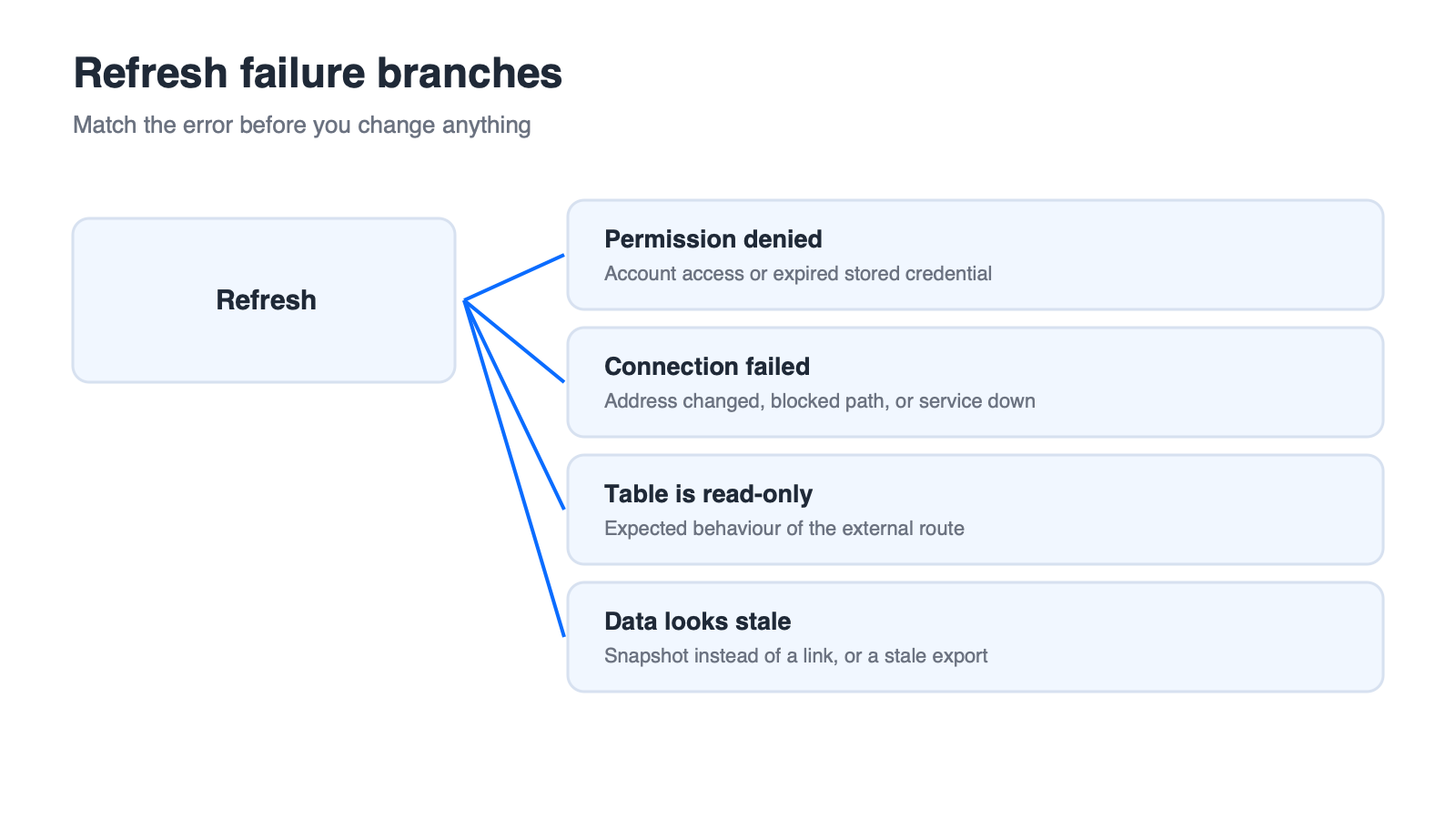
Permission error on refresh: go back to the first two readiness checks.
Connection error: verify the service address, credentials, and network path.
Data looks unchanged: confirm the table was linked and not imported, then refresh rather than reopening the file.
Linked table compared with imported snapshot
Import a BDCM Connection Definition (Legacy Route)
This section describes a legacy route. Every step below is marked as an item to verify against current documentation, because the reference material for this workflow describes older product generations and the current equivalent path has not been confirmed here.
What a Definition File Is
A connection definition file packages the details of an external system: the endpoint, the operations, and the shape of the returned data. It is normally produced by an administrator rather than by the person who needs the table.
Import Through the Web Service Route
Obtain the connection definition file from your administrator.
In Access, start from External Data and choose the Web Service data source option.
Point the wizard at the definition file and select the external content type you need.
Choose whether to link or import, keeping in mind that only the linked option refreshes.
Verification Points Before You Rely On It
Whether this definition format and its backend service remain supported in the version you run.
Whether the client runtime requirement still applies.
Whether a current, documented alternative exists for your environment.
When This Route Is Not Available
If your organisation does not run the backend service this route depends on, skip it entirely. Direct connections to the database, or exporting a file from the source system and importing that file, are the practical alternatives.
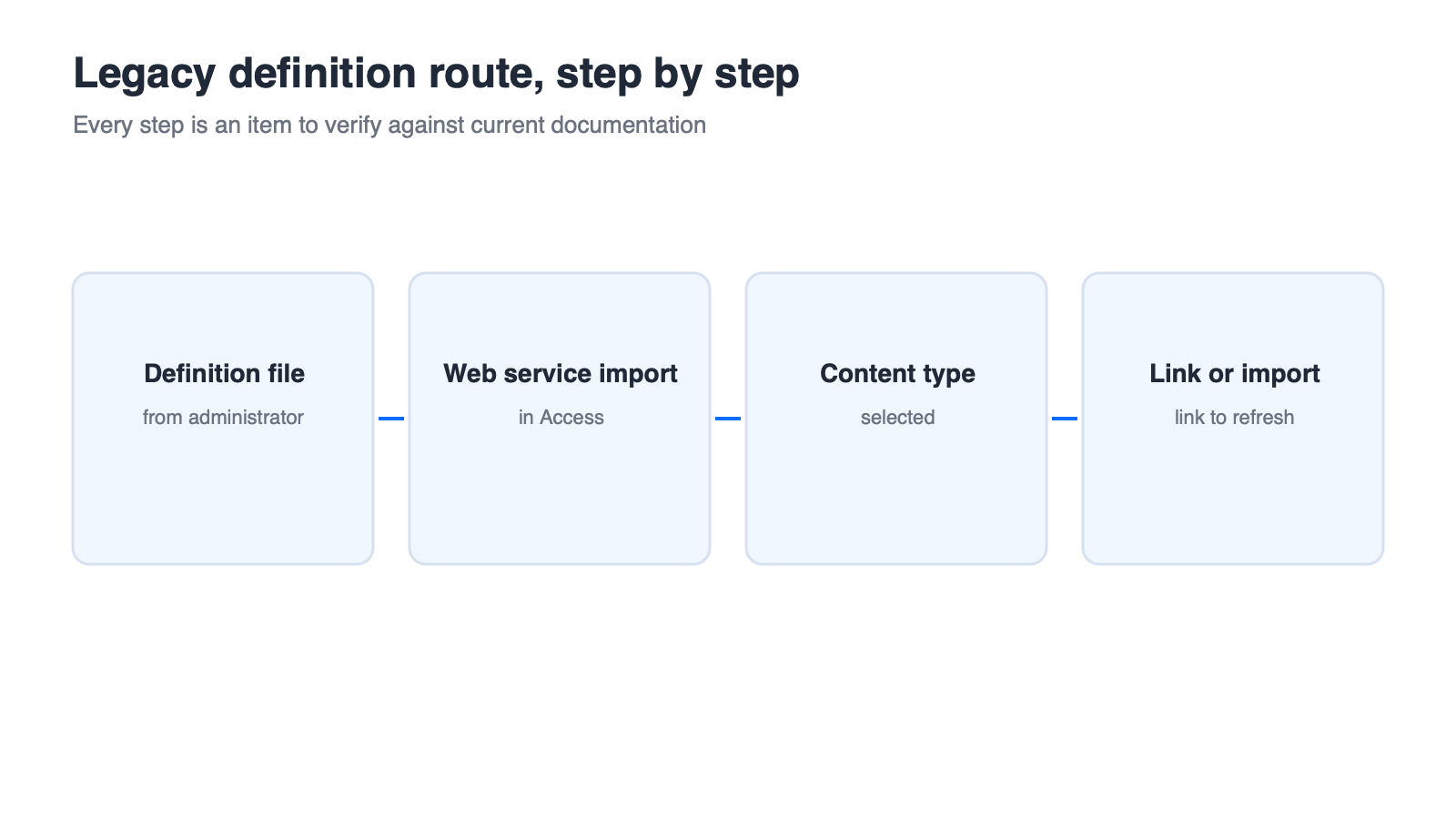
Legacy connection definition import steps
WPS Spreadsheet: The Same Data, Different Job
The Access side keeps the connection. The spreadsheet side works on a copy of the result, which is a different job with a different set of expectations. WPS Spreadsheet sits downstream in that chain, not in place of the database.
What WPS Spreadsheet Can Do With Exported Data
Open an exported CSV or XLSX file, clean it, add formulas and charts, and export the result for reporting or distribution. This is the analysis step that usually follows a refresh, and it is where spreadsheet features are genuinely useful.
What It Cannot Do
WPS Spreadsheet does not consume a database connection definition, does not work with external content types, and cannot refresh an Access linked table. Nothing in the file carries the live connection, so a spreadsheet that was built from an export will keep showing the data it was given.
A Safe Two-Step Handoff
Refresh in Access, then export the result to CSV or XLSX.
Open that file in WPS Spreadsheet for cleaning, calculation, and presentation.
The trade-off is explicit: after the export, the data no longer refreshes. If a regular update matters, repeat the export or ask your administrator about a direct database connection instead. You can start with the free desktop suite at WPS Office if the analysis step happens on a machine without a suite installed.
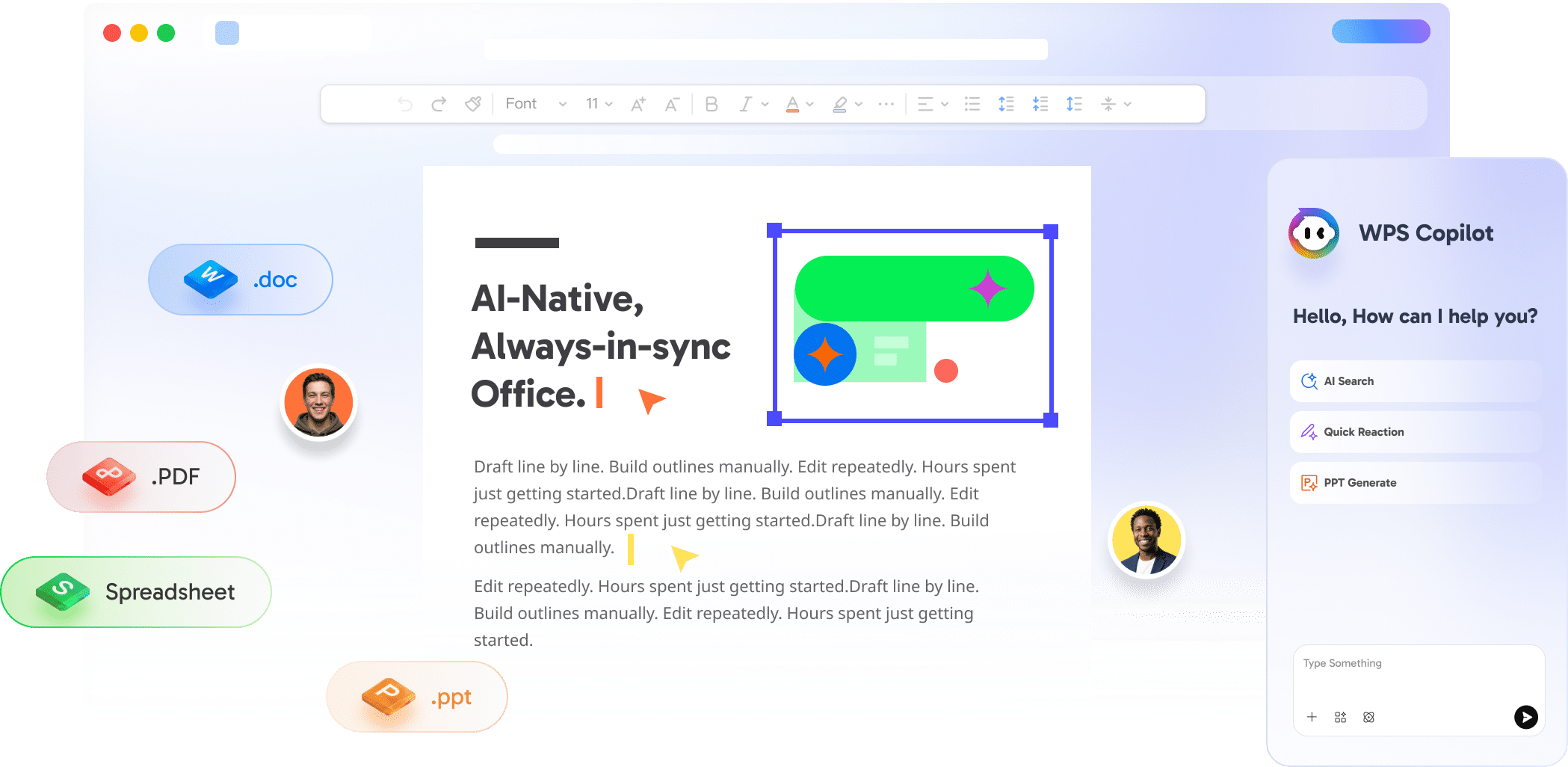
WPS Office suite interface overview



'%3e%3cpath%20d='M19.9911%204.11386V6.471H18.5894C18.0775%206.471%2017.7322%206.57814%2017.5536%206.79243C17.3751%207.00671%2017.2858%207.32814%2017.2858%207.75671V9.44421H19.9019L19.5536%2012.0871H17.2858V18.8639H14.5536V12.0871H12.2769V9.44421H14.5536V7.49779C14.5536%206.39064%2014.8632%205.53201%2015.4822%204.92189C16.1013%204.31177%2016.9257%204.00671%2017.9554%204.00671C18.8304%204.00671%2019.509%204.04243%2019.9911%204.11386Z'%20fill='%23333333'/%3e%3c/g%3e%3cdefs%3e%3cclipPath%20id='clip0_2938_8199'%3e%3crect%20width='16'%20height='16'%20fill='white'%20transform='translate(8%204.00671)'/%3e%3c/clipPath%3e%3c/defs%3e%3c/svg%3e)
'%3e%3cpath%20d='M17.5237%2010.7813L23.4811%204H22.0699L16.8949%209.88693L12.7648%204H8L14.2469%2012.9029L8%2020.0133H9.4112L14.8725%2013.7952L19.2352%2020.0133H24M9.92053%205.04213H12.0885L22.0688%2019.0224H19.9003'%20fill='%23333333'/%3e%3c/g%3e%3cdefs%3e%3cclipPath%20id='clip0_2938_8200'%3e%3crect%20width='16'%20height='16.0134'%20fill='white'%20transform='translate(8%204)'/%3e%3c/clipPath%3e%3c/defs%3e%3c/svg%3e)


