

'%3e%3cpath%20d='M8%200C12.4183%200%2016%203.58172%2016%208C16%2012.4183%2012.4183%2016%208%2016C3.58172%2016%200%2012.4183%200%208C0%203.58172%203.58172%200%208%200ZM11.6162%204.38379C11.2257%203.99337%2010.5927%203.99338%2010.2021%204.38379L8%206.58594L5.79785%204.38379C5.40732%203.99334%204.77429%203.99329%204.38379%204.38379C3.99331%204.77429%203.99335%205.40733%204.38379%205.79785L6.58594%208L4.38379%2010.2021C3.99348%2010.5927%203.99341%2011.2257%204.38379%2011.6162C4.77426%2012.0066%205.40734%2012.0065%205.79785%2011.6162L8%209.41406L10.2021%2011.6162C10.5927%2012.0066%2011.2257%2012.0067%2011.6162%2011.6162C12.0067%2011.2257%2012.0066%2010.5927%2011.6162%2010.2021L9.41406%208L11.6162%205.79785C12.0066%205.40735%2012.0066%204.77429%2011.6162%204.38379Z'%20fill='%23080E17'%20fill-opacity='0.46'/%3e%3c/g%3e%3cdefs%3e%3cclipPath%20id='clip0_3761_713'%3e%3crect%20width='16'%20height='16'%20fill='white'/%3e%3c/clipPath%3e%3c/defs%3e%3c/svg%3e)




'%3e%3cpath%20fill-rule='evenodd'%20clip-rule='evenodd'%20d='M21.4999%2010.9993C21.4999%205.20009%2016.7986%200.498901%2010.9993%200.498901C5.19994%200.498901%200.498657%205.20009%200.498657%2010.9993C0.498657%2016.2404%204.33858%2020.5844%209.35855%2021.3722V14.0346H6.69238V10.9993H9.35855V8.68594C9.35855%206.05427%2010.9262%204.60062%2013.3248%204.60062C14.4736%204.60062%2015.6753%204.80571%2015.6753%204.80571V7.38979H14.3512C13.0468%207.38979%2012.64%208.19921%2012.64%209.0296V10.9993H15.5523L15.0867%2014.0346H12.64V21.3722C17.66%2020.5844%2021.4999%2016.2404%2021.4999%2010.9993Z'%20fill='%231568EA'/%3e%3c/g%3e%3c/svg%3e)


'%3e%3cpath%20d='M2.42045%2022.1876H6.31818V12.7217L0.75%208.54553V20.5171C0.75%2021.4414%201.49892%2022.1876%202.42045%2022.1876Z'%20fill='%234285F4'/%3e%3cpath%20d='M19.682%2022.1876H23.5797C24.5041%2022.1876%2025.2502%2021.4387%2025.2502%2020.5171V8.54553L19.682%2012.7217'%20fill='%2334A853'/%3e%3cpath%20d='M19.682%205.48293V12.7216L25.2502%208.54543V6.31816C25.2502%204.25236%2022.8921%203.07469%2021.2411%204.31361'%20fill='%23FBBC04'/%3e%3cpath%20d='M6.31824%2012.7217V5.48303L13.0001%2010.4944L19.6819%205.48303V12.7217L13.0001%2017.733'%20fill='%23EA4335'/%3e%3cpath%20d='M0.75%206.31816V8.54543L6.31818%2012.7216V5.48293L4.75909%204.31361C3.10534%203.07469%200.75%204.25236%200.75%206.31816Z'%20fill='%23C5221F'/%3e%3c/g%3e%3cdefs%3e%3cclipPath%20id='clip0_2954_7305'%3e%3crect%20width='24.5'%20height='18.375'%20fill='white'%20transform='translate(0.75%203.8125)'/%3e%3c/clipPath%3e%3c/defs%3e%3c/svg%3e)


Why Did My File Open Read-Only? A Cross-App Triage Guide for Word, Excel, and PowerPoint Files
A file that opens read-only is not one problem. It is at least five different problems that look similar on screen, and the fix depends entirely on which one you have. The fast way out is to classify the lock first, then repair only that category instead of working through every possible setting.
This guide works across file types rather than inside a single application: document attributes and the mark-as-final flag, Protected View, shared and synced file locks, permissions and organisational policy, and read-only media or locations. You will also find the branch where the lock is not yours to remove, plus the checks that stop a read-only surprise before you send a file to anyone.
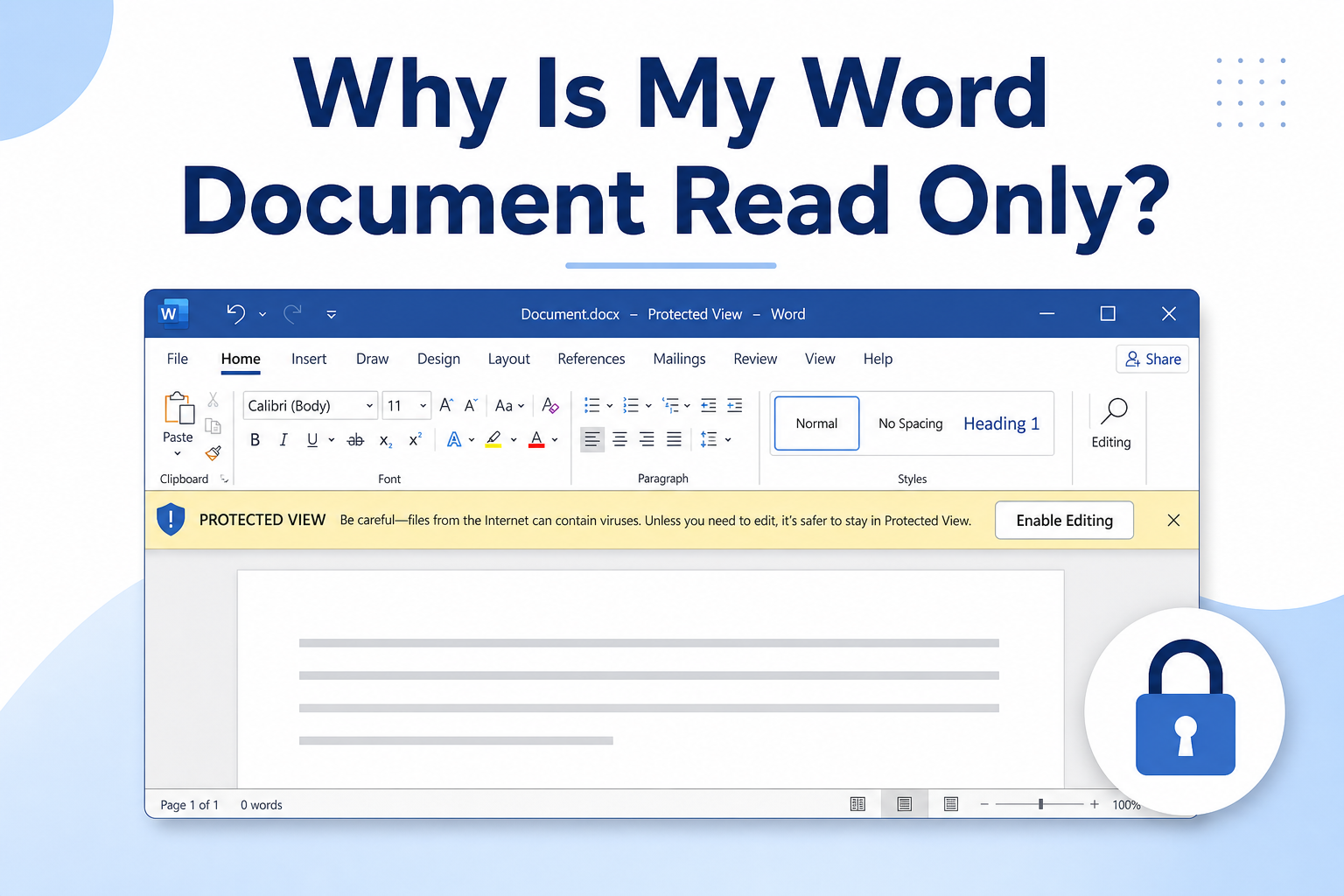
Why Did My File Open Read-Only? A Cross-App Triage Guide for Word, Excel, and PowerPoint Files
Why Did My File Open Read-Only? Five Locks to Check
Five categories cover almost every read-only file you will meet. Each one leaves a different fingerprint on screen, and that fingerprint is the fastest way to recognise it.
The Five Lock Types
File attributes and final flags — the file, or the document, is marked as read-only or as final.
Protected View — the file came from a network location, an email attachment, or an untrusted path, so the application opens it in a restricted state.
Sharing and synchronisation locks — the file is checked out, open elsewhere, or shared with view-only permission.
Permissions and policy — editing is restricted by document protection, sensitivity labelling, or an organisational rule.
Read-only media and locations — the file lives on a disc, a read-only share, or a folder where writing is not permitted.
What Each One Looks Like on Screen
Attributes and final flags: an information banner that mentions the file being final, or a disabled editing surface without a warning bar.
Protected View: a coloured message bar offering to enable editing.
Sharing locks: a message that the file is locked or that only a copy can be saved.
Permissions and policy: you can read everything but saving, or saving as, is restricted.
Read-only media: the same file works normally after you copy it to a writable folder.
Why File Type Matters
Word, spreadsheet, and presentation files can all carry the same five locks, but the banners and menus differ in each application. Working from the category rather than from a single application is what makes this triage portable.
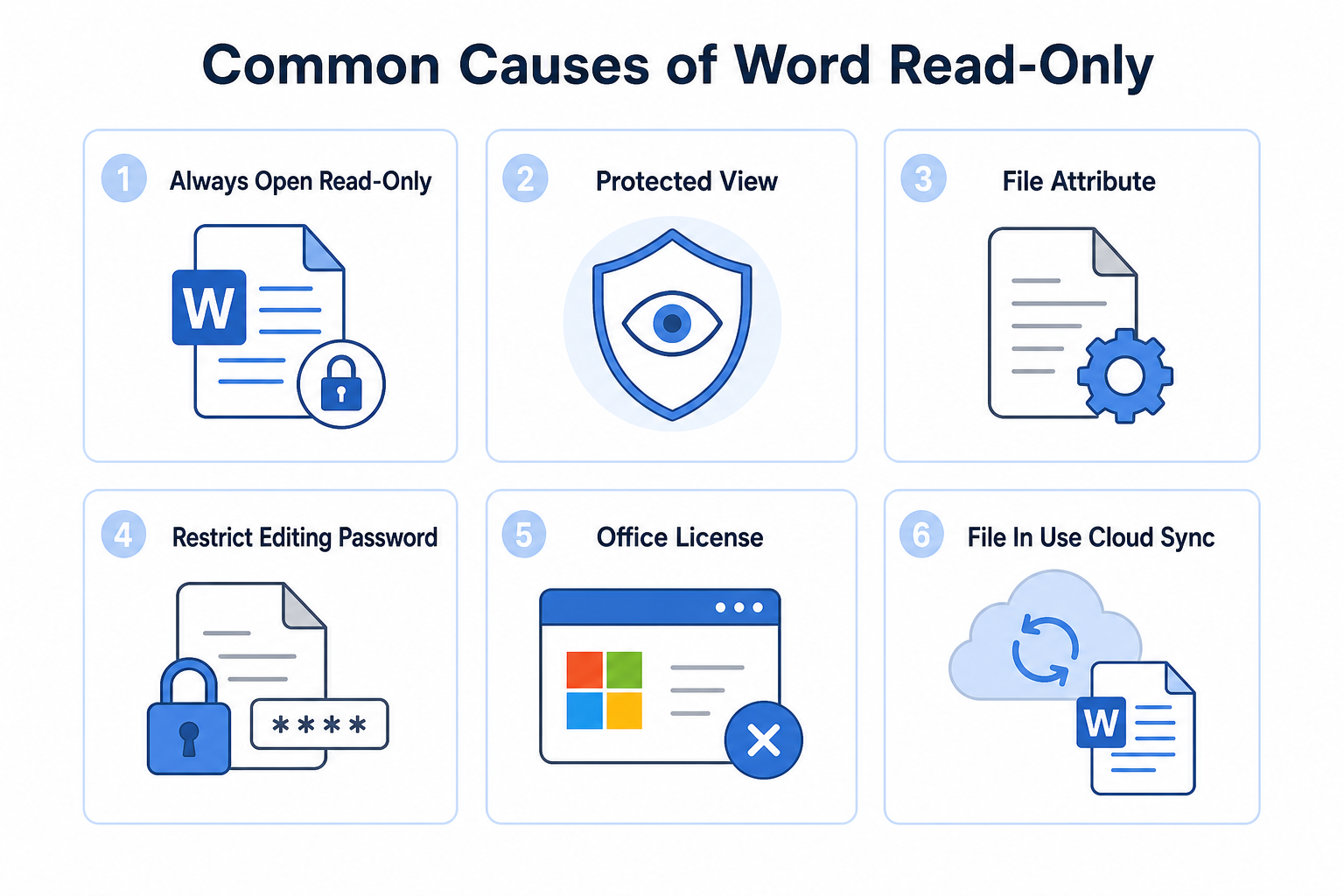
Six common causes of read-only files


Classify the Lock in 60 Seconds
Match what you see to the table below, then go to the matching section instead of trying fixes in sequence.
Symptom: Banner Offers Enable Editing
That is Protected View. It is a safety feature, not a file fault, and it has a safe exit.
Symptom: You Can Type but Not Save
Typing works, saving is refused or offers only a new copy. Suspect a file attribute, a final flag, or a read-only location.
Symptom: Save As Only
A prompt offering only a copy usually means the file is locked by another session or checked out.
Symptom: Everyone Else Can Edit It
If colleagues can edit the same file without trouble, the lock is applied to your account: permissions, a policy, or a restriction placed by the author.
Symptom: It Works After Copying to the Desktop
Copying fixes it, which means the original location or medium is read-only rather than the document itself.
The Triage Table
| Symptom | Category | Who resolves it |
|---|---|---|
| Enable editing banner | Protected View | You, after checking the source |
| Can type, cannot save | Attribute or final flag | You |
| Save As only | Sharing or check-out lock | You and the file owner |
| Only you are blocked | Permissions or policy | File owner or IT |
| Works after copying locally | Read-only location | You and the storage owner |
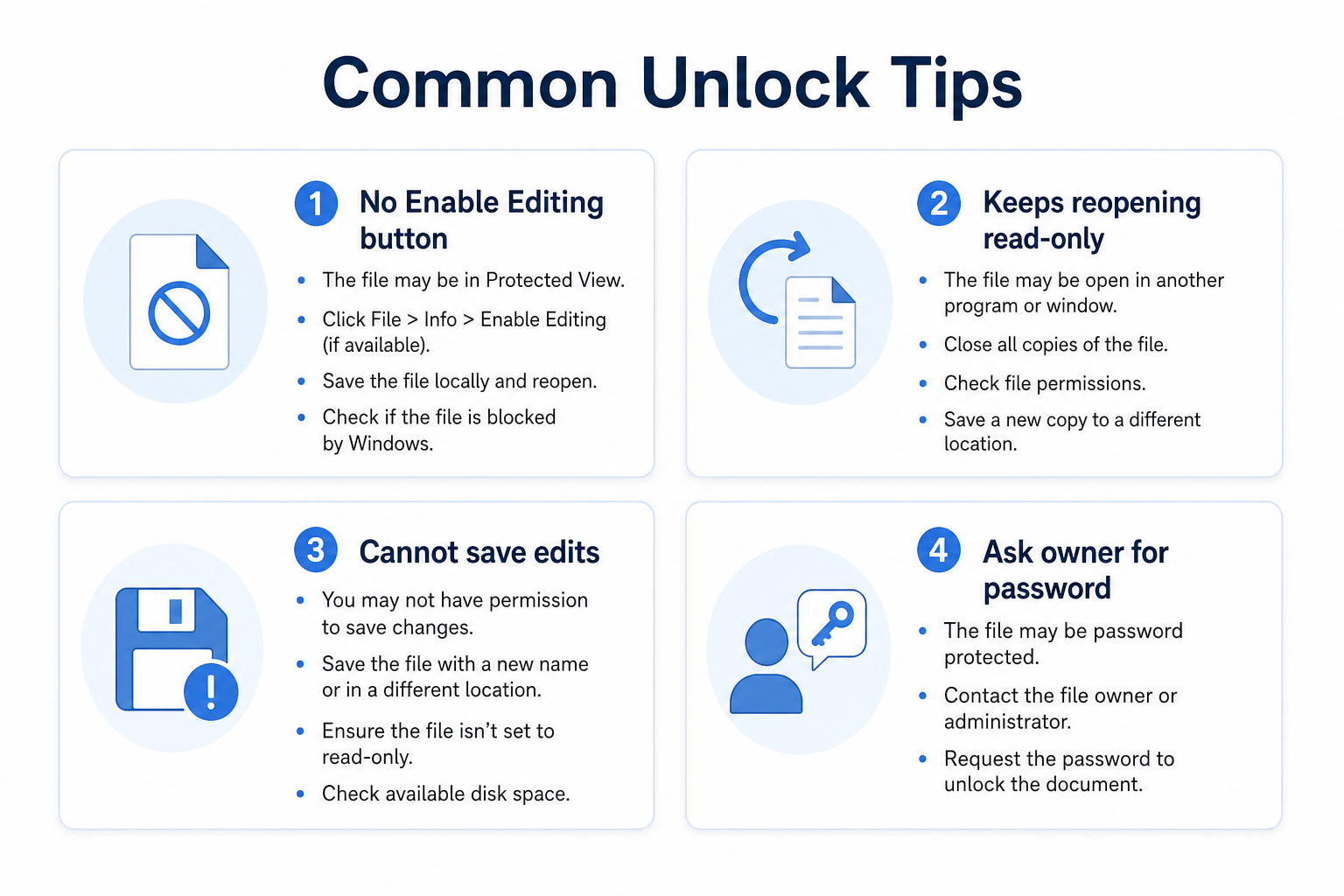
Read-only unlock tips and fixes
Fix the Locks You Own
Three categories are usually within your control. Work through them in order, from the least invasive to the most.
Step 1: Clear Mark as Final and Read-Only Recommended
Open the document information panel and remove the final or read-only-recommended flag. This does not change the content; it only removes the marker that put the document into a read-only state.
Step 2: Leave Protected View the Safe Way
Use the enable editing option in the message bar, but only after you are satisfied that the file came from a source you trust. If the same file will be used repeatedly, add the folder to the trusted locations list rather than clicking through the bar every time.
Step 3: Remove the Read-Only File Attribute
Close the file so nothing is holding it open.
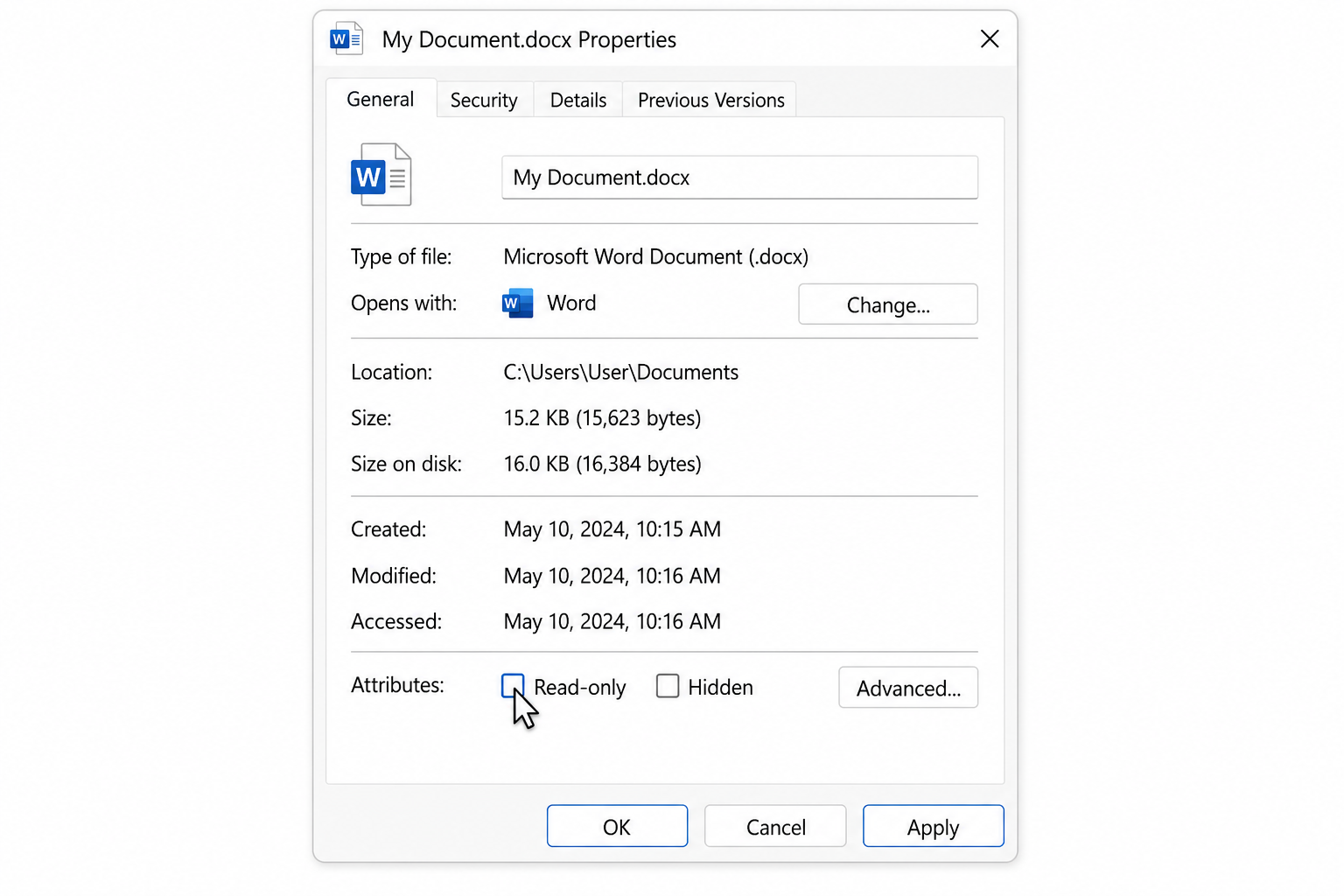
Open the file properties and clear the read-only attribute in the general tab.
Reopen the document and try to save.
Step 4: If Nothing Works, Copy and Compare
Copy the file to a local, writable folder and open the copy. If the copy edits normally, the lock lives in the original location rather than in the document. If the copy is still read-only, the lock travels with the file and belongs to a category covered next.
Word-specific repair paths are longer and are covered in why a Word document opens read-only and in turning off read-only in a Word document; this guide points at that detail rather than repeating it.
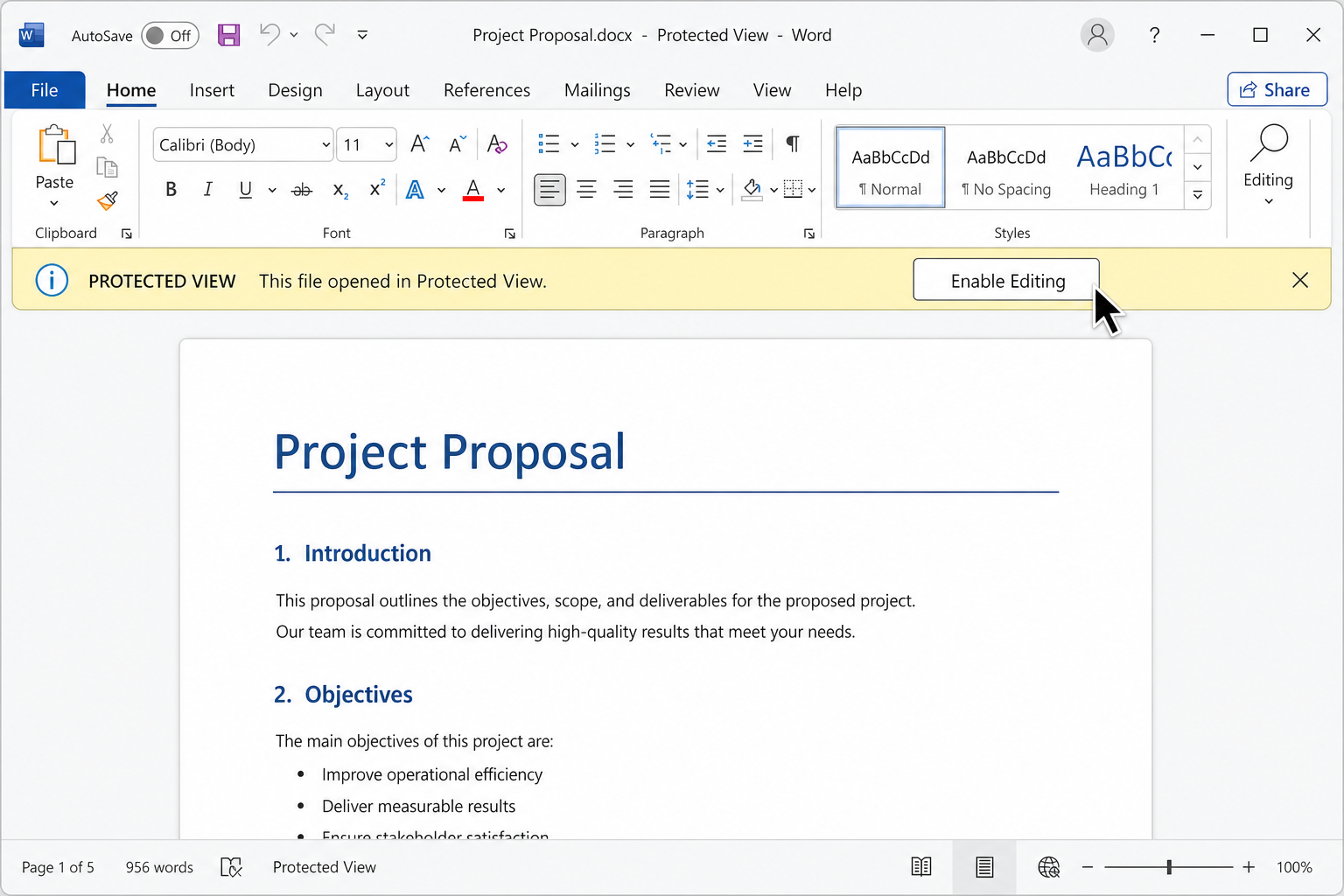
Enable editing in a protected document
Handle the Locks You Do Not Own
Some locks cannot be removed from your side of the desk, and recognising that early is worth more than another round of settings changes.
Checked Out or Open in Another Session
If the file is checked out or open with editing rights elsewhere, the practical answer is to wait or to coordinate with that person. Editing a local copy and merging later is usually slower than a short wait.
Restrict Editing, Rights Management, and Sensitivity Labels
Restriction settings can require a password or author cooperation to stop, and information rights management or sensitivity labelling can limit saving in ways that no local setting overrides. Neither is a problem you can solve from the client side. Document-level read-only and password-protected editing with your own valid password, together with password changes on documents you own, are covered in how to edit a read-only Word document. This guide does not describe bypassing any protection.
Storage Policy and Read-Only Shares
A view-only share or an organisation-level read-only policy is changed by the storage owner or IT. Changing file attributes on your machine will have no effect, and the change may not even be permitted.
The summary judgement: when a colleague can edit the file on their machine and you cannot, the problem is permissions. Stop editing local settings and ask for the access instead.
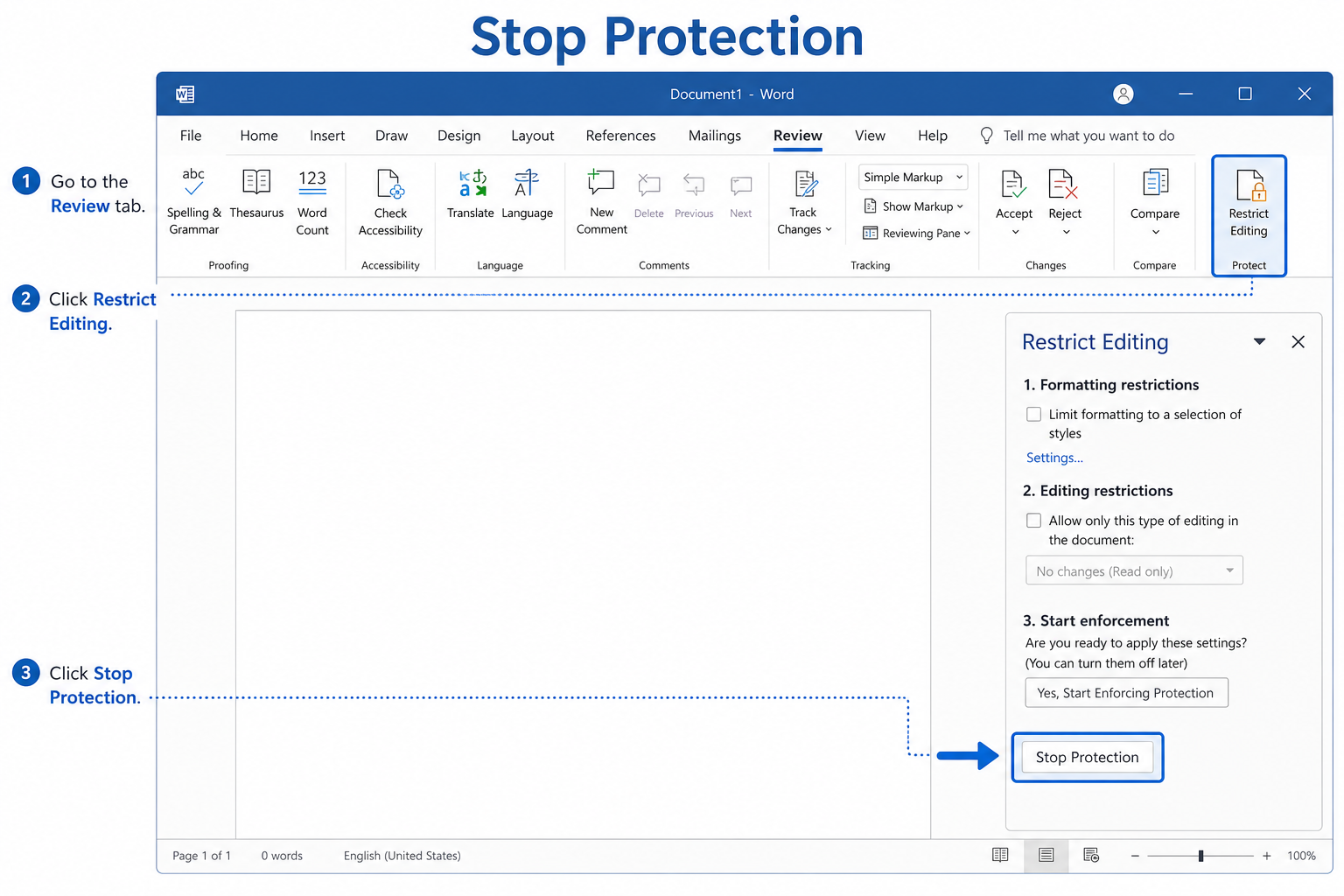
Stopping protection in a review pane
WPS Office: Editing Unlocked Files in Writer, Spreadsheet, and Presentation
The useful role for a suite in this workflow is what happens after the lock is cleared. Once a file is genuinely editable, opening all three formats in one application keeps the follow-up work simple.
After You Clear the Lock, Open It Anywhere
Open a document, spreadsheet, or presentation file in WPS Writer, WPS Spreadsheet, or WPS Presentation, make the edit, and save in the original format. The check is that the file saves without a prompt and that the layout is unchanged when you reopen it.
What WPS Does Not Do
WPS Office does not bypass Protected View, remove editing restrictions, override rights management, or unlock a file governed by an organisational policy. A file that is read-only because of those mechanisms stays read-only here as well.
A Cross-App Check
Take three files that you have unlocked — one document, one spreadsheet, one presentation.
Open each, make a small edit, and save.
Reopen each file and confirm the edit persisted and the layout is intact.
The detailed steps for spreadsheets that open read-only, including the spreadsheet-specific causes, are covered in remove read-only in WPS Spreadsheet. WPS Office itself is available as a free download from wps.com.
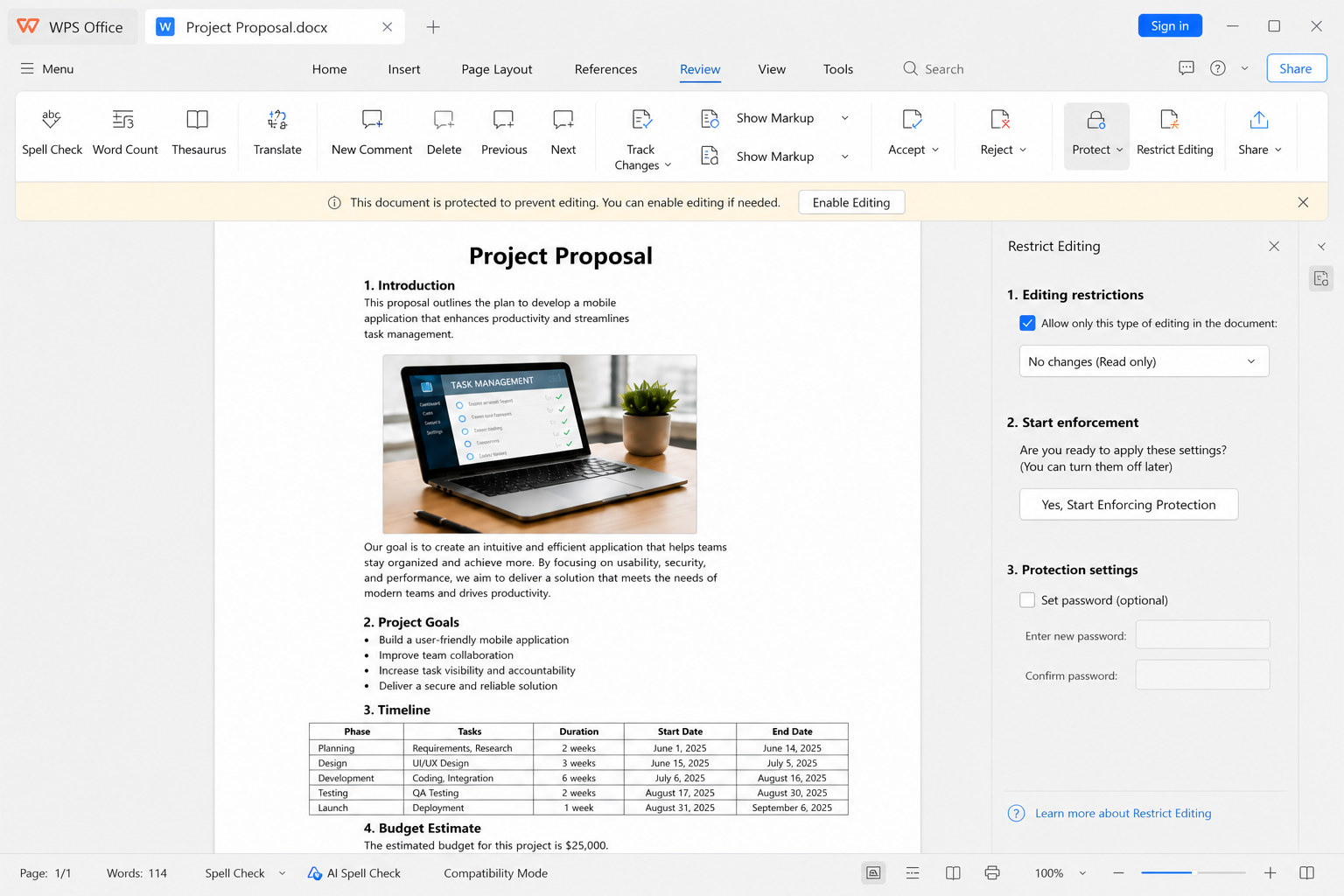
Editing a file in a document app



'%3e%3cpath%20d='M19.9911%204.11386V6.471H18.5894C18.0775%206.471%2017.7322%206.57814%2017.5536%206.79243C17.3751%207.00671%2017.2858%207.32814%2017.2858%207.75671V9.44421H19.9019L19.5536%2012.0871H17.2858V18.8639H14.5536V12.0871H12.2769V9.44421H14.5536V7.49779C14.5536%206.39064%2014.8632%205.53201%2015.4822%204.92189C16.1013%204.31177%2016.9257%204.00671%2017.9554%204.00671C18.8304%204.00671%2019.509%204.04243%2019.9911%204.11386Z'%20fill='%23333333'/%3e%3c/g%3e%3cdefs%3e%3cclipPath%20id='clip0_2938_8199'%3e%3crect%20width='16'%20height='16'%20fill='white'%20transform='translate(8%204.00671)'/%3e%3c/clipPath%3e%3c/defs%3e%3c/svg%3e)
'%3e%3cpath%20d='M17.5237%2010.7813L23.4811%204H22.0699L16.8949%209.88693L12.7648%204H8L14.2469%2012.9029L8%2020.0133H9.4112L14.8725%2013.7952L19.2352%2020.0133H24M9.92053%205.04213H12.0885L22.0688%2019.0224H19.9003'%20fill='%23333333'/%3e%3c/g%3e%3cdefs%3e%3cclipPath%20id='clip0_2938_8200'%3e%3crect%20width='16'%20height='16.0134'%20fill='white'%20transform='translate(8%204)'/%3e%3c/clipPath%3e%3c/defs%3e%3c/svg%3e)


