



'%3e%3cpath%20fill-rule='evenodd'%20clip-rule='evenodd'%20d='M21.4999%2010.9993C21.4999%205.20009%2016.7986%200.498901%2010.9993%200.498901C5.19994%200.498901%200.498657%205.20009%200.498657%2010.9993C0.498657%2016.2404%204.33858%2020.5844%209.35855%2021.3722V14.0346H6.69238V10.9993H9.35855V8.68594C9.35855%206.05427%2010.9262%204.60062%2013.3248%204.60062C14.4736%204.60062%2015.6753%204.80571%2015.6753%204.80571V7.38979H14.3512C13.0468%207.38979%2012.64%208.19921%2012.64%209.0296V10.9993H15.5523L15.0867%2014.0346H12.64V21.3722C17.66%2020.5844%2021.4999%2016.2404%2021.4999%2010.9993Z'%20fill='%231568EA'/%3e%3c/g%3e%3c/svg%3e)


'%3e%3cpath%20d='M2.42045%2022.1876H6.31818V12.7217L0.75%208.54553V20.5171C0.75%2021.4414%201.49892%2022.1876%202.42045%2022.1876Z'%20fill='%234285F4'/%3e%3cpath%20d='M19.682%2022.1876H23.5797C24.5041%2022.1876%2025.2502%2021.4387%2025.2502%2020.5171V8.54553L19.682%2012.7217'%20fill='%2334A853'/%3e%3cpath%20d='M19.682%205.48293V12.7216L25.2502%208.54543V6.31816C25.2502%204.25236%2022.8921%203.07469%2021.2411%204.31361'%20fill='%23FBBC04'/%3e%3cpath%20d='M6.31824%2012.7217V5.48303L13.0001%2010.4944L19.6819%205.48303V12.7217L13.0001%2017.733'%20fill='%23EA4335'/%3e%3cpath%20d='M0.75%206.31816V8.54543L6.31818%2012.7216V5.48293L4.75909%204.31361C3.10534%203.07469%200.75%204.25236%200.75%206.31816Z'%20fill='%23C5221F'/%3e%3c/g%3e%3cdefs%3e%3cclipPath%20id='clip0_2954_7305'%3e%3crect%20width='24.5'%20height='18.375'%20fill='white'%20transform='translate(0.75%203.8125)'/%3e%3c/clipPath%3e%3c/defs%3e%3c/svg%3e)


Word sometimes opens a file as read-only, so you cannot edit or save changes. That often happens with downloads (Protected View), shared files, Restrict Editing locks, or a Windows read-only attribute. This guide shows practical ways to turn off read-only in Word, how to stop files that keep reopening locked, common fixes, and a free Word-compatible option in WPS Writer.


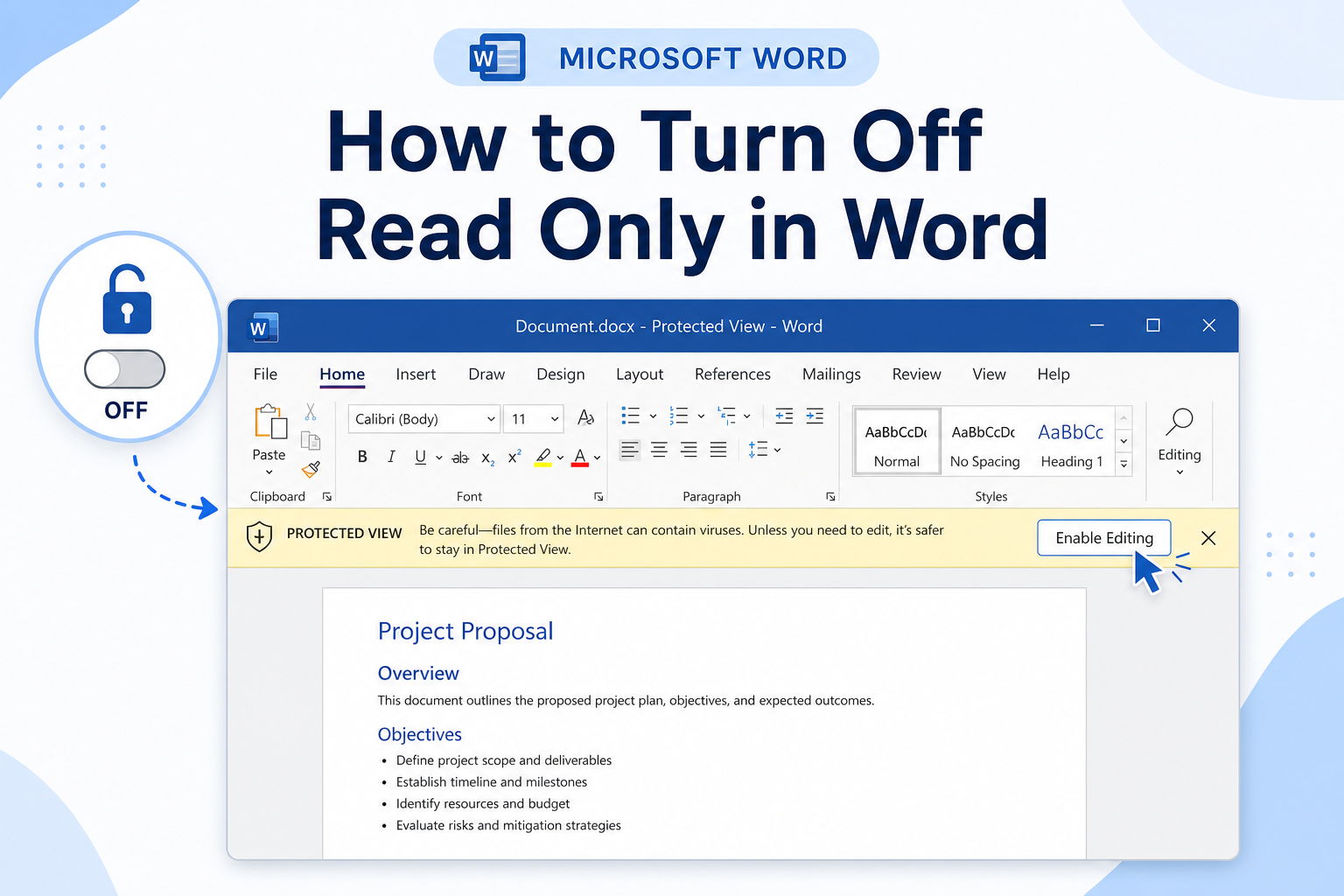
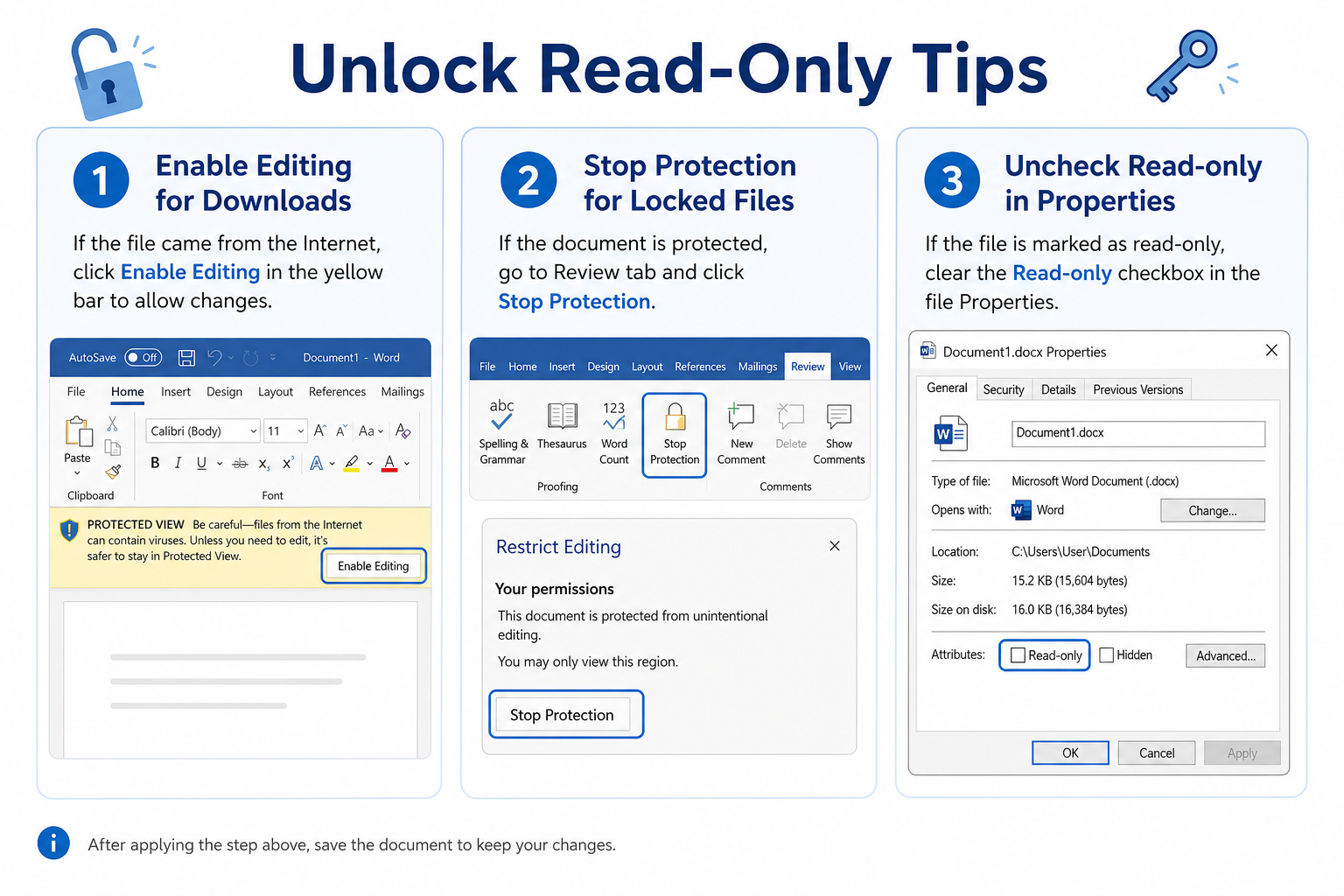
Quick answer: If you see a yellow bar, click Enable Editing. If the Review pane shows protection, go to Review → Restrict Editing → Stop Protection (enter the password if required). Or right-click the file in File Explorer → Properties → uncheck Read-only. Prefer per-file unlocks over turning off all Protected View settings.
Why a Word Document Opens as Read-Only
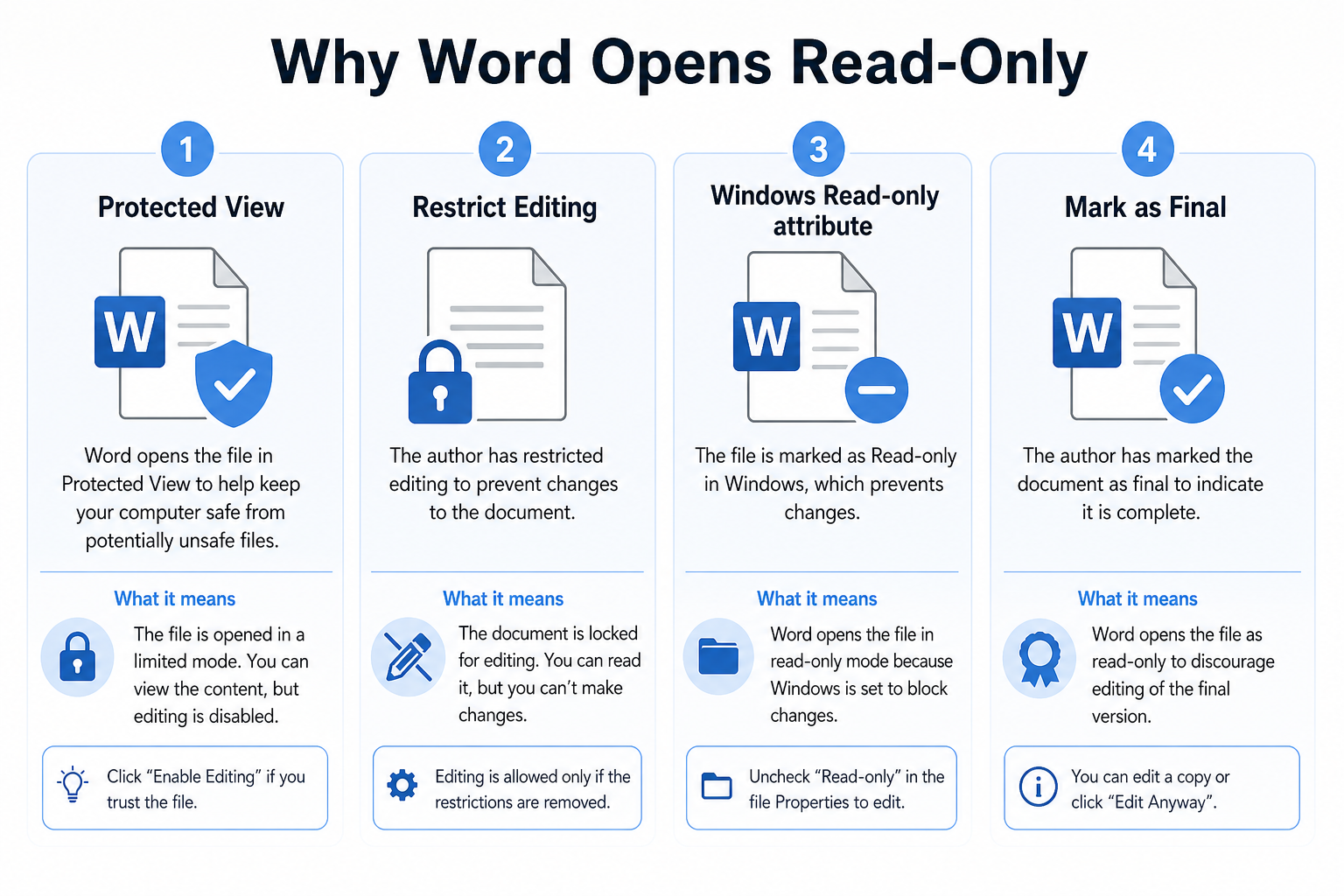
| Cause | What you usually see | Best fix |
|---|---|---|
| Protected View | Yellow message bar after download/email | Click Enable Editing |
| Restrict Editing | Cannot type; Restrict Editing pane is active | Stop Protection (+ password if set) |
| Windows Read-only attribute | File Properties shows Read-only checked | Uncheck Read-only, Apply, reopen |
| Password to modify / Mark as Final | Prompt to open read-only, or “Marked as Final” | Enter modify password, or turn off Mark as Final |
Turn Off Read-Only from Protected View
Files from the internet or email often open in Protected View for safety. Editing stays off until you trust the file.
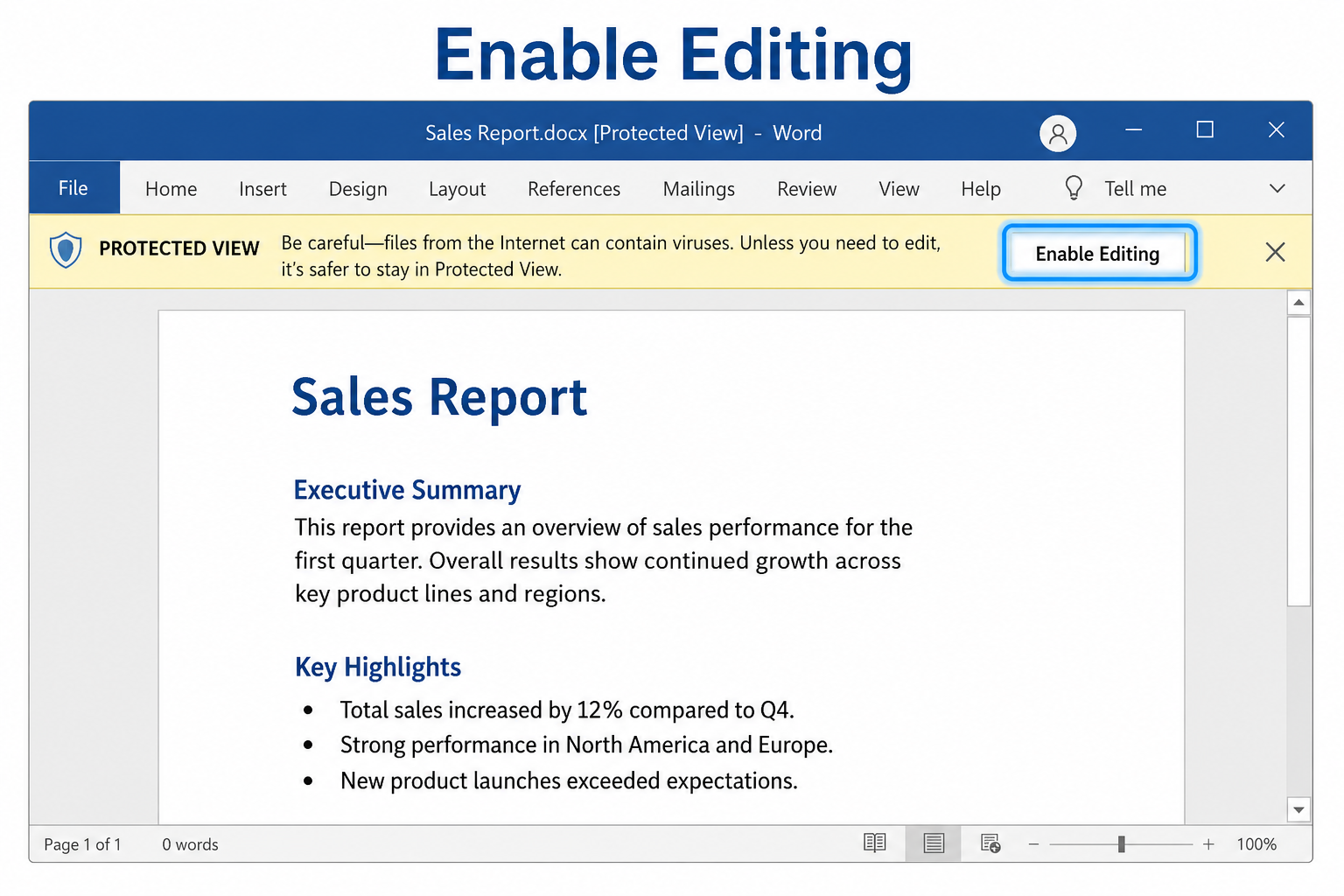
Open the Word document.
Look for the yellow (or colored) message bar at the top.
Click Enable Editing.
Edit and save as usual.
Only enable editing for files you trust. If the bar never appears, the lock is probably Restrict Editing or a file attribute—not Protected View.
Disable Restrict Editing Protection
If someone locked the file with Restrict Editing, stop protection to restore editing.
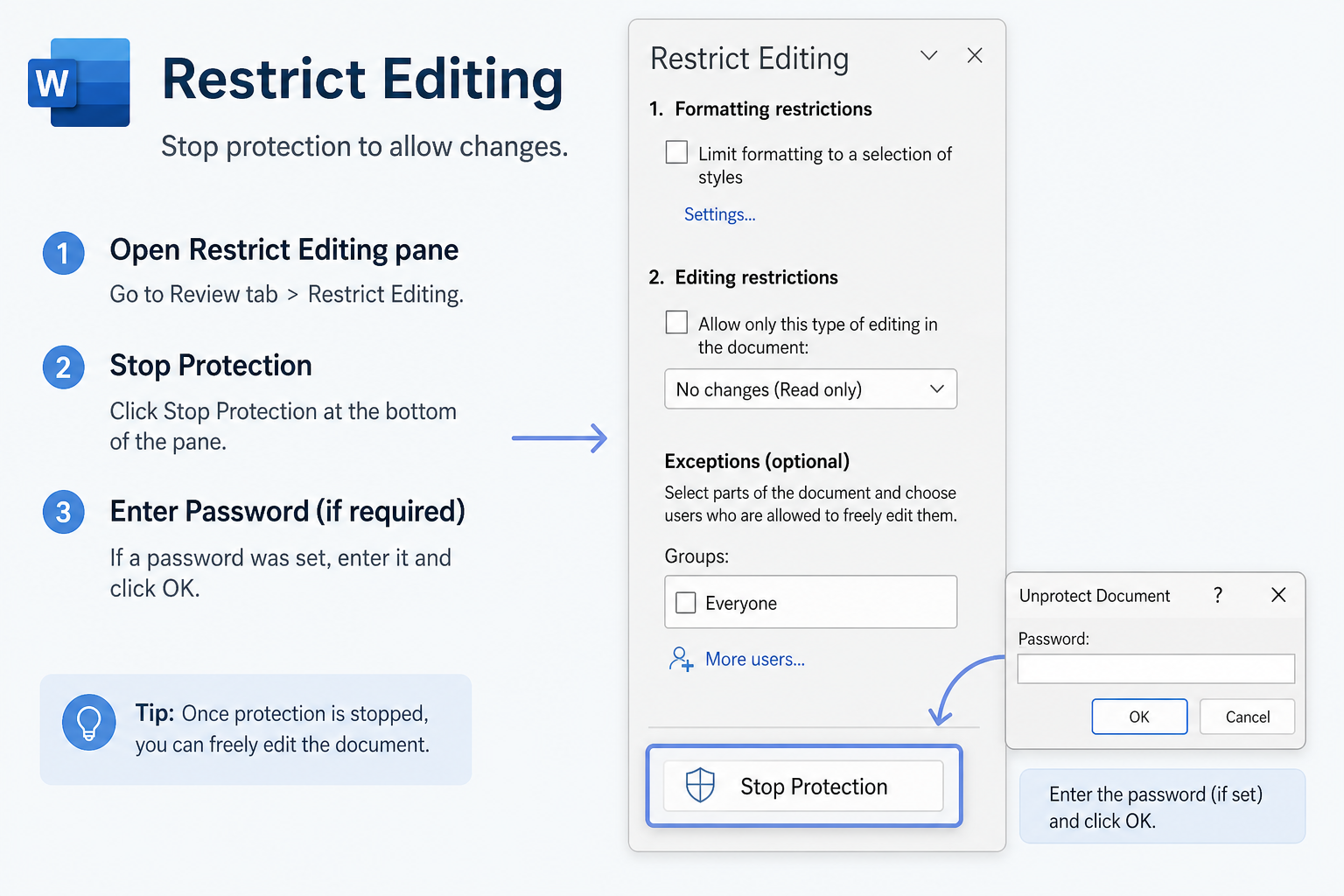
Go to Review → Restrict Editing.
Click Stop Protection.
Enter the password if prompted.
Save the document.
If you do not know the password, Word will not unlock Restrict Editing for you. Ask the file owner, or work from an unprotected copy they provide.
Remove the Windows Read-Only Attribute
Sometimes Word is fine, but Windows marked the file read-only.
Close the document in Word.
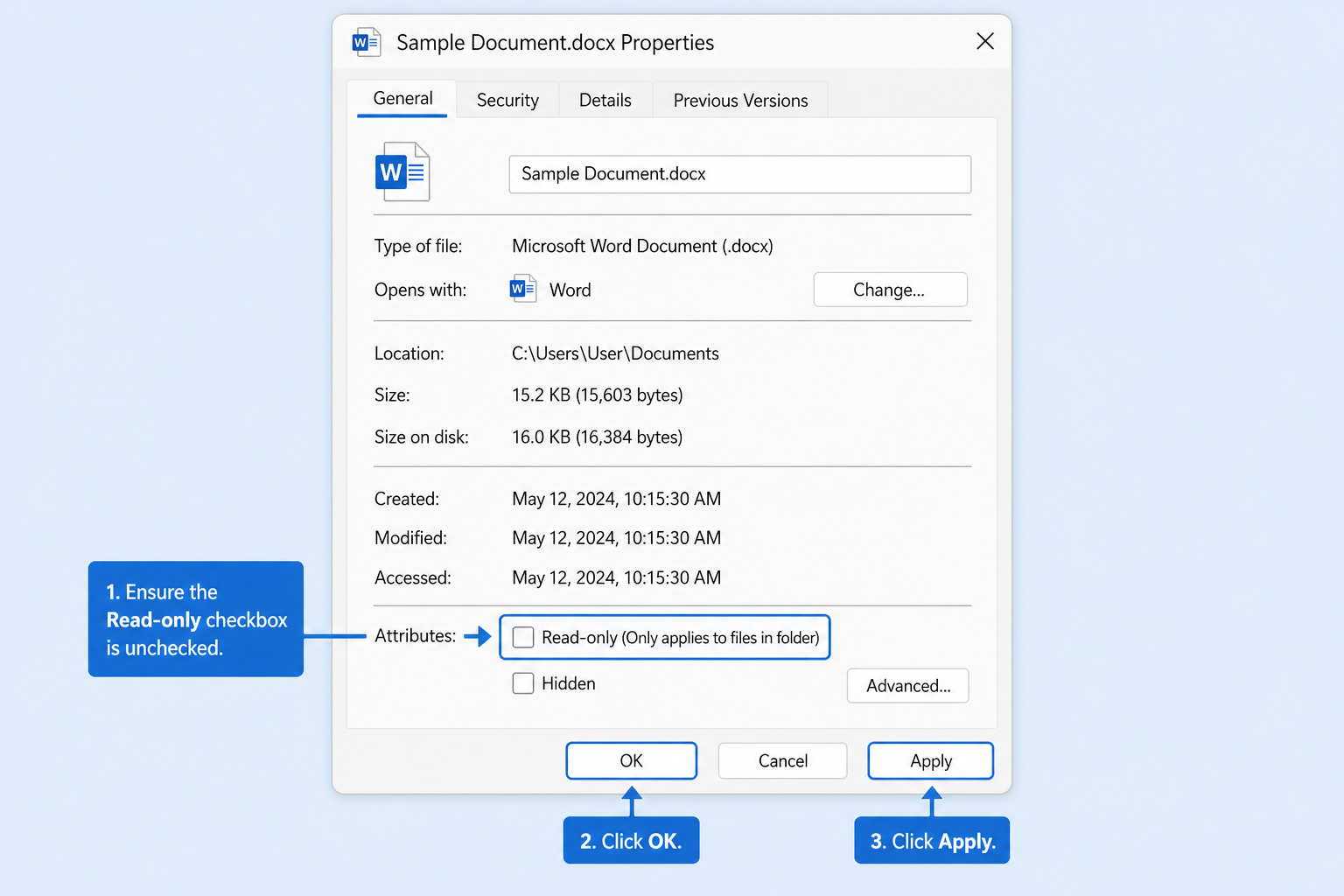
In File Explorer, right-click the .docx file → Properties.
On the General tab, uncheck Read-only.
Click Apply → OK.
Reopen the file and try editing/saving again.
Also check that you have write permission to the folder (Desktop, Downloads, OneDrive, network drives).
Fix: Word Keeps Opening Files as Read-Only
If many downloads always open locked, you can adjust Protected View—but do it carefully. Turning everything off weakens a useful security layer.
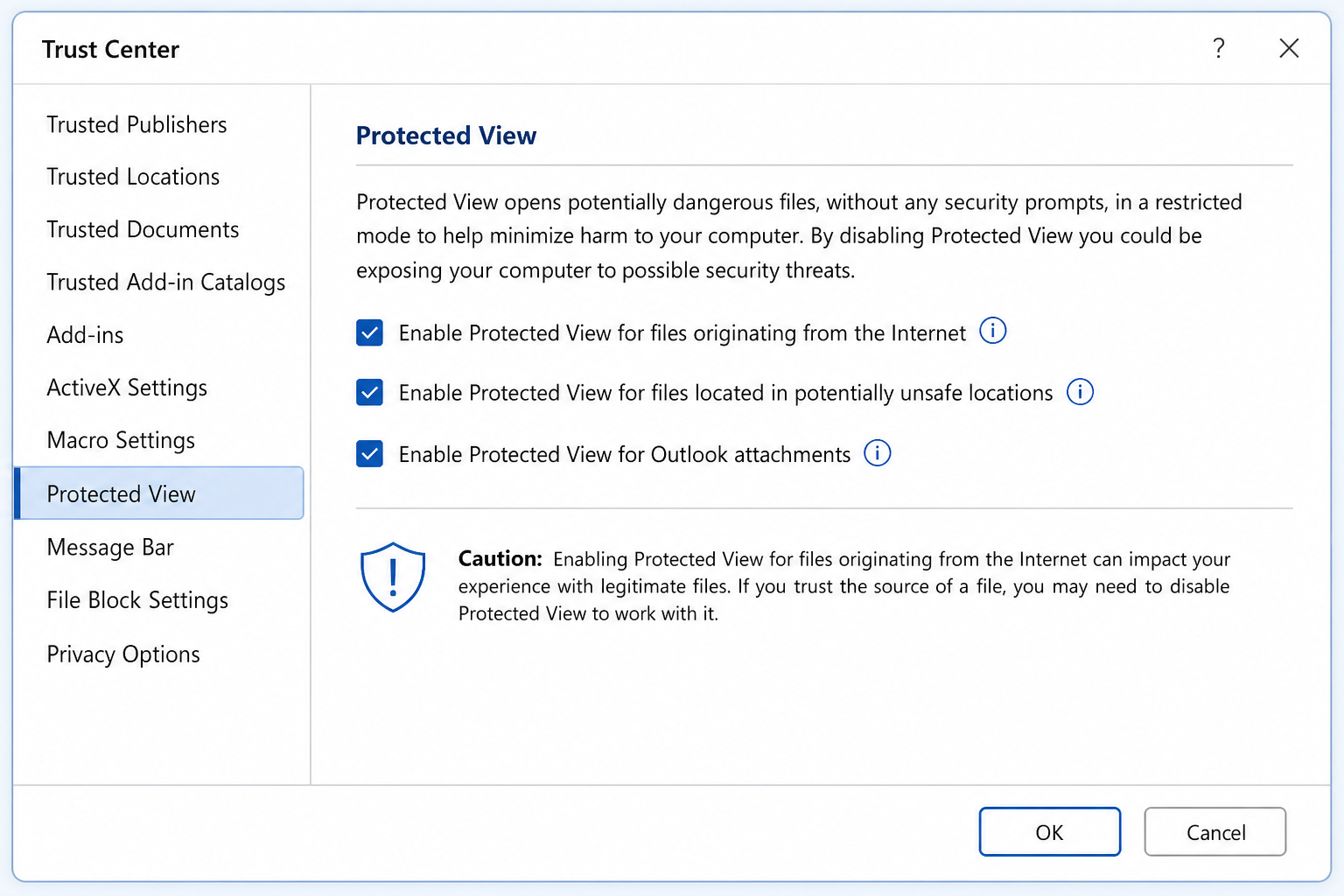
Open Word → File → Options → Trust Center.
Click Trust Center Settings… → Protected View.
Review the checkboxes (for example, files from the internet).
Change only what you need for trusted workflows, then click OK.
Restart Word and retest with a known-safe file.
Safer habit for most people: leave Protected View on, and click Enable Editing only when you trust that specific file.
Also check File → Info → Protect Document for Mark as Final. If it is on, click it again to turn it off, then save.
Common Unlock Issues and Fixes
| Problem | What to try |
|---|---|
| No Enable Editing button | Check Restrict Editing / Stop Protection, then file Properties → Read-only |
| Forgot the protection password | Ask the owner; Word cannot recover Restrict Editing passwords for you |
| Can edit but cannot save | Uncheck Windows Read-only; save to a folder you can write to; try Save As |
| Opened as read-only from OneDrive/SharePoint | Check link permissions; open in the desktop app; request edit access |
| Password to modify prompt | Enter the modify password, or open read-only and Save As a new editable copy if allowed |
Free Method: Edit Read-Only Files in WPS Writer
Word already covers Protected View, Restrict Editing, and file attributes for most cases. If you prefer a simpler everyday editing workflow, WPS Writer is a free, Word-compatible option for opening .docx files and editing after you clear the same kinds of locks you can clear in Word.
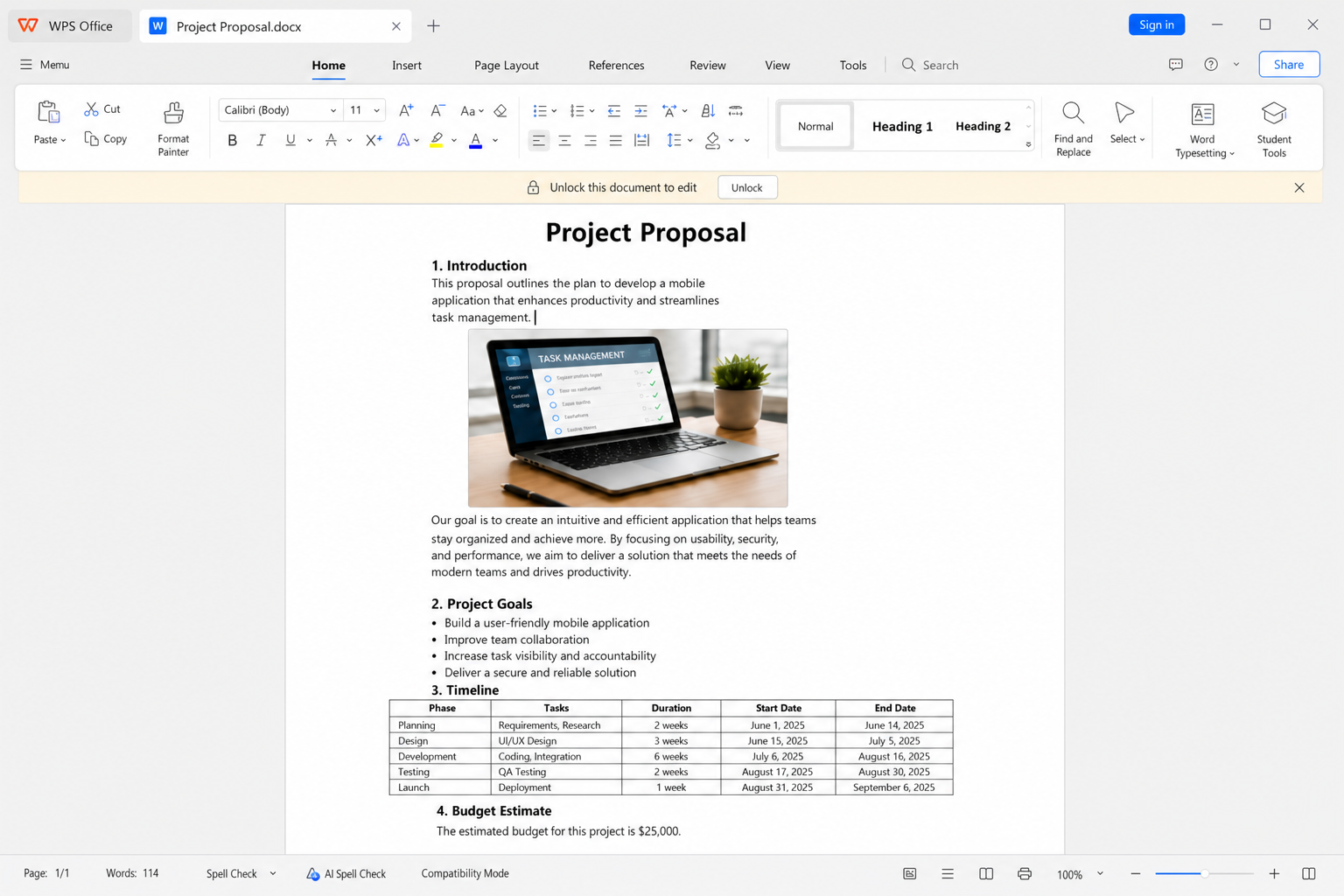
Open the document in WPS Writer.
If you see an enable-editing / unprotected prompt, confirm for trusted files.
If Restrict Editing is on and you know the password, stop protection from the Review / Protect area.
Edit the content, then Save or Save As .docx.
WPS does not replace knowing the owner’s password for protected files. Use it as a practical editor once the file is unlocked or when Protected View-style prompts are the only blocker.
Straightforward editing flow — Open, enable editing when prompted, save as .docx
Familiar protect controls — Stop protection when you have permission/password
Strong Word compatibility — Share common .docx files with Word users
No paid subscription required — Core editing tools for daily documents
FAQ
How do I turn off read-only in Word?
Click Enable Editing for Protected View, or use Review → Restrict Editing → Stop Protection. Also uncheck Read-only in the file’s Properties if needed.
Why is there no Enable Editing button?
The file may use Restrict Editing, Mark as Final, a modify password, or a Windows read-only attribute—not Protected View.
Can I remove a Restrict Editing password I forgot?
Not through normal Word tools. Contact the person who protected the file, or use an unprotected copy they send you.
Will WPS open my Word read-only file?
Usually yes for standard .docx files. You still need the correct password/permission for locked protection, then you can edit and save.
Conclusion
To turn off read-only in a Word document, start with Enable Editing, then check Stop Protection, Windows Read-only properties, and Mark as Final. Keep Protected View enabled for unknown downloads, and unlock files one at a time when you trust them. If you want a simpler free editor for everyday .docx work after a file is unlocked, WPS Writer is a practical Word-compatible option.

'%3e%3cpath%20d='M19.9911%204.11386V6.471H18.5894C18.0775%206.471%2017.7322%206.57814%2017.5536%206.79243C17.3751%207.00671%2017.2858%207.32814%2017.2858%207.75671V9.44421H19.9019L19.5536%2012.0871H17.2858V18.8639H14.5536V12.0871H12.2769V9.44421H14.5536V7.49779C14.5536%206.39064%2014.8632%205.53201%2015.4822%204.92189C16.1013%204.31177%2016.9257%204.00671%2017.9554%204.00671C18.8304%204.00671%2019.509%204.04243%2019.9911%204.11386Z'%20fill='%23333333'/%3e%3c/g%3e%3cdefs%3e%3cclipPath%20id='clip0_2938_8199'%3e%3crect%20width='16'%20height='16'%20fill='white'%20transform='translate(8%204.00671)'/%3e%3c/clipPath%3e%3c/defs%3e%3c/svg%3e)
'%3e%3cpath%20d='M17.5237%2010.7813L23.4811%204H22.0699L16.8949%209.88693L12.7648%204H8L14.2469%2012.9029L8%2020.0133H9.4112L14.8725%2013.7952L19.2352%2020.0133H24M9.92053%205.04213H12.0885L22.0688%2019.0224H19.9003'%20fill='%23333333'/%3e%3c/g%3e%3cdefs%3e%3cclipPath%20id='clip0_2938_8200'%3e%3crect%20width='16'%20height='16.0134'%20fill='white'%20transform='translate(8%204)'/%3e%3c/clipPath%3e%3c/defs%3e%3c/svg%3e)


