

'%3e%3cpath%20d='M8%200C12.4183%200%2016%203.58172%2016%208C16%2012.4183%2012.4183%2016%208%2016C3.58172%2016%200%2012.4183%200%208C0%203.58172%203.58172%200%208%200ZM11.6162%204.38379C11.2257%203.99337%2010.5927%203.99338%2010.2021%204.38379L8%206.58594L5.79785%204.38379C5.40732%203.99334%204.77429%203.99329%204.38379%204.38379C3.99331%204.77429%203.99335%205.40733%204.38379%205.79785L6.58594%208L4.38379%2010.2021C3.99348%2010.5927%203.99341%2011.2257%204.38379%2011.6162C4.77426%2012.0066%205.40734%2012.0065%205.79785%2011.6162L8%209.41406L10.2021%2011.6162C10.5927%2012.0066%2011.2257%2012.0067%2011.6162%2011.6162C12.0067%2011.2257%2012.0066%2010.5927%2011.6162%2010.2021L9.41406%208L11.6162%205.79785C12.0066%205.40735%2012.0066%204.77429%2011.6162%204.38379Z'%20fill='%23080E17'%20fill-opacity='0.46'/%3e%3c/g%3e%3cdefs%3e%3cclipPath%20id='clip0_3761_713'%3e%3crect%20width='16'%20height='16'%20fill='white'/%3e%3c/clipPath%3e%3c/defs%3e%3c/svg%3e)




'%3e%3cpath%20fill-rule='evenodd'%20clip-rule='evenodd'%20d='M21.4999%2010.9993C21.4999%205.20009%2016.7986%200.498901%2010.9993%200.498901C5.19994%200.498901%200.498657%205.20009%200.498657%2010.9993C0.498657%2016.2404%204.33858%2020.5844%209.35855%2021.3722V14.0346H6.69238V10.9993H9.35855V8.68594C9.35855%206.05427%2010.9262%204.60062%2013.3248%204.60062C14.4736%204.60062%2015.6753%204.80571%2015.6753%204.80571V7.38979H14.3512C13.0468%207.38979%2012.64%208.19921%2012.64%209.0296V10.9993H15.5523L15.0867%2014.0346H12.64V21.3722C17.66%2020.5844%2021.4999%2016.2404%2021.4999%2010.9993Z'%20fill='%231568EA'/%3e%3c/g%3e%3c/svg%3e)


'%3e%3cpath%20d='M2.42045%2022.1876H6.31818V12.7217L0.75%208.54553V20.5171C0.75%2021.4414%201.49892%2022.1876%202.42045%2022.1876Z'%20fill='%234285F4'/%3e%3cpath%20d='M19.682%2022.1876H23.5797C24.5041%2022.1876%2025.2502%2021.4387%2025.2502%2020.5171V8.54553L19.682%2012.7217'%20fill='%2334A853'/%3e%3cpath%20d='M19.682%205.48293V12.7216L25.2502%208.54543V6.31816C25.2502%204.25236%2022.8921%203.07469%2021.2411%204.31361'%20fill='%23FBBC04'/%3e%3cpath%20d='M6.31824%2012.7217V5.48303L13.0001%2010.4944L19.6819%205.48303V12.7217L13.0001%2017.733'%20fill='%23EA4335'/%3e%3cpath%20d='M0.75%206.31816V8.54543L6.31818%2012.7216V5.48293L4.75909%204.31361C3.10534%203.07469%200.75%204.25236%200.75%206.31816Z'%20fill='%23C5221F'/%3e%3c/g%3e%3cdefs%3e%3cclipPath%20id='clip0_2954_7305'%3e%3crect%20width='24.5'%20height='18.375'%20fill='white'%20transform='translate(0.75%203.8125)'/%3e%3c/clipPath%3e%3c/defs%3e%3c/svg%3e)


Question Details
You need to reinstall Office Home & Student 2019 after it was accidentally deleted from your computer. The usual Microsoft Office install or repair workflow may not finish as expected, so you cannot restore the suite the way you normally would.
This guide focuses on confirming your license ownership first, then completing a clean reinstall with the official installer so you can restore the correct edition and activation state.
Quick Answer
Before you remove leftover Office components, confirm that you are the license owner and that you still have a product key or proof of purchase. Next, verify whether your copy of Office Home & Student 2019 was bought from Microsoft, came preinstalled on the PC, or came from a third-party retailer. After that, use a clean uninstall that preserves your personal files, then reinstall from Microsoft’s official installer and sign in with the Microsoft account tied to the license when prompted.
Possible Causes
There are a few possible reasons the Microsoft Office workflow may not complete as expected:
- The Office 2019 license may be linked to a different Microsoft account than the one you are using.
- The product may have originally come preinstalled by the PC manufacturer, so the install page may look for a different purchase path.
- The install page may not be recognizing the correct Microsoft account for this license.
- Leftover Office components from the accidental deletion may still conflict with a new install.
- You may no longer have the original product key or proof of purchase needed to restore Office Home & Student 2019.
Recommended Solution: Confirm License Ownership, Then Reinstall Cleanly
When to use this method: Use this approach when Office Home & Student 2019 was deleted by mistake and the normal Microsoft install workflow does not finish. It is the safest path because it confirms ownership before removal and restores the correct edition with official tools.
Before you start: Back up important Word, Excel, and PowerPoint files to another folder, an external drive, or cloud storage. A clean uninstall should preserve user files, but a backup reduces risk if anything goes wrong.

Step 1: Verify how this copy of Office was obtained
Confirm whether this copy of Office Home & Student 2019 was:
- Purchased directly from Microsoft
- Preinstalled on the PC by the manufacturer
- Bought from a third-party retailer
This step matters because the restore path can differ. A Microsoft Store or Microsoft account purchase is usually restored by signing in to the correct account. A manufacturer or retailer copy may rely more heavily on the original product key or documentation.
Step 2: Verify that you still have the original product key or proof of purchase
- Search your email receipts, order history, and purchase confirmation messages for “Office Home & Student 2019” or the product key.
- Check any printed packaging, retail card, or invoice that may list the product key.
- If the license is linked to a Microsoft account, sign in to that account’s order or services history and look for Office Home & Student 2019.
- Save the product key and proof of purchase in a safe place before you continue.
If you cannot find a key or proof of purchase, pause the reinstall and locate the license first. Reinstalling without ownership details may leave activation incomplete.
Step 3: Remove conflicting Office components with a clean uninstall
- Close all Office apps and save any open documents.
- Use Microsoft’s supported uninstall method for Office on your PC to remove remaining Office Home & Student 2019 components.
- Restart the computer after the uninstall finishes.
- Confirm that your personal documents are still available in their original folders or backup location.
A clean uninstall helps clear leftover files that can block a new install, while your documents should remain intact if they were stored outside the Office program folders.
Step 4: Reinstall Office Home & Student 2019 with the official installer
- Open the official Microsoft Office install page in a browser while signed in with the Microsoft account that owns the license, if applicable.
- Choose Office Home & Student 2019 when the edition options appear.
- Download the official installer and run it.
- Follow the on-screen prompts until installation completes.
- Open Word, Excel, or PowerPoint and sign in or enter the product key when asked so activation can complete.
Why this works: Confirming the purchase source and key first reduces account mismatches. A clean uninstall removes conflicting leftovers. The official installer then restores the correct Office Home & Student 2019 edition and activation state.
If this fails: Double-check that you are signed in with the Microsoft account tied to the license, confirm the product key is for Office Home & Student 2019, and try the additional solutions below.
Additional Solutions
Solution 2: Switch to the Microsoft account linked to the license
If the install page does not recognize your purchase, you may be signed in with the wrong Microsoft account.
- Sign out of the Microsoft account currently used in the browser or Office apps.
- Sign in with the account that may own Office Home & Student 2019.
- Return to the official install page and check whether Office Home & Student 2019 appears under your products or services.
- Download and install again from that account.
Solution 3: Re-enter the product key during setup or activation
If the product came from a retailer or manufacturer packaging, the product key may still be required even after a clean reinstall.
- Start or reopen the Office installer.
- When prompted, enter the original Office Home & Student 2019 product key carefully.
- Complete activation and open an Office app to confirm the license status.
Solution 4: Contact Microsoft or the original seller for license recovery
If you still cannot restore the product after confirming accounts and trying a clean reinstall, contact Microsoft Support or the original retailer or PC manufacturer with your proof of purchase. They may help locate the correct account, key, or restore path for Office Home & Student 2019.
Continue Working with WPS Office While You Reinstall
WPS Office cannot restore a Microsoft Office Home & Student 2019 license, product key, or Microsoft account activation. If you need to keep editing documents while you sort out the reinstall, WPS Office can open and edit common Microsoft Office files so your work does not stop.
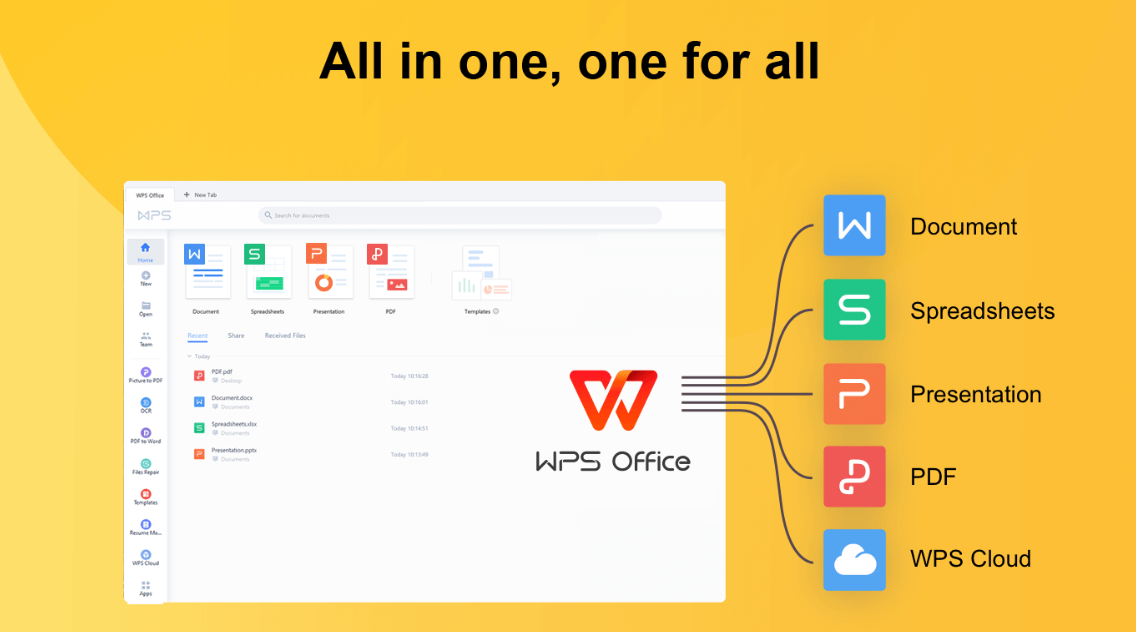


- Download and install WPS Office from the official WPS website.
- Open WPS Writer for Word documents, WPS Spreadsheets for Excel workbooks, or WPS Presentation for PowerPoint files.
- Open your existing .docx, .xlsx, or .pptx files and continue editing.
- Save your work in the same Office-compatible formats when you need to share files with others.
Expected result: you can keep working on documents, spreadsheets, and presentations while Microsoft Office is unavailable. Limitation: WPS Office does not replace Microsoft license recovery or activation for Office Home & Student 2019. If you need a practical alternative suite during the downtime, try WPS Office.
Prevention Tips
- Store your Office Home & Student 2019 product key and proof of purchase in a secure password manager or backup folder.
- Note which Microsoft account owns the license before making system changes.
- Back up important documents before uninstalling or reinstalling office software.
- Avoid deleting Office program folders manually; use Microsoft’s supported uninstall tools instead.
- After a successful reinstall, open Word, Excel, and PowerPoint once to confirm activation is complete.
FAQs
Can I reinstall Office Home & Student 2019 without the product key?
It depends on how you obtained the product. If the license is linked to a Microsoft account, you may be able to reinstall after signing in with that account. If the product came with a retail key or manufacturer packaging, you usually need the original product key or proof of purchase.
Will a clean uninstall delete my Word, Excel, and PowerPoint files?
A proper Office uninstall should remove the program components, not your personal documents stored in folders such as Documents or Desktop. Still back up important files before you begin.
Why does the Microsoft install page not show Office Home & Student 2019?
The license may be tied to a different Microsoft account, or the product may have come from a manufacturer or retailer rather than a direct Microsoft purchase. Verify the purchase source and try the account that originally owned the license.
What should I do if activation fails after reinstalling?
Confirm that the product key matches Office Home & Student 2019, sign in with the correct Microsoft account, and retry activation. If it still fails, contact Microsoft Support or the original seller with your proof of purchase.

'%3e%3cpath%20d='M19.9911%204.11386V6.471H18.5894C18.0775%206.471%2017.7322%206.57814%2017.5536%206.79243C17.3751%207.00671%2017.2858%207.32814%2017.2858%207.75671V9.44421H19.9019L19.5536%2012.0871H17.2858V18.8639H14.5536V12.0871H12.2769V9.44421H14.5536V7.49779C14.5536%206.39064%2014.8632%205.53201%2015.4822%204.92189C16.1013%204.31177%2016.9257%204.00671%2017.9554%204.00671C18.8304%204.00671%2019.509%204.04243%2019.9911%204.11386Z'%20fill='%23333333'/%3e%3c/g%3e%3cdefs%3e%3cclipPath%20id='clip0_2938_8199'%3e%3crect%20width='16'%20height='16'%20fill='white'%20transform='translate(8%204.00671)'/%3e%3c/clipPath%3e%3c/defs%3e%3c/svg%3e)
'%3e%3cpath%20d='M17.5237%2010.7813L23.4811%204H22.0699L16.8949%209.88693L12.7648%204H8L14.2469%2012.9029L8%2020.0133H9.4112L14.8725%2013.7952L19.2352%2020.0133H24M9.92053%205.04213H12.0885L22.0688%2019.0224H19.9003'%20fill='%23333333'/%3e%3c/g%3e%3cdefs%3e%3cclipPath%20id='clip0_2938_8200'%3e%3crect%20width='16'%20height='16.0134'%20fill='white'%20transform='translate(8%204)'/%3e%3c/clipPath%3e%3c/defs%3e%3c/svg%3e)


