

'%3e%3cpath%20d='M8%200C12.4183%200%2016%203.58172%2016%208C16%2012.4183%2012.4183%2016%208%2016C3.58172%2016%200%2012.4183%200%208C0%203.58172%203.58172%200%208%200ZM11.6162%204.38379C11.2257%203.99337%2010.5927%203.99338%2010.2021%204.38379L8%206.58594L5.79785%204.38379C5.40732%203.99334%204.77429%203.99329%204.38379%204.38379C3.99331%204.77429%203.99335%205.40733%204.38379%205.79785L6.58594%208L4.38379%2010.2021C3.99348%2010.5927%203.99341%2011.2257%204.38379%2011.6162C4.77426%2012.0066%205.40734%2012.0065%205.79785%2011.6162L8%209.41406L10.2021%2011.6162C10.5927%2012.0066%2011.2257%2012.0067%2011.6162%2011.6162C12.0067%2011.2257%2012.0066%2010.5927%2011.6162%2010.2021L9.41406%208L11.6162%205.79785C12.0066%205.40735%2012.0066%204.77429%2011.6162%204.38379Z'%20fill='%23080E17'%20fill-opacity='0.46'/%3e%3c/g%3e%3cdefs%3e%3cclipPath%20id='clip0_3761_713'%3e%3crect%20width='16'%20height='16'%20fill='white'/%3e%3c/clipPath%3e%3c/defs%3e%3c/svg%3e)




'%3e%3cpath%20fill-rule='evenodd'%20clip-rule='evenodd'%20d='M21.4999%2010.9993C21.4999%205.20009%2016.7986%200.498901%2010.9993%200.498901C5.19994%200.498901%200.498657%205.20009%200.498657%2010.9993C0.498657%2016.2404%204.33858%2020.5844%209.35855%2021.3722V14.0346H6.69238V10.9993H9.35855V8.68594C9.35855%206.05427%2010.9262%204.60062%2013.3248%204.60062C14.4736%204.60062%2015.6753%204.80571%2015.6753%204.80571V7.38979H14.3512C13.0468%207.38979%2012.64%208.19921%2012.64%209.0296V10.9993H15.5523L15.0867%2014.0346H12.64V21.3722C17.66%2020.5844%2021.4999%2016.2404%2021.4999%2010.9993Z'%20fill='%231568EA'/%3e%3c/g%3e%3c/svg%3e)


'%3e%3cpath%20d='M2.42045%2022.1876H6.31818V12.7217L0.75%208.54553V20.5171C0.75%2021.4414%201.49892%2022.1876%202.42045%2022.1876Z'%20fill='%234285F4'/%3e%3cpath%20d='M19.682%2022.1876H23.5797C24.5041%2022.1876%2025.2502%2021.4387%2025.2502%2020.5171V8.54553L19.682%2012.7217'%20fill='%2334A853'/%3e%3cpath%20d='M19.682%205.48293V12.7216L25.2502%208.54543V6.31816C25.2502%204.25236%2022.8921%203.07469%2021.2411%204.31361'%20fill='%23FBBC04'/%3e%3cpath%20d='M6.31824%2012.7217V5.48303L13.0001%2010.4944L19.6819%205.48303V12.7217L13.0001%2017.733'%20fill='%23EA4335'/%3e%3cpath%20d='M0.75%206.31816V8.54543L6.31818%2012.7216V5.48293L4.75909%204.31361C3.10534%203.07469%200.75%204.25236%200.75%206.31816Z'%20fill='%23C5221F'/%3e%3c/g%3e%3cdefs%3e%3cclipPath%20id='clip0_2954_7305'%3e%3crect%20width='24.5'%20height='18.375'%20fill='white'%20transform='translate(0.75%203.8125)'/%3e%3c/clipPath%3e%3c/defs%3e%3c/svg%3e)


How to Manage Pane Layout in Office Apps: Resize, Float, Redock, and Remember
A task pane is the panel that opens along one side of the editing window — formatting, animation, navigation, or object selection, depending on what you selected. Managing pane layout means controlling four things about it: how wide it is, whether it is attached or floating, where it sits, and whether it appears at all next time you open the application.
This guide covers those four properties across word processing, spreadsheet, and presentation applications, including how to identify which pane you are dealing with, how to reset a layout that has drifted, why a pane forgets its position, and how to keep a layout stable across sessions. Task panes are also distinguished from the unrelated frozen row and column feature that shares the same word. Pane behaviour in WPS Office is described with its limits stated, since floating and position memory have not been verified here.
How to Manage Pane Layout in Office Apps: Resize, Float, Redock, and Remember
Manage Pane Layout in Office Apps: What a Task Pane Can Do
Before resizing anything, be certain which feature you are looking at. The word pane appears in two unrelated places, and the fix for one does nothing for the other.
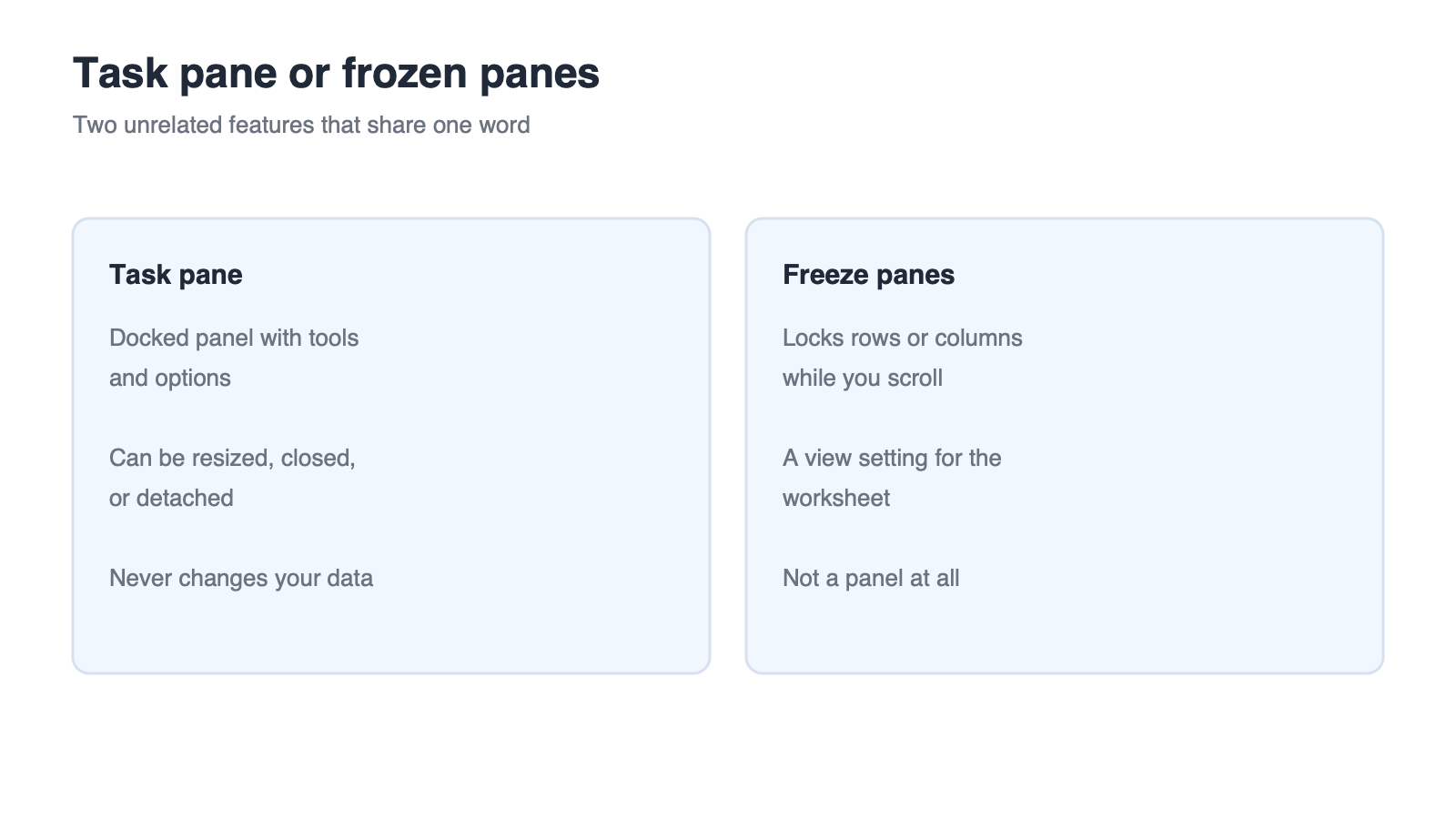
Task Pane vs Freeze Panes
A task pane is a docked control panel: it holds tools and options, it can be resized, moved, or closed, and it does not affect your data. Freezing panes in a spreadsheet locks rows or columns in place while you scroll, which is a data-view feature; the operations and shortcuts for that are covered separately in freeze panes in Excel. If the thing you are adjusting scrolls with the sheet, it is not a task pane.
Four Things You Can Change About a Pane
Width — drag the inner edge to give the panel more or less room.
Docked or floating — keep it attached to the window edge or detach it entirely.
Position — which side of the window, or which display, the pane occupies.
Visibility — close it when it is in the way and reopen it from the same command that opened it.
Panes Are Per-App
The panes available differ by application and by what is selected. A formatting pane for a picture is not the same panel as a navigation pane for the document, even though both are docked in the same place. Some panes only appear while a relevant object is selected, which is normal rather than a bug.
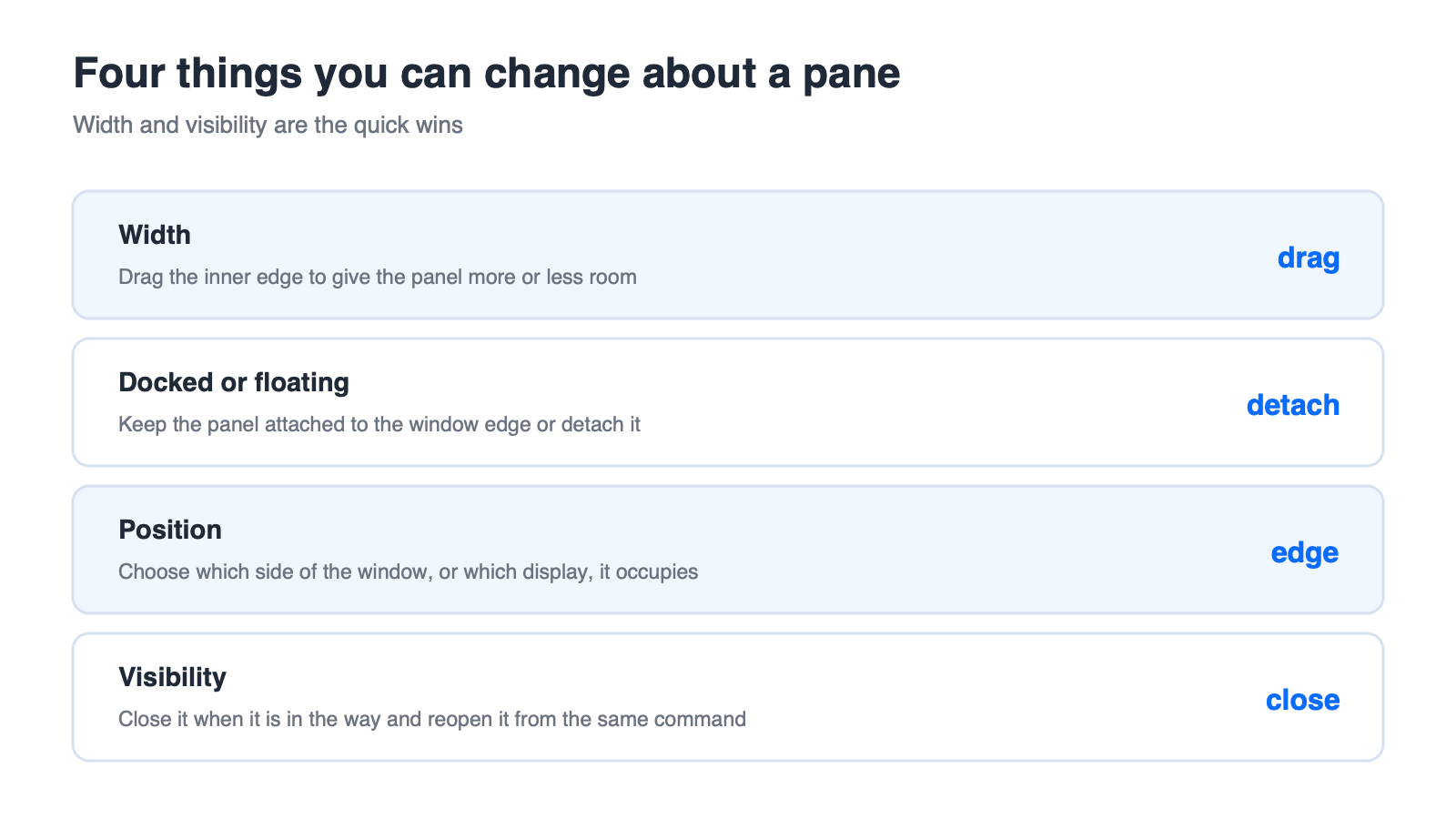
Four pane properties you can change


Identify the Pane You Are Managing in Each App
The steps for resizing are similar everywhere, but knowing which pane you are in tells you whether it will remember anything afterwards.
Word Processing: Format, Navigation, and Review Panes
Selecting an object — an image, a shape, a table — opens a format pane with its own controls. Navigation and review panes are opened from the ribbon instead, and are designed to stay open while you work through a long document.
Spreadsheets: Format and Selection Panes
Spreadsheet panes follow the same pattern: choose an object or a chart and a formatting pane appears; use the selection pane when several objects overlap and you need to reach the one underneath.
Presentations: Format, Animation, and Selection Panes
Presentation applications add the animation pane, which lists motion effects in order and is the pane most people end up repositioning. It behaves like the other panes when resized, and it closes independently of the slide you are editing.
How to Open Each One
Two routes cover almost every case: right-click the object and choose its format entry, or use the ribbon command for the panel you want. Closing a pane is safe — opening the same command brings it back, usually with the width it had before.
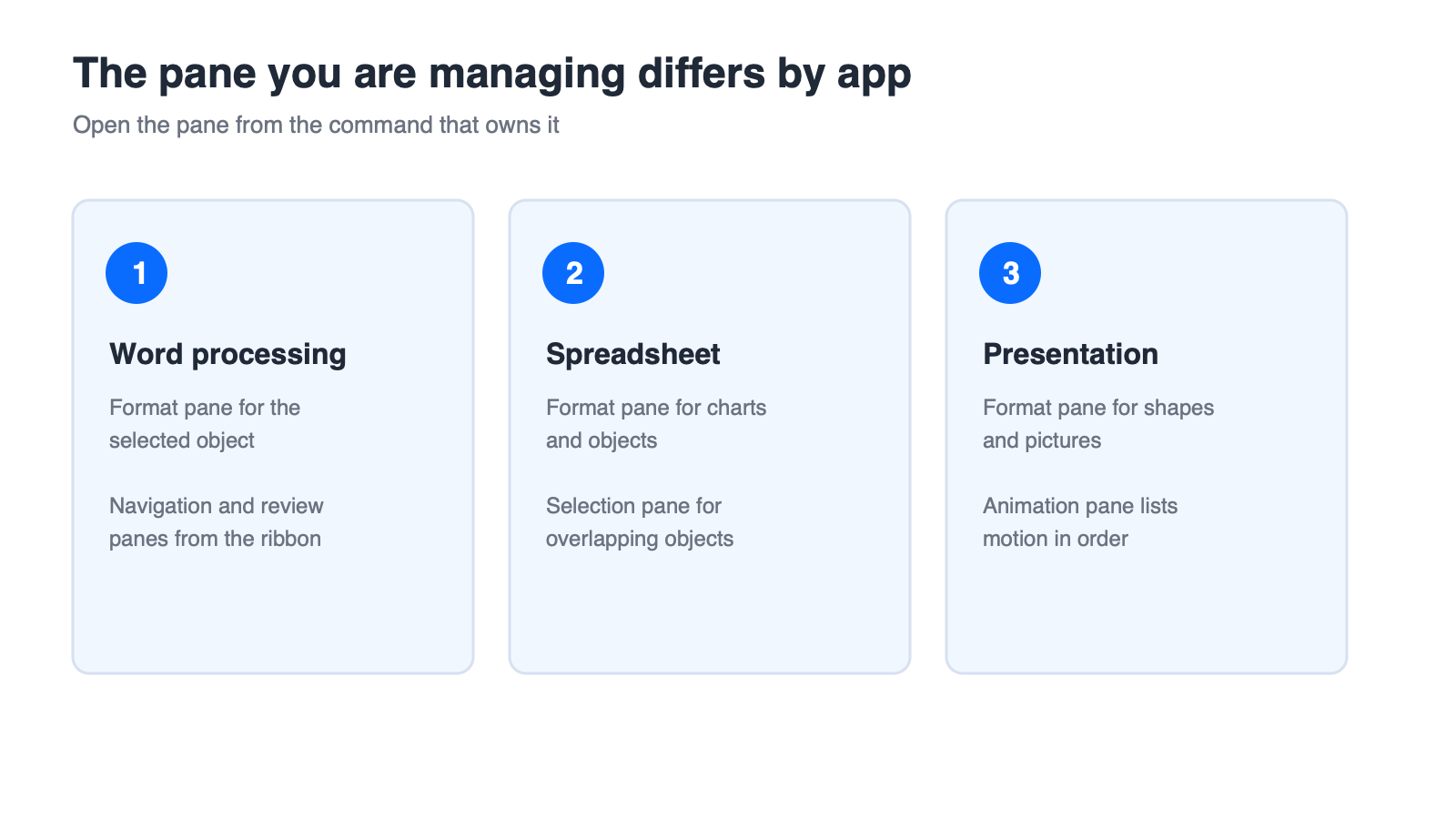
The pane you are managing differs by app
Resize, Float, and Redock a Task Pane
Each of the four actions below has a confirmation point. If you do not see it, the action did not register and you should repeat it rather than continuing.
Step 1: Resize by Dragging the Edge
Move the pointer over the inner edge of the pane until the resize cursor appears, then drag. The pane width follows the pointer; release when the panel width suits the work you are doing.
Step 2: Float the Pane
Use the drop-down arrow in the pane title bar and choose the move option, or drag the title bar away from the window edge. A floating pane detaches from the frame and can be placed over the editing area.
Step 3: Redock by Dragging to the Window Edge
Drag the floating pane towards a window edge and watch for the dock preview indicator. When the indicator appears, release: the pane snaps to that side. Releasing before the indicator appears leaves the pane floating.
Step 4: Check It Did Not Overlap Your Work Area
A docked pane reduces the editing width, which can hide the right-hand columns or push slide content off-centre. Confirm the pane width matches the layout you actually need before you start editing.
How to Reset a Messed-Up Layout
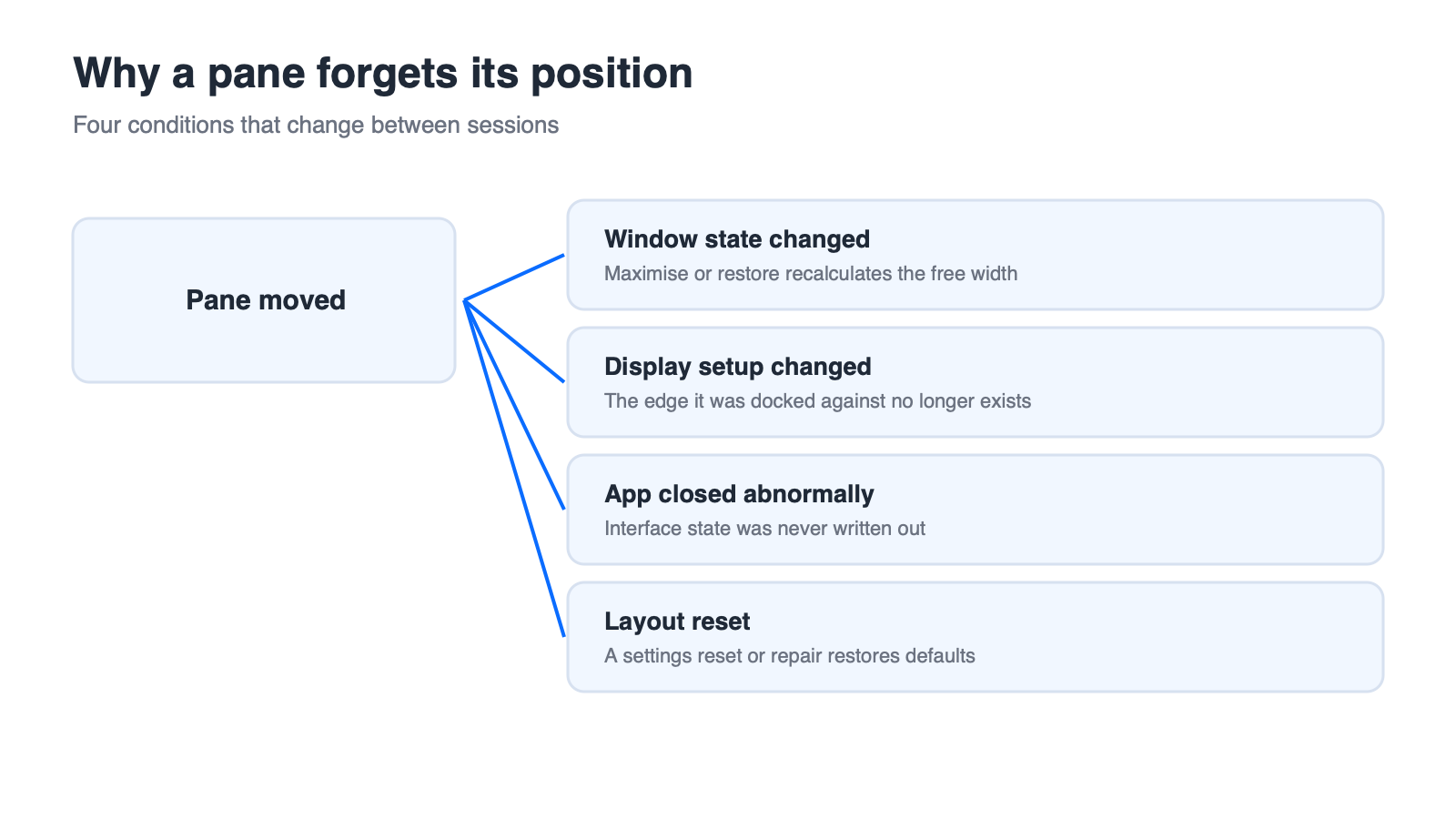
Drag the pane back to its usual side, maximise the window if the dock no longer has room, and close and reopen the pane to restore a default width. If you floated the pane onto a second display, redock it before you disconnect that display — otherwise the pane can reopen where it cannot be seen.
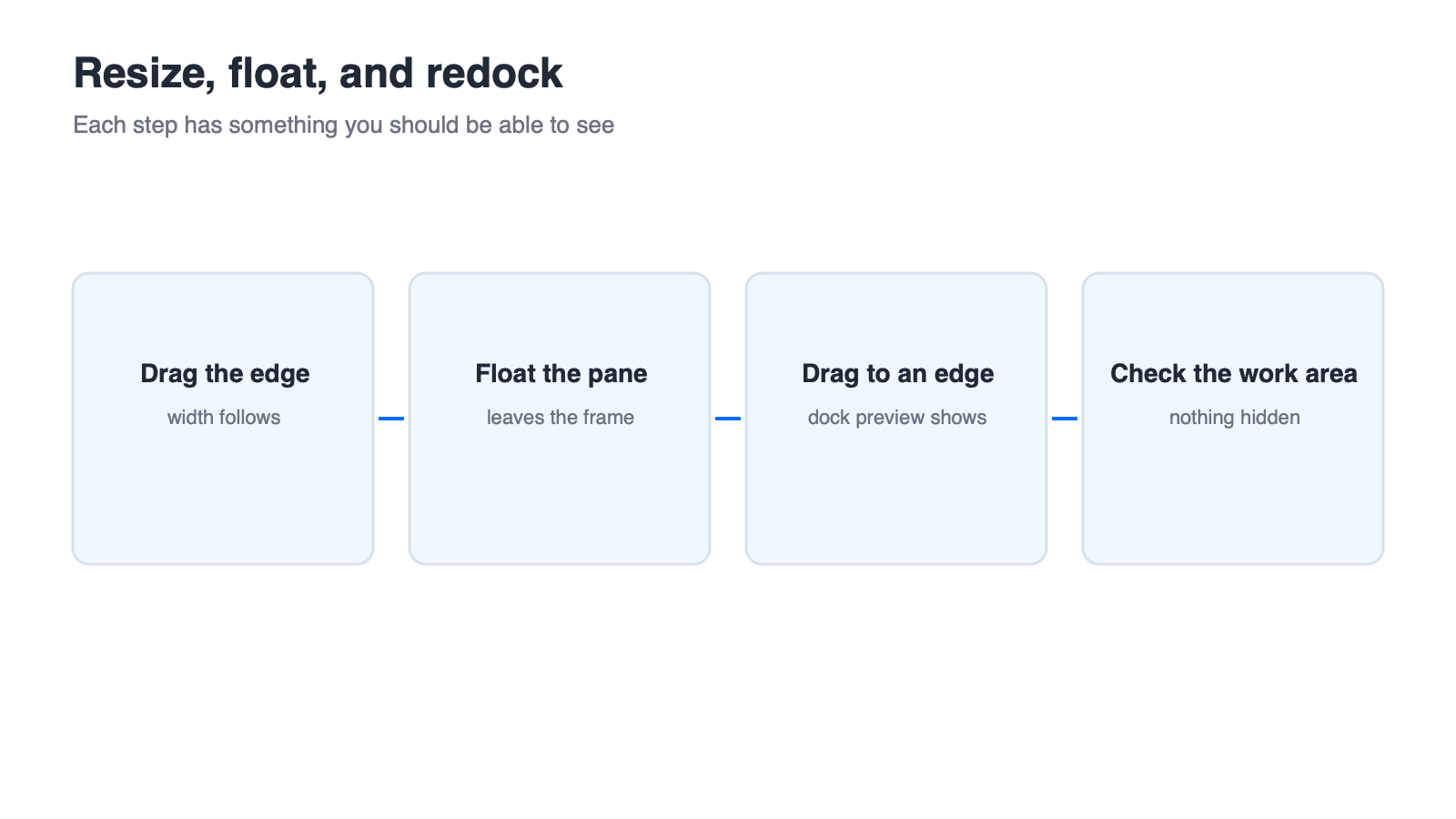
Resize float and redock a pane
WPS Office: What We Can Confirm About Task Panes
Pane behaviour is the kind of feature that is easy to overstate, so this section separates what the applications clearly do from what still needs testing.
Panes You Will See in WPS Writer, Spreadsheet, and Presentation
Selecting an object or running a formatting command opens a panel on the side of the window in each of the three applications. That panel can be closed and reopened through the same command, and it is the natural place to adjust properties for the object you selected.
Resize and Close Behaviour
Adjusting the panel width and closing it when it takes up too much room are the two actions worth standardising first, because they deliver most of the benefit and are easy to confirm on your own machine.
Floating and Position Memory: Verification Needed
Whether every pane can be detached from the window, whether it can be redocked to a specific edge, and whether the position survives a restart are all items to verify against your installed version and the official documentation. Do not assume that behaviour matches another product word for word.
Claims We Do Not Make
This guide does not claim that WPS Office panes float, redock, or remember their position in exactly the same way as another suite, and it does not claim that a pane layout is remembered after a restart. Four things are worth recording for your own environment: whether a pane can float, whether it can be redocked, whether its position survives closing the window, and whether it lands correctly when a second display is connected. WPS Office is available as a free download from wps.com if you want to run those checks yourself.
Sidebar panel open beside document



'%3e%3cpath%20d='M19.9911%204.11386V6.471H18.5894C18.0775%206.471%2017.7322%206.57814%2017.5536%206.79243C17.3751%207.00671%2017.2858%207.32814%2017.2858%207.75671V9.44421H19.9019L19.5536%2012.0871H17.2858V18.8639H14.5536V12.0871H12.2769V9.44421H14.5536V7.49779C14.5536%206.39064%2014.8632%205.53201%2015.4822%204.92189C16.1013%204.31177%2016.9257%204.00671%2017.9554%204.00671C18.8304%204.00671%2019.509%204.04243%2019.9911%204.11386Z'%20fill='%23333333'/%3e%3c/g%3e%3cdefs%3e%3cclipPath%20id='clip0_2938_8199'%3e%3crect%20width='16'%20height='16'%20fill='white'%20transform='translate(8%204.00671)'/%3e%3c/clipPath%3e%3c/defs%3e%3c/svg%3e)
'%3e%3cpath%20d='M17.5237%2010.7813L23.4811%204H22.0699L16.8949%209.88693L12.7648%204H8L14.2469%2012.9029L8%2020.0133H9.4112L14.8725%2013.7952L19.2352%2020.0133H24M9.92053%205.04213H12.0885L22.0688%2019.0224H19.9003'%20fill='%23333333'/%3e%3c/g%3e%3cdefs%3e%3cclipPath%20id='clip0_2938_8200'%3e%3crect%20width='16'%20height='16.0134'%20fill='white'%20transform='translate(8%204)'/%3e%3c/clipPath%3e%3c/defs%3e%3c/svg%3e)


