

'%3e%3cpath%20d='M8%200C12.4183%200%2016%203.58172%2016%208C16%2012.4183%2012.4183%2016%208%2016C3.58172%2016%200%2012.4183%200%208C0%203.58172%203.58172%200%208%200ZM11.6162%204.38379C11.2257%203.99337%2010.5927%203.99338%2010.2021%204.38379L8%206.58594L5.79785%204.38379C5.40732%203.99334%204.77429%203.99329%204.38379%204.38379C3.99331%204.77429%203.99335%205.40733%204.38379%205.79785L6.58594%208L4.38379%2010.2021C3.99348%2010.5927%203.99341%2011.2257%204.38379%2011.6162C4.77426%2012.0066%205.40734%2012.0065%205.79785%2011.6162L8%209.41406L10.2021%2011.6162C10.5927%2012.0066%2011.2257%2012.0067%2011.6162%2011.6162C12.0067%2011.2257%2012.0066%2010.5927%2011.6162%2010.2021L9.41406%208L11.6162%205.79785C12.0066%205.40735%2012.0066%204.77429%2011.6162%204.38379Z'%20fill='%23080E17'%20fill-opacity='0.46'/%3e%3c/g%3e%3cdefs%3e%3cclipPath%20id='clip0_3761_713'%3e%3crect%20width='16'%20height='16'%20fill='white'/%3e%3c/clipPath%3e%3c/defs%3e%3c/svg%3e)




'%3e%3cpath%20fill-rule='evenodd'%20clip-rule='evenodd'%20d='M21.4999%2010.9993C21.4999%205.20009%2016.7986%200.498901%2010.9993%200.498901C5.19994%200.498901%200.498657%205.20009%200.498657%2010.9993C0.498657%2016.2404%204.33858%2020.5844%209.35855%2021.3722V14.0346H6.69238V10.9993H9.35855V8.68594C9.35855%206.05427%2010.9262%204.60062%2013.3248%204.60062C14.4736%204.60062%2015.6753%204.80571%2015.6753%204.80571V7.38979H14.3512C13.0468%207.38979%2012.64%208.19921%2012.64%209.0296V10.9993H15.5523L15.0867%2014.0346H12.64V21.3722C17.66%2020.5844%2021.4999%2016.2404%2021.4999%2010.9993Z'%20fill='%231568EA'/%3e%3c/g%3e%3c/svg%3e)


'%3e%3cpath%20d='M2.42045%2022.1876H6.31818V12.7217L0.75%208.54553V20.5171C0.75%2021.4414%201.49892%2022.1876%202.42045%2022.1876Z'%20fill='%234285F4'/%3e%3cpath%20d='M19.682%2022.1876H23.5797C24.5041%2022.1876%2025.2502%2021.4387%2025.2502%2020.5171V8.54553L19.682%2012.7217'%20fill='%2334A853'/%3e%3cpath%20d='M19.682%205.48293V12.7216L25.2502%208.54543V6.31816C25.2502%204.25236%2022.8921%203.07469%2021.2411%204.31361'%20fill='%23FBBC04'/%3e%3cpath%20d='M6.31824%2012.7217V5.48303L13.0001%2010.4944L19.6819%205.48303V12.7217L13.0001%2017.733'%20fill='%23EA4335'/%3e%3cpath%20d='M0.75%206.31816V8.54543L6.31818%2012.7216V5.48293L4.75909%204.31361C3.10534%203.07469%200.75%204.25236%200.75%206.31816Z'%20fill='%23C5221F'/%3e%3c/g%3e%3cdefs%3e%3cclipPath%20id='clip0_2954_7305'%3e%3crect%20width='24.5'%20height='18.375'%20fill='white'%20transform='translate(0.75%203.8125)'/%3e%3c/clipPath%3e%3c/defs%3e%3c/svg%3e)


Need to point out a mistake in an app, hide private details, or prepare an image for a report? You can edit a screenshot online in a couple of minutes without installing anything. A browser-based editor lets you crop, annotate, blur, and export right from any device.
This guide walks through why online editing works so well for quick fixes, a step-by-step workflow you can reuse, and the edit options that matter most. It also covers WPS Office as a free desktop alternative when you need deeper editing tools.
How to Edit a Screenshot Online for Free
Why Edit a Screenshot Online?
A raw screenshot is rarely ready to share. It may include sensitive names, extra toolbars, or details nobody needs. An online screenshot editor fixes this in one place: you open a page, drop the image in, and use annotation, crop, and blur tools immediately.
The main advantages are speed and access. There is nothing to install, no account is required on most tools, and the same workflow works on Windows, Mac, Linux, and even a borrowed computer. That makes online editing ideal for bug reports, invoices, chat messages, and training material.
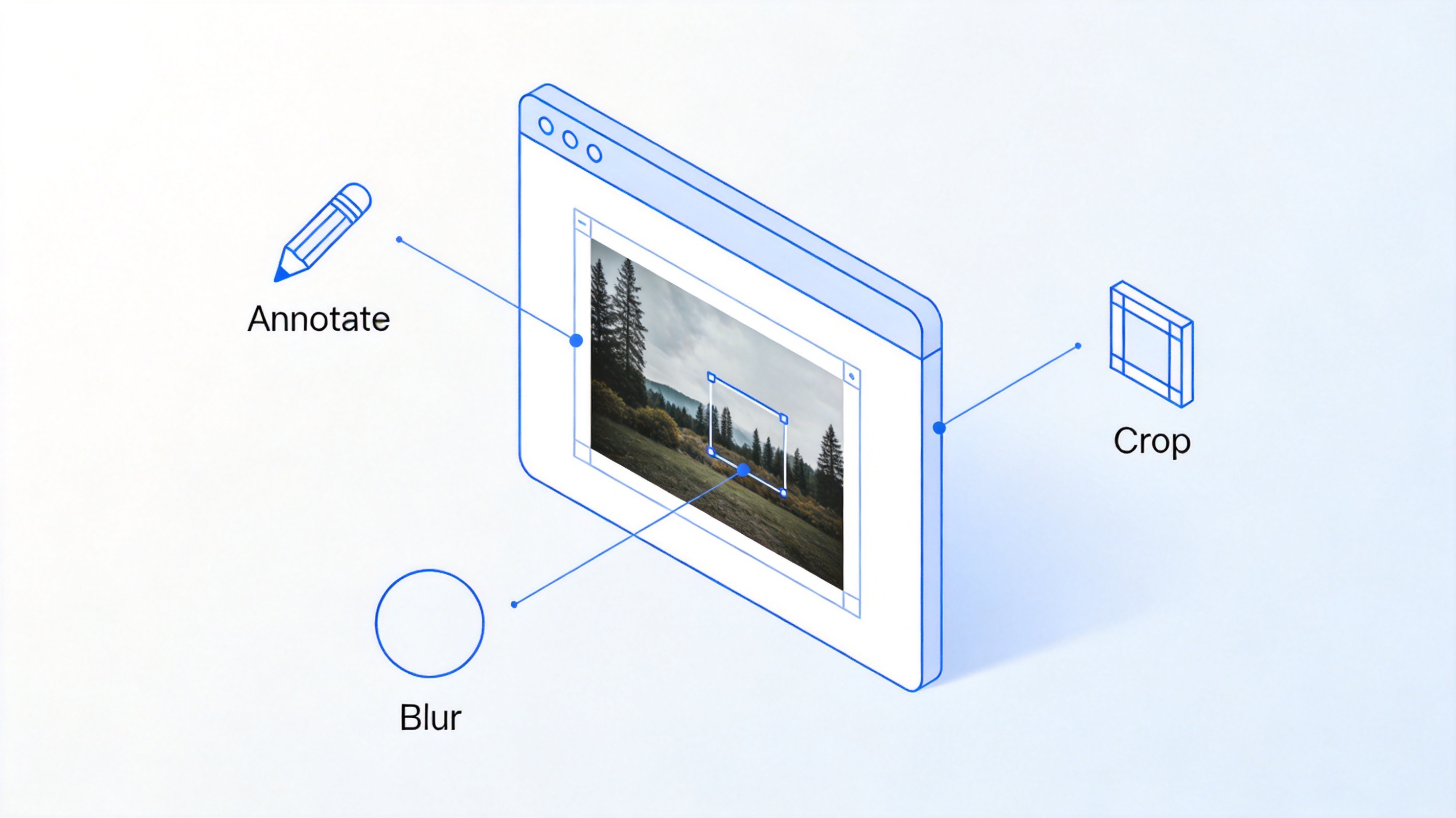
Annotate crop blur screenshot online


How to Edit a Screenshot Online Step by Step
The exact buttons differ between editors, but the workflow is nearly identical everywhere. Here is the fastest path from raw capture to a finished image.
Capture or collect your screenshot. Take a new capture with your system shortcut, or locate the saved PNG or JPG file you want to fix.
Open the online editor. Go to a free screenshot editor in your browser. No installation or signup is needed for most tools.
Upload or paste the image. Drag the file onto the canvas, click to browse, or press Ctrl + V to paste directly from your clipboard.
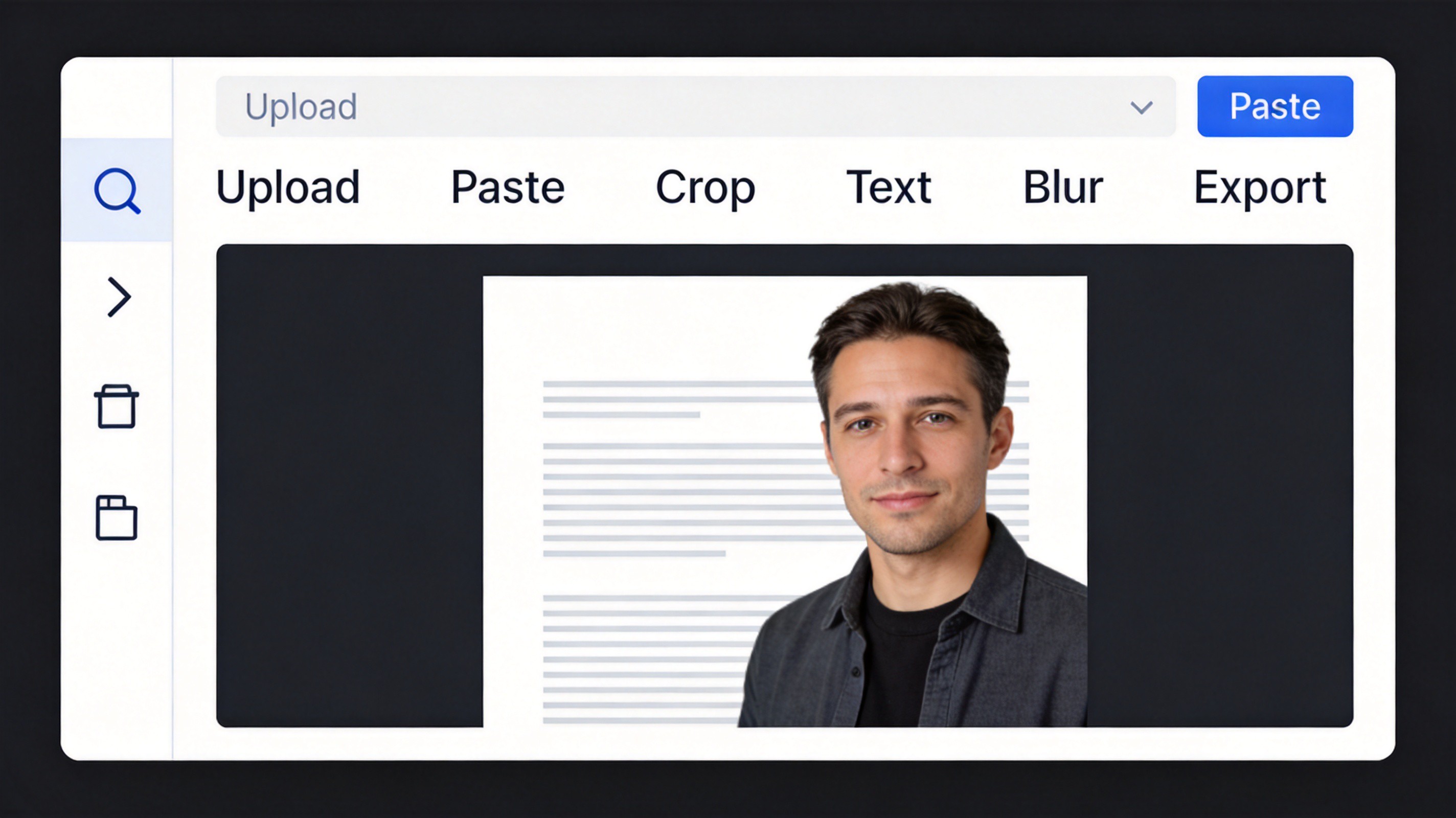
Upload screenshot to online editor
Crop away everything irrelevant. Select the crop tool and drag a frame around the region that matters. Tighter images are easier to read and look more professional.
Annotate the key point. Add an arrow, a box, or a short text label so the viewer instantly sees what you want them to notice.
Blur or redact private details. Apply a blur or pixelate brush over emails, account numbers, and messages before sharing.
Export the finished file. Download the image as PNG or JPG, or copy it straight back to your clipboard for pasting into a document or chat.
Most basic edits take under two minutes once you have done them once. If you capture screenshots regularly, keep one trusted editor bookmarked so the workflow stays consistent.
What You Can Do When You Edit a Screenshot Online
Online editors cover the three jobs that make up almost every screenshot fix: adding context, trimming noise, and protecting privacy.
Add arrows and text. Point at the exact button or error message and label it, so a support team or colleague needs no explanation.
Crop and reframe. Remove browser tabs, desktop icons, and dead space so only the relevant window remains.
Redact sensitive content. Blur or pixelate names, addresses, and tokens before the image leaves your device.
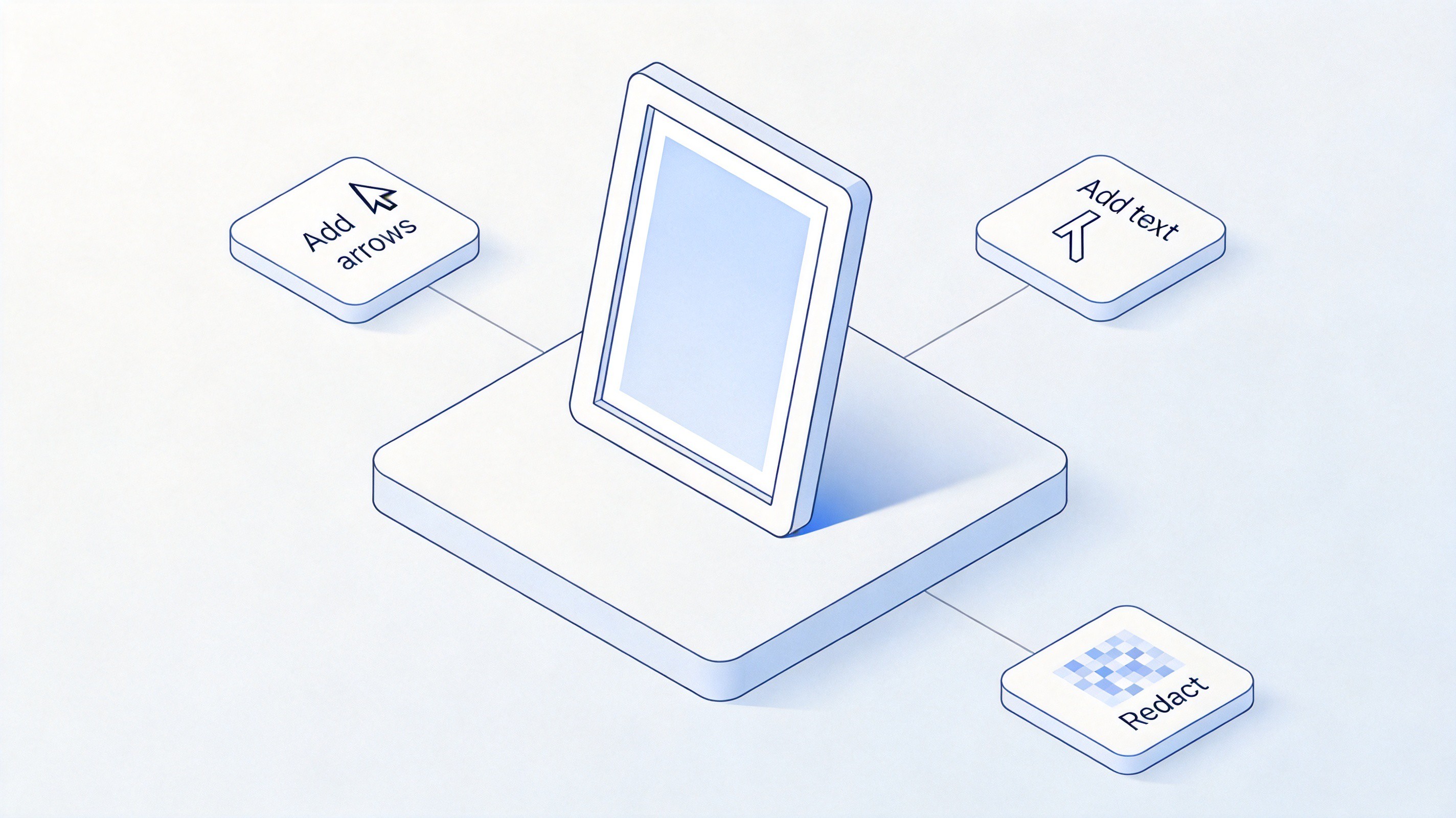
Add arrows text redact screenshots
Some editors also offer beautify options such as rounded corners, drop shadows, and colored backgrounds. These are useful when a screenshot is going into a blog post, a slide deck, or documentation where a polished look matters.
The Best Free Alternative: WPS Office for Screenshot Editing
Online editors are perfect for one-off fixes, but if you edit screenshots often, WPS Office keeps everything in one free desktop app. You can capture the screen, drop the image into a document, and polish it without switching between tools.
Insert the screenshot. Open a WPS Writer document, go to Insert > Picture, and choose your saved capture.
Open the picture tools. Click the image and the WPS picture toolbar appears with crop, border, and compress options.
Crop and adjust. Drag the crop handles to trim the image, then apply borders or compression for smaller file sizes.
Annotate on top. Use shapes, arrows, and text boxes from the Insert tab to label the screenshot directly in your document.
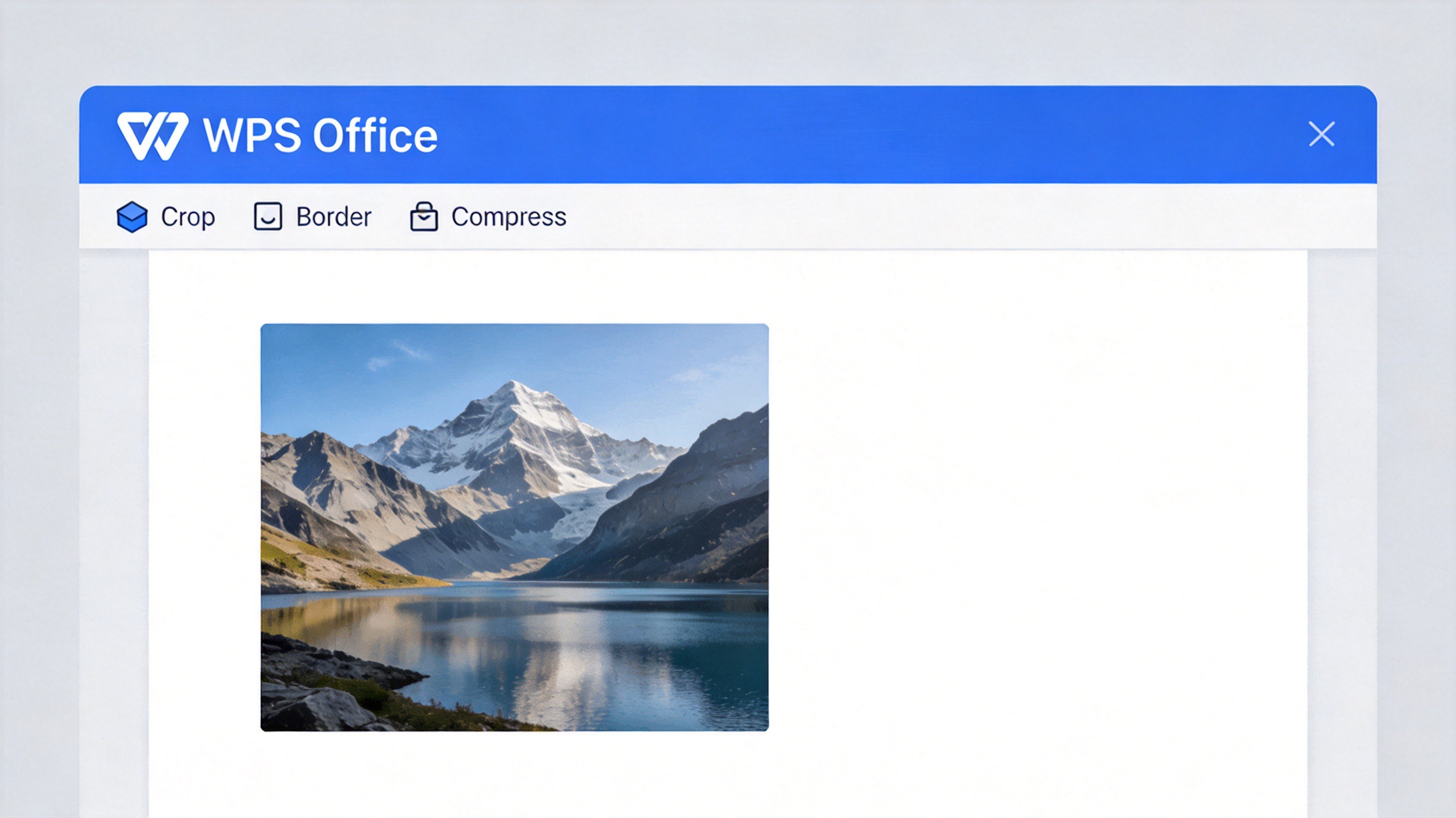
Edit screenshots with WPS picture tools
Because the screenshot lives inside your document, the annotated version is immediately ready for reports, tutorials, or presentations. WPS Office is free to download and works with Word, Excel, and PowerPoint file formats.
FAQs
Is it safe to edit a screenshot online?
For most screenshots, yes. Reputable editors process images in your browser or delete uploads shortly after editing. If the screenshot contains highly sensitive data such as passwords or financial records, prefer a tool that advertises local browser-only processing, or edit offline in an app like WPS Office.
Can I edit a screenshot online without installing software?
Yes. Browser-based editors run entirely in a tab. You upload or paste the image, use the toolbar to crop, annotate, and blur, then download the result. Nothing is installed on your computer.
How do I blur part of a screenshot?
Select the blur or pixelate tool in the editor, then brush over the area you want to hide. Cover the full text or face in a single pass, and export only after the region is unreadable.
What file format should I use when exporting an edited screenshot?
PNG is the best default for screenshots because it keeps text and interface lines sharp. JPG is acceptable for photographs inside a screenshot, but it can add slight blur around small text.
Can I edit a screenshot on my phone?
Yes. Most online editors work in mobile browsers, and phones also include built-in markup tools for quick annotation. For longer edits, the larger screen of a computer makes precise cropping and labeling easier.


'%3e%3cpath%20d='M19.9911%204.11386V6.471H18.5894C18.0775%206.471%2017.7322%206.57814%2017.5536%206.79243C17.3751%207.00671%2017.2858%207.32814%2017.2858%207.75671V9.44421H19.9019L19.5536%2012.0871H17.2858V18.8639H14.5536V12.0871H12.2769V9.44421H14.5536V7.49779C14.5536%206.39064%2014.8632%205.53201%2015.4822%204.92189C16.1013%204.31177%2016.9257%204.00671%2017.9554%204.00671C18.8304%204.00671%2019.509%204.04243%2019.9911%204.11386Z'%20fill='%23333333'/%3e%3c/g%3e%3cdefs%3e%3cclipPath%20id='clip0_2938_8199'%3e%3crect%20width='16'%20height='16'%20fill='white'%20transform='translate(8%204.00671)'/%3e%3c/clipPath%3e%3c/defs%3e%3c/svg%3e)
'%3e%3cpath%20d='M17.5237%2010.7813L23.4811%204H22.0699L16.8949%209.88693L12.7648%204H8L14.2469%2012.9029L8%2020.0133H9.4112L14.8725%2013.7952L19.2352%2020.0133H24M9.92053%205.04213H12.0885L22.0688%2019.0224H19.9003'%20fill='%23333333'/%3e%3c/g%3e%3cdefs%3e%3cclipPath%20id='clip0_2938_8200'%3e%3crect%20width='16'%20height='16.0134'%20fill='white'%20transform='translate(8%204)'/%3e%3c/clipPath%3e%3c/defs%3e%3c/svg%3e)


