

'%3e%3cpath%20d='M8%200C12.4183%200%2016%203.58172%2016%208C16%2012.4183%2012.4183%2016%208%2016C3.58172%2016%200%2012.4183%200%208C0%203.58172%203.58172%200%208%200ZM11.6162%204.38379C11.2257%203.99337%2010.5927%203.99338%2010.2021%204.38379L8%206.58594L5.79785%204.38379C5.40732%203.99334%204.77429%203.99329%204.38379%204.38379C3.99331%204.77429%203.99335%205.40733%204.38379%205.79785L6.58594%208L4.38379%2010.2021C3.99348%2010.5927%203.99341%2011.2257%204.38379%2011.6162C4.77426%2012.0066%205.40734%2012.0065%205.79785%2011.6162L8%209.41406L10.2021%2011.6162C10.5927%2012.0066%2011.2257%2012.0067%2011.6162%2011.6162C12.0067%2011.2257%2012.0066%2010.5927%2011.6162%2010.2021L9.41406%208L11.6162%205.79785C12.0066%205.40735%2012.0066%204.77429%2011.6162%204.38379Z'%20fill='%23080E17'%20fill-opacity='0.46'/%3e%3c/g%3e%3cdefs%3e%3cclipPath%20id='clip0_3761_713'%3e%3crect%20width='16'%20height='16'%20fill='white'/%3e%3c/clipPath%3e%3c/defs%3e%3c/svg%3e)




'%3e%3cpath%20fill-rule='evenodd'%20clip-rule='evenodd'%20d='M21.4999%2010.9993C21.4999%205.20009%2016.7986%200.498901%2010.9993%200.498901C5.19994%200.498901%200.498657%205.20009%200.498657%2010.9993C0.498657%2016.2404%204.33858%2020.5844%209.35855%2021.3722V14.0346H6.69238V10.9993H9.35855V8.68594C9.35855%206.05427%2010.9262%204.60062%2013.3248%204.60062C14.4736%204.60062%2015.6753%204.80571%2015.6753%204.80571V7.38979H14.3512C13.0468%207.38979%2012.64%208.19921%2012.64%209.0296V10.9993H15.5523L15.0867%2014.0346H12.64V21.3722C17.66%2020.5844%2021.4999%2016.2404%2021.4999%2010.9993Z'%20fill='%231568EA'/%3e%3c/g%3e%3c/svg%3e)


'%3e%3cpath%20d='M2.42045%2022.1876H6.31818V12.7217L0.75%208.54553V20.5171C0.75%2021.4414%201.49892%2022.1876%202.42045%2022.1876Z'%20fill='%234285F4'/%3e%3cpath%20d='M19.682%2022.1876H23.5797C24.5041%2022.1876%2025.2502%2021.4387%2025.2502%2020.5171V8.54553L19.682%2012.7217'%20fill='%2334A853'/%3e%3cpath%20d='M19.682%205.48293V12.7216L25.2502%208.54543V6.31816C25.2502%204.25236%2022.8921%203.07469%2021.2411%204.31361'%20fill='%23FBBC04'/%3e%3cpath%20d='M6.31824%2012.7217V5.48303L13.0001%2010.4944L19.6819%205.48303V12.7217L13.0001%2017.733'%20fill='%23EA4335'/%3e%3cpath%20d='M0.75%206.31816V8.54543L6.31818%2012.7216V5.48293L4.75909%204.31361C3.10534%203.07469%200.75%204.25236%200.75%206.31816Z'%20fill='%23C5221F'/%3e%3c/g%3e%3cdefs%3e%3cclipPath%20id='clip0_2954_7305'%3e%3crect%20width='24.5'%20height='18.375'%20fill='white'%20transform='translate(0.75%203.8125)'/%3e%3c/clipPath%3e%3c/defs%3e%3c/svg%3e)


Every email and signed document ends with a signature, and a sloppy one — plain text, misaligned fonts, a broken logo — quietly undermines the message above it. An HTML signature solves this by packaging your name, contact details, and branding into clean, copy-paste-ready code that looks the same in every inbox. Building that code by hand is tedious, which is where a signature generator comes in.
In this guide, we introduce the top 3 free HTML signature generators — Exclaimer, DocuSign, and DocHub — explain what each does well and where it falls short, and finish with a free way to sign your documents once the signature is ready.
Top 3 Free HTML Signature Generators to Create Signatures Online
What Is an HTML Signature Generator?
An HTML signature generator is a web tool that turns your contact details into a formatted HTML signature block you can paste into an email client or an electronic document. Instead of writing table layouts and inline styles yourself, you fill in a form and the generator outputs the markup, with your logo, social icons, and typography preserved across Gmail, Outlook, and Apple Mail.
A typical generator covers three jobs:
Collect your details — name, job title, company, phone, email, and website.
Assemble the HTML — the tool wraps the data in a table-based layout with inline styles that survive strict email clients.
Output a reusable signature — you copy the code or the rendered block into your email settings or insert it into documents you need to sign.
The same idea applies beyond email: once you have a signature block or a signature image, you can drop it into contracts and PDFs. For the document side, see what a signature is and how to create one; for ready-made email layouts, our email signature generator comparison covers four more tools.
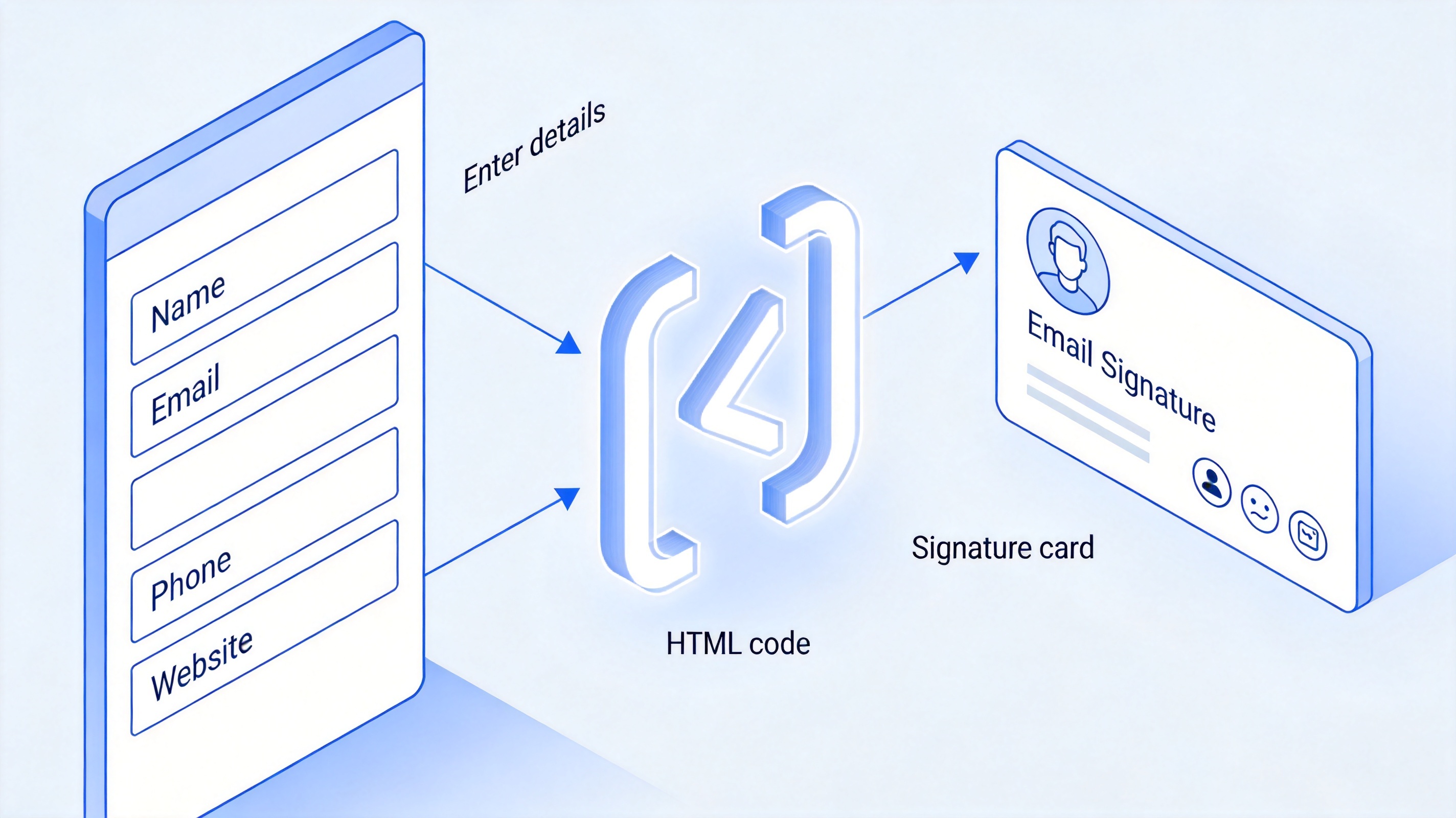
How an HTML signature generator works


Top 3 Free HTML Signature Generators
The three tools below were picked for the same criteria: a genuinely free entry point, clean HTML output, and legal validity for the signatures they produce. Each takes a different route — one builds email signature blocks, two focus on signing documents online.
1. Exclaimer Free Signature
Exclaimer's free signature generator is the pick if your signature is the block at the bottom of an email. You fill in your details — name, phone and fax numbers, email address, job title, and more — and it assembles a professional HTML signature that works for personal, corporate, and social-media scenarios. The trade-off is the interface: it is form-heavy and not the most intuitive of the three, so expect a few minutes of clicking through sections such as Company Details, Social, and Other Info before the preview looks right.
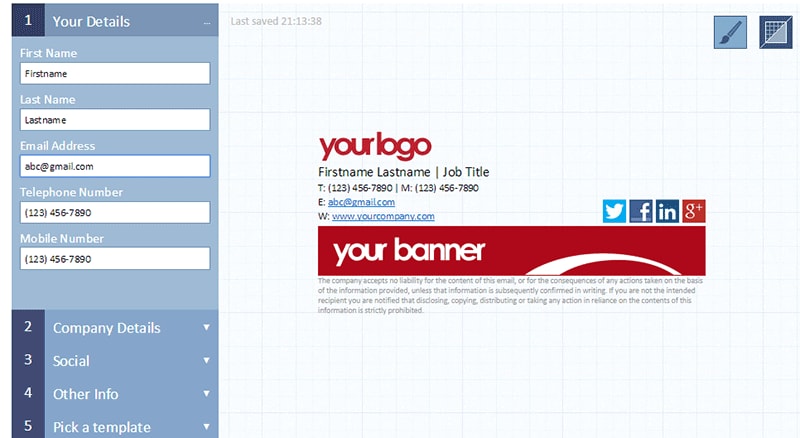
Exclaimer signature generator details form
2. DocuSign
DocuSign takes the document route. You do not need to download any software or sign any agreement to start, and the signatures you create are legally accepted and enforceable around the world. The workflow is simple: upload a document, adopt your signature by drawing or selecting a style, and place it on the signature line. DocuSign is free to use for 30 days, which is comfortably enough to generate and place an HTML signature for a one-off signing task.
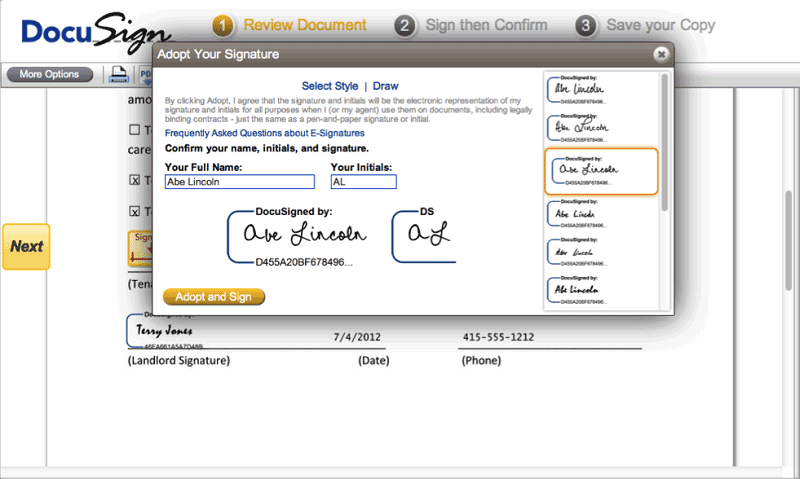
DocuSign adopt your signature window
3. DocHub
DocHub combines both jobs in one tool. Individuals and businesses use it to generate legally binding HTML signatures, and beyond signing it doubles as a PDF editor with form-filling, templates you can start from, document tracking, and secure storage. It holds a 4.5/5 rating on G2 and works entirely in the browser, which makes it the most versatile of the three when a signature is only part of the task.
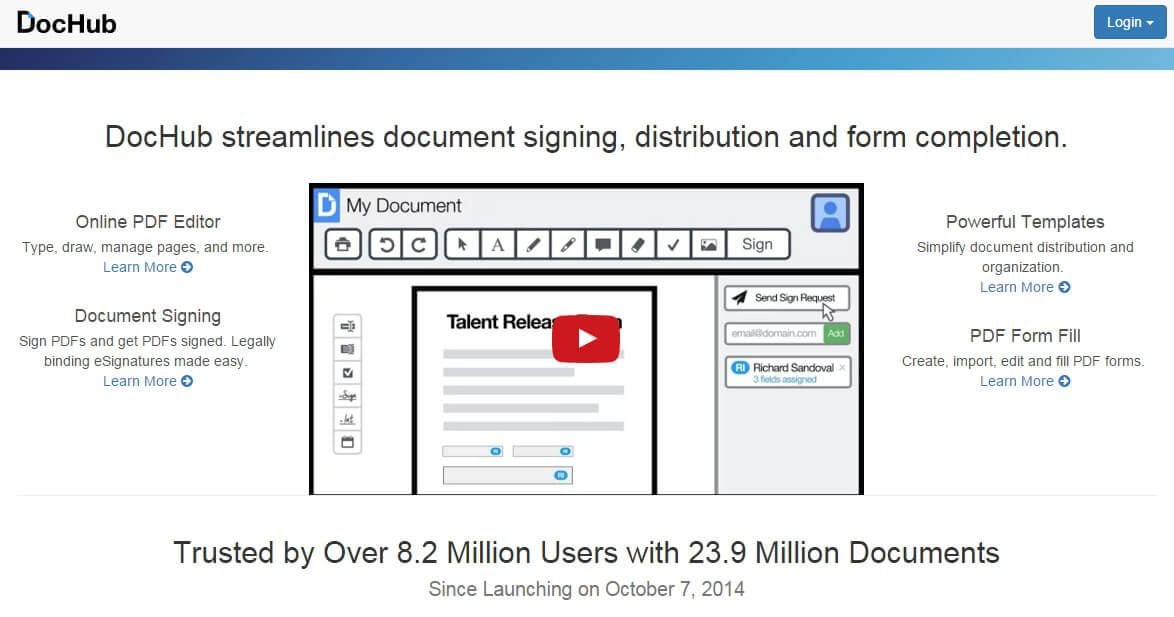
DocHub online document signing platform
The Best Free Alternative: WPS Office for Signing Documents
Online generators are handy for one-off signatures, but they stop at the browser: DocuSign's free access runs out after 30 days, and uploading contracts to a third-party site is not always an option for sensitive documents. WPS Office covers the same ground offline and for free — create the document in Writer, insert a signature image or signature line, and fill and sign PDFs with the built-in Fill & Sign tools on Windows, macOS, and mobile.
A practical way to combine the two:
Generate the signature with any tool above and copy the HTML block or save the signature image.
Insert it in WPS Writer where a signature is needed, following how to add a signature in Word.
Sign the PDF directly in WPS with Fill & Sign — the full workflow is in how to write on and sign a PDF, and the no-Adobe route is covered in how to add a signature to a PDF without Adobe.
Because WPS Office is a full suite rather than a signing portal, the contracts, invoices, and forms you sign stay on your machine, and there is no subscription behind the signature features.
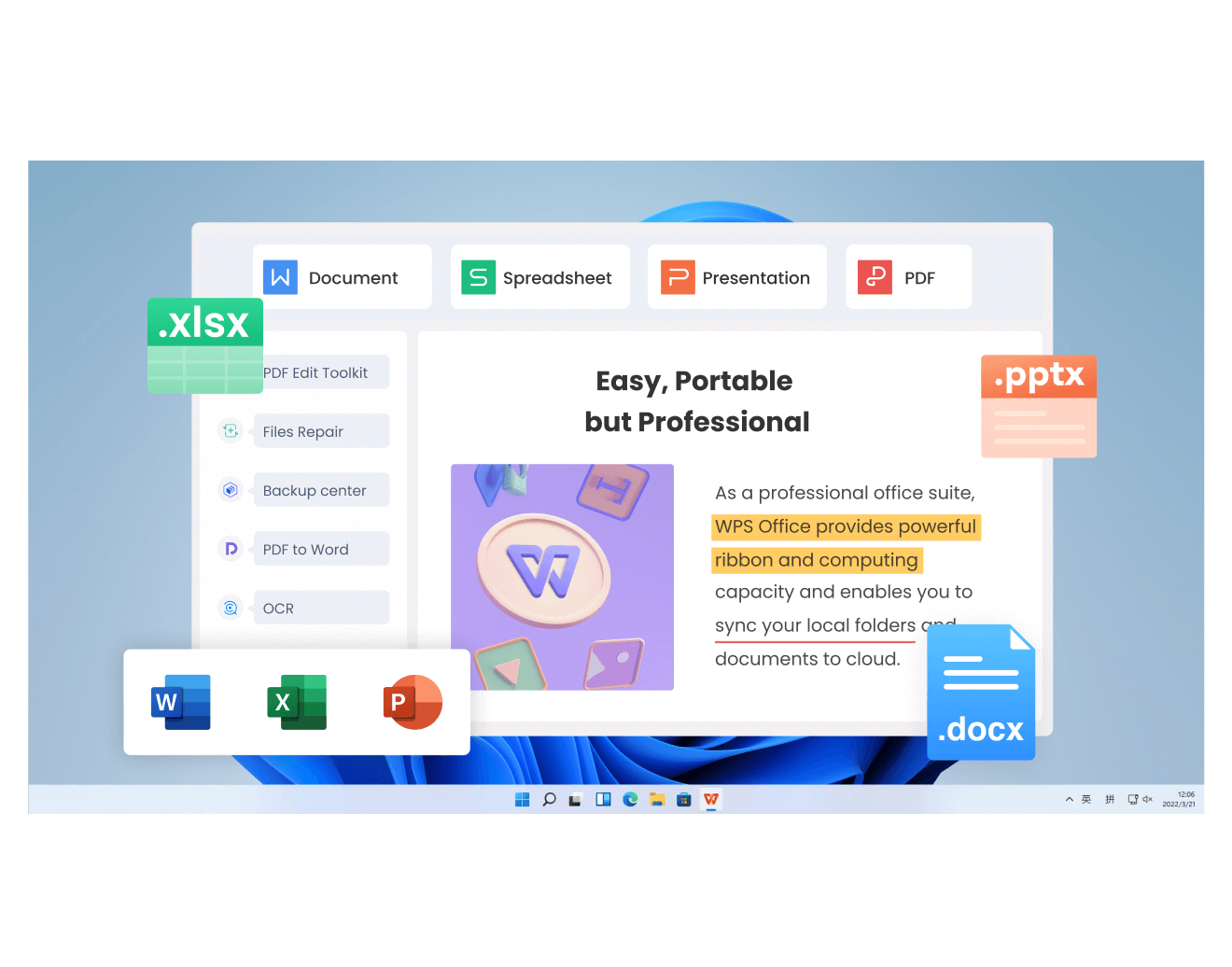
Sign documents in WPS Office for free
FAQs
Are HTML signature generators really free?
The three tools above all let you create a signature without paying up front. Exclaimer's generator is free for a single signature, DocuSign is free for 30 days, and DocHub offers a free tier for basic signing. The paid plans mainly add team management, branding control, and higher volume limits.
Is an HTML signature legally binding?
Yes. Under laws such as the U.S. ESIGN Act and the EU eIDAS regulation, an electronic signature cannot be denied legal effect just because it is digital. The underlying agreement and the signer's intent still matter, which is why platforms like DocuSign record an audit trail.
How do I add my generated HTML signature to Gmail or Outlook?
Copy the HTML the generator produces, open your email client's signature settings — in Gmail: Settings, then See all settings, then Signature — and paste the block in. Send yourself a test email afterward to confirm the layout survives, especially on mobile.
What is the difference between an HTML signature and a drawn signature?
An HTML signature is a formatted contact block at the end of an email or document; a drawn or image signature is the handwritten mark itself. Many documents use both: the HTML block identifies you, and the drawn signature seals the document.
Can I use the same signature on my phone?
Yes, but simplify it. Strip the banner and extra social icons for the mobile version and keep name, title, and phone. A signature that looks great on a desktop screen often turns into broken images on a phone.


'%3e%3cpath%20d='M19.9911%204.11386V6.471H18.5894C18.0775%206.471%2017.7322%206.57814%2017.5536%206.79243C17.3751%207.00671%2017.2858%207.32814%2017.2858%207.75671V9.44421H19.9019L19.5536%2012.0871H17.2858V18.8639H14.5536V12.0871H12.2769V9.44421H14.5536V7.49779C14.5536%206.39064%2014.8632%205.53201%2015.4822%204.92189C16.1013%204.31177%2016.9257%204.00671%2017.9554%204.00671C18.8304%204.00671%2019.509%204.04243%2019.9911%204.11386Z'%20fill='%23333333'/%3e%3c/g%3e%3cdefs%3e%3cclipPath%20id='clip0_2938_8199'%3e%3crect%20width='16'%20height='16'%20fill='white'%20transform='translate(8%204.00671)'/%3e%3c/clipPath%3e%3c/defs%3e%3c/svg%3e)
'%3e%3cpath%20d='M17.5237%2010.7813L23.4811%204H22.0699L16.8949%209.88693L12.7648%204H8L14.2469%2012.9029L8%2020.0133H9.4112L14.8725%2013.7952L19.2352%2020.0133H24M9.92053%205.04213H12.0885L22.0688%2019.0224H19.9003'%20fill='%23333333'/%3e%3c/g%3e%3cdefs%3e%3cclipPath%20id='clip0_2938_8200'%3e%3crect%20width='16'%20height='16.0134'%20fill='white'%20transform='translate(8%204)'/%3e%3c/clipPath%3e%3c/defs%3e%3c/svg%3e)


