

'%3e%3cpath%20d='M8%200C12.4183%200%2016%203.58172%2016%208C16%2012.4183%2012.4183%2016%208%2016C3.58172%2016%200%2012.4183%200%208C0%203.58172%203.58172%200%208%200ZM11.6162%204.38379C11.2257%203.99337%2010.5927%203.99338%2010.2021%204.38379L8%206.58594L5.79785%204.38379C5.40732%203.99334%204.77429%203.99329%204.38379%204.38379C3.99331%204.77429%203.99335%205.40733%204.38379%205.79785L6.58594%208L4.38379%2010.2021C3.99348%2010.5927%203.99341%2011.2257%204.38379%2011.6162C4.77426%2012.0066%205.40734%2012.0065%205.79785%2011.6162L8%209.41406L10.2021%2011.6162C10.5927%2012.0066%2011.2257%2012.0067%2011.6162%2011.6162C12.0067%2011.2257%2012.0066%2010.5927%2011.6162%2010.2021L9.41406%208L11.6162%205.79785C12.0066%205.40735%2012.0066%204.77429%2011.6162%204.38379Z'%20fill='%23080E17'%20fill-opacity='0.46'/%3e%3c/g%3e%3cdefs%3e%3cclipPath%20id='clip0_3761_713'%3e%3crect%20width='16'%20height='16'%20fill='white'/%3e%3c/clipPath%3e%3c/defs%3e%3c/svg%3e)




'%3e%3cpath%20fill-rule='evenodd'%20clip-rule='evenodd'%20d='M21.4999%2010.9993C21.4999%205.20009%2016.7986%200.498901%2010.9993%200.498901C5.19994%200.498901%200.498657%205.20009%200.498657%2010.9993C0.498657%2016.2404%204.33858%2020.5844%209.35855%2021.3722V14.0346H6.69238V10.9993H9.35855V8.68594C9.35855%206.05427%2010.9262%204.60062%2013.3248%204.60062C14.4736%204.60062%2015.6753%204.80571%2015.6753%204.80571V7.38979H14.3512C13.0468%207.38979%2012.64%208.19921%2012.64%209.0296V10.9993H15.5523L15.0867%2014.0346H12.64V21.3722C17.66%2020.5844%2021.4999%2016.2404%2021.4999%2010.9993Z'%20fill='%231568EA'/%3e%3c/g%3e%3c/svg%3e)


'%3e%3cpath%20d='M2.42045%2022.1876H6.31818V12.7217L0.75%208.54553V20.5171C0.75%2021.4414%201.49892%2022.1876%202.42045%2022.1876Z'%20fill='%234285F4'/%3e%3cpath%20d='M19.682%2022.1876H23.5797C24.5041%2022.1876%2025.2502%2021.4387%2025.2502%2020.5171V8.54553L19.682%2012.7217'%20fill='%2334A853'/%3e%3cpath%20d='M19.682%205.48293V12.7216L25.2502%208.54543V6.31816C25.2502%204.25236%2022.8921%203.07469%2021.2411%204.31361'%20fill='%23FBBC04'/%3e%3cpath%20d='M6.31824%2012.7217V5.48303L13.0001%2010.4944L19.6819%205.48303V12.7217L13.0001%2017.733'%20fill='%23EA4335'/%3e%3cpath%20d='M0.75%206.31816V8.54543L6.31818%2012.7216V5.48293L4.75909%204.31361C3.10534%203.07469%200.75%204.25236%200.75%206.31816Z'%20fill='%23C5221F'/%3e%3c/g%3e%3cdefs%3e%3cclipPath%20id='clip0_2954_7305'%3e%3crect%20width='24.5'%20height='18.375'%20fill='white'%20transform='translate(0.75%203.8125)'/%3e%3c/clipPath%3e%3c/defs%3e%3c/svg%3e)


Someone sends you a PDF and asks you to fill in a field, correct a typo, or sign on the dotted line — and you discover that a PDF isn't a Word document. The good news: you don't need to rebuild the file. With a free PDF editor you can type directly on the page, add notes and highlights, and sign without printing anything. This guide shows you how to write on a PDF using WPS Office, plus free options on Windows, Mac, and in the browser.
How to Write on a PDF
What you can write on a PDF
"Writing on a PDF" covers a few different jobs, and each uses a different tool:
Add new text — type into a blank area, fill a form field, or drop a text box anywhere on the page.
Edit existing text — correct a typo or update a price directly in the original paragraph (needs a full editor, not just a viewer).
Annotate — highlight, underline, strike through, or attach sticky-note comments for reviewers.
Sign — insert a typed, drawn, or image-based signature to close a contract or form.
Knowing which job you need makes the steps below much faster: annotations are enough for feedback, while form filling and text editing require the Edit or Fill & Sign tools.
How to write on a PDF in WPS Office
WPS Office includes a free PDF editor for Windows, macOS, and mobile, so you can write on a PDF without paying for a subscription:
Open the PDF in WPS Office, or right-click the file and choose Open with WPS PDF.
Switch to the Edit tab and click Edit or Add Text. Click anywhere on the page and start typing — a text box appears where you click.
Format the text if needed: use the floating toolbar to change font, size, and color so the new text matches the document.
Fill forms and sign. Click into form fields to type, or use Fill & Sign to place a signature anywhere.
Save the file with File > Save, or Save As to keep the original untouched.
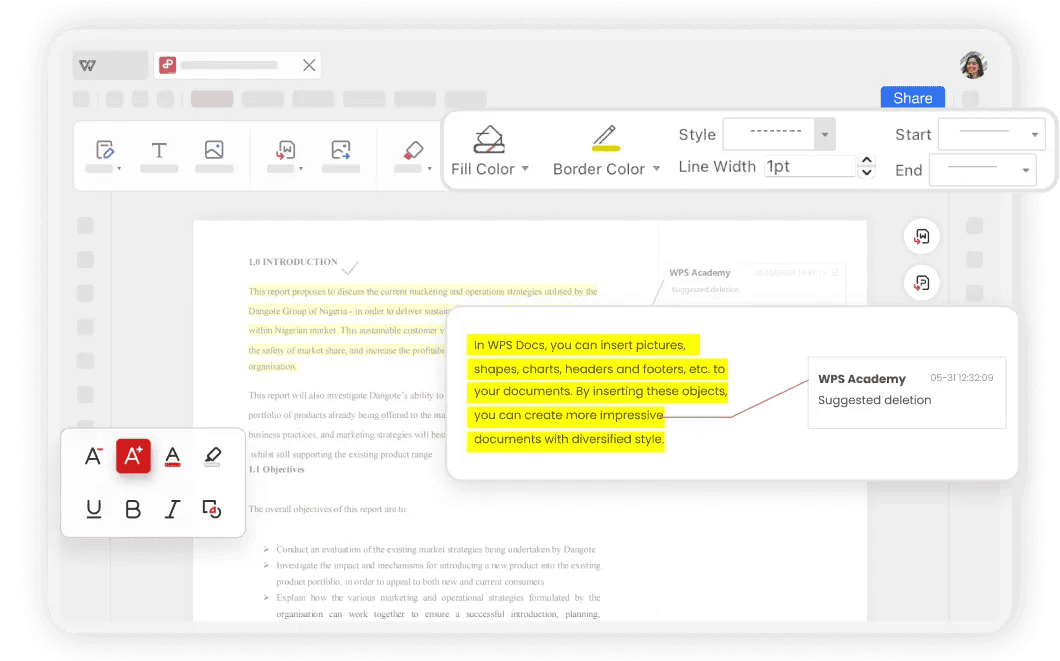
Add text tool in PDF editor
Once you click on the page, the text box accepts typing immediately — resize or move it by dragging the edges:
How to write on a PDF with annotations and comments
If your goal is feedback rather than editing, annotation tools are faster and keep the original text intact:
Open the PDF in WPS Office or any PDF reader with a Comment toolbar.
Highlight or underline key sentences by selecting the text and choosing the highlight tool.
Add a note with the sticky-note or comment tool, then type your message in the popup box.
Draw or strike through using the pencil and strikethrough tools for point-by-point review.
Annotations stay as a separate layer, so the underlying document never changes — ideal for contracts under review or study material.
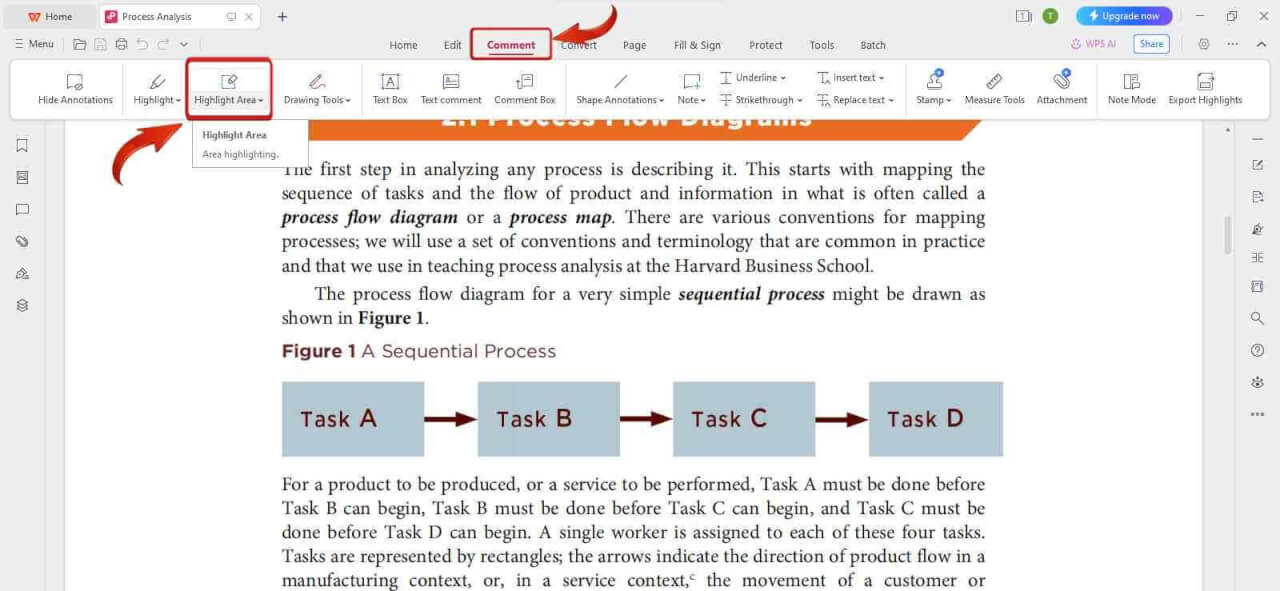
Highlight and note comment on PDF
How to fill and sign a PDF form
Forms are the most common reason people need to write on a PDF, and the process is the same in WPS Office and Adobe Acrobat Reader:
Open the form and look for blue-highlighted fields — these are interactive and accept typing directly.
Click each field and type your information. Use Tab to move between fields quickly.
Add a signature with the Fill & Sign tool: type your name in a signature font, draw it with a mouse or finger, or insert a photo of your handwritten signature.
Save a copy before sending it back, so you keep a record of what you submitted.
If the PDF has no interactive fields, use Add Text to place text boxes over the blank lines instead — the result looks the same when printed.
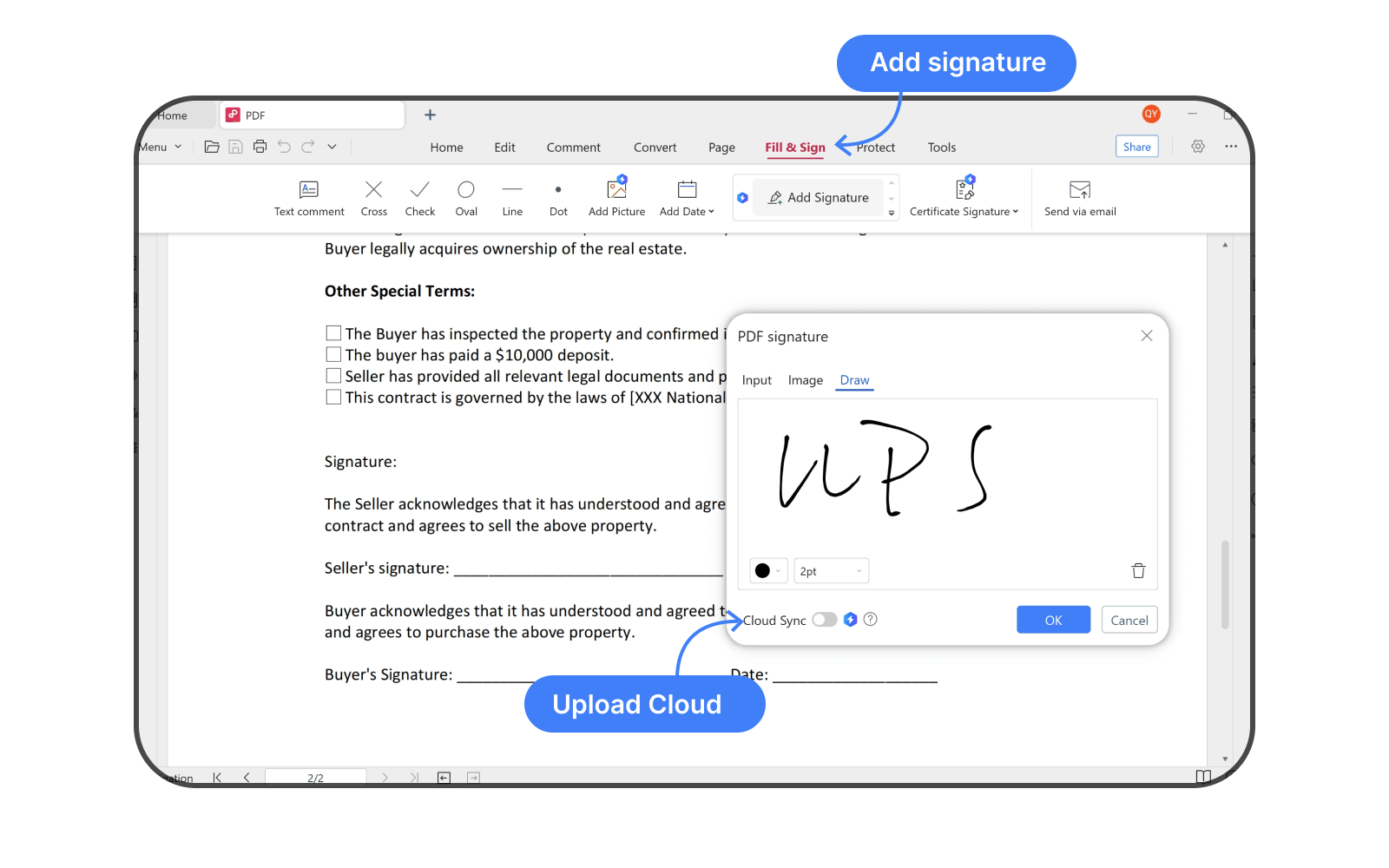
Fill and sign PDF application form
The Best Free Alternative: WPS Office for writing on PDFs
Adobe Acrobat is the industry standard, but its full editing tools sit behind a subscription. WPS Office gives you a free desktop PDF editor with Add Text, Edit, Comment, and Fill & Sign tools in one place, and it doubles as your Word, Excel, and PowerPoint suite. The interface matches what you already know from office software, so writing on a PDF takes seconds — and the same app handles the documents you create afterward.
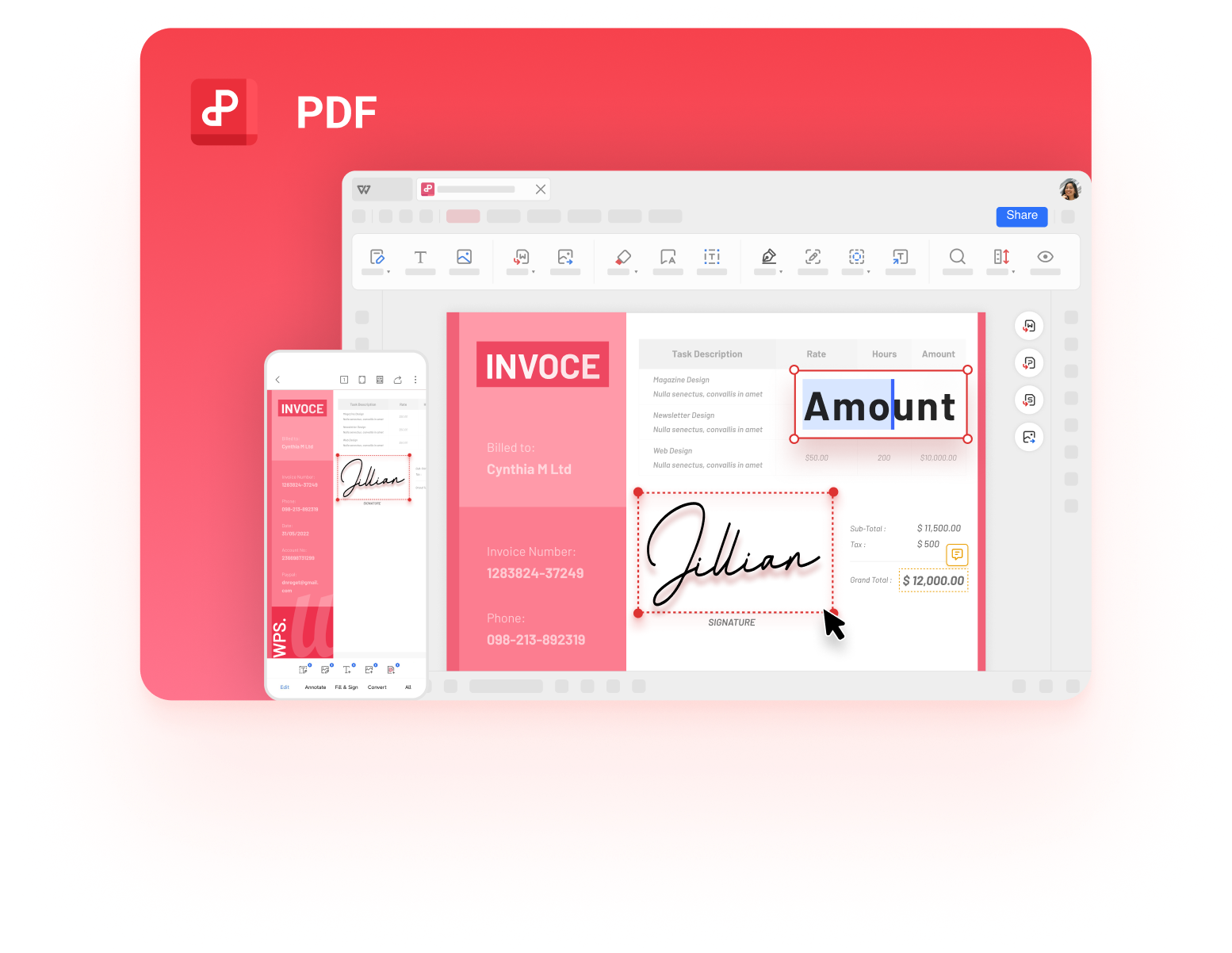
WPS PDF editor with edit tools
FAQs
How can I write on a PDF for free?
Use WPS Office's free PDF editor on desktop, Adobe Acrobat Reader's Fill & Sign tools, or the built-in Markup feature in macOS Preview. All three let you add text, notes, and signatures without paying.
Can I edit the existing text in a PDF?
Yes, with a full PDF editor such as WPS Office or Adobe Acrobat. Open the file in Edit mode, click the paragraph you want to change, and type. Free viewers like Acrobat Reader can only add new text, not rewrite existing paragraphs.
How do I write on a PDF on my phone?
Install the WPS Office mobile app (iOS or Android), open the PDF, and use the annotation toolbar to add text, highlights, and signatures. Changes sync when you save or share the file.
Why can't I type in a PDF form field?
The PDF may be flattened or protected. Try opening it in a full editor and using Add Text boxes instead of the form fields, or check File > Properties to see if security settings restrict editing.
Will writing on a PDF change the original file?
Only if you save over it. Use Save As to create a new copy and keep the original untouched. Annotations can also be removed later as long as the file wasn't flattened.

'%3e%3cpath%20d='M19.9911%204.11386V6.471H18.5894C18.0775%206.471%2017.7322%206.57814%2017.5536%206.79243C17.3751%207.00671%2017.2858%207.32814%2017.2858%207.75671V9.44421H19.9019L19.5536%2012.0871H17.2858V18.8639H14.5536V12.0871H12.2769V9.44421H14.5536V7.49779C14.5536%206.39064%2014.8632%205.53201%2015.4822%204.92189C16.1013%204.31177%2016.9257%204.00671%2017.9554%204.00671C18.8304%204.00671%2019.509%204.04243%2019.9911%204.11386Z'%20fill='%23333333'/%3e%3c/g%3e%3cdefs%3e%3cclipPath%20id='clip0_2938_8199'%3e%3crect%20width='16'%20height='16'%20fill='white'%20transform='translate(8%204.00671)'/%3e%3c/clipPath%3e%3c/defs%3e%3c/svg%3e)
'%3e%3cpath%20d='M17.5237%2010.7813L23.4811%204H22.0699L16.8949%209.88693L12.7648%204H8L14.2469%2012.9029L8%2020.0133H9.4112L14.8725%2013.7952L19.2352%2020.0133H24M9.92053%205.04213H12.0885L22.0688%2019.0224H19.9003'%20fill='%23333333'/%3e%3c/g%3e%3cdefs%3e%3cclipPath%20id='clip0_2938_8200'%3e%3crect%20width='16'%20height='16.0134'%20fill='white'%20transform='translate(8%204)'/%3e%3c/clipPath%3e%3c/defs%3e%3c/svg%3e)


