

'%3e%3cpath%20d='M8%200C12.4183%200%2016%203.58172%2016%208C16%2012.4183%2012.4183%2016%208%2016C3.58172%2016%200%2012.4183%200%208C0%203.58172%203.58172%200%208%200ZM11.6162%204.38379C11.2257%203.99337%2010.5927%203.99338%2010.2021%204.38379L8%206.58594L5.79785%204.38379C5.40732%203.99334%204.77429%203.99329%204.38379%204.38379C3.99331%204.77429%203.99335%205.40733%204.38379%205.79785L6.58594%208L4.38379%2010.2021C3.99348%2010.5927%203.99341%2011.2257%204.38379%2011.6162C4.77426%2012.0066%205.40734%2012.0065%205.79785%2011.6162L8%209.41406L10.2021%2011.6162C10.5927%2012.0066%2011.2257%2012.0067%2011.6162%2011.6162C12.0067%2011.2257%2012.0066%2010.5927%2011.6162%2010.2021L9.41406%208L11.6162%205.79785C12.0066%205.40735%2012.0066%204.77429%2011.6162%204.38379Z'%20fill='%23080E17'%20fill-opacity='0.46'/%3e%3c/g%3e%3cdefs%3e%3cclipPath%20id='clip0_3761_713'%3e%3crect%20width='16'%20height='16'%20fill='white'/%3e%3c/clipPath%3e%3c/defs%3e%3c/svg%3e)




'%3e%3cpath%20fill-rule='evenodd'%20clip-rule='evenodd'%20d='M21.4999%2010.9993C21.4999%205.20009%2016.7986%200.498901%2010.9993%200.498901C5.19994%200.498901%200.498657%205.20009%200.498657%2010.9993C0.498657%2016.2404%204.33858%2020.5844%209.35855%2021.3722V14.0346H6.69238V10.9993H9.35855V8.68594C9.35855%206.05427%2010.9262%204.60062%2013.3248%204.60062C14.4736%204.60062%2015.6753%204.80571%2015.6753%204.80571V7.38979H14.3512C13.0468%207.38979%2012.64%208.19921%2012.64%209.0296V10.9993H15.5523L15.0867%2014.0346H12.64V21.3722C17.66%2020.5844%2021.4999%2016.2404%2021.4999%2010.9993Z'%20fill='%231568EA'/%3e%3c/g%3e%3c/svg%3e)


'%3e%3cpath%20d='M2.42045%2022.1876H6.31818V12.7217L0.75%208.54553V20.5171C0.75%2021.4414%201.49892%2022.1876%202.42045%2022.1876Z'%20fill='%234285F4'/%3e%3cpath%20d='M19.682%2022.1876H23.5797C24.5041%2022.1876%2025.2502%2021.4387%2025.2502%2020.5171V8.54553L19.682%2012.7217'%20fill='%2334A853'/%3e%3cpath%20d='M19.682%205.48293V12.7216L25.2502%208.54543V6.31816C25.2502%204.25236%2022.8921%203.07469%2021.2411%204.31361'%20fill='%23FBBC04'/%3e%3cpath%20d='M6.31824%2012.7217V5.48303L13.0001%2010.4944L19.6819%205.48303V12.7217L13.0001%2017.733'%20fill='%23EA4335'/%3e%3cpath%20d='M0.75%206.31816V8.54543L6.31818%2012.7216V5.48293L4.75909%204.31361C3.10534%203.07469%200.75%204.25236%200.75%206.31816Z'%20fill='%23C5221F'/%3e%3c/g%3e%3cdefs%3e%3cclipPath%20id='clip0_2954_7305'%3e%3crect%20width='24.5'%20height='18.375'%20fill='white'%20transform='translate(0.75%203.8125)'/%3e%3c/clipPath%3e%3c/defs%3e%3c/svg%3e)


Your emails end the same way hundreds of times a week: with the signature block the recipient screenshots, saves in contacts, or clicks. Typed by hand, that block drifts out of date and looks different in every message. A free email signature generator builds it once, correctly, with your branding intact.
After comparing the popular options, here are the four best free email signature generator tools in 2026, compared side by side, plus what a professional signature should actually contain.
4 Best Free Email Signature Generator Tools in 2026
What makes a great email signature
Before picking a tool, know what the output should look like. A strong signature carries four blocks—nothing more:
Name and job title. The recipient should know who wrote and how to address a reply.
Contact info. Phone and one email; add a second number only if you truly answer it.
Company and social links. A website plus one or two professional profiles.
Nothing extra. No quotes, no five-line disclaimers, no animated GIFs. If it does not help the reader act, cut it.
You can see the pattern in real emails: a compact identity card, readable on mobile, with every element one tap away.
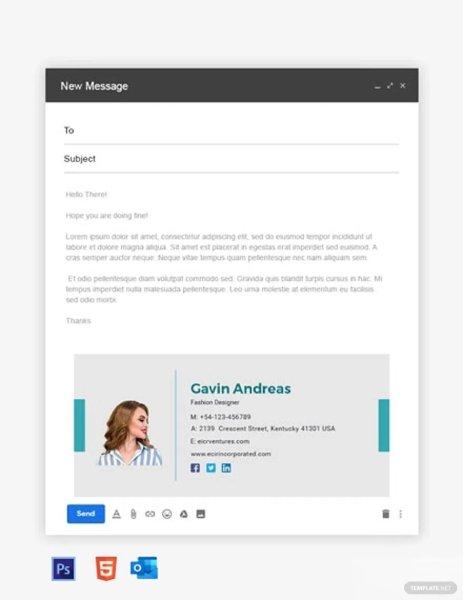
Professional email signature example
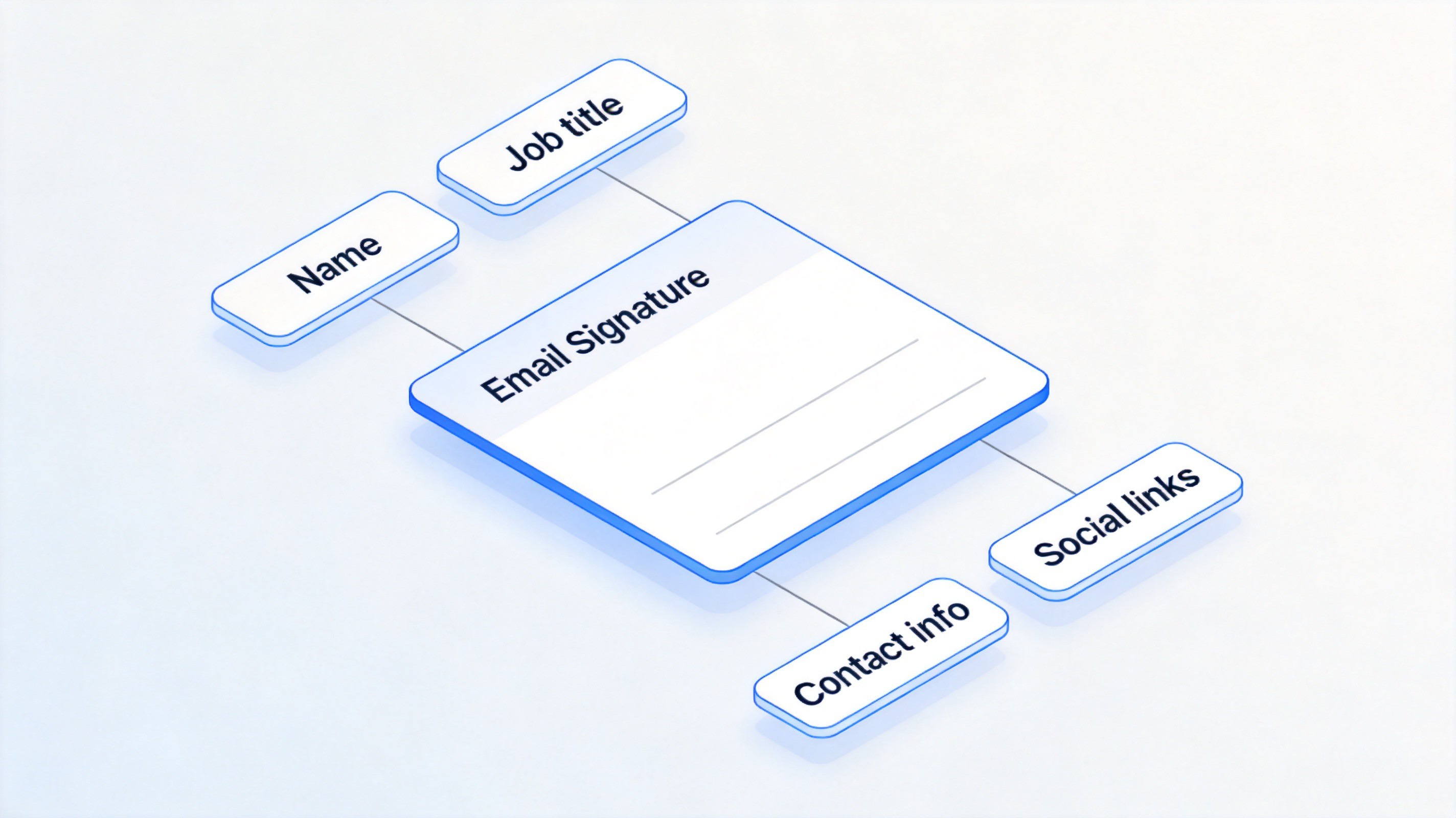
Anatomy of an email signature


4 best free email signature generator tools
The four tools below were compared on the same points: how the free tier works, what design control it gives you, and where each one stops being free. Mobile rendering matters most in the end—more signatures break on a phone screen than anywhere else.
The quick comparison first:
| Tool | Free tier | Standout feature | Best for |
|---|---|---|---|
| HubSpot | Free generator, no account | Form fills, copy-paste HTML | Individuals, fastest setup |
| New Old Stamp | Free generator; team tools paid | Template gallery with banners | Signatures with a promo strip |
| WiseStamp | Free plan with branding note | Social icons and app blocks | Design-heavy signatures |
| Exclaimer | 14-day trial only | Central management for M365/Google | Whole companies |
1. HubSpot Email Signature Generator
My take: the fastest way from nothing to a working signature, as long as you do not expect design control.
The whole flow is a single form: name, title, company, contact fields, and optional headshot and social links. No account is required at any step—no email, no trial countdown—and the tool assembles clean HTML you can paste straight into Gmail or Outlook. The limits are equally clear: customization stops at HubSpot's preset layouts and color palettes. There is no banner slot and no custom button; those live in HubSpot's paid marketing products, not the free generator, and there is no saved draft—editing means refilling the form.
Pros: truly free with no account; fastest setup of the four; output pastes cleanly into Gmail and Outlook.
Cons: fixed design slots—no banner or custom social block; no saved drafts.
Best for: individuals who want a clean, text-first signature without branding extras.
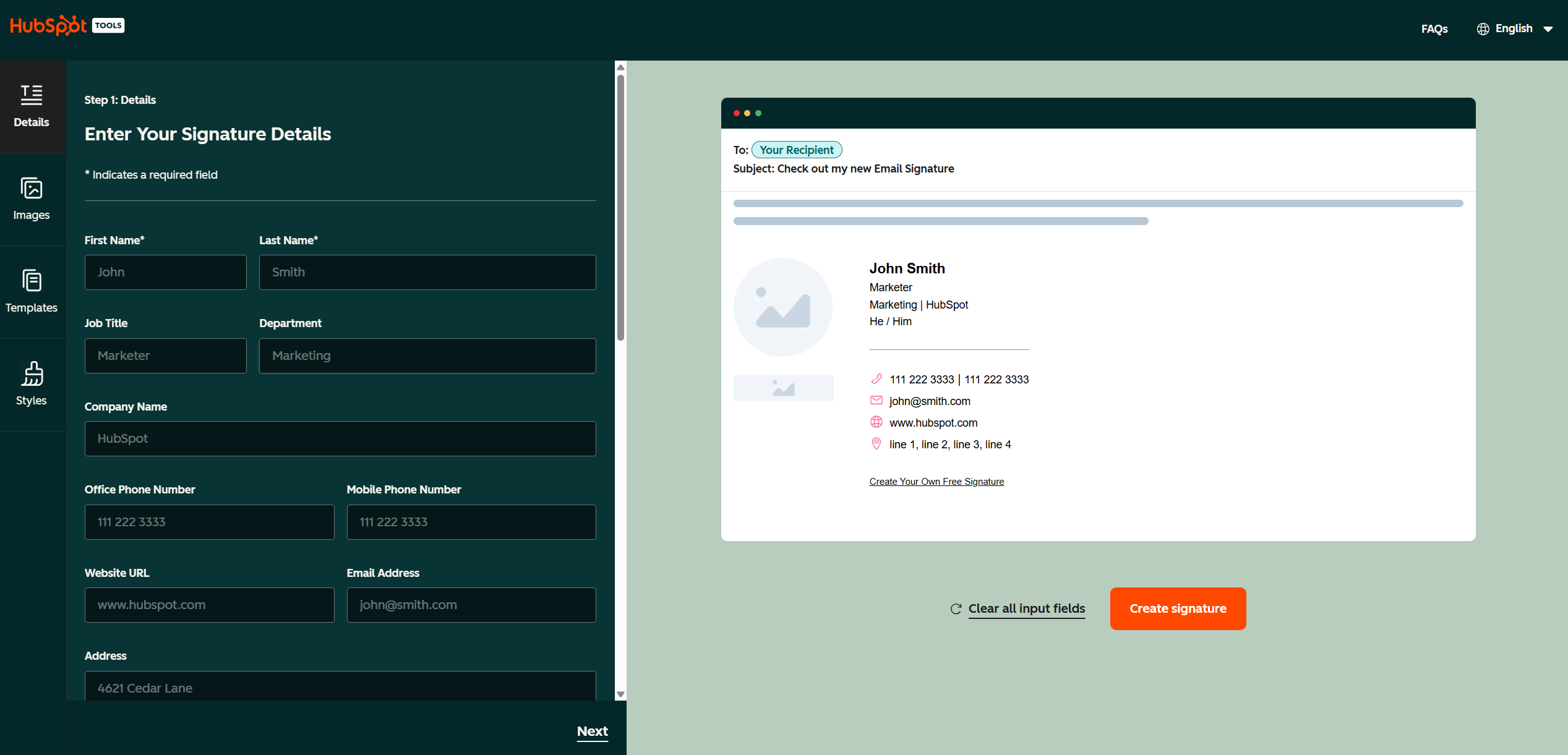
HubSpot email signature generator form
2. New Old Stamp
My take: the template gallery is the real product; the free generator is a taste of it.
Unlike a bare form, you start from a gallery of finished templates, many with a built-in banner strip under the contact details. If your signature should carry a small promotional banner—a webinar, an ebook, a seasonal offer—this is the tool that treats banners as a first-class feature rather than an afterthought. The free line is narrow, though: the generator covers one personal signature, while company-wide template management, deployment, and campaign banners sit behind paid plans.
Pros: strongest template gallery of the four; built-in banner support; free generator for one signature.
Cons: everything beyond one personal signature is paid; banners add hosted images that strict mail clients may strip.
Best for: anyone whose signature doubles as a small promo space.
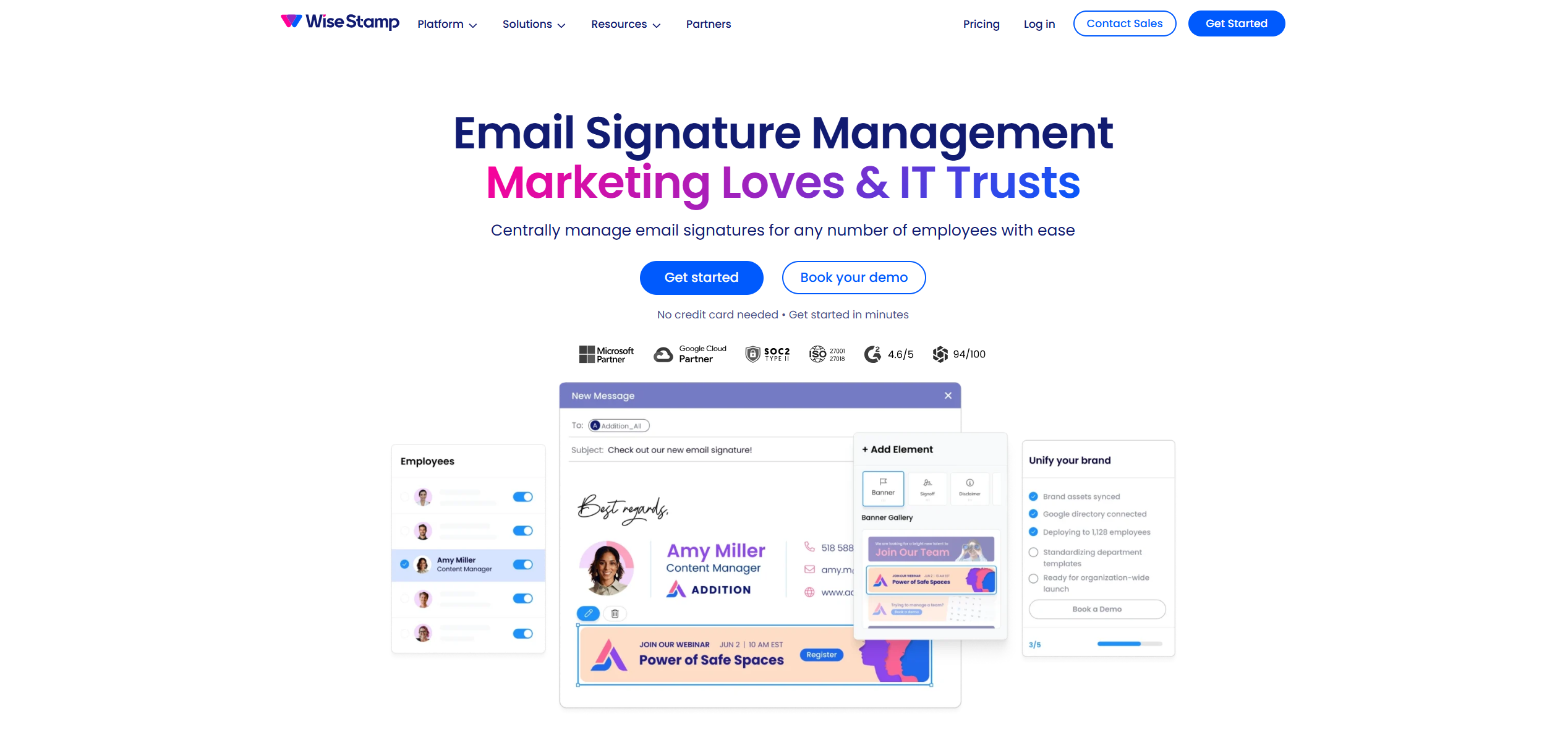
New Old Stamp email signature service
3. WiseStamp
My take: the most design freedom on a free plan—and the most decisions to make before you get it.
WiseStamp is the editor of the group. Beyond the contact block, the free plan includes what the others hold back: rich social icon sets, app blocks such as booking or payment links, multiple layouts, and banner options. If branding is the priority—consistent colors, icons, a CTA under your contact details—this gets closest to a designed result. Two trade-offs come with it: the free plan appends a WiseStamp branding note to every signature (removing it is the main upsell), and the editor offers more choices than a first-time user needs, making it easy to drift away from the four-block ideal above.
Pros: most design freedom for free; social icons, app blocks, and banners included.
Cons: free signatures carry a WiseStamp note; the editor can overwhelm.
Best for: design-heavy personal branding, where the signature is part of your public identity.
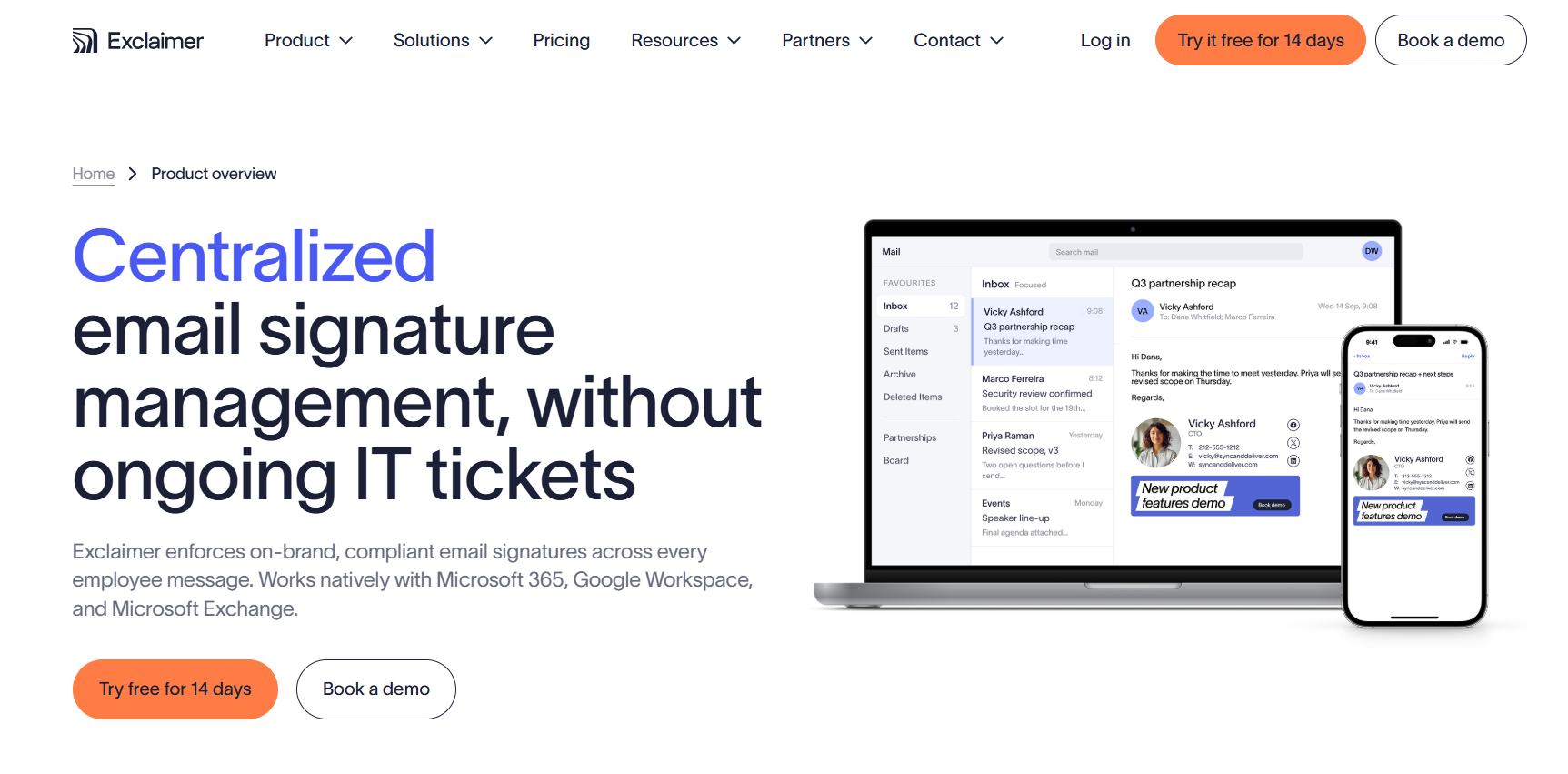
WiseStamp email signature management platform
4. Exclaimer
My take: not a consumer tool—judge it as IT infrastructure, and only evaluate it if signatures are a company-scale problem.
Exclaimer plays a different game. The product is centralized management: one master template designed once, then pushed to every employee's mailbox, with names, titles, and photos pulled live from Microsoft 365, Google Workspace, or Exchange. For a company that needs a uniform, legally compliant signature on every outbound email, that model is valuable—no individual can break the template, and updates propagate everywhere at once. As a free option it does not exist, though: the free tier is a 14-day trial, after which deployment is the paid product, priced per mailbox.
Pros: native M365/Google/Exchange integration; one template governs the whole company.
Cons: no permanent free tier—14-day trial only; priced per mailbox.
Best for: organizations where signatures are an IT compliance problem, not a design problem.
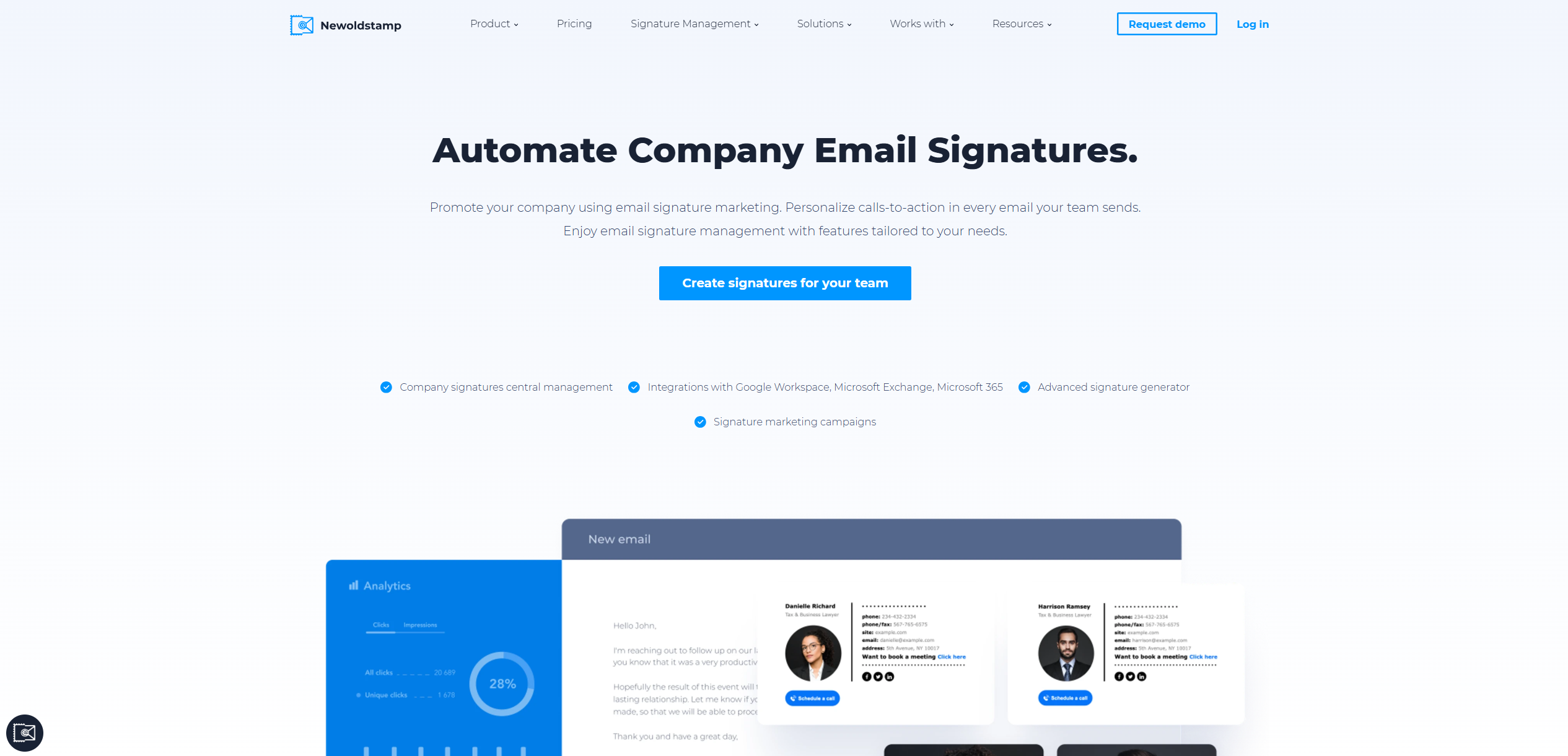
Exclaimer centralized email signature management
Whichever you pick, test the result in a narrow window before rolling it out—mobile is where most signatures break.
How to choose the right email signature creator
Three questions separate the four tools quickly:
Just for you? HubSpot gets you done in five minutes.
Heavy branding? WiseStamp or New Old Stamp, for banners, icons, and color control.
Whole company? Exclaimer, so IT manages one template instead of forty personal ones.
One more selection rule: prefer tools that export HTML you own over ones that host the signature on their servers. Hosted images sometimes arrive as broken boxes in strict mail clients.
Add a signature to your signed documents in WPS Office
Once your email identity is sorted, the same discipline belongs in your attachments. Contracts and PDFs you send still need the wet-ink style signature, and WPS Office handles that side for free: open the PDF, use Fill & Sign to draw or type your signature, and place it anywhere on the page before sending.
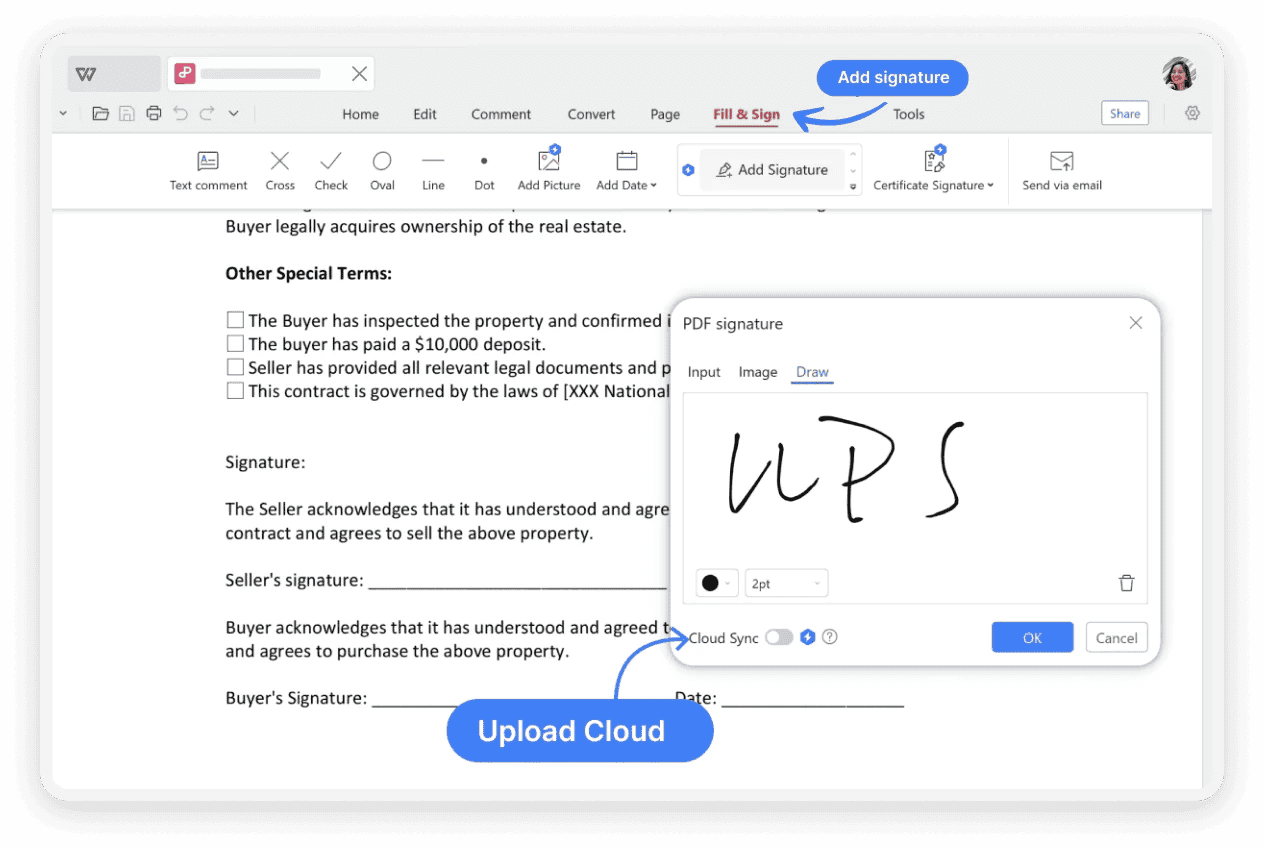
Add a signature to PDF in WPS Office
Together the two habits match: generated signature for the message, placed signature for the document—both consistent, both free.
FAQs
What is the best free email signature generator?
For most individuals, HubSpot Email Signature Generator: it is the fastest form-to-HTML flow and the output pastes cleanly into Gmail and Outlook. Teams should evaluate Exclaimer for centralized management instead.
Are email signature generators really free?
The four tools above let you create a signature free; how long it stays free differs—Exclaimer's trial ends after 14 days, while HubSpot and New Old Stamp keep the generator free. A few add a small "made with" note or restrict templates on free plans, and company-wide deployment is usually the paid feature.
How do I add my generated signature to Gmail?
Copy the HTML the generator produces, open Gmail Settings, then See all settings, and paste it into the Signature box. Save changes at the bottom, then send yourself a test email to confirm the layout survives.
Why is my email signature image showing as an attachment?
That happens when the signature references images on a remote server and the mail client decides to block or detach them. Prefer a generator that inlines images or exports self-contained HTML, and keep images small.
Can I use the same signature on mobile?
Yes, but simplify it. Strip the banner and extra social icons for the mobile version, keep name, title, and phone. A signature that looks great on desktop often turns into a wall of broken images on a phone screen.

'%3e%3cpath%20d='M19.9911%204.11386V6.471H18.5894C18.0775%206.471%2017.7322%206.57814%2017.5536%206.79243C17.3751%207.00671%2017.2858%207.32814%2017.2858%207.75671V9.44421H19.9019L19.5536%2012.0871H17.2858V18.8639H14.5536V12.0871H12.2769V9.44421H14.5536V7.49779C14.5536%206.39064%2014.8632%205.53201%2015.4822%204.92189C16.1013%204.31177%2016.9257%204.00671%2017.9554%204.00671C18.8304%204.00671%2019.509%204.04243%2019.9911%204.11386Z'%20fill='%23333333'/%3e%3c/g%3e%3cdefs%3e%3cclipPath%20id='clip0_2938_8199'%3e%3crect%20width='16'%20height='16'%20fill='white'%20transform='translate(8%204.00671)'/%3e%3c/clipPath%3e%3c/defs%3e%3c/svg%3e)
'%3e%3cpath%20d='M17.5237%2010.7813L23.4811%204H22.0699L16.8949%209.88693L12.7648%204H8L14.2469%2012.9029L8%2020.0133H9.4112L14.8725%2013.7952L19.2352%2020.0133H24M9.92053%205.04213H12.0885L22.0688%2019.0224H19.9003'%20fill='%23333333'/%3e%3c/g%3e%3cdefs%3e%3cclipPath%20id='clip0_2938_8200'%3e%3crect%20width='16'%20height='16.0134'%20fill='white'%20transform='translate(8%204)'/%3e%3c/clipPath%3e%3c/defs%3e%3c/svg%3e)


