

'%3e%3cpath%20d='M8%200C12.4183%200%2016%203.58172%2016%208C16%2012.4183%2012.4183%2016%208%2016C3.58172%2016%200%2012.4183%200%208C0%203.58172%203.58172%200%208%200ZM11.6162%204.38379C11.2257%203.99337%2010.5927%203.99338%2010.2021%204.38379L8%206.58594L5.79785%204.38379C5.40732%203.99334%204.77429%203.99329%204.38379%204.38379C3.99331%204.77429%203.99335%205.40733%204.38379%205.79785L6.58594%208L4.38379%2010.2021C3.99348%2010.5927%203.99341%2011.2257%204.38379%2011.6162C4.77426%2012.0066%205.40734%2012.0065%205.79785%2011.6162L8%209.41406L10.2021%2011.6162C10.5927%2012.0066%2011.2257%2012.0067%2011.6162%2011.6162C12.0067%2011.2257%2012.0066%2010.5927%2011.6162%2010.2021L9.41406%208L11.6162%205.79785C12.0066%205.40735%2012.0066%204.77429%2011.6162%204.38379Z'%20fill='%23080E17'%20fill-opacity='0.46'/%3e%3c/g%3e%3cdefs%3e%3cclipPath%20id='clip0_3761_713'%3e%3crect%20width='16'%20height='16'%20fill='white'/%3e%3c/clipPath%3e%3c/defs%3e%3c/svg%3e)




'%3e%3cpath%20fill-rule='evenodd'%20clip-rule='evenodd'%20d='M21.4999%2010.9993C21.4999%205.20009%2016.7986%200.498901%2010.9993%200.498901C5.19994%200.498901%200.498657%205.20009%200.498657%2010.9993C0.498657%2016.2404%204.33858%2020.5844%209.35855%2021.3722V14.0346H6.69238V10.9993H9.35855V8.68594C9.35855%206.05427%2010.9262%204.60062%2013.3248%204.60062C14.4736%204.60062%2015.6753%204.80571%2015.6753%204.80571V7.38979H14.3512C13.0468%207.38979%2012.64%208.19921%2012.64%209.0296V10.9993H15.5523L15.0867%2014.0346H12.64V21.3722C17.66%2020.5844%2021.4999%2016.2404%2021.4999%2010.9993Z'%20fill='%231568EA'/%3e%3c/g%3e%3c/svg%3e)


'%3e%3cpath%20d='M2.42045%2022.1876H6.31818V12.7217L0.75%208.54553V20.5171C0.75%2021.4414%201.49892%2022.1876%202.42045%2022.1876Z'%20fill='%234285F4'/%3e%3cpath%20d='M19.682%2022.1876H23.5797C24.5041%2022.1876%2025.2502%2021.4387%2025.2502%2020.5171V8.54553L19.682%2012.7217'%20fill='%2334A853'/%3e%3cpath%20d='M19.682%205.48293V12.7216L25.2502%208.54543V6.31816C25.2502%204.25236%2022.8921%203.07469%2021.2411%204.31361'%20fill='%23FBBC04'/%3e%3cpath%20d='M6.31824%2012.7217V5.48303L13.0001%2010.4944L19.6819%205.48303V12.7217L13.0001%2017.733'%20fill='%23EA4335'/%3e%3cpath%20d='M0.75%206.31816V8.54543L6.31818%2012.7216V5.48293L4.75909%204.31361C3.10534%203.07469%200.75%204.25236%200.75%206.31816Z'%20fill='%23C5221F'/%3e%3c/g%3e%3cdefs%3e%3cclipPath%20id='clip0_2954_7305'%3e%3crect%20width='24.5'%20height='18.375'%20fill='white'%20transform='translate(0.75%203.8125)'/%3e%3c/clipPath%3e%3c/defs%3e%3c/svg%3e)


If Word, Excel, or PowerPoint suddenly shows "Product Activation Failed" in the title bar, Office 2010 can no longer verify its license, and most editing commands are locked. The message usually appears after a hardware change, a Windows reinstall, an expired product key, or simply because activation data has grown stale on an old installation.
This guide explains what triggers the error, walks through six practical fixes, and clarifies what Office 2010's end of support means for activation. If repair does not work, it also shows a free way to keep working with your existing documents.
How to Fix Product Activation Failed in Office 2010
Why Office 2010 Shows the Product Activation Failed Error
Office 2010 checks its license state every time an application starts. When that check fails, the product enters reduced-functionality mode and displays the "Product Activation Failed" banner. The most common triggers are:
An expired or mismatched product key. Retail keys expire with the license terms, and a key for one edition (for example Home and Student) cannot activate a different edition such as Professional Plus.
A hardware or system change. Replacing the motherboard, reinstalling Windows, or restoring from a system image changes the machine profile that activation was tied to, so Office demands reactivation.
The wrong Microsoft account or no account. If your copy is tied to an online purchase, signing in with a different account than the one used at purchase breaks validation.
An incorrect system date and time. Activation certificates are validated against the clock; a wrong date makes a valid license look expired.
Multiple conflicting Office installations. Leftover trial builds or duplicate editions can overwrite licensing components.
A non-genuine copy. If Office came from an unofficial installer or a shared key found online, Microsoft's servers will reject activation by design.
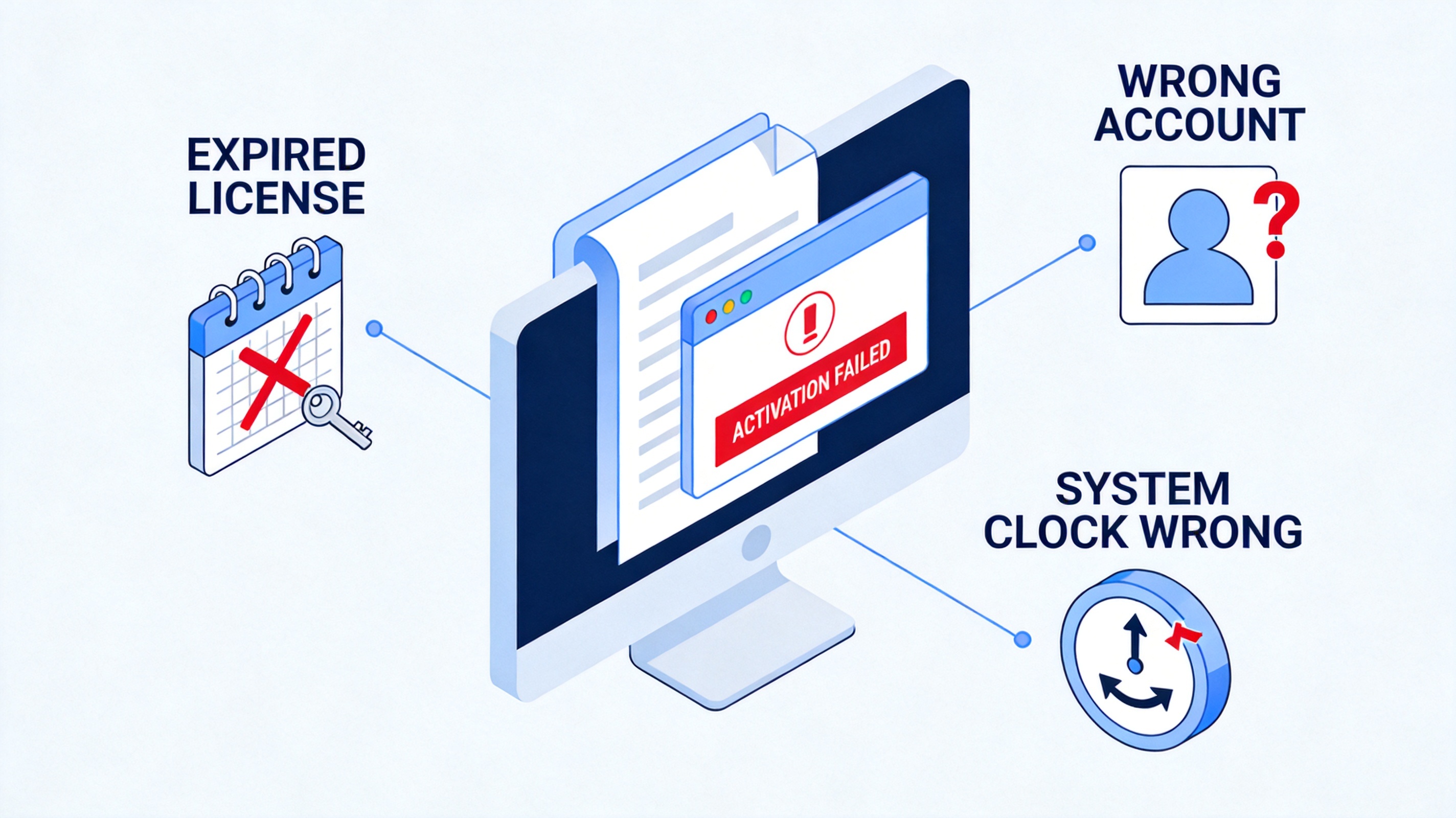
Office 2010 activation failed causes


How to Fix Product Activation Failed in Office 2010: 6 Working Methods
Work through these methods in order. Methods 1 to 3 resolve most genuine-license cases; the later methods handle corrupted or conflicting installations.
Method 1: Verify your license, account, and Windows activation
Confirm your license is genuine. Check the product key card, email receipt, or your organization's volume-license record. Keys from key-sharing sites are usually invalid and unsafe.
Check the correct Microsoft account. If you bought Office online, sign in to your Microsoft account on the official site and confirm the Office 2010 purchase still appears under Services and subscriptions.
Check Windows activation. Office 2010 activation can fail when Windows itself is not activated. Open Control Panel > System and Security > System and activate Windows first if needed.
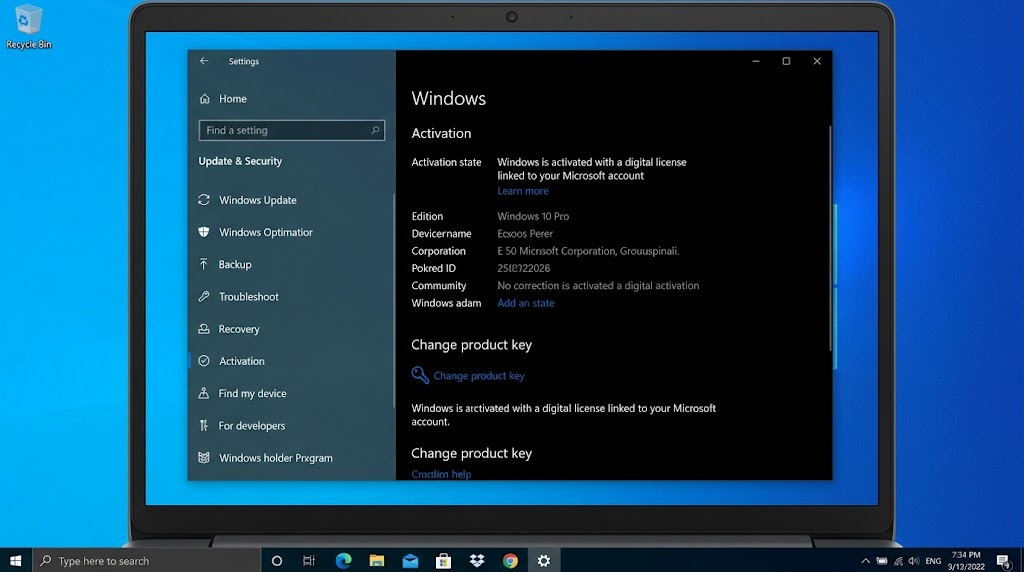
Check Windows activation
Method 2: Correct the system date and time
Open date and time settings. Right-click the clock in the taskbar and choose Adjust date/time, or open the Date and Time control panel.
Enable automatic time sync. Turn on Set time automatically and confirm the time zone is correct, then click Sync now where available.
Restart the Office app. Close and reopen Word or Excel, then retry activation from File > Help.
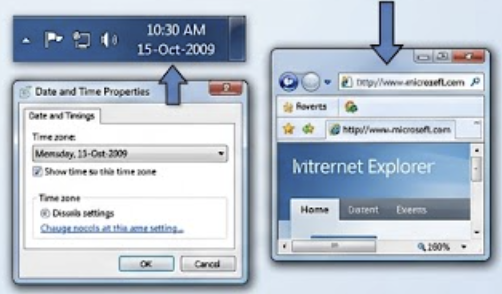
Check Windows date and time settings
Method 3: Run OSPPREARM.exe to reset the activation state
The Office Software Protection Platform includes a rearm tool that resets the activation state so Office can attempt activation again. It only works on a genuine installation and can be used a limited number of times (typically 5).
Close all Office programs. Open Task Manager with Ctrl + Shift + Esc and end any remaining Office processes under the Processes tab.
Open the Office 2010 folder. In File Explorer, go to C:\Program Files\Microsoft Office\Office14 for 64-bit Office, or C:\Program Files (x86)\Microsoft Office\Office14 for 32-bit Office on 64-bit Windows.
Run OSPPREARM.exe as administrator. Right-click OSPPREARM.exe, choose Run as administrator, and wait for the confirmation window.
Restart the computer and open any Office app to activate again through File > Help > Change Product Key if prompted.
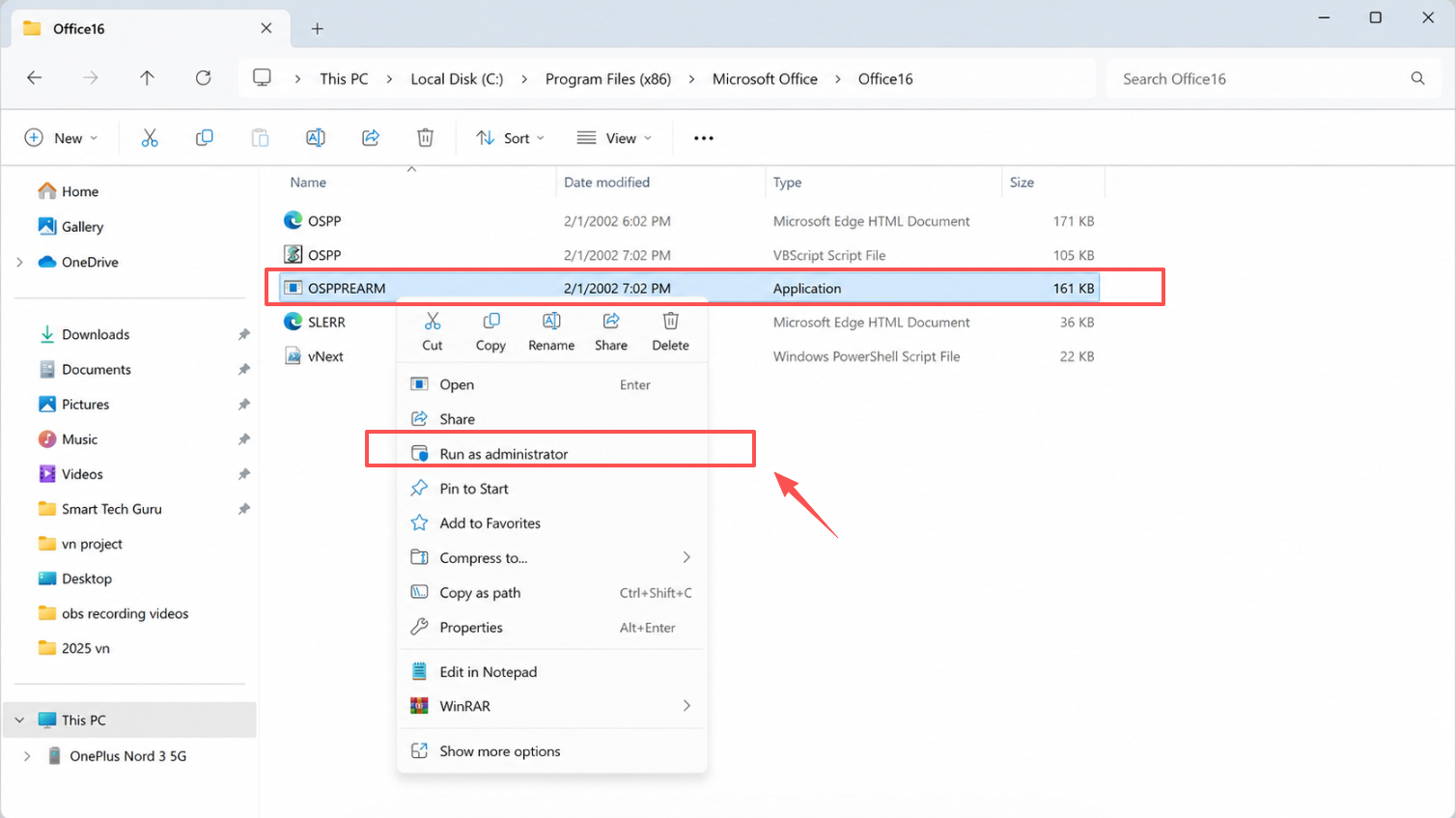
Right-click OSPPREARM and choose Run as administrator
Method 4: Update or repair Office 2010
Install pending updates. Open an Office app, go to File > Help, and choose Check for Updates. Outdated builds can fail to reach activation servers.
Run a repair. Open Control Panel > Programs and Features, select your Microsoft Office 2010 entry, click Change, and choose Repair. Restart Windows when the repair completes.
Run Office once as administrator. Right-click the Word shortcut and choose Run as administrator to test whether folder permissions block activation data from being saved.
Method 5: Remove duplicate Office installations
List installed Office editions. Open Control Panel > Programs and Features and look for trial builds, older versions, or a second copy of Office 2010.
Uninstall the extras. Remove every edition except the licensed one. Back up Outlook data files and custom templates first.
Restart and reactivate. After rebooting, open an Office app and activate the remaining installation.
Method 6: Reinstall Office 2010 cleanly
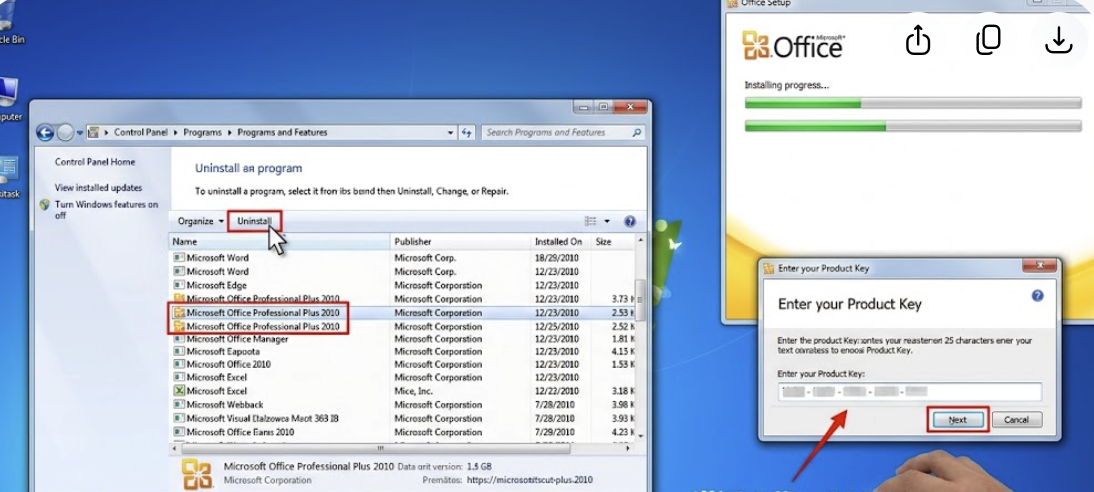
Uninstall the broken copy from Programs and Features.
Reinstall from your original media or download. Use the installation files tied to your genuine product key, not an unofficial installer.
Enter the product key and activate online, or choose telephone activation if online validation fails.
If activation still fails after a clean reinstall, your key may be blocked, already in use on another machine, or invalid. Contact Microsoft support or your organization's IT administrator with the exact error text. Avoid registry hacks, KMS emulators, or activator scripts: they do not create a valid license and often install malware.
Office 2010 End of Support: Why the Product Activation Failed Error Returns
Microsoft ended support for Office 2010 on October 13, 2020. There are no new security updates, bug fixes, or technical support, and the software is no longer downloadable from Microsoft's site. Support content and most online help pages have also been retired.
This matters for activation errors in two ways. First, activation servers and validation paths for such an old client can change or become less reliable, so errors like "Product Activation Failed" become more frequent over time. Second, even when you do activate successfully, you remain exposed to unpatched security vulnerabilities in Word, Excel, and PowerPoint file parsers. For a business, running unsupported Office software can also create compliance problems.
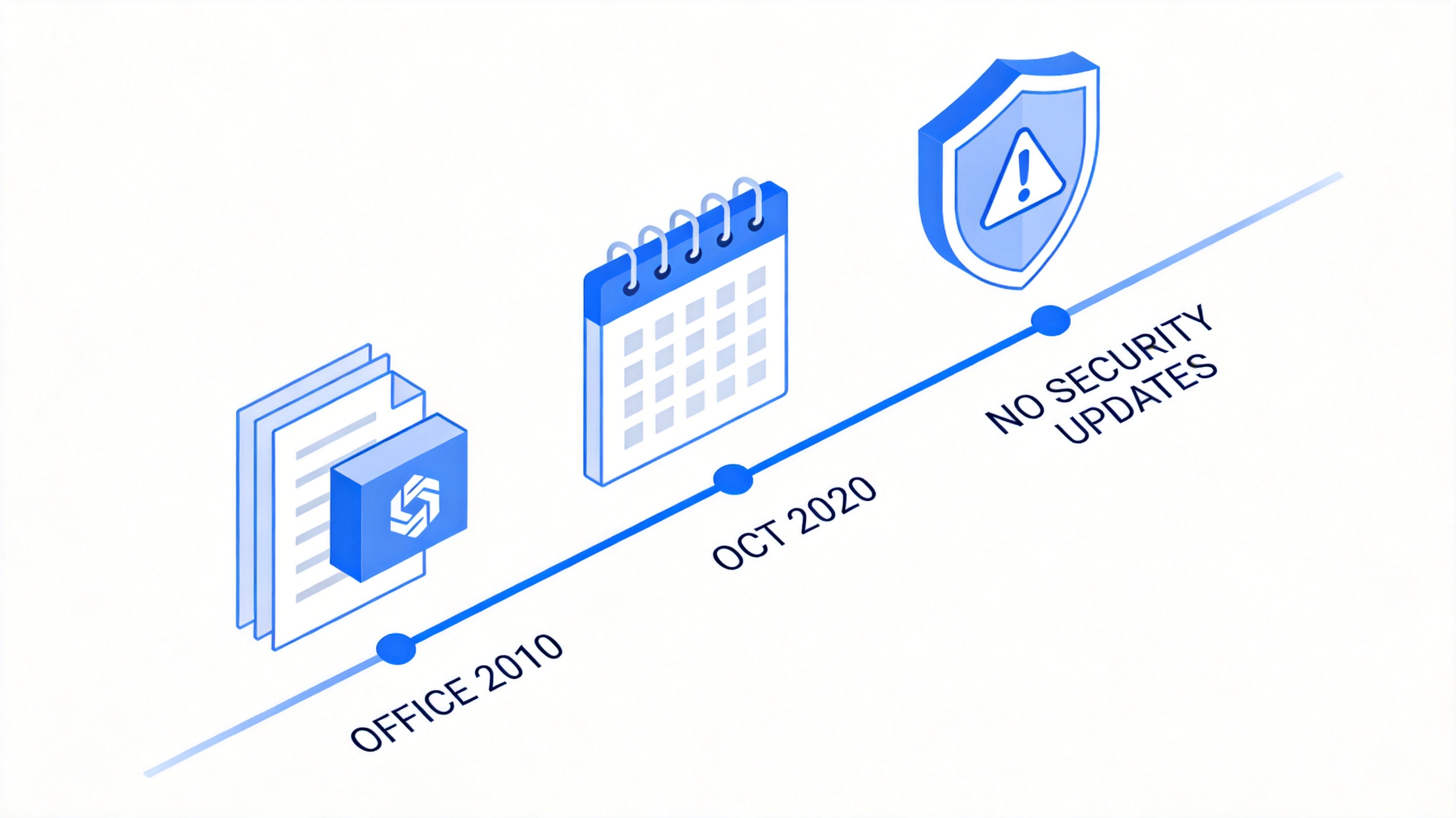
Office 2010 end of support timeline
The Best Free Alternative: WPS Office
If you only keep Office 2010 alive to open familiar documents, spreadsheets, and slides, WPS Office removes both the activation headaches and the security risk of running unsupported software. It is free to download and use for core editing, and it runs on modern Windows versions that Office 2010 handles poorly.
No product key or activation wizard. The free core apps—Writer, Spreadsheet, and Presentation—start without entering a key, so you never see a "Product Activation Failed" banner again.
Your old files open as-is. WPS Office reads and saves DOC, DOCX, XLS, XLSX, PPT, PPTX, and more, so documents created in Office 2010 carry over with formatting intact.
A familiar ribbon-style interface. The layout deliberately mirrors classic Microsoft Office, so switching from Office 2010 takes minutes, not days.
All-in-one suite with PDF tools. Writer, Spreadsheet, Presentation, and built-in PDF viewing and conversion come in one installation.
Lightweight enough for older PCs. If your computer is too old for a modern Microsoft 365 subscription, WPS Office remains a practical option. Check the current system requirements before installing.
Cross-platform and cloud-ready. Optional sign-in syncs documents across Windows, macOS, Linux, Android, and iOS, though some advanced PDF, AI, cloud, and ad-free features require a subscription.
For a deeper comparison, see our guide to the Office 2010 Professional Plus product key, or read how to fix the same error in newer versions in Fix Microsoft Word Product Activation Failed. To get started, download the suite from the official WPS download page.
Before migrating business-critical files, test VBA macros, external data links, unusual fonts, and specialized add-ins in WPS Office with copies of your originals. It is a strong daily replacement for documents, sheets, slides, and PDFs, but it is not a drop-in replacement for every legacy component such as Access databases or Outlook.
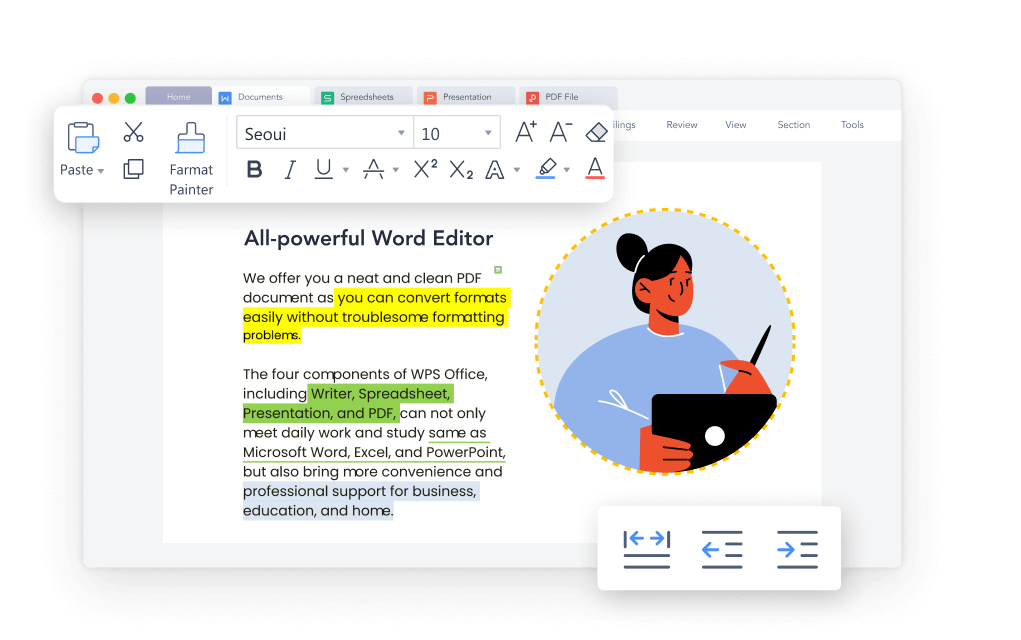
WPS Office Writer interface overview
FAQs
Why does Office 2010 say Product Activation Failed when it worked yesterday?
A hardware change, Windows update, incorrect system clock, or a corrupted licensing file can invalidate the stored activation state overnight. Start with the date and time check, then run OSPPREARM.exe as shown in Method 3.
Can I still activate Office 2010 in 2026?
Yes, if you have a genuine retail or volume license. Internet and telephone activation remain available, though Microsoft no longer supports the product, so some validation paths may be less reliable than before.
Is it safe to use an activator or KMS tool for Office 2010?
No. These tools do not create a valid license, violate Microsoft's terms, and are a common malware vector. Use your genuine key, telephone activation, or switch to a free alternative instead.
What happens if I keep using Office 2010 without activating it?
Office enters reduced-functionality mode: you can view and print documents, but editing is disabled. The banner keeps appearing, and you receive no security updates, which is risky for files from unknown sources.
Will WPS Office open my Office 2010 documents?
Yes. WPS Office supports DOC/DOCX, XLS/XLSX, PPT/PPTX, and common legacy formats. Test complex macros, fonts, and layouts with copies before replacing your originals.


'%3e%3cpath%20d='M19.9911%204.11386V6.471H18.5894C18.0775%206.471%2017.7322%206.57814%2017.5536%206.79243C17.3751%207.00671%2017.2858%207.32814%2017.2858%207.75671V9.44421H19.9019L19.5536%2012.0871H17.2858V18.8639H14.5536V12.0871H12.2769V9.44421H14.5536V7.49779C14.5536%206.39064%2014.8632%205.53201%2015.4822%204.92189C16.1013%204.31177%2016.9257%204.00671%2017.9554%204.00671C18.8304%204.00671%2019.509%204.04243%2019.9911%204.11386Z'%20fill='%23333333'/%3e%3c/g%3e%3cdefs%3e%3cclipPath%20id='clip0_2938_8199'%3e%3crect%20width='16'%20height='16'%20fill='white'%20transform='translate(8%204.00671)'/%3e%3c/clipPath%3e%3c/defs%3e%3c/svg%3e)
'%3e%3cpath%20d='M17.5237%2010.7813L23.4811%204H22.0699L16.8949%209.88693L12.7648%204H8L14.2469%2012.9029L8%2020.0133H9.4112L14.8725%2013.7952L19.2352%2020.0133H24M9.92053%205.04213H12.0885L22.0688%2019.0224H19.9003'%20fill='%23333333'/%3e%3c/g%3e%3cdefs%3e%3cclipPath%20id='clip0_2938_8200'%3e%3crect%20width='16'%20height='16.0134'%20fill='white'%20transform='translate(8%204)'/%3e%3c/clipPath%3e%3c/defs%3e%3c/svg%3e)


