



'%3e%3cpath%20fill-rule='evenodd'%20clip-rule='evenodd'%20d='M21.4999%2010.9993C21.4999%205.20009%2016.7986%200.498901%2010.9993%200.498901C5.19994%200.498901%200.498657%205.20009%200.498657%2010.9993C0.498657%2016.2404%204.33858%2020.5844%209.35855%2021.3722V14.0346H6.69238V10.9993H9.35855V8.68594C9.35855%206.05427%2010.9262%204.60062%2013.3248%204.60062C14.4736%204.60062%2015.6753%204.80571%2015.6753%204.80571V7.38979H14.3512C13.0468%207.38979%2012.64%208.19921%2012.64%209.0296V10.9993H15.5523L15.0867%2014.0346H12.64V21.3722C17.66%2020.5844%2021.4999%2016.2404%2021.4999%2010.9993Z'%20fill='%231568EA'/%3e%3c/g%3e%3c/svg%3e)


'%3e%3cpath%20d='M2.42045%2022.1876H6.31818V12.7217L0.75%208.54553V20.5171C0.75%2021.4414%201.49892%2022.1876%202.42045%2022.1876Z'%20fill='%234285F4'/%3e%3cpath%20d='M19.682%2022.1876H23.5797C24.5041%2022.1876%2025.2502%2021.4387%2025.2502%2020.5171V8.54553L19.682%2012.7217'%20fill='%2334A853'/%3e%3cpath%20d='M19.682%205.48293V12.7216L25.2502%208.54543V6.31816C25.2502%204.25236%2022.8921%203.07469%2021.2411%204.31361'%20fill='%23FBBC04'/%3e%3cpath%20d='M6.31824%2012.7217V5.48303L13.0001%2010.4944L19.6819%205.48303V12.7217L13.0001%2017.733'%20fill='%23EA4335'/%3e%3cpath%20d='M0.75%206.31816V8.54543L6.31818%2012.7216V5.48293L4.75909%204.31361C3.10534%203.07469%200.75%204.25236%200.75%206.31816Z'%20fill='%23C5221F'/%3e%3c/g%3e%3cdefs%3e%3cclipPath%20id='clip0_2954_7305'%3e%3crect%20width='24.5'%20height='18.375'%20fill='white'%20transform='translate(0.75%203.8125)'/%3e%3c/clipPath%3e%3c/defs%3e%3c/svg%3e)


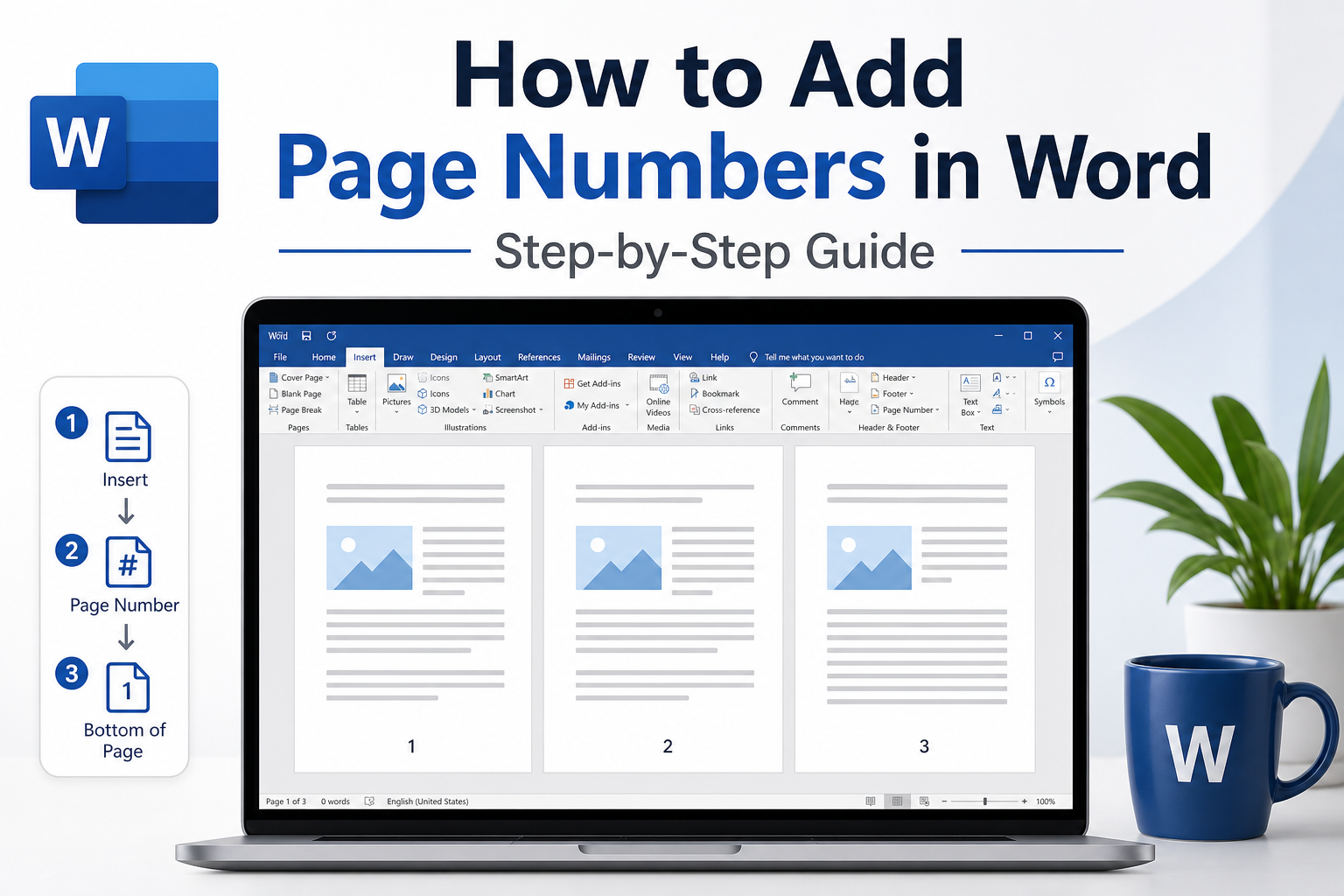
Page numbers are a basic formatting element in formal Word documents—reports, essays, business files, and more. They help organize long documents, make pages easier to find, and keep printed or bound files in order.
This guide walks you through simple, flexible ways to add and adjust page numbers in Microsoft Word for everyday use and formal submissions.
Why Add Page Numbers to Word Documents?
Create a clear structure for long, multi-page documents
Meet academic and business formatting standards
Avoid confusion when printing, sharing, or reviewing files
Find pages quickly while reading or editing
Method 1: Add Basic Page Numbers
Use this method when you need simple, continuous numbering from page 1 through the end of the document.
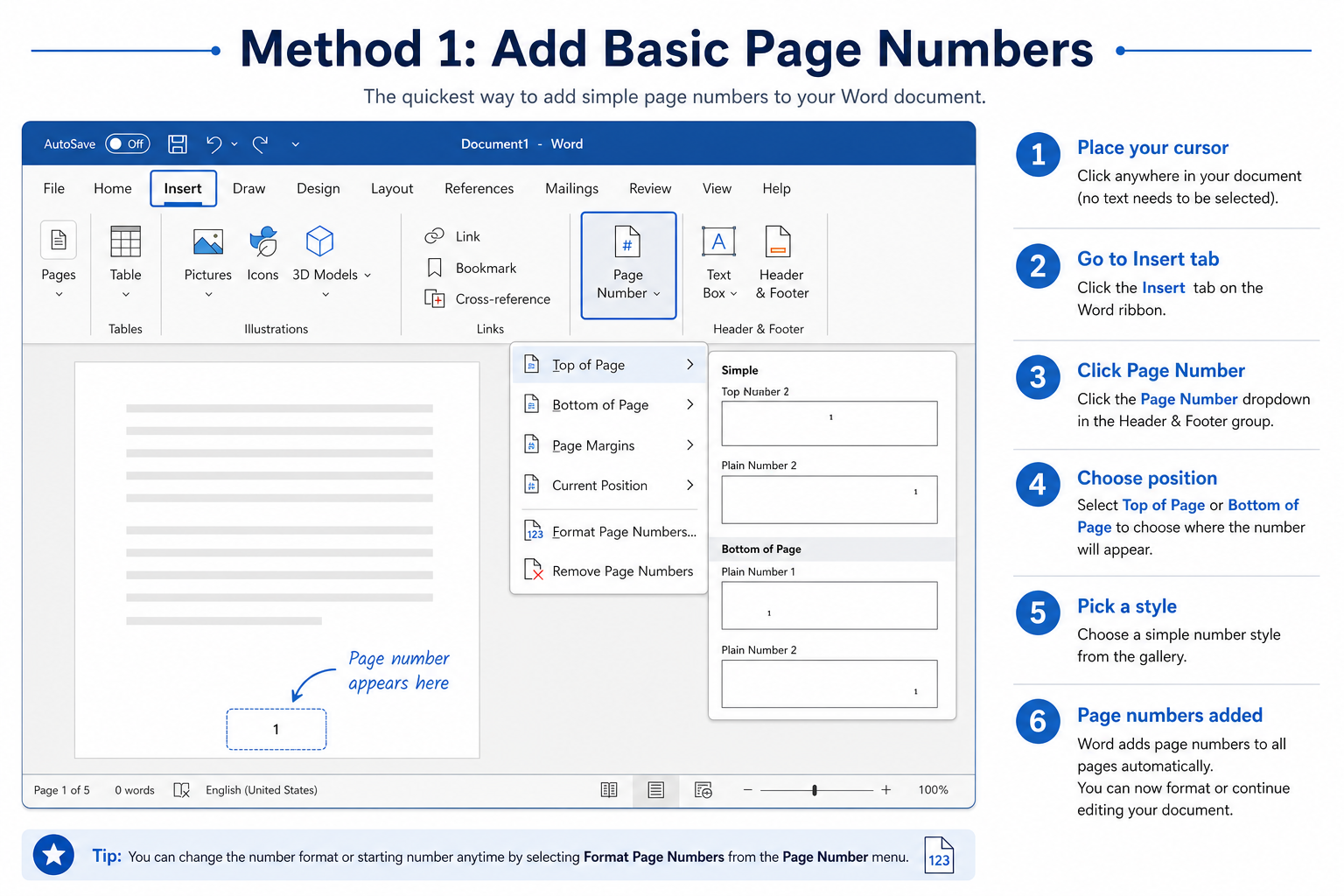
In the Header & Footer group, click Page Number.
Choose a location: Top of Page or Bottom of Page.
Select a built-in page number style.
Click Close Header and Footer to finish.
Word will add continuous page numbers to every page automatically.
These steps apply to Word on Windows and Mac. If you need to add page numbers from your phone instead, the menu paths differ—Edit, Insert, Header and Footer—but the idea is the same. See how to insert page number in Word Android for the full mobile walkthrough, including tips when numbers do not show in Mobile View.
Method 2: Customize Page Number Format (Page X of Y)
This format shows the current page and total page count—useful for reports, proposals, and official submissions.
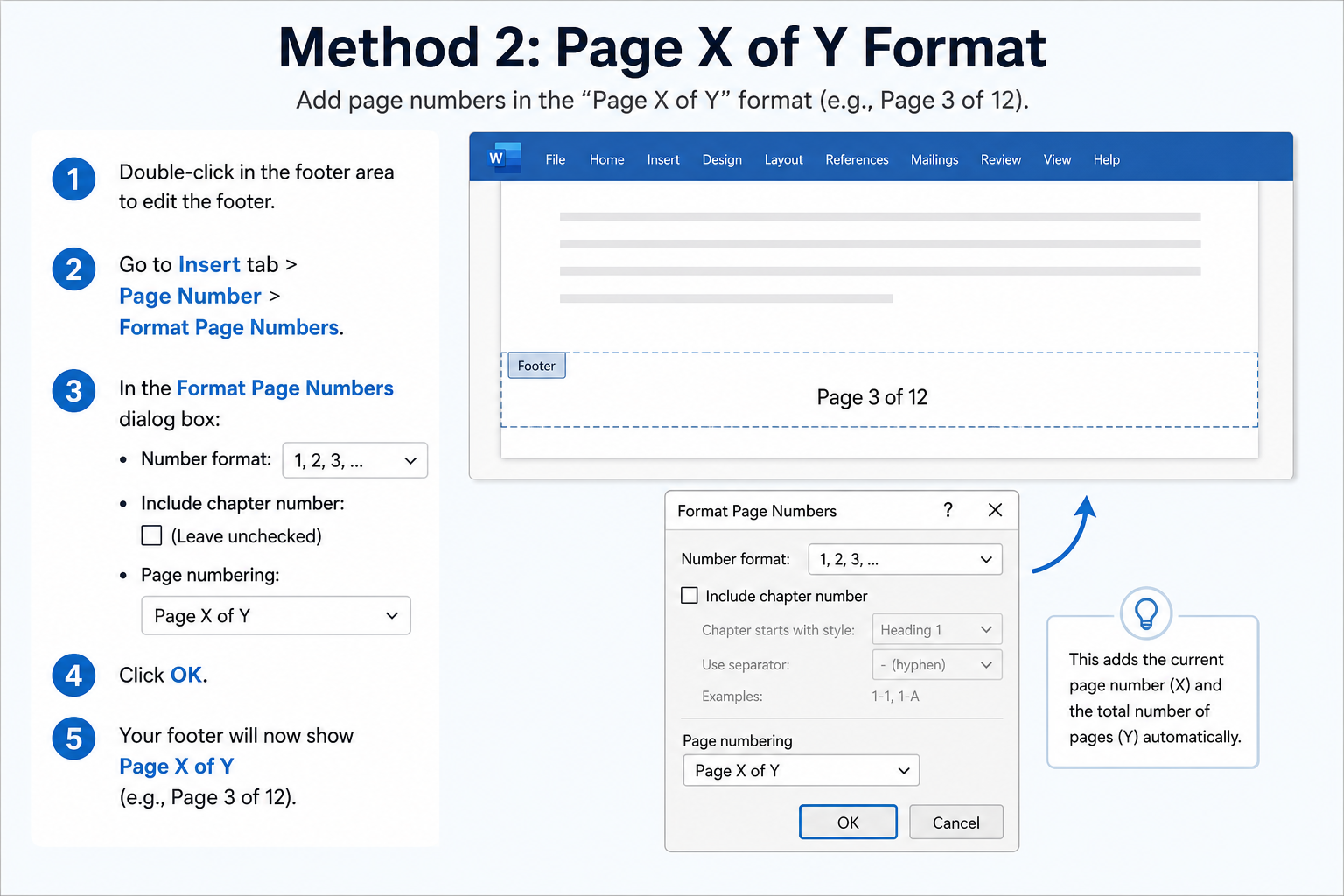
Go to Insert > Page Number > Format Page Numbers.
Choose your preferred number format (for example, 1, 2, 3 or i, ii, iii).
Select the Page X of Y style if available, or insert it manually in the header or footer.
Set the starting page number, then click OK.
Exit header/footer editing mode to preview the result.
This gives your document a more polished, professional look.
Method 3: Start Page Numbers on a Specific Page
Many formal documents skip page numbers on the cover page, title page, or table of contents. This method lets you start numbering where you want.
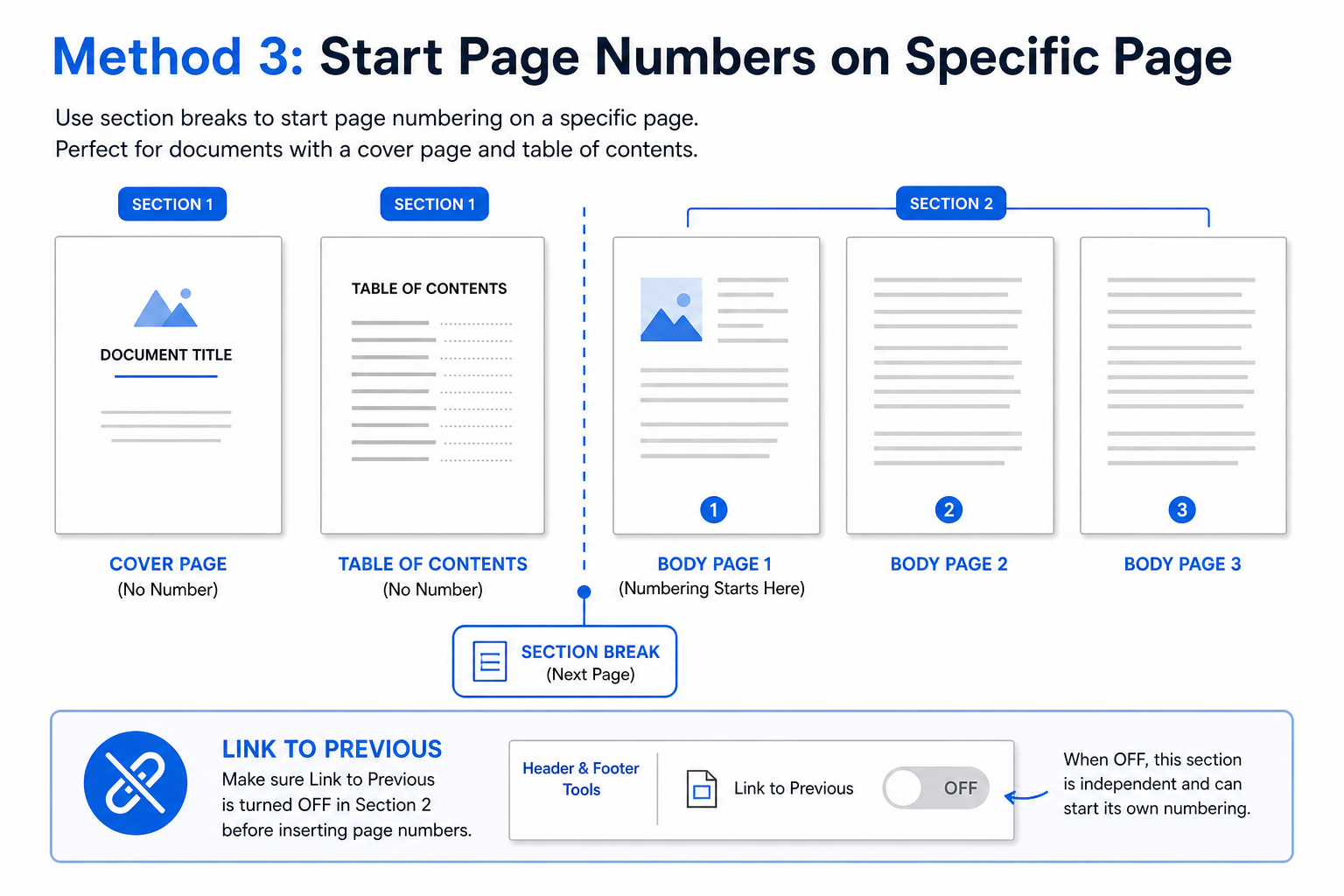
Place your cursor at the end of the page before the page where numbering should begin.
Go to Layout > Breaks > Next Page to create a new section.
Double-click the footer on the page where numbering should start.
On the Header & Footer tab, turn off Link to Previous.
Insert and format page numbers for the new section.
Page numbers will appear only from your chosen page onward. Earlier pages will stay blank.
This method works for any page—not only page 2. When the goal is a clean cover or title page with numbering beginning on the next page, the same section-break idea applies; the break simply goes after page 1 instead of later in the document. For that common scenario—cover unnumbered, body starting at 1 on page 2—see how to start page number on page 2 for the full walkthrough with Link to Previous and Start at settings.
Useful Tips
Double-click the top or bottom margin to open header/footer editing mode.
Page numbers behave like regular text—you can change font, size, and alignment.
Enable Different First Page to hide page numbers on the first page only.
Use section breaks to apply different page number styles to different parts of the same document.
FAQ
Why do all my pages show the same page number?
This usually happens when sections are linked. Turn off Link to Previous in the header or footer, then reset the page number format for that section.
How do I remove page numbers from the first page only?
Open header/footer editing mode, check Different First Page, and delete or hide the page number on the first page.
Can I use different page number styles in one document?
Yes. Split the document into sections with section breaks, then set a unique page number format for each section.
Conclusion
Microsoft Word gives you flexible options for page numbering in almost any scenario. Add basic numbers for everyday documents, use Page X of Y for formal files, or start numbering from a specific page for papers and reports.
With the right setup, your Word files will look cleaner, more professional, and ready for printing, binding, or submission.



'%3e%3cpath%20d='M19.9911%204.11386V6.471H18.5894C18.0775%206.471%2017.7322%206.57814%2017.5536%206.79243C17.3751%207.00671%2017.2858%207.32814%2017.2858%207.75671V9.44421H19.9019L19.5536%2012.0871H17.2858V18.8639H14.5536V12.0871H12.2769V9.44421H14.5536V7.49779C14.5536%206.39064%2014.8632%205.53201%2015.4822%204.92189C16.1013%204.31177%2016.9257%204.00671%2017.9554%204.00671C18.8304%204.00671%2019.509%204.04243%2019.9911%204.11386Z'%20fill='%23333333'/%3e%3c/g%3e%3cdefs%3e%3cclipPath%20id='clip0_2938_8199'%3e%3crect%20width='16'%20height='16'%20fill='white'%20transform='translate(8%204.00671)'/%3e%3c/clipPath%3e%3c/defs%3e%3c/svg%3e)
'%3e%3cpath%20d='M17.5237%2010.7813L23.4811%204H22.0699L16.8949%209.88693L12.7648%204H8L14.2469%2012.9029L8%2020.0133H9.4112L14.8725%2013.7952L19.2352%2020.0133H24M9.92053%205.04213H12.0885L22.0688%2019.0224H19.9003'%20fill='%23333333'/%3e%3c/g%3e%3cdefs%3e%3cclipPath%20id='clip0_2938_8200'%3e%3crect%20width='16'%20height='16.0134'%20fill='white'%20transform='translate(8%204)'/%3e%3c/clipPath%3e%3c/defs%3e%3c/svg%3e)


