Photopea is a widely used browser-based editor that allows beginners
to color lineart easily without installing any software. Many beginners
struggle with issues such as colors covering the lines or filling
unevenly, especially when they are unfamiliar with blend modes or how to
color black and white drawings online. This guide explains how to color
lineart in Photopea step by step, following a workflow similar to a
clear Photopea lineart coloring tutorial.
Part 1: Overview of Photopea
Photopea is a free,
browser-based photo editor designed to provide a Photoshop-like
experience without requiring installation. Its interface, tools, and
workflow closely mirror professional desktop editors, which makes it a
practical choice for beginners learning digital illustration or
experimenting with tasks such as how to color lineart in Photopea.
Because it supports PSD, PNG, and JPG formats, users can open almost any
drawing file directly from their device and continue editing in
seconds.
Go to Photopea
Features
Photopea offers a full range of tools that support the coloring
process, including:
Layer-based editing for organized workflows
Brush, Eraser, Fill, and advanced selection tools
Blend modes such as Multiply and Overlay
Compatibility with PSD, PNG, JPG, and more
Browser-based access with no installation required
These features allow users to follow a Photoshop-style process while
working entirely online. As a result, they can approach digital coloring
with confidence, even if they are just getting started.
Pricing
Photopea is free to use, with ads displayed in the workspace. A
Premium version is available for users who prefer an ad-free environment
for €15 and additional storage options. Both versions support the full
set of editing tools needed for coloring lineart or practicing digital
illustration techniques.
Pros
Familiar Photoshop-like interface
Supports pressure-sensitive tablets
Allows complete digital drawing and coloring workflows
Accessible on any device with a modern browser
Cons
Browser performance may vary depending on system
resources
Ads may distract new users
Some features require a learning curve
These advantages make Photopea a reliable choice for beginners who
want to color drawings digitally without committing to paid
software.
Part
2: How to Color Lineart in Photopea – Step-by-Step Guide
This section explains the complete workflow beginners can follow when
learning how to color lineart in Photopea. The method is similar to what
you would see in a simple photopea lineart coloring tutorial, but with
clearer explanations of why each step matters.
Step 1: Import your lineart into Photopea
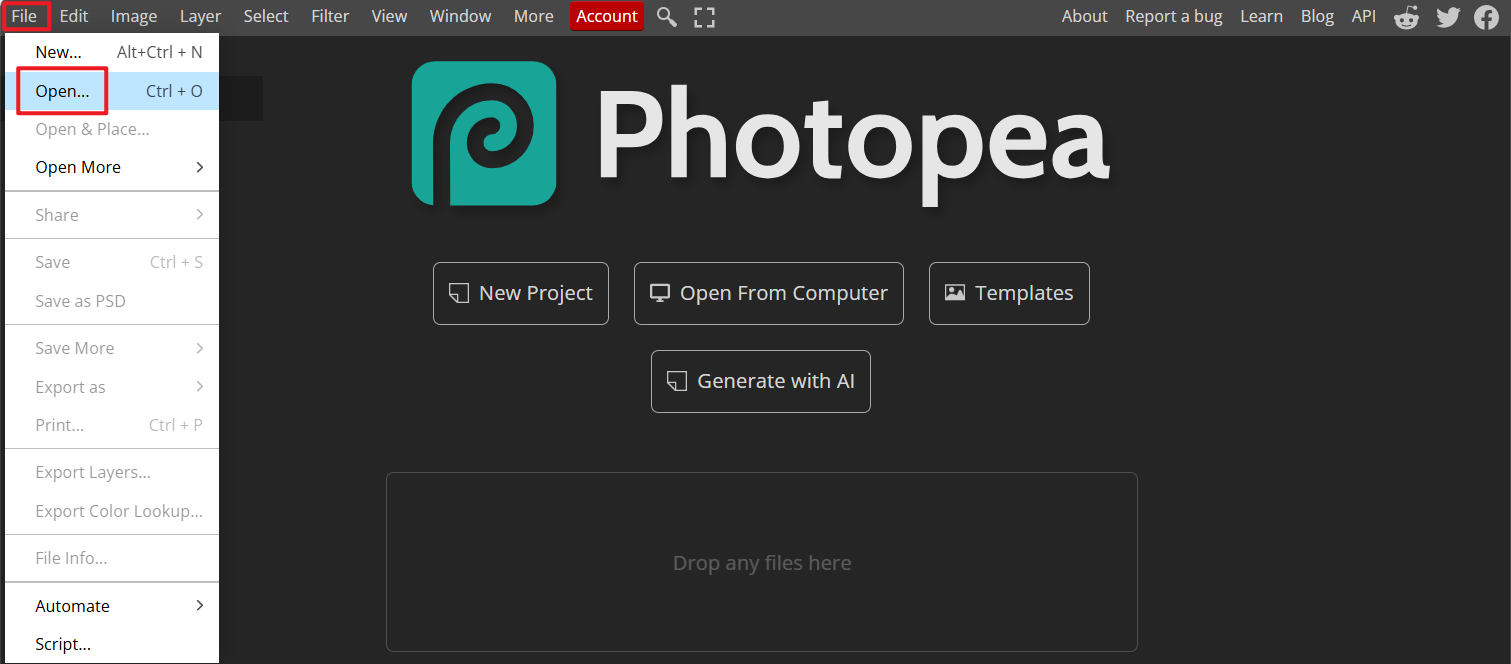
Open Photopea in your
browser and go to File > Open to select your drawing
file.
Open lineart in Photopea
Photopea supports PSD, PNG, JPG, and other common formats, so you can
upload scanned sketches, digital line drawings, or files exported from
other tools. Once imported, the lineart appears on its own layer in the
Layers panel.
My experience: Uploading a PNG tends to work best because it
preserves crisp lines, especially when preparing the artwork for digital
coloring.
Step 2: Ensure your lineart is on its own layer
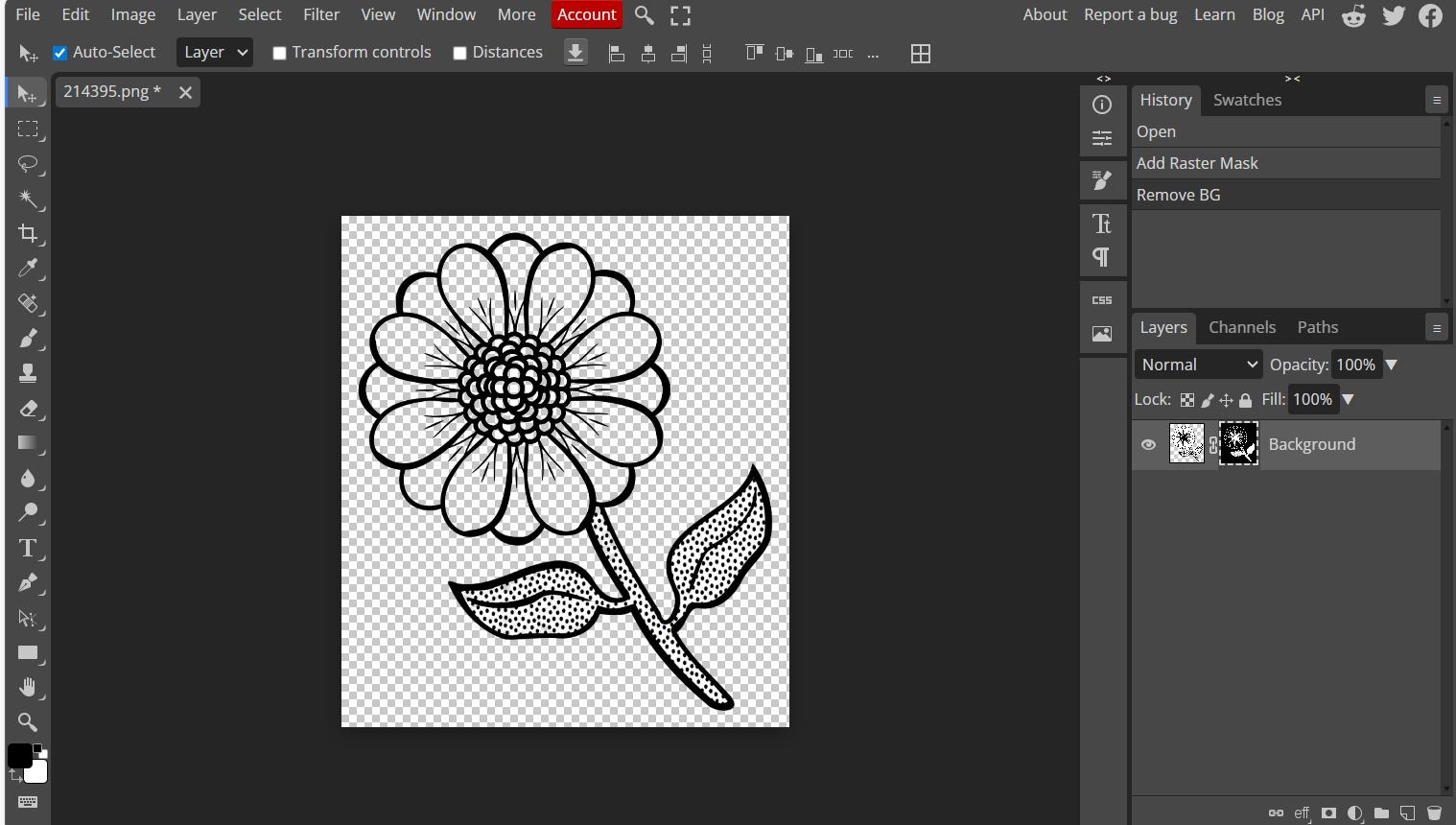
Your lineart should be completely separated from the background. If
the drawing includes a white background, remove it or convert the image
to a transparent PNG using the Magic Eraser, Select > Remove
BG, or other selection tools.
digital coloring for beginners with Photopea
Tip: If you cannot remove the white background easily, you can still
proceed by changing the blend mode in the next step.
My experience: Clean, isolated lineart always gives smoother
color fills and reduces edge cleanup later.
Step 3: Set the lineart layer to Multiply
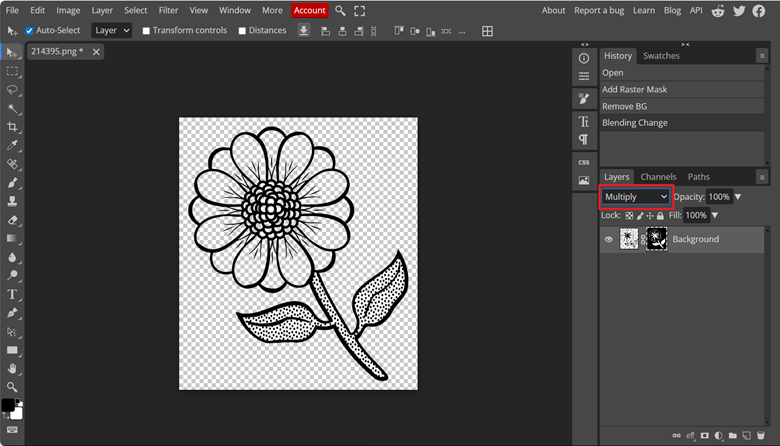
With the lineart layer selected, change the blend mode from Normal to
Multiply.
change the blend mode from Normal to Multiply
This step is essential because Multiply allows colors on layers
beneath the lineart to show through without covering the black lines. It
is the foundation of the Photopea Multiply coloring method.
My experience: Multiply consistently produces the cleanest
results for black linework. It behaves exactly like the mode in
Photoshop, so beginners can follow familiar workflows.
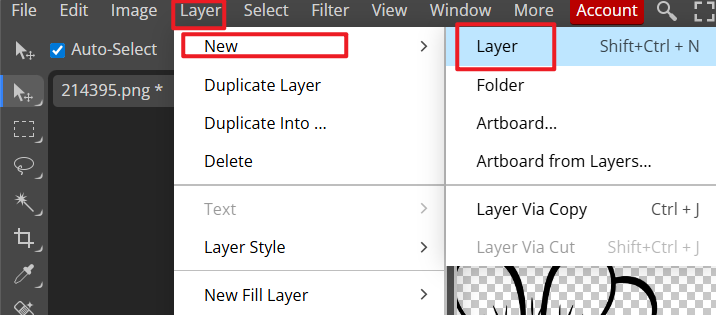
Step 4: Create a new layer below the lineart
Go to Layer > New Layer and drag it underneath
the lineart layer.
Create a new layer below the lineart
This will become your coloring layer. Keeping layers organized is
important because beginners often paint directly on the lineart by
mistake.
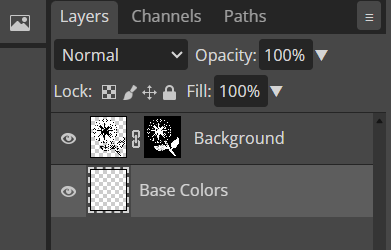
My experience: Label your layers clearly, such as “Base
Colors” or “Shading, to avoid confusion once multiple layers are
added.
Label your layers clearly
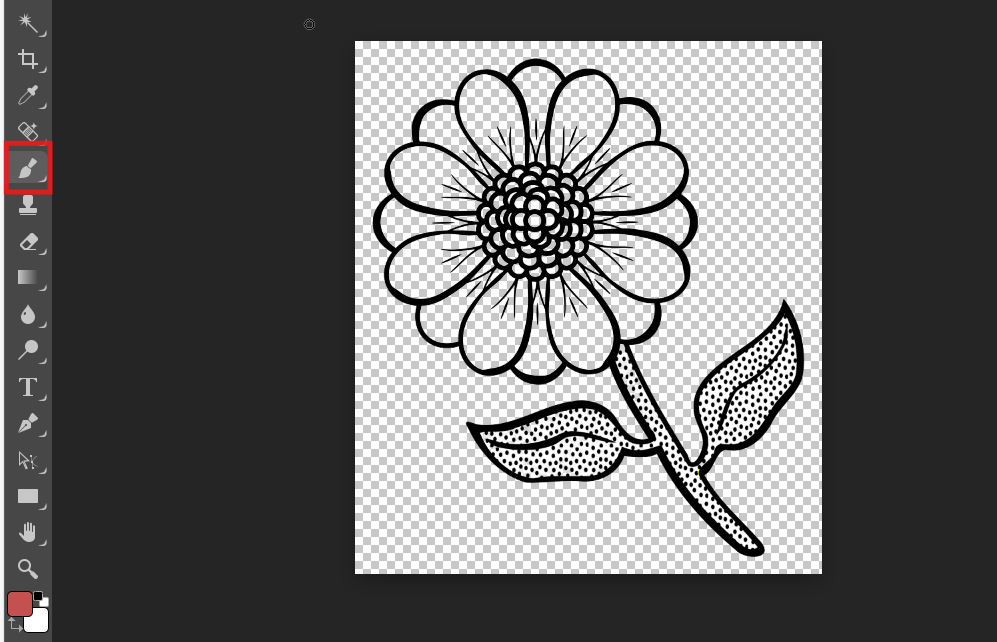
Step 5: Use the Brush Tool or Paint Bucket to add base
colors
Select the Brush Tool (B) for manual painting or the Paint Bucket (G)
for quick fills.
Select the Brush Tool
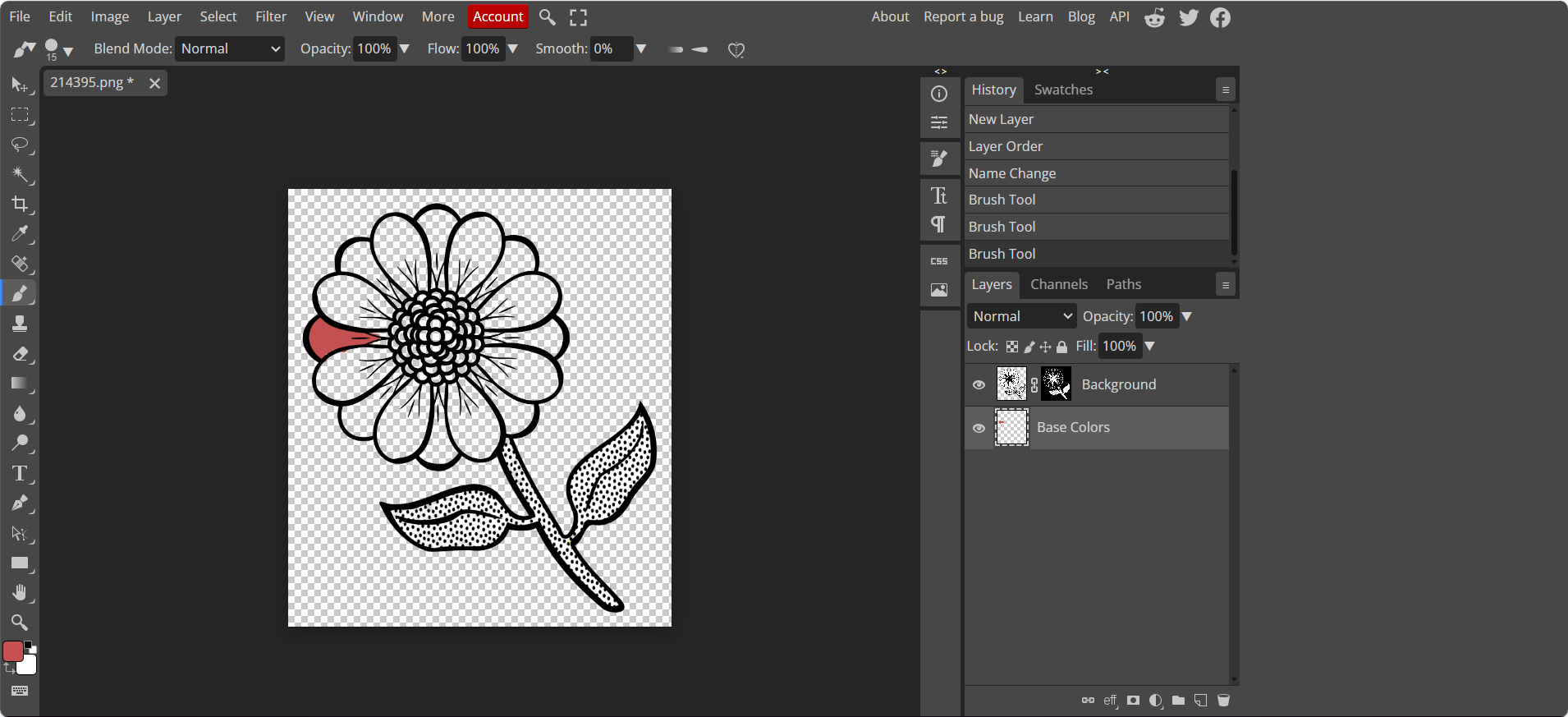
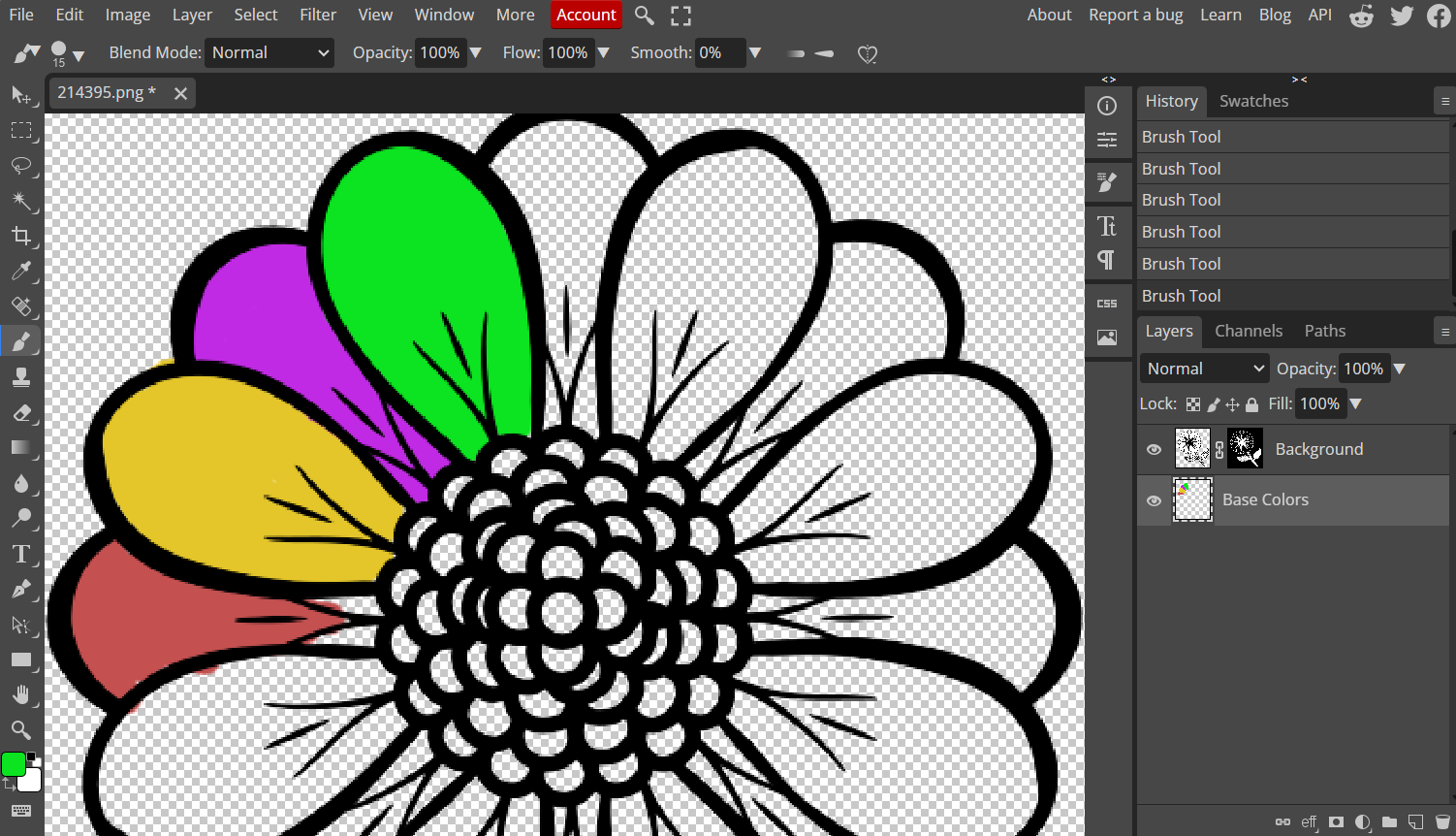
Begin adding flat colors on the layer beneath the lineart. If areas
spill outside the edges, use the Eraser Tool or selections to clean the
boundaries.
Adding flat colors
If you prefer cleaner fills, lock transparency on a layer after your
base colors are established.
My experience: For beginners, brushing works better than
buckets because it gives more control and avoids jagged edges,
especially when learning how to color black and white drawings
online.
Step 6: Final adjustments
Zoom in and clean any rough lines, refine color boundaries, and
adjust hue, saturation, or brightness to unify the artwork. Small edits
can significantly improve the overall look.
Final adjustments
My experience: Beginners often skip this stage, but polished
edges and balanced colors make the final illustration look intentional
and professional.
Part
3: Best Tool to Optimize Your Lineart Image – WPS Photos
WPS Photos is an AI-powered photo enhancement tool designed to help
users improve the clarity and quality of their images before coloring.
For beginners who struggle with low-resolution scans, unclear lines, or
uneven brightness in their drawings, WPS Photos provides quick automated
adjustments that make the lineart easier to work with. While Photopea
handles manual digital illustration tasks, WPS Photos focuses on
delivering instant image optimization.
Features
WPS Photos offers several AI-based enhancements that support the
coloring process:
AI image enhancement that sharpens lines and improves
clarity
AI background removal for converting drawings to clean
lineart
Automatic lighting and color correction
High-resolution upscaling for blurry or low-quality
images
Beginner-friendly interface that requires no technical
knowledge
These features allow users to prepare their artwork quickly before
transferring it into Photopea for manual coloring.
How to Use WPS Photos
Step 1: Upload your image
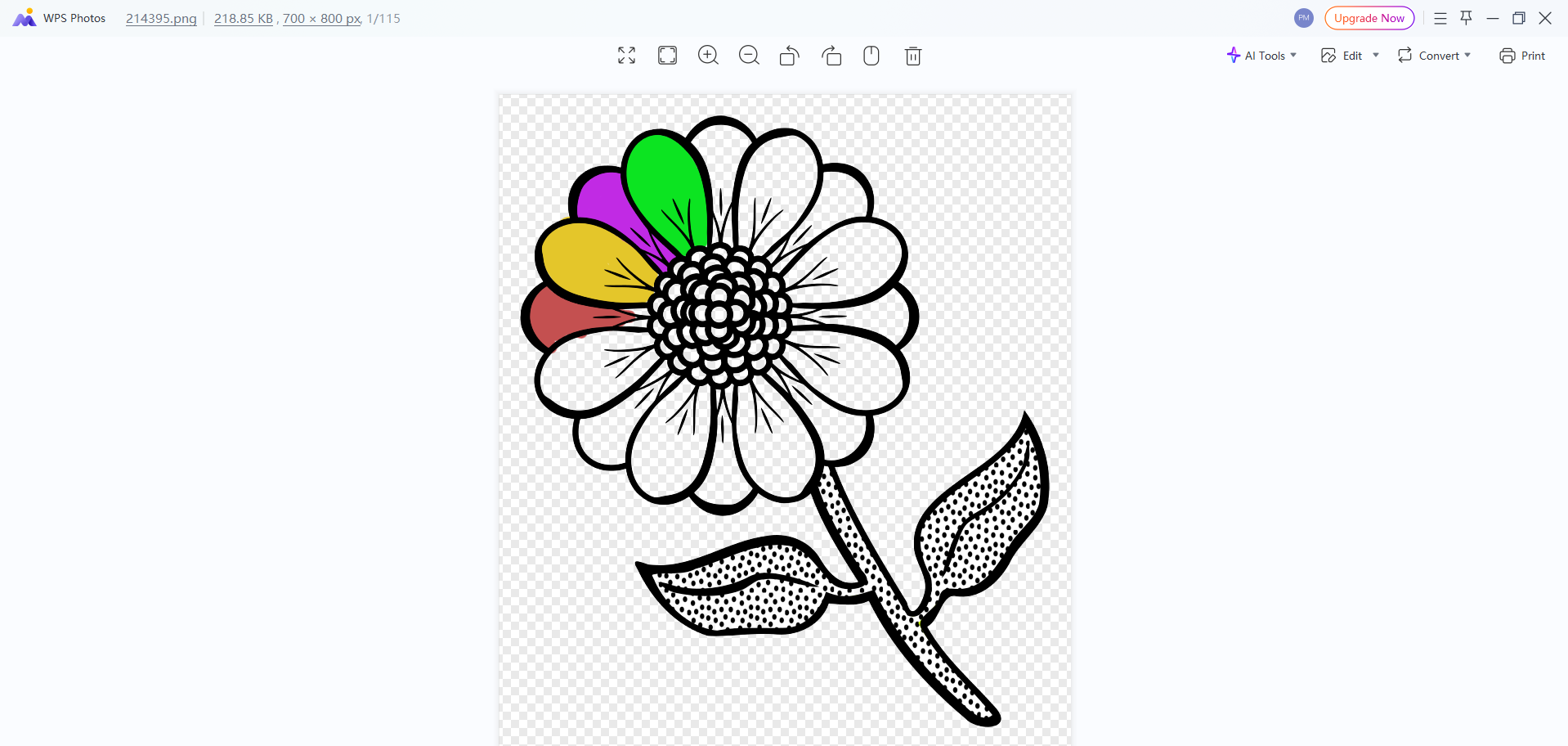
Open WPS Photos and upload your drawing or lineart file. The tool
supports common formats such as JPG and PNG. Once imported, the AI
engine automatically analyzes the image.
Upload your image to WPS Photos
Step 2: Apply AI Enhance
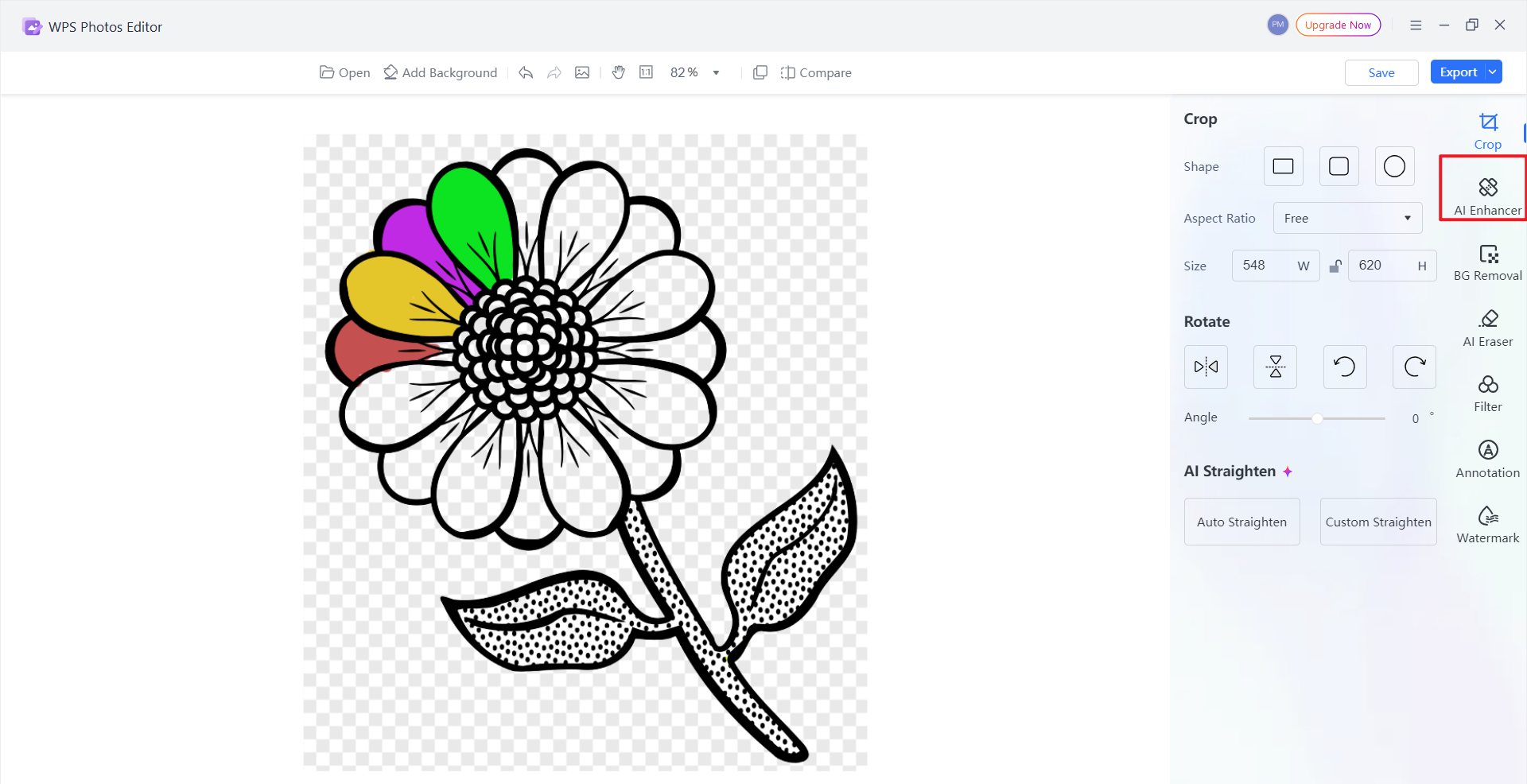
Click Edit and select the AI Enhance option. This feature sharpens
details, improves contrast, and helps define the line edges, making them
easier to color later.
Apply AI Enhance
Step 3: Upscale the image for better
quality
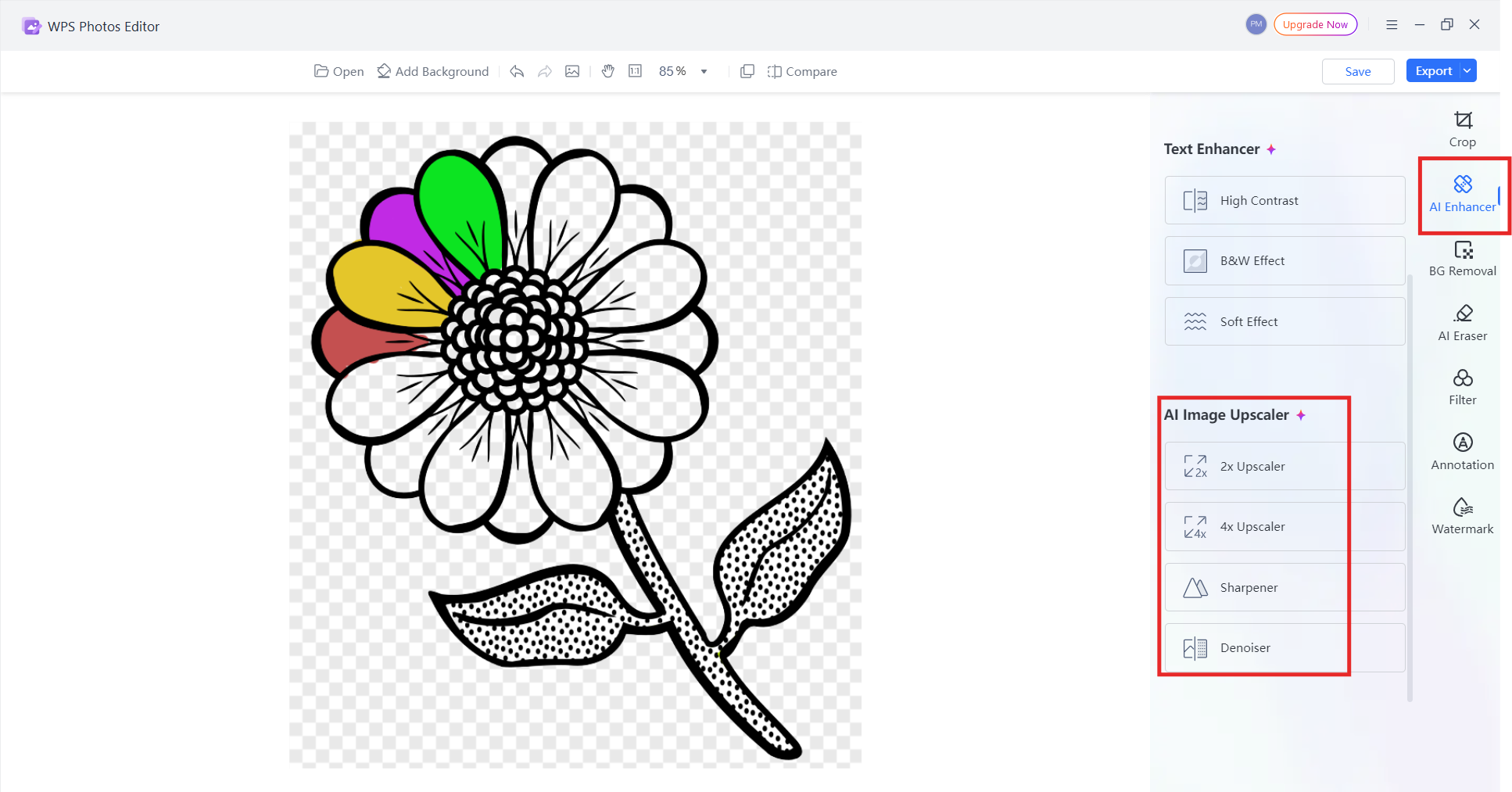
For blurry or low-resolution sketches, use the AI Upscale tool to
increase resolution without losing detail. This helps the lines appear
sharper when using digital brushes.
Upscale the image for better quality
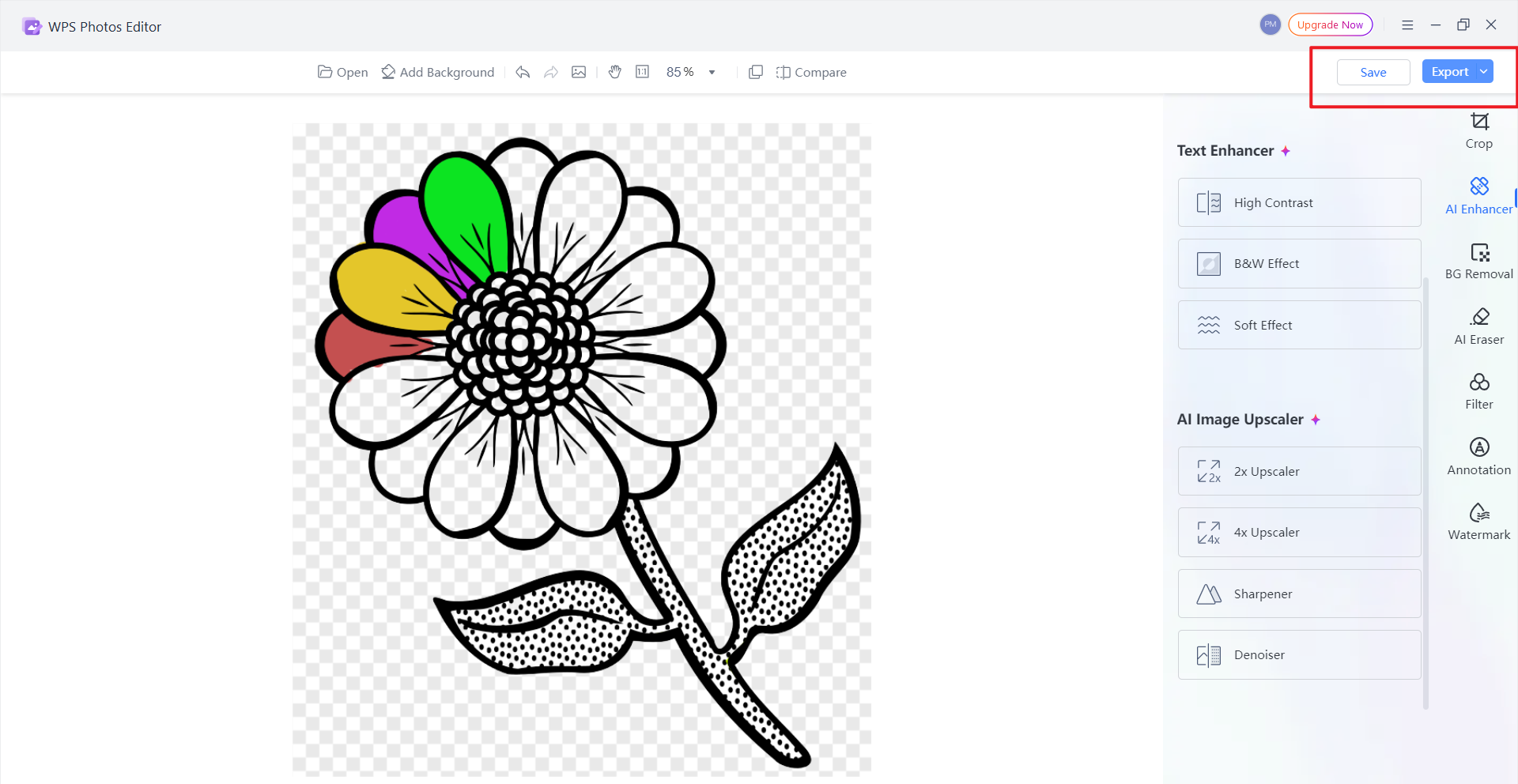
Step 4: Save and import into Photopea
Export your optimized file and reopen it in Photopea. With enhanced
clarity and a clean outline, the coloring process becomes faster and
more accurate.
Save or export the image
My experience: Using WPS Photos before starting the coloring
stage helps reduce cleanup work. Sharper lineart allows smoother fills
and cleaner edges, especially when working with scanned sketches or
drawings captured with a phone.
FAQs
Q1: Is Photopea free to use?
Yes. Photopea is completely free with ads and includes all the tools
you need for coloring lineart. A Premium version is available for users
who prefer an ad-free workspace.
Q2: Why is my color covering the lineart?
This happens when you paint directly on the lineart layer or forget
to change the layer mode. Make sure the lineart is set to Multiply and
that your colors are placed on a new layer beneath it.
Q3: Can beginners use Photopea for full digital
painting?
Yes. Photopea supports layer modes, brushes, selections, and
pressure-sensitive tablets, making it a practical choice for beginners
transitioning into digital illustration.
Q4: What is the best blend mode for coloring
lineart?
Multiply is the standard choice because it keeps black lines visible
while allowing color to show through. It is the same method used in most
how to color lineart Photopea workflows.
Q5: What is the difference between Photopea and WPS
Photos?
Photopea is a full manual editor for drawing, painting, and layering,
while WPS Photos provides quick AI-based enhancements like sharpening,
background removal, and automatic corrections. They work well together
when preparing and coloring lineart.
Summary
Coloring lineart in Photopea becomes much easier once you understand
how layers and blend modes work. By placing your colors on a layer
beneath the drawing and setting the lineart to Multiply, beginners can
create clean, controlled results without affecting the original lines.
The step-by-step workflow outlined in this guide shows how to build base
colors, add shading, and refine details using tools that feel familiar
to anyone transitioning from traditional drawing or other digital
editors.
For users working with low-quality scans or uneven sketches, WPS
Photos offers a quick way to enhance clarity before beginning the
coloring process. Its AI-powered tools help sharpen lineart, remove
unwanted backgrounds, and improve overall image quality, making the
final artwork smoother and easier to color. Together, these two tools
provide a practical combination for both beginners and hobbyists
learning digital illustration techniques online.
Office software expert with 15+ years of experience since 2009. I specialize in tech tutorials, productivity tools, and digital solutions for everyday users. Passionate about making technology simple and accessible for everyone.


'%3e%3cpath%20d='M8%200C12.4183%200%2016%203.58172%2016%208C16%2012.4183%2012.4183%2016%208%2016C3.58172%2016%200%2012.4183%200%208C0%203.58172%203.58172%200%208%200ZM11.6162%204.38379C11.2257%203.99337%2010.5927%203.99338%2010.2021%204.38379L8%206.58594L5.79785%204.38379C5.40732%203.99334%204.77429%203.99329%204.38379%204.38379C3.99331%204.77429%203.99335%205.40733%204.38379%205.79785L6.58594%208L4.38379%2010.2021C3.99348%2010.5927%203.99341%2011.2257%204.38379%2011.6162C4.77426%2012.0066%205.40734%2012.0065%205.79785%2011.6162L8%209.41406L10.2021%2011.6162C10.5927%2012.0066%2011.2257%2012.0067%2011.6162%2011.6162C12.0067%2011.2257%2012.0066%2010.5927%2011.6162%2010.2021L9.41406%208L11.6162%205.79785C12.0066%205.40735%2012.0066%204.77429%2011.6162%204.38379Z'%20fill='%23080E17'%20fill-opacity='0.46'/%3e%3c/g%3e%3cdefs%3e%3cclipPath%20id='clip0_3761_713'%3e%3crect%20width='16'%20height='16'%20fill='white'/%3e%3c/clipPath%3e%3c/defs%3e%3c/svg%3e)




'%3e%3cpath%20fill-rule='evenodd'%20clip-rule='evenodd'%20d='M21.4999%2010.9993C21.4999%205.20009%2016.7986%200.498901%2010.9993%200.498901C5.19994%200.498901%200.498657%205.20009%200.498657%2010.9993C0.498657%2016.2404%204.33858%2020.5844%209.35855%2021.3722V14.0346H6.69238V10.9993H9.35855V8.68594C9.35855%206.05427%2010.9262%204.60062%2013.3248%204.60062C14.4736%204.60062%2015.6753%204.80571%2015.6753%204.80571V7.38979H14.3512C13.0468%207.38979%2012.64%208.19921%2012.64%209.0296V10.9993H15.5523L15.0867%2014.0346H12.64V21.3722C17.66%2020.5844%2021.4999%2016.2404%2021.4999%2010.9993Z'%20fill='%231568EA'/%3e%3c/g%3e%3c/svg%3e)


'%3e%3cpath%20d='M2.42045%2022.1876H6.31818V12.7217L0.75%208.54553V20.5171C0.75%2021.4414%201.49892%2022.1876%202.42045%2022.1876Z'%20fill='%234285F4'/%3e%3cpath%20d='M19.682%2022.1876H23.5797C24.5041%2022.1876%2025.2502%2021.4387%2025.2502%2020.5171V8.54553L19.682%2012.7217'%20fill='%2334A853'/%3e%3cpath%20d='M19.682%205.48293V12.7216L25.2502%208.54543V6.31816C25.2502%204.25236%2022.8921%203.07469%2021.2411%204.31361'%20fill='%23FBBC04'/%3e%3cpath%20d='M6.31824%2012.7217V5.48303L13.0001%2010.4944L19.6819%205.48303V12.7217L13.0001%2017.733'%20fill='%23EA4335'/%3e%3cpath%20d='M0.75%206.31816V8.54543L6.31818%2012.7216V5.48293L4.75909%204.31361C3.10534%203.07469%200.75%204.25236%200.75%206.31816Z'%20fill='%23C5221F'/%3e%3c/g%3e%3cdefs%3e%3cclipPath%20id='clip0_2954_7305'%3e%3crect%20width='24.5'%20height='18.375'%20fill='white'%20transform='translate(0.75%203.8125)'/%3e%3c/clipPath%3e%3c/defs%3e%3c/svg%3e)



'%3e%3cpath%20d='M19.9911%204.11386V6.471H18.5894C18.0775%206.471%2017.7322%206.57814%2017.5536%206.79243C17.3751%207.00671%2017.2858%207.32814%2017.2858%207.75671V9.44421H19.9019L19.5536%2012.0871H17.2858V18.8639H14.5536V12.0871H12.2769V9.44421H14.5536V7.49779C14.5536%206.39064%2014.8632%205.53201%2015.4822%204.92189C16.1013%204.31177%2016.9257%204.00671%2017.9554%204.00671C18.8304%204.00671%2019.509%204.04243%2019.9911%204.11386Z'%20fill='%23333333'/%3e%3c/g%3e%3cdefs%3e%3cclipPath%20id='clip0_2938_8199'%3e%3crect%20width='16'%20height='16'%20fill='white'%20transform='translate(8%204.00671)'/%3e%3c/clipPath%3e%3c/defs%3e%3c/svg%3e)
'%3e%3cpath%20d='M17.5237%2010.7813L23.4811%204H22.0699L16.8949%209.88693L12.7648%204H8L14.2469%2012.9029L8%2020.0133H9.4112L14.8725%2013.7952L19.2352%2020.0133H24M9.92053%205.04213H12.0885L22.0688%2019.0224H19.9003'%20fill='%23333333'/%3e%3c/g%3e%3cdefs%3e%3cclipPath%20id='clip0_2938_8200'%3e%3crect%20width='16'%20height='16.0134'%20fill='white'%20transform='translate(8%204)'/%3e%3c/clipPath%3e%3c/defs%3e%3c/svg%3e)


