

'%3e%3cpath%20d='M8%200C12.4183%200%2016%203.58172%2016%208C16%2012.4183%2012.4183%2016%208%2016C3.58172%2016%200%2012.4183%200%208C0%203.58172%203.58172%200%208%200ZM11.6162%204.38379C11.2257%203.99337%2010.5927%203.99338%2010.2021%204.38379L8%206.58594L5.79785%204.38379C5.40732%203.99334%204.77429%203.99329%204.38379%204.38379C3.99331%204.77429%203.99335%205.40733%204.38379%205.79785L6.58594%208L4.38379%2010.2021C3.99348%2010.5927%203.99341%2011.2257%204.38379%2011.6162C4.77426%2012.0066%205.40734%2012.0065%205.79785%2011.6162L8%209.41406L10.2021%2011.6162C10.5927%2012.0066%2011.2257%2012.0067%2011.6162%2011.6162C12.0067%2011.2257%2012.0066%2010.5927%2011.6162%2010.2021L9.41406%208L11.6162%205.79785C12.0066%205.40735%2012.0066%204.77429%2011.6162%204.38379Z'%20fill='%23080E17'%20fill-opacity='0.46'/%3e%3c/g%3e%3cdefs%3e%3cclipPath%20id='clip0_3761_713'%3e%3crect%20width='16'%20height='16'%20fill='white'/%3e%3c/clipPath%3e%3c/defs%3e%3c/svg%3e)




'%3e%3cpath%20fill-rule='evenodd'%20clip-rule='evenodd'%20d='M21.4999%2010.9993C21.4999%205.20009%2016.7986%200.498901%2010.9993%200.498901C5.19994%200.498901%200.498657%205.20009%200.498657%2010.9993C0.498657%2016.2404%204.33858%2020.5844%209.35855%2021.3722V14.0346H6.69238V10.9993H9.35855V8.68594C9.35855%206.05427%2010.9262%204.60062%2013.3248%204.60062C14.4736%204.60062%2015.6753%204.80571%2015.6753%204.80571V7.38979H14.3512C13.0468%207.38979%2012.64%208.19921%2012.64%209.0296V10.9993H15.5523L15.0867%2014.0346H12.64V21.3722C17.66%2020.5844%2021.4999%2016.2404%2021.4999%2010.9993Z'%20fill='%231568EA'/%3e%3c/g%3e%3c/svg%3e)


'%3e%3cpath%20d='M2.42045%2022.1876H6.31818V12.7217L0.75%208.54553V20.5171C0.75%2021.4414%201.49892%2022.1876%202.42045%2022.1876Z'%20fill='%234285F4'/%3e%3cpath%20d='M19.682%2022.1876H23.5797C24.5041%2022.1876%2025.2502%2021.4387%2025.2502%2020.5171V8.54553L19.682%2012.7217'%20fill='%2334A853'/%3e%3cpath%20d='M19.682%205.48293V12.7216L25.2502%208.54543V6.31816C25.2502%204.25236%2022.8921%203.07469%2021.2411%204.31361'%20fill='%23FBBC04'/%3e%3cpath%20d='M6.31824%2012.7217V5.48303L13.0001%2010.4944L19.6819%205.48303V12.7217L13.0001%2017.733'%20fill='%23EA4335'/%3e%3cpath%20d='M0.75%206.31816V8.54543L6.31818%2012.7216V5.48293L4.75909%204.31361C3.10534%203.07469%200.75%204.25236%200.75%206.31816Z'%20fill='%23C5221F'/%3e%3c/g%3e%3cdefs%3e%3cclipPath%20id='clip0_2954_7305'%3e%3crect%20width='24.5'%20height='18.375'%20fill='white'%20transform='translate(0.75%203.8125)'/%3e%3c/clipPath%3e%3c/defs%3e%3c/svg%3e)


Adobe Photoshop is the industry-standard when it comes to reliable editing software, providing advanced features like advanced layer management. However, beginners often get confused and can’t figure out how to merge layers in Photoshop. So, what is the easiest way you can use to combine multiple layers Photoshop? In this guide, I’ll be explaining Photoshop’s layer-based editing system and walking you through how to combine layers in Photoshop.
Overview of Photoshop
Photoshopis a professional photo editing software developed by Adobe as part of its Creative Cloud tool suite. It is one of the best and most feature-rich tools out there for anyone trying to edit their photos easily using advanced layer management features. Understanding Photoshop’s layer-based system is essential to mastering it, but its interface can get a little complicated for some users. This makes it very difficult for beginners to learn how to merge layersin Photoshop.
Features
Advanced Selection Tools: Quick Mask, Select, and Mask for precise editing.
Color & Tone Management Tools: Allows for detailed color grading for raw images.
AI-Powered Assistance: Skin Smoothing, Style Transfer, and Colorize.
Pros
Precise and accurate editing tools
Numerous customization features
Variety of filters
Support for layers and masks
Cons
Difficult for beginners
High subscription prices
5 Methods to Combine Layers in Photoshop – Step-by-Step Guide
Photoshop layer management for beginners can get quite confusing if you don’t know what you’re doing, especially when you’re trying to figure out the different layering functions like Photoshop flatten vs merge. But once you know the exact steps you need to follow, everything gets much simpler. In this section, I’ll be walking you through 5 of the most reliable methods you can use to merge your layers in Photoshop.
Method 1: Keyboard Shortcut
Using the keyboard shortcut is the simplest and quickest way you can use to combine multiple layers Photoshop on your project, and I’ll be highlighting the steps you need to follow to get quick and reliable results.
Step 1: Open the project you want to edit in Photoshop and select the layers you want to merge.
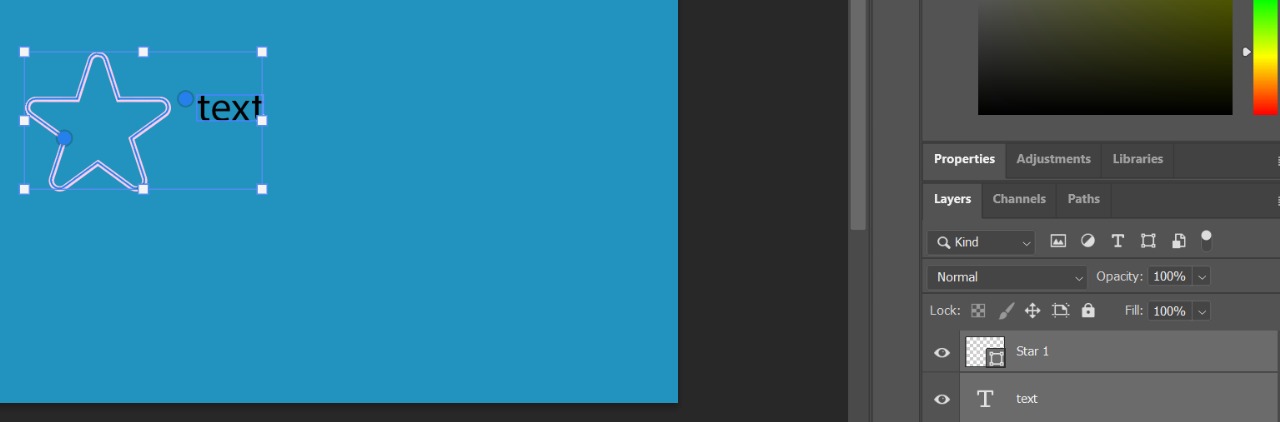
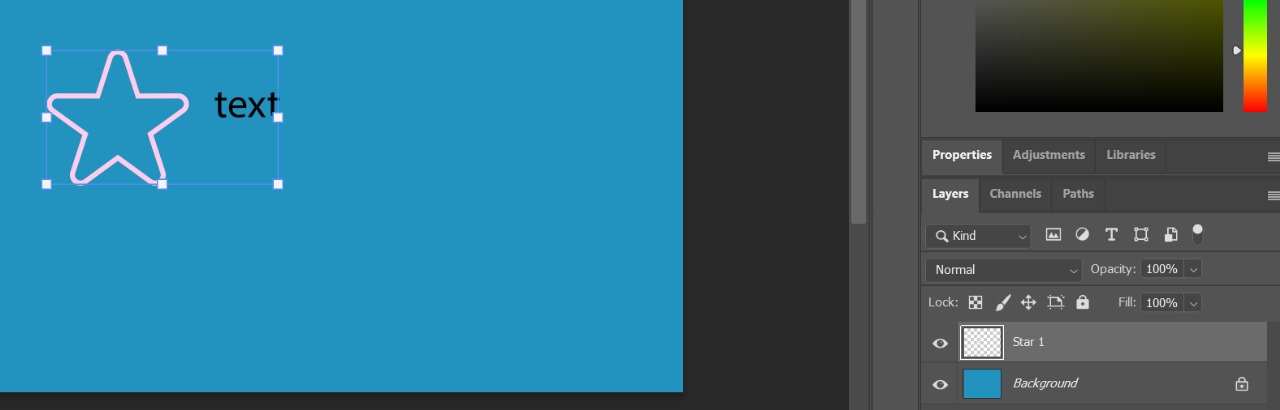
Step 2: Now, just press Ctrl + Esimultaneously to merge your selected layers.
Method 2: Merge Layers Tool
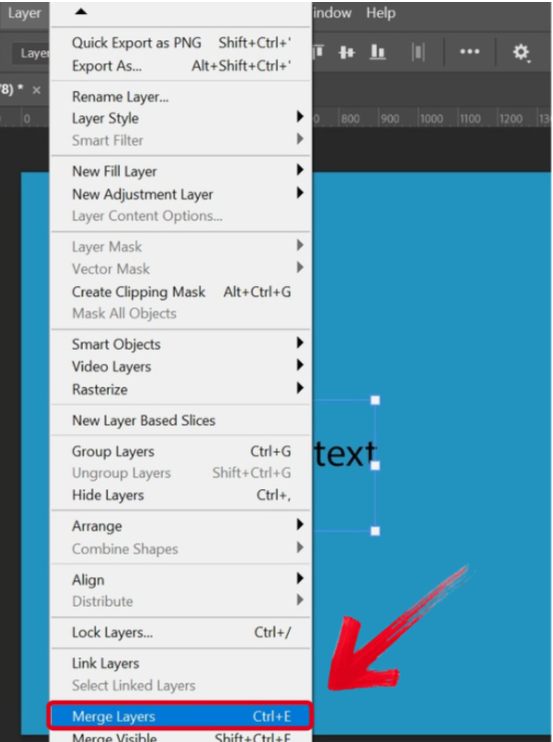
If you want more control over your layers and project, then using the built-in merge layers tool is your best bet at combining multiple layers of your project. I’ll be highlighting each step of the process to help you figure it out.
Step 1: Open your project and select the layers you want to combine.
Step 2: Navigate to the Layers Taband then select Merge Layers.
Method 3: Clipping Mask
If you want to define the shape and boundaries of a group of layers, you can merge them using the Clipping Mask. The steps are incredibly simple, and I’ll highlight each one below.
Step 1: The first thing you need to do is hide any layers you don’t want to merge by pressing the Eye Icon.

Step 2: Select the base layer and then pressCtrl + Alt + G to create a clipping mask. Your layers will now be merged together.

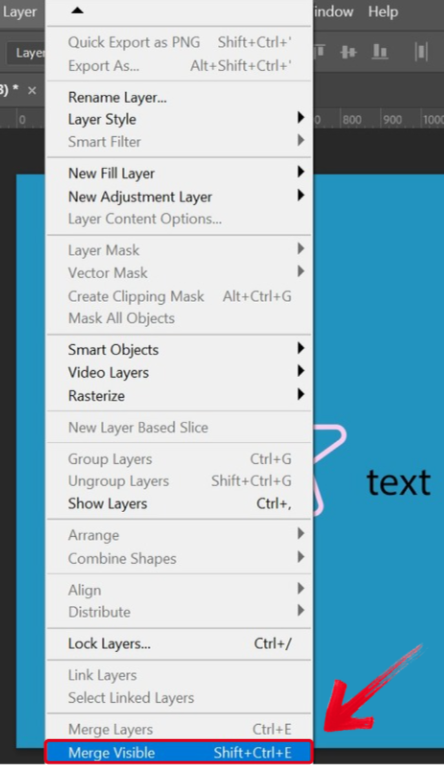
Method 4: Merging Visible Layers
If you’re dealing with multiple layers and want a quick solution to combining the ones you want, you can simply merge the visible layers in your project. The process is incredibly simple, and I’ll highlight each step below.
Step 1: Use the Eye Icon to ensure all of your layers are visible.
Step 2: In the Layers Tab, selectMerge Visible to combine all of the visible layers.
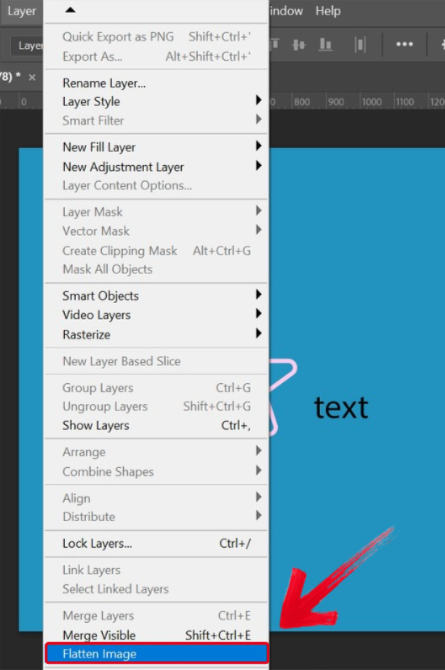
Method 5: Flatten Image
If you’re done with your project and want to merge all your layers into one compact layer, these are the steps you can follow for reliable and effective results using the flatten image tool.
Step 1: Open the project you want to work on to get started.
Step 2: In the Layers Tab, selectFlatten Image to combine all of your layers into a single image.
Another AI Photo Solution – WPS Photos
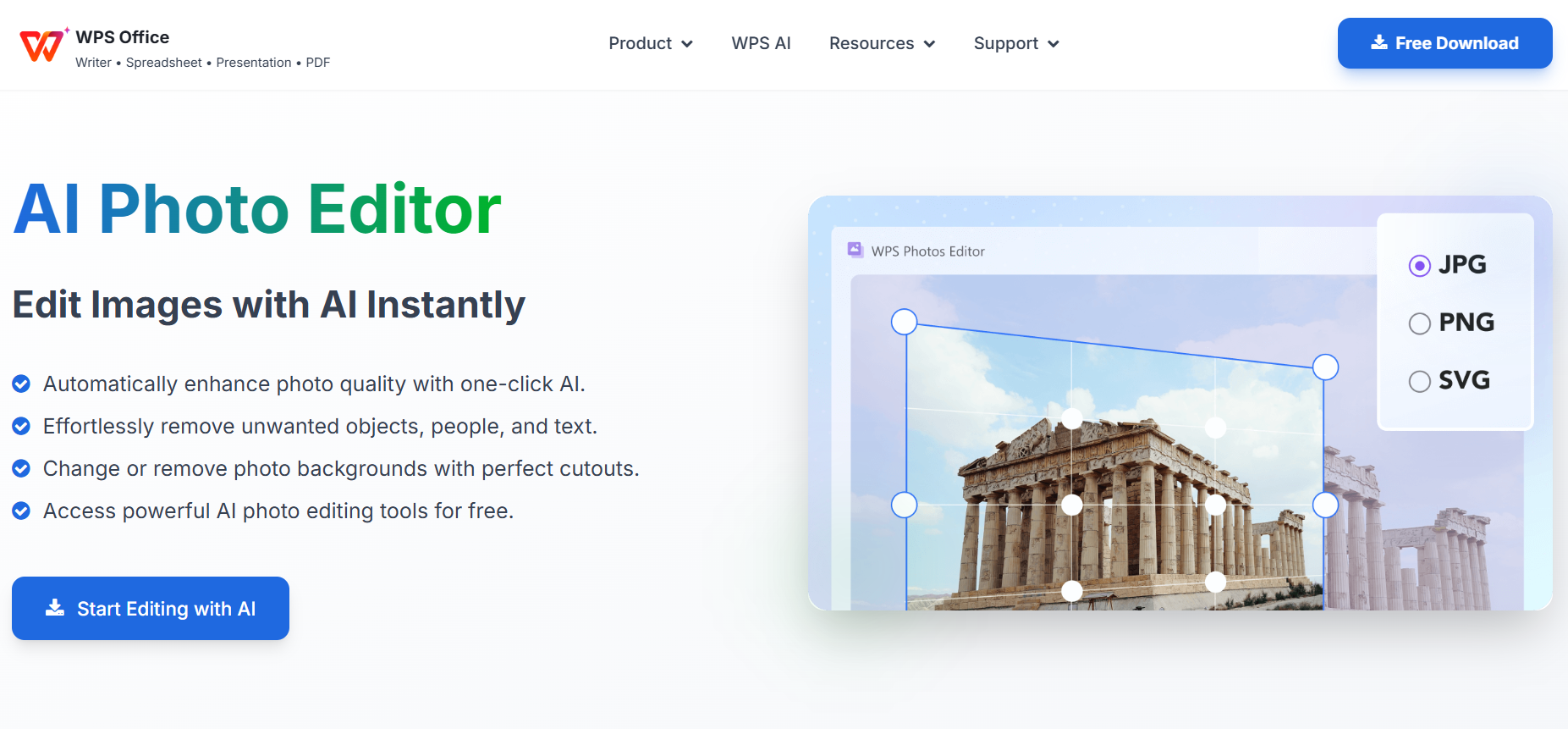
Photoshop can be a great asset for professionals and designers looking for a premium photo editing solution, but it’s not the most versatile or budget-friendly tool for beginners looking for an all-in-one solution. This is why I personally use WPS Photos for all my photo editing needs. It provides me with a free and feature-rich tool suite, filled with powerful features to help me enhance and refine my images with ease.
Features
AI photo enhancement
Smart background removal
Automatic lighting and color correction
Image upscaling for sharper results
Using WPS Photo is a wise choice for anyone trying to elevate their photo editing workflow without much hassle. I’ll highlight the steps you need to follow to elevate and enhance your images using the AI-powered features provided by WPS.
Step 1: Open the photo you want to edit using WPS Photo to get started.
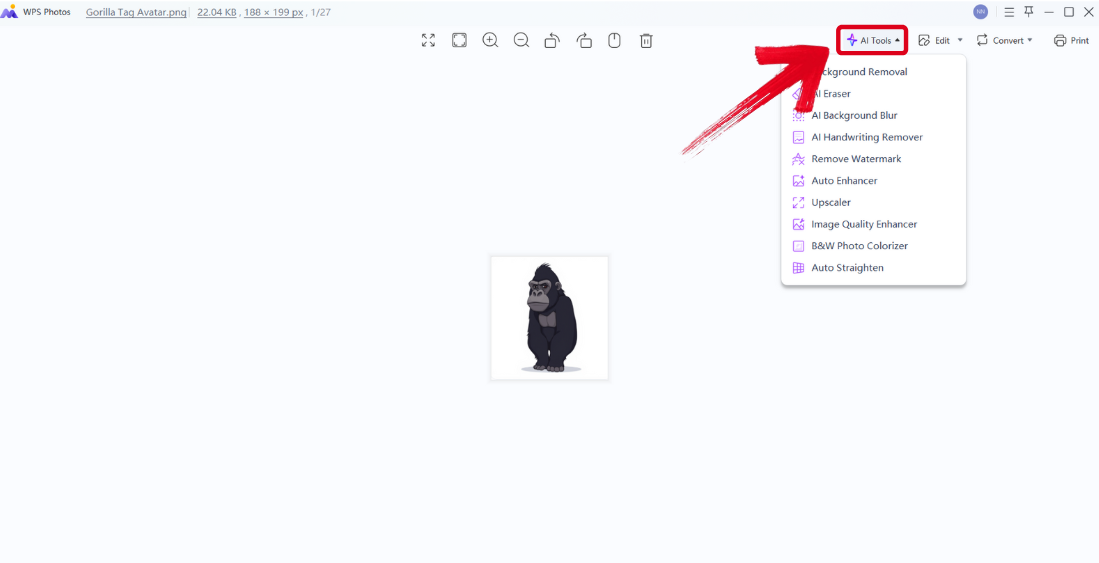
Step 2: In the WPS Photo window, you’ll see a variety of different editing features given to you, each one helping you enhance your photos reliably.
AI Image Enhancer: Improve the quality of your image instantly using AI enhancement.
AI Upscaler: Restore your old photos and bring life back to them with the AI upscaler.
AI Watermark Removal: If there are any watermarks on your template, you can elevate the visual appeal with the watermark removal tool.
AI Background Blur: Emphasize focus on the main subjects of your photo by blurring the background.
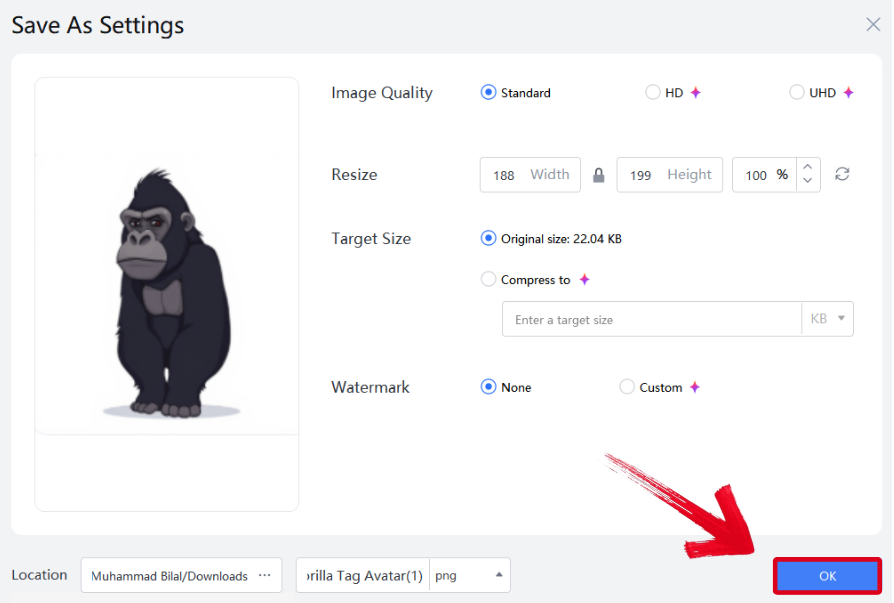
Step 3: Press Ctrl + S to open theSave As window. Adjust the image quality, size, and format, and then press OK to finish.
FAQs
Q1: What is the difference between Merge Layers and Merge Visible?
Merge Layers combines only selected layers; Merge Visible combines all visible layers.
Q2: Can I undo combining layers in Photoshop?
Yes, you can just use Ctrl/Cmd + Z or do it manually using the History panel.
Q3: Does combining layers reduce image quality?
No, unless using Flatten Image and exporting to a lossy format like JPG.
Q4: Why recommend WPS Photos with Photoshop?
It provides fast AI-powered enhancements that designers can use before or after Photoshop editing.
Simplifying Layer Management
With its incredibly confusing interface, it can be incredibly confusing to figure out how to combine layers in Photoshop. Adobe provides many ways for its users to help them do just that, ranging from simple shortcuts to more advanced methods. I’ve covered 5 of the most reliable ones in this guide, covering their detailed step-by-step walkthroughs to simplify the process. You can use WPS Phototo further enhance your images once you’re done editing. It’s completely free and has all the features you need to master your creative skills in an all-in-one tool suite.

'%3e%3cpath%20d='M19.9911%204.11386V6.471H18.5894C18.0775%206.471%2017.7322%206.57814%2017.5536%206.79243C17.3751%207.00671%2017.2858%207.32814%2017.2858%207.75671V9.44421H19.9019L19.5536%2012.0871H17.2858V18.8639H14.5536V12.0871H12.2769V9.44421H14.5536V7.49779C14.5536%206.39064%2014.8632%205.53201%2015.4822%204.92189C16.1013%204.31177%2016.9257%204.00671%2017.9554%204.00671C18.8304%204.00671%2019.509%204.04243%2019.9911%204.11386Z'%20fill='%23333333'/%3e%3c/g%3e%3cdefs%3e%3cclipPath%20id='clip0_2938_8199'%3e%3crect%20width='16'%20height='16'%20fill='white'%20transform='translate(8%204.00671)'/%3e%3c/clipPath%3e%3c/defs%3e%3c/svg%3e)
'%3e%3cpath%20d='M17.5237%2010.7813L23.4811%204H22.0699L16.8949%209.88693L12.7648%204H8L14.2469%2012.9029L8%2020.0133H9.4112L14.8725%2013.7952L19.2352%2020.0133H24M9.92053%205.04213H12.0885L22.0688%2019.0224H19.9003'%20fill='%23333333'/%3e%3c/g%3e%3cdefs%3e%3cclipPath%20id='clip0_2938_8200'%3e%3crect%20width='16'%20height='16.0134'%20fill='white'%20transform='translate(8%204)'/%3e%3c/clipPath%3e%3c/defs%3e%3c/svg%3e)


