

'%3e%3cpath%20d='M8%200C12.4183%200%2016%203.58172%2016%208C16%2012.4183%2012.4183%2016%208%2016C3.58172%2016%200%2012.4183%200%208C0%203.58172%203.58172%200%208%200ZM11.6162%204.38379C11.2257%203.99337%2010.5927%203.99338%2010.2021%204.38379L8%206.58594L5.79785%204.38379C5.40732%203.99334%204.77429%203.99329%204.38379%204.38379C3.99331%204.77429%203.99335%205.40733%204.38379%205.79785L6.58594%208L4.38379%2010.2021C3.99348%2010.5927%203.99341%2011.2257%204.38379%2011.6162C4.77426%2012.0066%205.40734%2012.0065%205.79785%2011.6162L8%209.41406L10.2021%2011.6162C10.5927%2012.0066%2011.2257%2012.0067%2011.6162%2011.6162C12.0067%2011.2257%2012.0066%2010.5927%2011.6162%2010.2021L9.41406%208L11.6162%205.79785C12.0066%205.40735%2012.0066%204.77429%2011.6162%204.38379Z'%20fill='%23080E17'%20fill-opacity='0.46'/%3e%3c/g%3e%3cdefs%3e%3cclipPath%20id='clip0_3761_713'%3e%3crect%20width='16'%20height='16'%20fill='white'/%3e%3c/clipPath%3e%3c/defs%3e%3c/svg%3e)



'%3e%3cpath%20fill-rule='evenodd'%20clip-rule='evenodd'%20d='M21.4999%2010.9993C21.4999%205.20009%2016.7986%200.498901%2010.9993%200.498901C5.19994%200.498901%200.498657%205.20009%200.498657%2010.9993C0.498657%2016.2404%204.33858%2020.5844%209.35855%2021.3722V14.0346H6.69238V10.9993H9.35855V8.68594C9.35855%206.05427%2010.9262%204.60062%2013.3248%204.60062C14.4736%204.60062%2015.6753%204.80571%2015.6753%204.80571V7.38979H14.3512C13.0468%207.38979%2012.64%208.19921%2012.64%209.0296V10.9993H15.5523L15.0867%2014.0346H12.64V21.3722C17.66%2020.5844%2021.4999%2016.2404%2021.4999%2010.9993Z'%20fill='%231568EA'/%3e%3c/g%3e%3c/svg%3e)


'%3e%3cpath%20d='M2.42045%2022.1876H6.31818V12.7217L0.75%208.54553V20.5171C0.75%2021.4414%201.49892%2022.1876%202.42045%2022.1876Z'%20fill='%234285F4'/%3e%3cpath%20d='M19.682%2022.1876H23.5797C24.5041%2022.1876%2025.2502%2021.4387%2025.2502%2020.5171V8.54553L19.682%2012.7217'%20fill='%2334A853'/%3e%3cpath%20d='M19.682%205.48293V12.7216L25.2502%208.54543V6.31816C25.2502%204.25236%2022.8921%203.07469%2021.2411%204.31361'%20fill='%23FBBC04'/%3e%3cpath%20d='M6.31824%2012.7217V5.48303L13.0001%2010.4944L19.6819%205.48303V12.7217L13.0001%2017.733'%20fill='%23EA4335'/%3e%3cpath%20d='M0.75%206.31816V8.54543L6.31818%2012.7216V5.48293L4.75909%204.31361C3.10534%203.07469%200.75%204.25236%200.75%206.31816Z'%20fill='%23C5221F'/%3e%3c/g%3e%3cdefs%3e%3cclipPath%20id='clip0_2954_7305'%3e%3crect%20width='24.5'%20height='18.375'%20fill='white'%20transform='translate(0.75%203.8125)'/%3e%3c/clipPath%3e%3c/defs%3e%3c/svg%3e)


Isn't it frustrating when you want to copy text from a JPG but you can’t because it’s just a static picture? The only solution we usually think of is typing everything manually, but that isn’t very efficient. The ability to convert JPG to Word has become a real need because it makes editing so much faster and easier. To fix this problem, there are JPG to Word converter tools. Some work well, and some struggle with accurate conversion. This article gives you the solutions and shows you the exact tools I rely on for professional work.


How to Convert JPG to Word Online
If you only convert images occasionally, using an online tool is the most practical and efficient choice. The main benefits are simple. You don't have to download or install any big software and you can access the converter instantly from any computer, tablet, or phone. It’s one of the easiest ways to learn how to convert JPG to Word, especially when you just need a quick result. This also helps you save valuable time that you would otherwise spend manually retyping text from scanned documents or screenshots.
We highly recommend starting with the WPS online tool. You will find it offers the ideal balance of speed and format reliability, making it perfect for anyone looking to free convert JPG to Word without losing quality. When tested against other free options, WPS does an excellent job maintaining complex layouts and tables. This minimizes the manual cleanup work for you, saving significant time that other tools often waste.
How to convert on WPS:
WPS has a simple online tool that lets you pull text from any image in just a few quick steps. It’s easy to follow, so you can copy your text without any confusion.
Step 1: Head over to the WPS and open the "JPG to Word" converter.
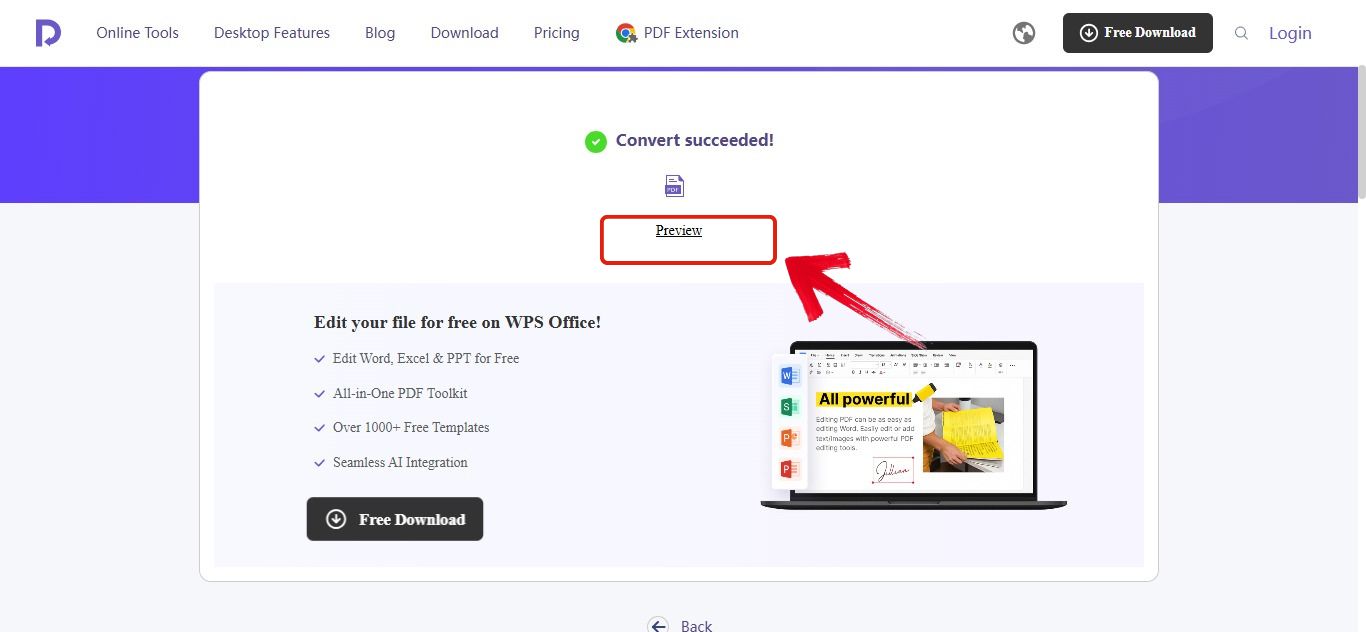
Step 2: Now drop your image here or select it from your folder by clicking "Upload".
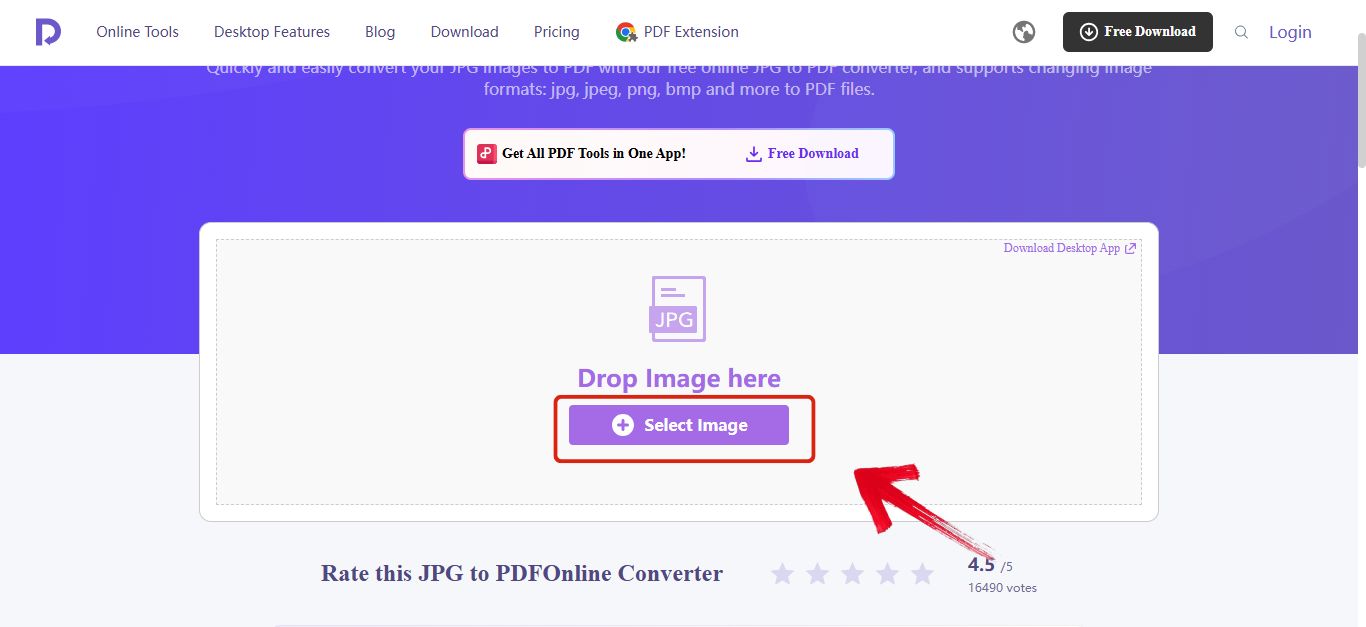
Step 3: Now just hit the "Convert" button that’s on the bottom right.
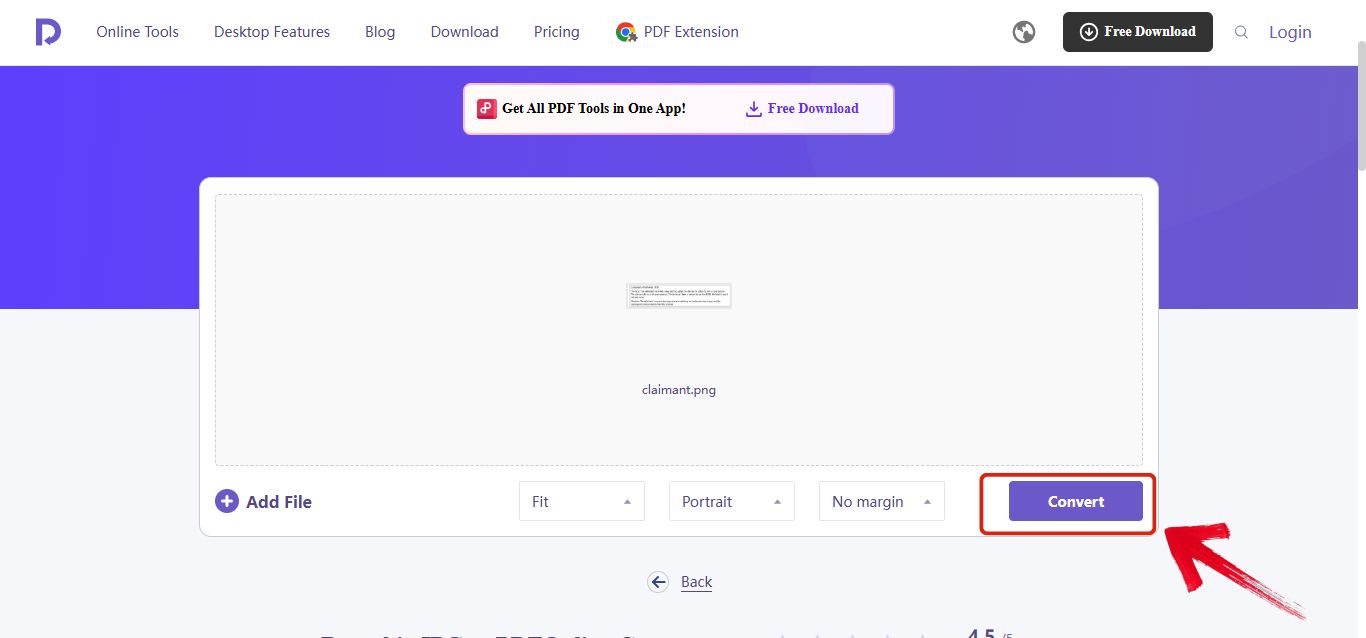
Step 4: Once it’s done you can easily preview it using the "Preview" button.
Quick Comparison of Online JPG Converters:
Here’s a quick look at some online JPG converters so you can see which one fits your needs the easiest.
| Feature | WPS Online Tool | iLovePDF | FreeConverter |
|---|---|---|---|
| Ease of Use | Excellent | Very Good | Good |
| Format Preservation | Excellent | Good | Fair |
| Conversion Speed | Fast | Fast | Standard |
| File Limitations | High Limits | Strict Daily Limit | Moderate Limits |
| System Compatibility | All Systems | All Systems | All Systems |
Online tools offer speed, but you should always prioritize the output quality, which is where WPS truly excels. If you test several converters with a complicated invoice image, you will likely find that WPS maintains the format better than the others. iLovePDF is quick and popular, but if your JPG contains anything complex like graphics or a detailed table, you will lose the formatting entirely. FreeConverter is fine for plain text screenshots, but you will find the final document required more cleanup than the other two options.
How to Convert JPG to Word with OCR
If you require higher quality and better accuracy, especially when dealing with images of scanned documents, dedicated desktop software is the clear solution. These programs install locally and often use advanced OCR (Optical Character Recognition) engines, which are essential for recognizing text in scanned files and converting them into highly accurate, editable Word documents. Desktop tools give you the best chance of retaining the original format and provide superior privacy since files stay on your machine.
Among these desktop applications, WPS Office is the most powerful choice, standing out by ensuring your converted file preserves the complex layout and gives you instant editing access.
How to Convert on WPS Office (Desktop):
WPS Office uses its powerful OCR engine to ensure your Word document is highly accurate and preserves the original layout.
Step 1: First open the file in WPS Office.
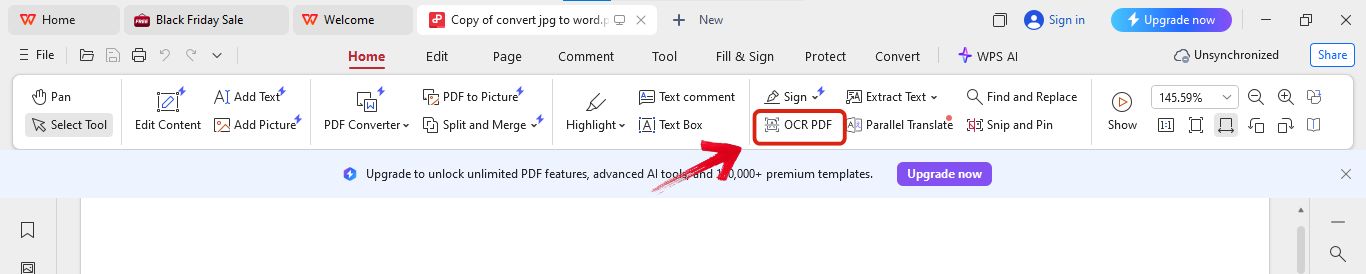
Step 2: Now click on the "OCR PDF" option provided in the menu.
Step 3: After this click "Perform OCR" to start scanning the file.
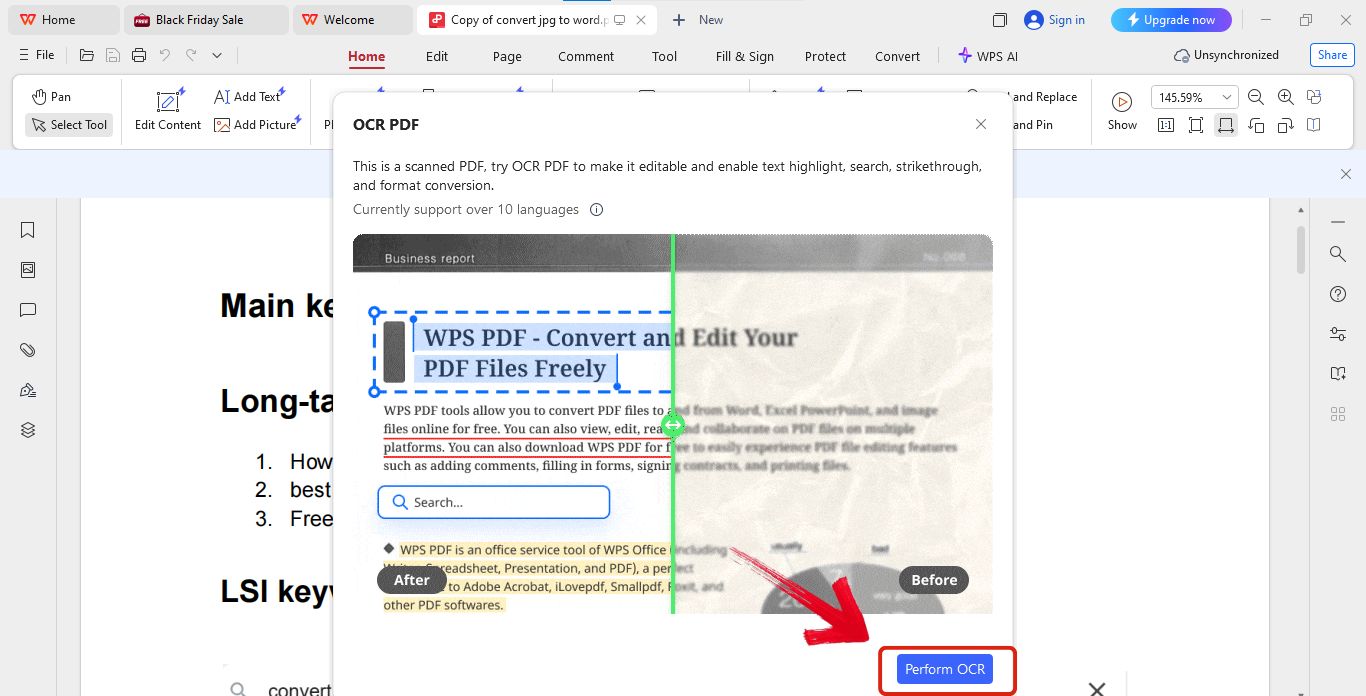
Step 4: Now you can easily extract text from the file.
Quick comparision:
Here’s a quick look at some JPG to Word converters with OCR so you can see which one gives the best accuracy and ease of use.
| Feature | WPS Office | Adobe Acrobat | Wondershare PDFelement |
|---|---|---|---|
| Conversion Accuracy | Superior (AI-Powered) | Excellent | Very Good |
| Layout Preservation | Flawless | Very Good | Good |
| Support for Scanned PDF (OCR) | Yes | Yes | Yes |
| Post-Conversion Editing | Seamless Workflow | Requires separate software | Requires separate software |
| Processing Speed | High Efficiency | Standard | Standard |
When you are converting a heavily formatted legal document or a complex academic paper, you should rely on desktop tools because of their superior accuracy. WPS Office stands out here because of its "Zero Loss Formatting" and its commitment to offline conversion. I found that Adobe often requires users to switch to a different program for final editing, which slows the workflow down. Wondershare is capable, but WPS provides the best end to end solution because the file is instantly editable right in the familiar WPS Writer environment. This seamlessness is critical for maximum efficiency.
How to Convert JPG to Word on Mobile Phone
Many users want to convert the pictures in their phones into Word files and hope to edit them directly on their phones. The great news is that you no longer need to email files to your desktop because dedicated mobile apps can handle the image capture, conversion, and editing all in one place. This is really helpful when you just want the best convert JPG to Word converter experience without switching devices. It’s essential for students taking notes in class or professionals scanning quick receipts.
The WPS Office mobile app handles this process exceptionally well because it offers full editing capabilities right after conversion and instantly syncs the file to your PC, giving you seamless workflow continuity.
How to Convert on WPS Mobile App:
If you want to do everything right on your phone, here are the simple steps to convert your images on the WPS mobile app.
Step 1: Open the "WPS Office" application on your phone or tablet.
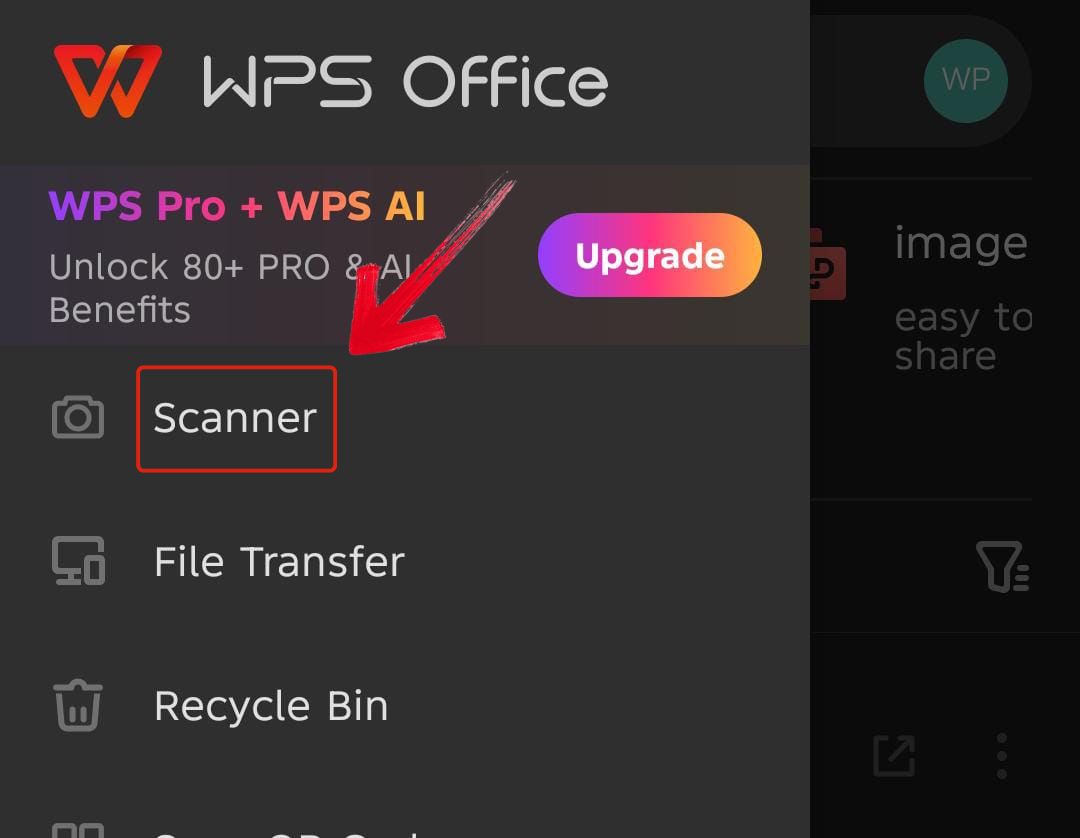
Step 2: Now select the "Scanner" option from the menu.
Step 3: Use your camera to "Capture Image" or upload an existing JPG.
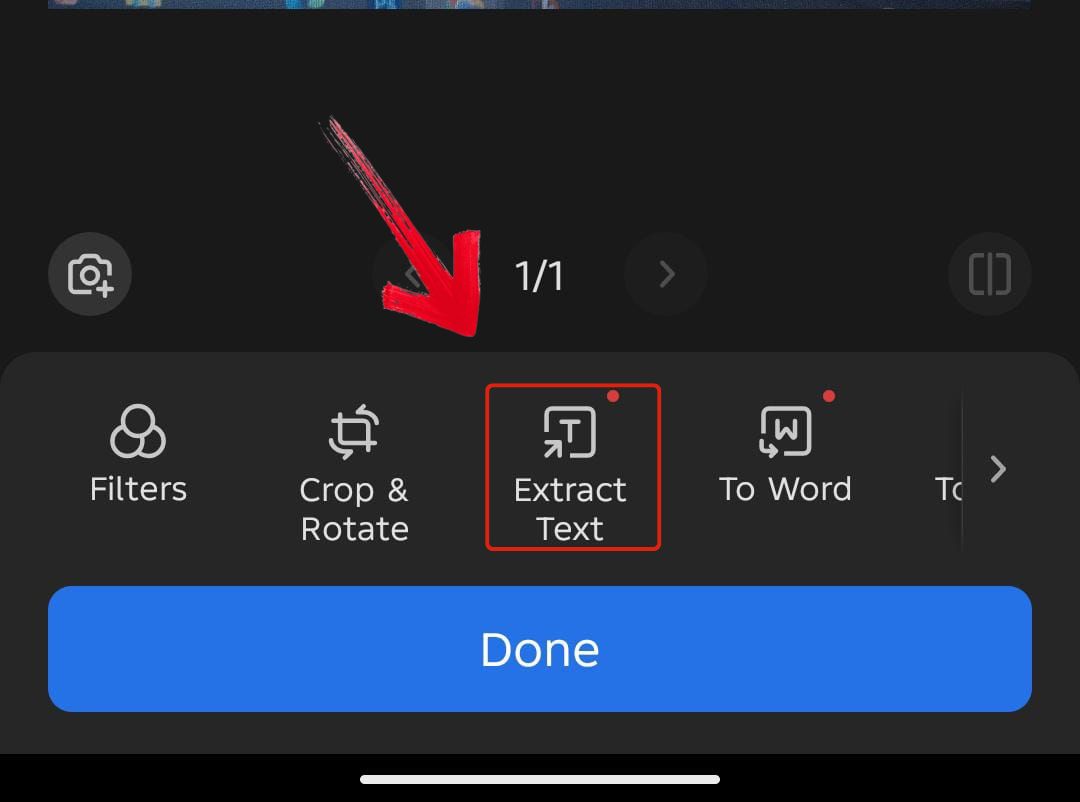
Step 4: Now click on the "Extract Text" option from the menu below and you’ll have your text extracted.
Mobile App Comparison:
Here’s a quick look at some mobile apps that convert JPG to Word so you can find the easiest one for on the go editing.
| Feature | WPS Office | Photo to Word Converter | Wondershare PDFelement |
|---|---|---|---|
| Mobile Compatibility | Excellent (iOS/Android) | Android Only | Excellent (iOS/Android) |
| Ease of Use | High | Good | Good |
| Format Fidelity | Excellent | Fair | Good |
| Conversion Speed | Fast | Standard | Standard |
| PC Synchronization | Yes (WPS Cloud) | No | Yes (Cloud/Integrations) |
| Additional Features | Full Office Suite | OCR Only | PDF Editor |
The mobile experience is all about speed and integration. While the Photo to Word Converter app is straightforward, I find the results often require heavy reformatting. Wondershare is powerful for PDF editing, but my preference is WPS Office. Its ability to convert the file and instantly have it sync across my PC and phone is invaluable. This eliminates the need to constantly email files back and forth between devices, making your whole process much smoother.
Why Choose WPS Office to Convert JPG to Word
If you are looking for the best converter, WPS Office is my top recommendation. While other tools offer speed and convenience, WPS gives you the most value by solving the two big pain points for professionals which are accuracy and keeping your work neat and consistent.
WPS isn't just a simple online tool, its strength is how seamlessly it fits into your work life. Beyond the free online tools, WPS lets you convert JPG files to Word format right on your desktop, and it has many other functions like converting a JPG to PDF. It is ideal for you if your main goal is to convert images and immediately use them in a document, presentation, or spreadsheet. The tight connection between the conversion tool and the whole WPS Office suite ensures your workflow is never interrupted, making it a highly efficient solution for all your office tasks.
FAQs
1. Why do my converted Word documents always have messy formatting and errors?
This is the biggest hurdle for users. Most free online tools use basic OCR technology that struggles significantly with complex layouts, such as tables, multiple columns, or graphics. The resulting document is often just a poor text dump with corrupted tables and misplaced images, requiring hours of manual reformatting. Always choose a tool known for its format preservation, like WPS.
2. Is there a way to convert JPG to Word without losing the original image quality?
When you convert from an image (JPG) to a text document (Word), you are fundamentally changing the format completely. The goal isn't to preserve the image quality, but to maximize OCR accuracy and formatting preservation of the text itself. To ensure the best output, always use a high quality tool and make sure your source JPG is clear and high resolution to begin with.
3. Why do some online converters ask me to log in or register before I can download the file?
This is usually a tactic to capture user data for marketing, or it is a way to enforce a daily or monthly conversion limit. To avoid this, look for tools that allow you to download the file directly, or use an integrated platform where you are already logged in, like WPS Office, for a seamless experience.
4. Can I convert an image that is only partially scanned or cropped?
Yes, most quality OCR tools can process cropped images. However, the conversion accuracy will only apply to the visible text, and if the image quality is poor on the edges, the OCR accuracy will drop significantly.
5. What image formats can I use to copy text from?
The most common formats supported by nearly all OCR tools include JPG, PNG, and PDF files, along with BMP. A high quality, high resolution image is critical for ensuring the OCR accuracy is as high as possible when you extract the text.

'%3e%3cpath%20d='M19.9911%204.11386V6.471H18.5894C18.0775%206.471%2017.7322%206.57814%2017.5536%206.79243C17.3751%207.00671%2017.2858%207.32814%2017.2858%207.75671V9.44421H19.9019L19.5536%2012.0871H17.2858V18.8639H14.5536V12.0871H12.2769V9.44421H14.5536V7.49779C14.5536%206.39064%2014.8632%205.53201%2015.4822%204.92189C16.1013%204.31177%2016.9257%204.00671%2017.9554%204.00671C18.8304%204.00671%2019.509%204.04243%2019.9911%204.11386Z'%20fill='%23333333'/%3e%3c/g%3e%3cdefs%3e%3cclipPath%20id='clip0_2938_8199'%3e%3crect%20width='16'%20height='16'%20fill='white'%20transform='translate(8%204.00671)'/%3e%3c/clipPath%3e%3c/defs%3e%3c/svg%3e)
'%3e%3cpath%20d='M17.5237%2010.7813L23.4811%204H22.0699L16.8949%209.88693L12.7648%204H8L14.2469%2012.9029L8%2020.0133H9.4112L14.8725%2013.7952L19.2352%2020.0133H24M9.92053%205.04213H12.0885L22.0688%2019.0224H19.9003'%20fill='%23333333'/%3e%3c/g%3e%3cdefs%3e%3cclipPath%20id='clip0_2938_8200'%3e%3crect%20width='16'%20height='16.0134'%20fill='white'%20transform='translate(8%204)'/%3e%3c/clipPath%3e%3c/defs%3e%3c/svg%3e)


