

'%3e%3cpath%20d='M8%200C12.4183%200%2016%203.58172%2016%208C16%2012.4183%2012.4183%2016%208%2016C3.58172%2016%200%2012.4183%200%208C0%203.58172%203.58172%200%208%200ZM11.6162%204.38379C11.2257%203.99337%2010.5927%203.99338%2010.2021%204.38379L8%206.58594L5.79785%204.38379C5.40732%203.99334%204.77429%203.99329%204.38379%204.38379C3.99331%204.77429%203.99335%205.40733%204.38379%205.79785L6.58594%208L4.38379%2010.2021C3.99348%2010.5927%203.99341%2011.2257%204.38379%2011.6162C4.77426%2012.0066%205.40734%2012.0065%205.79785%2011.6162L8%209.41406L10.2021%2011.6162C10.5927%2012.0066%2011.2257%2012.0067%2011.6162%2011.6162C12.0067%2011.2257%2012.0066%2010.5927%2011.6162%2010.2021L9.41406%208L11.6162%205.79785C12.0066%205.40735%2012.0066%204.77429%2011.6162%204.38379Z'%20fill='%23080E17'%20fill-opacity='0.46'/%3e%3c/g%3e%3cdefs%3e%3cclipPath%20id='clip0_3761_713'%3e%3crect%20width='16'%20height='16'%20fill='white'/%3e%3c/clipPath%3e%3c/defs%3e%3c/svg%3e)




'%3e%3cpath%20fill-rule='evenodd'%20clip-rule='evenodd'%20d='M21.4999%2010.9993C21.4999%205.20009%2016.7986%200.498901%2010.9993%200.498901C5.19994%200.498901%200.498657%205.20009%200.498657%2010.9993C0.498657%2016.2404%204.33858%2020.5844%209.35855%2021.3722V14.0346H6.69238V10.9993H9.35855V8.68594C9.35855%206.05427%2010.9262%204.60062%2013.3248%204.60062C14.4736%204.60062%2015.6753%204.80571%2015.6753%204.80571V7.38979H14.3512C13.0468%207.38979%2012.64%208.19921%2012.64%209.0296V10.9993H15.5523L15.0867%2014.0346H12.64V21.3722C17.66%2020.5844%2021.4999%2016.2404%2021.4999%2010.9993Z'%20fill='%231568EA'/%3e%3c/g%3e%3c/svg%3e)


'%3e%3cpath%20d='M2.42045%2022.1876H6.31818V12.7217L0.75%208.54553V20.5171C0.75%2021.4414%201.49892%2022.1876%202.42045%2022.1876Z'%20fill='%234285F4'/%3e%3cpath%20d='M19.682%2022.1876H23.5797C24.5041%2022.1876%2025.2502%2021.4387%2025.2502%2020.5171V8.54553L19.682%2012.7217'%20fill='%2334A853'/%3e%3cpath%20d='M19.682%205.48293V12.7216L25.2502%208.54543V6.31816C25.2502%204.25236%2022.8921%203.07469%2021.2411%204.31361'%20fill='%23FBBC04'/%3e%3cpath%20d='M6.31824%2012.7217V5.48303L13.0001%2010.4944L19.6819%205.48303V12.7217L13.0001%2017.733'%20fill='%23EA4335'/%3e%3cpath%20d='M0.75%206.31816V8.54543L6.31818%2012.7216V5.48293L4.75909%204.31361C3.10534%203.07469%200.75%204.25236%200.75%206.31816Z'%20fill='%23C5221F'/%3e%3c/g%3e%3cdefs%3e%3cclipPath%20id='clip0_2954_7305'%3e%3crect%20width='24.5'%20height='18.375'%20fill='white'%20transform='translate(0.75%203.8125)'/%3e%3c/clipPath%3e%3c/defs%3e%3c/svg%3e)


To convert Word to Excel, copy the table or structured text from your Word document and paste it into an Excel worksheet, then use Text to Columns or cleanup tools to fix merged cells, line breaks, and number formats. For tabular data, direct copy-paste is usually fastest; for plain lists, paste into Excel and split columns with the delimiter that matches your source.
Key Takeaways
- Copy the Word table (or select structured text) and paste into cell A1 in Excel—this is the most reliable everyday method.
- Use Paste Special → Text when Excel misreads dates or leading zeros.
- Save as Plain Text (.txt) with tab delimiters when you need a repeatable export from Word.
- After conversion, check merged cells, line breaks inside cells, and number formats.
- WPS Writer and WPS Spreadsheet follow the same copy-paste workflow for .docx and .xlsx files.
Need the opposite workflow—using Excel rows to fill a Word template? Follow our mail merge from Excel to Word guide.
Quick Answer: What “Word to Excel” Really Means
Users searching how to convert word to excel usually want to move structured data—tables, price lists, schedules, or survey results—from a Word document into an editable spreadsheet. Word is built for narrative layout; Excel is built for rows, columns, and formulas.
This guide focuses on extracting data out of Word and into Excel. It does not cover inserting Excel into Word—that is a separate task.
When to Use Each Conversion Method
| Method | Best for | Keeps formatting? | Effort |
|---|---|---|---|
| Copy table → paste in Excel | Word tables with clear rows/columns | Partial—borders may shift | Low |
| Copy text → Text to Columns | Comma- or tab-separated lists | Minimal | Low |
| Save Word as .txt → open in Excel | Repeatable exports, large tables | Low | Medium |
| Re-type or OCR | Scanned PDFs or messy layouts | N/A | High |
Pick copy-paste for one-off jobs. Use plain-text export when you convert the same Word template regularly.
Method 1: Copy a Word Table into Excel
This works in Microsoft Word, WPS Writer, and most .docx editors on Windows and Mac.
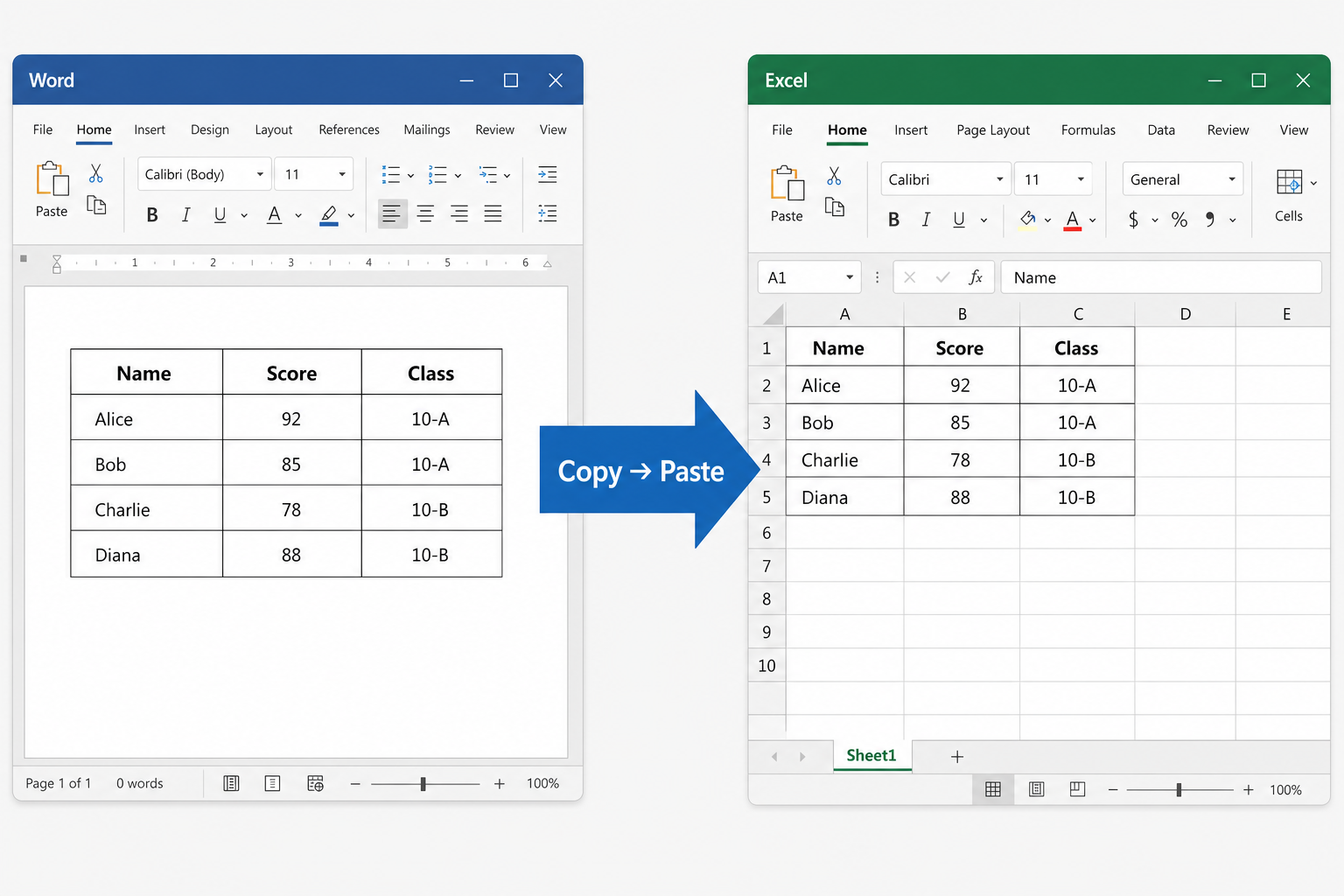
- Open your Word file and click inside the table.
- Hover the table move handle (four-arrow icon at the top-left of the table) and click to select the entire table.
- Press Ctrl+C (Windows) or Cmd+C (Mac).
- Open Excel or WPS Spreadsheet and click cell A1.
- Press Ctrl+V / Cmd+V.
- Review column widths and merged cells—adjust before you run formulas.
Tip: If the table spans multiple pages, select only the section you need, or convert section by section to avoid row gaps.
Method 2: Convert Unstructured Text with Text to Columns
When your Word content is a list—not a formal table—paste first, then split.
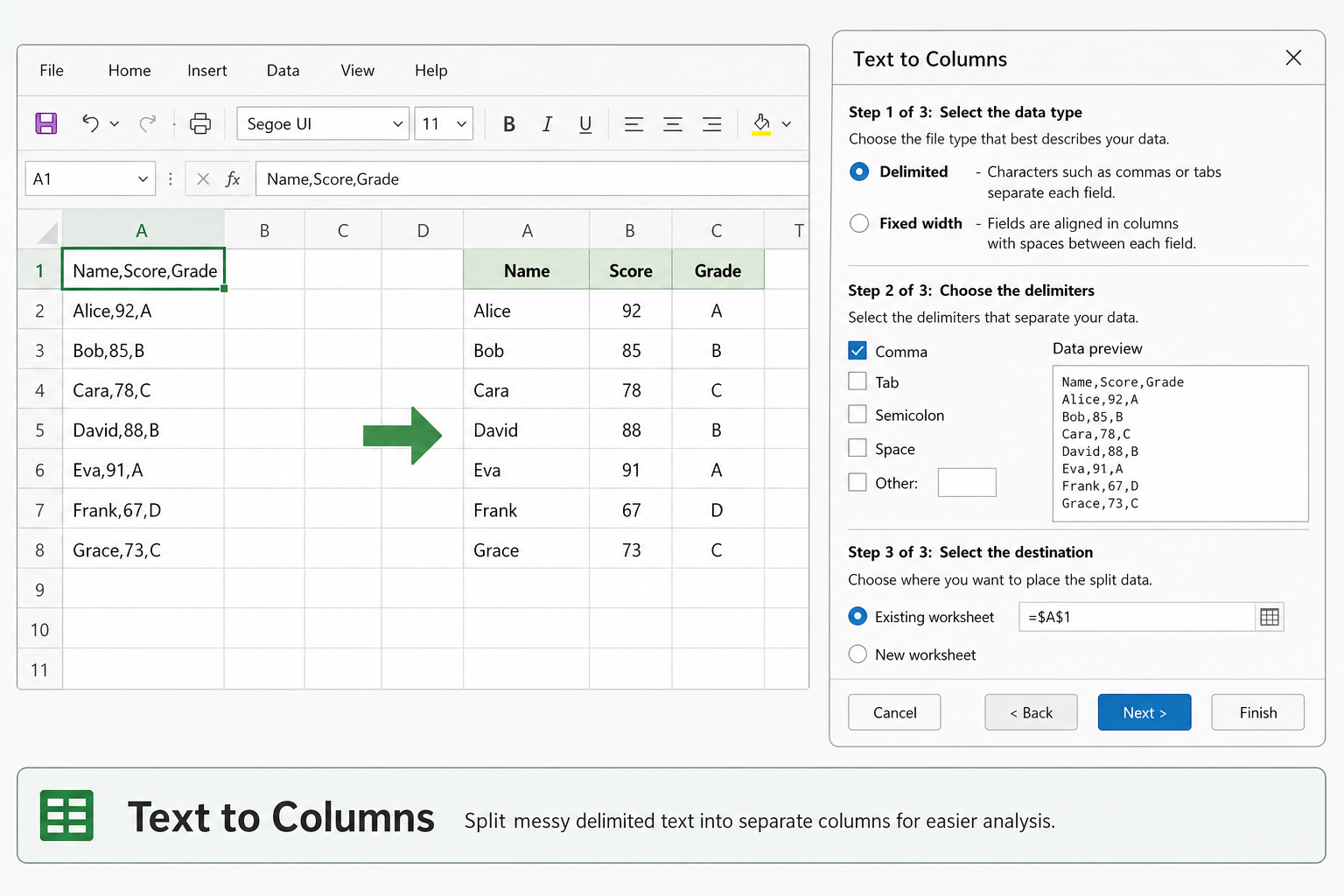
- Copy the list from Word and paste into column A of Excel.
- Select the pasted column.
- Open Data → Text to Columns (Excel) or the equivalent split tool in WPS Spreadsheet.
- Choose Delimited if items are separated by commas, tabs, or spaces.
- Pick the delimiter that matches your Word list and finish the wizard.
This is useful for contact lists, inventory lines, or any data separated by commas or tabs in Word.
Method 3: Save Word as Plain Text, Then Open in Excel
For larger exports or automation-friendly handoffs:
- In Word, open File → Save As.
- Choose Plain Text (.txt).
- In the encoding dialog, select Tab-delimited if your table used tabs between columns.
- Open the .txt file in Excel via File → Open, or import through Data → From Text/CSV.
Excel’s import wizard lets you set column data types (text vs. number) before data lands in the sheet—helpful when IDs or zip codes must stay as text.
Method 4: Convert Word to Excel with WPS Office
If you work with both formats and want one suite:
- Open the .docx in WPS Writer.
- Select the table or text block and copy.
- Open WPS Spreadsheet and paste starting at A1.
- Use Data tools to split columns or trim spaces if needed.
WPS Office opens standard .docx and .xlsx files, so you can move data between Writer and Spreadsheet without installing separate Word and Excel apps. Menu labels may vary slightly by desktop version—test in your current build.


Clean Up Data After Conversion
Converted data often looks messy. Check these items before you analyze or share the sheet:
| Issue | What you see | Fix |
|---|---|---|
| Merged cells | Formulas skip rows | Unmerge in Excel; fill blank cells |
| Line breaks in cells | One row spans multiple lines | Find & Replace Ctrl+J with a space, or use CLEAN/TRIM |
| Numbers stored as text | Green triangle warning | Convert to number or use Text to Columns |
| Dates wrong | Year/month swapped | Set column format or re-import as text first |
| Extra spaces | VLOOKUP fails | TRIM function or Find & Replace double spaces |
| Missing rows | Gaps from page breaks | Re-copy per section from Word |
Run a quick sort or filter after cleanup—blank rows and duplicate headers show up immediately.
What Does Not Convert Cleanly
- Nested tables in Word often flatten into extra rows—expect manual fixes.
- Text boxes and floating shapes do not export as spreadsheet cells.
- Heavy styling (custom borders, shading) may not survive; focus on data, not design.
- Scanned images of tables need OCR first—copy-paste will not work until text is selectable.
If your Word file is a scan, use OCR in your PDF or Word tool, then copy the recognized table.
FAQs
Can I convert a Word table to Excel without losing formatting?
You can keep basic row/column structure, but exact Word styling (custom borders, fonts) rarely transfers perfectly. Copy-paste preserves data layout; reapply Excel styles after conversion.
Why does my data look messy after I paste from Word?
Common causes: merged cells, hidden line breaks, mixed delimiters, or numbers formatted as text. Paste into one column first, then use Text to Columns or TRIM/CLEAN.
Can I open a .docx file directly in Excel?
Excel is not designed to open Word documents as spreadsheets. Copy the table or export to .txt/.csv instead.
How do I keep leading zeros when converting to Excel?
Paste using Paste Special → Text, or import the column as Text in the Text Import Wizard. Formatting the column as Text before paste also helps.
Can WPS open both Word and Excel files for this workflow?
Yes. WPS Writer opens .docx files and WPS Spreadsheet opens .xlsx files. Copy data between them the same way you would in Microsoft Office.
Is “convert Word to Excel” the same as embedding Excel in Word?
No. Converting Word to Excel means moving data from a document into a spreadsheet. Embedding Excel in Word means placing a sheet inside a document—the opposite direction.
Summary
How to convert Word to Excel: select the table or structured text in Word, copy it, paste into Excel at A1, then clean merged cells, line breaks, and number formats. For lists, use Text to Columns; for repeatable exports, save Word as tab-delimited text and import. WPS Writer and WPS Spreadsheet support the same workflow on .docx and .xlsx files when you need one free office suite for both steps.

'%3e%3cpath%20d='M19.9911%204.11386V6.471H18.5894C18.0775%206.471%2017.7322%206.57814%2017.5536%206.79243C17.3751%207.00671%2017.2858%207.32814%2017.2858%207.75671V9.44421H19.9019L19.5536%2012.0871H17.2858V18.8639H14.5536V12.0871H12.2769V9.44421H14.5536V7.49779C14.5536%206.39064%2014.8632%205.53201%2015.4822%204.92189C16.1013%204.31177%2016.9257%204.00671%2017.9554%204.00671C18.8304%204.00671%2019.509%204.04243%2019.9911%204.11386Z'%20fill='%23333333'/%3e%3c/g%3e%3cdefs%3e%3cclipPath%20id='clip0_2938_8199'%3e%3crect%20width='16'%20height='16'%20fill='white'%20transform='translate(8%204.00671)'/%3e%3c/clipPath%3e%3c/defs%3e%3c/svg%3e)
'%3e%3cpath%20d='M17.5237%2010.7813L23.4811%204H22.0699L16.8949%209.88693L12.7648%204H8L14.2469%2012.9029L8%2020.0133H9.4112L14.8725%2013.7952L19.2352%2020.0133H24M9.92053%205.04213H12.0885L22.0688%2019.0224H19.9003'%20fill='%23333333'/%3e%3c/g%3e%3cdefs%3e%3cclipPath%20id='clip0_2938_8200'%3e%3crect%20width='16'%20height='16.0134'%20fill='white'%20transform='translate(8%204)'/%3e%3c/clipPath%3e%3c/defs%3e%3c/svg%3e)


