



'%3e%3cpath%20fill-rule='evenodd'%20clip-rule='evenodd'%20d='M21.4999%2010.9993C21.4999%205.20009%2016.7986%200.498901%2010.9993%200.498901C5.19994%200.498901%200.498657%205.20009%200.498657%2010.9993C0.498657%2016.2404%204.33858%2020.5844%209.35855%2021.3722V14.0346H6.69238V10.9993H9.35855V8.68594C9.35855%206.05427%2010.9262%204.60062%2013.3248%204.60062C14.4736%204.60062%2015.6753%204.80571%2015.6753%204.80571V7.38979H14.3512C13.0468%207.38979%2012.64%208.19921%2012.64%209.0296V10.9993H15.5523L15.0867%2014.0346H12.64V21.3722C17.66%2020.5844%2021.4999%2016.2404%2021.4999%2010.9993Z'%20fill='%231568EA'/%3e%3c/g%3e%3c/svg%3e)


'%3e%3cpath%20d='M2.42045%2022.1876H6.31818V12.7217L0.75%208.54553V20.5171C0.75%2021.4414%201.49892%2022.1876%202.42045%2022.1876Z'%20fill='%234285F4'/%3e%3cpath%20d='M19.682%2022.1876H23.5797C24.5041%2022.1876%2025.2502%2021.4387%2025.2502%2020.5171V8.54553L19.682%2012.7217'%20fill='%2334A853'/%3e%3cpath%20d='M19.682%205.48293V12.7216L25.2502%208.54543V6.31816C25.2502%204.25236%2022.8921%203.07469%2021.2411%204.31361'%20fill='%23FBBC04'/%3e%3cpath%20d='M6.31824%2012.7217V5.48303L13.0001%2010.4944L19.6819%205.48303V12.7217L13.0001%2017.733'%20fill='%23EA4335'/%3e%3cpath%20d='M0.75%206.31816V8.54543L6.31818%2012.7216V5.48293L4.75909%204.31361C3.10534%203.07469%200.75%204.25236%200.75%206.31816Z'%20fill='%23C5221F'/%3e%3c/g%3e%3cdefs%3e%3cclipPath%20id='clip0_2954_7305'%3e%3crect%20width='24.5'%20height='18.375'%20fill='white'%20transform='translate(0.75%203.8125)'/%3e%3c/clipPath%3e%3c/defs%3e%3c/svg%3e)


Introduction
Google Drive is one of the most popular free cloud storage tools for backing up files and collaborating online. When you upload Word documents to Google Drive, you can open them from any device, share them in seconds, and even convert them to Google Docs with a few clicks.
In this beginner-friendly guide, you'll learn three easy ways to upload Word files to Google Drive—plus practical tips and fixes for the most common upload problems.
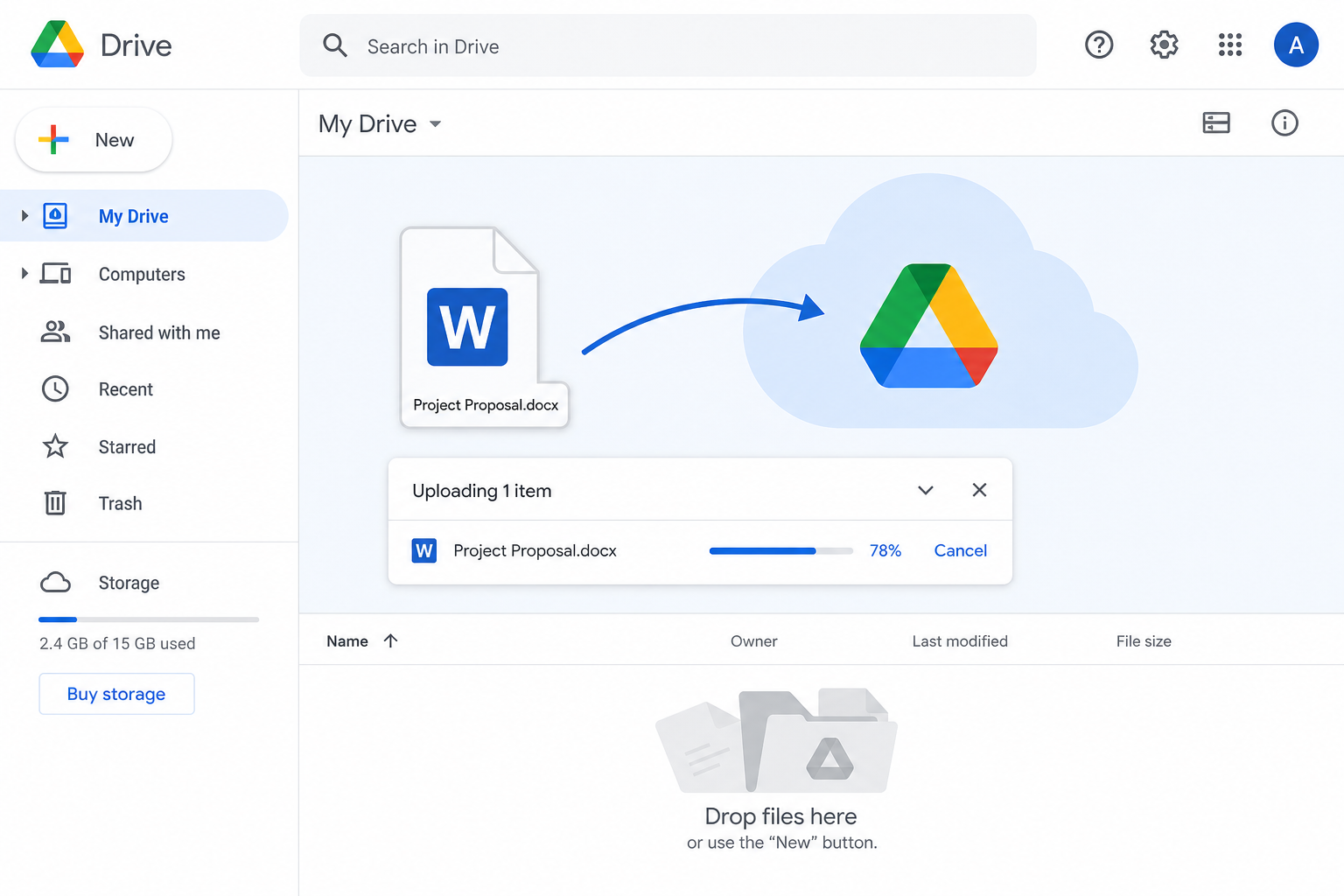
Quick answer: The fastest method is drag and drop—open drive.google.com, drag your .doc or .docx file onto the page, and wait for the upload to finish.
Why Upload Word Files to Google Drive?
Here's why moving Word files to Google Drive is worth it:
Cloud backup — Protect your work from crashes, hardware failure, or accidental deletion.
Access anywhere — Open or download the same file from your phone, laptop, or tablet.
Simple sharing — Share a Word file with a public link instead of emailing attachments.
Easy conversion — Open an uploaded Word file with Google Docs to edit it online.
Method 1: Drag and Drop Upload (Fastest)
This is the quickest option—no menus required. It works well for single files and bulk uploads.
Open your browser and sign in to Google Drive.
Find your
.docor.docxfile in a local folder.Click and hold the Word file, drag it onto the Google Drive page, then release.
Watch the progress bar in the bottom-right corner. When it finishes, your file is saved automatically.
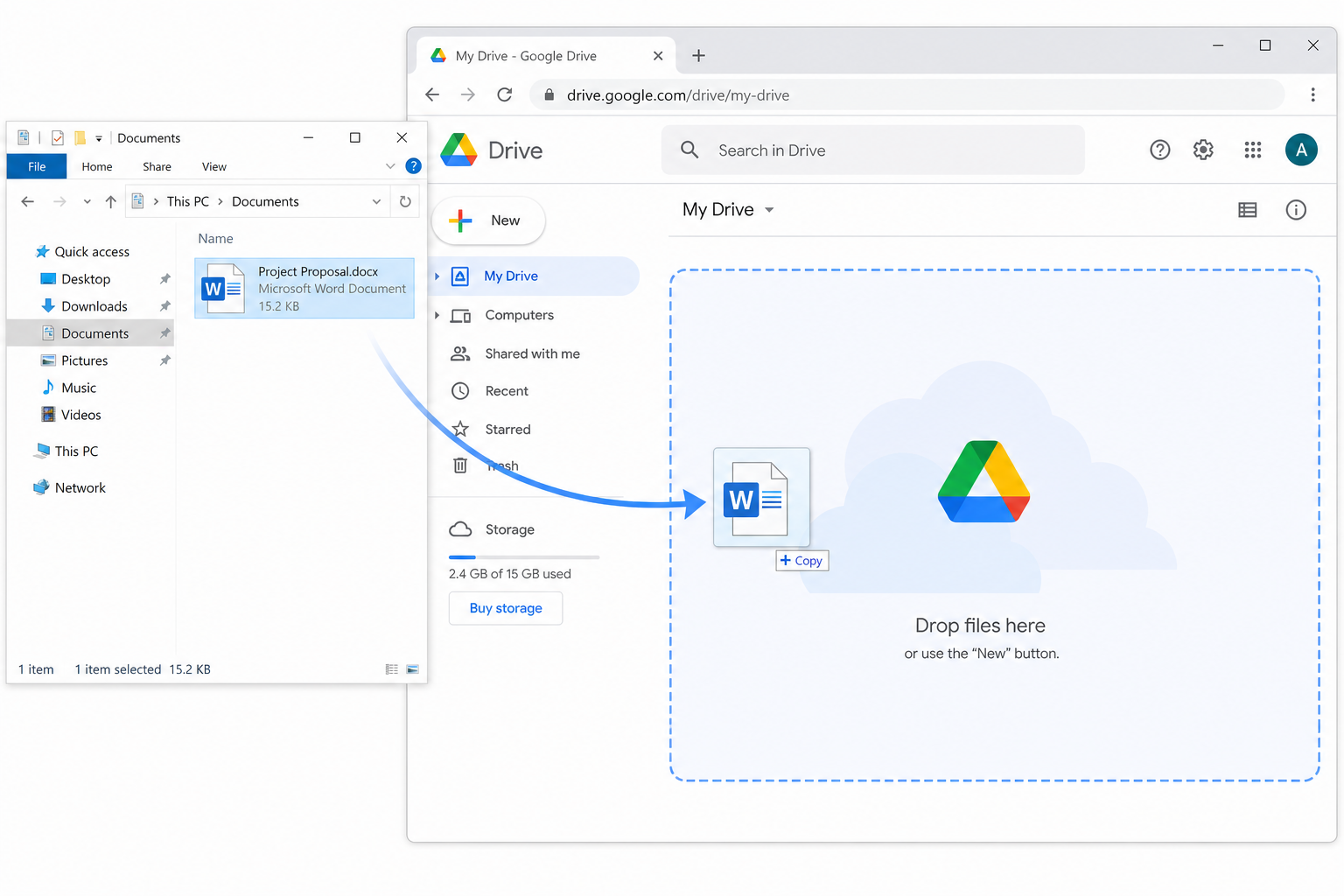
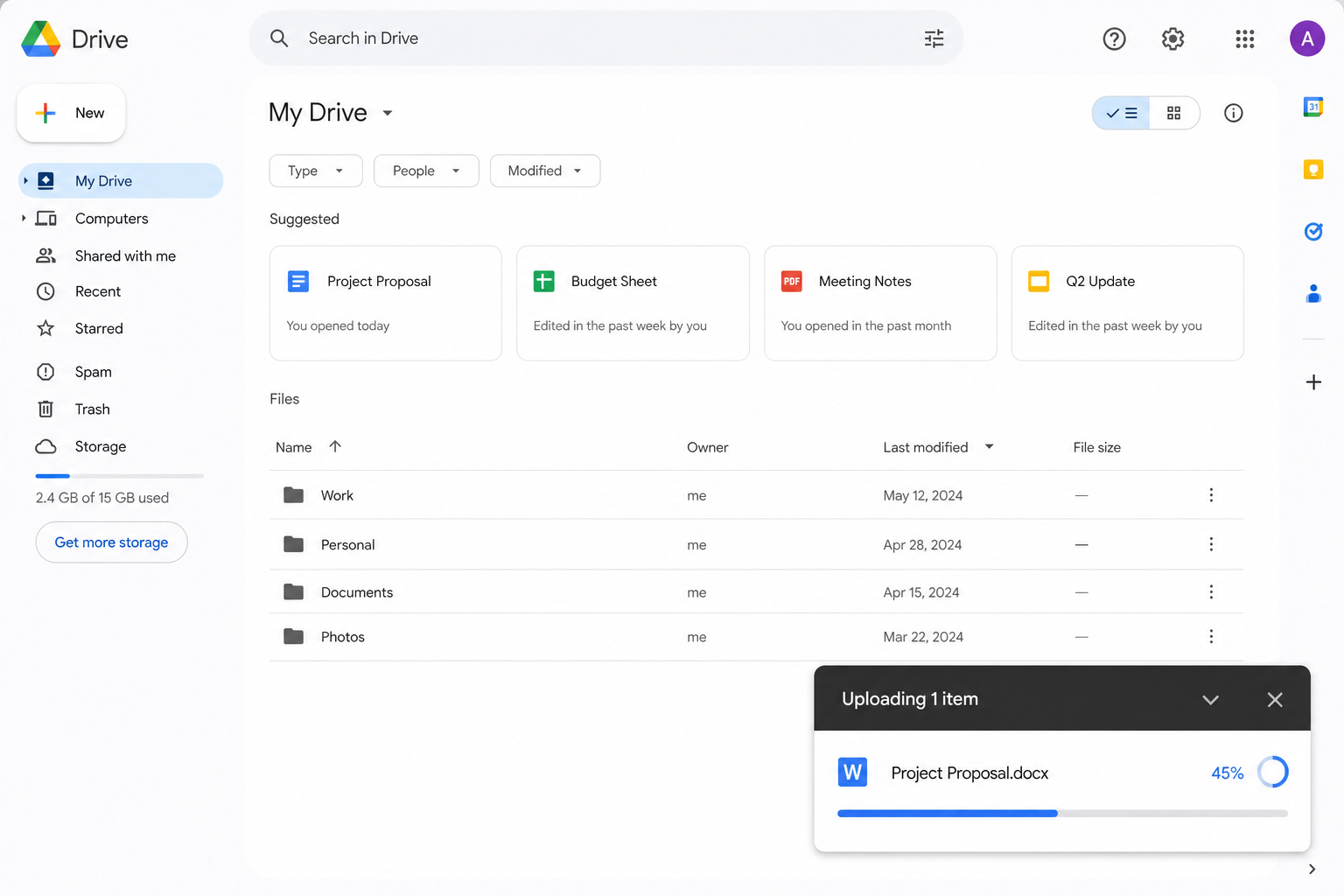
Best for: Everyday uploads when you want the job done in seconds.
Method 2: Manual Upload With the New Button (Official Method)
This is Google's standard upload flow. It works reliably across browsers and operating systems.
Sign in and open the Google Drive homepage.
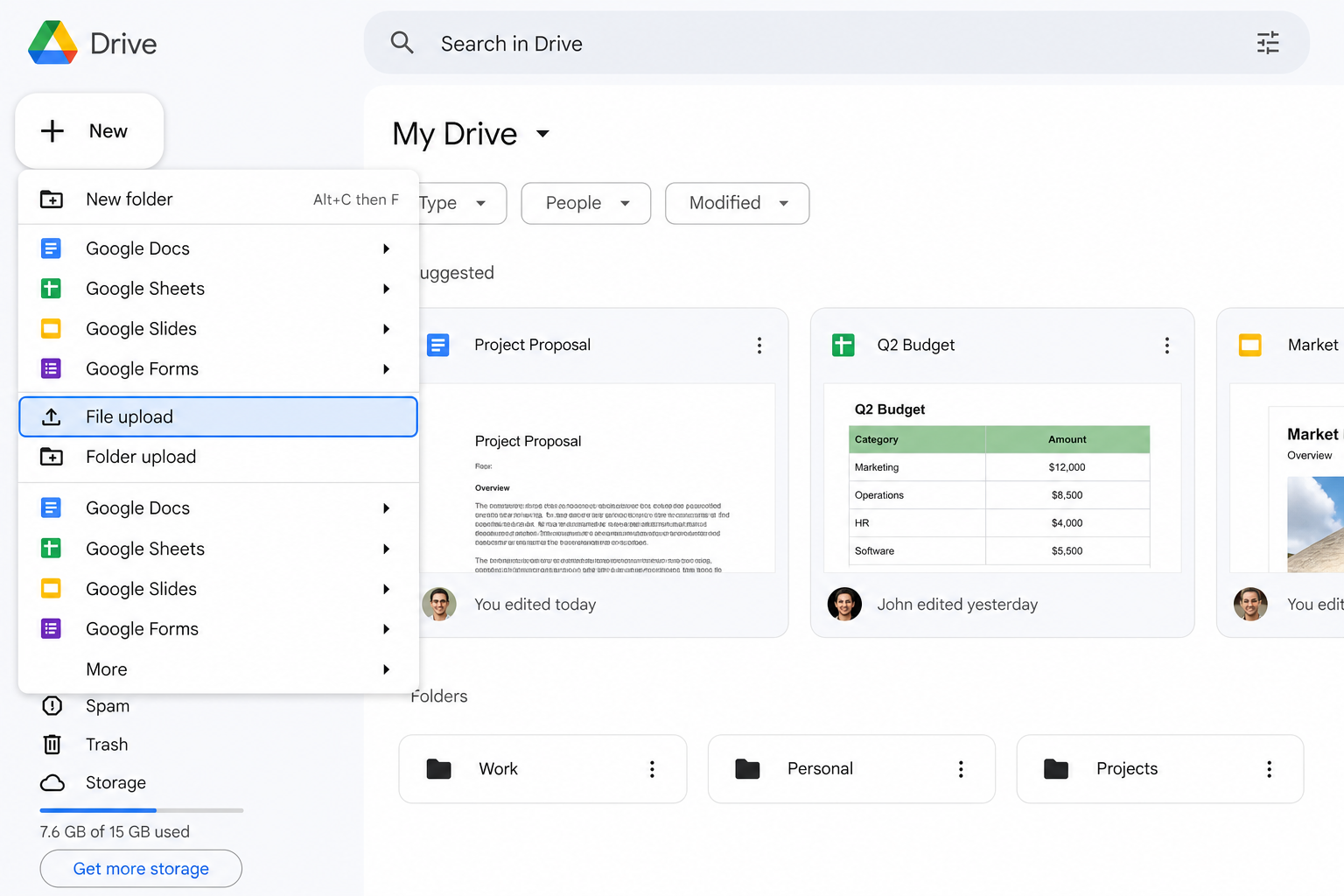
Click + New in the top-left corner.
Select File upload from the dropdown menu.
Choose your Word document and click Open.
Wait for the upload to finish—the file will show up in My Drive.
Locate the blue + New button on the upper left of the Google Drive homepage and click it to expand the operation menu.
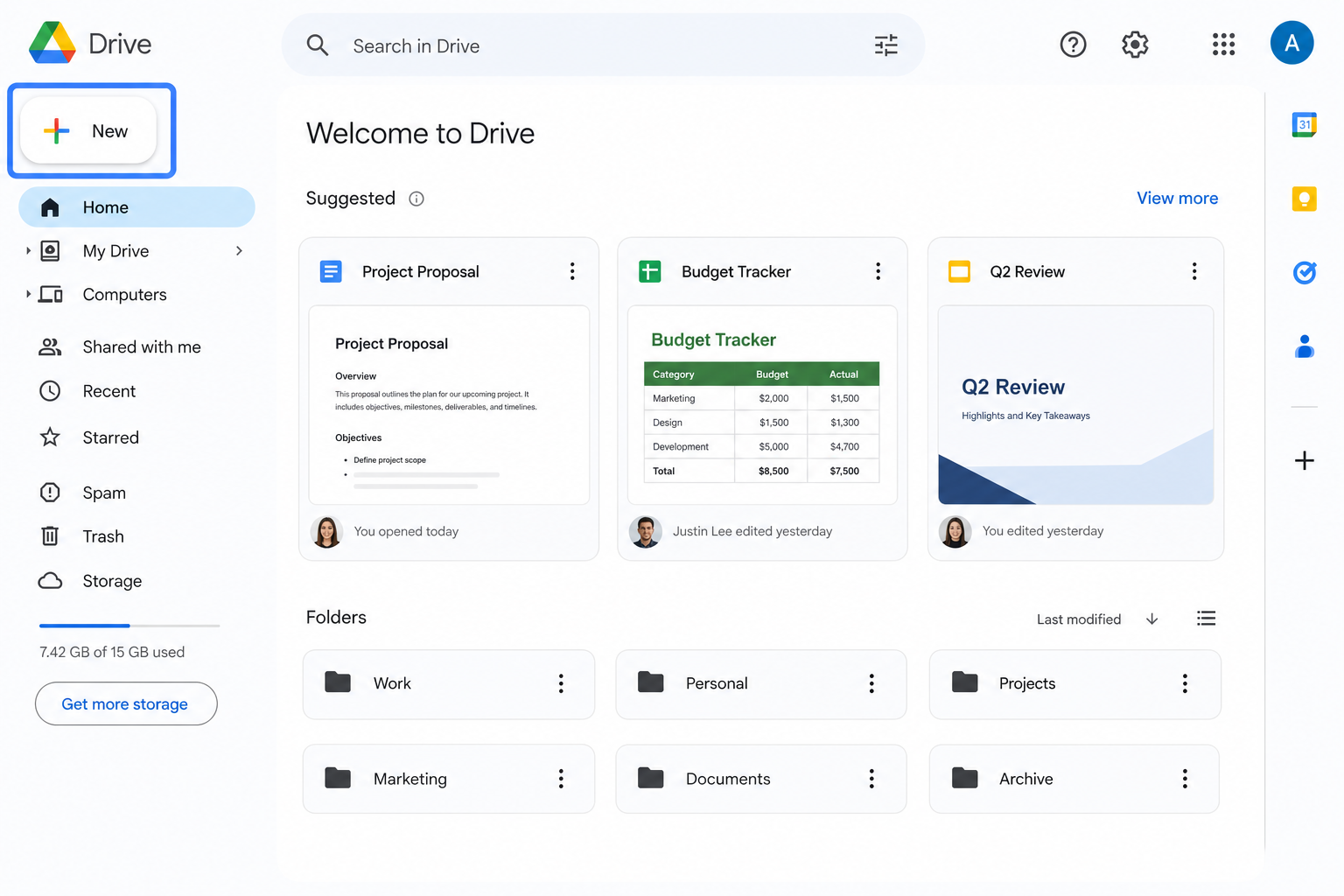
Locate the blue + New button on the upper left of Google Drive homepage and click it to expand the operation menu.
Best for: Formal uploads, first-time users, or when drag and drop isn't available.
Method 3: Save Directly From Microsoft Word
Skip the Google Drive website and upload straight from Word.
Open your Word document.
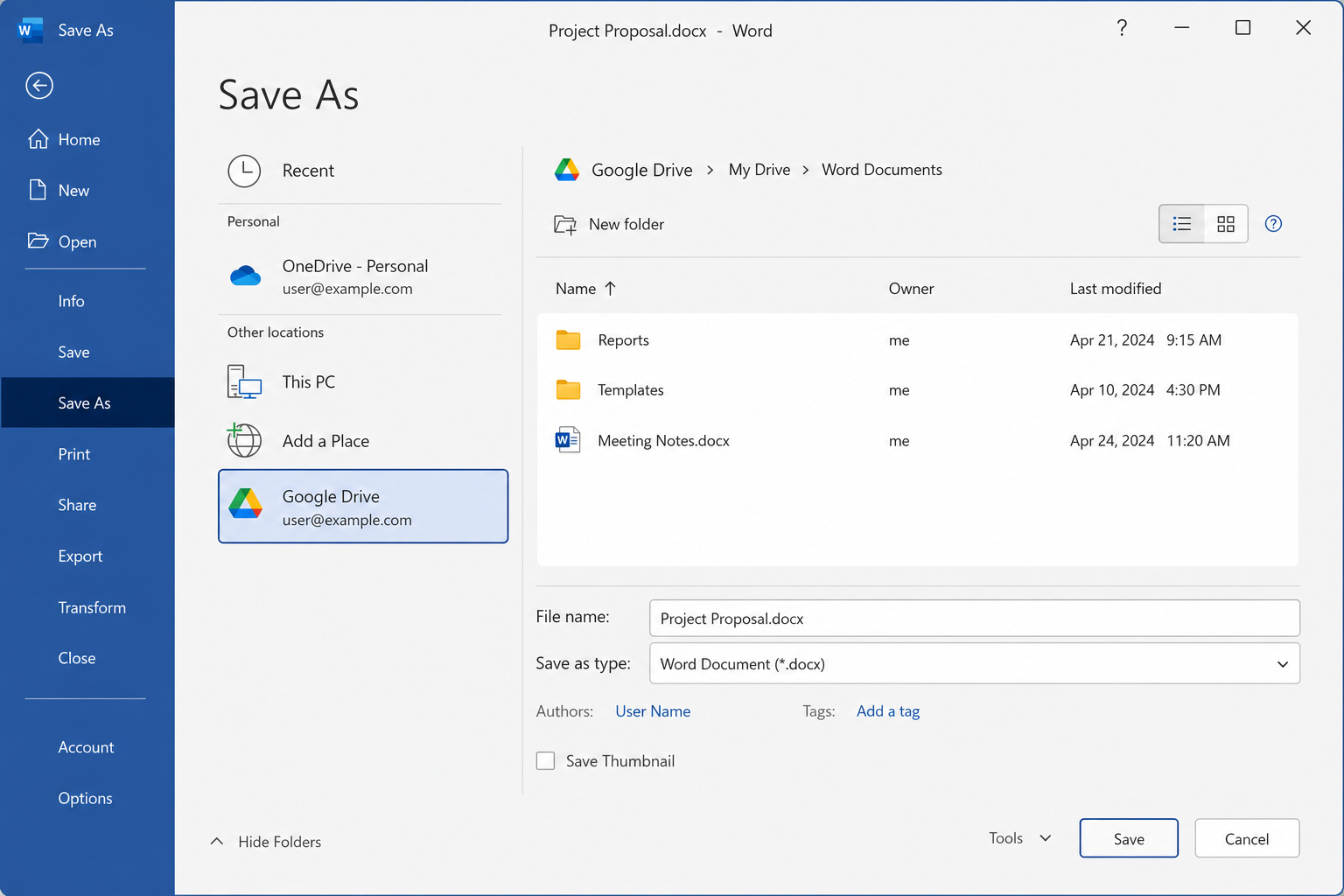
Click File → Save As.
Connect (or sign in to) your Google Drive account in Word, if you haven't already.
Choose Google Drive as the save destination and confirm. Word uploads the file for you.
Best for: Regular archiving when you're already working in Microsoft Word.
Note: You'll need a working Google account connection in Word (for example, through OneDrive/Google Drive add-ins or your organization's sign-in setup). Interface labels can vary slightly by Word version.
Useful Upload Tips
Upload in batches — Hold Ctrl (Windows) or Command (Mac) to select multiple Word files, then drag or upload them together.
Stay organized — Create folders in Google Drive before uploading so your files don't pile up in My Drive.
Keep formatting simple — Complex layouts can display oddly after upload or conversion; clean them up only if needed.
Watch file size — For smooth direct uploads, keep Word files under about 50 MB. Compress large images in Word if your file is oversized.
Frequently Asked Questions (FAQ)
Why Won't My Word File Upload?
Check your internet connection first. Confirm the file is under 50 MB and isn't corrupted. Damaged documents often fail to upload.
Where Can I Find My Uploaded Word Document?
Uploaded files usually land in My Drive. Use the search bar at the top of Google Drive and type the file name to find it quickly.
Can I Edit Word Files Directly in Google Drive?
Yes. Right-click the uploaded Word file and select Open with → Google Docs to edit it online. For a full Google Docs copy, use File → Save as Google Docs after opening.
Need to turn a Word file into an editable Google Doc instead?
You can use manual one-click conversion or see how to convert a Word document to a Google Doc for upload and conversion steps.
Conclusion
Uploading a Word document to Google Drive usually takes about a minute. Use drag and drop for everyday speed, the New → File upload path for a reliable official workflow, and Save As from Word when you want to archive files without leaving Microsoft Word.
Moving offline Word files into Google Drive makes your workflow safer and more flexible. You get better backup, easier sharing, and smoother collaboration—start uploading your next draft today.
Use Word, Excel, and PPT for FREE

'%3e%3cpath%20d='M19.9911%204.11386V6.471H18.5894C18.0775%206.471%2017.7322%206.57814%2017.5536%206.79243C17.3751%207.00671%2017.2858%207.32814%2017.2858%207.75671V9.44421H19.9019L19.5536%2012.0871H17.2858V18.8639H14.5536V12.0871H12.2769V9.44421H14.5536V7.49779C14.5536%206.39064%2014.8632%205.53201%2015.4822%204.92189C16.1013%204.31177%2016.9257%204.00671%2017.9554%204.00671C18.8304%204.00671%2019.509%204.04243%2019.9911%204.11386Z'%20fill='%23333333'/%3e%3c/g%3e%3cdefs%3e%3cclipPath%20id='clip0_2938_8199'%3e%3crect%20width='16'%20height='16'%20fill='white'%20transform='translate(8%204.00671)'/%3e%3c/clipPath%3e%3c/defs%3e%3c/svg%3e)
'%3e%3cpath%20d='M17.5237%2010.7813L23.4811%204H22.0699L16.8949%209.88693L12.7648%204H8L14.2469%2012.9029L8%2020.0133H9.4112L14.8725%2013.7952L19.2352%2020.0133H24M9.92053%205.04213H12.0885L22.0688%2019.0224H19.9003'%20fill='%23333333'/%3e%3c/g%3e%3cdefs%3e%3cclipPath%20id='clip0_2938_8200'%3e%3crect%20width='16'%20height='16.0134'%20fill='white'%20transform='translate(8%204)'/%3e%3c/clipPath%3e%3c/defs%3e%3c/svg%3e)


