

'%3e%3cpath%20d='M8%200C12.4183%200%2016%203.58172%2016%208C16%2012.4183%2012.4183%2016%208%2016C3.58172%2016%200%2012.4183%200%208C0%203.58172%203.58172%200%208%200ZM11.6162%204.38379C11.2257%203.99337%2010.5927%203.99338%2010.2021%204.38379L8%206.58594L5.79785%204.38379C5.40732%203.99334%204.77429%203.99329%204.38379%204.38379C3.99331%204.77429%203.99335%205.40733%204.38379%205.79785L6.58594%208L4.38379%2010.2021C3.99348%2010.5927%203.99341%2011.2257%204.38379%2011.6162C4.77426%2012.0066%205.40734%2012.0065%205.79785%2011.6162L8%209.41406L10.2021%2011.6162C10.5927%2012.0066%2011.2257%2012.0067%2011.6162%2011.6162C12.0067%2011.2257%2012.0066%2010.5927%2011.6162%2010.2021L9.41406%208L11.6162%205.79785C12.0066%205.40735%2012.0066%204.77429%2011.6162%204.38379Z'%20fill='%23080E17'%20fill-opacity='0.46'/%3e%3c/g%3e%3cdefs%3e%3cclipPath%20id='clip0_3761_713'%3e%3crect%20width='16'%20height='16'%20fill='white'/%3e%3c/clipPath%3e%3c/defs%3e%3c/svg%3e)




'%3e%3cpath%20fill-rule='evenodd'%20clip-rule='evenodd'%20d='M21.4999%2010.9993C21.4999%205.20009%2016.7986%200.498901%2010.9993%200.498901C5.19994%200.498901%200.498657%205.20009%200.498657%2010.9993C0.498657%2016.2404%204.33858%2020.5844%209.35855%2021.3722V14.0346H6.69238V10.9993H9.35855V8.68594C9.35855%206.05427%2010.9262%204.60062%2013.3248%204.60062C14.4736%204.60062%2015.6753%204.80571%2015.6753%204.80571V7.38979H14.3512C13.0468%207.38979%2012.64%208.19921%2012.64%209.0296V10.9993H15.5523L15.0867%2014.0346H12.64V21.3722C17.66%2020.5844%2021.4999%2016.2404%2021.4999%2010.9993Z'%20fill='%231568EA'/%3e%3c/g%3e%3c/svg%3e)


'%3e%3cpath%20d='M2.42045%2022.1876H6.31818V12.7217L0.75%208.54553V20.5171C0.75%2021.4414%201.49892%2022.1876%202.42045%2022.1876Z'%20fill='%234285F4'/%3e%3cpath%20d='M19.682%2022.1876H23.5797C24.5041%2022.1876%2025.2502%2021.4387%2025.2502%2020.5171V8.54553L19.682%2012.7217'%20fill='%2334A853'/%3e%3cpath%20d='M19.682%205.48293V12.7216L25.2502%208.54543V6.31816C25.2502%204.25236%2022.8921%203.07469%2021.2411%204.31361'%20fill='%23FBBC04'/%3e%3cpath%20d='M6.31824%2012.7217V5.48303L13.0001%2010.4944L19.6819%205.48303V12.7217L13.0001%2017.733'%20fill='%23EA4335'/%3e%3cpath%20d='M0.75%206.31816V8.54543L6.31818%2012.7216V5.48293L4.75909%204.31361C3.10534%203.07469%200.75%204.25236%200.75%206.31816Z'%20fill='%23C5221F'/%3e%3c/g%3e%3cdefs%3e%3cclipPath%20id='clip0_2954_7305'%3e%3crect%20width='24.5'%20height='18.375'%20fill='white'%20transform='translate(0.75%203.8125)'/%3e%3c/clipPath%3e%3c/defs%3e%3c/svg%3e)


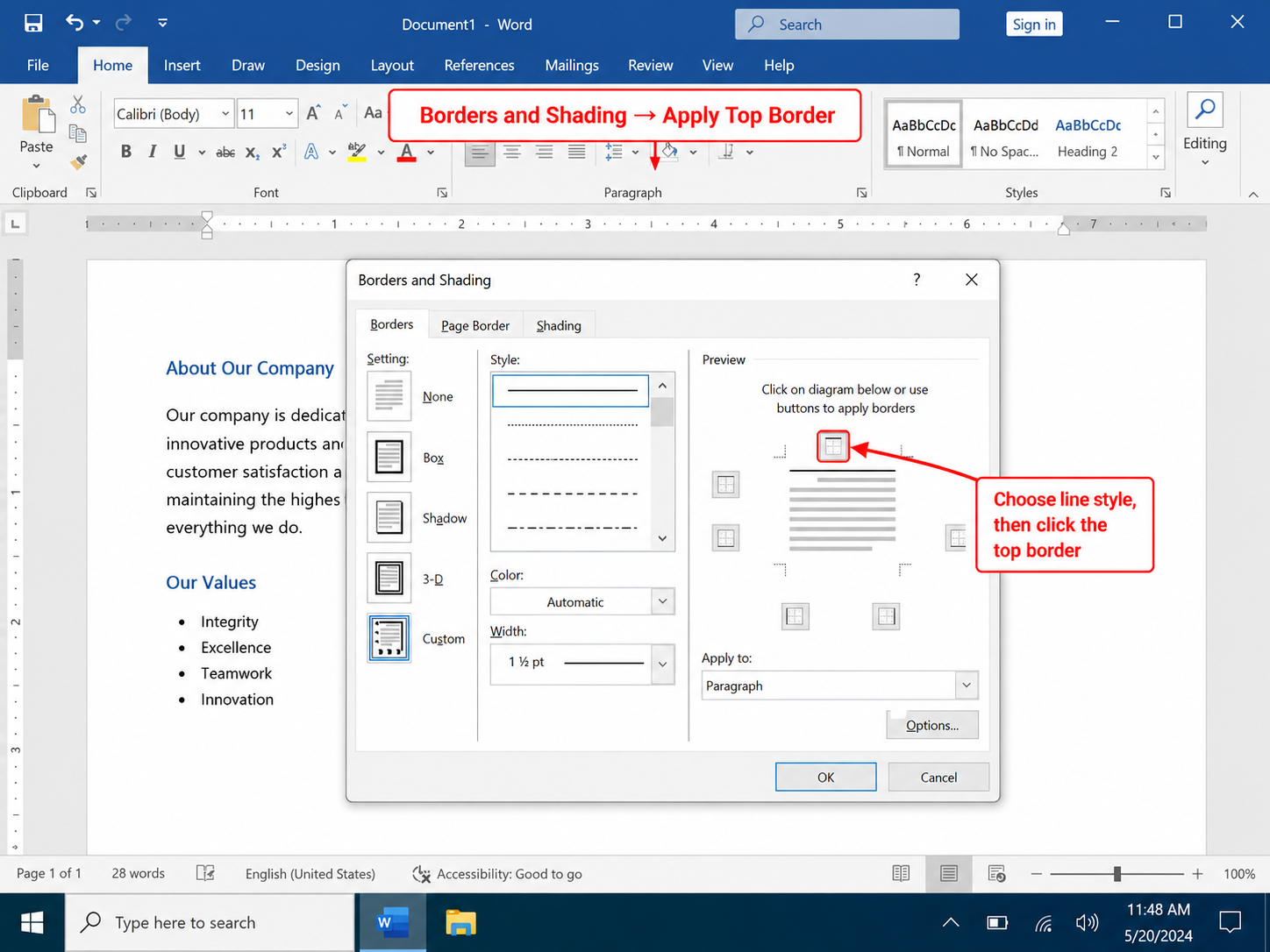
To add a top border in Word, select the paragraph, open Home → Borders → Borders and Shading, click the top edge in the Preview box, set line style and color, and click OK. For a one-click rule, use Top Border from the Borders dropdown.
Key Takeaways
Home → Borders → Top Border adds a line above the current paragraph.
Use Borders and Shading when you need custom thickness, color, or spacing.
Apply top borders to table cells to highlight header rows.
WPS Writer mirrors Word’s Borders menu on the Home tab.
Top Border vs. Other Lines in Word
A top border draws a horizontal rule above a paragraph or cell. Users often confuse it with:
| Feature | What it does |
|---|---|
| Top border | Line above paragraph/cell (full width) |
| Bottom border (previous paragraph) | Line below the paragraph above—visually similar |
| Page border | Frame around the entire page (Design → Page Borders) |
| Underline | Line under characters only |
Add a Top Border in Microsoft Word
One-click top border
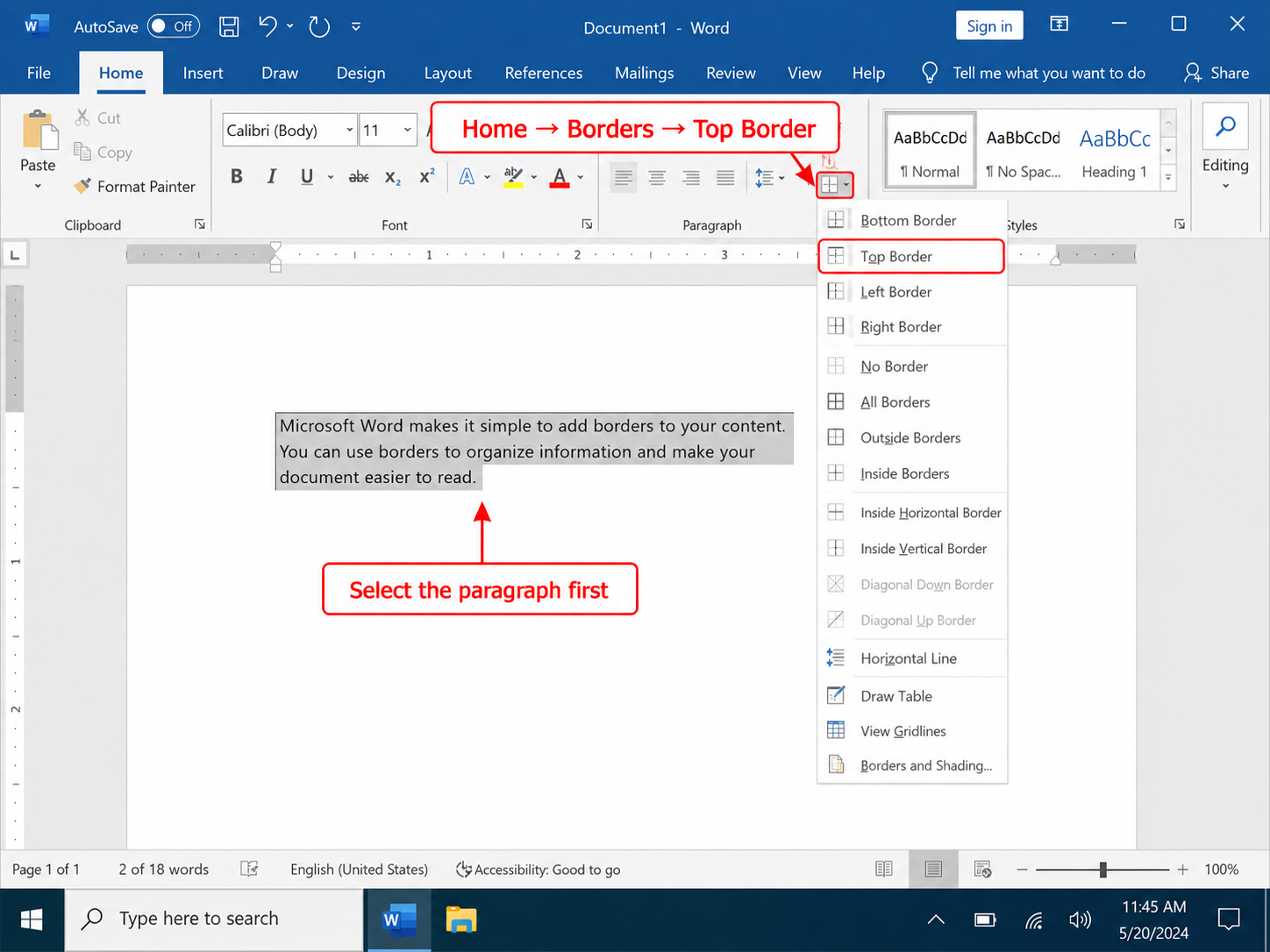
Place the cursor in the target paragraph.
Home → Borders → Top Border.
Custom top border
Select the paragraph(s).
Home → Borders → Borders and Shading.
In Preview, click the top line position.
Choose Style, Color, Width.
Set Apply to: Paragraph → OK.
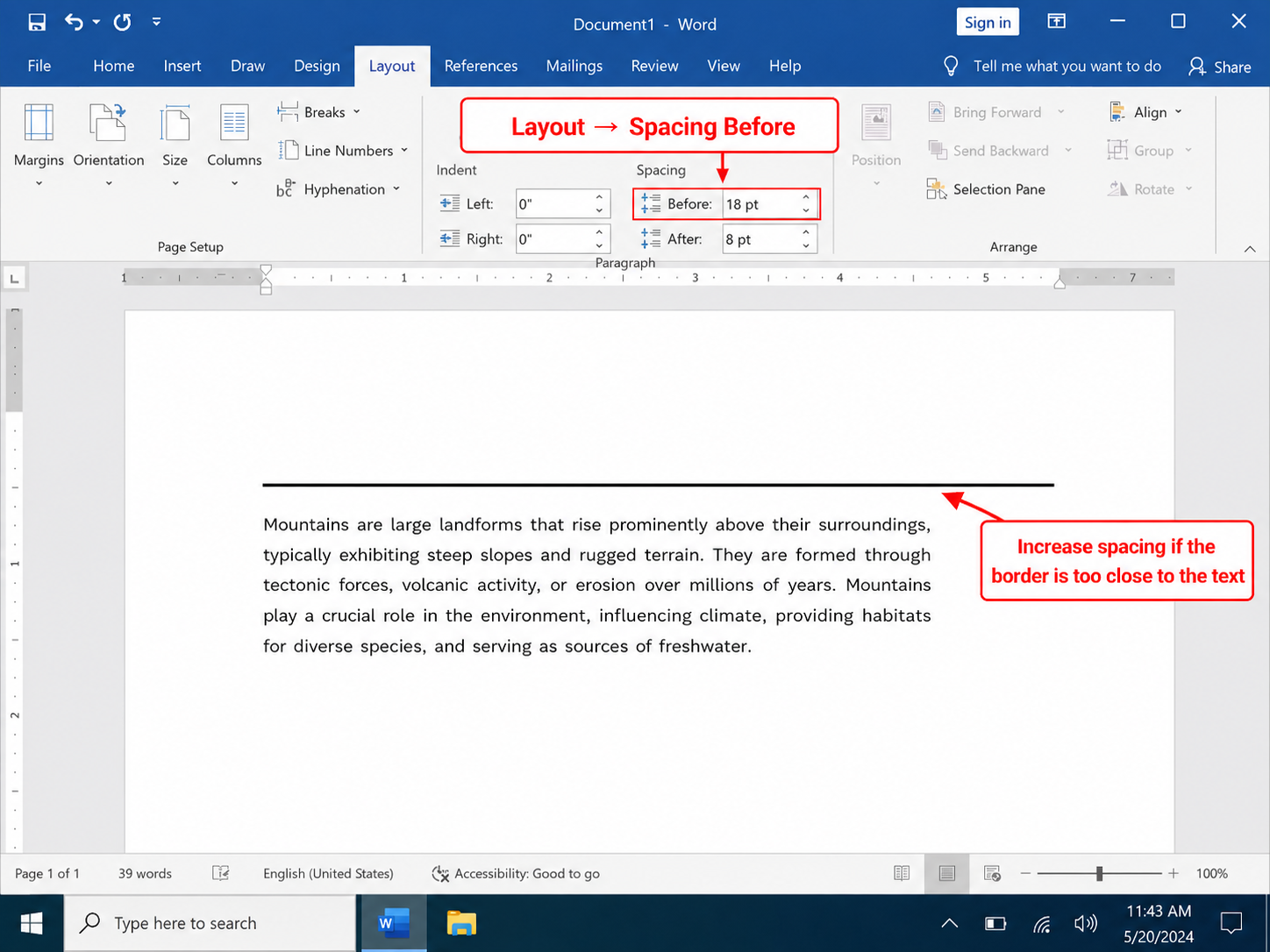
Tip: Add spacing before the paragraph (Layout → Spacing → Before) so the line does not sit on the text above.
Add a Top Border in WPS Writer
Open the document in WPS Writer.
Select the paragraph.
Home → Borders → Top Border, or open Borders and Shading for custom lines.
Export or share as .docx to keep top borders intact in Microsoft Word.
Top Border on Table Header Rows
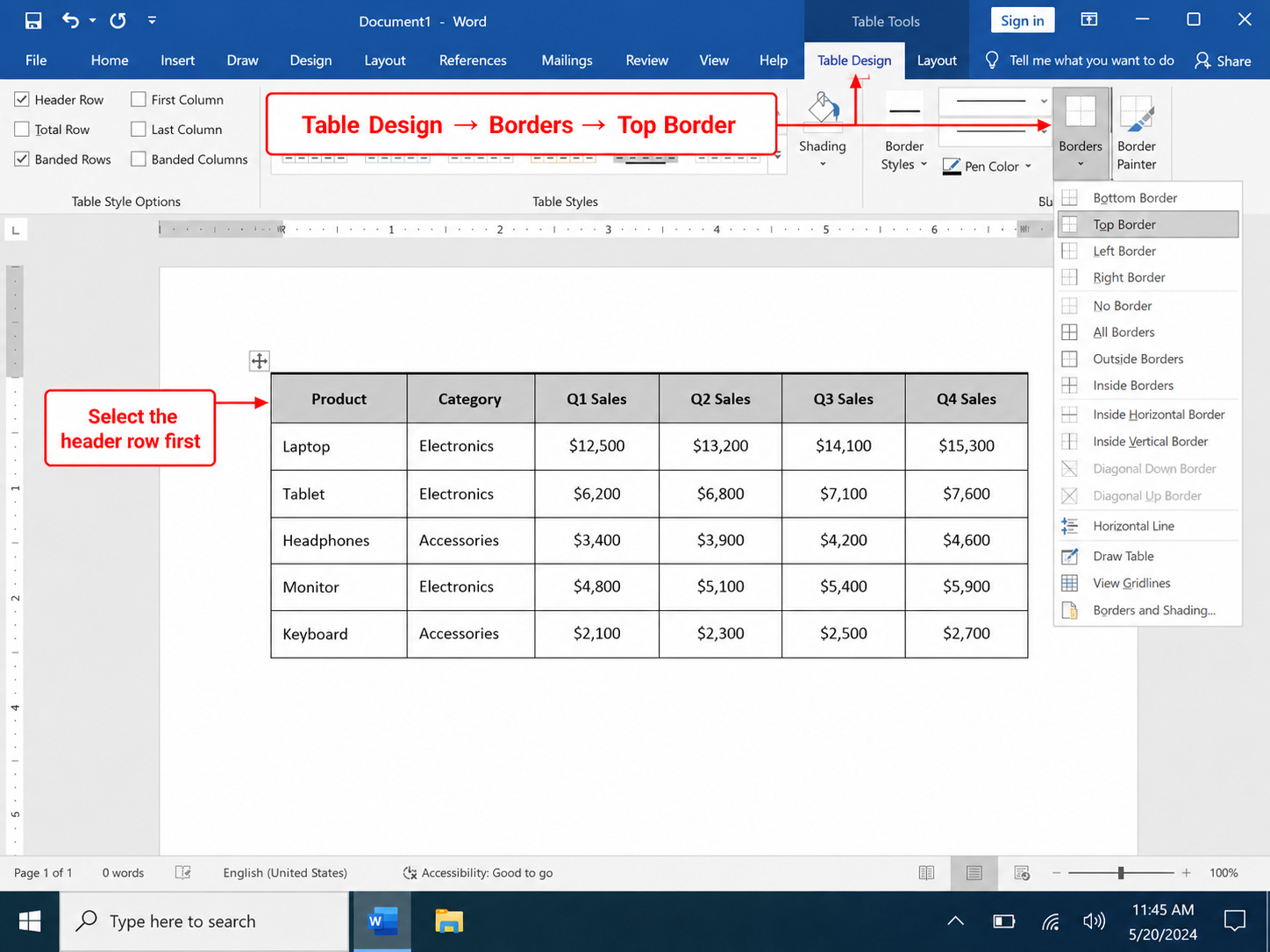
Select the header row.
Table Design → Borders → Top Border (or Borders and Shading → top edge only).
Combine with bottom border on the same row to box the header.
Troubleshooting Top Borders
Line too close to text: increase Spacing Before on the paragraph.
Border on wrong paragraph: ensure only one paragraph is selected; check Apply to: Paragraph.
Cannot see the line: set width to at least ½ pt and use a dark color.


Format Borders with WPS Office
WPS Office includes Writer with Word-compatible border and picture formatting—ideal when you need a free .docx editor on Windows, Mac, or mobile. Borders you apply in WPS open correctly in Microsoft Word.
For a line below text, read how to add a bottom border in Word. To frame photos, see how to add a border to a picture in Word.
FAQs
How do I add a top border to one paragraph only?
Click inside that paragraph → Home → Borders → Top Border, or use Borders and Shading with Apply to: Paragraph.
How do I add a top border in Word for Mac?
Home → Borders → Top Border, or Format → Borders and Shading on older Mac builds.
Top border not printing?
Check File → Options → Display → ensure borders print, and verify Print Preview.
Can I copy top border formatting?
Use Format Painter after applying the border, or save a paragraph style with the top border built in.
Summary
How to add a top border in Word: select the paragraph → Home → Borders → Top Border, or use Borders and Shading to style only the top edge. Use the same workflow in WPS Writer for cross-platform .docx editing.

'%3e%3cpath%20d='M19.9911%204.11386V6.471H18.5894C18.0775%206.471%2017.7322%206.57814%2017.5536%206.79243C17.3751%207.00671%2017.2858%207.32814%2017.2858%207.75671V9.44421H19.9019L19.5536%2012.0871H17.2858V18.8639H14.5536V12.0871H12.2769V9.44421H14.5536V7.49779C14.5536%206.39064%2014.8632%205.53201%2015.4822%204.92189C16.1013%204.31177%2016.9257%204.00671%2017.9554%204.00671C18.8304%204.00671%2019.509%204.04243%2019.9911%204.11386Z'%20fill='%23333333'/%3e%3c/g%3e%3cdefs%3e%3cclipPath%20id='clip0_2938_8199'%3e%3crect%20width='16'%20height='16'%20fill='white'%20transform='translate(8%204.00671)'/%3e%3c/clipPath%3e%3c/defs%3e%3c/svg%3e)
'%3e%3cpath%20d='M17.5237%2010.7813L23.4811%204H22.0699L16.8949%209.88693L12.7648%204H8L14.2469%2012.9029L8%2020.0133H9.4112L14.8725%2013.7952L19.2352%2020.0133H24M9.92053%205.04213H12.0885L22.0688%2019.0224H19.9003'%20fill='%23333333'/%3e%3c/g%3e%3cdefs%3e%3cclipPath%20id='clip0_2938_8200'%3e%3crect%20width='16'%20height='16.0134'%20fill='white'%20transform='translate(8%204)'/%3e%3c/clipPath%3e%3c/defs%3e%3c/svg%3e)


