

'%3e%3cpath%20d='M8%200C12.4183%200%2016%203.58172%2016%208C16%2012.4183%2012.4183%2016%208%2016C3.58172%2016%200%2012.4183%200%208C0%203.58172%203.58172%200%208%200ZM11.6162%204.38379C11.2257%203.99337%2010.5927%203.99338%2010.2021%204.38379L8%206.58594L5.79785%204.38379C5.40732%203.99334%204.77429%203.99329%204.38379%204.38379C3.99331%204.77429%203.99335%205.40733%204.38379%205.79785L6.58594%208L4.38379%2010.2021C3.99348%2010.5927%203.99341%2011.2257%204.38379%2011.6162C4.77426%2012.0066%205.40734%2012.0065%205.79785%2011.6162L8%209.41406L10.2021%2011.6162C10.5927%2012.0066%2011.2257%2012.0067%2011.6162%2011.6162C12.0067%2011.2257%2012.0066%2010.5927%2011.6162%2010.2021L9.41406%208L11.6162%205.79785C12.0066%205.40735%2012.0066%204.77429%2011.6162%204.38379Z'%20fill='%23080E17'%20fill-opacity='0.46'/%3e%3c/g%3e%3cdefs%3e%3cclipPath%20id='clip0_3761_713'%3e%3crect%20width='16'%20height='16'%20fill='white'/%3e%3c/clipPath%3e%3c/defs%3e%3c/svg%3e)




'%3e%3cpath%20fill-rule='evenodd'%20clip-rule='evenodd'%20d='M21.4999%2010.9993C21.4999%205.20009%2016.7986%200.498901%2010.9993%200.498901C5.19994%200.498901%200.498657%205.20009%200.498657%2010.9993C0.498657%2016.2404%204.33858%2020.5844%209.35855%2021.3722V14.0346H6.69238V10.9993H9.35855V8.68594C9.35855%206.05427%2010.9262%204.60062%2013.3248%204.60062C14.4736%204.60062%2015.6753%204.80571%2015.6753%204.80571V7.38979H14.3512C13.0468%207.38979%2012.64%208.19921%2012.64%209.0296V10.9993H15.5523L15.0867%2014.0346H12.64V21.3722C17.66%2020.5844%2021.4999%2016.2404%2021.4999%2010.9993Z'%20fill='%231568EA'/%3e%3c/g%3e%3c/svg%3e)


'%3e%3cpath%20d='M2.42045%2022.1876H6.31818V12.7217L0.75%208.54553V20.5171C0.75%2021.4414%201.49892%2022.1876%202.42045%2022.1876Z'%20fill='%234285F4'/%3e%3cpath%20d='M19.682%2022.1876H23.5797C24.5041%2022.1876%2025.2502%2021.4387%2025.2502%2020.5171V8.54553L19.682%2012.7217'%20fill='%2334A853'/%3e%3cpath%20d='M19.682%205.48293V12.7216L25.2502%208.54543V6.31816C25.2502%204.25236%2022.8921%203.07469%2021.2411%204.31361'%20fill='%23FBBC04'/%3e%3cpath%20d='M6.31824%2012.7217V5.48303L13.0001%2010.4944L19.6819%205.48303V12.7217L13.0001%2017.733'%20fill='%23EA4335'/%3e%3cpath%20d='M0.75%206.31816V8.54543L6.31818%2012.7216V5.48293L4.75909%204.31361C3.10534%203.07469%200.75%204.25236%200.75%206.31816Z'%20fill='%23C5221F'/%3e%3c/g%3e%3cdefs%3e%3cclipPath%20id='clip0_2954_7305'%3e%3crect%20width='24.5'%20height='18.375'%20fill='white'%20transform='translate(0.75%203.8125)'/%3e%3c/clipPath%3e%3c/defs%3e%3c/svg%3e)


Google Docs keeps your writing in the cloud, but plenty of classrooms, clients, and submission portals still ask for a Microsoft Word file. The good news is that you can convert a Google Doc to Word in a few clicks, either from the document itself, from Google Drive, or from your phone.
This guide walks through each method step by step, shows what to check after the file lands on your disk, and explains where WPS Writer fits in when you need a free desktop app to open the result.
Why Convert a Google Doc to Word?
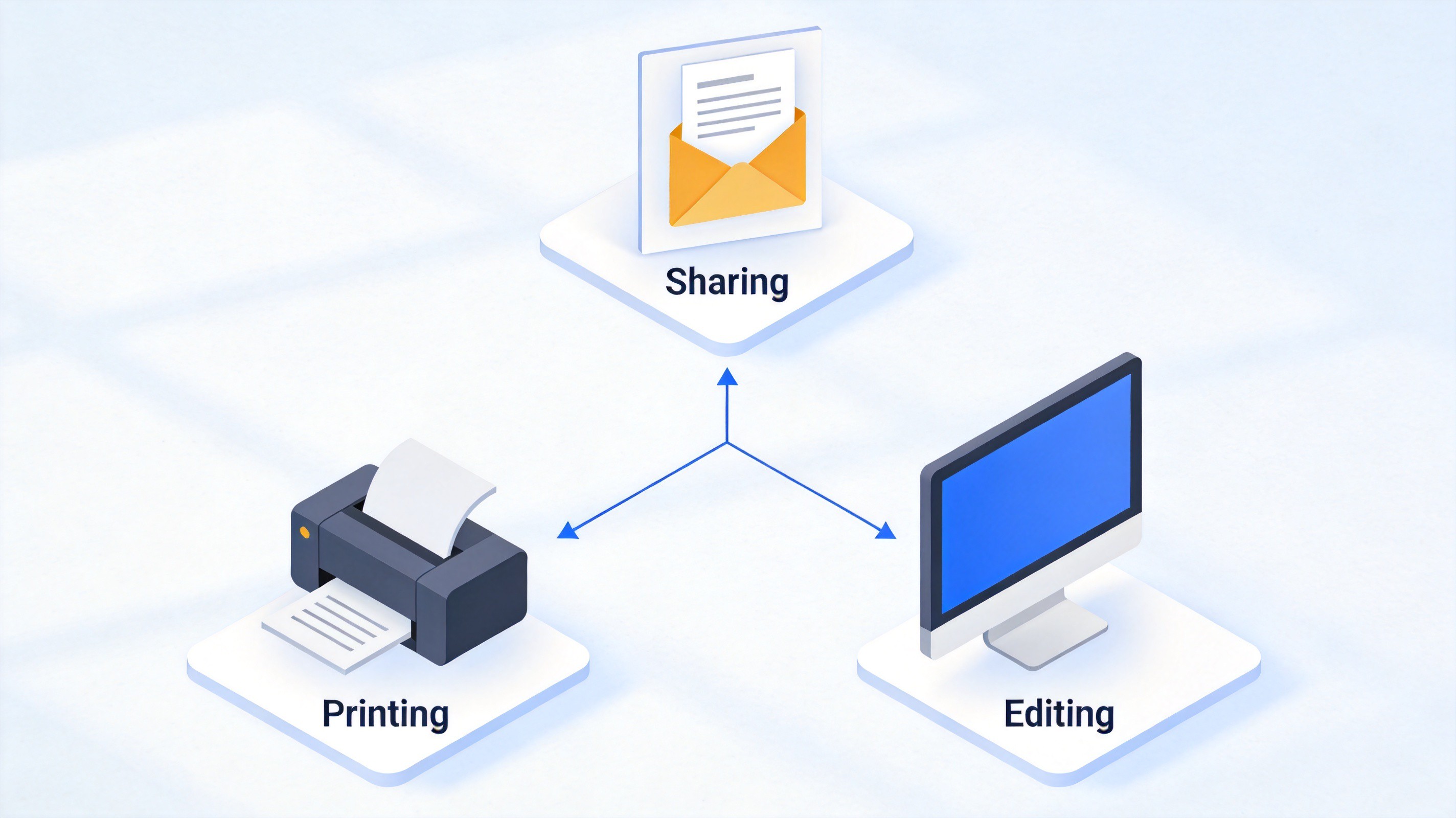
DOCX is the default format of Microsoft Word, and many offices, schools, and publishers treat it as the standard hand-in format. Converting your Google Doc to a Word document matters when you:
Share with Word users — teammates who live in Microsoft Word get a file they can open and edit without importing anything.
Meet submission rules — application portals and journals often accept DOCX only, not a Google Docs link.
Work offline — a saved Word file opens on any computer, no account or internet needed.
Use desktop-only features — advanced layout tools, macros, and some templates behave better in a desktop word processor.
Keep in mind that conversion is not lossless. Complex tables, text boxes, and unusual fonts can shift slightly after you convert a Google Doc to Word, so a quick review is always worth it.
Why convert google doc to word


Convert Google Doc to Word from the File Menu
This is the fastest method when you have one document open. Google exports a true .docx file that Word, WPS Writer, and Word Online all read natively.
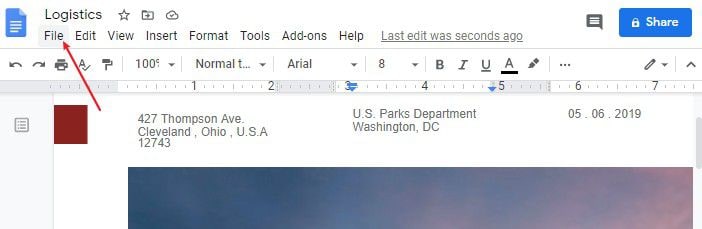
Open your document in Google Docs and wait for it to finish syncing, so the latest edits are included.
Click File in the menu bar at the top left of the editor.
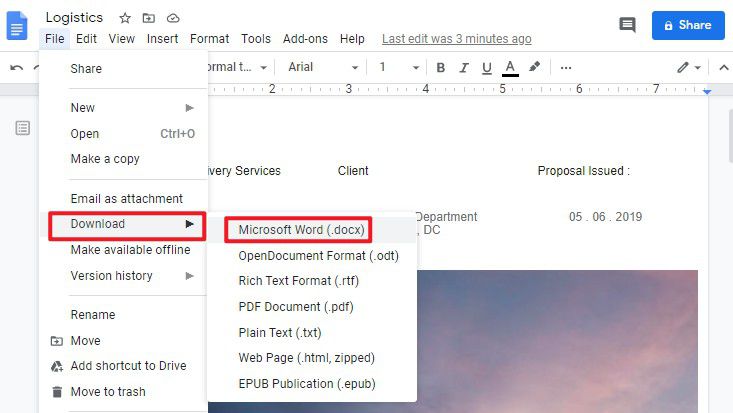
Hover over Download to expand the list of export formats.
Click Microsoft Word (.docx). The converted file downloads immediately through your browser.
Open the file from your Downloads folder to confirm everything looks right.
Google Docs file menu download
Download google doc as docx
The same menu also offers PDF, ODT, RTF, and plain text, but DOCX is the option that preserves Word features such as styles, headers, and tracked changes when the receiver re-enables them.
Convert Multiple Google Docs to Word in Google Drive
When a whole folder of documents needs to become Word files, downloading each one from the editor is slow. Google Drive converts Docs back to DOCX automatically as it downloads.
For a single file:
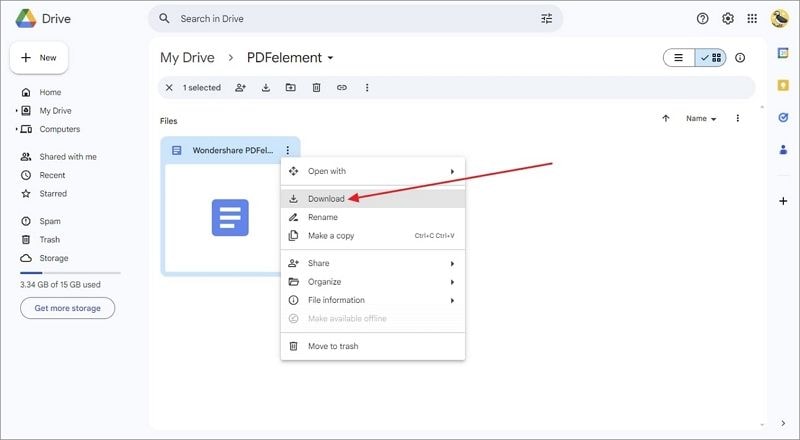
Open Google Drive and locate the Google Docs file.
Right-click the file and choose Download. Drive exports it as a .docx.
Download docx from Google Drive
For several files at once:
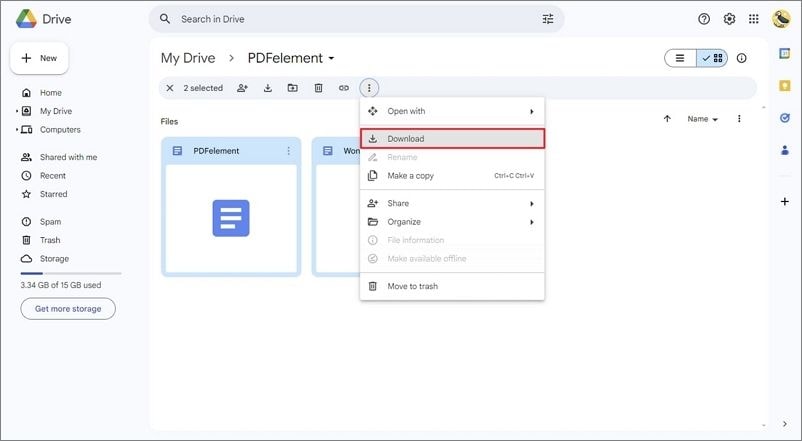
Select multiple files with Ctrl+click (Cmd+click on Mac), or select a folder.
Right-click the selection and choose Download. Drive packs everything into a ZIP, converting each Doc to Word format along the way.
Extract the ZIP and you have a batch of DOCX files ready to send.
Bulk download google docs to word
Convert Google Doc to Word on Mobile
The Google Docs mobile app can export DOCX too, which is handy when a request arrives while you are away from your desk.
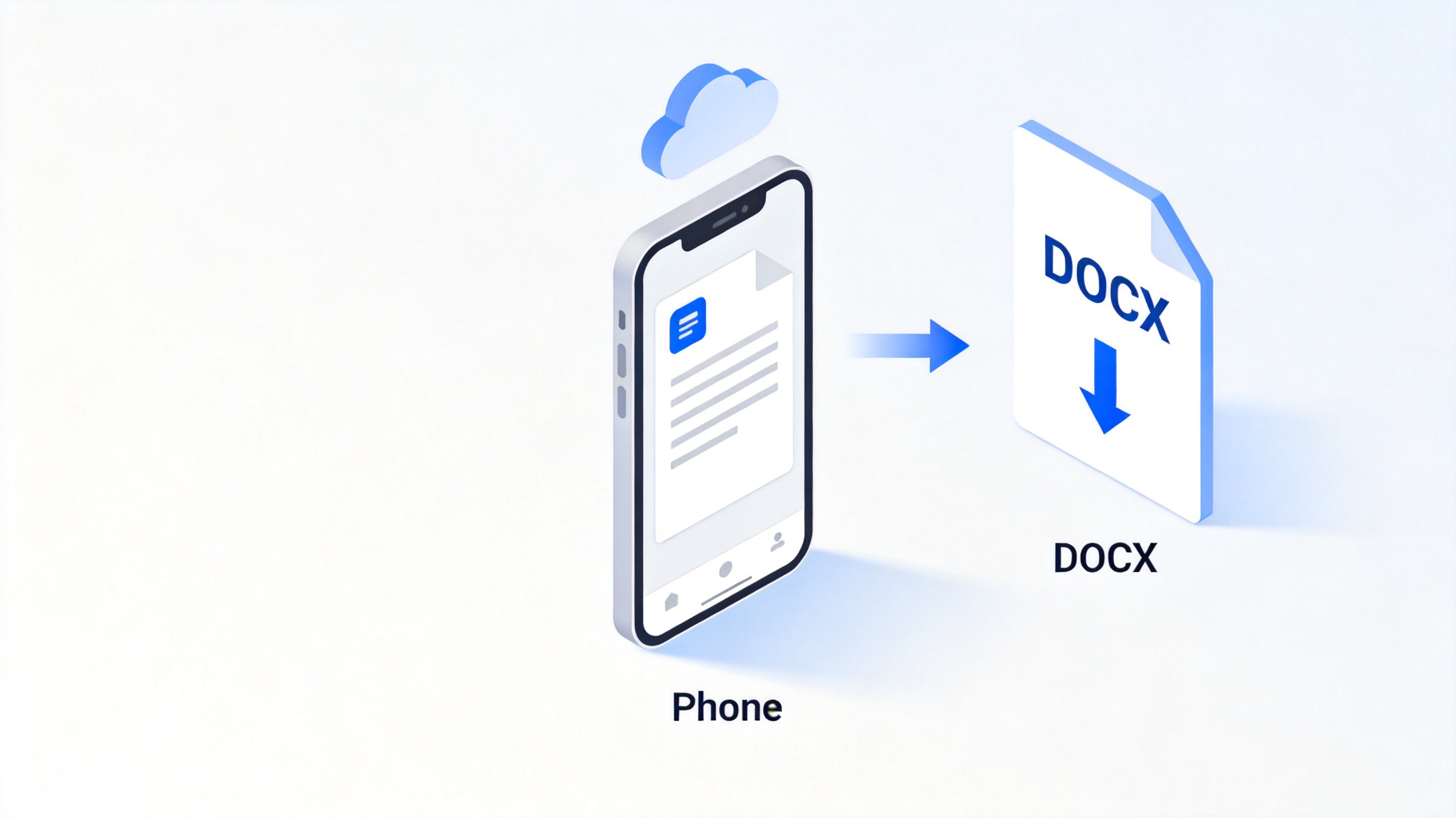
Open the document in the Google Docs app on Android or iPhone.
Tap the three-dot menu in the top right corner.
Choose Share & export, then tap Save as.
Select Word (.docx) and tap OK. The Word file saves to your phone's storage or your chosen folder.
After saving, you can email the DOCX as an attachment or move it to one of the free apps for reading Word documents on Android if you want to open it outside Google's ecosystem.
Convert google docs to word on mobile
Check Formatting After You Convert a Google Doc to Word
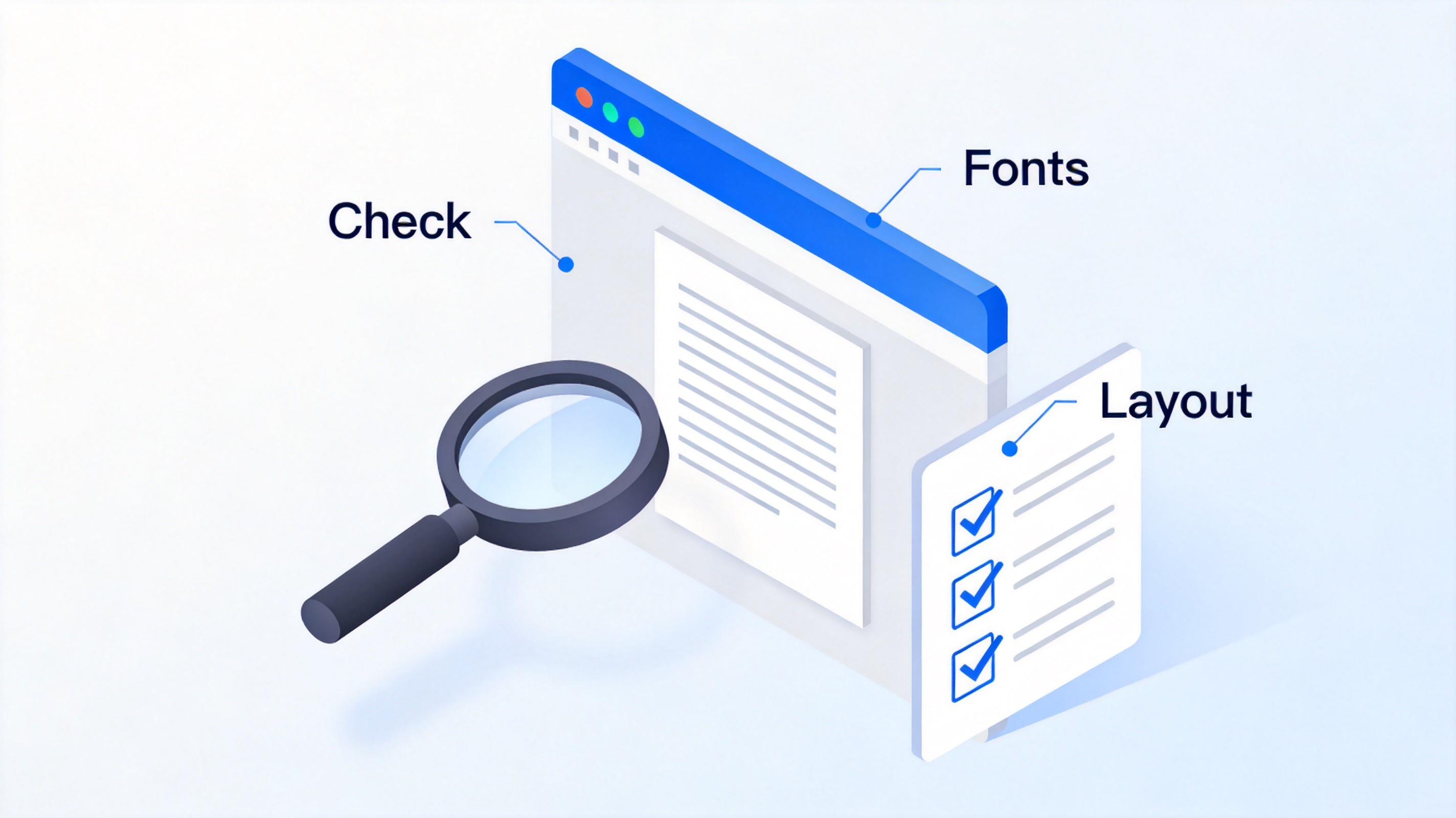
Conversion usually goes smoothly, but two editors do not draw pages in exactly the same way. Before you send the file anywhere important, open it and glance through these points:
Fonts — if the Doc used a Google-only font, Word substitutes it. Swap to a common font such as Calibri or Times New Roman if the layout shifted.
Tables and columns — column widths occasionally change. Adjust them once in Word and save.
Images and line breaks — check that figures stay anchored to the right paragraph and page breaks fall where you expect.
Headers, footers, and page numbers — confirm they survived and count correctly.
If you plan more editing on the Word side, it helps to know how to save a Word document properly so your changes do not stay trapped in a temporary copy. And remember: converting does not touch the original Google Doc, which stays safely in Drive in Google's own format.
Check formatting in Word document
The Best Free Alternative: WPS Office
Once the DOCX is on your computer, you need a word processor to open it. If Microsoft Word is not installed, WPS Office is a free desktop suite with a familiar Word-style interface that opens, edits, and saves DOCX files with full compatibility.
Download and install WPS Office for Windows or Mac.
Open WPS Writer and use File > Open to pick your converted DOCX.
Edit as needed — styles, tables, headers, and images carry over cleanly.
Save back to DOCX or export to PDF when you are done.
WPS Writer also handles the reverse direction: create or edit a document locally, then upload it to Drive whenever you want it back in Google Docs. That round-trip makes it a practical bridge between the two ecosystems. For other format conversions, see how to convert WPS files to DOCX as well.
Open docx file in WPS Writer
FAQs
Does converting a Google Doc to Word change the original?
No. Downloading a DOCX copy leaves the original Google Doc untouched in Drive. Your edits stay in Google Docs, and the Word file is a separate snapshot.
Will I lose formatting when I convert a Google Doc to Word?
Most documents convert cleanly, but complex tables, text boxes, and uncommon fonts can shift. Open the DOCX and spend a minute checking headings, images, and page breaks before you share it.
Can I convert a Google Doc to Word without a Google account?
You need access to the document, which normally means signing in to Google. If someone shared a link with you, sign in with any Google account, or ask the owner to export and email the DOCX.
Is DOCX the same as DOC in Microsoft Word?
DOC is the old Word 97-2003 format, while DOCX is the modern XML-based standard used by Word 2007 and later. Google exports DOCX, which every current version of Word, WPS Writer, and Word Online opens.
Can I convert a Word document back to Google Docs?
Yes. Upload the DOCX to Google Drive, double-click it, and choose Open with Google Docs. Drive converts it to an editable Doc while keeping the original Word file in place.


'%3e%3cpath%20d='M19.9911%204.11386V6.471H18.5894C18.0775%206.471%2017.7322%206.57814%2017.5536%206.79243C17.3751%207.00671%2017.2858%207.32814%2017.2858%207.75671V9.44421H19.9019L19.5536%2012.0871H17.2858V18.8639H14.5536V12.0871H12.2769V9.44421H14.5536V7.49779C14.5536%206.39064%2014.8632%205.53201%2015.4822%204.92189C16.1013%204.31177%2016.9257%204.00671%2017.9554%204.00671C18.8304%204.00671%2019.509%204.04243%2019.9911%204.11386Z'%20fill='%23333333'/%3e%3c/g%3e%3cdefs%3e%3cclipPath%20id='clip0_2938_8199'%3e%3crect%20width='16'%20height='16'%20fill='white'%20transform='translate(8%204.00671)'/%3e%3c/clipPath%3e%3c/defs%3e%3c/svg%3e)
'%3e%3cpath%20d='M17.5237%2010.7813L23.4811%204H22.0699L16.8949%209.88693L12.7648%204H8L14.2469%2012.9029L8%2020.0133H9.4112L14.8725%2013.7952L19.2352%2020.0133H24M9.92053%205.04213H12.0885L22.0688%2019.0224H19.9003'%20fill='%23333333'/%3e%3c/g%3e%3cdefs%3e%3cclipPath%20id='clip0_2938_8200'%3e%3crect%20width='16'%20height='16.0134'%20fill='white'%20transform='translate(8%204)'/%3e%3c/clipPath%3e%3c/defs%3e%3c/svg%3e)


