

'%3e%3cpath%20d='M8%200C12.4183%200%2016%203.58172%2016%208C16%2012.4183%2012.4183%2016%208%2016C3.58172%2016%200%2012.4183%200%208C0%203.58172%203.58172%200%208%200ZM11.6162%204.38379C11.2257%203.99337%2010.5927%203.99338%2010.2021%204.38379L8%206.58594L5.79785%204.38379C5.40732%203.99334%204.77429%203.99329%204.38379%204.38379C3.99331%204.77429%203.99335%205.40733%204.38379%205.79785L6.58594%208L4.38379%2010.2021C3.99348%2010.5927%203.99341%2011.2257%204.38379%2011.6162C4.77426%2012.0066%205.40734%2012.0065%205.79785%2011.6162L8%209.41406L10.2021%2011.6162C10.5927%2012.0066%2011.2257%2012.0067%2011.6162%2011.6162C12.0067%2011.2257%2012.0066%2010.5927%2011.6162%2010.2021L9.41406%208L11.6162%205.79785C12.0066%205.40735%2012.0066%204.77429%2011.6162%204.38379Z'%20fill='%23080E17'%20fill-opacity='0.46'/%3e%3c/g%3e%3cdefs%3e%3cclipPath%20id='clip0_3761_713'%3e%3crect%20width='16'%20height='16'%20fill='white'/%3e%3c/clipPath%3e%3c/defs%3e%3c/svg%3e)




'%3e%3cpath%20fill-rule='evenodd'%20clip-rule='evenodd'%20d='M21.4999%2010.9993C21.4999%205.20009%2016.7986%200.498901%2010.9993%200.498901C5.19994%200.498901%200.498657%205.20009%200.498657%2010.9993C0.498657%2016.2404%204.33858%2020.5844%209.35855%2021.3722V14.0346H6.69238V10.9993H9.35855V8.68594C9.35855%206.05427%2010.9262%204.60062%2013.3248%204.60062C14.4736%204.60062%2015.6753%204.80571%2015.6753%204.80571V7.38979H14.3512C13.0468%207.38979%2012.64%208.19921%2012.64%209.0296V10.9993H15.5523L15.0867%2014.0346H12.64V21.3722C17.66%2020.5844%2021.4999%2016.2404%2021.4999%2010.9993Z'%20fill='%231568EA'/%3e%3c/g%3e%3c/svg%3e)


'%3e%3cpath%20d='M2.42045%2022.1876H6.31818V12.7217L0.75%208.54553V20.5171C0.75%2021.4414%201.49892%2022.1876%202.42045%2022.1876Z'%20fill='%234285F4'/%3e%3cpath%20d='M19.682%2022.1876H23.5797C24.5041%2022.1876%2025.2502%2021.4387%2025.2502%2020.5171V8.54553L19.682%2012.7217'%20fill='%2334A853'/%3e%3cpath%20d='M19.682%205.48293V12.7216L25.2502%208.54543V6.31816C25.2502%204.25236%2022.8921%203.07469%2021.2411%204.31361'%20fill='%23FBBC04'/%3e%3cpath%20d='M6.31824%2012.7217V5.48303L13.0001%2010.4944L19.6819%205.48303V12.7217L13.0001%2017.733'%20fill='%23EA4335'/%3e%3cpath%20d='M0.75%206.31816V8.54543L6.31818%2012.7216V5.48293L4.75909%204.31361C3.10534%203.07469%200.75%204.25236%200.75%206.31816Z'%20fill='%23C5221F'/%3e%3c/g%3e%3cdefs%3e%3cclipPath%20id='clip0_2954_7305'%3e%3crect%20width='24.5'%20height='18.375'%20fill='white'%20transform='translate(0.75%203.8125)'/%3e%3c/clipPath%3e%3c/defs%3e%3c/svg%3e)


A legal paper leaves little room for formatting mistakes. Courts, law firms, and filing services routinely reject documents that ignore strict rules on margins, line spacing, line numbers, and page numbering, and sensitive drafts must be protected from unauthorized edits. Getting these details right is not optional — it is part of filing correctly.
WPS Writer handles this well. It opens and edits Microsoft Word files with full compatibility, includes professional layout tools such as line numbering, watermarks, and document encryption, and offers free legal templates for contracts, briefs, and NDAs. This guide walks you through formatting a legal paper in WPS Office step by step.
How to Format a Legal Paper in WPS Office: Step-by-Step Guide
Step-by-Step Guide: How to Format a Legal Paper in WPS Writer
Most U.S. courts publish the same core requirements for pleadings and motions: one-inch margins on all four sides, double-spaced body text in a readable font of at least 12 points, numbered lines on pleading paper, and consecutive page numbers in the footer. Always confirm your local rules, but the four steps below will produce a document that meets these standards.
Step 1: Set Up Page Margins and Paper Size
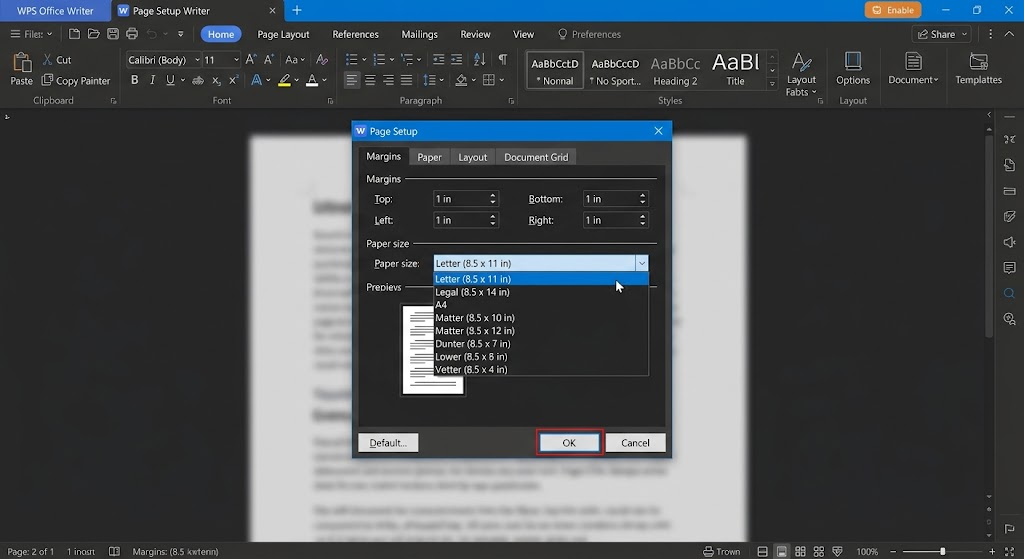
Open the Page Setup dialog. Go to Page Layout > Margins > Custom Margins.
Set all four margins to 1 inch (2.54 cm). Enter Top, Bottom, Left, and Right values of 1" each.
Choose the paper size. In the same dialog, set Paper size to Legal (8.5 x 14 in) if your court requires pleading-size paper, or Letter (8.5 x 11 in) if it does not.
Confirm and verify. Click OK, then check that the ruler at the top of the page shows text starting 1 inch from each edge.
WPS Office page setup options
Step 2: Configure Line Spacing and Font Styles
Select the body text. Press Ctrl+A (or Cmd+A on Mac) to select the whole document.
Set the font. On the Home tab, choose Times New Roman or Calibri at 12 pt — the minimum type size most courts accept.
Apply double spacing. Go to Home > Line Spacing > 2.0. Courts generally require double-spaced body text, while footnotes and block quotations may stay single-spaced.
Check the result. Visually confirm there is one full blank line of space between text lines, and that no paragraph was left at single spacing.
Step 3: Add Line Numbers and Page Numbers
Pleading paper uses continuous line numbers down the left margin so judges and opposing counsel can cite exact lines during hearings. For an in-depth comparison with Microsoft Word, see this guide to adding line numbers in Word.
Turn on line numbers. Go to Page Layout > Line Numbers > Continuous. Numbers then run down the left margin without restarting. Use Restart Each Page if your local rules require it.
Insert page numbers. Go to Insert > Header & Footer > Page Number, and place the number in the footer.
Use a "Page X of Y" format. In the footer, insert Page Number, type " of ", then insert Number of Pages. Consecutive footer pagination is a common filing requirement.
Verify. Close the footer view and confirm that line numbers appear on every page and the footer reads, for example, "Page 3 of 12".
Step 4: Track Changes and Collaboration
Legal drafts pass through partners, opposing counsel, and clients. Reviewing with tracked edits keeps every change visible and reversible.
Enable tracking. Go to Review > Track Changes before sending the draft out. Every insertion and deletion will now be marked by author and color.
Leave comments. Select text and use Review > Add Comment to raise questions without altering the wording.
Compare versions. Use Review > Compare to diff a returned draft against your original — essential when a counterparty sends back an edited contract.
Accept or reject edits. Step through each change with Accept / Reject before finalizing, then turn tracking off for the clean version.


Essential Legal Paper Features in WPS Office
Formatting is only half of the job. Legal work also demands tamper-resistant output, signature support, and confidentiality controls. WPS Office covers these needs in the same application you use for drafting.
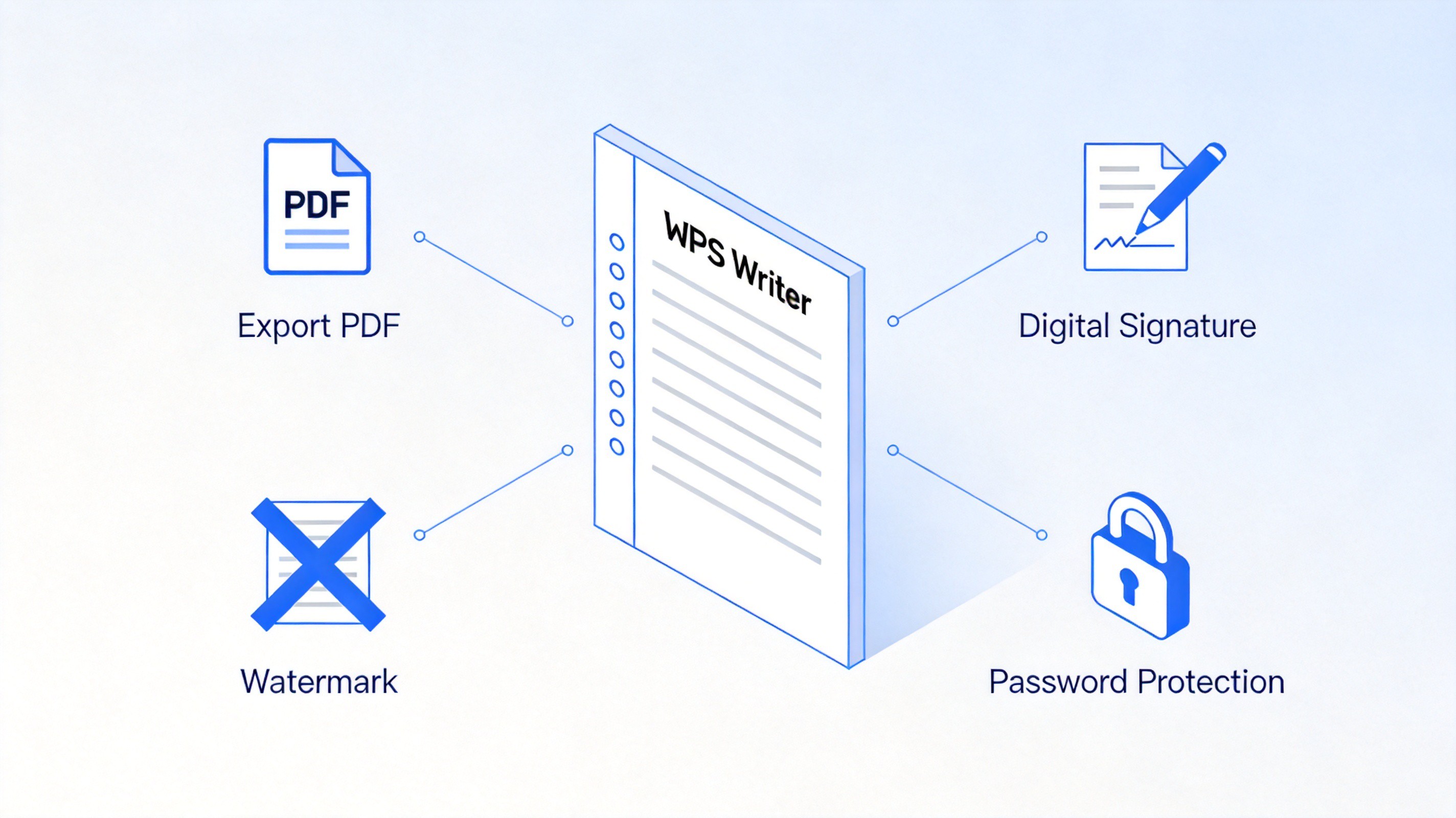
PDF conversion and editing. File a final version as a PDF so it cannot be casually altered. Go to File > Export to PDF, or open an existing PDF in WPS PDF to edit text, merge exhibits, or compress filings for e-filing portals.
Digital signatures and watermarks. Add a signature placeholder with Insert > Sign, or insert your signature image at the signature block. Mark drafts with Page Layout > Watermark and choose presets like Confidential, Draft, or a custom text watermark.
Document protection. For privileged material, go to File > Info > Encrypt Document (also available as Review > Document Encryption) and set an open password or a modify-restricted password. Share the password through a separate channel.
Legal document security features in WPS
Using Free WPS Legal Paper Templates
When a template is faster than formatting from scratch, start there. Open WPS Office, go to New, and search "Legal Paper", "Contract", or "NDA" in the template library.
Contracts with prebuilt clause sections and signature blocks.
Legal briefs formatted with caption tables and argument structure.
Non-disclosure agreements (NDAs) for one-way and mutual confidentiality.
Pleading paper with numbered lines already in place, so you only apply the court's margin and spacing rules.
Templates ship with professional fonts and spacing, and every element remains editable, so you can adapt them to a specific jurisdiction's rules without rebuilding the layout.

Free templates in WPS
FAQs
Can I open and edit a .docx legal paper in WPS Office without losing formatting?
Yes. WPS Writer reads and writes .docx natively, so margins, line numbers, headers, footers, tracked changes, and styles survive the round trip. Files originally protected with a password will prompt for it before opening, and it is still wise to verify court-critical layout details against the original Word version.
Is WPS Office free for formatting legal documents?
Yes. The free version of WPS Office includes the Writer tools needed for legal formatting — margins, line spacing, line numbers, page numbers, watermarks, comments, and track changes. Premium adds conveniences such as unlimited PDF conversion and an expanded template catalog, but it is not required to format a compliant legal paper.
How do I export my legal paper to a secured PDF in WPS?
Go to File > Export to PDF, choose your quality settings, and optionally set a document-open or permissions password in the export options before saving. For additional control, you can also encrypt the source document via File > Info > Encrypt Document before exporting.
What margins and spacing do courts typically require for a legal paper?
Most U.S. courts require one-inch margins on all four sides, double-spaced body text, a minimum 12-point font, and consecutive page numbering, often on 8.5 x 11 inch paper. Always check the local rules of the specific court, since exceptions for footnotes, quotations, and paper size vary.
Does WPS Writer support pleading paper with continuous line numbers?
Yes. Use Page Layout > Line Numbers > Continuous to add unbroken numbering down the left margin, or choose Restart Each Page where local rules call for it. Combined with a "Page X of Y" footer, this reproduces standard pleading paper.


'%3e%3cpath%20d='M19.9911%204.11386V6.471H18.5894C18.0775%206.471%2017.7322%206.57814%2017.5536%206.79243C17.3751%207.00671%2017.2858%207.32814%2017.2858%207.75671V9.44421H19.9019L19.5536%2012.0871H17.2858V18.8639H14.5536V12.0871H12.2769V9.44421H14.5536V7.49779C14.5536%206.39064%2014.8632%205.53201%2015.4822%204.92189C16.1013%204.31177%2016.9257%204.00671%2017.9554%204.00671C18.8304%204.00671%2019.509%204.04243%2019.9911%204.11386Z'%20fill='%23333333'/%3e%3c/g%3e%3cdefs%3e%3cclipPath%20id='clip0_2938_8199'%3e%3crect%20width='16'%20height='16'%20fill='white'%20transform='translate(8%204.00671)'/%3e%3c/clipPath%3e%3c/defs%3e%3c/svg%3e)
'%3e%3cpath%20d='M17.5237%2010.7813L23.4811%204H22.0699L16.8949%209.88693L12.7648%204H8L14.2469%2012.9029L8%2020.0133H9.4112L14.8725%2013.7952L19.2352%2020.0133H24M9.92053%205.04213H12.0885L22.0688%2019.0224H19.9003'%20fill='%23333333'/%3e%3c/g%3e%3cdefs%3e%3cclipPath%20id='clip0_2938_8200'%3e%3crect%20width='16'%20height='16.0134'%20fill='white'%20transform='translate(8%204)'/%3e%3c/clipPath%3e%3c/defs%3e%3c/svg%3e)


