

'%3e%3cpath%20d='M8%200C12.4183%200%2016%203.58172%2016%208C16%2012.4183%2012.4183%2016%208%2016C3.58172%2016%200%2012.4183%200%208C0%203.58172%203.58172%200%208%200ZM11.6162%204.38379C11.2257%203.99337%2010.5927%203.99338%2010.2021%204.38379L8%206.58594L5.79785%204.38379C5.40732%203.99334%204.77429%203.99329%204.38379%204.38379C3.99331%204.77429%203.99335%205.40733%204.38379%205.79785L6.58594%208L4.38379%2010.2021C3.99348%2010.5927%203.99341%2011.2257%204.38379%2011.6162C4.77426%2012.0066%205.40734%2012.0065%205.79785%2011.6162L8%209.41406L10.2021%2011.6162C10.5927%2012.0066%2011.2257%2012.0067%2011.6162%2011.6162C12.0067%2011.2257%2012.0066%2010.5927%2011.6162%2010.2021L9.41406%208L11.6162%205.79785C12.0066%205.40735%2012.0066%204.77429%2011.6162%204.38379Z'%20fill='%23080E17'%20fill-opacity='0.46'/%3e%3c/g%3e%3cdefs%3e%3cclipPath%20id='clip0_3761_713'%3e%3crect%20width='16'%20height='16'%20fill='white'/%3e%3c/clipPath%3e%3c/defs%3e%3c/svg%3e)




'%3e%3cpath%20fill-rule='evenodd'%20clip-rule='evenodd'%20d='M21.4999%2010.9993C21.4999%205.20009%2016.7986%200.498901%2010.9993%200.498901C5.19994%200.498901%200.498657%205.20009%200.498657%2010.9993C0.498657%2016.2404%204.33858%2020.5844%209.35855%2021.3722V14.0346H6.69238V10.9993H9.35855V8.68594C9.35855%206.05427%2010.9262%204.60062%2013.3248%204.60062C14.4736%204.60062%2015.6753%204.80571%2015.6753%204.80571V7.38979H14.3512C13.0468%207.38979%2012.64%208.19921%2012.64%209.0296V10.9993H15.5523L15.0867%2014.0346H12.64V21.3722C17.66%2020.5844%2021.4999%2016.2404%2021.4999%2010.9993Z'%20fill='%231568EA'/%3e%3c/g%3e%3c/svg%3e)


'%3e%3cpath%20d='M2.42045%2022.1876H6.31818V12.7217L0.75%208.54553V20.5171C0.75%2021.4414%201.49892%2022.1876%202.42045%2022.1876Z'%20fill='%234285F4'/%3e%3cpath%20d='M19.682%2022.1876H23.5797C24.5041%2022.1876%2025.2502%2021.4387%2025.2502%2020.5171V8.54553L19.682%2012.7217'%20fill='%2334A853'/%3e%3cpath%20d='M19.682%205.48293V12.7216L25.2502%208.54543V6.31816C25.2502%204.25236%2022.8921%203.07469%2021.2411%204.31361'%20fill='%23FBBC04'/%3e%3cpath%20d='M6.31824%2012.7217V5.48303L13.0001%2010.4944L19.6819%205.48303V12.7217L13.0001%2017.733'%20fill='%23EA4335'/%3e%3cpath%20d='M0.75%206.31816V8.54543L6.31818%2012.7216V5.48293L4.75909%204.31361C3.10534%203.07469%200.75%204.25236%200.75%206.31816Z'%20fill='%23C5221F'/%3e%3c/g%3e%3cdefs%3e%3cclipPath%20id='clip0_2954_7305'%3e%3crect%20width='24.5'%20height='18.375'%20fill='white'%20transform='translate(0.75%203.8125)'/%3e%3c/clipPath%3e%3c/defs%3e%3c/svg%3e)


Every document you send reflects your attention to detail, yet most people publish first drafts with loose sentences, inconsistent formatting, and missed typos. The right editor tips turn revision from a vague "read it again" into a repeatable process that catches real problems. This guide walks through ten practical editor tips for planning, editing, and proofreading documents in WPS Office, so your files read clearly and look professional.
How to Edit Documents Like a Pro: 10 Editor Tips for WPS Office
Why Editor Tips Matter for Better Documents
Editing and proofreading are different jobs. Editing improves what the document says: structure, clarity, logic, and flow. Proofreading is the final pass for surface errors: spelling, punctuation, and grammar. If you try to do both at once, you usually do neither well, because fixing commas while restructuring paragraphs hides bigger issues.
Applying structured editor tips also saves time. A document planned around a clear reader and purpose needs fewer rewrites, and tools such as tracked changes let reviewers see exactly what moved without printing or comparing files by hand.
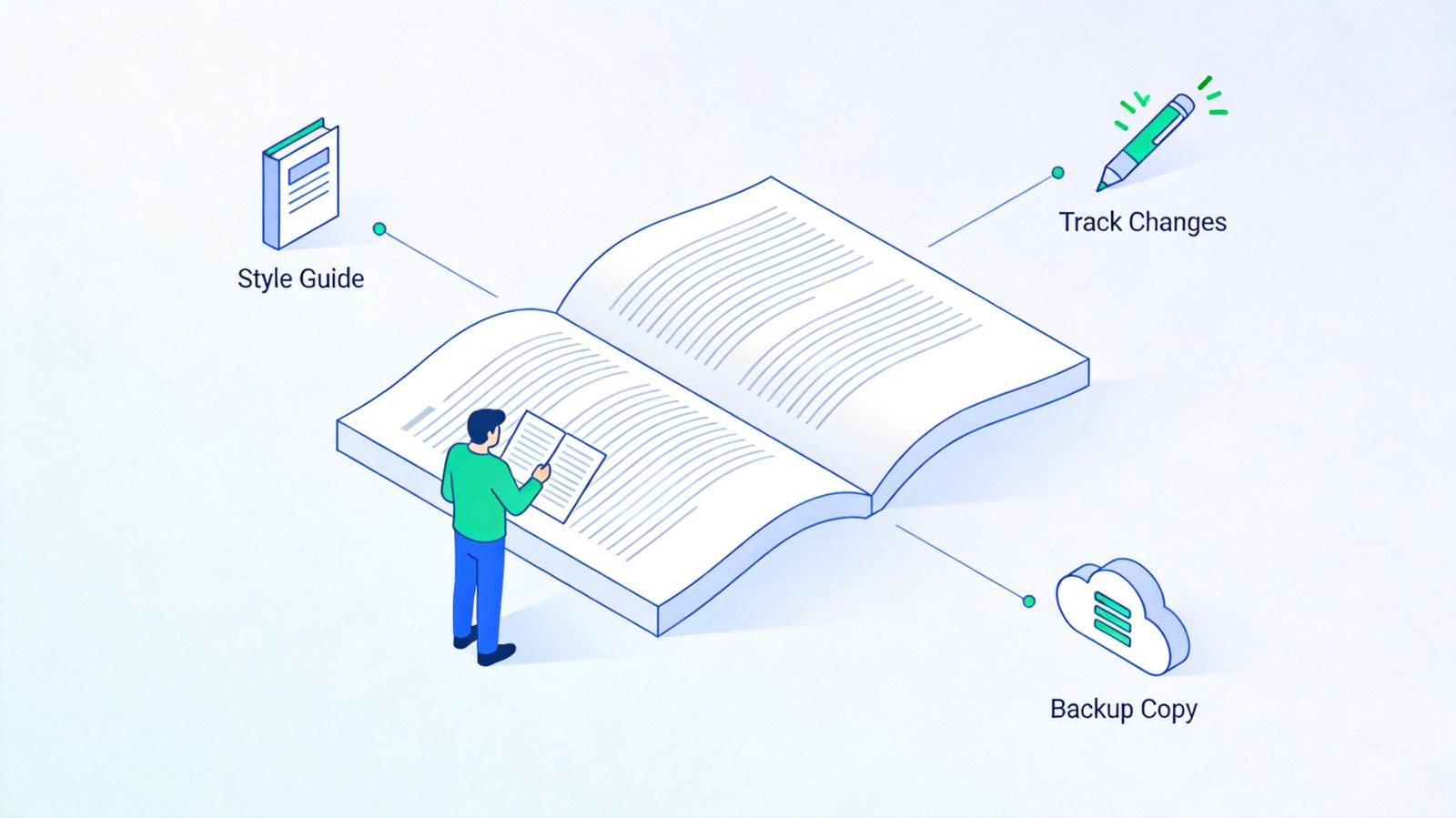
Document editor tips preparation checklist


Ten Editor Tips for Faster Document Editing
Work through these editor tips in order on your next draft in WPS Office:
Step away from the draft first. Even a short break gives you distance, so you read what is actually on the page instead of what you meant to write.
Edit for structure before sentences. Check that sections appear in a logical order and every paragraph supports the main point before you polish individual lines.
Edit for the reader. Picture the person receiving the file: do they get the answer they need in the first screen, and is any jargon worth defining?
Turn on Track Changes. Open the Review tab and click Track Changes so every insertion and deletion is recorded and easy to accept or reject. This also matters when you want feedback without losing your original wording; for locked files, see how to protect a Word document from editing instead.
Use Find & Replace. Press Ctrl+H (or Cmd+H) to fix repeated terms, old product names, or double spaces across the whole file in seconds.
Apply styles, not manual formatting. Heading styles keep fonts consistent and make the navigation pane useful for jumping around long documents.
Cut every unnecessary word. Replace passive constructions with active ones and split sentences longer than about 25 words.
Read the text aloud. Your ear catches missing words, awkward rhythm, and run-on sentences that your eyes skim over.
Check one thing per pass. Do a structure pass, a clarity pass, then a grammar pass, instead of hunting everything at once.
Get a second reader. You are the worst editor of your own writing, so ask a colleague to review anything important, or revisit it yourself the next day.
Tip 4 is where most review workflows break down, so it is worth seeing what a tracked draft looks like once editing starts:
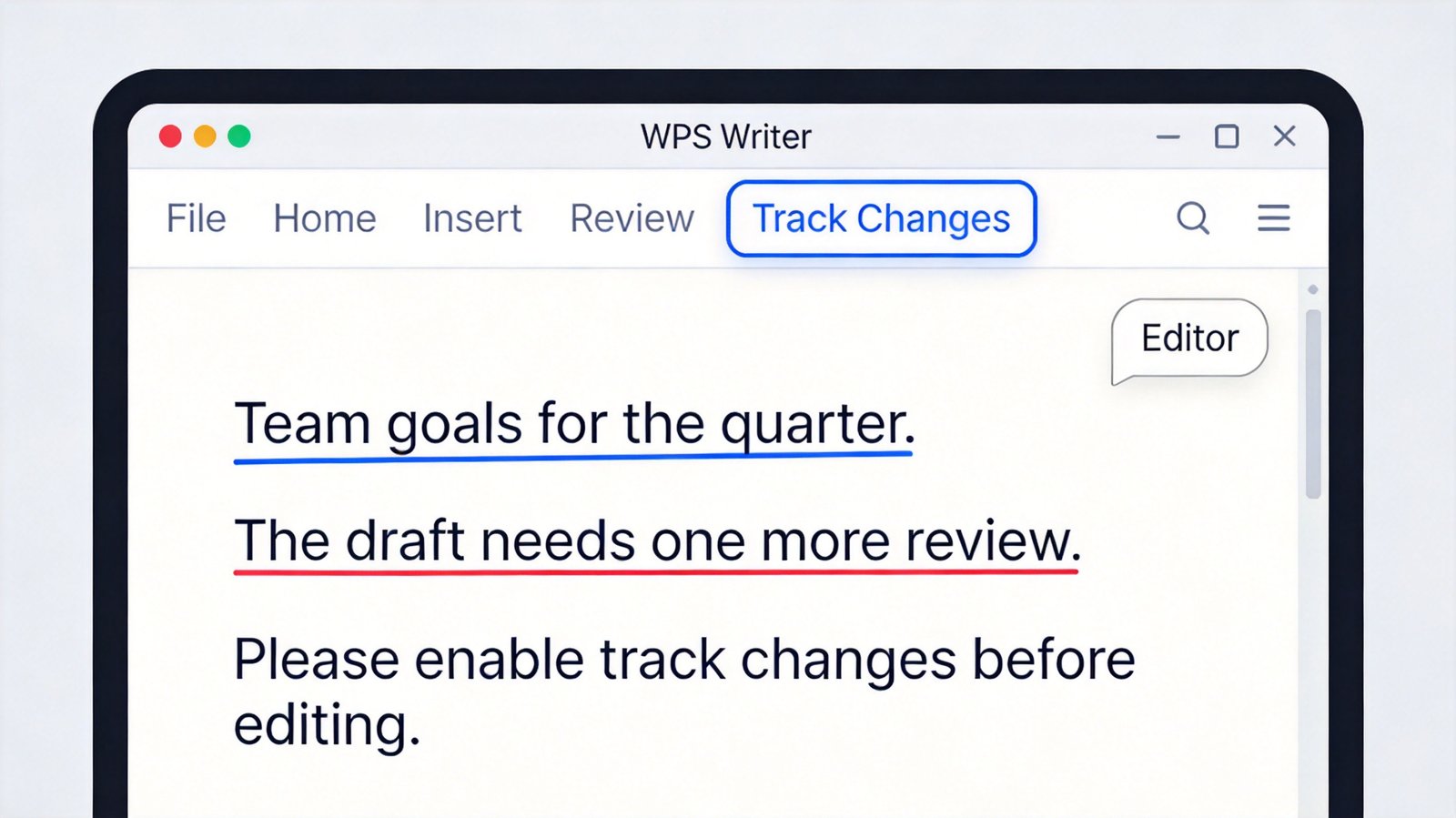
Turn on track changes in WPS Writer
Editor Tips for the Final Proofreading Pass
Once the content is settled, run a dedicated proofreading pass:
Run spell check first. Let the built-in checker catch obvious typos, then remember that it cannot tell "their" from "there" in context, so read those words yourself.
Verify names, numbers, and links. Dates, totals, and citations are the errors readers notice most, and the ones spell check never flags.
Check consistency. Confirm one style for headings, bullet styles, capitalization, and the serial comma throughout the document.
Preview before sending. Switch to page or preview mode to catch broken layouts, orphan headings, and images that drifted out of place.
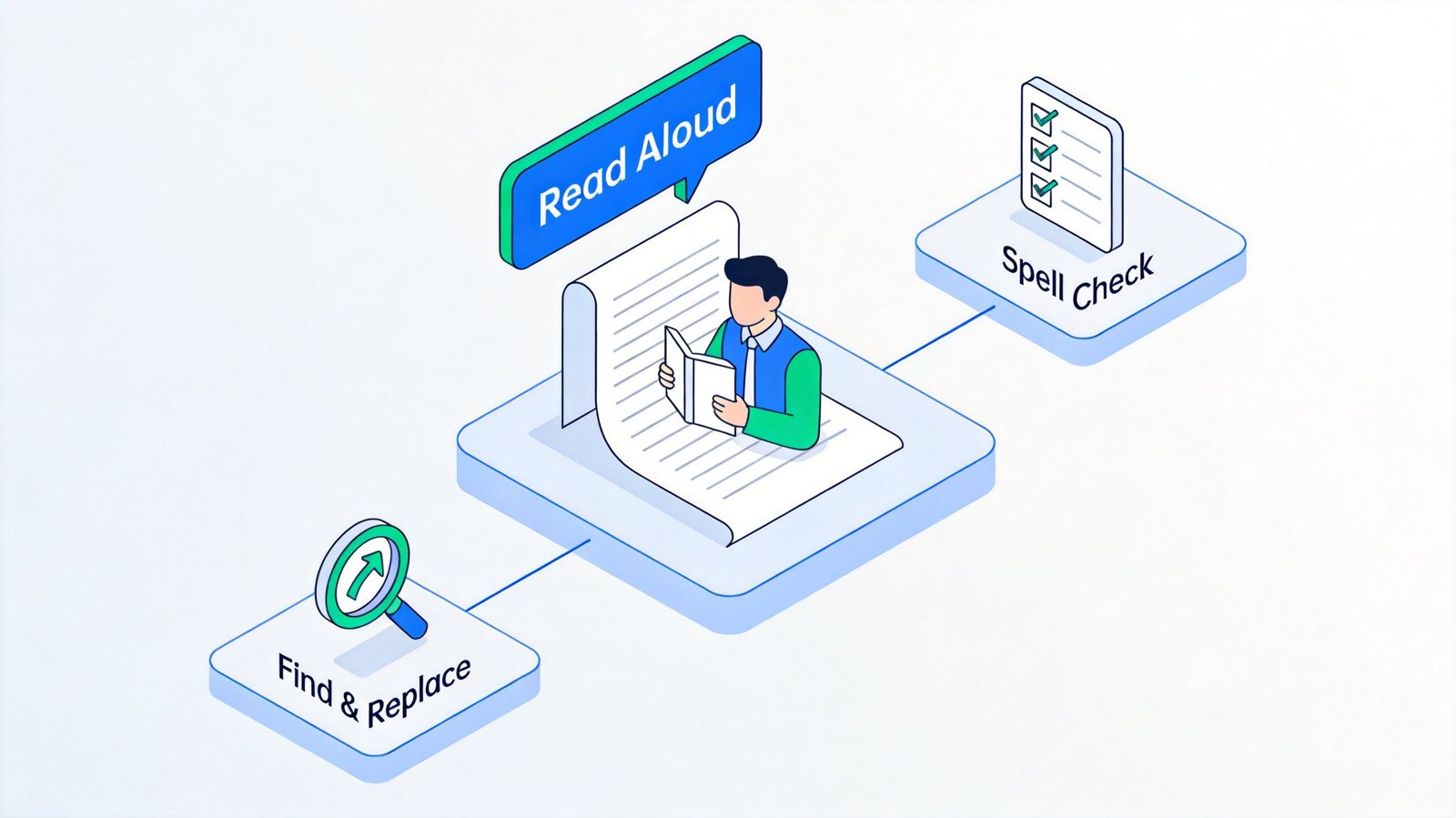
Read aloud and spell check proofreading pass
The Best Free Editor Alternative: WPS Office
Most of these editor tips need nothing more than a capable word processor, and WPS Office gives you one for free. Writer includes Track Changes, comments, Find & Replace, styles, and spell check with a Microsoft-compatible interface, so the habits above transfer directly from Word. You also get Spreadsheet and Presentation apps, free templates, and apps for Windows, macOS, Linux, Android, and iOS in one lightweight download.
If you edit documents across teams, WPS also supports cloud sync and collaborative editing, so reviewers can comment on the same file; see this comparison of free office suites for collaborative editing to see how it stacks up.
WPS Office home screen recent files
FAQs
Q: What is the difference between editing and proofreading?
A: Editing improves the content, structure, and flow of a document, while proofreading is the final check for spelling, punctuation, and grammar errors.
Q: How do I turn on Track Changes in WPS Writer?
A: Open the Review tab and click Track Changes. Every insertion and deletion is then marked so you can accept or reject edits individually.
Q: What is the fastest way to fix repeated mistakes in a document?
A: Use Find & Replace (Ctrl+H or Cmd+H) to replace every instance of a word or phrase at once, including formatting if needed.
Q: Should I edit my own writing?
A: You can, but you will miss more errors than a second reader. Step away from the draft for a few hours or a day before your self-edit, and ask a colleague to review anything important.
Q: Is WPS Office free for editing documents?
A: Yes. WPS Office is free to download and includes Writer, Spreadsheet, and Presentation with the core editing and proofreading tools described in this guide.


'%3e%3cpath%20d='M19.9911%204.11386V6.471H18.5894C18.0775%206.471%2017.7322%206.57814%2017.5536%206.79243C17.3751%207.00671%2017.2858%207.32814%2017.2858%207.75671V9.44421H19.9019L19.5536%2012.0871H17.2858V18.8639H14.5536V12.0871H12.2769V9.44421H14.5536V7.49779C14.5536%206.39064%2014.8632%205.53201%2015.4822%204.92189C16.1013%204.31177%2016.9257%204.00671%2017.9554%204.00671C18.8304%204.00671%2019.509%204.04243%2019.9911%204.11386Z'%20fill='%23333333'/%3e%3c/g%3e%3cdefs%3e%3cclipPath%20id='clip0_2938_8199'%3e%3crect%20width='16'%20height='16'%20fill='white'%20transform='translate(8%204.00671)'/%3e%3c/clipPath%3e%3c/defs%3e%3c/svg%3e)
'%3e%3cpath%20d='M17.5237%2010.7813L23.4811%204H22.0699L16.8949%209.88693L12.7648%204H8L14.2469%2012.9029L8%2020.0133H9.4112L14.8725%2013.7952L19.2352%2020.0133H24M9.92053%205.04213H12.0885L22.0688%2019.0224H19.9003'%20fill='%23333333'/%3e%3c/g%3e%3cdefs%3e%3cclipPath%20id='clip0_2938_8200'%3e%3crect%20width='16'%20height='16.0134'%20fill='white'%20transform='translate(8%204)'/%3e%3c/clipPath%3e%3c/defs%3e%3c/svg%3e)


