



'%3e%3cpath%20fill-rule='evenodd'%20clip-rule='evenodd'%20d='M21.4999%2010.9993C21.4999%205.20009%2016.7986%200.498901%2010.9993%200.498901C5.19994%200.498901%200.498657%205.20009%200.498657%2010.9993C0.498657%2016.2404%204.33858%2020.5844%209.35855%2021.3722V14.0346H6.69238V10.9993H9.35855V8.68594C9.35855%206.05427%2010.9262%204.60062%2013.3248%204.60062C14.4736%204.60062%2015.6753%204.80571%2015.6753%204.80571V7.38979H14.3512C13.0468%207.38979%2012.64%208.19921%2012.64%209.0296V10.9993H15.5523L15.0867%2014.0346H12.64V21.3722C17.66%2020.5844%2021.4999%2016.2404%2021.4999%2010.9993Z'%20fill='%231568EA'/%3e%3c/g%3e%3c/svg%3e)


'%3e%3cpath%20d='M2.42045%2022.1876H6.31818V12.7217L0.75%208.54553V20.5171C0.75%2021.4414%201.49892%2022.1876%202.42045%2022.1876Z'%20fill='%234285F4'/%3e%3cpath%20d='M19.682%2022.1876H23.5797C24.5041%2022.1876%2025.2502%2021.4387%2025.2502%2020.5171V8.54553L19.682%2012.7217'%20fill='%2334A853'/%3e%3cpath%20d='M19.682%205.48293V12.7216L25.2502%208.54543V6.31816C25.2502%204.25236%2022.8921%203.07469%2021.2411%204.31361'%20fill='%23FBBC04'/%3e%3cpath%20d='M6.31824%2012.7217V5.48303L13.0001%2010.4944L19.6819%205.48303V12.7217L13.0001%2017.733'%20fill='%23EA4335'/%3e%3cpath%20d='M0.75%206.31816V8.54543L6.31818%2012.7216V5.48293L4.75909%204.31361C3.10534%203.07469%200.75%204.25236%200.75%206.31816Z'%20fill='%23C5221F'/%3e%3c/g%3e%3cdefs%3e%3cclipPath%20id='clip0_2954_7305'%3e%3crect%20width='24.5'%20height='18.375'%20fill='white'%20transform='translate(0.75%203.8125)'/%3e%3c/clipPath%3e%3c/defs%3e%3c/svg%3e)


When you share a report, contract draft, resume, or paper, you may want others to read it without changing the text. Microsoft Word can lock a file to read-only, require a password to modify, or keep only selected areas editable. This guide covers the most practical ways to protect a Word document from editing on Windows (and notes Mac differences), common fixes, and a free Word-compatible option in WPS Writer.


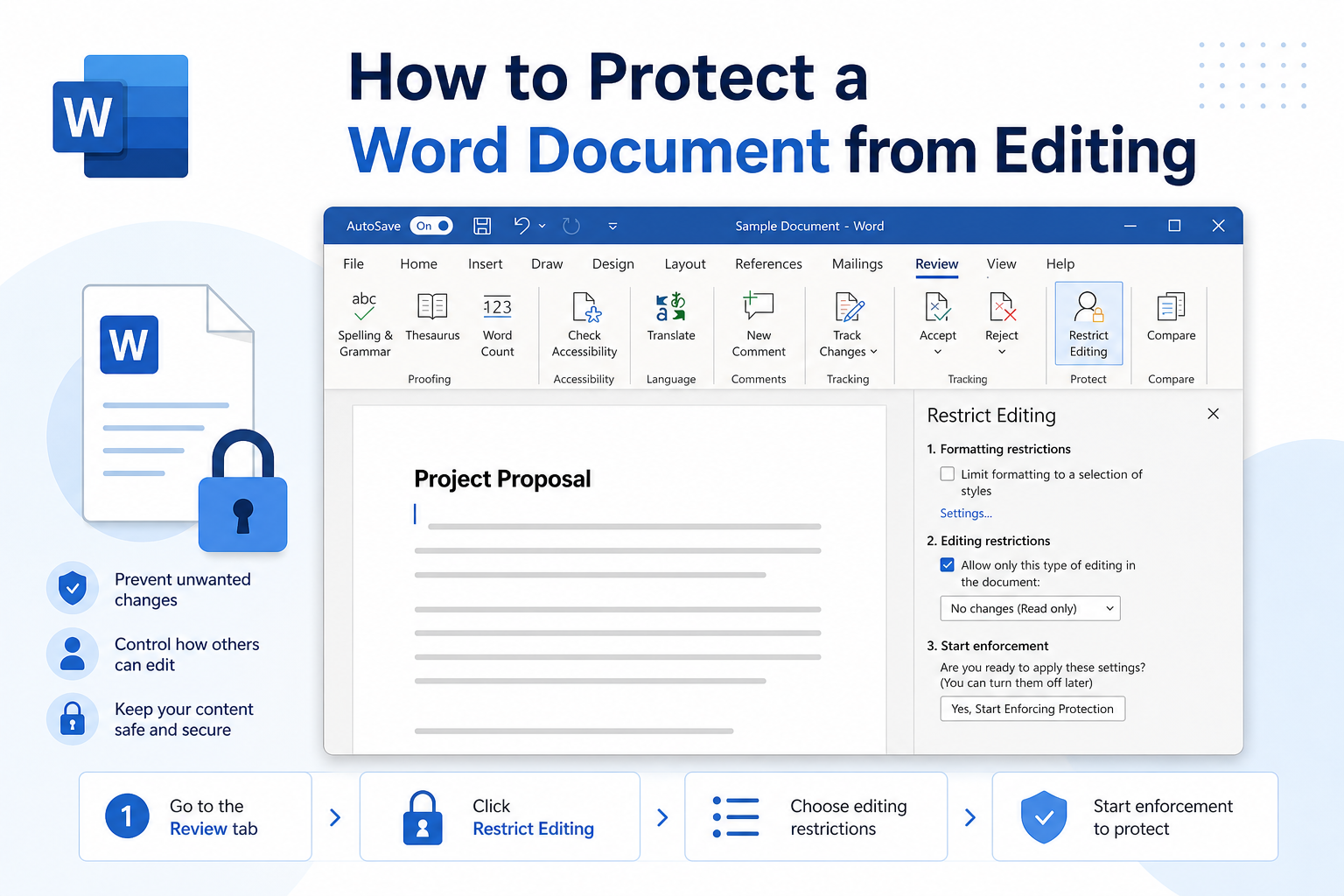
Quick answer: Go to Review → Restrict Editing → check Allow only this type of editing in the document → choose No changes (Read only) → Yes, Start Enforcing Protection (optional password). Or use File → Info → Protect Document / Save As → Tools → General Options to set a Password to modify.
Note: These tools discourage casual edits. They are not a guarantee against every copy-paste or advanced bypass. For highly sensitive files, also control who receives the document and consider PDF with permissions when appropriate.
Ways to Protect a Word Document from Editing
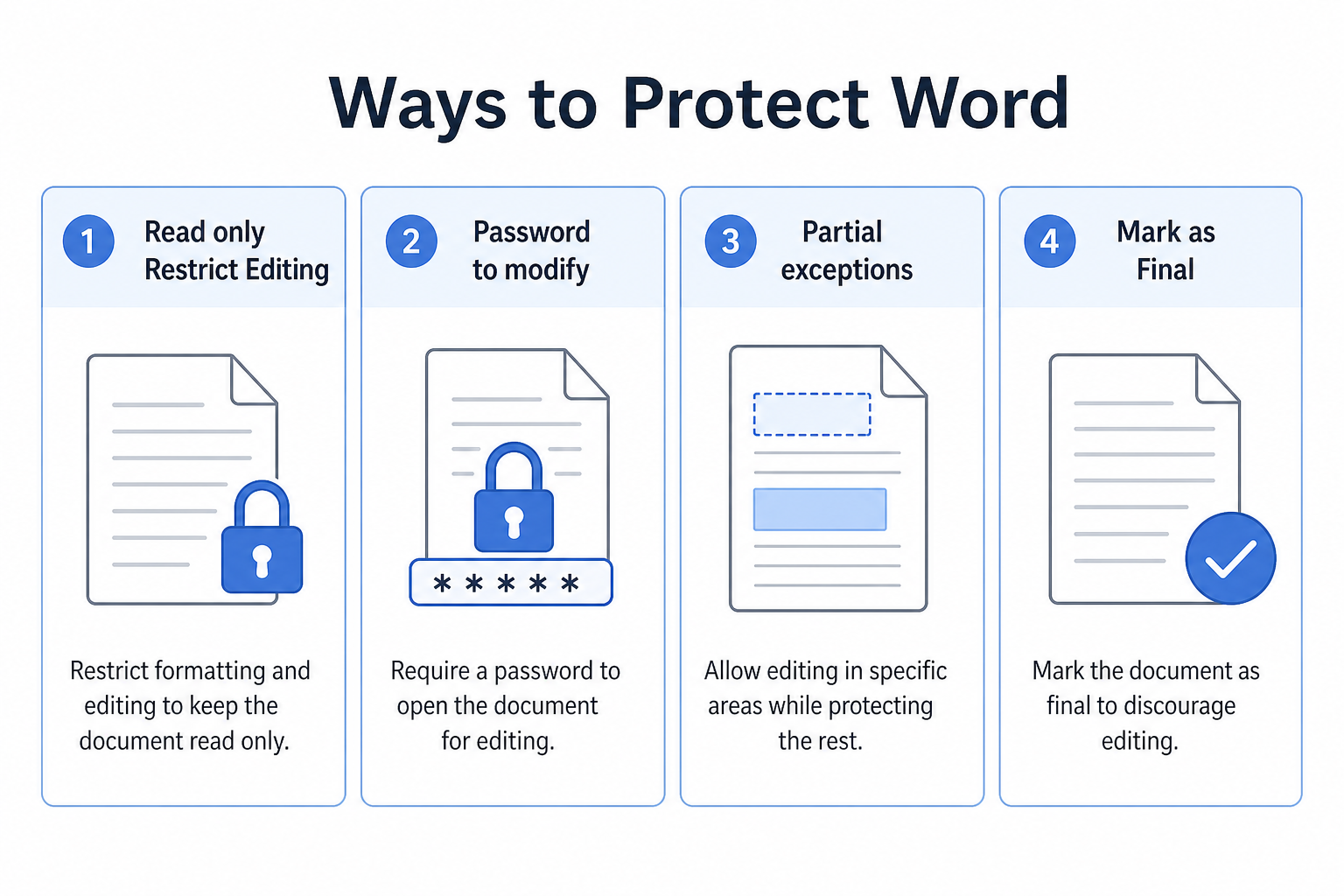
| Method | Best for | Where to start |
|---|---|---|
| Restrict Editing → Read only | Block typing while still allowing open/view | Review → Restrict Editing |
| Password to modify | Let people open the file, but require a password to edit | Save As → Tools → General Options |
| Exceptions (partial edit) | Lock most of the file; leave a few sections editable | Restrict Editing + exception ranges |
| Mark as Final / Always Open Read-Only | Soft warning for reviewers (easier to turn off) | File → Info → Protect Document |
Make a Word Document Read-Only with Restrict Editing
These steps work in Word 2016, 2019, 2021, and Microsoft 365 on Windows.
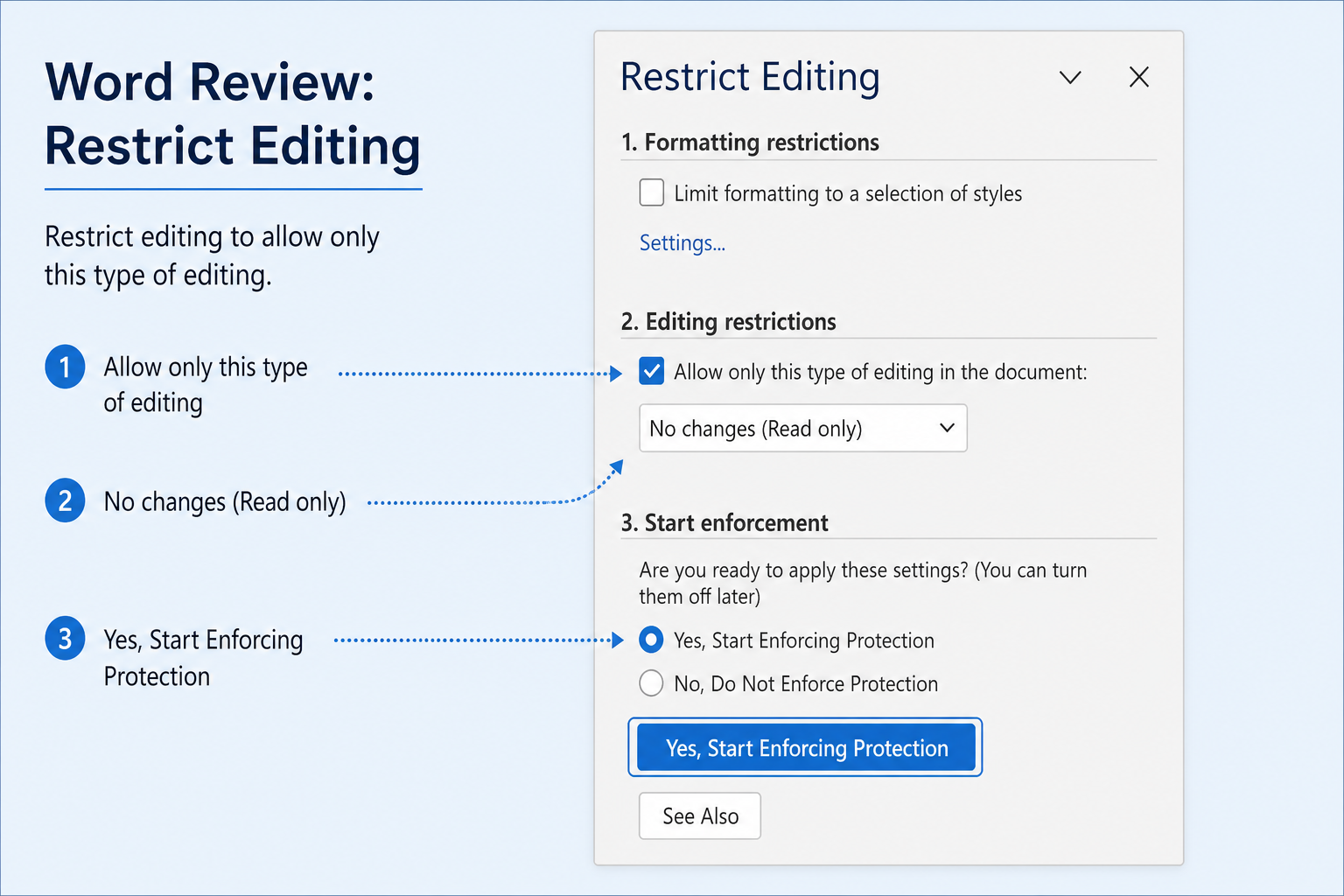
Open your document and go to the Review tab.
Click Restrict Editing.
Under Editing restrictions, check Allow only this type of editing in the document.
Choose No changes (Read only) from the list.
Click Yes, Start Enforcing Protection.
Optional but recommended: set a password so others cannot turn protection off easily.
Save the file as .docx.
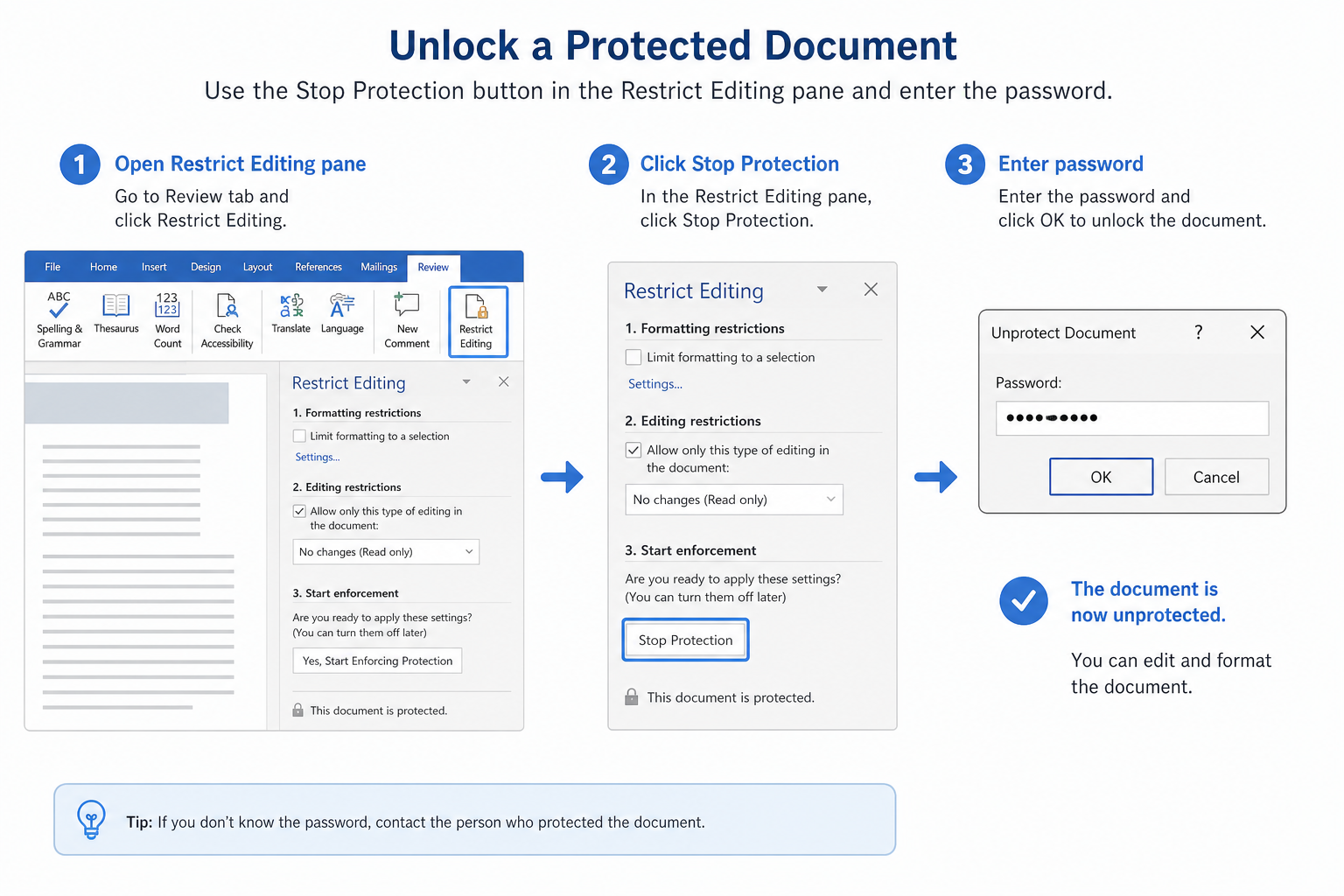
Tip: To unlock later, open Restrict Editing again and click Stop Protection, then enter the password if you set one.
Password Protect a Word Document from Modifications
A Password to modify lets people open and view the file. Editing requires the password (or they can open as read-only, depending on how they respond to the prompt).
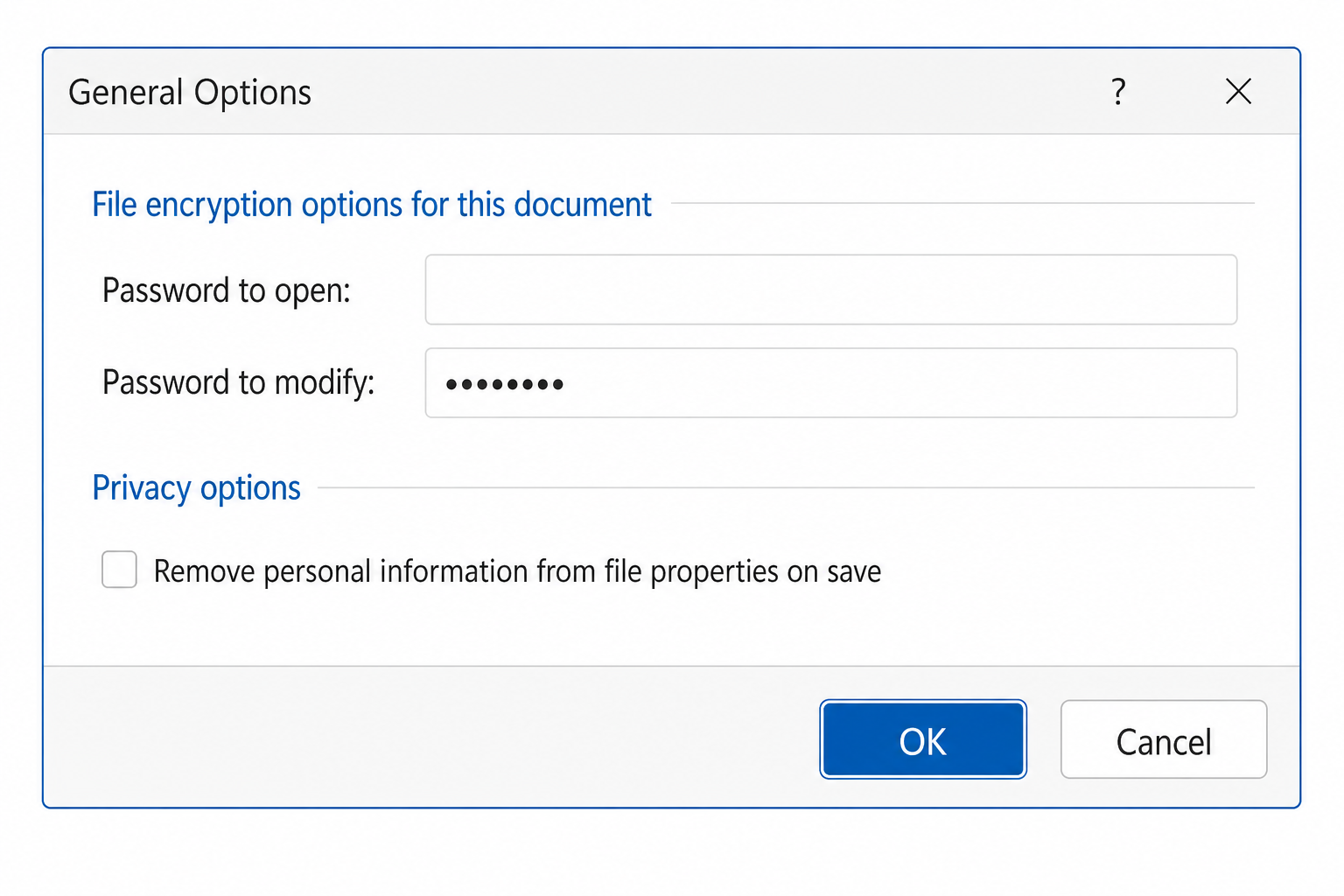
Go to File → Save As and choose a location.
Open Tools (near the Save button) → General Options…
Enter a password in Password to modify (and confirm if prompted).
Click OK, then Save.
Alternate path in many Word builds: File → Info → Protect Document → Encrypt with Password (this can require a password to open the file—different from modify-only). Pick the option that matches your goal: block opening vs. block editing.
Restrict Partial Editing in Word
For collaborative drafts, lock most of the document and leave specific paragraphs editable.
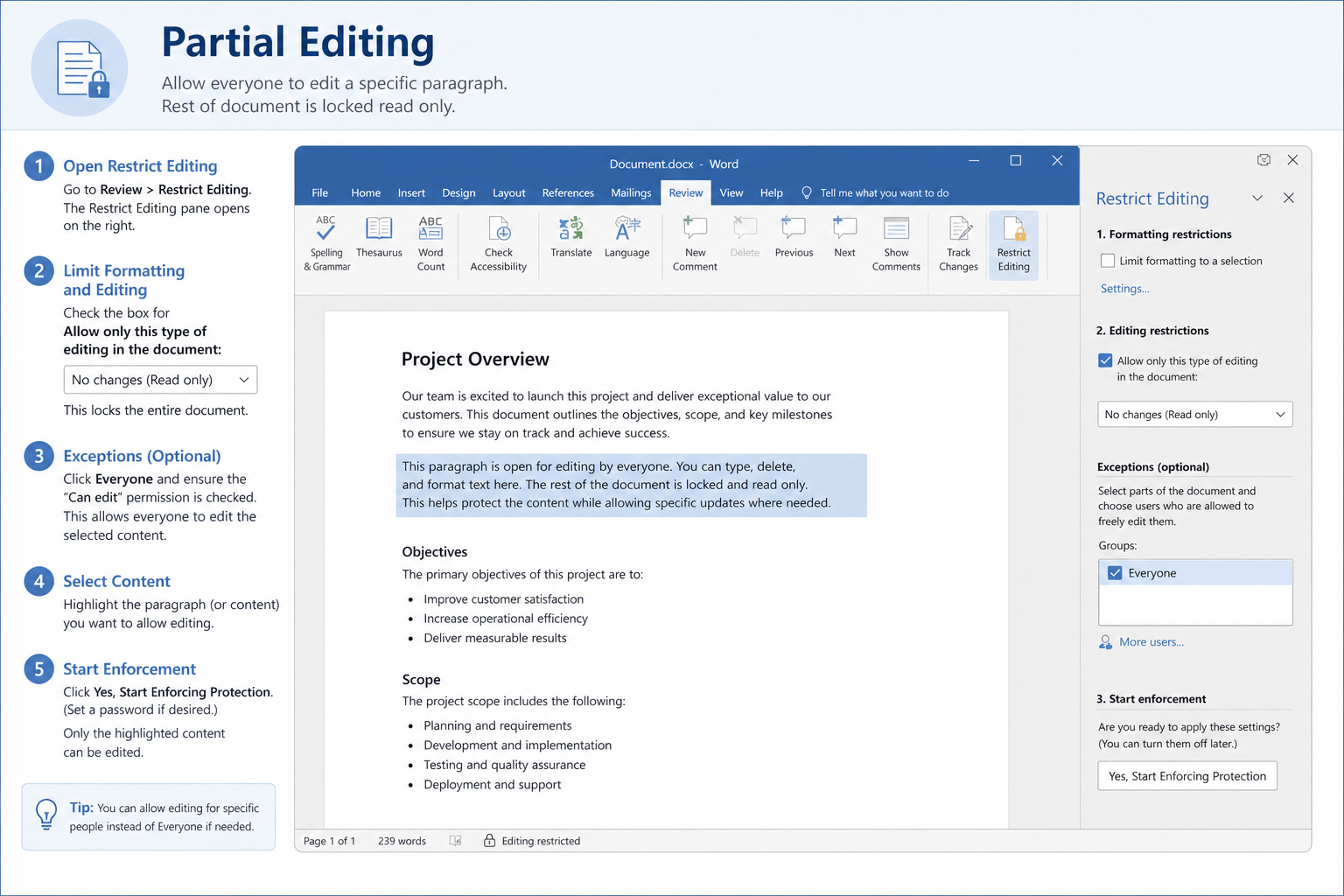
Select the text (or form fields) that should stay editable.
Go to Review → Restrict Editing.
Check Allow only this type of editing in the document and choose No changes (Read only).
Under Exceptions, check Everyone (or add specific users in domain environments) for the selected range.
Click Yes, Start Enforcing Protection and set a password if you want.
Only the exception areas should remain editable after protection starts.
Common Protection Issues and Fixes
| Problem | What to try |
|---|---|
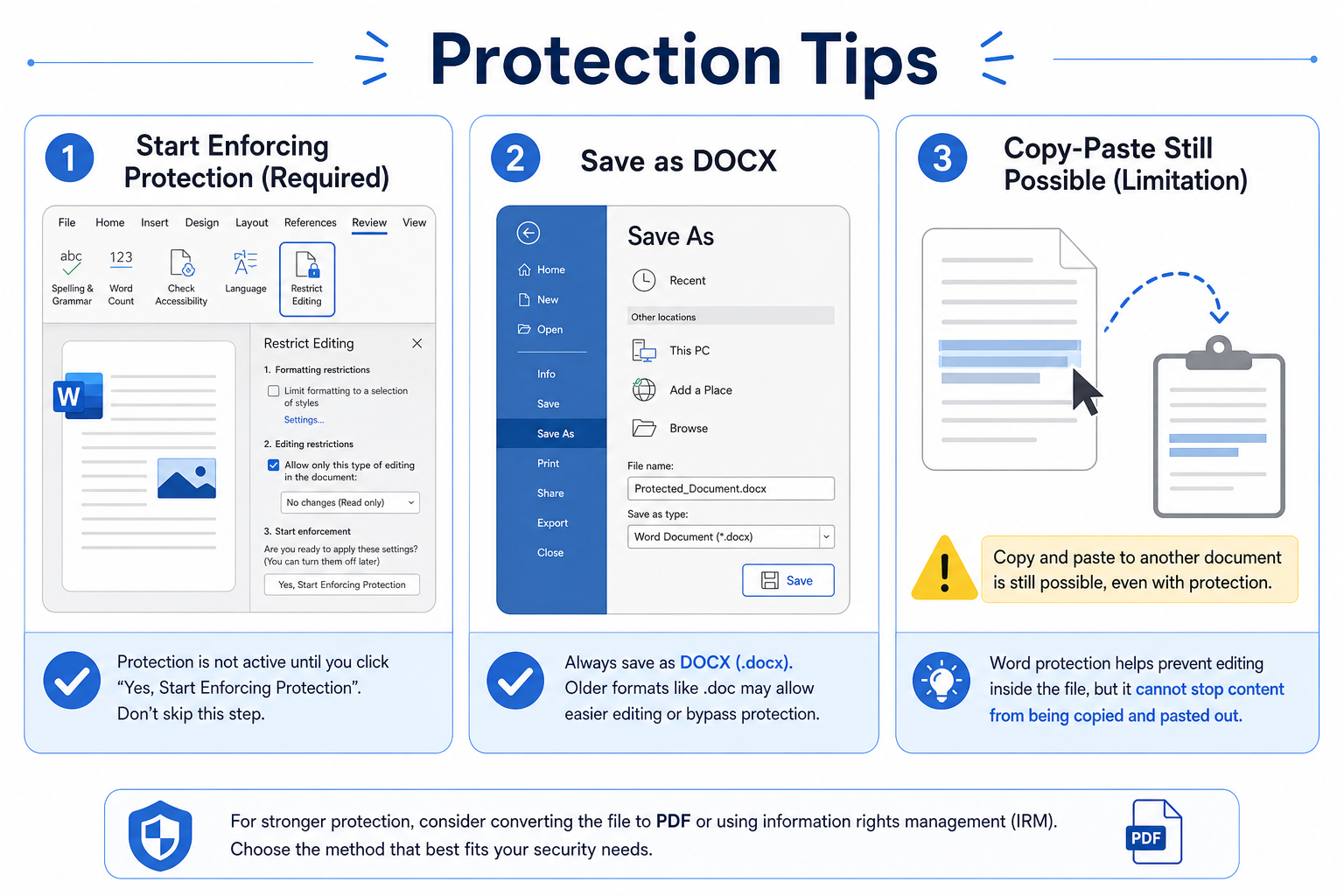
| Content can still be copied into a new file | Expected for many Word locks—use stronger sharing controls or export sensitive versions to secured PDF |
| Restrict Editing is missing | Check the Review tab; update Word; on Mac look under Review → Protect / Protect Document |
| Protection disappears after sharing | Save as .docx (not plain text/RTF); avoid “Save a copy” workflows that strip settings |
| Recipients can still edit | Confirm you clicked Start Enforcing Protection, not only checked the box |
| Forgot the password | Microsoft cannot recover it for you—keep a password record for files you protect |
Free Method: Protect Documents in WPS Writer
Word’s Restrict Editing and modify passwords cover most everyday sharing needs. If you want a straightforward protection workflow for daily documents, WPS Writer is a free, Word-compatible option for read-only restrictions and password-style locks—then save as .docx for Microsoft Word users.
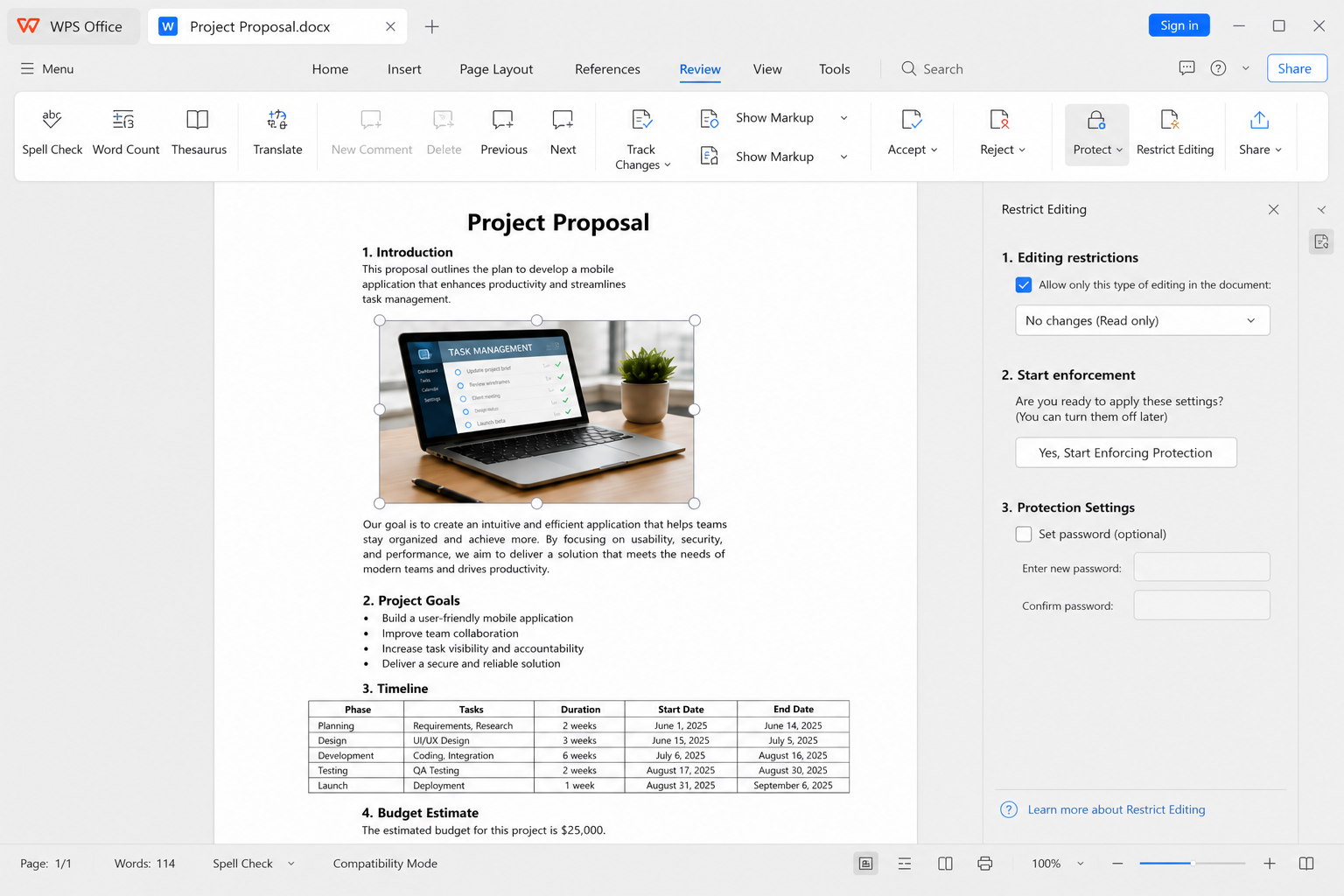
Open your document in WPS Writer.
Go to Review → Restrict Editing (or the Protect / document protection area in your build).
Choose read-only / no changes, or set an editing password if available.
Start protection, save the file, and test by reopening it before you share.
Familiar protect tools — Restrict editing and password options for daily files
Easy share workflow — Lock, save as .docx, and send
Strong Word compatibility — Open protected files in Microsoft Word when formats align
No paid subscription required — Core protection tools for everyday documents
FAQ
How do I protect a Word document from editing?
Use Review → Restrict Editing → No changes (Read only), then start enforcing protection. Or set a Password to modify when saving.
What is the difference between Password to open and Password to modify?
Password to open blocks opening the file. Password to modify usually allows viewing but requires a password to edit.
Can someone still copy text from a read-only Word file?
Often yes. Restrict Editing limits editing in Word; it may not stop all copy-and-paste scenarios. Use sharing controls for higher-risk content.
Do WPS-protected documents work in Microsoft Word?
Common read-only and password protections often transfer when you save as .docx, but always test open/edit behavior in Word before sending important files.
Conclusion
To protect a Word document from editing, start with Restrict Editing → No changes (Read only) or a Password to modify, and use exceptions when only some sections should stay editable. Remember that these are practical safeguards—not perfect anti-tamper guarantees. If you want a simpler free workflow for everyday document locks, WPS Writer is a practical Word-compatible option—always verify protection after save and before you share.

'%3e%3cpath%20d='M19.9911%204.11386V6.471H18.5894C18.0775%206.471%2017.7322%206.57814%2017.5536%206.79243C17.3751%207.00671%2017.2858%207.32814%2017.2858%207.75671V9.44421H19.9019L19.5536%2012.0871H17.2858V18.8639H14.5536V12.0871H12.2769V9.44421H14.5536V7.49779C14.5536%206.39064%2014.8632%205.53201%2015.4822%204.92189C16.1013%204.31177%2016.9257%204.00671%2017.9554%204.00671C18.8304%204.00671%2019.509%204.04243%2019.9911%204.11386Z'%20fill='%23333333'/%3e%3c/g%3e%3cdefs%3e%3cclipPath%20id='clip0_2938_8199'%3e%3crect%20width='16'%20height='16'%20fill='white'%20transform='translate(8%204.00671)'/%3e%3c/clipPath%3e%3c/defs%3e%3c/svg%3e)
'%3e%3cpath%20d='M17.5237%2010.7813L23.4811%204H22.0699L16.8949%209.88693L12.7648%204H8L14.2469%2012.9029L8%2020.0133H9.4112L14.8725%2013.7952L19.2352%2020.0133H24M9.92053%205.04213H12.0885L22.0688%2019.0224H19.9003'%20fill='%23333333'/%3e%3c/g%3e%3cdefs%3e%3cclipPath%20id='clip0_2938_8200'%3e%3crect%20width='16'%20height='16.0134'%20fill='white'%20transform='translate(8%204)'/%3e%3c/clipPath%3e%3c/defs%3e%3c/svg%3e)


