You double-click an old .doc file, and Word warns it is in "Compatibility Mode." Or a portal rejects the upload because it only accepts .docx. The legacy .doc format has been around since Word 97, and while modern apps still open it, converting a DOC to Word's current .docx format keeps formatting, file size, and compatibility predictable.
This guide explains what a DOC to Word converter actually does, walks through converting a .doc file in WPS Office and Microsoft Word, covers safe use of online converters, and lists the mistakes that corrupt files during conversion.
How to Convert DOC to Word: Free DOC to Word Converter Guide
100% secure
What a DOC to Word Converter Actually Does
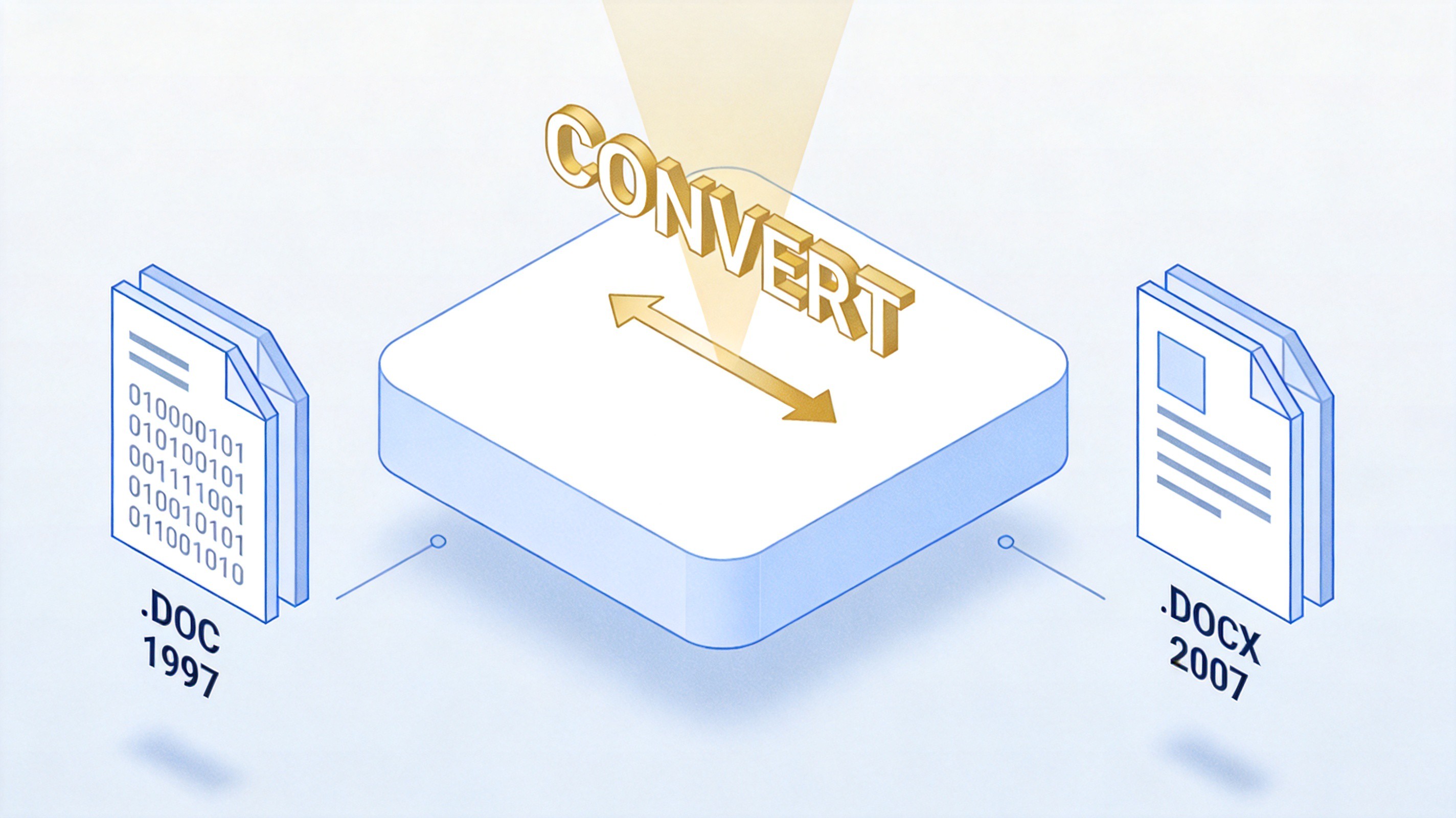
A .doc file stores your document in Word's old binary format from the Word 97–2003 era. A .docx file stores the same content in the Office Open XML format introduced with Word 2007: smaller files, better recovery after crashes, and full support for modern features. A DOC to Word converter translates the binary structure into that XML structure so Word, WPS, Google Docs, and mobile apps all treat the file as a current document.
The conversion is lossless for ordinary content—text, tables, images, headers, and page numbers carry over. Two real limits matter: legacy macros must move to a .docm file instead of .docx, and very old objects such as embedded OLE controls may need re-checking after conversion. For everything else, saving as .docx simply upgrades the container.
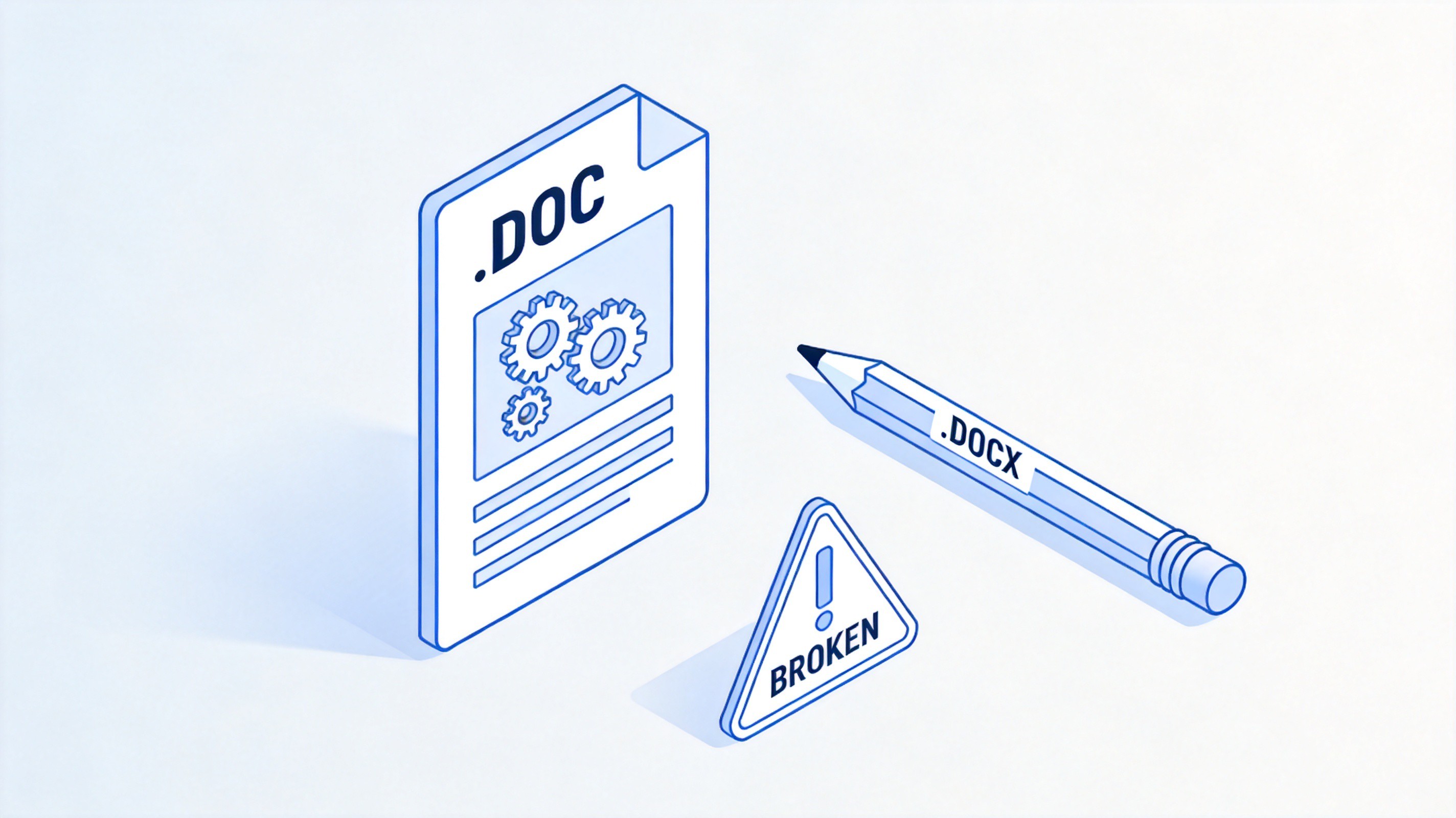
DOC and DOCX file formats
Use Word, Excel, and PPT for FREE
How to Convert DOC to Word in WPS Office
WPS Writer opens .doc files directly and saves them as .docx for free, offline, with no watermark. Here is the fastest path on a desktop:
Open the .doc file in WPS Writer, or launch WPS Office and use File > Open to browse to it.
Go to File > Save As on Windows, or File > Save a Copy on Mac.
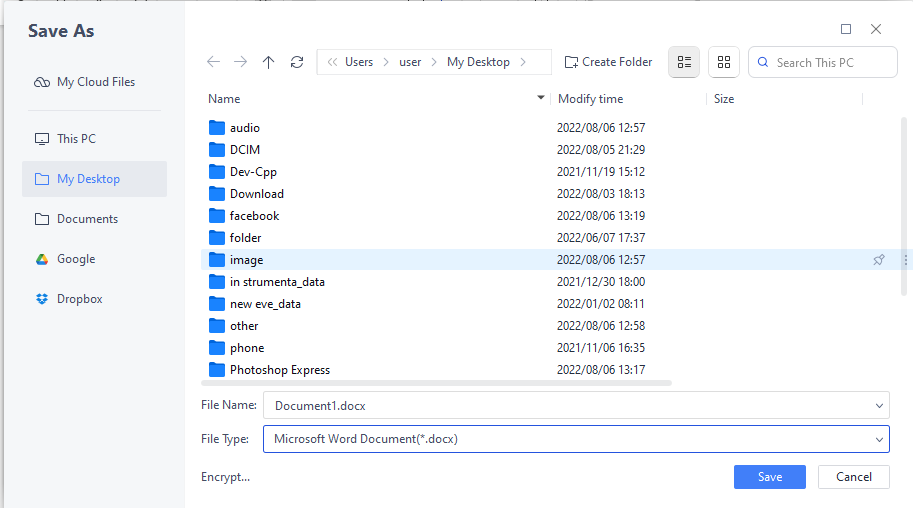
Set the file type to Word Document (*.docx) in the Save As dialog, keep the same file name, and click Save.
Reopen the new .docx and check tables, images, headers, and page numbers against the original.
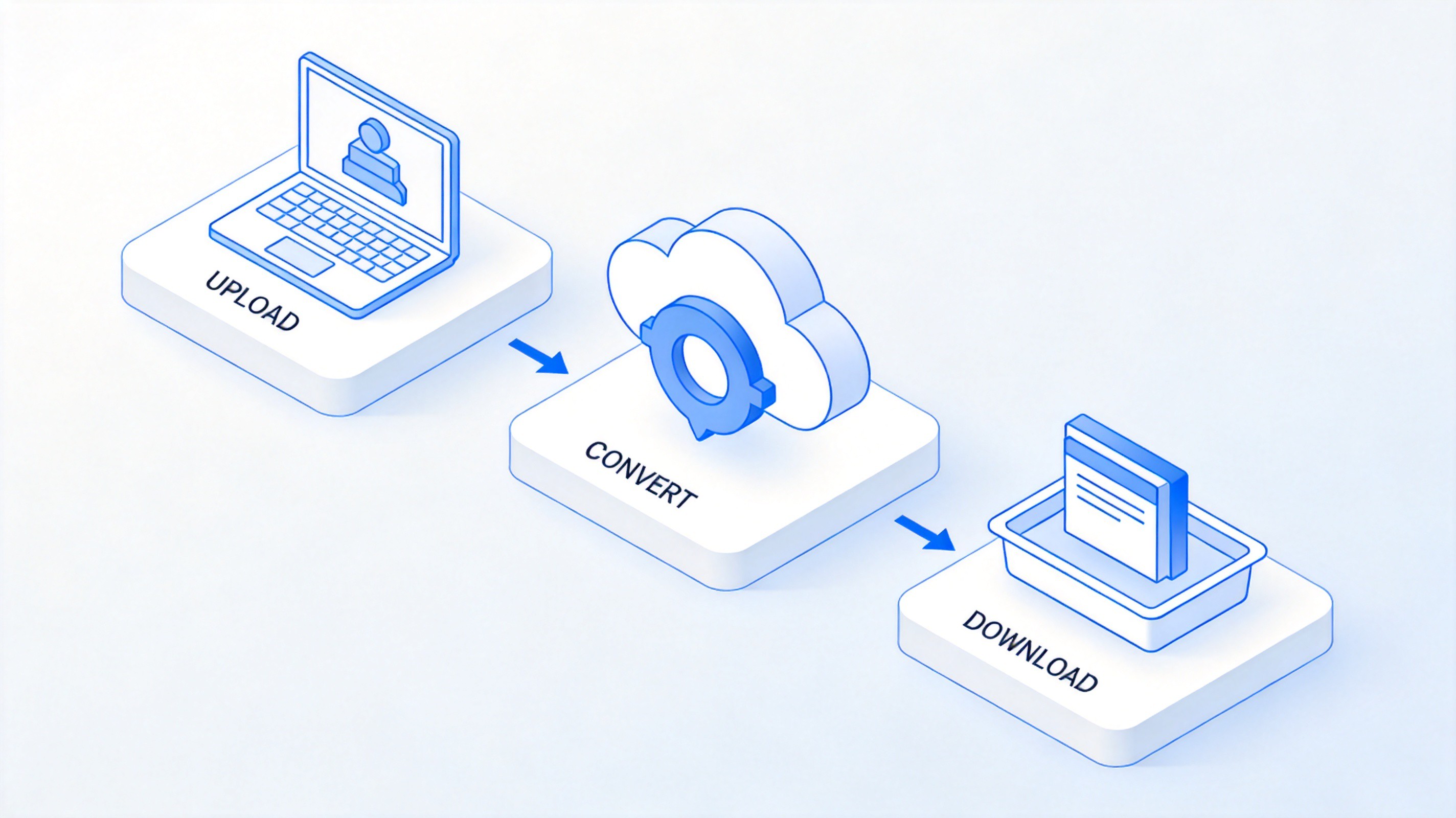
Online converters work when you are on a borrowed computer and cannot install software. The flow is always the same: upload the .doc, let the service convert it, download the .docx.
Choose a reputable converter and open its DOC to Word tool.
Upload the .doc file by dragging it into the upload area.
Start the conversion and wait for the result preview.
Download the .docx and delete the local copy of any sensitive document if you do not need it.
Online converter upload convert download
Two cautions apply. First, anything you upload leaves your computer—avoid online tools for contracts, HR records, or client data, and use a desktop app instead. Second, free sites often cap file size or batch uploads and push paid upgrades; check the limits before you start, and skip sites littered with ads for resumes and contracts.
Use Word, Excel, and PPT for FREE
Common DOC to Word Converter Mistakes to Avoid
Renaming .doc to .docx. Changing the extension only relabels the file; the binary content inside is unchanged, so Word or your phone may report a damaged file or blank pages. Always use Save As so the format itself is rewritten. If a file is already in this state, a repair pass may help—see how to fix a corrupted Word document.
Ignoring macros. If the .doc contains VBA macros, saving as .docx silently drops them. Save as Word Macro-Enabled Document (*.docm) instead, after reviewing the macros you actually need.
Converting without a backup. Keep the original .doc until you have opened the .docx and spot-checked tables, images, headers, and page numbers.
Trust-then-verify formatting. Complex layouts—text boxes, drawing objects, tracked changes from very old Word versions—deserve a visual pass on two or three representative pages, not just page one.
Renaming DOC to DOCX breaks file
100% secure
The Best Free Alternative: WPS Office
For converting .doc files without paying for Microsoft 365, WPS Writer covers the whole job. It is a free desktop office suite built around a Word-compatible editor, and everything in the conversion workflow runs locally on your computer: open the legacy .doc file, choose Save As, pick Word Document (*.docx), and the converted copy appears in the same folder. Nothing is uploaded, there is no file-size cap, no registration step, and no conversion watermark on the free tier.
Beyond the conversion itself, WPS Writer handles the surrounding work that usually comes with old .doc files:
Broad format support. It opens and saves DOC, DOCX, DOT, and macro-enabled DOCM files, and reads ODT and TXT, so one editor covers almost every document you inherit.
Faithful layout. Tables, images, headers and footers, page numbers, and tracked changes from Word 97 onward render correctly, which is exactly what matters when you verify a converted file against the original.
Batch-friendly workflow. The tabbed interface keeps the original .doc and the converted .docx open side by side in one window, so checking the two versions takes seconds instead of window-juggling.
One suite, three apps. The same install includes WPS Presentation and WPS Spreadsheet with the same .ppt/.pptx and .xls/.xlsx round-trip behavior, plus a PDF toolkit for exporting or converting the finished document.
Works everywhere. Native apps for Windows, macOS, and Linux, plus iOS and Android apps that open and save .docx on the go, so a file converted on your desk still opens correctly on your phone.
Compared with online DOC to Word converter sites, the trade is simple: an online tool is fine for a non-sensitive one-off file on a borrowed computer, while WPS Writer is the better default when documents are private, when they are large, or when you convert files regularly—no upload limits, no waiting queues, and no third party holding a copy of your text.
WPS Office official website homepage
Use Word, Excel, and PPT for FREE
FAQs
Can I convert a .doc file to Word without Microsoft Word?
Yes. WPS Writer opens .doc files and saves them as .docx for free, offline, with no watermark. Google Docs and LibreOffice Writer also import .doc files, though you may need to export or save-as to get a .docx copy.
Does converting .doc to .docx change the formatting?
Ordinary content—text, tables, images, headers, footers, and page numbers—converts without visible changes. Very old drawing objects or embedded controls deserve a visual check after conversion. Keep the original .doc as a backup until you have verified the result.
Why does Word say my renamed .docx file is corrupted?
Because renaming the extension never converts the format. The file is still a binary .doc inside, so Word rejects it or shows blank pages. Convert it properly with File > Save As, choosing Word Document (*.docx), and the warning disappears.
What happens to macros when I convert DOC to Word?
The .docx format cannot store VBA macros, so they are dropped during conversion. If your document relies on macros, save it as Word Macro-Enabled Document (*.docm) instead, and review which macros you trust before enabling them.
Is an online DOC to Word converter safe for confidential files?
It carries more risk than a desktop app because the file is uploaded to someone else's server. For contracts, financial records, or client documents, prefer a local converter such as WPS Writer. If you must use an online tool, pick a reputable service and delete the uploaded file afterward if the site offers that option.
Free Office Download
Use Word, Excel, and PPT for FREE, No Ads.
Edit PDF files with the powerful PDF toolkit.
Microsoft-like interface. Easy to learn. 100% Compatibility.
Boost your productivity with WPS's abundant free Word, Excel, PPT, and CV templates.
100% secure
Algirdas Jasaitis
Summary
Converting a .doc file to Word's .docx format is a Save As job, not a rename job. Open the file in WPS Writer or Microsoft Word, choose File > Save As, pick Word Document (*.docx), and verify tables, images, and page numbers against the original. Use online DOC to Word converter tools only for non-sensitive files, watch out for macros that belong in .docm, and keep the old .doc as a backup until the converted copy checks out.
15 years of office industry experience, tech lover and copywriter. Follow me for product reviews, comparisons, and recommendations for new apps and software.


'%3e%3cpath%20d='M8%200C12.4183%200%2016%203.58172%2016%208C16%2012.4183%2012.4183%2016%208%2016C3.58172%2016%200%2012.4183%200%208C0%203.58172%203.58172%200%208%200ZM11.6162%204.38379C11.2257%203.99337%2010.5927%203.99338%2010.2021%204.38379L8%206.58594L5.79785%204.38379C5.40732%203.99334%204.77429%203.99329%204.38379%204.38379C3.99331%204.77429%203.99335%205.40733%204.38379%205.79785L6.58594%208L4.38379%2010.2021C3.99348%2010.5927%203.99341%2011.2257%204.38379%2011.6162C4.77426%2012.0066%205.40734%2012.0065%205.79785%2011.6162L8%209.41406L10.2021%2011.6162C10.5927%2012.0066%2011.2257%2012.0067%2011.6162%2011.6162C12.0067%2011.2257%2012.0066%2010.5927%2011.6162%2010.2021L9.41406%208L11.6162%205.79785C12.0066%205.40735%2012.0066%204.77429%2011.6162%204.38379Z'%20fill='%23080E17'%20fill-opacity='0.46'/%3e%3c/g%3e%3cdefs%3e%3cclipPath%20id='clip0_3761_713'%3e%3crect%20width='16'%20height='16'%20fill='white'/%3e%3c/clipPath%3e%3c/defs%3e%3c/svg%3e)




'%3e%3cpath%20fill-rule='evenodd'%20clip-rule='evenodd'%20d='M21.4999%2010.9993C21.4999%205.20009%2016.7986%200.498901%2010.9993%200.498901C5.19994%200.498901%200.498657%205.20009%200.498657%2010.9993C0.498657%2016.2404%204.33858%2020.5844%209.35855%2021.3722V14.0346H6.69238V10.9993H9.35855V8.68594C9.35855%206.05427%2010.9262%204.60062%2013.3248%204.60062C14.4736%204.60062%2015.6753%204.80571%2015.6753%204.80571V7.38979H14.3512C13.0468%207.38979%2012.64%208.19921%2012.64%209.0296V10.9993H15.5523L15.0867%2014.0346H12.64V21.3722C17.66%2020.5844%2021.4999%2016.2404%2021.4999%2010.9993Z'%20fill='%231568EA'/%3e%3c/g%3e%3c/svg%3e)


'%3e%3cpath%20d='M2.42045%2022.1876H6.31818V12.7217L0.75%208.54553V20.5171C0.75%2021.4414%201.49892%2022.1876%202.42045%2022.1876Z'%20fill='%234285F4'/%3e%3cpath%20d='M19.682%2022.1876H23.5797C24.5041%2022.1876%2025.2502%2021.4387%2025.2502%2020.5171V8.54553L19.682%2012.7217'%20fill='%2334A853'/%3e%3cpath%20d='M19.682%205.48293V12.7216L25.2502%208.54543V6.31816C25.2502%204.25236%2022.8921%203.07469%2021.2411%204.31361'%20fill='%23FBBC04'/%3e%3cpath%20d='M6.31824%2012.7217V5.48303L13.0001%2010.4944L19.6819%205.48303V12.7217L13.0001%2017.733'%20fill='%23EA4335'/%3e%3cpath%20d='M0.75%206.31816V8.54543L6.31818%2012.7216V5.48293L4.75909%204.31361C3.10534%203.07469%200.75%204.25236%200.75%206.31816Z'%20fill='%23C5221F'/%3e%3c/g%3e%3cdefs%3e%3cclipPath%20id='clip0_2954_7305'%3e%3crect%20width='24.5'%20height='18.375'%20fill='white'%20transform='translate(0.75%203.8125)'/%3e%3c/clipPath%3e%3c/defs%3e%3c/svg%3e)






'%3e%3cpath%20d='M19.9911%204.11386V6.471H18.5894C18.0775%206.471%2017.7322%206.57814%2017.5536%206.79243C17.3751%207.00671%2017.2858%207.32814%2017.2858%207.75671V9.44421H19.9019L19.5536%2012.0871H17.2858V18.8639H14.5536V12.0871H12.2769V9.44421H14.5536V7.49779C14.5536%206.39064%2014.8632%205.53201%2015.4822%204.92189C16.1013%204.31177%2016.9257%204.00671%2017.9554%204.00671C18.8304%204.00671%2019.509%204.04243%2019.9911%204.11386Z'%20fill='%23333333'/%3e%3c/g%3e%3cdefs%3e%3cclipPath%20id='clip0_2938_8199'%3e%3crect%20width='16'%20height='16'%20fill='white'%20transform='translate(8%204.00671)'/%3e%3c/clipPath%3e%3c/defs%3e%3c/svg%3e)
'%3e%3cpath%20d='M17.5237%2010.7813L23.4811%204H22.0699L16.8949%209.88693L12.7648%204H8L14.2469%2012.9029L8%2020.0133H9.4112L14.8725%2013.7952L19.2352%2020.0133H24M9.92053%205.04213H12.0885L22.0688%2019.0224H19.9003'%20fill='%23333333'/%3e%3c/g%3e%3cdefs%3e%3cclipPath%20id='clip0_2938_8200'%3e%3crect%20width='16'%20height='16.0134'%20fill='white'%20transform='translate(8%204)'/%3e%3c/clipPath%3e%3c/defs%3e%3c/svg%3e)


