

'%3e%3cpath%20d='M8%200C12.4183%200%2016%203.58172%2016%208C16%2012.4183%2012.4183%2016%208%2016C3.58172%2016%200%2012.4183%200%208C0%203.58172%203.58172%200%208%200ZM11.6162%204.38379C11.2257%203.99337%2010.5927%203.99338%2010.2021%204.38379L8%206.58594L5.79785%204.38379C5.40732%203.99334%204.77429%203.99329%204.38379%204.38379C3.99331%204.77429%203.99335%205.40733%204.38379%205.79785L6.58594%208L4.38379%2010.2021C3.99348%2010.5927%203.99341%2011.2257%204.38379%2011.6162C4.77426%2012.0066%205.40734%2012.0065%205.79785%2011.6162L8%209.41406L10.2021%2011.6162C10.5927%2012.0066%2011.2257%2012.0067%2011.6162%2011.6162C12.0067%2011.2257%2012.0066%2010.5927%2011.6162%2010.2021L9.41406%208L11.6162%205.79785C12.0066%205.40735%2012.0066%204.77429%2011.6162%204.38379Z'%20fill='%23080E17'%20fill-opacity='0.46'/%3e%3c/g%3e%3cdefs%3e%3cclipPath%20id='clip0_3761_713'%3e%3crect%20width='16'%20height='16'%20fill='white'/%3e%3c/clipPath%3e%3c/defs%3e%3c/svg%3e)




'%3e%3cpath%20fill-rule='evenodd'%20clip-rule='evenodd'%20d='M21.4999%2010.9993C21.4999%205.20009%2016.7986%200.498901%2010.9993%200.498901C5.19994%200.498901%200.498657%205.20009%200.498657%2010.9993C0.498657%2016.2404%204.33858%2020.5844%209.35855%2021.3722V14.0346H6.69238V10.9993H9.35855V8.68594C9.35855%206.05427%2010.9262%204.60062%2013.3248%204.60062C14.4736%204.60062%2015.6753%204.80571%2015.6753%204.80571V7.38979H14.3512C13.0468%207.38979%2012.64%208.19921%2012.64%209.0296V10.9993H15.5523L15.0867%2014.0346H12.64V21.3722C17.66%2020.5844%2021.4999%2016.2404%2021.4999%2010.9993Z'%20fill='%231568EA'/%3e%3c/g%3e%3c/svg%3e)


'%3e%3cpath%20d='M2.42045%2022.1876H6.31818V12.7217L0.75%208.54553V20.5171C0.75%2021.4414%201.49892%2022.1876%202.42045%2022.1876Z'%20fill='%234285F4'/%3e%3cpath%20d='M19.682%2022.1876H23.5797C24.5041%2022.1876%2025.2502%2021.4387%2025.2502%2020.5171V8.54553L19.682%2012.7217'%20fill='%2334A853'/%3e%3cpath%20d='M19.682%205.48293V12.7216L25.2502%208.54543V6.31816C25.2502%204.25236%2022.8921%203.07469%2021.2411%204.31361'%20fill='%23FBBC04'/%3e%3cpath%20d='M6.31824%2012.7217V5.48303L13.0001%2010.4944L19.6819%205.48303V12.7217L13.0001%2017.733'%20fill='%23EA4335'/%3e%3cpath%20d='M0.75%206.31816V8.54543L6.31818%2012.7216V5.48293L4.75909%204.31361C3.10534%203.07469%200.75%204.25236%200.75%206.31816Z'%20fill='%23C5221F'/%3e%3c/g%3e%3cdefs%3e%3cclipPath%20id='clip0_2954_7305'%3e%3crect%20width='24.5'%20height='18.375'%20fill='white'%20transform='translate(0.75%203.8125)'/%3e%3c/clipPath%3e%3c/defs%3e%3c/svg%3e)


To change the background color on Google Docs on a computer, open File > Page setup, select Pages, and choose Page color. If your document uses Pageless mode, change its Background color instead.
A page color, text highlight, and dark app theme solve different problems. This guide helps you choose the right setting, check the result, and use WPS Writer when you want to continue formatting a downloaded document.
How to Change the Background Color on Google Docs
Change the Background Color on Google Docs in Pages Mode
Use Pages mode for work where page boundaries matter, such as a handout, letter, or report. Start with a light color and dark text so you can judge whether the design remains comfortable to read.
Change page color on a computer
Open your document with editing access.
Choose File > Page setup > Pages.
Open Page color and choose a color. In some English interfaces, the label is spelled Page colour.
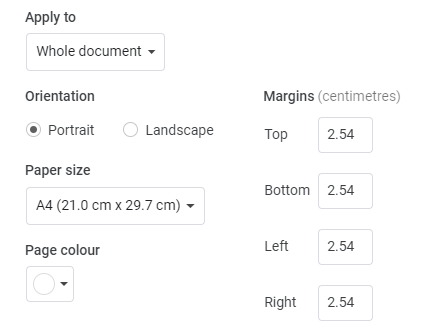
Google Docs page colour setting panel
Click OK, then inspect the document.
The menu path is documented in Google's page setup help. Use Set as default only if you want these settings for new documents as well.
Change page color on Android, iPhone, or iPad
In the Google Docs mobile app, open the document and use More > Page setup > Page color. On Android, enter editing mode with the pencil icon first. Select the color and return to the document. Google's instructions cover Android and iPhone and iPad.
For a print-oriented file, turn on the app's Print layout view and review the pages. A small phone preview can hide details that become obvious on a larger screen, so check the final file on the device you will use to deliver or print it.
Choose a color that serves the document
Try pale cream for a reading handout or a restrained tint that fits your project. These are design suggestions, not readability guarantees. Compare the result at normal zoom and ask whether the headings, body text, and links are still easy to distinguish.
Check the longest paragraph, not only the title.
Review colored hyperlinks and small footnotes against the new background.
If the file will be printed in grayscale, inspect a grayscale preview or a test page.
Keep a plain version when the recipient needs to reuse the text without decorative formatting.


Change the Background Color in Google Docs Pageless Mode
Pageless mode is useful when you want a continuous document rather than a fixed paper layout. Do not switch modes solely because you cannot find a color control; choose the mode that fits how the document will be read.
On a computer, open File > Page setup.
Select Pageless.
Use Background color, select your color, and confirm with OK.
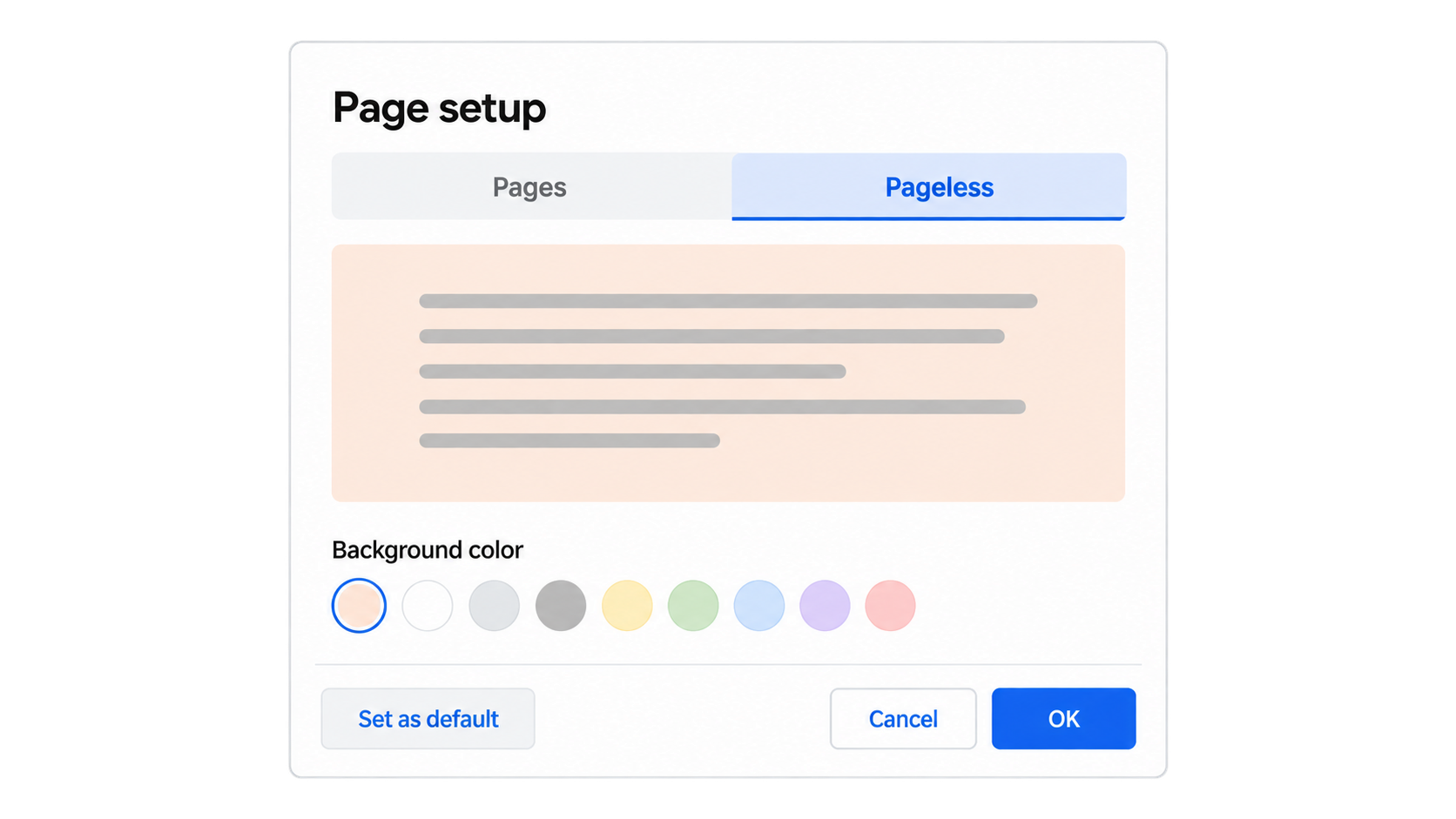
Google Docs pageless background color mockup
The illustration is a simplified interface mockup, not a captured Google Docs screen. Use the named settings in your current interface.
Separate page color from other colored areas
If only a few words have a colored rectangle behind them, inspect text highlighting. If a table stays white while the surrounding page changes, inspect the table's cell formatting. If the whole application looks darker but the document's own color setting has not changed, inspect the theme rather than repeatedly changing page setup.
A useful diagnostic is to try a fresh, short test document. Add one sentence, apply the intended page or background color, and compare it with your main document. If the simple file behaves as expected, look for local formatting in the original instead of rebuilding its content.
Check the final format before sharing
A document's editing view is only one stage of the workflow. Before you send a PDF or print a copy, review that output itself. Confirm that the tint is intentional, text is readable, and no content has shifted. Keep the editable source so you can adjust the color without retyping the document.
If the result is too dark, reduce the background's visual weight rather than compensating with an increasingly complex mix of text colors. A simple, consistent palette is easier to maintain as the document grows.
Best Alternative to Google Docs for Page Styling: WPS Office
WPS Writer is a practical option when you want to work with a local Word document, refine its page appearance, and prepare an output copy. It is part of WPS Office, alongside spreadsheet, presentation, and PDF tools. This makes it useful when a writing task also involves tables, slides, or a final PDF.
For example, you might draft a workshop handout collaboratively and then prepare a separate DOCX copy for layout review. In WPS Writer, focus on the final reading experience: page color, spacing, headings, images, and the output your audience will receive. Keep the collaborative source and your formatted copy clearly named so you do not lose track of which version is current.
Apply a background in WPS Writer
Menu labels differ across versions. WPS background guidance describes Page Layout > Page Color; newer Windows documentation uses Page > Background. Follow the labels available in your installed build.
Open a working copy. Use a DOCX version of the document and keep the original.
Find the page background control. Open the relevant Page or Page Layout tab, then Background or Page Color.
Choose a solid color first. Check the body text, headings, tables, and image borders before trying a more decorative treatment.
Review the output. Save the editable file, create the output copy you need, and inspect it separately.
A restrained background often works better than a complex image for a document with long paragraphs. For a short invitation or cover page, a picture may be appropriate, but make sure the words do not compete with the most detailed part of the image.
Use richer backgrounds deliberately
WPS documents solid colors, gradients, textures, pictures, and watermark-related options. Availability can depend on the version and membership. Choose the simplest option that meets the brief; a background is useful only if it improves the document rather than making it harder to read.
For a class handout, test a pale solid fill. For a branded cover, try a restrained image with generous clear space around the title. For internal reference material, consider whether a watermark would communicate the intended status more clearly than a full-page picture. Do not use a decorative background as a substitute for a real access-control or confidentiality workflow.
Keep editing and delivery separate
The editable DOCX is your working file. The PDF is a delivery copy for recipients who should see a fixed layout. Review both because conversion and printing can reveal differences that the editing view does not show. WPS's background help also describes using a PDF output when printing a document with a background picture.
Before distributing a colored report, check a representative page with a heading, dense paragraph, table, and image. Confirm the result on the intended printer if print appearance matters. This small review is more useful than assuming a preset will look identical everywhere.
| Priority | Google Docs workflow | WPS Writer workflow |
|---|---|---|
| Quick access | Adjust page setup within the browser document | Use page layout controls in the office document |
| Design flexibility | Choose a page or pageless background color | Explore documented background and watermark options |
| Document handoff | Keep a shared source for continued collaboration | Keep a clearly named DOCX working copy |
| Output review | Inspect the exported or printed document | Inspect the saved document and PDF delivery copy |
| Access and cost | Use the settings available to your account | Check feature availability in your build and plan |
More page-design choices: use an appropriate background treatment for the actual document.
A familiar office workflow: continue working with an editable Word-format file.
A deliberate delivery process: keep a source copy and check the exported result.
Try WPS Writer on a copy of your document before moving an entire project. That gives you a clear view of the controls and output quality available in your own setup.
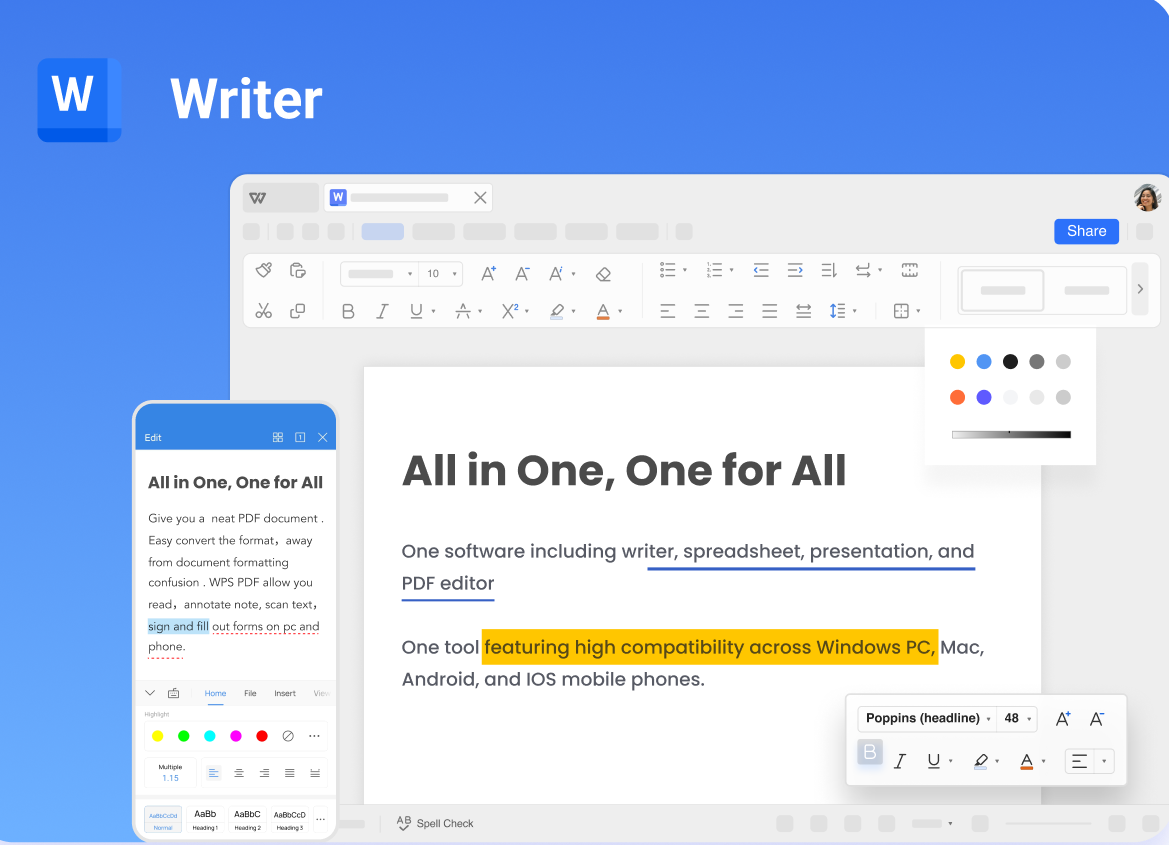
WPS Writer overview
FAQs
How do I change Google Docs back to a white background?
Reopen the relevant page or background color control, choose white, and confirm the change.
Is page color the same as dark mode?
No. Page color changes the document's background setting. A dark interface theme concerns how the app is displayed.
Why does a white box remain behind some text?
Check formatting applied to that specific area, such as highlighting or a table cell fill. Test in a simple copy before changing the whole document.
Can I change the page color on my phone?
Yes. In the Google Docs app, use More > Page setup > Page color. Android users should enter editing mode first.
How should I check the color before printing?
Inspect print layout and the actual output preview, then print one test page if color accuracy matters.

'%3e%3cpath%20d='M19.9911%204.11386V6.471H18.5894C18.0775%206.471%2017.7322%206.57814%2017.5536%206.79243C17.3751%207.00671%2017.2858%207.32814%2017.2858%207.75671V9.44421H19.9019L19.5536%2012.0871H17.2858V18.8639H14.5536V12.0871H12.2769V9.44421H14.5536V7.49779C14.5536%206.39064%2014.8632%205.53201%2015.4822%204.92189C16.1013%204.31177%2016.9257%204.00671%2017.9554%204.00671C18.8304%204.00671%2019.509%204.04243%2019.9911%204.11386Z'%20fill='%23333333'/%3e%3c/g%3e%3cdefs%3e%3cclipPath%20id='clip0_2938_8199'%3e%3crect%20width='16'%20height='16'%20fill='white'%20transform='translate(8%204.00671)'/%3e%3c/clipPath%3e%3c/defs%3e%3c/svg%3e)
'%3e%3cpath%20d='M17.5237%2010.7813L23.4811%204H22.0699L16.8949%209.88693L12.7648%204H8L14.2469%2012.9029L8%2020.0133H9.4112L14.8725%2013.7952L19.2352%2020.0133H24M9.92053%205.04213H12.0885L22.0688%2019.0224H19.9003'%20fill='%23333333'/%3e%3c/g%3e%3cdefs%3e%3cclipPath%20id='clip0_2938_8200'%3e%3crect%20width='16'%20height='16.0134'%20fill='white'%20transform='translate(8%204)'/%3e%3c/clipPath%3e%3c/defs%3e%3c/svg%3e)


