

'%3e%3cpath%20d='M8%200C12.4183%200%2016%203.58172%2016%208C16%2012.4183%2012.4183%2016%208%2016C3.58172%2016%200%2012.4183%200%208C0%203.58172%203.58172%200%208%200ZM11.6162%204.38379C11.2257%203.99337%2010.5927%203.99338%2010.2021%204.38379L8%206.58594L5.79785%204.38379C5.40732%203.99334%204.77429%203.99329%204.38379%204.38379C3.99331%204.77429%203.99335%205.40733%204.38379%205.79785L6.58594%208L4.38379%2010.2021C3.99348%2010.5927%203.99341%2011.2257%204.38379%2011.6162C4.77426%2012.0066%205.40734%2012.0065%205.79785%2011.6162L8%209.41406L10.2021%2011.6162C10.5927%2012.0066%2011.2257%2012.0067%2011.6162%2011.6162C12.0067%2011.2257%2012.0066%2010.5927%2011.6162%2010.2021L9.41406%208L11.6162%205.79785C12.0066%205.40735%2012.0066%204.77429%2011.6162%204.38379Z'%20fill='%23080E17'%20fill-opacity='0.46'/%3e%3c/g%3e%3cdefs%3e%3cclipPath%20id='clip0_3761_713'%3e%3crect%20width='16'%20height='16'%20fill='white'/%3e%3c/clipPath%3e%3c/defs%3e%3c/svg%3e)




'%3e%3cpath%20fill-rule='evenodd'%20clip-rule='evenodd'%20d='M21.4999%2010.9993C21.4999%205.20009%2016.7986%200.498901%2010.9993%200.498901C5.19994%200.498901%200.498657%205.20009%200.498657%2010.9993C0.498657%2016.2404%204.33858%2020.5844%209.35855%2021.3722V14.0346H6.69238V10.9993H9.35855V8.68594C9.35855%206.05427%2010.9262%204.60062%2013.3248%204.60062C14.4736%204.60062%2015.6753%204.80571%2015.6753%204.80571V7.38979H14.3512C13.0468%207.38979%2012.64%208.19921%2012.64%209.0296V10.9993H15.5523L15.0867%2014.0346H12.64V21.3722C17.66%2020.5844%2021.4999%2016.2404%2021.4999%2010.9993Z'%20fill='%231568EA'/%3e%3c/g%3e%3c/svg%3e)


'%3e%3cpath%20d='M2.42045%2022.1876H6.31818V12.7217L0.75%208.54553V20.5171C0.75%2021.4414%201.49892%2022.1876%202.42045%2022.1876Z'%20fill='%234285F4'/%3e%3cpath%20d='M19.682%2022.1876H23.5797C24.5041%2022.1876%2025.2502%2021.4387%2025.2502%2020.5171V8.54553L19.682%2012.7217'%20fill='%2334A853'/%3e%3cpath%20d='M19.682%205.48293V12.7216L25.2502%208.54543V6.31816C25.2502%204.25236%2022.8921%203.07469%2021.2411%204.31361'%20fill='%23FBBC04'/%3e%3cpath%20d='M6.31824%2012.7217V5.48303L13.0001%2010.4944L19.6819%205.48303V12.7217L13.0001%2017.733'%20fill='%23EA4335'/%3e%3cpath%20d='M0.75%206.31816V8.54543L6.31818%2012.7216V5.48293L4.75909%204.31361C3.10534%203.07469%200.75%204.25236%200.75%206.31816Z'%20fill='%23C5221F'/%3e%3c/g%3e%3cdefs%3e%3cclipPath%20id='clip0_2954_7305'%3e%3crect%20width='24.5'%20height='18.375'%20fill='white'%20transform='translate(0.75%203.8125)'/%3e%3c/clipPath%3e%3c/defs%3e%3c/svg%3e)


If you draft reports, revise proposals, or clean up long Word documents, switching between Word and ChatGPT can slow down the work. ChatGPT for Word puts ChatGPT in a sidebar inside Microsoft Word so you can work with the open document, selected text, and a prompt in one place.
This guide explains how to integrate ChatGPT for Word, where it performs well, and where a reviewer should still be cautious. It also separates ChatGPT for Word from Microsoft Copilot in Word, because the two tools have different setup paths, licensing, and document context.
According to the official ChatGPT for Word introduction, the add-in brings ChatGPT into Microsoft Word so you can draft, edit, and format documents without leaving Word. Start with an open document or paste notes and source text, then ask for a targeted revision instead of rebuilding the workflow in a separate browser tab.

ChatGPT for Word: How to Integrate It, Use Cases, Pros and Cons
ChatGPT for Word integration: Install the Microsoft add-in
ChatGPT for Word uses a Microsoft Marketplace add-in. You do not need to build an API connection for the standard workflow; installation, sign-in, and workspace permissions are handled through the add-in.
Open the official Microsoft Marketplace and search for ChatGPT.
Select Get it now and follow the installation steps.
Open Microsoft Word and select ChatGPT from the ribbon.
Sign in with the ChatGPT account you want to use. If you belong to an organization, select the correct workspace.
Open a document, select text when you want a targeted edit, and enter your request in the ChatGPT sidebar.
For work or school accounts, two permission layers may apply: a ChatGPT workspace admin may need to enable the feature, and a Microsoft 365 admin may need to allow the add-in. If ChatGPT does not appear in Word, check both policies before troubleshooting the installation.
Use connected apps and repeatable Skills
When your plan and workspace permissions allow it, connected apps can provide relevant context from Outlook, SharePoint, Google Workspace, or Dropbox. ChatGPT only receives sources you are allowed to access. The official workflow also highlights Skills: reusable instructions and standards for recurring work such as executive memos, research summaries, contract review, and document formatting.
One Microsoft add-in can bring ChatGPT to Word, Excel, and PowerPoint. The experience is still governed by the ChatGPT workspace, Microsoft 365 deployment, plan limits, and administrator settings.
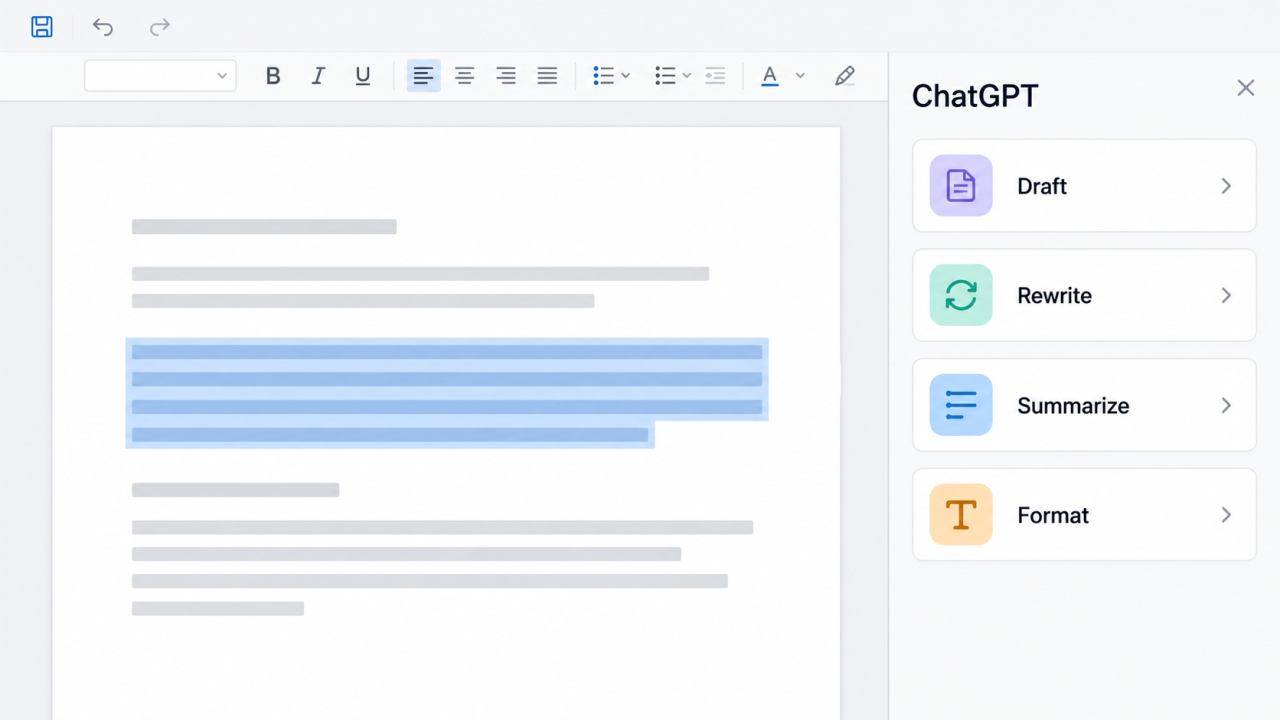
ChatGPT sidebar inside Word
ChatGPT for Word use cases: Draft, rewrite, and summarize
The strongest everyday use cases are bounded document tasks. Tell ChatGPT what the selected passage is for, what must remain unchanged, and what kind of output you need.
Turn notes into a first draft
Paste meeting notes or a rough outline into the prompt and ask for a memo, proposal, or project update with a specific audience and structure. The useful part is not the first draft itself; it is the speed of getting a reviewable structure onto the page.
Rewrite for a different audience
Select a paragraph and ask for a shorter version for executives, a clearer version for customers, or a more formal version for a policy document. Include defined terms, facts, and phrases that must stay unchanged.
Create an executive summary
Ask ChatGPT to identify the recommendation, evidence, risks, and open decisions. For long documents, request a fixed length and tell it to separate verified facts from interpretation.
Build decision-ready business documents
Use a prompt such as “Draft an investment memo that separates thesis, assumptions, and risks,” or “Turn these notes into a client recommendation with rationale and next steps.” For an operating plan, ask for goals, owners, milestones, and open questions.
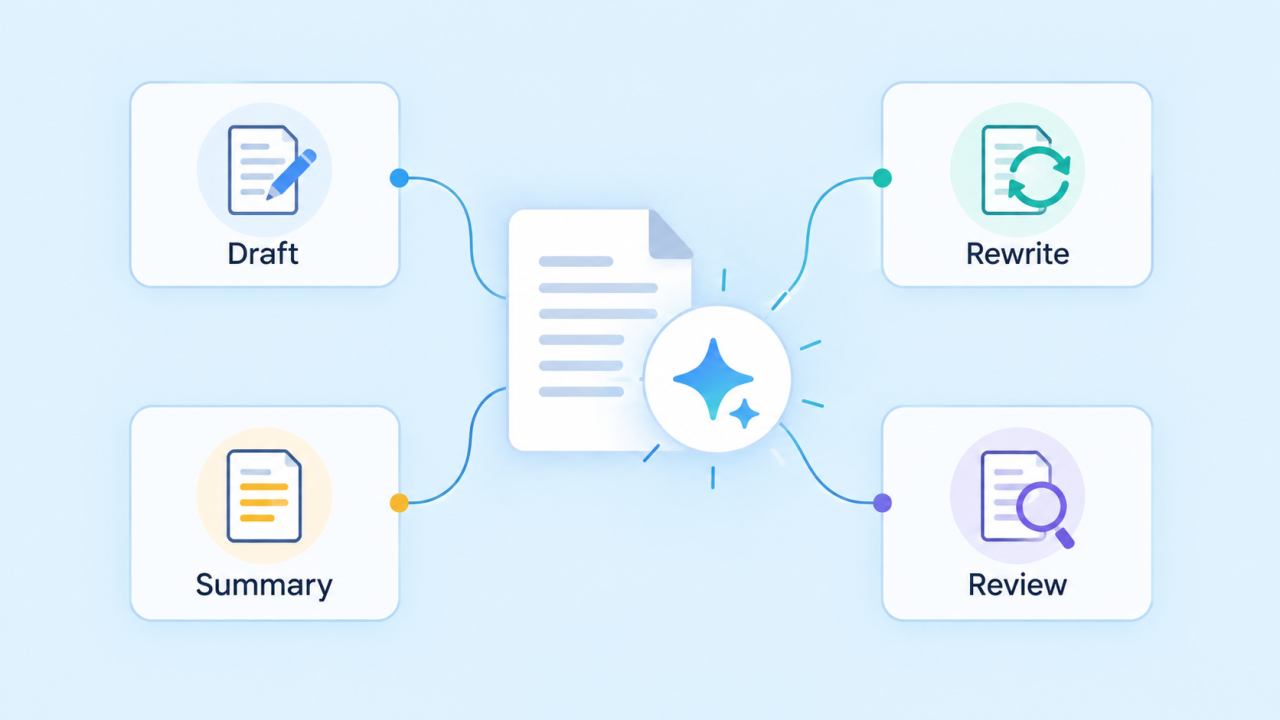
ChatGPT for Word practical use cases
ChatGPT for Word use cases: Format and review documents
ChatGPT for Word is also useful when the document already contains good material but lacks consistency. Use it as a reviewer with explicit boundaries instead of asking it to “fix everything.”
Heading cleanup: Ask it to propose a heading hierarchy and identify sections that do not match the document’s structure.
Terminology review: Ask it to find inconsistent product names, acronyms, capitalization, or defined terms.
Numbering and formatting: Ask it to reorganize lists or suggest formatting changes, then inspect tables, page breaks, and styles manually.
Clarity review: Ask it to flag vague claims, repeated points, missing transitions, and sentences that may confuse the intended reader.
For important documents, turn on Word’s own review workflow or save a copy before a large rewrite. The add-in can change content you intended to keep, and complex tables or charts may still require hands-on formatting.
Proofread and explain without losing control
Ask ChatGPT to proofread grammar, repetition, and inconsistent terminology, then return suggested revisions before applying them. For a contract clause, ask for a plain-language explanation and questions for legal review.
ChatGPT for Word review: Pros, cons, and real workflow fit
From a practical reviewer’s perspective, ChatGPT for Word is most valuable as a fast document-side assistant, not as an unattended editor. The sidebar reduces copy-and-paste friction, while selection-based prompts make small revisions easy to control.
Pros
Low setup friction: install one Microsoft add-in, sign in, and start from the Word ribbon.
Good for bounded edits: rewriting, shortening, summarizing, outlining, and terminology checks are easy to request.
Useful document context: the open Word document and selected text are available without manually pasting every sentence.
Connected context and repeatability: approved connected apps and reusable Skills can support recurring document workflows when enabled by the workspace.
Accessible entry point: OpenAI currently lists the feature as available across ChatGPT plans, including Free, subject to limits and workspace controls.
Cons
Formatting is not fully deterministic: complex styles, tables, charts, and page layouts may need manual repair.
Local-file context is limited: the add-in cannot automatically read other files on your computer.
Separate conversation context: chats in the add-in are separate from the main ChatGPT conversation history, and Memory does not carry over automatically.
Fact checking remains your job: generated text can sound confident while changing facts, figures, citations, or defined terms.
Administration can block access: organization policies may hide the add-in or restrict the workspace you can select.
Usage is metered: token and plan limits apply, so long documents and multi-step edits can consume more allowance.
My verdict: use ChatGPT for Word when the goal is to accelerate drafting and revision inside a single document. Keep a copy, ask for a plan before large changes, and review every important claim and visible formatting change before sharing. For Business, Enterprise, Edu, and Teachers plans, the official page says content is not used to train models by default; still follow your organization’s data policy.
The Best Free Alternative: WPS Office Writer
If you want a full document editor with a familiar Word-compatible workflow, WPS Office Writer is a practical alternative to keep in your toolkit. It is not a replacement for the ChatGPT add-in itself, but it gives you a separate environment for opening, editing, and reviewing common document files.
Use WPS Writer to open and edit common Word-compatible documents.
Review typography, spacing, page breaks, and export results in a dedicated document editor.
Use WPS Office when you prefer a lightweight office suite or need a fallback workspace while evaluating AI writing tools.
For advanced Microsoft 365 collaboration, organization-specific files, or Word-only add-ins, keep Microsoft Word available. The practical advantage of WPS is choice: it gives you another compatible editor for everyday document work.
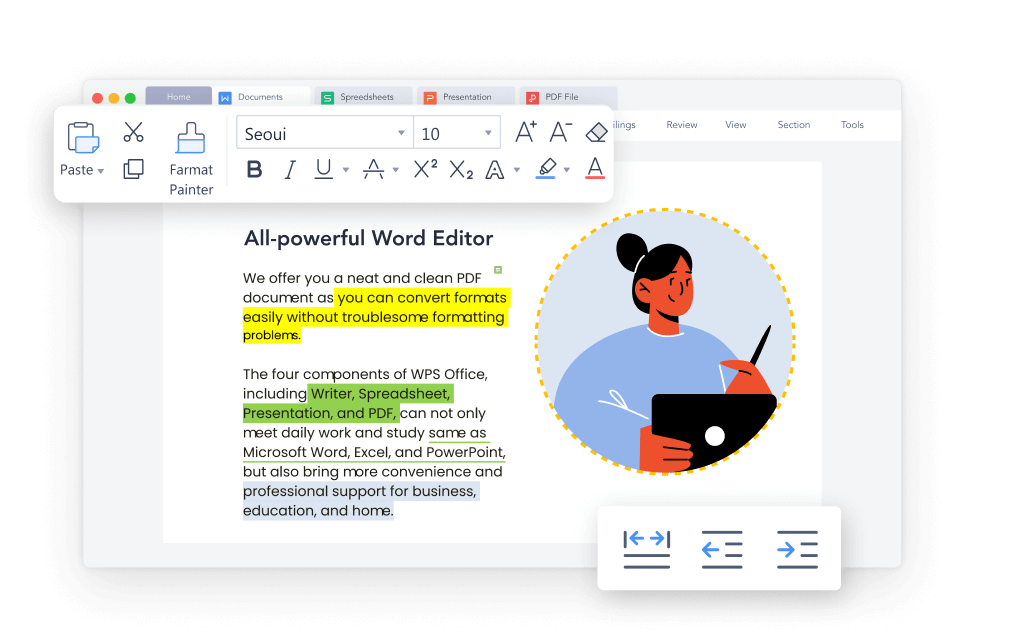
WPS Writer Word document editor
FAQs
Is ChatGPT for Word a separate app?
No. It is a Microsoft add-in that opens ChatGPT in a sidebar inside Word. The same ChatGPT Microsoft add-in can also provide access in Excel and PowerPoint.
Do I need a paid ChatGPT plan?
OpenAI’s current Help Center says ChatGPT for Word is available on all ChatGPT plans, including Free. Workspace availability and usage limits can still depend on plan and admin settings.
Can ChatGPT for Word edit formatting automatically?
It can help reorganize headings, numbering, and formatting, but complex formatting, tables, and charts may still need manual adjustments.
Can ChatGPT for Word read other files on my computer?
The add-in can work with the open Word document. It cannot automatically reference other local files. Paste relevant text or use an approved connected app such as Outlook, SharePoint, Google Workspace, or Dropbox when supported.
Do ChatGPT for Word chats share my main ChatGPT history?
No. Chats in the Word add-in are separate from your main ChatGPT conversation history, and Memory does not automatically carry over.
Is ChatGPT for Word the same as Copilot in Word?
No. They are separate products. ChatGPT for Word is the ChatGPT Microsoft add-in, while Copilot in Word is Microsoft’s built-in AI experience with its own license and Microsoft 365 context.

'%3e%3cpath%20d='M19.9911%204.11386V6.471H18.5894C18.0775%206.471%2017.7322%206.57814%2017.5536%206.79243C17.3751%207.00671%2017.2858%207.32814%2017.2858%207.75671V9.44421H19.9019L19.5536%2012.0871H17.2858V18.8639H14.5536V12.0871H12.2769V9.44421H14.5536V7.49779C14.5536%206.39064%2014.8632%205.53201%2015.4822%204.92189C16.1013%204.31177%2016.9257%204.00671%2017.9554%204.00671C18.8304%204.00671%2019.509%204.04243%2019.9911%204.11386Z'%20fill='%23333333'/%3e%3c/g%3e%3cdefs%3e%3cclipPath%20id='clip0_2938_8199'%3e%3crect%20width='16'%20height='16'%20fill='white'%20transform='translate(8%204.00671)'/%3e%3c/clipPath%3e%3c/defs%3e%3c/svg%3e)
'%3e%3cpath%20d='M17.5237%2010.7813L23.4811%204H22.0699L16.8949%209.88693L12.7648%204H8L14.2469%2012.9029L8%2020.0133H9.4112L14.8725%2013.7952L19.2352%2020.0133H24M9.92053%205.04213H12.0885L22.0688%2019.0224H19.9003'%20fill='%23333333'/%3e%3c/g%3e%3cdefs%3e%3cclipPath%20id='clip0_2938_8200'%3e%3crect%20width='16'%20height='16.0134'%20fill='white'%20transform='translate(8%204)'/%3e%3c/clipPath%3e%3c/defs%3e%3c/svg%3e)


