



'%3e%3cpath%20fill-rule='evenodd'%20clip-rule='evenodd'%20d='M21.4999%2010.9993C21.4999%205.20009%2016.7986%200.498901%2010.9993%200.498901C5.19994%200.498901%200.498657%205.20009%200.498657%2010.9993C0.498657%2016.2404%204.33858%2020.5844%209.35855%2021.3722V14.0346H6.69238V10.9993H9.35855V8.68594C9.35855%206.05427%2010.9262%204.60062%2013.3248%204.60062C14.4736%204.60062%2015.6753%204.80571%2015.6753%204.80571V7.38979H14.3512C13.0468%207.38979%2012.64%208.19921%2012.64%209.0296V10.9993H15.5523L15.0867%2014.0346H12.64V21.3722C17.66%2020.5844%2021.4999%2016.2404%2021.4999%2010.9993Z'%20fill='%231568EA'/%3e%3c/g%3e%3c/svg%3e)


'%3e%3cpath%20d='M2.42045%2022.1876H6.31818V12.7217L0.75%208.54553V20.5171C0.75%2021.4414%201.49892%2022.1876%202.42045%2022.1876Z'%20fill='%234285F4'/%3e%3cpath%20d='M19.682%2022.1876H23.5797C24.5041%2022.1876%2025.2502%2021.4387%2025.2502%2020.5171V8.54553L19.682%2012.7217'%20fill='%2334A853'/%3e%3cpath%20d='M19.682%205.48293V12.7216L25.2502%208.54543V6.31816C25.2502%204.25236%2022.8921%203.07469%2021.2411%204.31361'%20fill='%23FBBC04'/%3e%3cpath%20d='M6.31824%2012.7217V5.48303L13.0001%2010.4944L19.6819%205.48303V12.7217L13.0001%2017.733'%20fill='%23EA4335'/%3e%3cpath%20d='M0.75%206.31816V8.54543L6.31818%2012.7216V5.48293L4.75909%204.31361C3.10534%203.07469%200.75%204.25236%200.75%206.31816Z'%20fill='%23C5221F'/%3e%3c/g%3e%3cdefs%3e%3cclipPath%20id='clip0_2954_7305'%3e%3crect%20width='24.5'%20height='18.375'%20fill='white'%20transform='translate(0.75%203.8125)'/%3e%3c/clipPath%3e%3c/defs%3e%3c/svg%3e)


How to Insert a Caption for a Picture (Step-by-Step)
Adding a caption makes a picture easier to identify, reference, and understand. It is especially useful in reports, research papers, manuals, and any document with several figures.
This guide explains how to insert a caption for a picture in Word and WPS Writer. You will learn how to choose a label, add descriptive text, control numbering, and avoid common formatting problems.
How to Insert a Caption for a Picture (Step-by-Step)
What a Picture Caption Does
A caption is visible text placed with a picture. A well-written caption tells readers what they are looking at and, when needed, why the image matters. In a long document, a numbered caption also makes cross-references and a table of figures easier to manage.
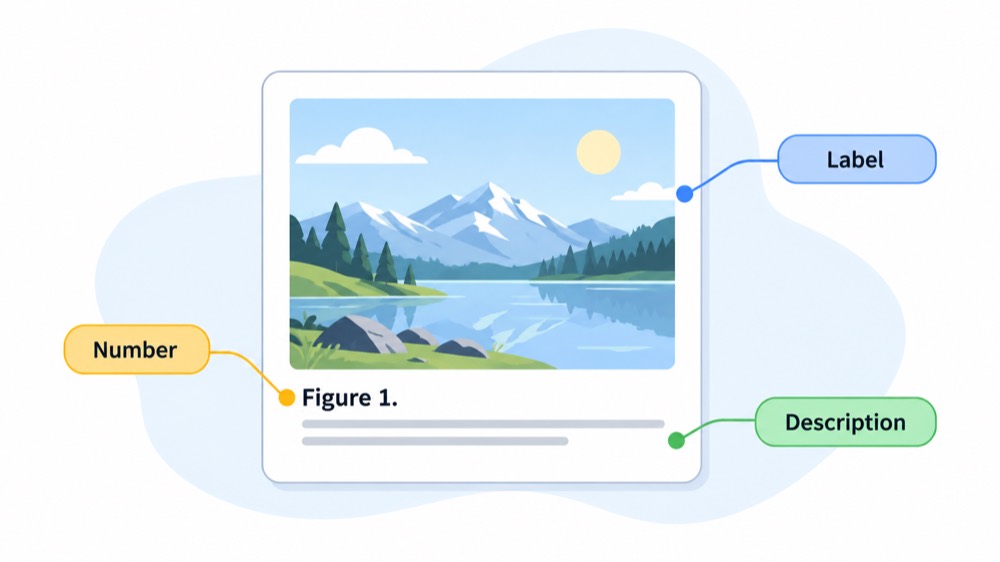
Label: identifies the object, such as Figure, Table, or Equation.
Number: keeps objects in a sequence, such as Figure 1 and Figure 2.
Description: adds useful context after the label and number.
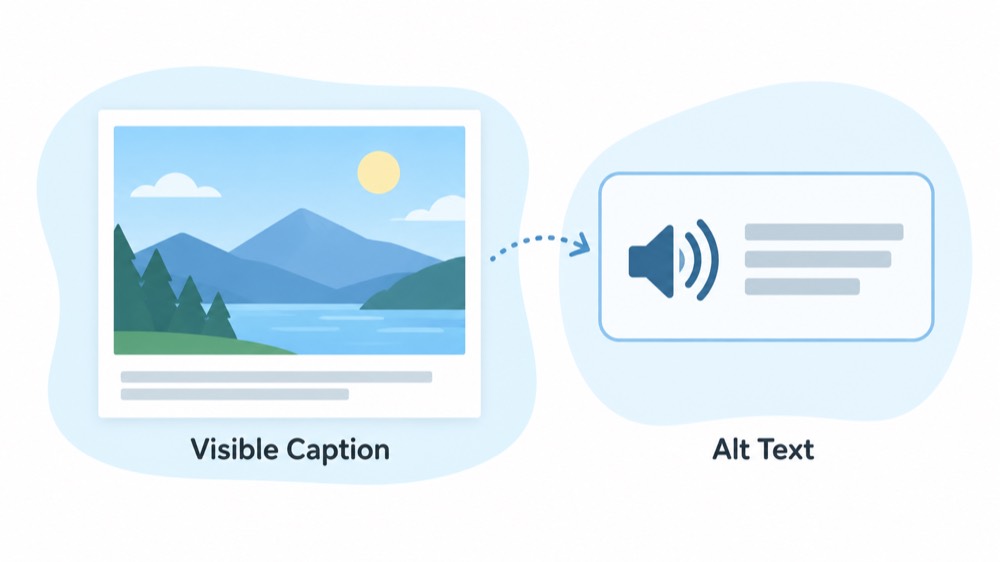
Do not use a caption as a replacement for alt text. A caption supports visual readers, while alt text supports people who use screen readers or cannot see the picture.
Caption parts label number description


How to Insert a Caption for a Picture in Word
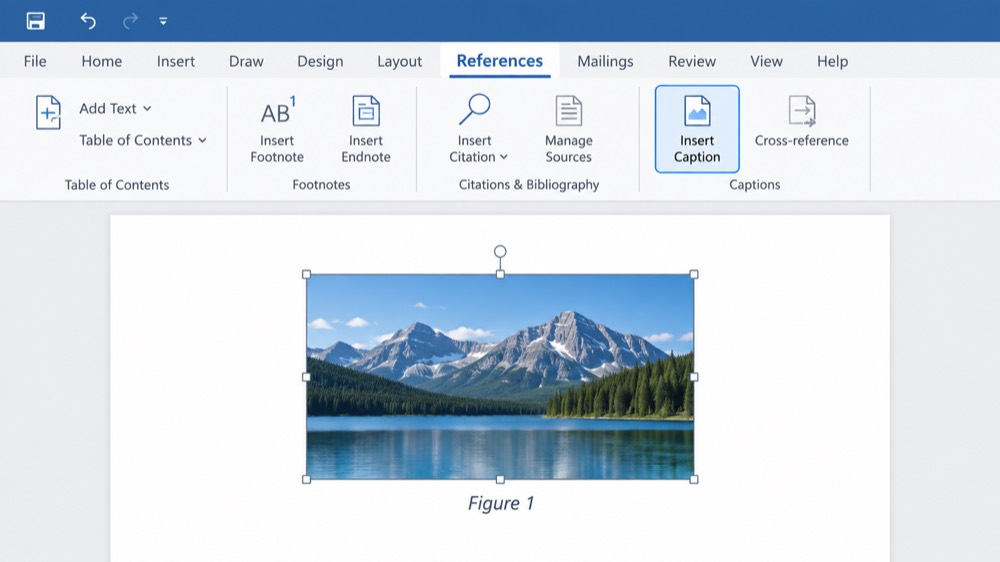
In desktop Word, the built-in command is in the References tab. Use these steps:
Select the picture in your document.
Open References and select Insert Caption.
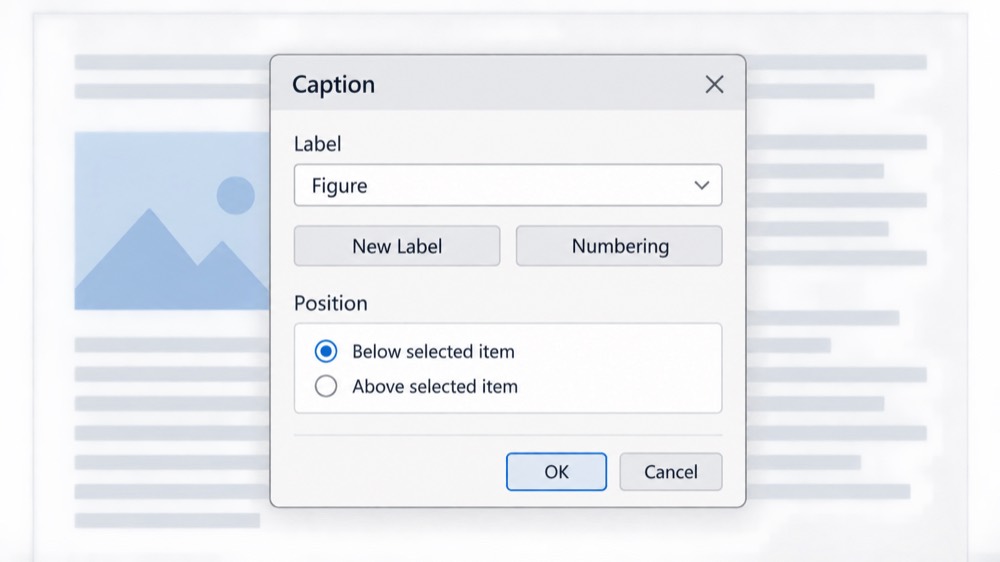
In the Caption dialog, choose Figure from the Label list, or select another available label.
Click after the inserted label and number, then type a short description of the picture.
Review the Position setting and select OK.
Word inserts the caption as a field. That field is what allows numbering to remain consistent when you add more figures. Microsoft’s official instructions also explain how to create labels and update caption numbers.
Read Microsoft’s Insert Caption instructions if you need the exact command for your Word version.
References tab Insert Caption
How to Insert a Caption for a Picture in WPS Writer
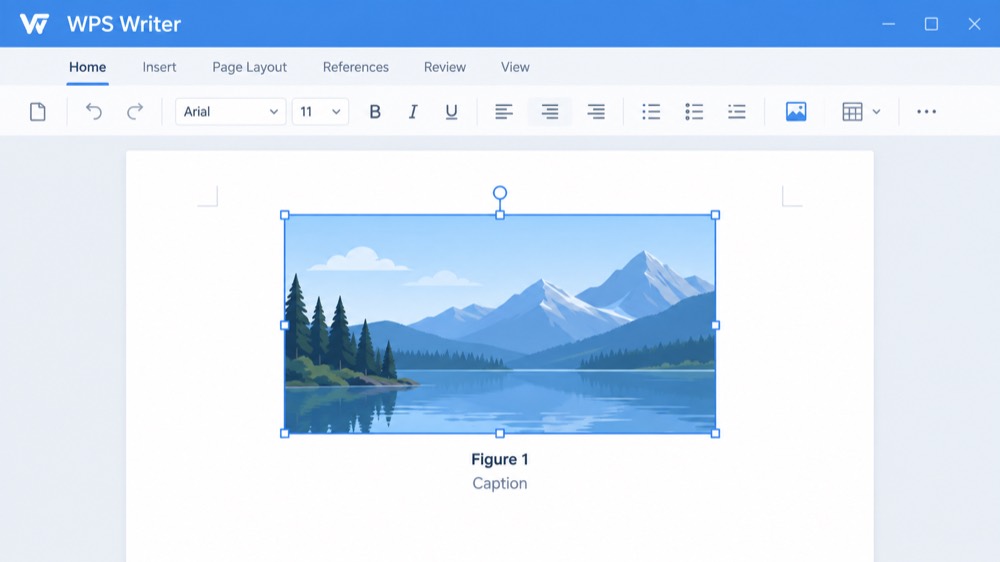
WPS Writer follows a similar workflow and places the caption command in the References tab. The menu names may vary slightly by version, but the sequence is straightforward:
Select the picture, chart, table, or other object.
Open References and choose Caption.
Select a label such as Figure, Image, or Table.
Type the descriptive text after the label and number.
Select OK to place the caption with the object.
WPS Writer also provides New Label for a custom label and Numbering for chapter-based numbering. For a version-specific walkthrough, see the official WPS Writer caption guide.
WPS Writer caption dialog mockup
How to Customize Labels, Position, and Numbering
Default settings work for most documents, but a few options help you match a publication or school style guide.
Choose or create a label
Use Figure for photographs, screenshots, diagrams, and illustrations. Use Table or Equation when the object needs its own sequence. If none of the built-in labels fits, create a short custom label rather than typing a label manually into every caption.
Place the caption above or below the picture
Below the picture is the most familiar position, but a style guide may require captions above figures. Choose the position in the Caption dialog before confirming. Keep the picture and caption close together so readers do not confuse the text with the next paragraph.
Include chapter numbers when needed
Long reports may use captions such as Figure 2-1, where 2 is the chapter and 1 is the first figure in that chapter. Enable chapter numbering only when your heading structure is set up correctly; otherwise, a simple Figure 1 sequence is less error-prone.
Custom caption label numbering
How to Keep Picture Captions Accurate
Captions are easiest to maintain when you make them part of a repeatable document workflow.
Use concise descriptions: name the subject, action, or result shown in the picture.
Keep one numbering system: do not mix manually typed numbers with inserted caption fields.
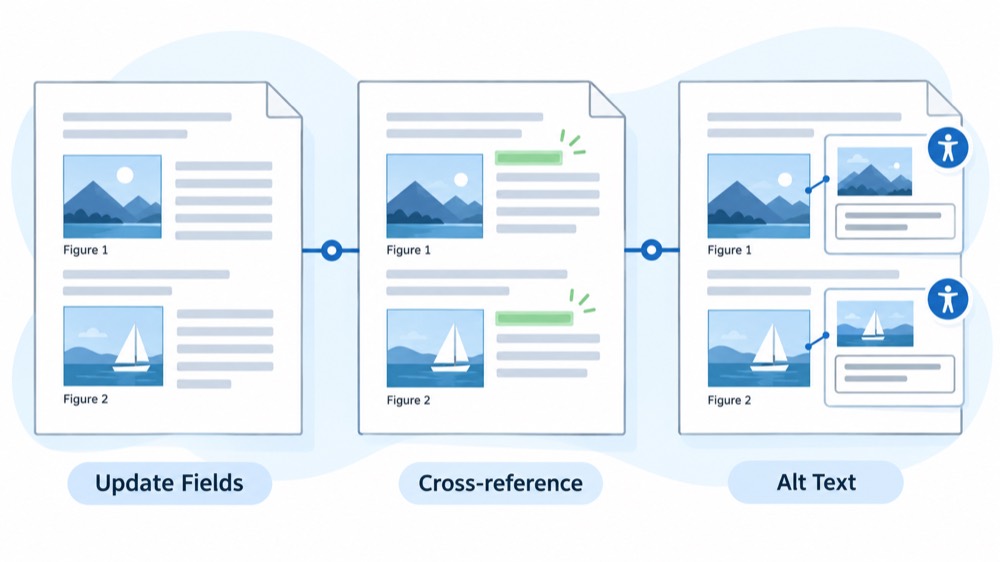
Update fields: after moving or deleting figures, select the caption fields and update them.
Check references: verify that text such as “see Figure 3” still points to the intended image.
Keep objects together: use an inline layout or group a floating picture and its caption when your editor supports it.
Add alt text separately: describe the meaningful content for assistive technology.
Avoid captions that merely repeat a file name, such as “IMG_2048.” Replace it with information that helps a reader interpret the picture.
Update fields and alt text workflow
The Best Free Alternative: WPS Office
WPS Office offers a practical way to work with Writer documents, presentations, spreadsheets, and PDFs in one office suite. If you need to insert a caption for a picture while keeping your files in a familiar document workflow, WPS Writer provides caption tools for common objects and numbering tasks.
Use Writer for structured documents and figure captions.
Move between document, presentation, spreadsheet, and PDF workflows in one suite.
Choose a lightweight office environment when you do not need several separate applications.
Before sharing a finished file, open it on the target device and check the picture, caption position, numbering, and accessibility text.
WPS Writer caption workflow mockup
FAQs
What is a picture caption?
A picture caption is descriptive text attached to an image. In Word or WPS Writer, an inserted caption can also carry a label and an automatically updated number, such as Figure 1.
Can I use a custom label instead of Figure?
Yes. In Word, choose New Label in the Caption dialog. WPS Writer also provides a New Label option, so you can use labels such as Image, Photo, or Illustration.
Will caption numbers update automatically?
New captions are numbered sequentially. If you move or delete a caption, update the fields or the table of figures before finalizing the document so references remain accurate.
Is a caption the same as alt text?
No. A caption is visible to readers and explains the image in the document. Alt text is an accessibility description read by assistive technology. Use both when the image conveys important information.
Can I add captions in Word for the web?
The full Insert Caption workflow is primarily associated with desktop Word. If the command is unavailable in your web editor, add the caption manually or open the document in the desktop app.


'%3e%3cpath%20d='M19.9911%204.11386V6.471H18.5894C18.0775%206.471%2017.7322%206.57814%2017.5536%206.79243C17.3751%207.00671%2017.2858%207.32814%2017.2858%207.75671V9.44421H19.9019L19.5536%2012.0871H17.2858V18.8639H14.5536V12.0871H12.2769V9.44421H14.5536V7.49779C14.5536%206.39064%2014.8632%205.53201%2015.4822%204.92189C16.1013%204.31177%2016.9257%204.00671%2017.9554%204.00671C18.8304%204.00671%2019.509%204.04243%2019.9911%204.11386Z'%20fill='%23333333'/%3e%3c/g%3e%3cdefs%3e%3cclipPath%20id='clip0_2938_8199'%3e%3crect%20width='16'%20height='16'%20fill='white'%20transform='translate(8%204.00671)'/%3e%3c/clipPath%3e%3c/defs%3e%3c/svg%3e)
'%3e%3cpath%20d='M17.5237%2010.7813L23.4811%204H22.0699L16.8949%209.88693L12.7648%204H8L14.2469%2012.9029L8%2020.0133H9.4112L14.8725%2013.7952L19.2352%2020.0133H24M9.92053%205.04213H12.0885L22.0688%2019.0224H19.9003'%20fill='%23333333'/%3e%3c/g%3e%3cdefs%3e%3cclipPath%20id='clip0_2938_8200'%3e%3crect%20width='16'%20height='16.0134'%20fill='white'%20transform='translate(8%204)'/%3e%3c/clipPath%3e%3c/defs%3e%3c/svg%3e)


