

'%3e%3cpath%20d='M8%200C12.4183%200%2016%203.58172%2016%208C16%2012.4183%2012.4183%2016%208%2016C3.58172%2016%200%2012.4183%200%208C0%203.58172%203.58172%200%208%200ZM11.6162%204.38379C11.2257%203.99337%2010.5927%203.99338%2010.2021%204.38379L8%206.58594L5.79785%204.38379C5.40732%203.99334%204.77429%203.99329%204.38379%204.38379C3.99331%204.77429%203.99335%205.40733%204.38379%205.79785L6.58594%208L4.38379%2010.2021C3.99348%2010.5927%203.99341%2011.2257%204.38379%2011.6162C4.77426%2012.0066%205.40734%2012.0065%205.79785%2011.6162L8%209.41406L10.2021%2011.6162C10.5927%2012.0066%2011.2257%2012.0067%2011.6162%2011.6162C12.0067%2011.2257%2012.0066%2010.5927%2011.6162%2010.2021L9.41406%208L11.6162%205.79785C12.0066%205.40735%2012.0066%204.77429%2011.6162%204.38379Z'%20fill='%23080E17'%20fill-opacity='0.46'/%3e%3c/g%3e%3cdefs%3e%3cclipPath%20id='clip0_3761_713'%3e%3crect%20width='16'%20height='16'%20fill='white'/%3e%3c/clipPath%3e%3c/defs%3e%3c/svg%3e)




'%3e%3cpath%20fill-rule='evenodd'%20clip-rule='evenodd'%20d='M21.4999%2010.9993C21.4999%205.20009%2016.7986%200.498901%2010.9993%200.498901C5.19994%200.498901%200.498657%205.20009%200.498657%2010.9993C0.498657%2016.2404%204.33858%2020.5844%209.35855%2021.3722V14.0346H6.69238V10.9993H9.35855V8.68594C9.35855%206.05427%2010.9262%204.60062%2013.3248%204.60062C14.4736%204.60062%2015.6753%204.80571%2015.6753%204.80571V7.38979H14.3512C13.0468%207.38979%2012.64%208.19921%2012.64%209.0296V10.9993H15.5523L15.0867%2014.0346H12.64V21.3722C17.66%2020.5844%2021.4999%2016.2404%2021.4999%2010.9993Z'%20fill='%231568EA'/%3e%3c/g%3e%3c/svg%3e)


'%3e%3cpath%20d='M2.42045%2022.1876H6.31818V12.7217L0.75%208.54553V20.5171C0.75%2021.4414%201.49892%2022.1876%202.42045%2022.1876Z'%20fill='%234285F4'/%3e%3cpath%20d='M19.682%2022.1876H23.5797C24.5041%2022.1876%2025.2502%2021.4387%2025.2502%2020.5171V8.54553L19.682%2012.7217'%20fill='%2334A853'/%3e%3cpath%20d='M19.682%205.48293V12.7216L25.2502%208.54543V6.31816C25.2502%204.25236%2022.8921%203.07469%2021.2411%204.31361'%20fill='%23FBBC04'/%3e%3cpath%20d='M6.31824%2012.7217V5.48303L13.0001%2010.4944L19.6819%205.48303V12.7217L13.0001%2017.733'%20fill='%23EA4335'/%3e%3cpath%20d='M0.75%206.31816V8.54543L6.31818%2012.7216V5.48293L4.75909%204.31361C3.10534%203.07469%200.75%204.25236%200.75%206.31816Z'%20fill='%23C5221F'/%3e%3c/g%3e%3cdefs%3e%3cclipPath%20id='clip0_2954_7305'%3e%3crect%20width='24.5'%20height='18.375'%20fill='white'%20transform='translate(0.75%203.8125)'/%3e%3c/clipPath%3e%3c/defs%3e%3c/svg%3e)


Hosting a Zoom meeting is one of those skills that looks simple until the meeting starts. You need to get everyone into the right room, share the right screen, keep the conversation moving, and make sure decisions do not disappear when the call ends.
A good host is not just the person who clicks New Meeting. They set up the room, guide the agenda, manage participation, and leave the team with clear next steps.
This guide shows you how to host a Zoom meeting step by step. You will learn how to prepare, start an instant meeting or schedule one for later, use essential host controls, and keep clean meeting notes with WPS Office.
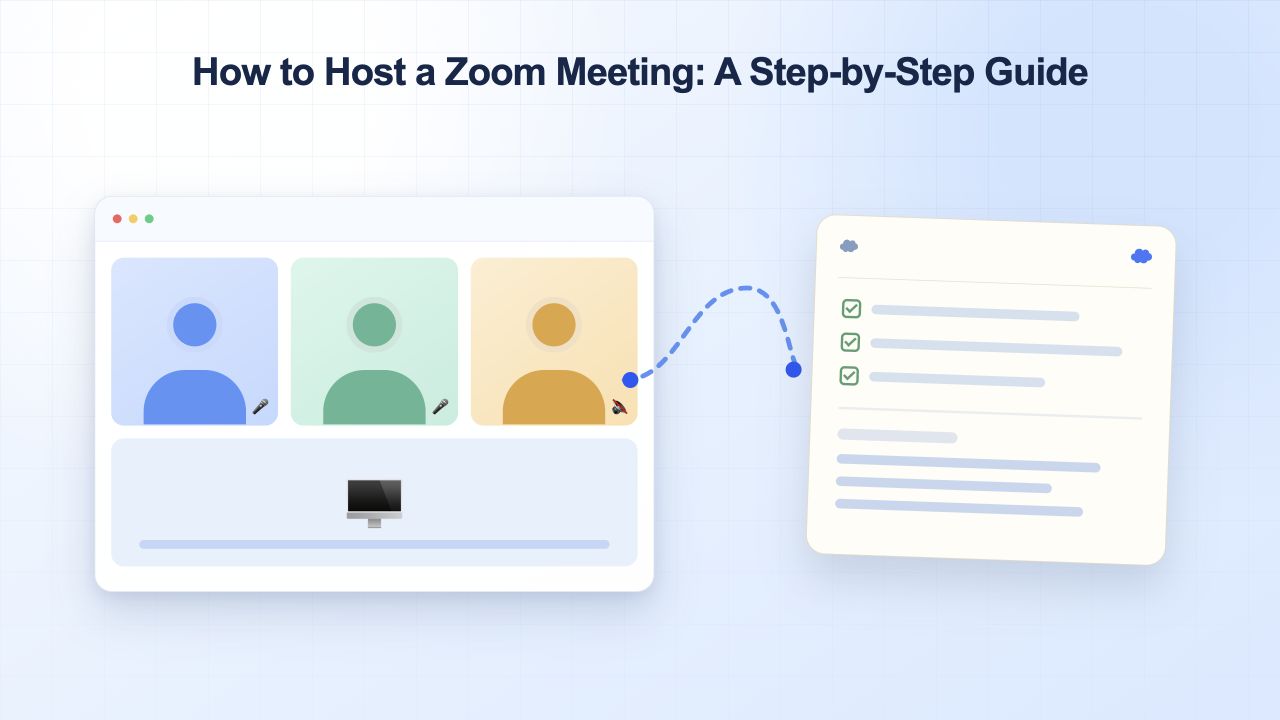
How to Host a Zoom Meeting: A Step-by-Step Guide
Prepare Before You Host a Zoom Meeting
Preparation is where most meeting problems are prevented. A short pre-flight routine takes only a few minutes and saves the group from typing “Can you hear me?” for ten minutes.
Set up your account and app. Create or sign in to your Zoom account, then install or update the Zoom Workplace desktop or mobile app from the official download page.
Test audio and video. Open Settings > Audio and Settings > Video. Choose the correct microphone, speakers, and camera. Headphones reduce echo, and muting desktop notifications prevents surprise sounds.
Check your background. Use a tidy space, virtual background, or background blur. Put your light source in front of you rather than behind you.
Write a short agenda. List the topics, the person leading each one, the time box, and the decision or result you need. Share it with the group before the call.
Review security defaults. Enable a waiting room, require a passcode, and decide whether to mute participants on entry. For sensitive meetings, allow screen sharing only for the host.
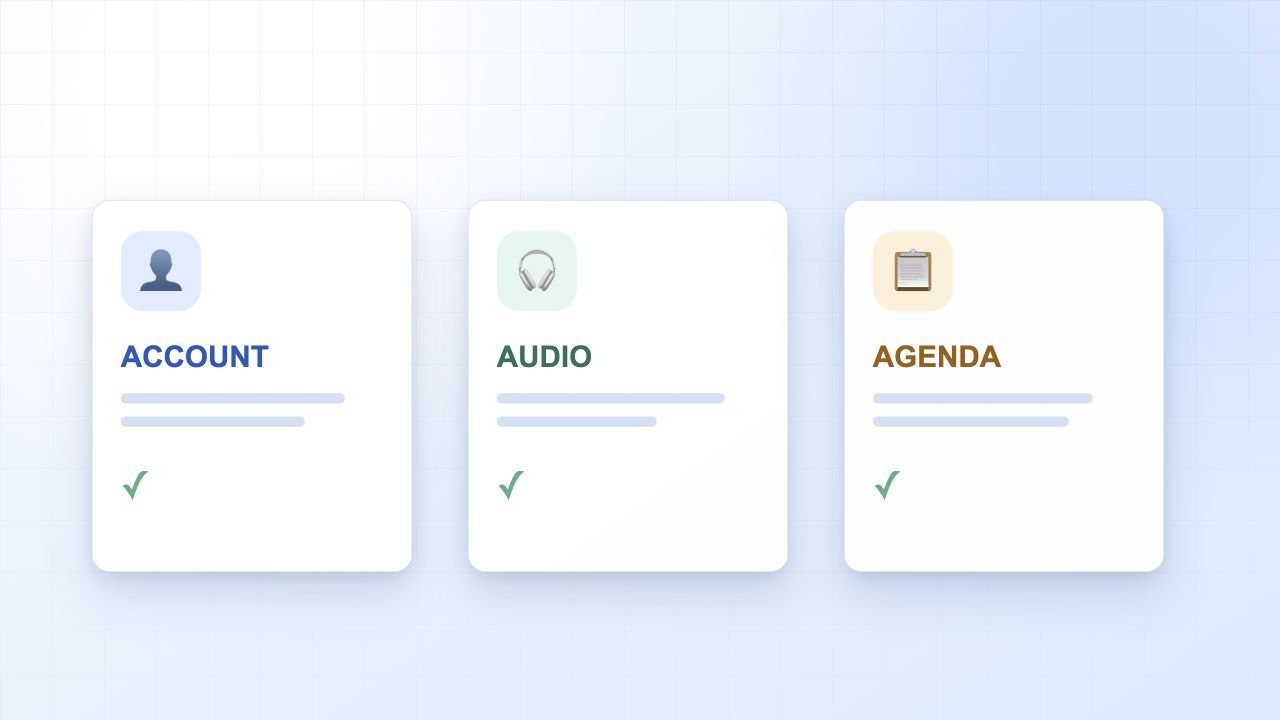
Zoom host pre-meeting preparation checklist
How to Host a Zoom Meeting: Start or Schedule It
You can host a meeting immediately or prepare it in advance. Use an instant meeting for a quick conversation and a scheduled meeting when people need an invitation, an agenda, or a calendar hold.
Start an instant Zoom meeting
Open the Zoom Workplace app and sign in to your account.
On the Home tab, select New Meeting. If you want to start with video off or on, use the small arrow beside the button and choose the right option before launching.
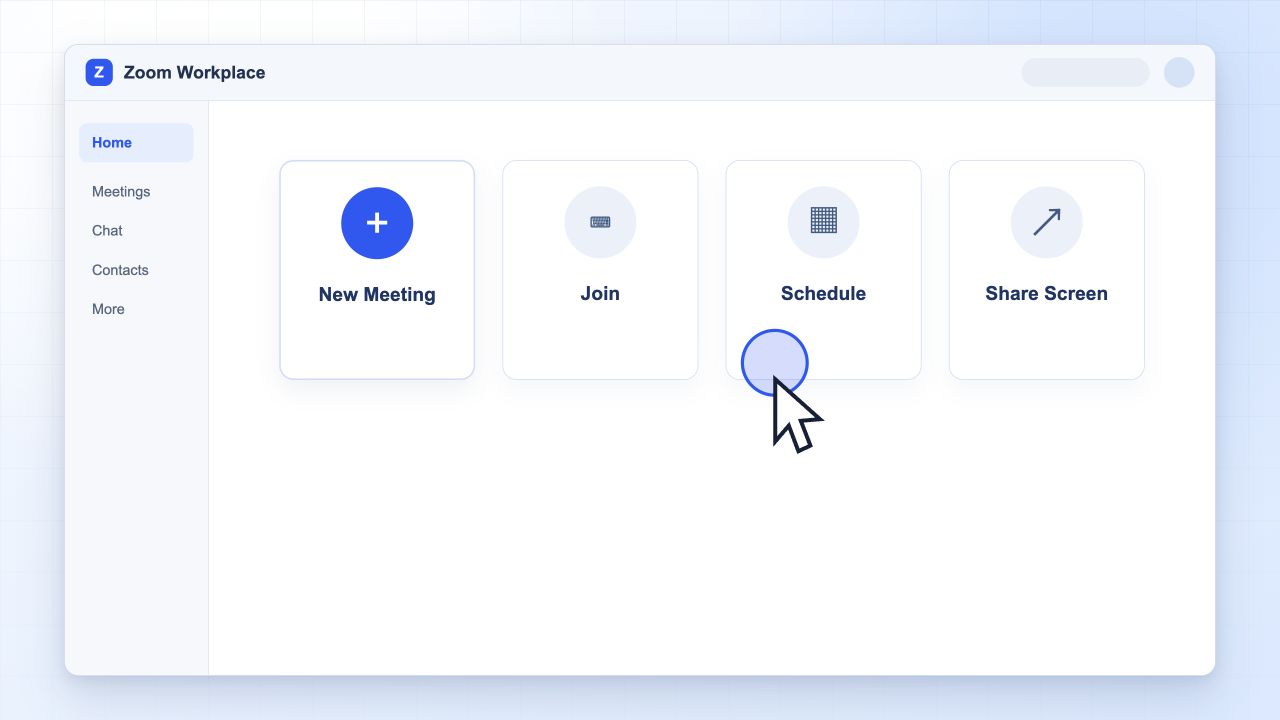
Start an instant Zoom meeting
Use Participants > Invite, then copy the invite link, send an email invitation, or choose a contact.
If the waiting room is enabled, admit guests from the Participants panel. Greet everyone, confirm audio quality, and restate the agenda before you begin.
Schedule a Zoom meeting for later
From Home, select Schedule.
Enter the topic, date, start time, duration, and time zone. Choose a recurring meeting only when the same group needs the same room again.
Keep Generate Automatically for the meeting ID and require a passcode. Enable the waiting room, host video, and mute-on-entry options based on the meeting format.
Choose a calendar destination, select Save, and send the invitation to your participants.
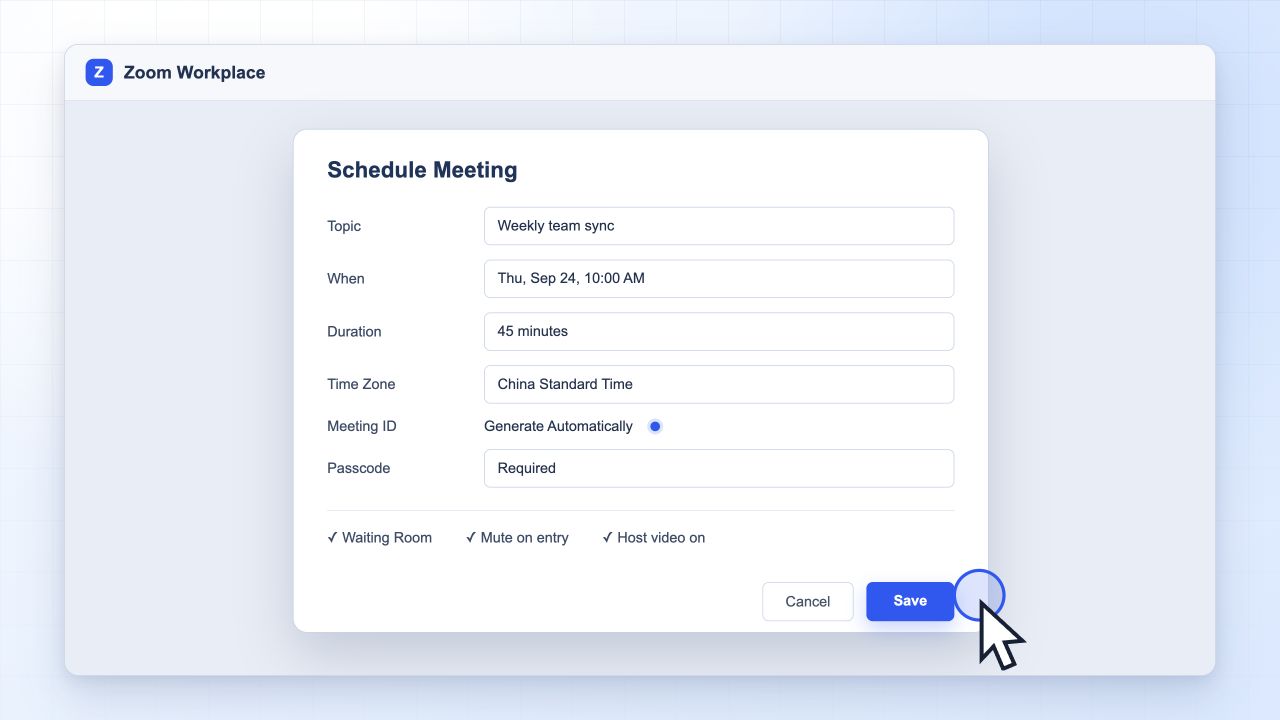
Schedule a Zoom meeting
Open Upcoming before the meeting to confirm the time, edit the invitation, or start the session.
If you only need a fast team check-in, an instant meeting is enough. For client calls, interviews, presentations, or meetings with a formal agenda, scheduling gives everyone a clearer commitment.


Essential Host Controls During a Zoom Meeting
Once everyone is in the meeting, your job shifts from setup to control. Keep the toolbar visible and handle these actions early so the conversation stays focused.
Share your screen
Select Share Screen, choose the desktop, window, or browser tab you want people to see, and then confirm the share. For slide presentations, use a presenter view when you need private speaker notes. WPS has practical walkthroughs for sharing a PowerPoint presentation on Zoom and using Zoom PowerPoint presenter view.
Manage participants
Open the Participants panel to mute all, ask someone to unmute, lower hands, admit waiting-room guests, or remove a disruptive participant. To add a helper, hover over a participant’s name, choose More, and select Make Co-Host. If the option is missing, enable co-hosting in your Zoom web settings and rejoin the meeting.
Protect the meeting
Use the Security panel to lock the meeting, enable the waiting room, restrict screen sharing or annotation, and control who can chat. Lock the room once the expected participants have joined.
Record and capture decisions
Select Record to save locally, or choose cloud recording if your Zoom plan and account settings support it. Announce the recording and follow your organization’s consent rules. Chat and reactions can support the discussion, but they are not a reliable replacement for structured notes.
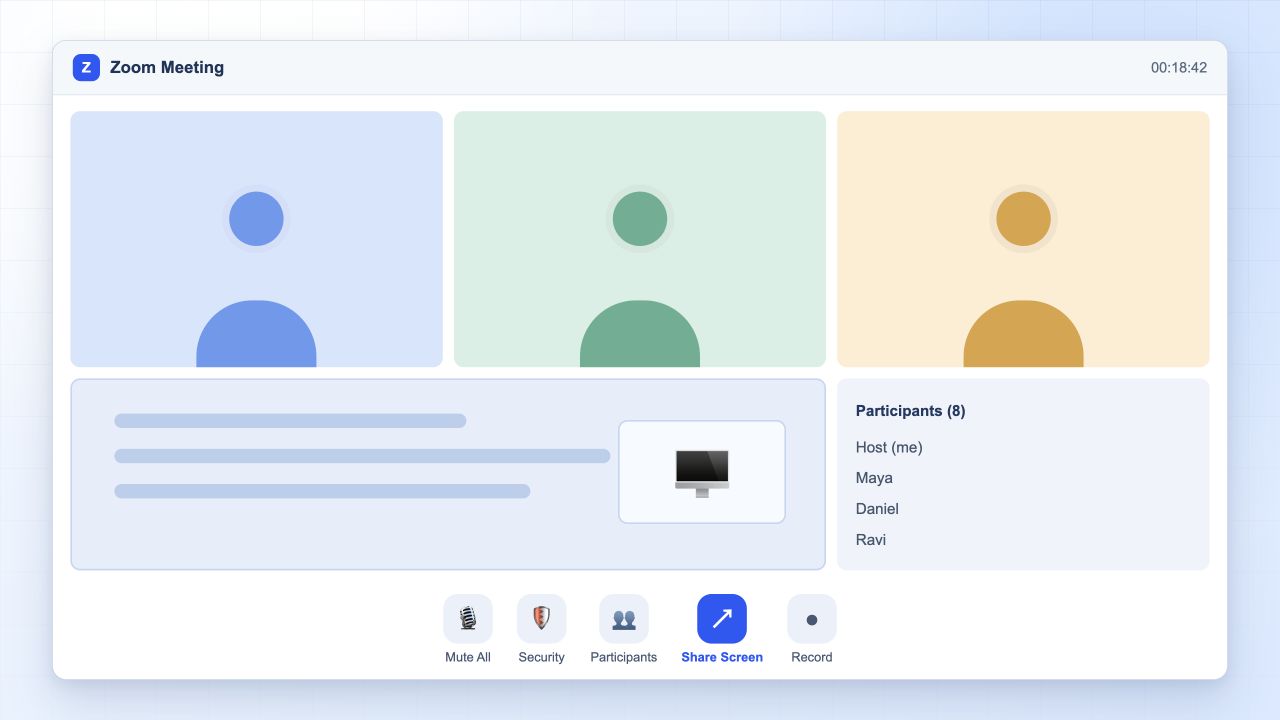
Essential Zoom host control panel
Best Practices for Hosting a Zoom Meeting
Strong hosting is less about knowing every button and more about creating a predictable rhythm. These habits make the meeting easier to follow and easier to act on.
Open the room early. Join two or three minutes before the start time so you can test audio and welcome early guests.
State the purpose. Repeat the agenda and the result you need in the first minute.
Assign roles. Ask one person to take notes and another to watch the time when the agenda is busy.
Keep audio clean. Ask participants to mute when they are not speaking and use headphones when echo is a problem.
Pause after decisions. Confirm the decision, the owner, and the due date before moving to the next topic.
Close with a recap. Summarize decisions, action items, and anything that still needs a follow-up meeting.
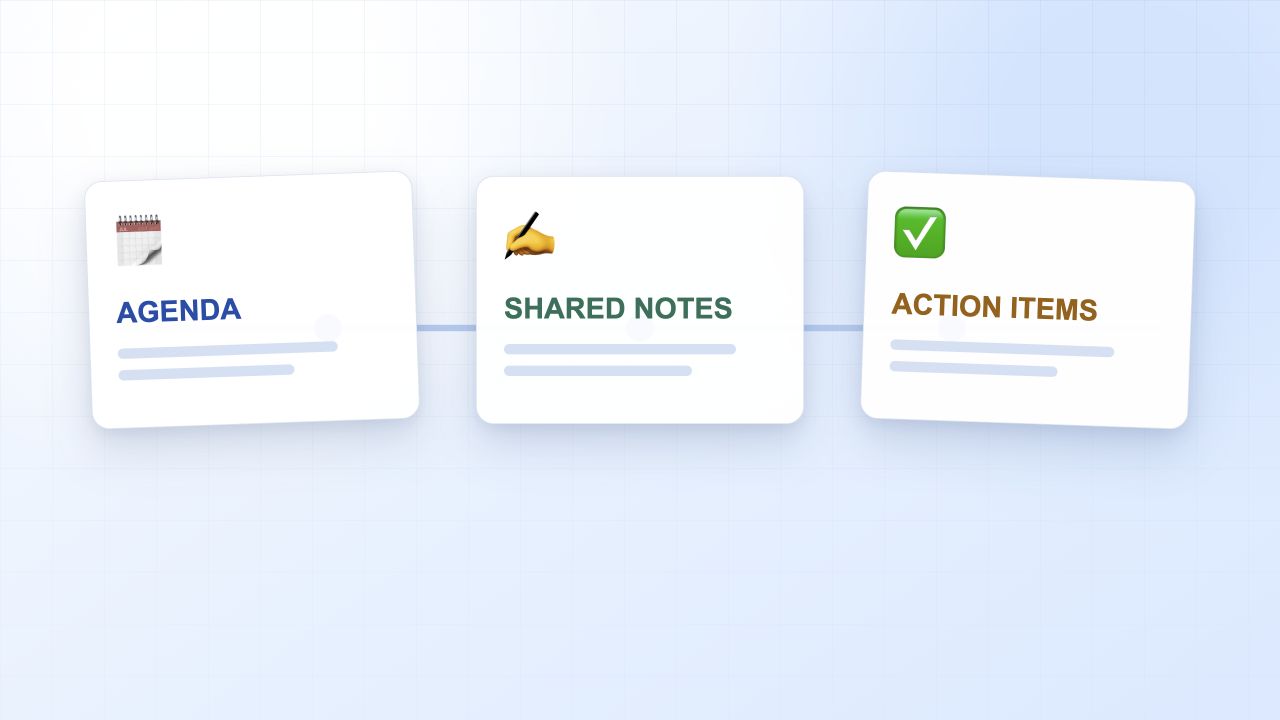
Run a productive Zoom meeting
Level Up Your Zoom Meetings with WPS Office
Zoom gets everyone into the room. WPS Office helps you turn the discussion into a useful document. WPS Office is a free, all-in-one suite with Writer, Spreadsheet, Presentation, and PDF tools, plus real-time editing across desktop and mobile.
Capture notes in real time
Open a WPS Writer document before the call and share the link with the group. One person can capture the main discussion while others add corrections, links, or missing details in the same document. Everyone leaves with the same version instead of a private note file that never gets shared.
Reuse a clear meeting-minutes structure
Start from a document template or build a simple structure that includes attendees, agenda, decisions, and action items. For each action item, record the owner, due date, and status. You can browse ready-made layouts in the WPS template library.
Use WPS AI when it is available
If your WPS plan includes WPS AI, use it to summarize a long notes document, draft a follow-up message, or shorten a list of action items. Always review names, numbers, and decisions before you send the summary to the team.
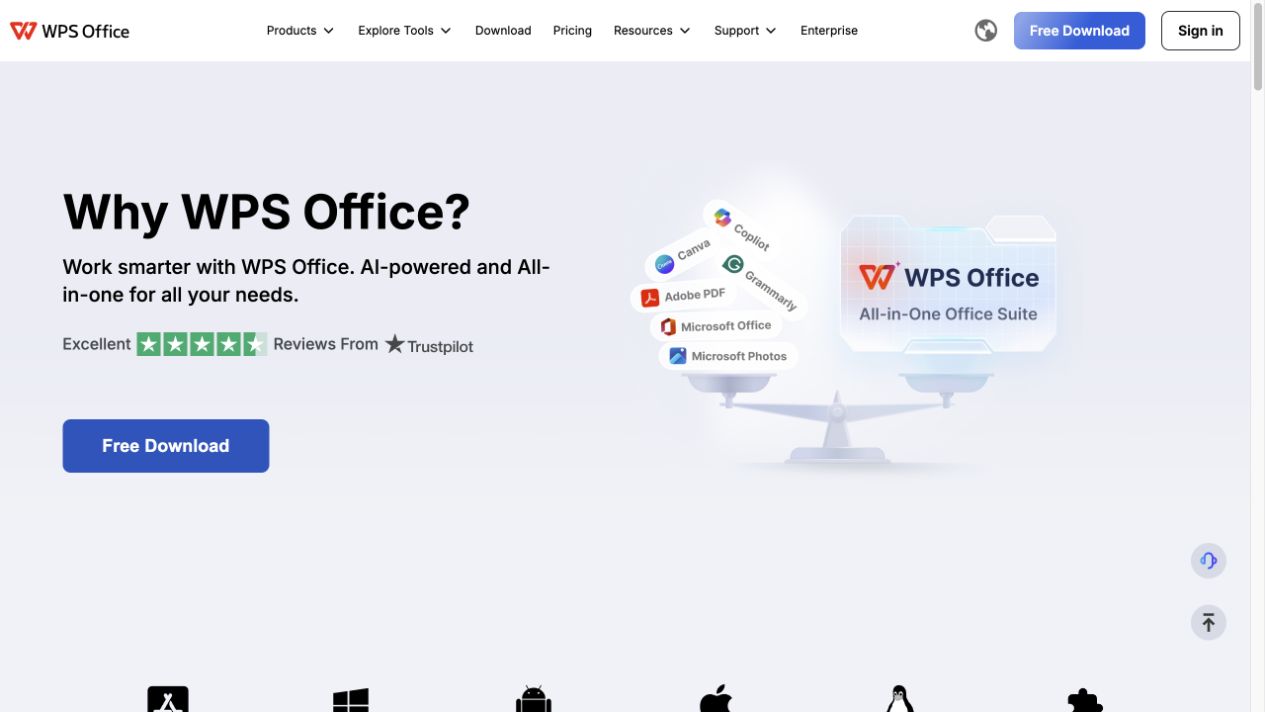
WPS Office free product page
FAQs
How long can a free Zoom meeting last?
Zoom’s public plan page currently lists the Basic plan with a 40-minute limit per meeting and up to 100 participants. Limits can vary by plan, account settings, and region, so check your Zoom plan details before scheduling a long session.
Can I host a Zoom meeting without a paid account?
Yes. You can host with a free Zoom account, but group meetings are subject to the plan’s duration and participant limits. Participants may join without an account, while the host still needs to sign in to start and manage the meeting.
How do I assign a co-host during a Zoom meeting?
Open Participants, hover over the person’s name, select More, and choose Make Co-Host. The feature must be enabled in your account settings, and the co-host must be in the meeting before you can assign the role.
How can I save and share Zoom meeting notes easily?
Keep a shared WPS Writer document open during the call. Use one section for decisions and another for action items, then share the same link with everyone after the meeting. This avoids exporting a private note file or copying updates into several places.
Do I need to record a Zoom meeting to keep useful notes?
No. A structured notes document is often faster to scan and easier to turn into action items. A recording can still help when exact wording matters, but tell participants, follow company policy, and confirm whether cloud recording is available on your plan.


'%3e%3cpath%20d='M19.9911%204.11386V6.471H18.5894C18.0775%206.471%2017.7322%206.57814%2017.5536%206.79243C17.3751%207.00671%2017.2858%207.32814%2017.2858%207.75671V9.44421H19.9019L19.5536%2012.0871H17.2858V18.8639H14.5536V12.0871H12.2769V9.44421H14.5536V7.49779C14.5536%206.39064%2014.8632%205.53201%2015.4822%204.92189C16.1013%204.31177%2016.9257%204.00671%2017.9554%204.00671C18.8304%204.00671%2019.509%204.04243%2019.9911%204.11386Z'%20fill='%23333333'/%3e%3c/g%3e%3cdefs%3e%3cclipPath%20id='clip0_2938_8199'%3e%3crect%20width='16'%20height='16'%20fill='white'%20transform='translate(8%204.00671)'/%3e%3c/clipPath%3e%3c/defs%3e%3c/svg%3e)
'%3e%3cpath%20d='M17.5237%2010.7813L23.4811%204H22.0699L16.8949%209.88693L12.7648%204H8L14.2469%2012.9029L8%2020.0133H9.4112L14.8725%2013.7952L19.2352%2020.0133H24M9.92053%205.04213H12.0885L22.0688%2019.0224H19.9003'%20fill='%23333333'/%3e%3c/g%3e%3cdefs%3e%3cclipPath%20id='clip0_2938_8200'%3e%3crect%20width='16'%20height='16.0134'%20fill='white'%20transform='translate(8%204)'/%3e%3c/clipPath%3e%3c/defs%3e%3c/svg%3e)


