



'%3e%3cpath%20fill-rule='evenodd'%20clip-rule='evenodd'%20d='M21.4999%2010.9993C21.4999%205.20009%2016.7986%200.498901%2010.9993%200.498901C5.19994%200.498901%200.498657%205.20009%200.498657%2010.9993C0.498657%2016.2404%204.33858%2020.5844%209.35855%2021.3722V14.0346H6.69238V10.9993H9.35855V8.68594C9.35855%206.05427%2010.9262%204.60062%2013.3248%204.60062C14.4736%204.60062%2015.6753%204.80571%2015.6753%204.80571V7.38979H14.3512C13.0468%207.38979%2012.64%208.19921%2012.64%209.0296V10.9993H15.5523L15.0867%2014.0346H12.64V21.3722C17.66%2020.5844%2021.4999%2016.2404%2021.4999%2010.9993Z'%20fill='%231568EA'/%3e%3c/g%3e%3c/svg%3e)


'%3e%3cpath%20d='M2.42045%2022.1876H6.31818V12.7217L0.75%208.54553V20.5171C0.75%2021.4414%201.49892%2022.1876%202.42045%2022.1876Z'%20fill='%234285F4'/%3e%3cpath%20d='M19.682%2022.1876H23.5797C24.5041%2022.1876%2025.2502%2021.4387%2025.2502%2020.5171V8.54553L19.682%2012.7217'%20fill='%2334A853'/%3e%3cpath%20d='M19.682%205.48293V12.7216L25.2502%208.54543V6.31816C25.2502%204.25236%2022.8921%203.07469%2021.2411%204.31361'%20fill='%23FBBC04'/%3e%3cpath%20d='M6.31824%2012.7217V5.48303L13.0001%2010.4944L19.6819%205.48303V12.7217L13.0001%2017.733'%20fill='%23EA4335'/%3e%3cpath%20d='M0.75%206.31816V8.54543L6.31818%2012.7216V5.48293L4.75909%204.31361C3.10534%203.07469%200.75%204.25236%200.75%206.31816Z'%20fill='%23C5221F'/%3e%3c/g%3e%3cdefs%3e%3cclipPath%20id='clip0_2954_7305'%3e%3crect%20width='24.5'%20height='18.375'%20fill='white'%20transform='translate(0.75%203.8125)'/%3e%3c/clipPath%3e%3c/defs%3e%3c/svg%3e)


Need to remove extra space, focus on one subject, or make an image fit neatly inside a document? Learning how to crop a picture in Office is one of the quickest ways to improve a Word document, spreadsheet, or presentation without opening a separate image editor.
This guide starts with the standard way to crop a picture in Microsoft Office, then introduces WPS Office as the best free alternative for everyday document work. After that, you will see how to crop a picture in WPS Office using a similar, familiar workflow.
How to Crop a Picture in Office
Why Crop a Picture in Office Instead of Using a Photo Editor
For most office tasks, cropping inside the document is faster than exporting the image, editing it elsewhere, and inserting it again. You can adjust the image while seeing the surrounding text, table, or slide layout.
Cropping in Office is useful when you want to:
Remove distracting background areas from a photo.
Focus attention on one part of a screenshot.
Make several pictures look consistent in a report.
Fit an image into a slide, page header, resume, or flyer.
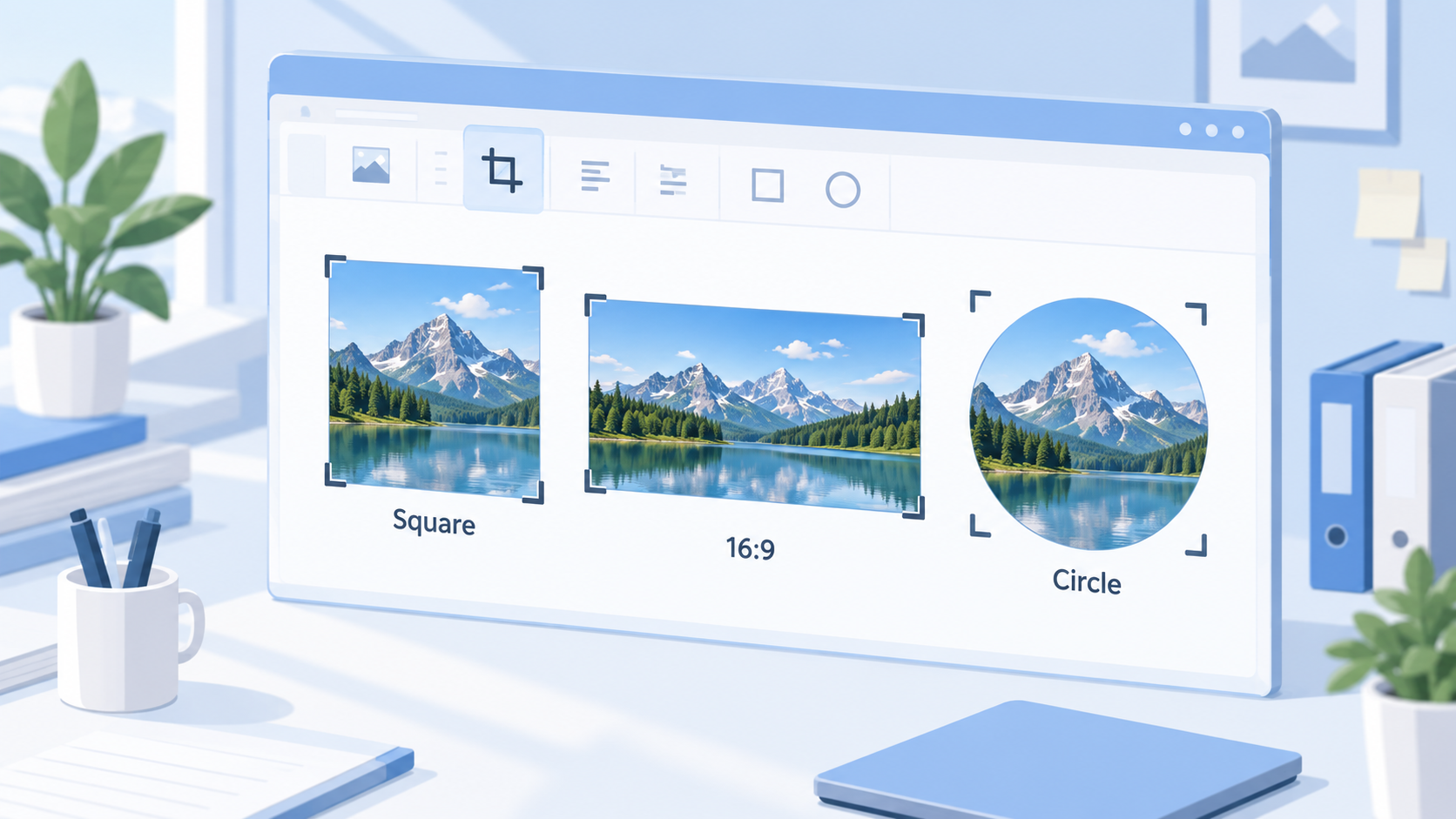
Crop a picture to a shape, such as a circle or rounded rectangle.
The key thing to remember is that cropping usually hides part of the image inside the Office file. It does not always permanently delete the hidden area unless you compress or save the edited picture separately.

Clean cropped office document image


Tips to Crop a Picture in Office Cleanly
A crop can make an image look more professional, but only if the final frame feels intentional. Before you finish, check these details:
Keep the main subject visible: Do not crop too tightly around faces, icons, or important screenshot buttons.
Use aspect ratios for consistency: If several images appear in one document, use the same ratio where possible.
Watch the edges: Make sure no unwanted text, cursor, watermark, or background object remains near the border.
Do not stretch the picture: Crop first, then resize from the corners to keep the image proportional.
Save a copy for important images: If the image is a legal, academic, or brand file, keep the original version separately.
For screenshots, crop only the area readers need to understand the step. For portraits, leave a little breathing room above the head and around the shoulders. For product photos, keep the object centered unless the design intentionally needs negative space.
Office crop ratio and shape
How to Crop a Picture in Microsoft Office
Microsoft Office apps such as Word, PowerPoint, Excel, and Outlook include built-in picture cropping tools. The exact ribbon wording may vary slightly by version, but the workflow is generally the same.
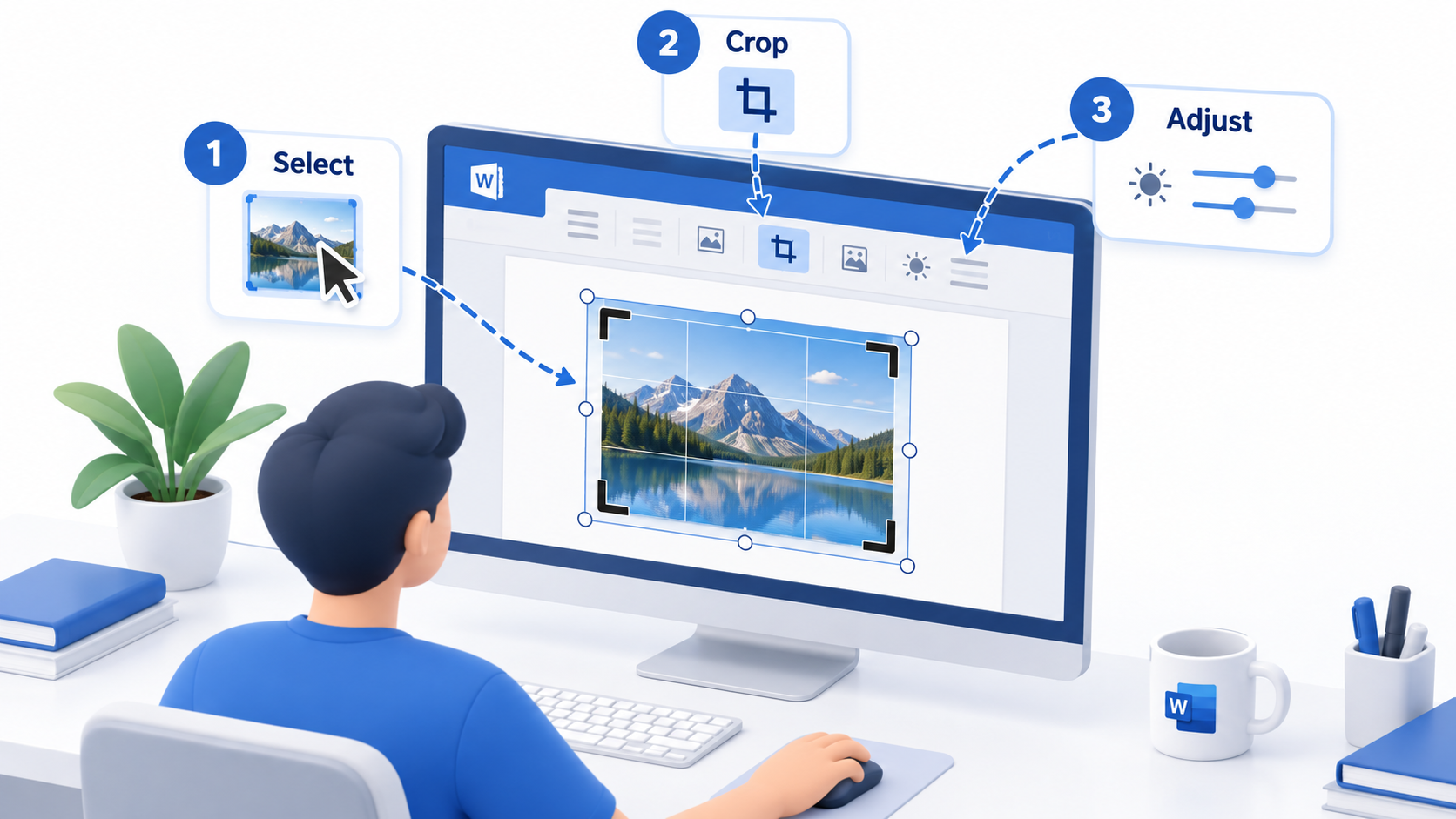
Open your Word document, PowerPoint slide, or Excel worksheet.
Insert a picture, or click an existing picture in the file.
Go to Picture Format or Format on the ribbon.
Select Crop.
Drag the black crop handles inward to remove unwanted areas.
Click outside the picture or press Enter to apply the crop.
If you need a fixed shape, open the Crop drop-down menu and choose Crop to Shape. For example, you can crop a profile photo into an oval or crop a screenshot into a rectangle with cleaner edges.
You can also use Aspect Ratio in the Crop menu when your picture must match a specific layout, such as 1:1 for a square image, 16:9 for a slide banner, or 4:3 for a traditional presentation frame.
Crop picture in Microsoft Office
The Best Free Alternative: WPS Office
If you want to crop a picture in Office without paying for a Microsoft 365 subscription, WPS Office is the best free alternative for most users. It gives you Writer, Presentation, Spreadsheet, PDF, and lightweight image tools in one familiar workspace, so you can edit the picture and finish the document without switching apps.
WPS Office is especially useful for students, freelancers, small teams, and anyone who works across Word, Excel, PowerPoint, and PDF files. It supports common Office file formats, keeps the interface easy to recognize, and includes practical picture tools for cropping, annotating, and refining images inside your actual document.
That matters because picture cropping is rarely an isolated task. You usually crop a screenshot for a tutorial, adjust a product image in a report, resize a photo in a resume, or clean up visuals in a presentation. WPS Office keeps those steps together in one lightweight suite.
Microsoft and WPS crop tools
How to Crop a Picture in WPS Office
WPS Office is a practical free office suite for editing documents, spreadsheets, presentations, PDFs, and images. Its picture tools are especially helpful when you want a familiar Office-style workflow without switching to a heavy image editor.
Here is how to crop a picture in WPS Office:
Open your file in WPS Writer, WPS Presentation, or WPS Spreadsheet.
Insert a picture, or select the picture already in the document.
Open the picture editing or formatting toolbar.
Choose Crop.
Drag the crop handles to keep the part of the picture you need.
Confirm the crop, then adjust the image position in your document.
For a cleaner result, crop the image after you place it near the final text or slide area. This helps you judge whether the subject is centered, whether the margins are balanced, and whether the image still supports the surrounding content.
WPS Office is also a better fit when you need to continue editing the full file after cropping. You can refine the picture, adjust the surrounding text, export the document, or continue working with PDFs and slides in the same product family.
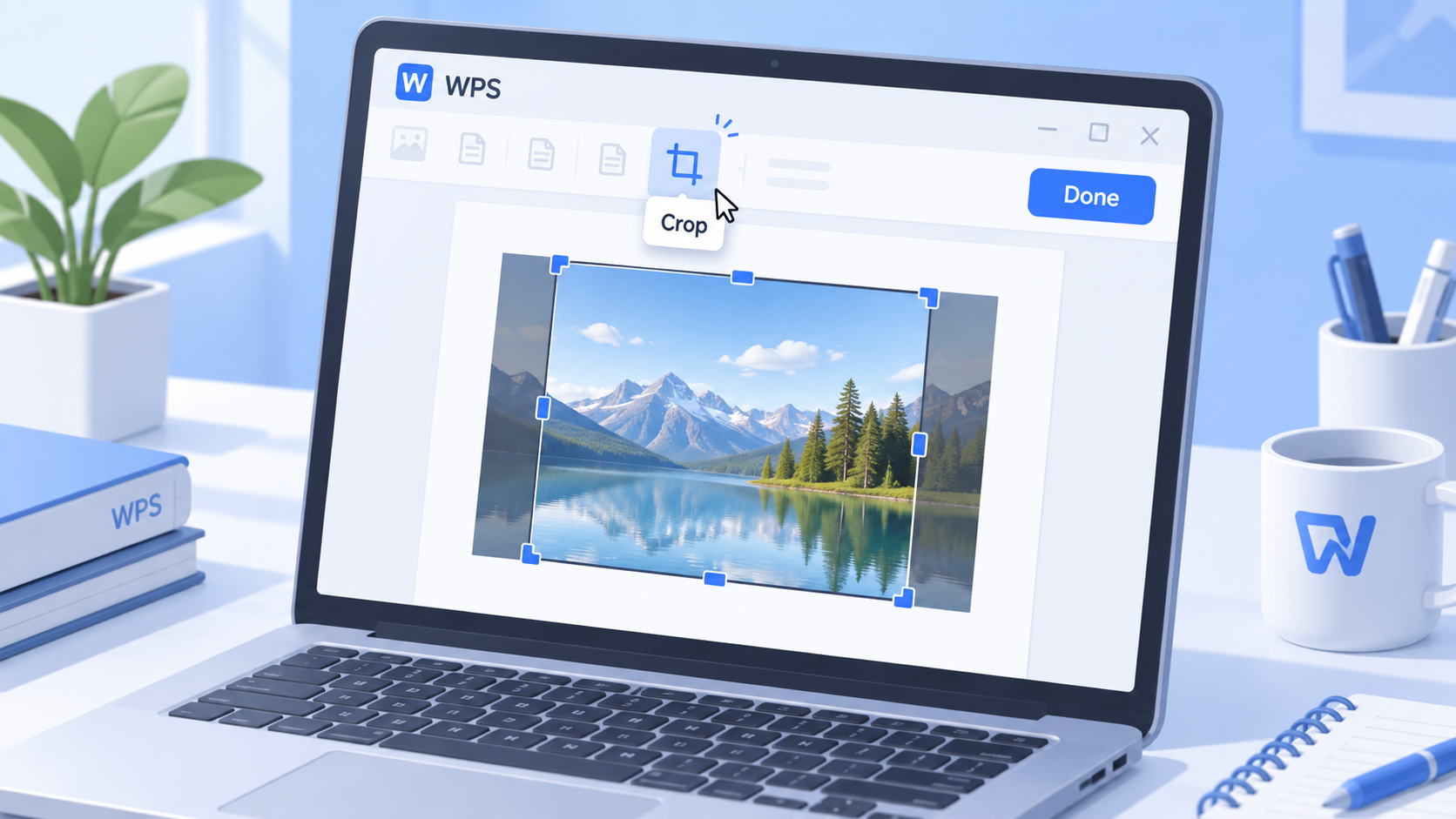
Crop picture in WPS Office
Microsoft Office vs WPS Office for Cropping Pictures
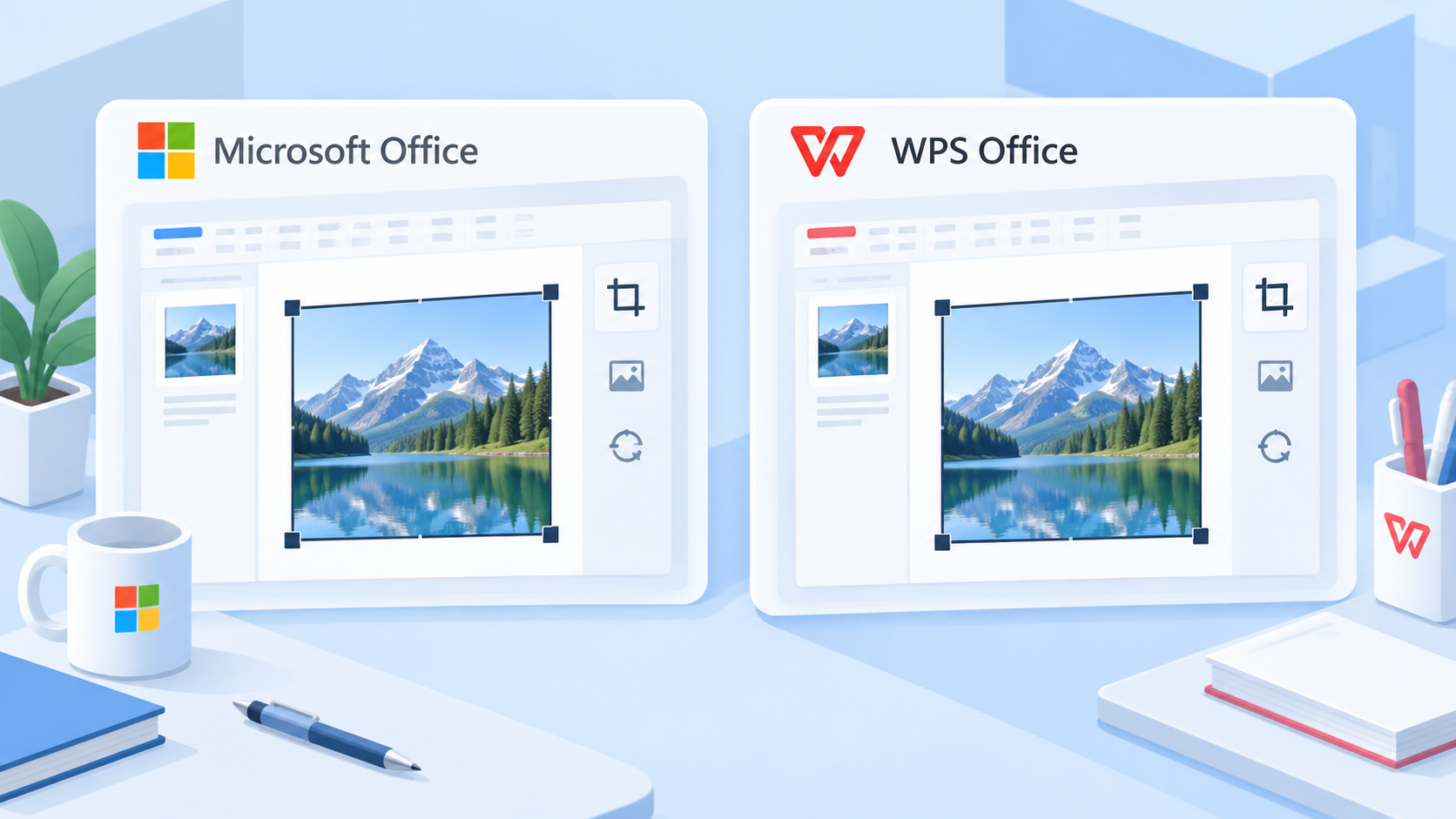
Both Microsoft Office and WPS Office can crop pictures inside documents, slides, and spreadsheets. The difference is workflow: Microsoft Office keeps most picture controls inside the ribbon, while WPS Office focuses on faster access, a familiar interface, and practical image tools for everyday editing.
For users who often crop screenshots, product images, profile photos, or presentation visuals, WPS Office offers a smoother experience. It brings document editing, PDF tools, and image polishing into one lightweight workspace, so you can format the picture and continue working without switching to complex third-party software.
| Feature / Capability | Microsoft Office | WPS Office |
|---|---|---|
| Quick Action Access (Floating Toolbar) | Crop tools are usually accessed through the ribbon after selecting the picture. | Faster access to picture-editing actions near the selected image. |
| Preset Cropping Shapes (Crop to Shape) | Supports crop-to-shape options through the picture formatting menu. | Easy shape-based cropping for common document and presentation layouts. |
| Image Exporting Capability (PNG/JPG Direct Export) | Exporting a cropped image may require extra save, copy, or app-specific steps. | More convenient image output for reusing edited pictures in other files. |
| Built-in AI & Advanced Photo Editing | Advanced image edits may require additional Microsoft tools, add-ins, or separate apps. | Integrated smart image tools and photo-editing options for more than basic cropping. |
| Pricing & Accessibility | Full Microsoft 365 features generally require a paid subscription. | Free to start, lightweight, and accessible for everyday document editing. |
Key Advantages of WPS Office
Fewer clicks: WPS Office makes common picture-editing actions easier to access while you work inside the document.
More complete image workflow: Beyond basic cropping, WPS Office supports practical image polishing and export workflows.
Better value for everyday users: WPS Office combines document, spreadsheet, presentation, PDF, and image tools in a free, lightweight office suite.
FAQs
Can I crop a picture in Microsoft Word?
Yes. Select the picture, open Picture Format, choose Crop, drag the crop handles, and confirm the result.
Can I crop a picture into a circle in Office?
Yes. In Microsoft Office, use Crop and then Crop to Shape. Choose an oval shape and adjust the picture until it looks like a circle.
Does cropping reduce image file size?
Not always. Cropping may only hide parts of the image inside the document. To reduce file size, use image compression or save the cropped image separately.
Can I crop screenshots in Office?
Yes. Insert the screenshot, select it, and use the crop tool to remove unnecessary browser bars, desktop areas, or extra background.
Is WPS Office good for cropping pictures?
Yes. WPS Office includes practical picture editing tools for everyday document work, including cropping images in Writer, Presentation, and Spreadsheet files. It is also useful when you want a free Office alternative with PDF tools and broad file compatibility.


'%3e%3cpath%20d='M19.9911%204.11386V6.471H18.5894C18.0775%206.471%2017.7322%206.57814%2017.5536%206.79243C17.3751%207.00671%2017.2858%207.32814%2017.2858%207.75671V9.44421H19.9019L19.5536%2012.0871H17.2858V18.8639H14.5536V12.0871H12.2769V9.44421H14.5536V7.49779C14.5536%206.39064%2014.8632%205.53201%2015.4822%204.92189C16.1013%204.31177%2016.9257%204.00671%2017.9554%204.00671C18.8304%204.00671%2019.509%204.04243%2019.9911%204.11386Z'%20fill='%23333333'/%3e%3c/g%3e%3cdefs%3e%3cclipPath%20id='clip0_2938_8199'%3e%3crect%20width='16'%20height='16'%20fill='white'%20transform='translate(8%204.00671)'/%3e%3c/clipPath%3e%3c/defs%3e%3c/svg%3e)
'%3e%3cpath%20d='M17.5237%2010.7813L23.4811%204H22.0699L16.8949%209.88693L12.7648%204H8L14.2469%2012.9029L8%2020.0133H9.4112L14.8725%2013.7952L19.2352%2020.0133H24M9.92053%205.04213H12.0885L22.0688%2019.0224H19.9003'%20fill='%23333333'/%3e%3c/g%3e%3cdefs%3e%3cclipPath%20id='clip0_2938_8200'%3e%3crect%20width='16'%20height='16.0134'%20fill='white'%20transform='translate(8%204)'/%3e%3c/clipPath%3e%3c/defs%3e%3c/svg%3e)


