

'%3e%3cpath%20d='M8%200C12.4183%200%2016%203.58172%2016%208C16%2012.4183%2012.4183%2016%208%2016C3.58172%2016%200%2012.4183%200%208C0%203.58172%203.58172%200%208%200ZM11.6162%204.38379C11.2257%203.99337%2010.5927%203.99338%2010.2021%204.38379L8%206.58594L5.79785%204.38379C5.40732%203.99334%204.77429%203.99329%204.38379%204.38379C3.99331%204.77429%203.99335%205.40733%204.38379%205.79785L6.58594%208L4.38379%2010.2021C3.99348%2010.5927%203.99341%2011.2257%204.38379%2011.6162C4.77426%2012.0066%205.40734%2012.0065%205.79785%2011.6162L8%209.41406L10.2021%2011.6162C10.5927%2012.0066%2011.2257%2012.0067%2011.6162%2011.6162C12.0067%2011.2257%2012.0066%2010.5927%2011.6162%2010.2021L9.41406%208L11.6162%205.79785C12.0066%205.40735%2012.0066%204.77429%2011.6162%204.38379Z'%20fill='%23080E17'%20fill-opacity='0.46'/%3e%3c/g%3e%3cdefs%3e%3cclipPath%20id='clip0_3761_713'%3e%3crect%20width='16'%20height='16'%20fill='white'/%3e%3c/clipPath%3e%3c/defs%3e%3c/svg%3e)




'%3e%3cpath%20fill-rule='evenodd'%20clip-rule='evenodd'%20d='M21.4999%2010.9993C21.4999%205.20009%2016.7986%200.498901%2010.9993%200.498901C5.19994%200.498901%200.498657%205.20009%200.498657%2010.9993C0.498657%2016.2404%204.33858%2020.5844%209.35855%2021.3722V14.0346H6.69238V10.9993H9.35855V8.68594C9.35855%206.05427%2010.9262%204.60062%2013.3248%204.60062C14.4736%204.60062%2015.6753%204.80571%2015.6753%204.80571V7.38979H14.3512C13.0468%207.38979%2012.64%208.19921%2012.64%209.0296V10.9993H15.5523L15.0867%2014.0346H12.64V21.3722C17.66%2020.5844%2021.4999%2016.2404%2021.4999%2010.9993Z'%20fill='%231568EA'/%3e%3c/g%3e%3c/svg%3e)


'%3e%3cpath%20d='M2.42045%2022.1876H6.31818V12.7217L0.75%208.54553V20.5171C0.75%2021.4414%201.49892%2022.1876%202.42045%2022.1876Z'%20fill='%234285F4'/%3e%3cpath%20d='M19.682%2022.1876H23.5797C24.5041%2022.1876%2025.2502%2021.4387%2025.2502%2020.5171V8.54553L19.682%2012.7217'%20fill='%2334A853'/%3e%3cpath%20d='M19.682%205.48293V12.7216L25.2502%208.54543V6.31816C25.2502%204.25236%2022.8921%203.07469%2021.2411%204.31361'%20fill='%23FBBC04'/%3e%3cpath%20d='M6.31824%2012.7217V5.48303L13.0001%2010.4944L19.6819%205.48303V12.7217L13.0001%2017.733'%20fill='%23EA4335'/%3e%3cpath%20d='M0.75%206.31816V8.54543L6.31818%2012.7216V5.48293L4.75909%204.31361C3.10534%203.07469%200.75%204.25236%200.75%206.31816Z'%20fill='%23C5221F'/%3e%3c/g%3e%3cdefs%3e%3cclipPath%20id='clip0_2954_7305'%3e%3crect%20width='24.5'%20height='18.375'%20fill='white'%20transform='translate(0.75%203.8125)'/%3e%3c/clipPath%3e%3c/defs%3e%3c/svg%3e)


Google Docs has no text box button on the main toolbar, so putting a pull quote, a labeled callout, or a caption in its own bordered area is not obvious. The command is not missing; it is just one level deeper: Docs builds the box inside the Drawing tool and then drops that finished object onto the page.
This guide walks through how to add a text box in Google Docs step by step, how to wrap and position it once it sits in your document, the workarounds to use when the Drawing route is impractical, and how the same job looks in a free desktop suite.
How to Add a Text Box in Google Docs With the Drawing Tool
Every text box you place this way starts as a drawing. That is the route Google documents in its own help for drawings and markups: open Insert, choose Drawing, then New. The advantage is that the finished box stays one object you can move, resize and wrap, and the wording inside stays inside the box.
The whole sequence takes well under a minute.
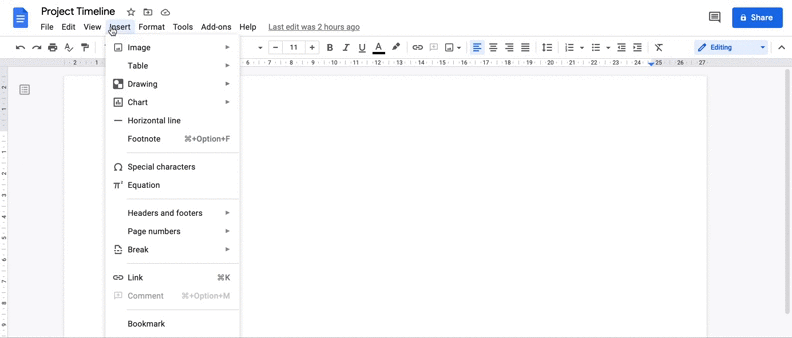
Step 1: Open your document and click where the box should land. The cursor position decides where the drawing is inserted, so place it in the paragraph where the box should sit.
Step 2: Click Insert, then Drawing, then New. A separate Drawing window opens on top of your document.
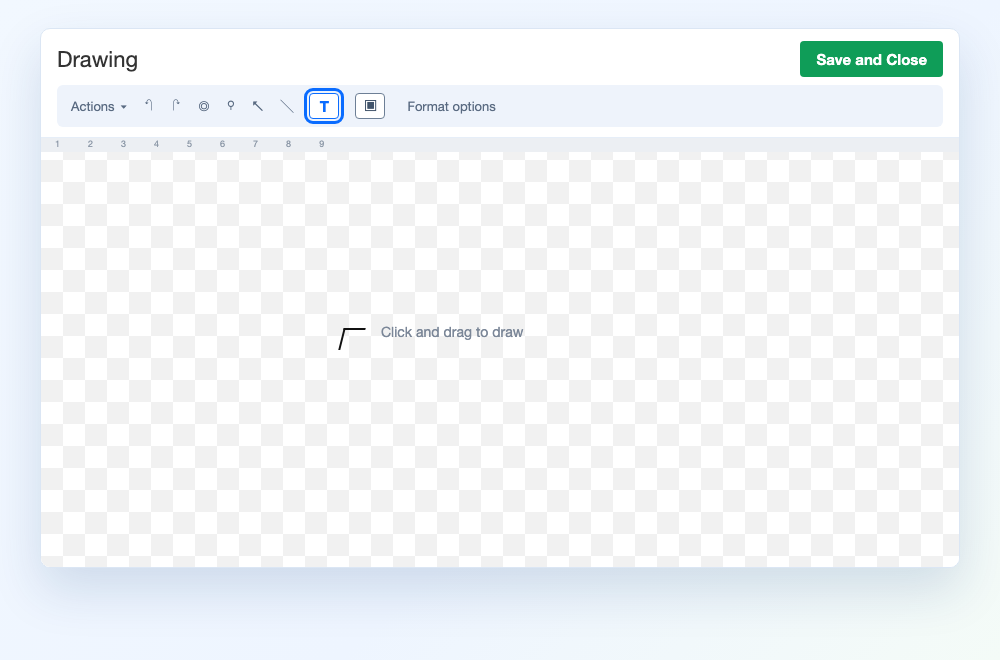
Step 3: Click the Text box tool in the Drawing toolbar. It is the square icon with a T inside, next to the shape and image tools.
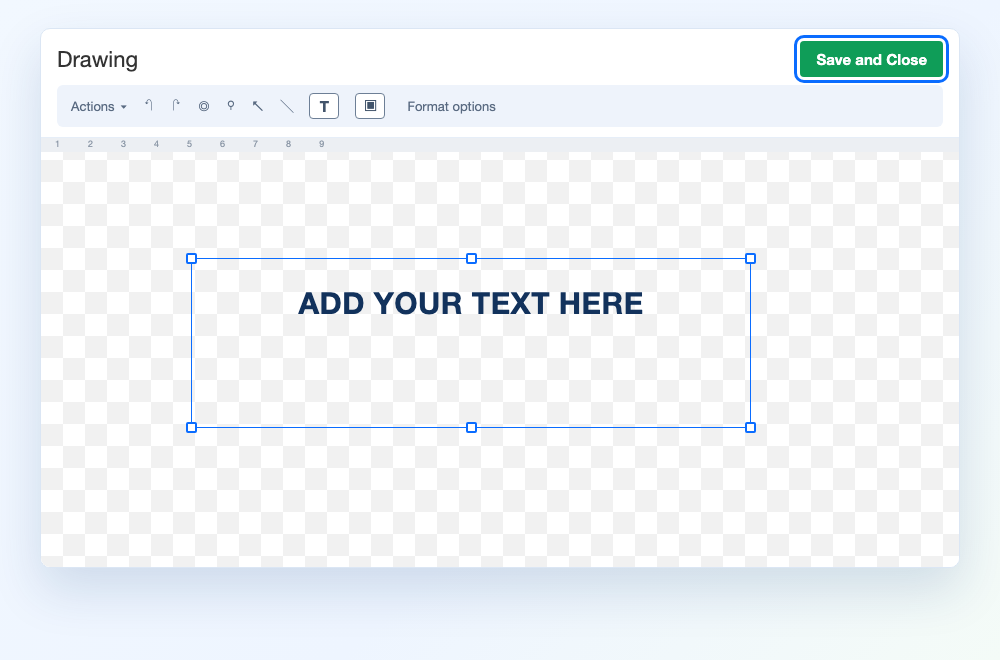
Step 4: Drag on the canvas to draw the box, then type. Google's instructions are short: click the box and type your text. If you want a solid block, keep the box wide enough for the longest line and let the text wrap inside it.
Step 5: Click Save and Close. The drawing is inserted into the document at your cursor, and the Drawing window closes.


How to Format and Move a Text Box in Google Docs
A text box in Google Docs behaves like an image, not like a paragraph, so it comes with two sets of controls. One set lives inside the Drawing window and changes the box itself. The other lives in the document and controls how the finished object sits on the page.
Resize or move the object. Click the box once in the document to select it. Drag a corner handle to resize it, or drag the box itself to a new position.
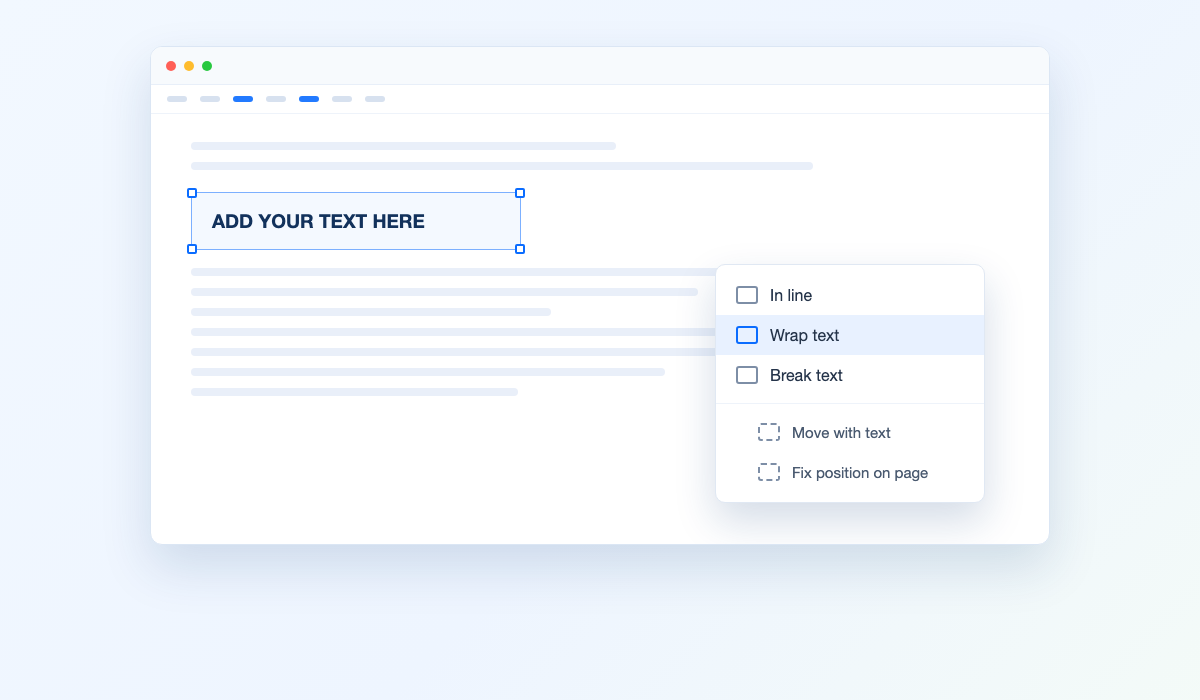
Decide how page text should flow around it. With the box still selected, open the layout options and pick one of three modes. In line keeps the box in the text flow. Wrap text lets the body copy run beside the box. Break text pushes text to the lines above and below it. If you choose either wrapping mode, you can also set Move with text so the box travels with its paragraph, or Fix position on page to pin it in place when you edit above it.
Change the border, fill, or wording. Those details belong to the drawing, not the page. Open the box again in the drawing editor, select it, and use the line color, line weight and fill color controls above the canvas. Set the line color to transparent for a box that floats without a visible frame, or keep a light border so the block reads as a callout. Text formatting such as bold, italics and font size applies to the words inside the box.
Alternative Ways to Add a Text Box in Google Docs
Two situations make the Drawing route awkward: when you need text that stays editable as ordinary page text, and when the box already exists somewhere else. Both have a cleaner answer.
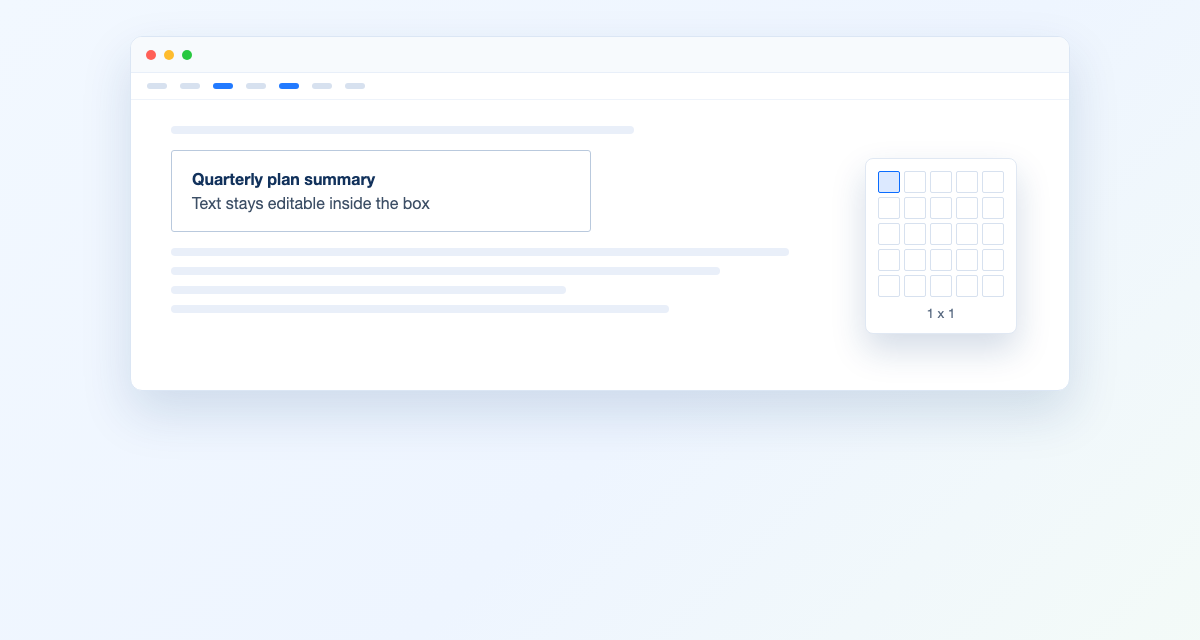
Use a 1 x 1 table as a box. Open Insert, choose Table, and select just the first cell. Type inside it. The text stays selectable and reflows with the rest of the document, which the drawing route cannot do. To remove the outline, open Table properties, go to the color settings, and set the border color to transparent. The same technique works in Google Sheets if you want a floating label on a grid instead of a page, as this walkthrough of inserting a text box into Google Sheets shows.
Insert a drawing you already made. If the box exists as a Google Drawing in Drive, use Insert, then Drawing, then From Drive, pick the file and click Select. Google Docs links that drawing to the original file, so a later edit can be pushed into the document with the Update button on the object. If you would rather the copy stand alone, click Unlink and it becomes a normal drawing.
The Best Free Alternative: WPS Office
If you place boxes often, the workaround stops being worth it. WPS Writer keeps Text Box on the Insert tab: choose a Horizontal, Vertical or Multi-line style, draw the box on the page, and type straight into it. There is no empty canvas to open and no drawing to save back into the document.
| What you need | Building a box in Google Docs | Doing it in WPS Writer |
|---|---|---|
| Getting a box onto the page | Three menu steps, then draw the box on a separate canvas | Insert > Text Box, pick a style, draw it on the page |
| Rewriting the text later | Reopen the object in the drawing editor | Click into the box and type, as you would in body text |
| Starting styles | A blank canvas you style yourself | Horizontal, Vertical and Multi-line presets in the menu |
| Text flow control | Image layout modes for the object | Text box formatting and wrapping controls in the box toolbar |
| Getting started | Free with a Google account, browser only | Free download for Windows, macOS, Android and iOS |
Three differences matter most if boxes are part of your normal layout work:
The box stays a design object. You can resize, rotate, restyle and move a WPS Writer text box without leaving the document or reopening a canvas.
The menus look familiar. WPS Writer follows the Microsoft Word layout, so Text Box, Shapes and Picture sit where Word users expect them. The text box walkthrough for inserting a text box in Word with WPS Office maps straight onto the same tab.
One download covers the suite. WPS Office opens and saves Microsoft Word formats such as .docx, and the same free package covers Writer, Spreadsheet, Presentation and PDF, with built-in AI tools for drafting and rewriting alongside the layout features.
FAQs
Why is there no Text box option in the Google Docs toolbar?
Because Google Docs does not treat a text box as a page element. You build one inside the Drawing tool with Insert > Drawing > New, place it with the Text box icon, and the finished drawing is then inserted into the document.
Can I add a text box in the Google Docs mobile app?
The Drawing command belongs to the computer version of Google Docs, and Google's own drawing instructions start with "On your computer". If the Insert menu on a phone or tablet has no Drawing entry, open the document in a desktop-mode browser, or add the box on a computer and let it sync.
How do I put text beside a text box in Google Docs?
Select the box and choose Wrap text from the layout options. Text then runs alongside the box instead of above and below it. Add Move with text to keep the box tied to its paragraph, or Fix position on page to pin it where you placed it.
How do I remove the border from a text box in Google Docs?
Open the box in the drawing editor, select it, and use the line color and line weight controls to take the outline away. If you built the box from a 1 x 1 table instead, set the border color to transparent in Table properties.
What is the quickest option if I add text boxes regularly?
WPS Writer, where Text Box sits on the Insert tab with ready-made Horizontal, Vertical and Multi-line styles. You place the box directly on the page and type in it, so no canvas step is involved.


'%3e%3cpath%20d='M19.9911%204.11386V6.471H18.5894C18.0775%206.471%2017.7322%206.57814%2017.5536%206.79243C17.3751%207.00671%2017.2858%207.32814%2017.2858%207.75671V9.44421H19.9019L19.5536%2012.0871H17.2858V18.8639H14.5536V12.0871H12.2769V9.44421H14.5536V7.49779C14.5536%206.39064%2014.8632%205.53201%2015.4822%204.92189C16.1013%204.31177%2016.9257%204.00671%2017.9554%204.00671C18.8304%204.00671%2019.509%204.04243%2019.9911%204.11386Z'%20fill='%23333333'/%3e%3c/g%3e%3cdefs%3e%3cclipPath%20id='clip0_2938_8199'%3e%3crect%20width='16'%20height='16'%20fill='white'%20transform='translate(8%204.00671)'/%3e%3c/clipPath%3e%3c/defs%3e%3c/svg%3e)
'%3e%3cpath%20d='M17.5237%2010.7813L23.4811%204H22.0699L16.8949%209.88693L12.7648%204H8L14.2469%2012.9029L8%2020.0133H9.4112L14.8725%2013.7952L19.2352%2020.0133H24M9.92053%205.04213H12.0885L22.0688%2019.0224H19.9003'%20fill='%23333333'/%3e%3c/g%3e%3cdefs%3e%3cclipPath%20id='clip0_2938_8200'%3e%3crect%20width='16'%20height='16.0134'%20fill='white'%20transform='translate(8%204)'/%3e%3c/clipPath%3e%3c/defs%3e%3c/svg%3e)


