

'%3e%3cpath%20d='M8%200C12.4183%200%2016%203.58172%2016%208C16%2012.4183%2012.4183%2016%208%2016C3.58172%2016%200%2012.4183%200%208C0%203.58172%203.58172%200%208%200ZM11.6162%204.38379C11.2257%203.99337%2010.5927%203.99338%2010.2021%204.38379L8%206.58594L5.79785%204.38379C5.40732%203.99334%204.77429%203.99329%204.38379%204.38379C3.99331%204.77429%203.99335%205.40733%204.38379%205.79785L6.58594%208L4.38379%2010.2021C3.99348%2010.5927%203.99341%2011.2257%204.38379%2011.6162C4.77426%2012.0066%205.40734%2012.0065%205.79785%2011.6162L8%209.41406L10.2021%2011.6162C10.5927%2012.0066%2011.2257%2012.0067%2011.6162%2011.6162C12.0067%2011.2257%2012.0066%2010.5927%2011.6162%2010.2021L9.41406%208L11.6162%205.79785C12.0066%205.40735%2012.0066%204.77429%2011.6162%204.38379Z'%20fill='%23080E17'%20fill-opacity='0.46'/%3e%3c/g%3e%3cdefs%3e%3cclipPath%20id='clip0_3761_713'%3e%3crect%20width='16'%20height='16'%20fill='white'/%3e%3c/clipPath%3e%3c/defs%3e%3c/svg%3e)




'%3e%3cpath%20fill-rule='evenodd'%20clip-rule='evenodd'%20d='M21.4999%2010.9993C21.4999%205.20009%2016.7986%200.498901%2010.9993%200.498901C5.19994%200.498901%200.498657%205.20009%200.498657%2010.9993C0.498657%2016.2404%204.33858%2020.5844%209.35855%2021.3722V14.0346H6.69238V10.9993H9.35855V8.68594C9.35855%206.05427%2010.9262%204.60062%2013.3248%204.60062C14.4736%204.60062%2015.6753%204.80571%2015.6753%204.80571V7.38979H14.3512C13.0468%207.38979%2012.64%208.19921%2012.64%209.0296V10.9993H15.5523L15.0867%2014.0346H12.64V21.3722C17.66%2020.5844%2021.4999%2016.2404%2021.4999%2010.9993Z'%20fill='%231568EA'/%3e%3c/g%3e%3c/svg%3e)


'%3e%3cpath%20d='M2.42045%2022.1876H6.31818V12.7217L0.75%208.54553V20.5171C0.75%2021.4414%201.49892%2022.1876%202.42045%2022.1876Z'%20fill='%234285F4'/%3e%3cpath%20d='M19.682%2022.1876H23.5797C24.5041%2022.1876%2025.2502%2021.4387%2025.2502%2020.5171V8.54553L19.682%2012.7217'%20fill='%2334A853'/%3e%3cpath%20d='M19.682%205.48293V12.7216L25.2502%208.54543V6.31816C25.2502%204.25236%2022.8921%203.07469%2021.2411%204.31361'%20fill='%23FBBC04'/%3e%3cpath%20d='M6.31824%2012.7217V5.48303L13.0001%2010.4944L19.6819%205.48303V12.7217L13.0001%2017.733'%20fill='%23EA4335'/%3e%3cpath%20d='M0.75%206.31816V8.54543L6.31818%2012.7216V5.48293L4.75909%204.31361C3.10534%203.07469%200.75%204.25236%200.75%206.31816Z'%20fill='%23C5221F'/%3e%3c/g%3e%3cdefs%3e%3cclipPath%20id='clip0_2954_7305'%3e%3crect%20width='24.5'%20height='18.375'%20fill='white'%20transform='translate(0.75%203.8125)'/%3e%3c/clipPath%3e%3c/defs%3e%3c/svg%3e)


Someone sends you a screenshot of a contract, a scanned form, or a photo of a printed page, and every word in it is frozen inside a PNG image. Retyping it all by hand is slow and error-prone, especially when the text runs into several paragraphs. A PNG to Word converter solves this by reading the characters in the image with OCR and rebuilding them as editable text you can save in a Word document.
This guide walks through the fastest free ways to turn a PNG into an editable DOCX, first with the OCR built into WPS Office, then through a two-step PDF route in your browser, plus practical tips to get cleaner results.
PNG to Word Converter: How to Convert PNG to Editable Word Documents Free
Why You Need a PNG to Word Converter
PNG is an image format, so everything inside it — headings, paragraphs, numbers, signatures — is just pixels. A word processor cannot select, search, or reformat any of it. That becomes a real problem when you need to:
- Reuse content that only exists as a screenshot, scan, or photo.
- Fix a typo in a saved flyer or poster without rebuilding it.
- Extract text from a scanned form so you can update and file it.
- Make documents searchable instead of burying text inside images.
An OCR-based converter reads the text out of the image and places it into a real DOCX file. The result is fully editable: you can correct recognition mistakes, adjust formatting, and keep working on the document as normal. For everyday conversions, a free tool that handles PNG, JPG, and scanned pages is usually all you need.
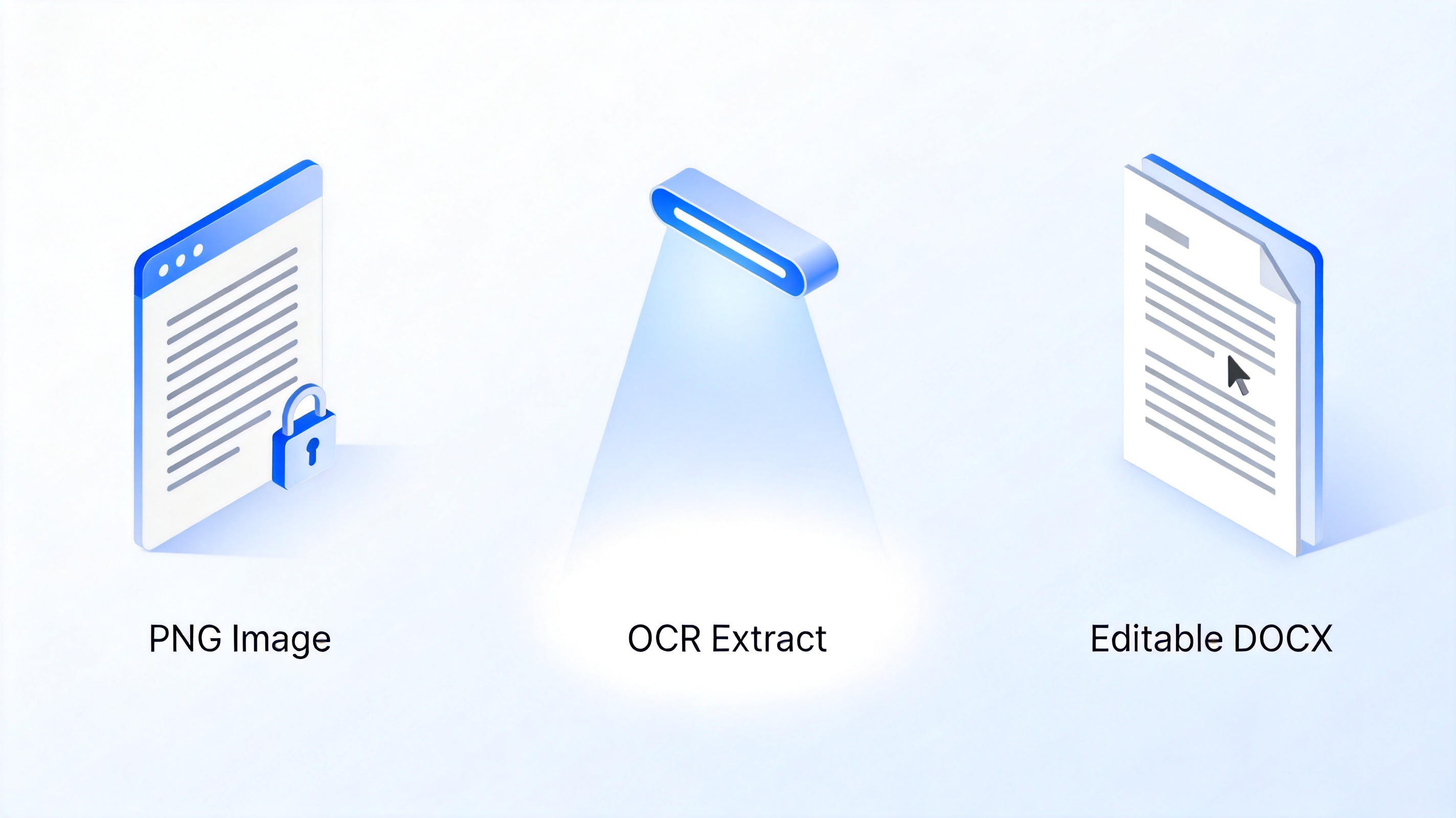
PNG image locked versus editable text


How to Convert PNG to Word with WPS OCR
The most direct route is the OCR feature built into WPS Office, which extracts text from images and exports it straight into a Word file. The workflow looks like this:
- Install WPS Office for free from wps.com and open WPS Writer.
- Insert your PNG via Insert → Picture, or simply open the image with WPS.
- Right-click the image and choose the OCR / Extract Text option.
- Pick the language used in the image, then start the extraction.
- Check the recognized text, fix any small recognition errors, and copy it into your document or export it as a DOCX.
Because the extraction runs inside the office suite itself, you can go from image to a finished, formatted document without juggling multiple apps or uploading anything to a third-party website.
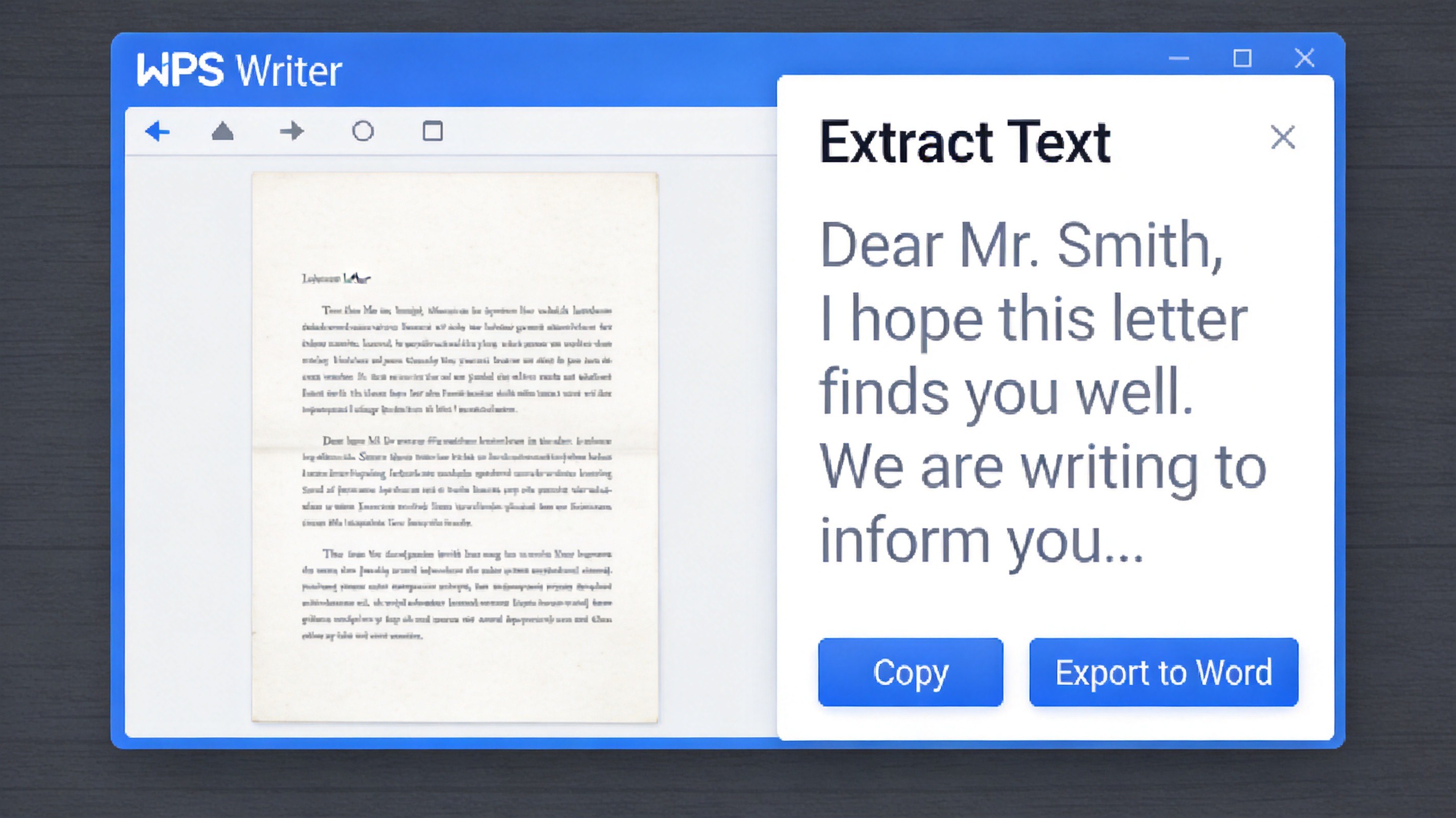
WPS extract text OCR panel
How to Convert PNG to Word Through PDF
If you prefer working in the browser, a reliable two-step path is to route the image through PDF. First wrap the PNG into a PDF page, then convert that PDF into an editable Word document with the free WPS online converter:
- Convert the PNG to PDF with WPS PDF tools, which also accepts JPG and other common image formats.
- Open the PDF to Word converter at pdf.wps.com.
- Drop in the PDF you just created and start the conversion.
- Download the DOCX and review the text, layout, and any tables.
This route is handy when you already have a batch of images or a scanner that saves to PDF, and it works from any browser without installing software. Note that text inside a PDF converted this way comes from the same OCR pipeline, so a quick proofread of the output is still a good habit.
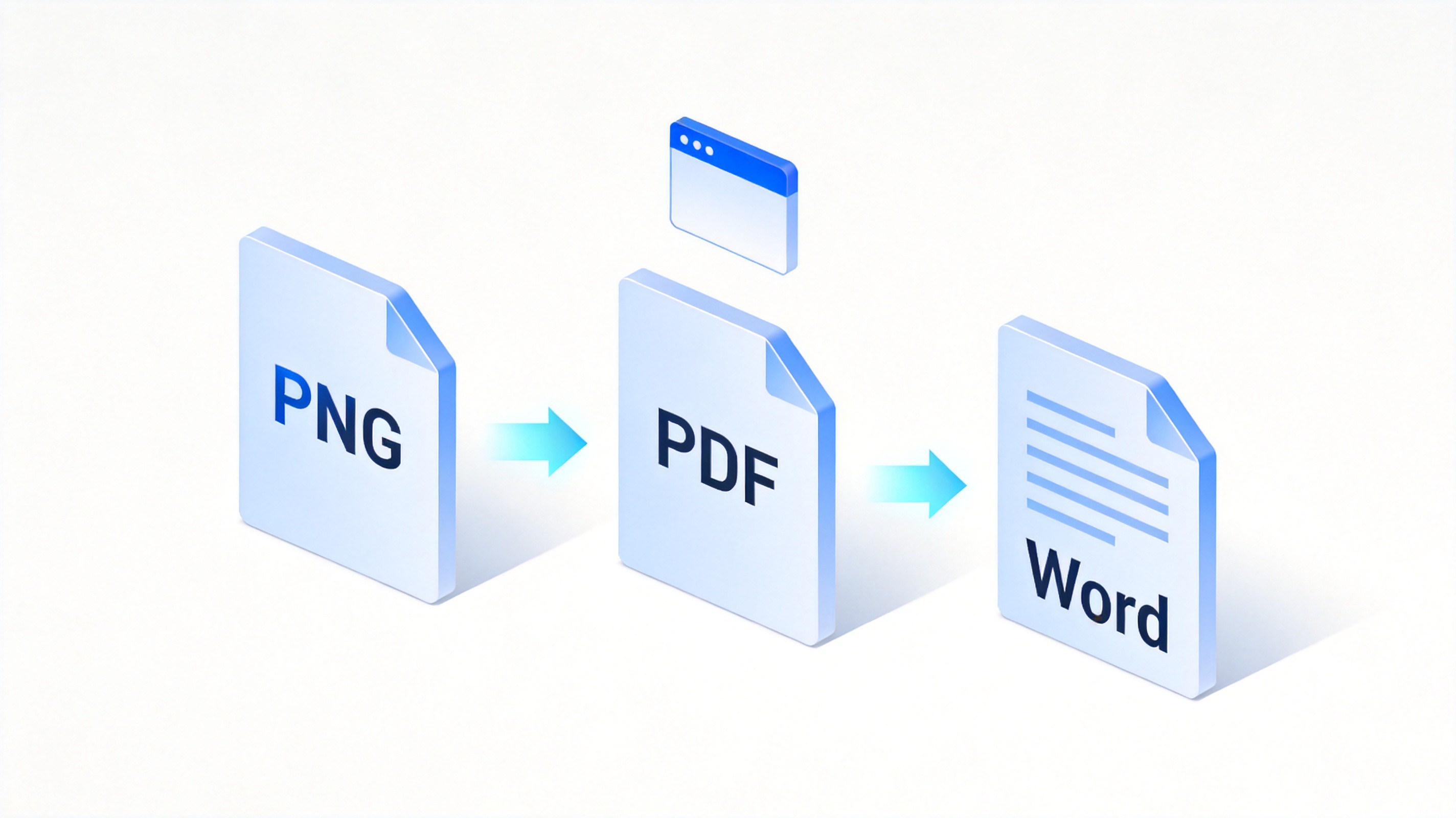
Convert PNG to PDF then Word
The Best Free Alternative: WPS Office
Plenty of standalone converter sites can pull text out of a PNG, but they usually stop at plain text. WPS Office covers the whole journey in one free package: the built-in OCR extracts text from PNG, JPG, BMP, and TIFF images as well as scanned PDFs, and the same suite then lets you edit, format, and share the resulting document. Everything stays in one workflow, from extraction to the final DOCX.
If you want to go deeper on OCR workflows, these guides pair well with this one: how to convert image to text with free OCR tools and the best free image to text converters.
WPS Office AI-powered office suite
Tips for Better PNG to Word Conversion Results
OCR quality depends heavily on the image you feed in. A few small habits will noticeably raise the accuracy of every conversion:
- Use a sharp, high-resolution image — blurry or heavily compressed PNGs give the OCR engine less to work with.
- Keep contrast high — dark text on a light background reads far more reliably than light text on a busy pattern.
- Straighten the page — skewed or rotated images confuse line detection.
- Proofread the output — look out for commonly confused characters, especially in numbers, names, and small footnotes.
- Convert one clean page at a time when accuracy matters more than speed.
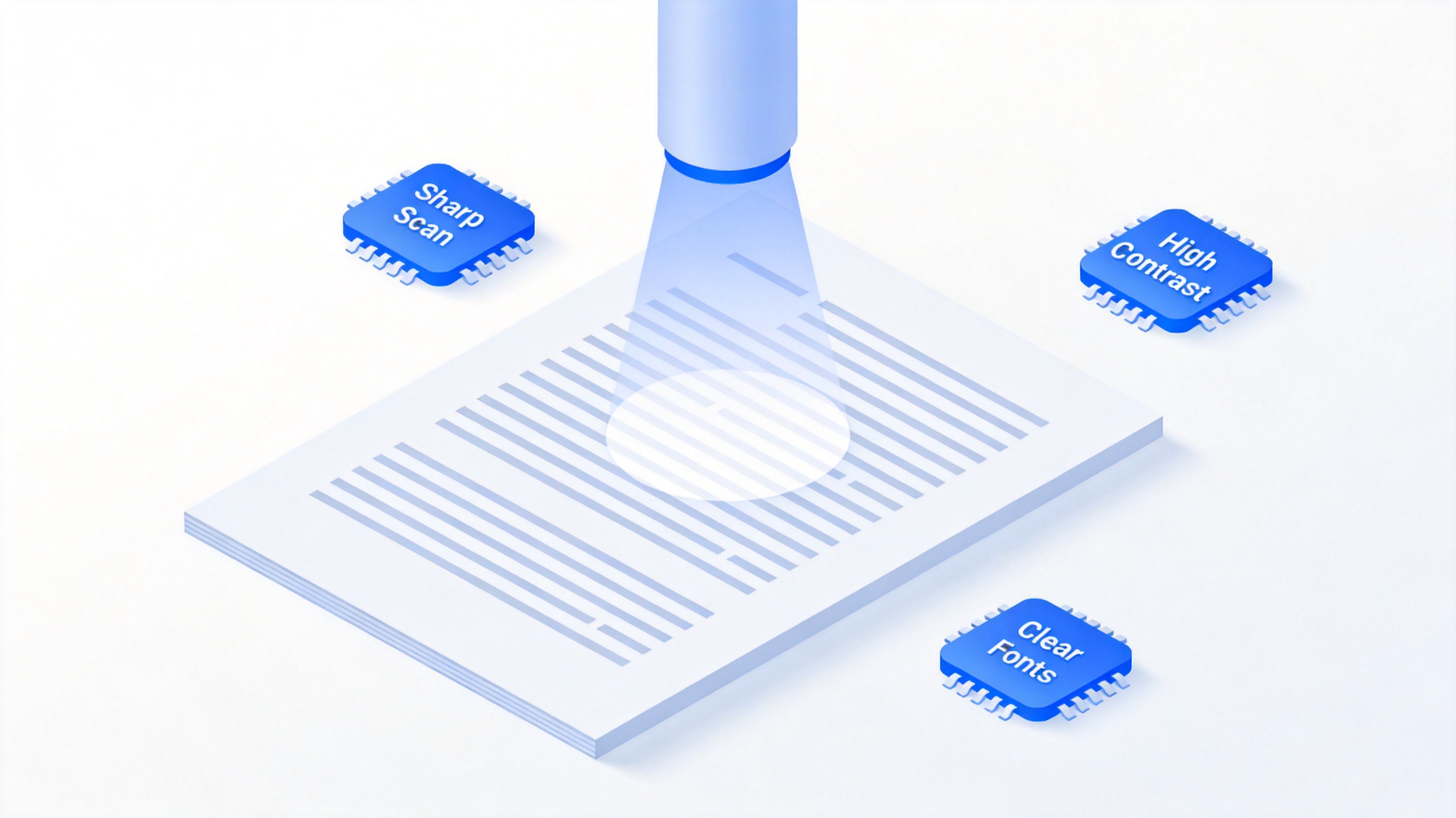
Sharp scan improves Word conversion accuracy
FAQs
Is a PNG to Word converter free to use?
Yes. The OCR feature in WPS Office is free, and the WPS online PDF to Word converter is free to use in the browser. No payment is required for everyday image conversions.
Will the converted Word document keep the original layout?
Partially. OCR engines reproduce paragraphs and often tables, but complex designs, decorative fonts, and multi-column layouts usually need manual touch-up after conversion.
Can I convert a handwritten PNG to Word?
Modern OCR handles neat handwriting reasonably well, but cursive or poor-quality photos produce more errors. Always proofread handwritten conversions carefully.
Does converting a PNG to Word upload my file to the internet?
It depends on the tool. The WPS online converter uploads the file to be processed, while the OCR feature in the WPS Office desktop app runs locally. For confidential documents, prefer the desktop route.
What image formats can I convert besides PNG?
JPG, JPEG, BMP, TIFF, and WebP are commonly supported, and scanned PDFs can go through the same OCR pipeline to produce editable Word documents.

'%3e%3cpath%20d='M19.9911%204.11386V6.471H18.5894C18.0775%206.471%2017.7322%206.57814%2017.5536%206.79243C17.3751%207.00671%2017.2858%207.32814%2017.2858%207.75671V9.44421H19.9019L19.5536%2012.0871H17.2858V18.8639H14.5536V12.0871H12.2769V9.44421H14.5536V7.49779C14.5536%206.39064%2014.8632%205.53201%2015.4822%204.92189C16.1013%204.31177%2016.9257%204.00671%2017.9554%204.00671C18.8304%204.00671%2019.509%204.04243%2019.9911%204.11386Z'%20fill='%23333333'/%3e%3c/g%3e%3cdefs%3e%3cclipPath%20id='clip0_2938_8199'%3e%3crect%20width='16'%20height='16'%20fill='white'%20transform='translate(8%204.00671)'/%3e%3c/clipPath%3e%3c/defs%3e%3c/svg%3e)
'%3e%3cpath%20d='M17.5237%2010.7813L23.4811%204H22.0699L16.8949%209.88693L12.7648%204H8L14.2469%2012.9029L8%2020.0133H9.4112L14.8725%2013.7952L19.2352%2020.0133H24M9.92053%205.04213H12.0885L22.0688%2019.0224H19.9003'%20fill='%23333333'/%3e%3c/g%3e%3cdefs%3e%3cclipPath%20id='clip0_2938_8200'%3e%3crect%20width='16'%20height='16.0134'%20fill='white'%20transform='translate(8%204)'/%3e%3c/clipPath%3e%3c/defs%3e%3c/svg%3e)


