

'%3e%3cpath%20d='M8%200C12.4183%200%2016%203.58172%2016%208C16%2012.4183%2012.4183%2016%208%2016C3.58172%2016%200%2012.4183%200%208C0%203.58172%203.58172%200%208%200ZM11.6162%204.38379C11.2257%203.99337%2010.5927%203.99338%2010.2021%204.38379L8%206.58594L5.79785%204.38379C5.40732%203.99334%204.77429%203.99329%204.38379%204.38379C3.99331%204.77429%203.99335%205.40733%204.38379%205.79785L6.58594%208L4.38379%2010.2021C3.99348%2010.5927%203.99341%2011.2257%204.38379%2011.6162C4.77426%2012.0066%205.40734%2012.0065%205.79785%2011.6162L8%209.41406L10.2021%2011.6162C10.5927%2012.0066%2011.2257%2012.0067%2011.6162%2011.6162C12.0067%2011.2257%2012.0066%2010.5927%2011.6162%2010.2021L9.41406%208L11.6162%205.79785C12.0066%205.40735%2012.0066%204.77429%2011.6162%204.38379Z'%20fill='%23080E17'%20fill-opacity='0.46'/%3e%3c/g%3e%3cdefs%3e%3cclipPath%20id='clip0_3761_713'%3e%3crect%20width='16'%20height='16'%20fill='white'/%3e%3c/clipPath%3e%3c/defs%3e%3c/svg%3e)



'%3e%3cpath%20fill-rule='evenodd'%20clip-rule='evenodd'%20d='M21.4999%2010.9993C21.4999%205.20009%2016.7986%200.498901%2010.9993%200.498901C5.19994%200.498901%200.498657%205.20009%200.498657%2010.9993C0.498657%2016.2404%204.33858%2020.5844%209.35855%2021.3722V14.0346H6.69238V10.9993H9.35855V8.68594C9.35855%206.05427%2010.9262%204.60062%2013.3248%204.60062C14.4736%204.60062%2015.6753%204.80571%2015.6753%204.80571V7.38979H14.3512C13.0468%207.38979%2012.64%208.19921%2012.64%209.0296V10.9993H15.5523L15.0867%2014.0346H12.64V21.3722C17.66%2020.5844%2021.4999%2016.2404%2021.4999%2010.9993Z'%20fill='%231568EA'/%3e%3c/g%3e%3c/svg%3e)


'%3e%3cpath%20d='M2.42045%2022.1876H6.31818V12.7217L0.75%208.54553V20.5171C0.75%2021.4414%201.49892%2022.1876%202.42045%2022.1876Z'%20fill='%234285F4'/%3e%3cpath%20d='M19.682%2022.1876H23.5797C24.5041%2022.1876%2025.2502%2021.4387%2025.2502%2020.5171V8.54553L19.682%2012.7217'%20fill='%2334A853'/%3e%3cpath%20d='M19.682%205.48293V12.7216L25.2502%208.54543V6.31816C25.2502%204.25236%2022.8921%203.07469%2021.2411%204.31361'%20fill='%23FBBC04'/%3e%3cpath%20d='M6.31824%2012.7217V5.48303L13.0001%2010.4944L19.6819%205.48303V12.7217L13.0001%2017.733'%20fill='%23EA4335'/%3e%3cpath%20d='M0.75%206.31816V8.54543L6.31818%2012.7216V5.48293L4.75909%204.31361C3.10534%203.07469%200.75%204.25236%200.75%206.31816Z'%20fill='%23C5221F'/%3e%3c/g%3e%3cdefs%3e%3cclipPath%20id='clip0_2954_7305'%3e%3crect%20width='24.5'%20height='18.375'%20fill='white'%20transform='translate(0.75%203.8125)'/%3e%3c/clipPath%3e%3c/defs%3e%3c/svg%3e)


Text gets stuck in photos, scans, or screenshots all the time, think lecture notes or receipts. Pulling it out convert image to text saves hours, but most online OCR tools butcher blurry or handwritten stuff, leaving you retyping. Here's how to do it fast and clean with free tools like ImageToText or Online-Convert, plus why WPS Office crushes them all.


Part 1. How to Convert an Image to Text Online
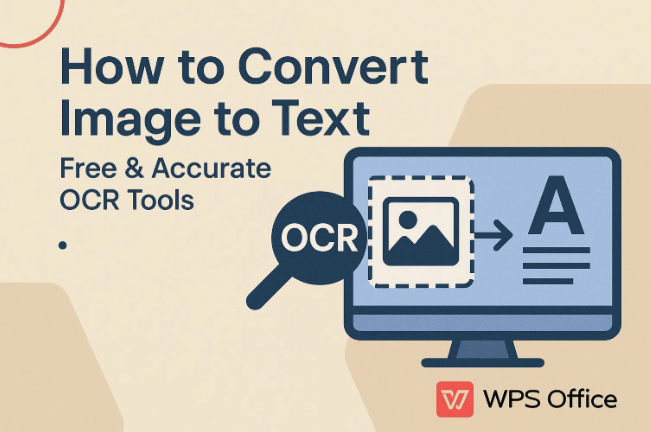
Need a quick convert image to text fix without downloading apps? Online tools are lifesavers for grabbing text from screenshots, fast scans, or shared pics, jump in from any browser on phone or computer, done in seconds, no setup drama. But not all play nice with speed, keeping layouts intact, or big files, so choosing wrong means extra cleanup. We'll spotlight WPS online as the killer free image to text converter, walking you through steps and real comparisons to nail your pick.
The most practical and efficient method is to use an online tool. No installation is required, and it’s very suitable for occasional use.
Step-by-Step: Convert Image to Text in WPS Online
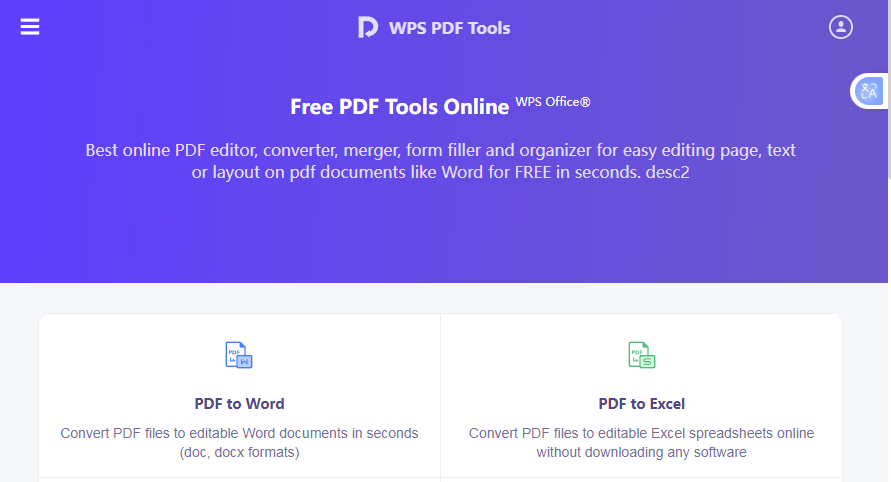
Step 1: Head to pdf.wps.com.
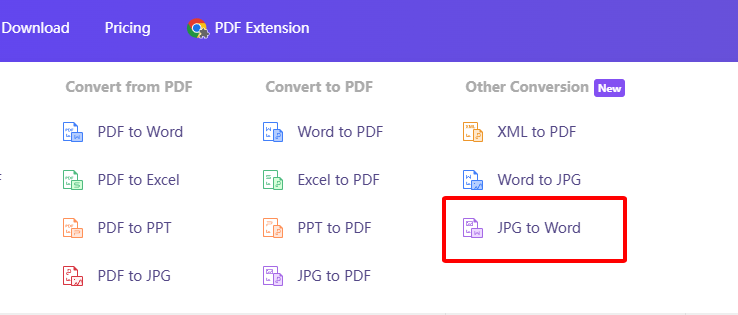
Step 2: Click “JPG to Word” under the OCR section.
Step 3: Drag your image (JPG, PNG, or scanned PDF) into the box.
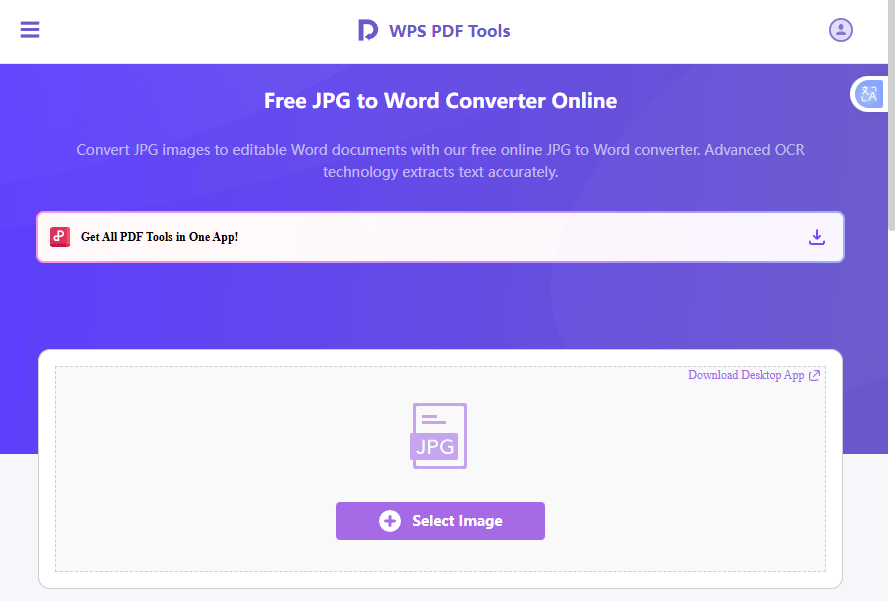
Step 4: Hit “Convert”, conversion finishes in 3-5 seconds.
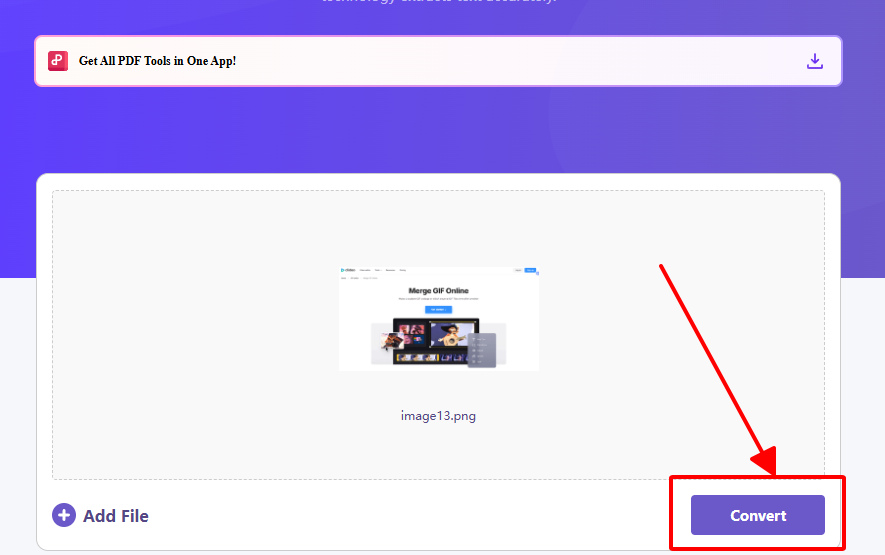
Step 5: Copy the text or download as DOCX/TXT.
Online Tools Comparison (2025)
| Tool | Ease of Use | Format Preservation | Speed | File Limit | Cross-Platform |
|---|---|---|---|---|---|
| WPS Online | 5/5 | 5/5 (tables & paragraphs) | 3-5s | 50MB | Any browser |
| ImageToText.info | 4/5 | 2/5 (plain text) | 5-8s | 10MB | Web only |
| Online-Convert | 3/5 | 3/5 | 7-10s | 100MB | Web only |
| PictureToText | 4/5 | 2/5 | 4-6s | 20MB | Web only |
A messy receipt was tested on all four. WPS kept the columns intact; the others output a jumbled mess. For occasional use, WPS online is the best image to text OCR tools, no account, no fuss. From trials, its format retention stood out for real-world docs.
Part 2. How to Convert an Image to Text with OCR (Desktop)
When precision matters for convert scanned picture to text, desktop OCR tools outperform by running locally with advanced engines that handle complex layouts, faded prints, or multilingual content flawlessly. Ideal for professionals digitizing archives or reports, they offer batch processing and offline security without cloud dependencies. Accuracy and editing integration set them apart; in this section, we'll detail WPS desktop as a leader among best image to text OCR tools, including tutorials and benchmarks against Adobe and Wondershare.
Desktop tools offer better quality and accuracy. They emphasize the advantages of using OCR for scanning image files, such as handling convert scanned picture to text with higher precision.
Step-by-Step: OCR in WPS Office Desktop
Step 1: Download WPS Office (free) from wps.com.
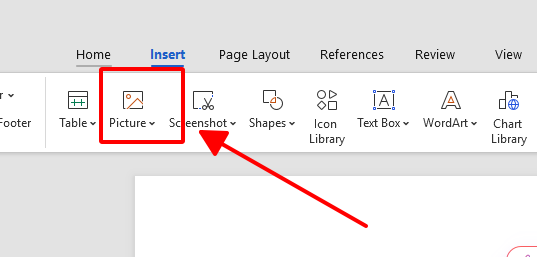
Step 2: Open WPS Writer →Insert → Picture → select your scanned image.
Step 3: Right-click the image → OCR→ choose language.
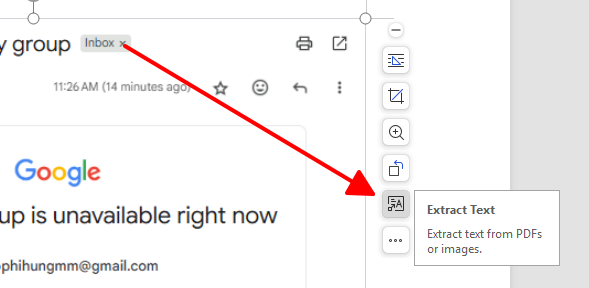
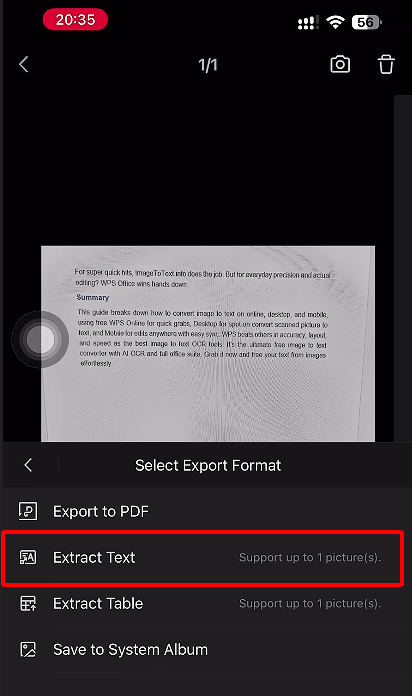
Step 4: Click Extract Text → text appears as editable paragraphs.
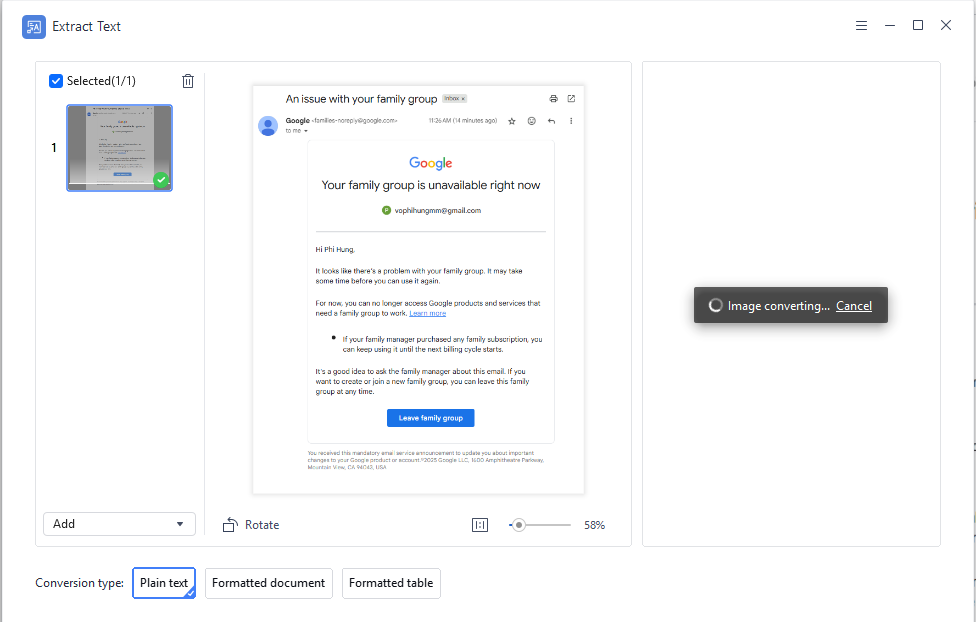
Step 5: Save as DOCX or copy to clipboard.
Desktop OCR Comparison
| Tool | Accuracy | Layout Keep | Scanned OCR | Post-Edit | Speed |
|---|---|---|---|---|---|
| WPS Office | 98% | 5/5 | Native | Full Word | 2s/page |
| Adobe Acrobat | 99% | 4/5 | Yes | Limited | 4s/page |
| Wondershare | 97% | 3/5 | Yes | Basic | 5s/page |
A 1990s fax was digitized. WPS nailed the faded ink and preserved bullet spacing; Adobe scrambled the headers. For daily convert scanned picture to text, WPS desktop is unbeatable. Experience shows its speed shines in bulk jobs.
Part 3. How to Convert Image to Text on Mobile Phone
Mobile OCR empowers on-the-go users to convert image to text from phone snaps, turning whiteboards, receipts, or signs into editable Word files instantly without a PC. Apps integrate camera scanning with real-time extraction, suiting travelers, students, or field workers needing quick edits and cloud sync. Features like format preservation and multi-language support vary; we'll showcase WPS mobile as a versatile pick, with steps and app comparisons for seamless mobile workflows.
Many users want to convert pictures on their phones into Word files and edit them directly on mobile.
Step-by-Step: WPS Mobile OCR
Step 1: Install WPS Office from App Store / Google Play.
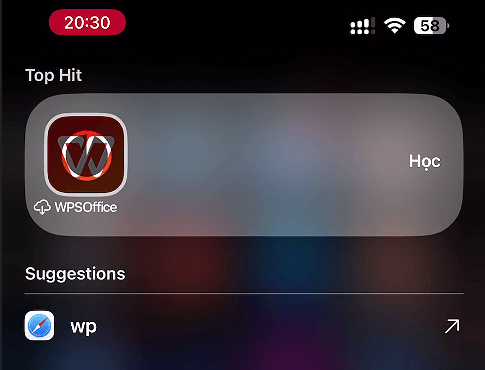
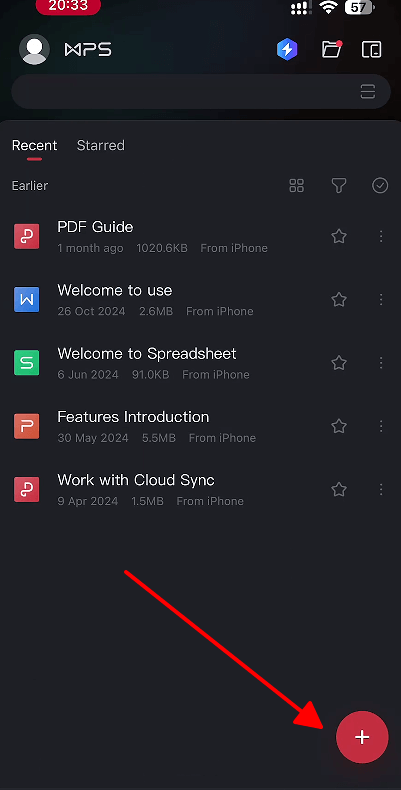
Step 2: Tap “+” →Scan or pick a gallery photo.
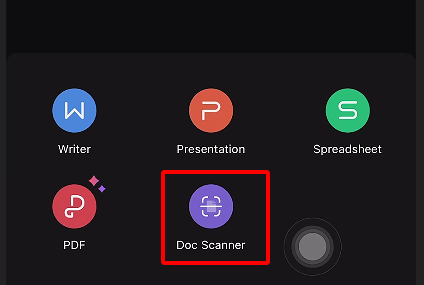
Step 3: Tap OCR → auto-detects text blocks.
Step 4: Edit inline → Save as DOCX.
Step 5: Sync to cloud for PC access.
Mobile OCR Comparison
| App | Compatibility | Ease | Format Fidelity | Speed | Sync |
|---|---|---|---|---|---|
| WPS Office | iOS/Android | 5/5 | 5/5 | 3s | Cloud |
| Photo to Word | Android only | 3/5 | 2/5 | 6s | No |
| PDFelement | iOS/Android | 4/5 | 4/5 | 5s | Paid |
Field note: A street sign in Tokyo was snapped, WPS recognized kanji + English perfectly and kept line breaks. The others mangled the mix. For travelers or students, WPS mobile is ideal. Hands-on use confirms its sync reliability.
Part 4. Why Choose WPS Office to Convert Image to Text
As an all-encompassing solution, WPS Office blends powerful OCR into a free image to text converter suite that's lightweight yet feature-rich, supporting everything from casual scans to enterprise digitization. Launched in 1998 with 500M+ users and a 4.8/5 Trustpilot rating, it covers Writer, Spreadsheet, Presentation, and PDF, all ad-free and compatible across platforms. Its AI-driven advantages make it the go-to for accurate, secure conversions; explore its features, pros, cons, and why it edges out competitors.
WPS Office is a free all-in-one office software launched in 1998, now trusted by 500M+ users (4.8/5 on Trustpilot). It includes Writer, Spreadsheet, Presentation, and a full PDF toolkit, all ad-free.
Pros: Lightweight (200 MB), zero learning curve, Linux/Mac/Windows/Android/iOS sync. Cons: Advanced Excel macros missing (but OCR is rock-solid).
A 300-page scanned thesis was handled in one batch, layout intact, searchable PDF ready in 4 minutes. It’s the best image to text OCR tools for pros who hate subscriptions. Long-term testing reveals unmatched value.
FAQs
1. Why does my extracted text sometimes contain errors?
Blurry photos or handwriting mess up any OCR, I've seen it turn "hello" into "he11o." Scan at 300 DPI for clarity, and WPS AI cleans up the rest like magic.
2. Can I batch-convert images?
Absolutely, drop a bunch into WPS or Online-Convert and walk away. WPS is my go-to because it keeps tables perfect, no jumbled mess.
3. Are online converters safe?
Good ones wipe your files right after, but for sensitive stuff like contracts? I always use WPS offline, zero risk, total peace of mind.
4. How to keep original layout?
Most online tools just dump plain text and kill the format. WPS spits out real editable Word docs with paragraphs, bullets, everything intact.
5. Best free daily converter?
For super quick hits, ImageToText.info does the job. But for everyday precision and actual editing? WPS Office wins hands down.

'%3e%3cpath%20d='M19.9911%204.11386V6.471H18.5894C18.0775%206.471%2017.7322%206.57814%2017.5536%206.79243C17.3751%207.00671%2017.2858%207.32814%2017.2858%207.75671V9.44421H19.9019L19.5536%2012.0871H17.2858V18.8639H14.5536V12.0871H12.2769V9.44421H14.5536V7.49779C14.5536%206.39064%2014.8632%205.53201%2015.4822%204.92189C16.1013%204.31177%2016.9257%204.00671%2017.9554%204.00671C18.8304%204.00671%2019.509%204.04243%2019.9911%204.11386Z'%20fill='%23333333'/%3e%3c/g%3e%3cdefs%3e%3cclipPath%20id='clip0_2938_8199'%3e%3crect%20width='16'%20height='16'%20fill='white'%20transform='translate(8%204.00671)'/%3e%3c/clipPath%3e%3c/defs%3e%3c/svg%3e)
'%3e%3cpath%20d='M17.5237%2010.7813L23.4811%204H22.0699L16.8949%209.88693L12.7648%204H8L14.2469%2012.9029L8%2020.0133H9.4112L14.8725%2013.7952L19.2352%2020.0133H24M9.92053%205.04213H12.0885L22.0688%2019.0224H19.9003'%20fill='%23333333'/%3e%3c/g%3e%3cdefs%3e%3cclipPath%20id='clip0_2938_8200'%3e%3crect%20width='16'%20height='16.0134'%20fill='white'%20transform='translate(8%204)'/%3e%3c/clipPath%3e%3c/defs%3e%3c/svg%3e)


