

'%3e%3cpath%20d='M8%200C12.4183%200%2016%203.58172%2016%208C16%2012.4183%2012.4183%2016%208%2016C3.58172%2016%200%2012.4183%200%208C0%203.58172%203.58172%200%208%200ZM11.6162%204.38379C11.2257%203.99337%2010.5927%203.99338%2010.2021%204.38379L8%206.58594L5.79785%204.38379C5.40732%203.99334%204.77429%203.99329%204.38379%204.38379C3.99331%204.77429%203.99335%205.40733%204.38379%205.79785L6.58594%208L4.38379%2010.2021C3.99348%2010.5927%203.99341%2011.2257%204.38379%2011.6162C4.77426%2012.0066%205.40734%2012.0065%205.79785%2011.6162L8%209.41406L10.2021%2011.6162C10.5927%2012.0066%2011.2257%2012.0067%2011.6162%2011.6162C12.0067%2011.2257%2012.0066%2010.5927%2011.6162%2010.2021L9.41406%208L11.6162%205.79785C12.0066%205.40735%2012.0066%204.77429%2011.6162%204.38379Z'%20fill='%23080E17'%20fill-opacity='0.46'/%3e%3c/g%3e%3cdefs%3e%3cclipPath%20id='clip0_3761_713'%3e%3crect%20width='16'%20height='16'%20fill='white'/%3e%3c/clipPath%3e%3c/defs%3e%3c/svg%3e)




'%3e%3cpath%20fill-rule='evenodd'%20clip-rule='evenodd'%20d='M21.4999%2010.9993C21.4999%205.20009%2016.7986%200.498901%2010.9993%200.498901C5.19994%200.498901%200.498657%205.20009%200.498657%2010.9993C0.498657%2016.2404%204.33858%2020.5844%209.35855%2021.3722V14.0346H6.69238V10.9993H9.35855V8.68594C9.35855%206.05427%2010.9262%204.60062%2013.3248%204.60062C14.4736%204.60062%2015.6753%204.80571%2015.6753%204.80571V7.38979H14.3512C13.0468%207.38979%2012.64%208.19921%2012.64%209.0296V10.9993H15.5523L15.0867%2014.0346H12.64V21.3722C17.66%2020.5844%2021.4999%2016.2404%2021.4999%2010.9993Z'%20fill='%231568EA'/%3e%3c/g%3e%3c/svg%3e)


'%3e%3cpath%20d='M2.42045%2022.1876H6.31818V12.7217L0.75%208.54553V20.5171C0.75%2021.4414%201.49892%2022.1876%202.42045%2022.1876Z'%20fill='%234285F4'/%3e%3cpath%20d='M19.682%2022.1876H23.5797C24.5041%2022.1876%2025.2502%2021.4387%2025.2502%2020.5171V8.54553L19.682%2012.7217'%20fill='%2334A853'/%3e%3cpath%20d='M19.682%205.48293V12.7216L25.2502%208.54543V6.31816C25.2502%204.25236%2022.8921%203.07469%2021.2411%204.31361'%20fill='%23FBBC04'/%3e%3cpath%20d='M6.31824%2012.7217V5.48303L13.0001%2010.4944L19.6819%205.48303V12.7217L13.0001%2017.733'%20fill='%23EA4335'/%3e%3cpath%20d='M0.75%206.31816V8.54543L6.31818%2012.7216V5.48293L4.75909%204.31361C3.10534%203.07469%200.75%204.25236%200.75%206.31816Z'%20fill='%23C5221F'/%3e%3c/g%3e%3cdefs%3e%3cclipPath%20id='clip0_2954_7305'%3e%3crect%20width='24.5'%20height='18.375'%20fill='white'%20transform='translate(0.75%203.8125)'/%3e%3c/clipPath%3e%3c/defs%3e%3c/svg%3e)


To add a border to a picture in Word, click the image, open Picture Format → Picture Border, choose color, weight, and line style, or pick a preset from Picture Styles. In WPS Writer, select the image and use the equivalent Picture Tools border options.
Key Takeaways
Select the image first—Picture Format (or Picture Tools) appears on the ribbon.
Use Picture Border for color, weight, and dashes; Picture Styles for one-click frames.
Soft Edge and shadow are separate from a true outline border.
WPS Writer supports picture borders on inserted images in .docx files.
Picture Border vs. Page or Paragraph Border
| Border type | Applies to | Menu path |
|---|---|---|
| Picture border | Selected image only | Picture Format → Picture Border |
| Paragraph border | Text block | Home → Borders |
| Page border | Entire page margin | Design → Page Borders |
This guide covers image outlines only—not text rules or page frames.
Add a Border to a Picture in Microsoft Word
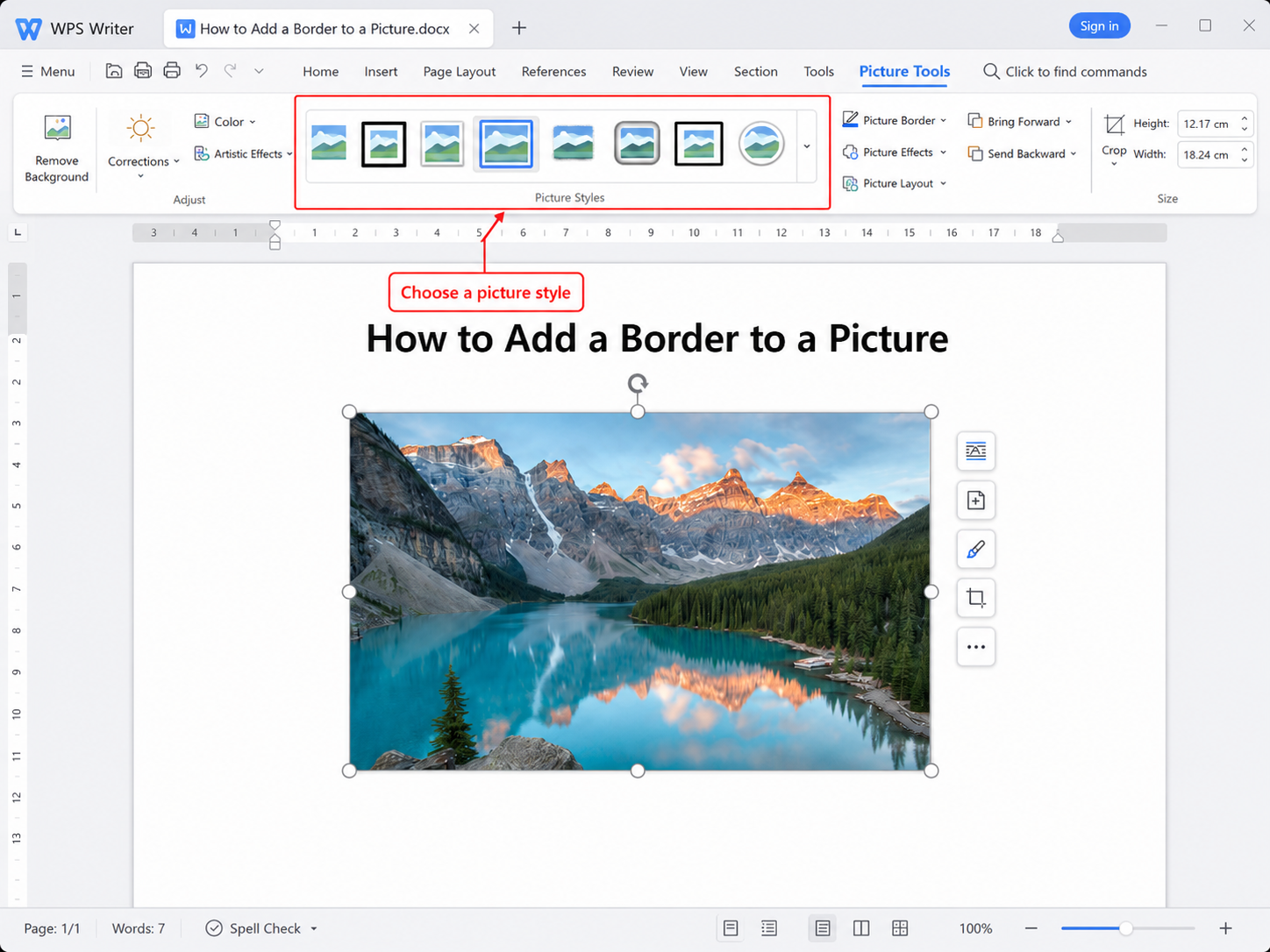
Method 1: Picture Styles (fastest)
Click the picture.
Picture Format → Picture Styles gallery.
Choose a style with a visible outline (hover to preview).
Method 2: Custom Picture Border
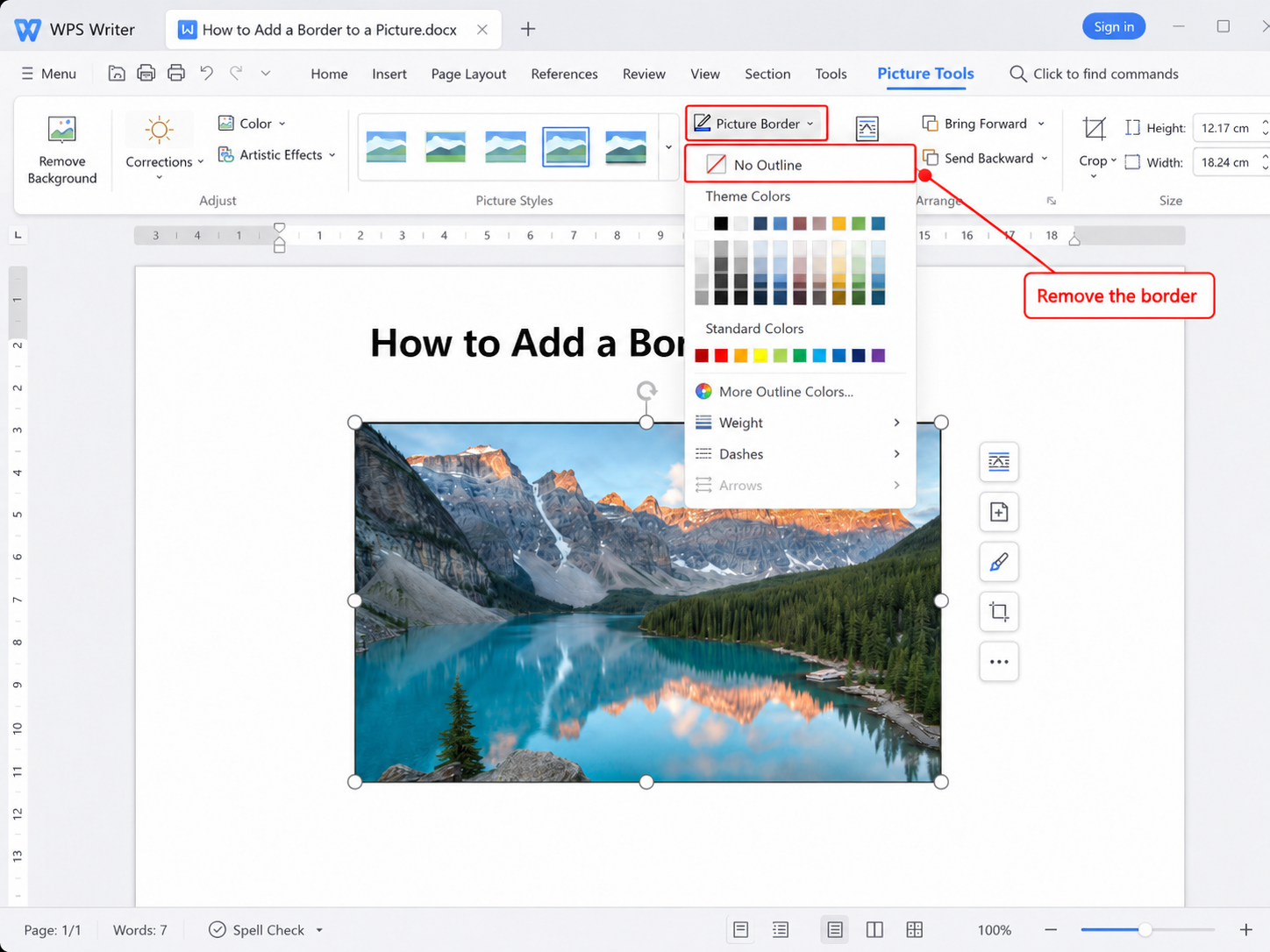
Select the image.
Picture Format → Picture Border.
Pick Color, Weight (thickness), and Dashes (solid, dash, dot).
Method 3: Right-click shortcut
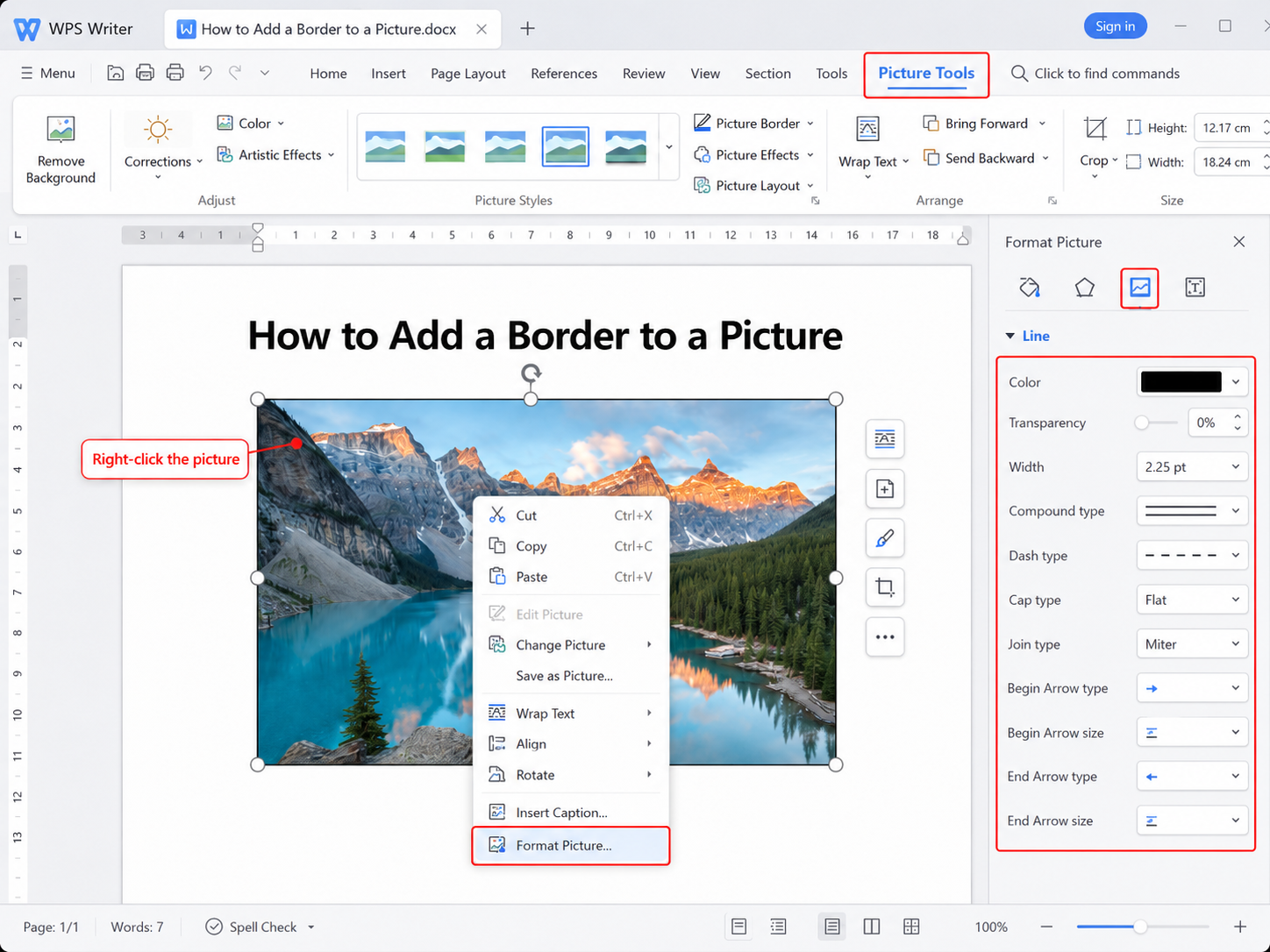
Right-click the picture → Format Picture (or Size and Position on some versions).
Open Line or Border settings → set color and width.
Add a Picture Border in WPS Writer
Insert or select an image in WPS Writer.
Open the Picture Tools or Picture Format tab.
Use Picture Border to set outline color and line weight, or apply a preset style.
Borders export correctly when you save as .docx or PDF.
Border Options Explained
| Setting | Effect |
|---|---|
| Weight ¼ pt – 6 pt | Thin hairline to heavy frame |
| Compound styles | Double or triple outline lines |
| Theme colors | Matches document color palette |
| Layout options | Text wrap affects how border sits against text |
Set Wrap Text (e.g., Square or Tight) before fine-tuning border spacing around the image.
Remove or Change a Picture Border
Select the image → Picture Format → Picture Border → No Outline, or choose a Picture Style with no frame. To replace a border, pick a new color/weight without removing the image.


Format Borders with WPS Office
WPS Office includes Writer with Word-compatible border and picture formatting—ideal when you need a free .docx editor on Windows, Mac, or mobile. Borders you apply in WPS open correctly in Microsoft Word.
For text lines, see top border and bottom border guides for paragraphs and tables.
FAQs
How do I add a white border around a picture in Word?
Select the image → Picture Format → Picture Border → choose white and increase Weight until the frame is visible.
Why is Picture Format greyed out?
The image is not selected, or it is a floating object behind text—click the picture once to activate Picture Tools.
Can I add a rounded border to a picture?
Use Picture Styles with rounded corners, or crop the image to a rounded shape first, then add Picture Border.
Do picture borders print in PDF?
Yes—use File → Save As PDF or Print → Microsoft Print to PDF; borders are included in the export.
Summary
How to add a border to a picture in Word: select the image → Picture Format → Picture Border (color, weight, dashes) or pick a Picture Style preset. WPS Writer offers the same picture border controls for .docx documents.

'%3e%3cpath%20d='M19.9911%204.11386V6.471H18.5894C18.0775%206.471%2017.7322%206.57814%2017.5536%206.79243C17.3751%207.00671%2017.2858%207.32814%2017.2858%207.75671V9.44421H19.9019L19.5536%2012.0871H17.2858V18.8639H14.5536V12.0871H12.2769V9.44421H14.5536V7.49779C14.5536%206.39064%2014.8632%205.53201%2015.4822%204.92189C16.1013%204.31177%2016.9257%204.00671%2017.9554%204.00671C18.8304%204.00671%2019.509%204.04243%2019.9911%204.11386Z'%20fill='%23333333'/%3e%3c/g%3e%3cdefs%3e%3cclipPath%20id='clip0_2938_8199'%3e%3crect%20width='16'%20height='16'%20fill='white'%20transform='translate(8%204.00671)'/%3e%3c/clipPath%3e%3c/defs%3e%3c/svg%3e)
'%3e%3cpath%20d='M17.5237%2010.7813L23.4811%204H22.0699L16.8949%209.88693L12.7648%204H8L14.2469%2012.9029L8%2020.0133H9.4112L14.8725%2013.7952L19.2352%2020.0133H24M9.92053%205.04213H12.0885L22.0688%2019.0224H19.9003'%20fill='%23333333'/%3e%3c/g%3e%3cdefs%3e%3cclipPath%20id='clip0_2938_8200'%3e%3crect%20width='16'%20height='16.0134'%20fill='white'%20transform='translate(8%204)'/%3e%3c/clipPath%3e%3c/defs%3e%3c/svg%3e)


