

'%3e%3cpath%20d='M8%200C12.4183%200%2016%203.58172%2016%208C16%2012.4183%2012.4183%2016%208%2016C3.58172%2016%200%2012.4183%200%208C0%203.58172%203.58172%200%208%200ZM11.6162%204.38379C11.2257%203.99337%2010.5927%203.99338%2010.2021%204.38379L8%206.58594L5.79785%204.38379C5.40732%203.99334%204.77429%203.99329%204.38379%204.38379C3.99331%204.77429%203.99335%205.40733%204.38379%205.79785L6.58594%208L4.38379%2010.2021C3.99348%2010.5927%203.99341%2011.2257%204.38379%2011.6162C4.77426%2012.0066%205.40734%2012.0065%205.79785%2011.6162L8%209.41406L10.2021%2011.6162C10.5927%2012.0066%2011.2257%2012.0067%2011.6162%2011.6162C12.0067%2011.2257%2012.0066%2010.5927%2011.6162%2010.2021L9.41406%208L11.6162%205.79785C12.0066%205.40735%2012.0066%204.77429%2011.6162%204.38379Z'%20fill='%23080E17'%20fill-opacity='0.46'/%3e%3c/g%3e%3cdefs%3e%3cclipPath%20id='clip0_3761_713'%3e%3crect%20width='16'%20height='16'%20fill='white'/%3e%3c/clipPath%3e%3c/defs%3e%3c/svg%3e)




'%3e%3cpath%20fill-rule='evenodd'%20clip-rule='evenodd'%20d='M21.4999%2010.9993C21.4999%205.20009%2016.7986%200.498901%2010.9993%200.498901C5.19994%200.498901%200.498657%205.20009%200.498657%2010.9993C0.498657%2016.2404%204.33858%2020.5844%209.35855%2021.3722V14.0346H6.69238V10.9993H9.35855V8.68594C9.35855%206.05427%2010.9262%204.60062%2013.3248%204.60062C14.4736%204.60062%2015.6753%204.80571%2015.6753%204.80571V7.38979H14.3512C13.0468%207.38979%2012.64%208.19921%2012.64%209.0296V10.9993H15.5523L15.0867%2014.0346H12.64V21.3722C17.66%2020.5844%2021.4999%2016.2404%2021.4999%2010.9993Z'%20fill='%231568EA'/%3e%3c/g%3e%3c/svg%3e)


'%3e%3cpath%20d='M2.42045%2022.1876H6.31818V12.7217L0.75%208.54553V20.5171C0.75%2021.4414%201.49892%2022.1876%202.42045%2022.1876Z'%20fill='%234285F4'/%3e%3cpath%20d='M19.682%2022.1876H23.5797C24.5041%2022.1876%2025.2502%2021.4387%2025.2502%2020.5171V8.54553L19.682%2012.7217'%20fill='%2334A853'/%3e%3cpath%20d='M19.682%205.48293V12.7216L25.2502%208.54543V6.31816C25.2502%204.25236%2022.8921%203.07469%2021.2411%204.31361'%20fill='%23FBBC04'/%3e%3cpath%20d='M6.31824%2012.7217V5.48303L13.0001%2010.4944L19.6819%205.48303V12.7217L13.0001%2017.733'%20fill='%23EA4335'/%3e%3cpath%20d='M0.75%206.31816V8.54543L6.31818%2012.7216V5.48293L4.75909%204.31361C3.10534%203.07469%200.75%204.25236%200.75%206.31816Z'%20fill='%23C5221F'/%3e%3c/g%3e%3cdefs%3e%3cclipPath%20id='clip0_2954_7305'%3e%3crect%20width='24.5'%20height='18.375'%20fill='white'%20transform='translate(0.75%203.8125)'/%3e%3c/clipPath%3e%3c/defs%3e%3c/svg%3e)


In American English write the date as month-day-year (October 15, 2026), while in British English the day comes first (15 October 2026). For formal documents, spell out the month, avoid ordinals like "15th", and let WPS Writer insert and update the date automatically. This guide covers both formats and the common mistakes to avoid.
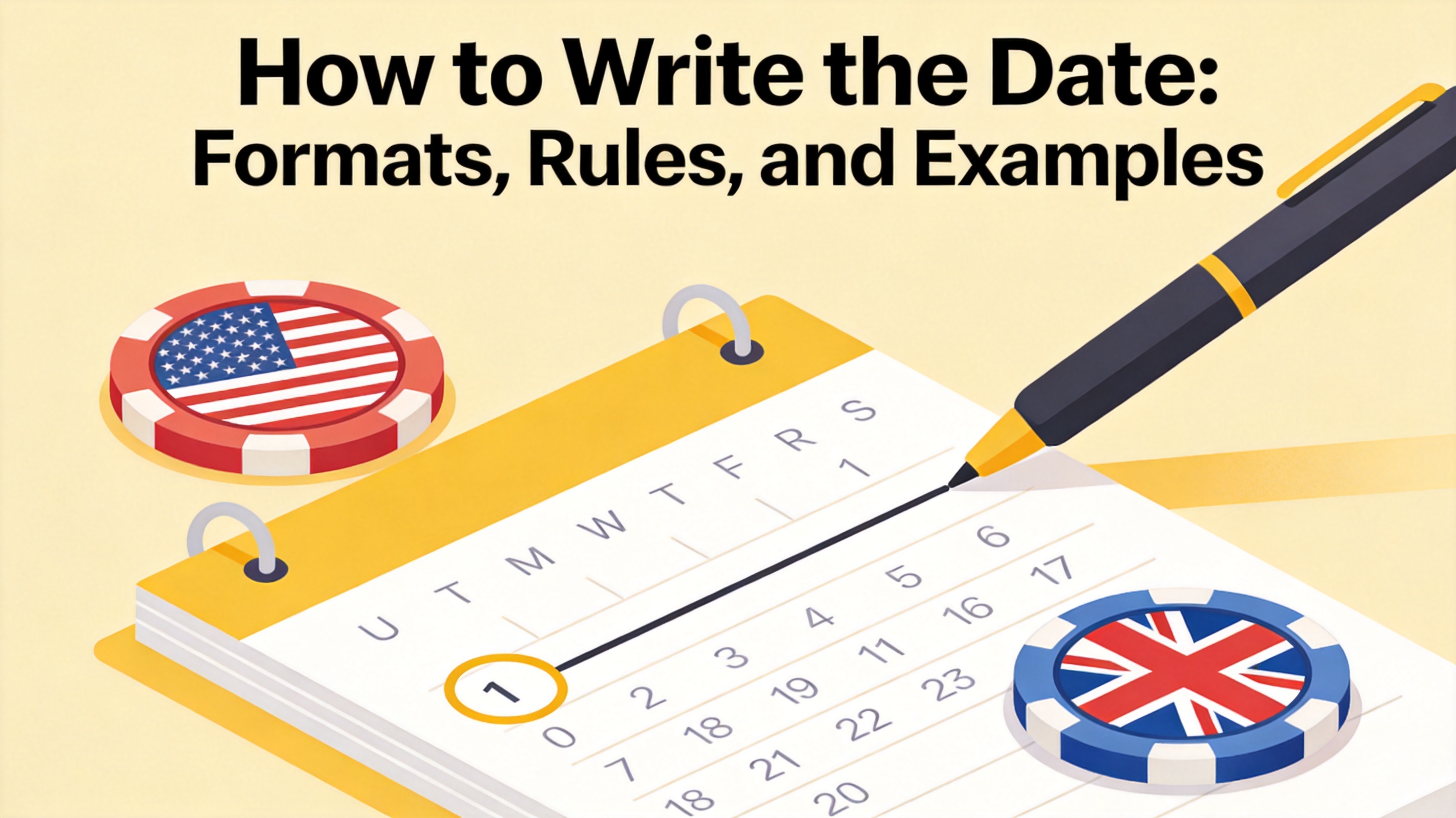
How to Write the Date in English (US and UK Formats)
How to Write the Date in American English vs British English
The order of the parts is the only rule that changes between the two main English date formats. Everything else, such as spelling the month and using commas, follows the style you pick:
American format (US): month, day, year, with a comma after the day. Example: October 15, 2026. Numeric form: 10/15/2026.
British format (UK): day, month, year, with no comma. Example: 15 October 2026. Numeric form: 15/10/2026.
Formal writing: spell out the month in both styles and write the day without "th", "st", or "nd" unless the sentence reads naturally with them, as in "the 15th of October".
When you write only the day and month, drop the year: October 15 in the US and 15 October in the UK. Never mix the two orders in one document, and always state the month in words when a numeric date like 10/15 could be misread.
How to Write the Date in Formal Documents
Letters, contracts, and reports need a date format that cannot be misread. Use these rules for formal English:
Spell out the month. Write October 15, 2026 or 15 October 2026, never 10/15/26 in a contract or cover letter.
Use the comma correctly. In US style, put a comma between the day and the year: October 15, 2026. In UK style, no comma is needed: 15 October 2026.
Avoid ordinals. "October 15" beats "October 15th" in most professional writing, although "the 15th of October" is acceptable in British invitations.
Add the weekday when needed. In reports, "Wednesday, October 15, 2026" is clearer and still correct.
How to Insert and Update the Date Automatically in WPS Writer
Typing a date by hand is easy to get wrong; WPS Writer inserts today's date in one click and can keep it current every time you open the file:
Place the cursor where the date should appear in the document.
Click the Insert tab and choose Date.
Pick a format from the date picker, such as October 15, 2026, and click the date to insert it.
To keep the date updated, right-click the inserted date and choose Update Field (or enable automatic update in the field options) before printing or saving.
The date picker below appears when you click Date on the Insert tab:
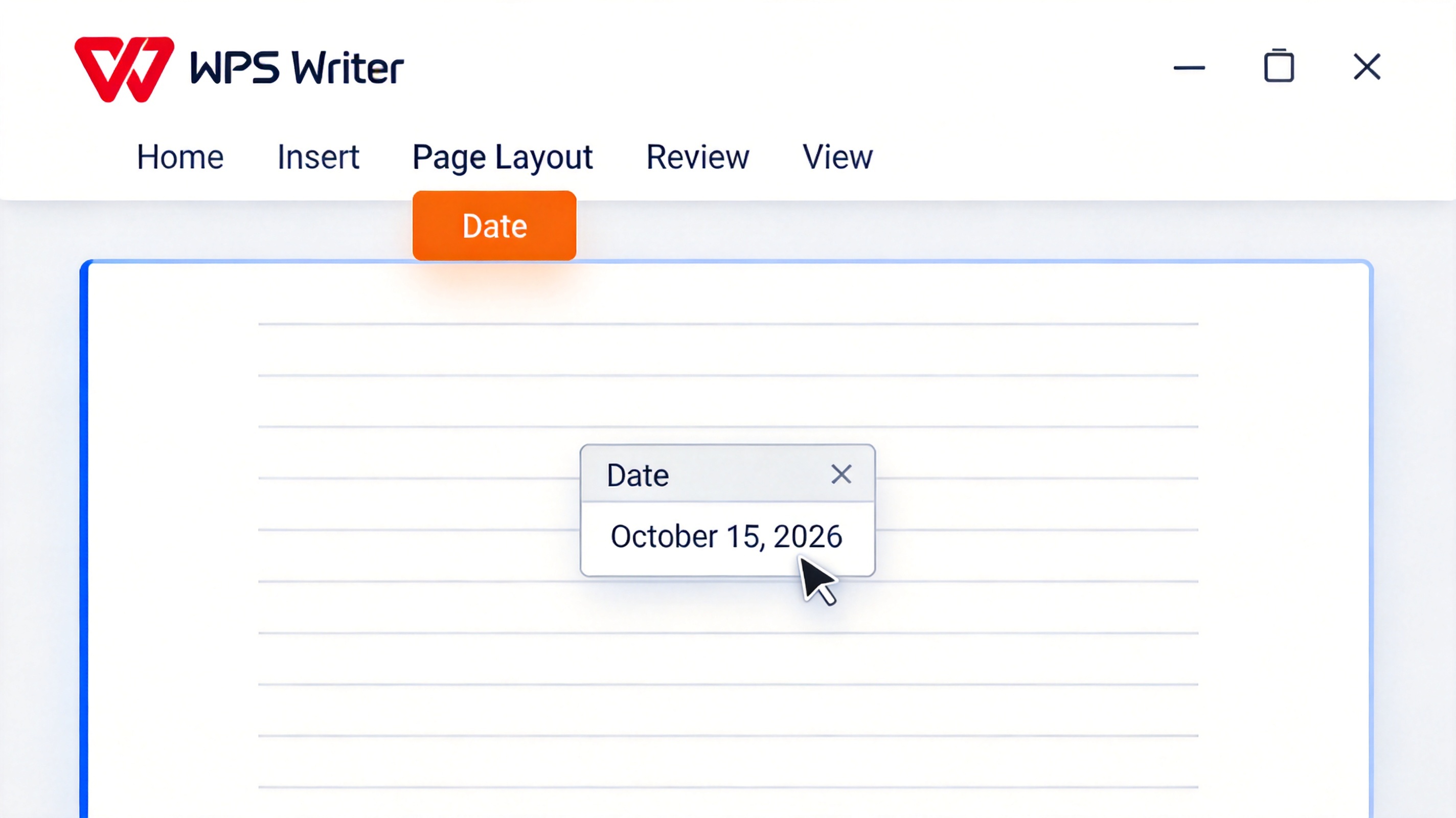
WPS Writer insert date picker


The Best Free Alternative: WPS Office
WPS Writer handles date fields, headers, and letter templates with full .docx compatibility, so formal documents open and print the same as in Microsoft Word. The free office suite also includes Spreadsheet, Presentation, and a PDF toolkit for exporting signed letters. WPS Office works on Windows, Mac, Linux, Android, and iOS, which makes it easy to keep date fields consistent across your team.
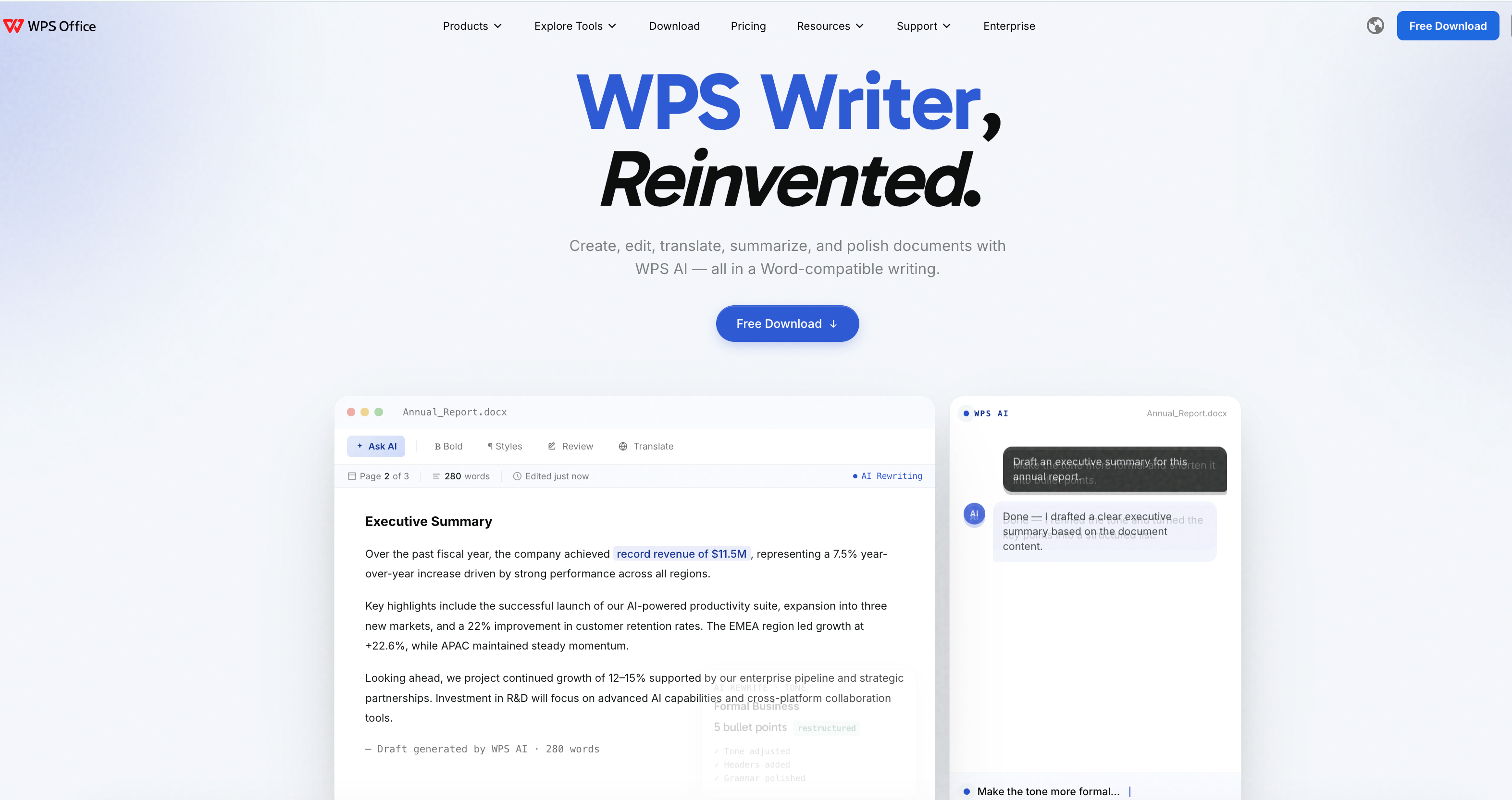
WPS Writer document editing interface
FAQs
How do you write the date in American English?
Write month, day, and year with a comma after the day: October 15, 2026. The numeric form is month/day/year, for example 10/15/2026.
How do you write the date in British English?
Write day, month, and year without a comma: 15 October 2026. The numeric form is day/month/year, for example 15/10/2026.
Should I put a comma in the date?
Only in American style, between the day and the year (October 15, 2026). British style uses no comma (15 October 2026).
Is writing "October 15th, 2026" correct?
It is common but informal. In formal writing, prefer "October 15, 2026" without the ordinal, or use "the 15th of October 2026" in British English.
Can WPS Writer insert today's date automatically?
Yes. Use Insert > Date to add the current date, and update the field when you need it to refresh automatically in the document.


'%3e%3cpath%20d='M19.9911%204.11386V6.471H18.5894C18.0775%206.471%2017.7322%206.57814%2017.5536%206.79243C17.3751%207.00671%2017.2858%207.32814%2017.2858%207.75671V9.44421H19.9019L19.5536%2012.0871H17.2858V18.8639H14.5536V12.0871H12.2769V9.44421H14.5536V7.49779C14.5536%206.39064%2014.8632%205.53201%2015.4822%204.92189C16.1013%204.31177%2016.9257%204.00671%2017.9554%204.00671C18.8304%204.00671%2019.509%204.04243%2019.9911%204.11386Z'%20fill='%23333333'/%3e%3c/g%3e%3cdefs%3e%3cclipPath%20id='clip0_2938_8199'%3e%3crect%20width='16'%20height='16'%20fill='white'%20transform='translate(8%204.00671)'/%3e%3c/clipPath%3e%3c/defs%3e%3c/svg%3e)
'%3e%3cpath%20d='M17.5237%2010.7813L23.4811%204H22.0699L16.8949%209.88693L12.7648%204H8L14.2469%2012.9029L8%2020.0133H9.4112L14.8725%2013.7952L19.2352%2020.0133H24M9.92053%205.04213H12.0885L22.0688%2019.0224H19.9003'%20fill='%23333333'/%3e%3c/g%3e%3cdefs%3e%3cclipPath%20id='clip0_2938_8200'%3e%3crect%20width='16'%20height='16.0134'%20fill='white'%20transform='translate(8%204)'/%3e%3c/clipPath%3e%3c/defs%3e%3c/svg%3e)


