



'%3e%3cpath%20fill-rule='evenodd'%20clip-rule='evenodd'%20d='M21.4999%2010.9993C21.4999%205.20009%2016.7986%200.498901%2010.9993%200.498901C5.19994%200.498901%200.498657%205.20009%200.498657%2010.9993C0.498657%2016.2404%204.33858%2020.5844%209.35855%2021.3722V14.0346H6.69238V10.9993H9.35855V8.68594C9.35855%206.05427%2010.9262%204.60062%2013.3248%204.60062C14.4736%204.60062%2015.6753%204.80571%2015.6753%204.80571V7.38979H14.3512C13.0468%207.38979%2012.64%208.19921%2012.64%209.0296V10.9993H15.5523L15.0867%2014.0346H12.64V21.3722C17.66%2020.5844%2021.4999%2016.2404%2021.4999%2010.9993Z'%20fill='%231568EA'/%3e%3c/g%3e%3c/svg%3e)


'%3e%3cpath%20d='M2.42045%2022.1876H6.31818V12.7217L0.75%208.54553V20.5171C0.75%2021.4414%201.49892%2022.1876%202.42045%2022.1876Z'%20fill='%234285F4'/%3e%3cpath%20d='M19.682%2022.1876H23.5797C24.5041%2022.1876%2025.2502%2021.4387%2025.2502%2020.5171V8.54553L19.682%2012.7217'%20fill='%2334A853'/%3e%3cpath%20d='M19.682%205.48293V12.7216L25.2502%208.54543V6.31816C25.2502%204.25236%2022.8921%203.07469%2021.2411%204.31361'%20fill='%23FBBC04'/%3e%3cpath%20d='M6.31824%2012.7217V5.48303L13.0001%2010.4944L19.6819%205.48303V12.7217L13.0001%2017.733'%20fill='%23EA4335'/%3e%3cpath%20d='M0.75%206.31816V8.54543L6.31818%2012.7216V5.48293L4.75909%204.31361C3.10534%203.07469%200.75%204.25236%200.75%206.31816Z'%20fill='%23C5221F'/%3e%3c/g%3e%3cdefs%3e%3cclipPath%20id='clip0_2954_7305'%3e%3crect%20width='24.5'%20height='18.375'%20fill='white'%20transform='translate(0.75%203.8125)'/%3e%3c/clipPath%3e%3c/defs%3e%3c/svg%3e)


To put a border around text in Word, select the paragraph containing your text, open Home → Borders → Borders and Shading, choose Box under Setting, pick line style/color/width, and click OK. For a one-click outline, use Outside Borders from the Borders dropdown. To frame only a few words—not the full paragraph width—insert a text box and type inside it.
Key Takeaways
Paragraph box border: Home → Borders → Outside Borders or Borders and Shading → Box.
Word applies paragraph borders to the full paragraph width, not individual characters—use a text box for a tight frame around short text.
Customize style, color, width, and shading inside the box from Borders and Shading.
WPS Writer offers the same Borders menu on the Home tab for .docx files.
Remove borders with No Border or by clearing all sides in Borders and Shading.
What “Border Around Text” Means in Word
Users search for a border around text when they want a visible box or frame around words—callouts, warnings, quotes, or highlighted instructions. In Microsoft Word, this usually means a paragraph border (a rectangle around one or more paragraphs) or a text box border (a floating container).
| Feature | What it frames | Typical menu |
|---|---|---|
| Border around text (this guide) | Paragraph block or text box | Home → Borders |
| Top / bottom border only | One edge of a paragraph | Home → Borders → Top/Bottom |
| Underline | Characters only | Home → Underline |
| Page border | Entire sheet margin | Design → Page Borders |
| Picture border | Images | Picture Format → Picture Border |
If you only need a single line above or below text, see our guides on top borders and bottom borders instead of a full box.
Method 1: Put a Box Border Around a Paragraph (Fastest)
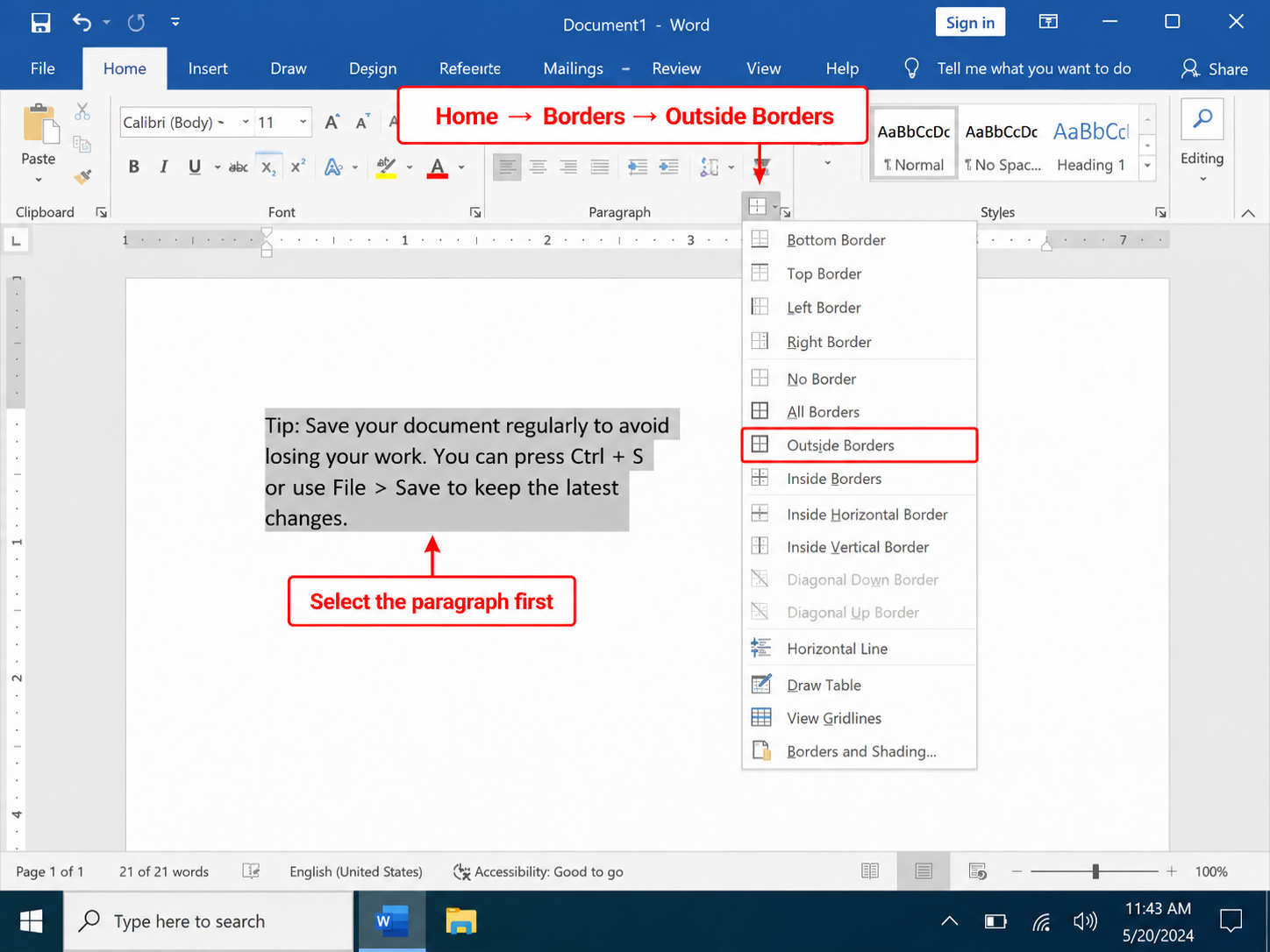
This is the standard way to put a border around text that sits in a normal paragraph.
Click inside the paragraph—or select multiple paragraphs you want in one box.
Go to Home → Paragraph group → Borders dropdown.
Click Outside Borders (a square icon showing four sides).
Word draws a rectangle around the selected paragraph(s). The border spans the full text column width, from the left margin to the right margin, even if your text is short.
When Outside Borders is enough
Policy callouts in employee handbooks
“Note” or “Tip” blocks in training documents
Short warnings above a procedure list
Framed quotes with attribution on the next line
Method 2: Custom Border with Borders and Shading
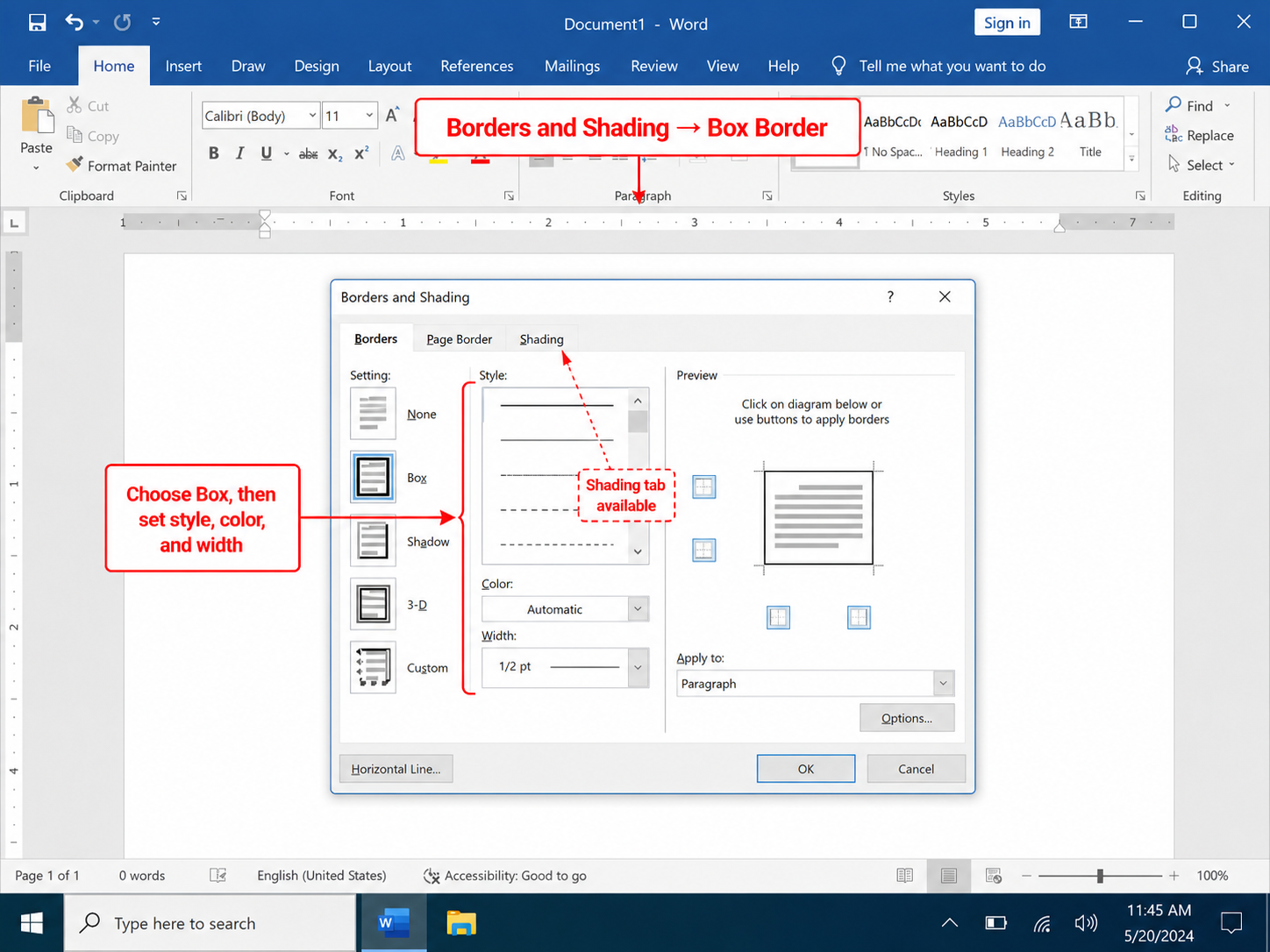
Select the paragraph(s).
Home → Borders → Borders and Shading.
Under Setting, click Box (four-sided outline).
Choose Style (solid, dashed, double, etc.), Color, and Width (½ pt to 6 pt or more).
Optional: open the Shading tab and set a fill color behind the text inside the box.
Under Apply to, confirm Paragraph (not Table or Page).
Click OK.
Padding and spacing inside the box
Word does not offer pixel-perfect padding in older builds, but you can increase line spacing, add Space Before and Space After on the paragraph, or insert a blank line above/below short text for visual breathing room.
Method 3: Border Around Selected Text Only (Limitation)
Many users highlight three words and expect a tight border around only that selection. Standard paragraph borders do not work that way—Word frames the entire paragraph block.
| Goal | Solution |
|---|---|
| Tight box around a phrase | Insert → Text Box, type the phrase, format border |
| Inline label look | Character border via Font dialog on some Word versions (limited) |
| Highlight without box | Text Highlight Color or shaded paragraph style |
Method 4: Put a Border Around Text Using a Text Box
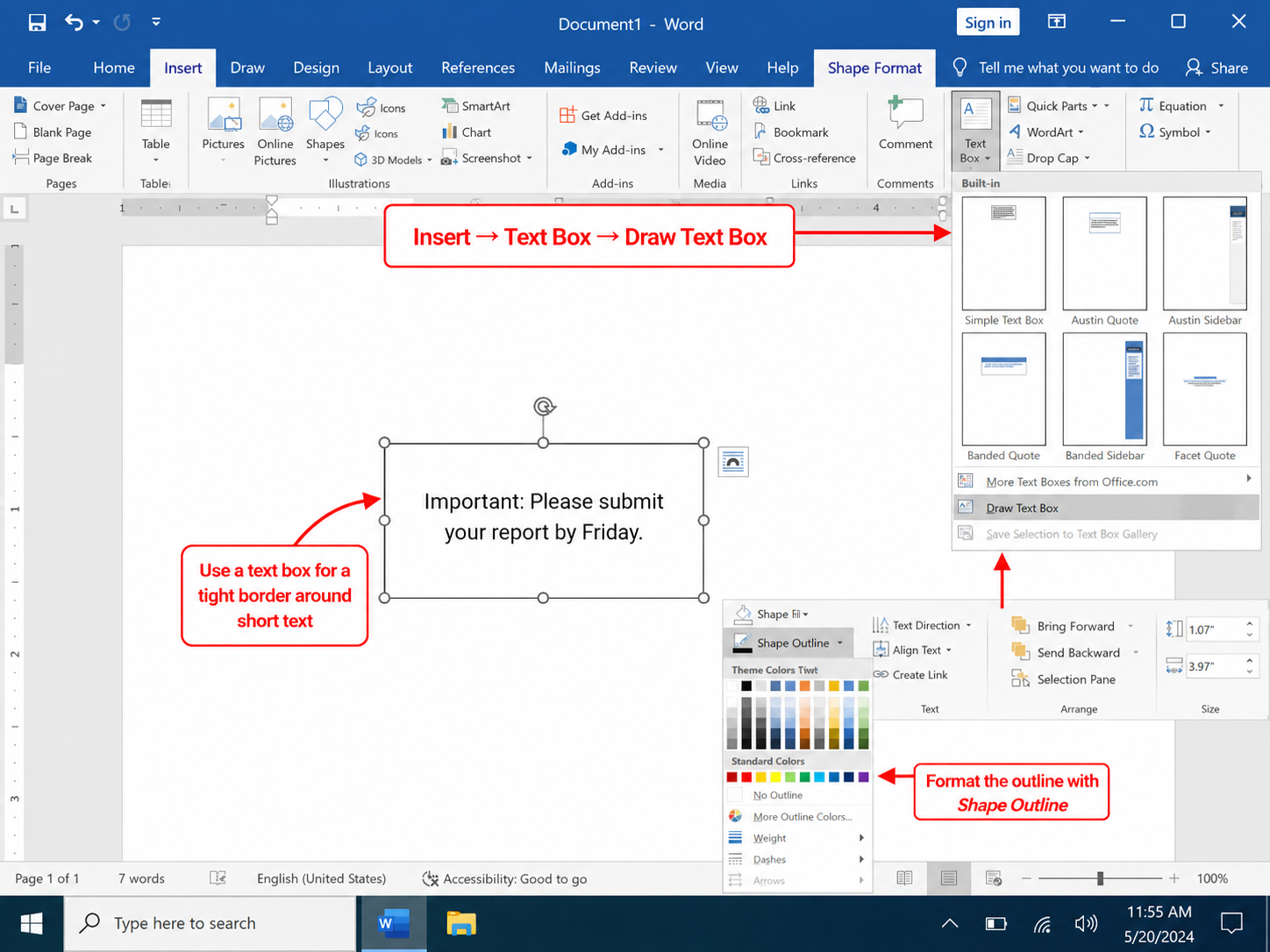
Insert → Text Box → Draw Text Box.
Drag a box around the area where you want the text.
Type or paste your text inside.
With the text box selected, use Shape Format → Shape Outline to set color, weight, and dashes.
Use Shape Fill for background color, or No Fill for transparent interior.
Set Layout Options (right-click → Wrap Text) so body text flows around the box cleanly.
Text boxes are ideal for sidebar tips, pull quotes, and labels where the border should match the text width, not the page width.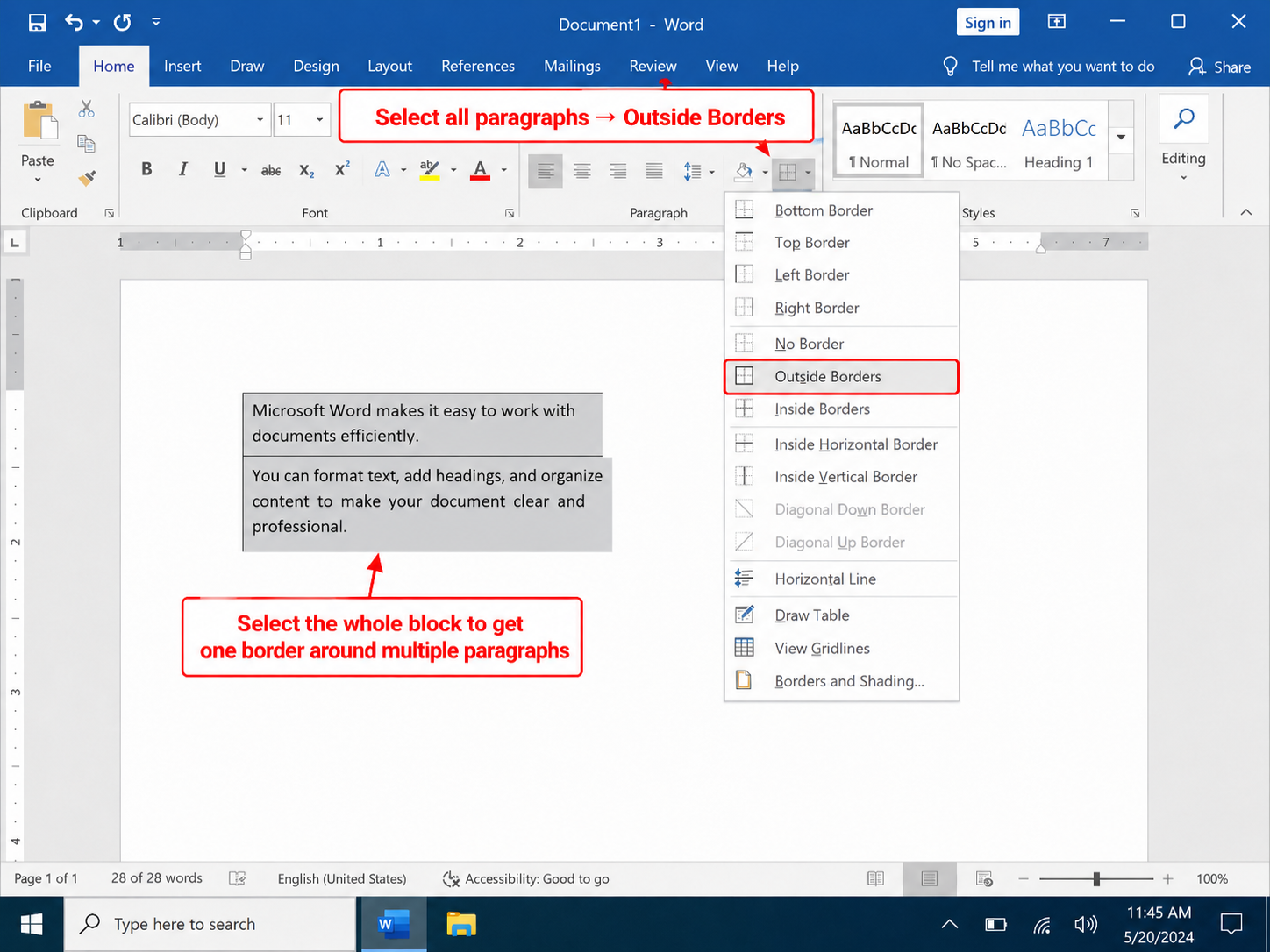


Put a Border Around Text in WPS Writer
WPS Writer mirrors Microsoft Word’s border tools:
Select the paragraph.
Home → Borders → Outside Borders for a quick box.
Or Borders → Borders and Shading → Box → customize style, color, width, and shading.
For tight frames, Insert → Text Box and format the outline under Text Box Tools.
Documents save as .docx, so borders remain editable when opened in Microsoft Word.
Styling Ideas: Color, Weight, and Purpose
| Use case | Suggested style |
|---|---|
| Neutral note | ½ pt gray box, no shading |
| Warning | 1½ pt red box, light red shading |
| Tip / best practice | 1 pt blue box, pale blue fill |
| Legal disclaimer | 1 pt black double-line box |
| Pull quote | Text box, 2 pt accent color, generous internal spacing |
Border Around Multiple Paragraphs in One Box
Select all paragraphs in the block (click-drag or Shift+arrow keys).
Apply Outside Borders or Box in Borders and Shading once.
Word draws one rectangle around the group. If you apply borders paragraph-by-paragraph, each block gets its own box—usually not what you want for a unified callout.
Remove a Border Around Text
Select the bordered paragraph → Home → Borders → No Border.
Or open Borders and Shading and click each side in Preview to turn lines off, then OK.
For text boxes: select the box → Shape Outline → No Outline.
Troubleshooting Common Issues
Border spans full page width but text is short: That is normal for paragraph borders. Use a text box or narrow column layout if you need a smaller frame.
Border does not print: Check File → Options → Display → Print background colors and images (for shaded boxes). Verify in Print Preview.
Double border on tables: Table cell borders and paragraph borders can stack. Apply borders at the cell level inside tables, not paragraph level, for grid layouts.
Border color looks different on PDF export: Use theme colors or RGB values consistently; export via Save As PDF and recheck on screen and print.
Related Word Border Guides
FAQs
How do I put a border around specific words in Word?
Highlighting words alone does not create a paragraph box. Insert a text box, enter the words, and set Shape Outline. Alternatively, move the phrase to its own short paragraph and apply Outside Borders.
How do I put a border around text in Word for Mac?
Select the paragraph → Home → Borders → Outside Borders, or Format → Borders and Shading on older Mac menus. Text box steps use Insert → Text Box.
Can I round the corners of a text border?
Standard paragraph borders use square corners. Text boxes and some Shape styles support rounded corners via Shape Format → Edit Shape.
How do I add a border and background color together?
Open Borders and Shading → set Box on the Borders tab, then switch to the Shading tab and pick a fill color → OK.
Why does my border disappear when I press Enter?
You may have split one paragraph into two—each new paragraph needs its own border, or select both paragraphs before applying Outside Borders.
Summary
How to put a border around text in Word: select the paragraph → Home → Borders → Outside Borders for a quick box, or Borders and Shading → Box for custom lines and shading. For a tight frame around a short phrase, use an Insert → Text Box. The same workflow works in WPS Writer for cross-platform .docx editing.

'%3e%3cpath%20d='M19.9911%204.11386V6.471H18.5894C18.0775%206.471%2017.7322%206.57814%2017.5536%206.79243C17.3751%207.00671%2017.2858%207.32814%2017.2858%207.75671V9.44421H19.9019L19.5536%2012.0871H17.2858V18.8639H14.5536V12.0871H12.2769V9.44421H14.5536V7.49779C14.5536%206.39064%2014.8632%205.53201%2015.4822%204.92189C16.1013%204.31177%2016.9257%204.00671%2017.9554%204.00671C18.8304%204.00671%2019.509%204.04243%2019.9911%204.11386Z'%20fill='%23333333'/%3e%3c/g%3e%3cdefs%3e%3cclipPath%20id='clip0_2938_8199'%3e%3crect%20width='16'%20height='16'%20fill='white'%20transform='translate(8%204.00671)'/%3e%3c/clipPath%3e%3c/defs%3e%3c/svg%3e)
'%3e%3cpath%20d='M17.5237%2010.7813L23.4811%204H22.0699L16.8949%209.88693L12.7648%204H8L14.2469%2012.9029L8%2020.0133H9.4112L14.8725%2013.7952L19.2352%2020.0133H24M9.92053%205.04213H12.0885L22.0688%2019.0224H19.9003'%20fill='%23333333'/%3e%3c/g%3e%3cdefs%3e%3cclipPath%20id='clip0_2938_8200'%3e%3crect%20width='16'%20height='16.0134'%20fill='white'%20transform='translate(8%204)'/%3e%3c/clipPath%3e%3c/defs%3e%3c/svg%3e)


