

'%3e%3cpath%20d='M8%200C12.4183%200%2016%203.58172%2016%208C16%2012.4183%2012.4183%2016%208%2016C3.58172%2016%200%2012.4183%200%208C0%203.58172%203.58172%200%208%200ZM11.6162%204.38379C11.2257%203.99337%2010.5927%203.99338%2010.2021%204.38379L8%206.58594L5.79785%204.38379C5.40732%203.99334%204.77429%203.99329%204.38379%204.38379C3.99331%204.77429%203.99335%205.40733%204.38379%205.79785L6.58594%208L4.38379%2010.2021C3.99348%2010.5927%203.99341%2011.2257%204.38379%2011.6162C4.77426%2012.0066%205.40734%2012.0065%205.79785%2011.6162L8%209.41406L10.2021%2011.6162C10.5927%2012.0066%2011.2257%2012.0067%2011.6162%2011.6162C12.0067%2011.2257%2012.0066%2010.5927%2011.6162%2010.2021L9.41406%208L11.6162%205.79785C12.0066%205.40735%2012.0066%204.77429%2011.6162%204.38379Z'%20fill='%23080E17'%20fill-opacity='0.46'/%3e%3c/g%3e%3cdefs%3e%3cclipPath%20id='clip0_3761_713'%3e%3crect%20width='16'%20height='16'%20fill='white'/%3e%3c/clipPath%3e%3c/defs%3e%3c/svg%3e)




'%3e%3cpath%20fill-rule='evenodd'%20clip-rule='evenodd'%20d='M21.4999%2010.9993C21.4999%205.20009%2016.7986%200.498901%2010.9993%200.498901C5.19994%200.498901%200.498657%205.20009%200.498657%2010.9993C0.498657%2016.2404%204.33858%2020.5844%209.35855%2021.3722V14.0346H6.69238V10.9993H9.35855V8.68594C9.35855%206.05427%2010.9262%204.60062%2013.3248%204.60062C14.4736%204.60062%2015.6753%204.80571%2015.6753%204.80571V7.38979H14.3512C13.0468%207.38979%2012.64%208.19921%2012.64%209.0296V10.9993H15.5523L15.0867%2014.0346H12.64V21.3722C17.66%2020.5844%2021.4999%2016.2404%2021.4999%2010.9993Z'%20fill='%231568EA'/%3e%3c/g%3e%3c/svg%3e)


'%3e%3cpath%20d='M2.42045%2022.1876H6.31818V12.7217L0.75%208.54553V20.5171C0.75%2021.4414%201.49892%2022.1876%202.42045%2022.1876Z'%20fill='%234285F4'/%3e%3cpath%20d='M19.682%2022.1876H23.5797C24.5041%2022.1876%2025.2502%2021.4387%2025.2502%2020.5171V8.54553L19.682%2012.7217'%20fill='%2334A853'/%3e%3cpath%20d='M19.682%205.48293V12.7216L25.2502%208.54543V6.31816C25.2502%204.25236%2022.8921%203.07469%2021.2411%204.31361'%20fill='%23FBBC04'/%3e%3cpath%20d='M6.31824%2012.7217V5.48303L13.0001%2010.4944L19.6819%205.48303V12.7217L13.0001%2017.733'%20fill='%23EA4335'/%3e%3cpath%20d='M0.75%206.31816V8.54543L6.31818%2012.7216V5.48293L4.75909%204.31361C3.10534%203.07469%200.75%204.25236%200.75%206.31816Z'%20fill='%23C5221F'/%3e%3c/g%3e%3cdefs%3e%3cclipPath%20id='clip0_2954_7305'%3e%3crect%20width='24.5'%20height='18.375'%20fill='white'%20transform='translate(0.75%203.8125)'/%3e%3c/clipPath%3e%3c/defs%3e%3c/svg%3e)


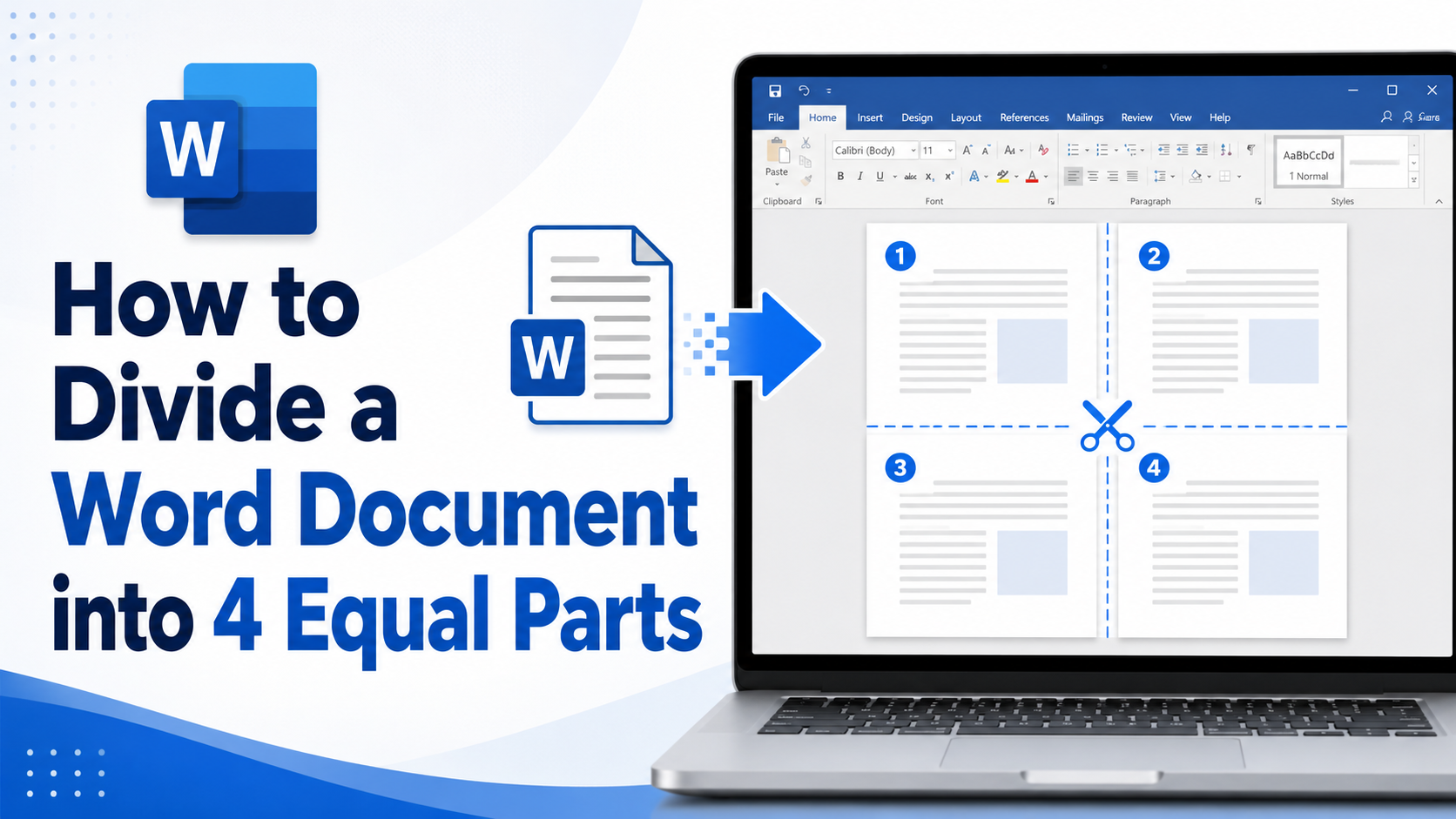
If you are searching for how to divide a word document into 4, you almost always want one page split into four equal areas—for worksheets, quarter-page flyers, comparison cards, or a simple planning template. Word does not offer a single “Split into 4” button, but a 2×2 table gives you four stable quadrants you can type into, resize, and print. Below you will find Microsoft Word steps first, then a free alternative in WPS Office.
What People Mean by How to Divide a Word Document into 4
Match the layout to the job before you open the ribbon:
Four equal quadrants on one page — the most common intent behind how to divide a word document into 4. Use a 2×2 table stretched to the margins.
Four printable cards on one sheet — same table method; add identical content in each cell, then cut after printing.
Four separate files — that is a different task (copy ranges into new documents). Columns or a split window will not create four files.
This guide focuses on the page-layout meaning: four balanced areas you can fill with text, images, or short prompts.


How to Divide a Page into 4 in Microsoft Word
When you need how to divide a word document into 4 on a single printable page, Microsoft Word’s simplest path is a 2×2 table. Follow these steps:
Place the cursor at the top-left corner of the page. Click Insert > Table, then select a 2×2 table.

Once the table is inserted, drag the bottom-right corner to resize it so it fits the printable area of the page.
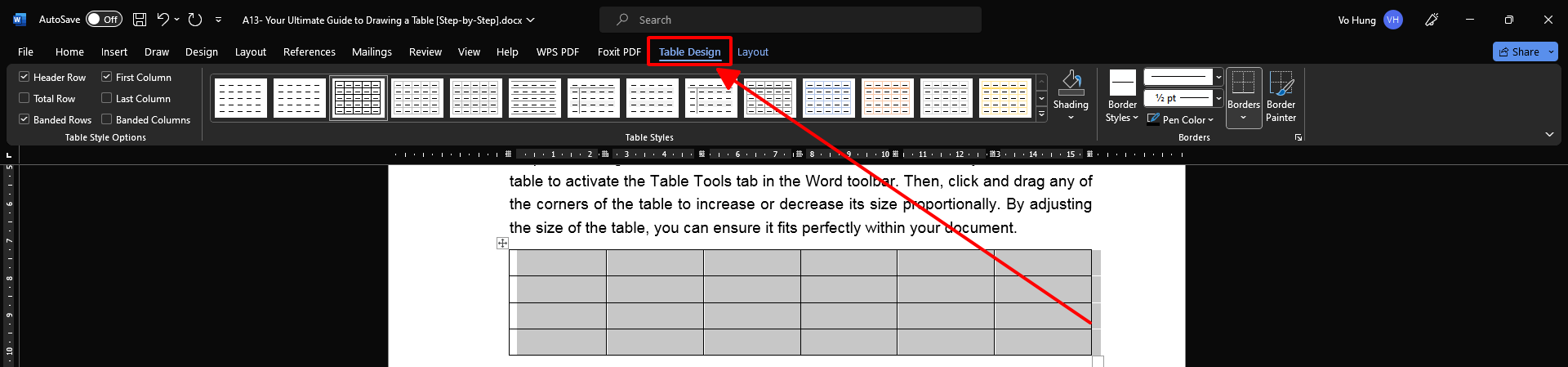
Type your content into each of the four cells separately—text, labels, or short notes for each quarter.
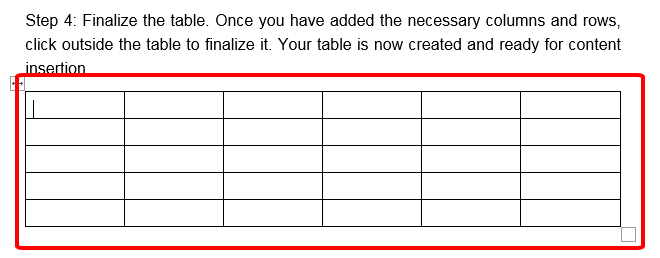
Select the entire table. Under Table Tools, go to Design > Borders > No Border to remove the table borders.

The page will now appear visually split into four quarters. If one row looks shorter after you paste images, select the table and use Distribute Rows / Distribute Columns on the Table Layout tab so the quarters stay even.
Best Alternative to Microsoft Word: WPS Office
Prefer a free suite that still opens .docx files? WPS Office (WPS Writer) is a strong alternative when you want how to divide a word document into 4 without changing your file format. The table workflow mirrors Word:
Open your document in WPS Writer, go to Insert > Table, and pick a 2×2 grid (or use Insert Table and enter 2 columns and 2 rows).

Drag the table corner until the four cells fill the page, then use Table Tools to distribute rows and columns if needed.
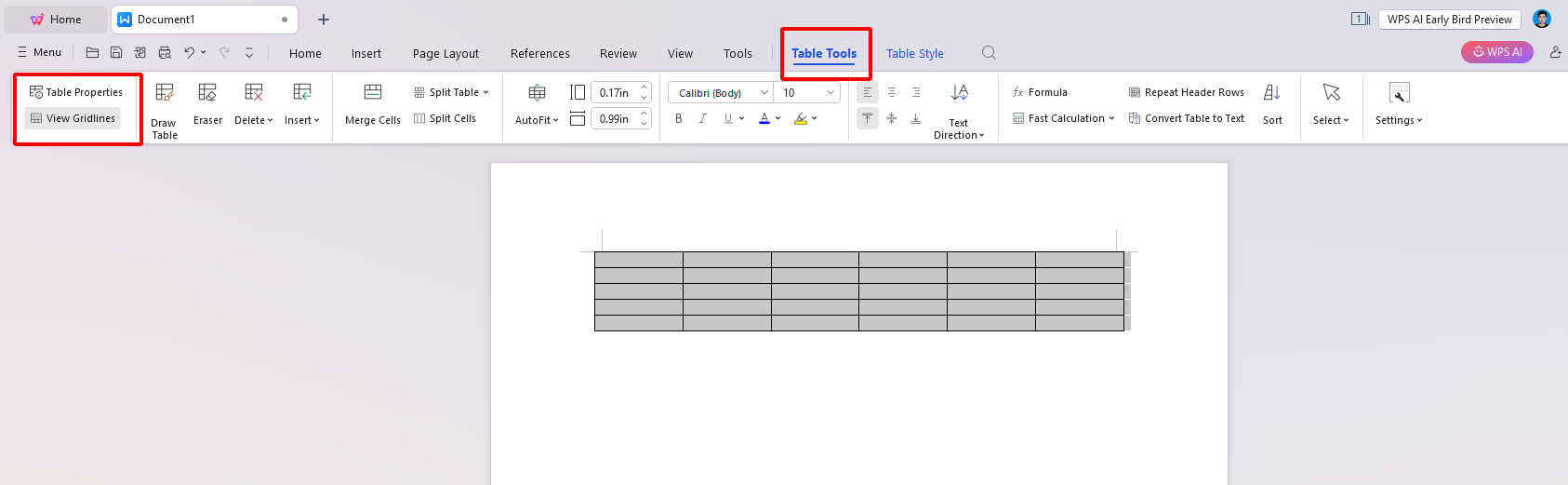
Add content in each quadrant, then set borders to No Border for a clean print layout.
WPS Office also bundles Writer, Spreadsheets, and Presentation in one install—handy if your four-quadrant sheet later needs charts or slides. If your real goal is splitting a long file into multiple documents (not four page areas), look for WPS split/merge tools instead.
Other Options If You Divide a Word Document into 4 Unevenly
Need irregular frames instead of equal quarters? Insert four text boxes (or shapes), size each one, then arrange them on the page. This is more flexible for posters, but slower to keep aligned—so for a clean four-quadrant sheet, stick with the table method for how to divide a word document into 4.
Two-column layout alone will not create four stacked quarters. Columns flow text top-to-bottom in vertical strips; they do not carve the page into a 2×2 grid.
FAQ
Does Word have a built-in “split page into 4” command?
No. Inserting a 2×2 table is the standard workaround for how to divide a word document into 4 equal areas.
How do I keep all four sections the same size?
Select the whole table, then use Distribute Rows and Distribute Columns. Set a specific row height if content keeps changing cell size.
Can I print four identical cards from one page?
Yes. Fill each quadrant with the same content, then print and cut along the midlines.
Will removing borders delete my layout?
No. Borders only change the visible lines; the four cells remain editable.
Summary


'%3e%3cpath%20d='M19.9911%204.11386V6.471H18.5894C18.0775%206.471%2017.7322%206.57814%2017.5536%206.79243C17.3751%207.00671%2017.2858%207.32814%2017.2858%207.75671V9.44421H19.9019L19.5536%2012.0871H17.2858V18.8639H14.5536V12.0871H12.2769V9.44421H14.5536V7.49779C14.5536%206.39064%2014.8632%205.53201%2015.4822%204.92189C16.1013%204.31177%2016.9257%204.00671%2017.9554%204.00671C18.8304%204.00671%2019.509%204.04243%2019.9911%204.11386Z'%20fill='%23333333'/%3e%3c/g%3e%3cdefs%3e%3cclipPath%20id='clip0_2938_8199'%3e%3crect%20width='16'%20height='16'%20fill='white'%20transform='translate(8%204.00671)'/%3e%3c/clipPath%3e%3c/defs%3e%3c/svg%3e)
'%3e%3cpath%20d='M17.5237%2010.7813L23.4811%204H22.0699L16.8949%209.88693L12.7648%204H8L14.2469%2012.9029L8%2020.0133H9.4112L14.8725%2013.7952L19.2352%2020.0133H24M9.92053%205.04213H12.0885L22.0688%2019.0224H19.9003'%20fill='%23333333'/%3e%3c/g%3e%3cdefs%3e%3cclipPath%20id='clip0_2938_8200'%3e%3crect%20width='16'%20height='16.0134'%20fill='white'%20transform='translate(8%204)'/%3e%3c/clipPath%3e%3c/defs%3e%3c/svg%3e)


