

'%3e%3cpath%20d='M8%200C12.4183%200%2016%203.58172%2016%208C16%2012.4183%2012.4183%2016%208%2016C3.58172%2016%200%2012.4183%200%208C0%203.58172%203.58172%200%208%200ZM11.6162%204.38379C11.2257%203.99337%2010.5927%203.99338%2010.2021%204.38379L8%206.58594L5.79785%204.38379C5.40732%203.99334%204.77429%203.99329%204.38379%204.38379C3.99331%204.77429%203.99335%205.40733%204.38379%205.79785L6.58594%208L4.38379%2010.2021C3.99348%2010.5927%203.99341%2011.2257%204.38379%2011.6162C4.77426%2012.0066%205.40734%2012.0065%205.79785%2011.6162L8%209.41406L10.2021%2011.6162C10.5927%2012.0066%2011.2257%2012.0067%2011.6162%2011.6162C12.0067%2011.2257%2012.0066%2010.5927%2011.6162%2010.2021L9.41406%208L11.6162%205.79785C12.0066%205.40735%2012.0066%204.77429%2011.6162%204.38379Z'%20fill='%23080E17'%20fill-opacity='0.46'/%3e%3c/g%3e%3cdefs%3e%3cclipPath%20id='clip0_3761_713'%3e%3crect%20width='16'%20height='16'%20fill='white'/%3e%3c/clipPath%3e%3c/defs%3e%3c/svg%3e)




'%3e%3cpath%20fill-rule='evenodd'%20clip-rule='evenodd'%20d='M21.4999%2010.9993C21.4999%205.20009%2016.7986%200.498901%2010.9993%200.498901C5.19994%200.498901%200.498657%205.20009%200.498657%2010.9993C0.498657%2016.2404%204.33858%2020.5844%209.35855%2021.3722V14.0346H6.69238V10.9993H9.35855V8.68594C9.35855%206.05427%2010.9262%204.60062%2013.3248%204.60062C14.4736%204.60062%2015.6753%204.80571%2015.6753%204.80571V7.38979H14.3512C13.0468%207.38979%2012.64%208.19921%2012.64%209.0296V10.9993H15.5523L15.0867%2014.0346H12.64V21.3722C17.66%2020.5844%2021.4999%2016.2404%2021.4999%2010.9993Z'%20fill='%231568EA'/%3e%3c/g%3e%3c/svg%3e)


'%3e%3cpath%20d='M2.42045%2022.1876H6.31818V12.7217L0.75%208.54553V20.5171C0.75%2021.4414%201.49892%2022.1876%202.42045%2022.1876Z'%20fill='%234285F4'/%3e%3cpath%20d='M19.682%2022.1876H23.5797C24.5041%2022.1876%2025.2502%2021.4387%2025.2502%2020.5171V8.54553L19.682%2012.7217'%20fill='%2334A853'/%3e%3cpath%20d='M19.682%205.48293V12.7216L25.2502%208.54543V6.31816C25.2502%204.25236%2022.8921%203.07469%2021.2411%204.31361'%20fill='%23FBBC04'/%3e%3cpath%20d='M6.31824%2012.7217V5.48303L13.0001%2010.4944L19.6819%205.48303V12.7217L13.0001%2017.733'%20fill='%23EA4335'/%3e%3cpath%20d='M0.75%206.31816V8.54543L6.31818%2012.7216V5.48293L4.75909%204.31361C3.10534%203.07469%200.75%204.25236%200.75%206.31816Z'%20fill='%23C5221F'/%3e%3c/g%3e%3cdefs%3e%3cclipPath%20id='clip0_2954_7305'%3e%3crect%20width='24.5'%20height='18.375'%20fill='white'%20transform='translate(0.75%203.8125)'/%3e%3c/clipPath%3e%3c/defs%3e%3c/svg%3e)


Introduction
Many people confuse importing a Word file with attaching one in Google Docs. Importing converts your .doc or .docx content into editable Google Docs text. Attaching keeps the full Word file in place so readers can download the original document.
This step-by-step guide shows two straightforward ways to attach a Word document to Google Docs—ideal for cloud workflows, school projects, and team collaboration.
Need to edit the content inside Google Docs instead? If your goal is to turn a Word file into a fully editable Google Doc—not just attach the original file—follow our guide on how to convert a Word document to a Google Doc.
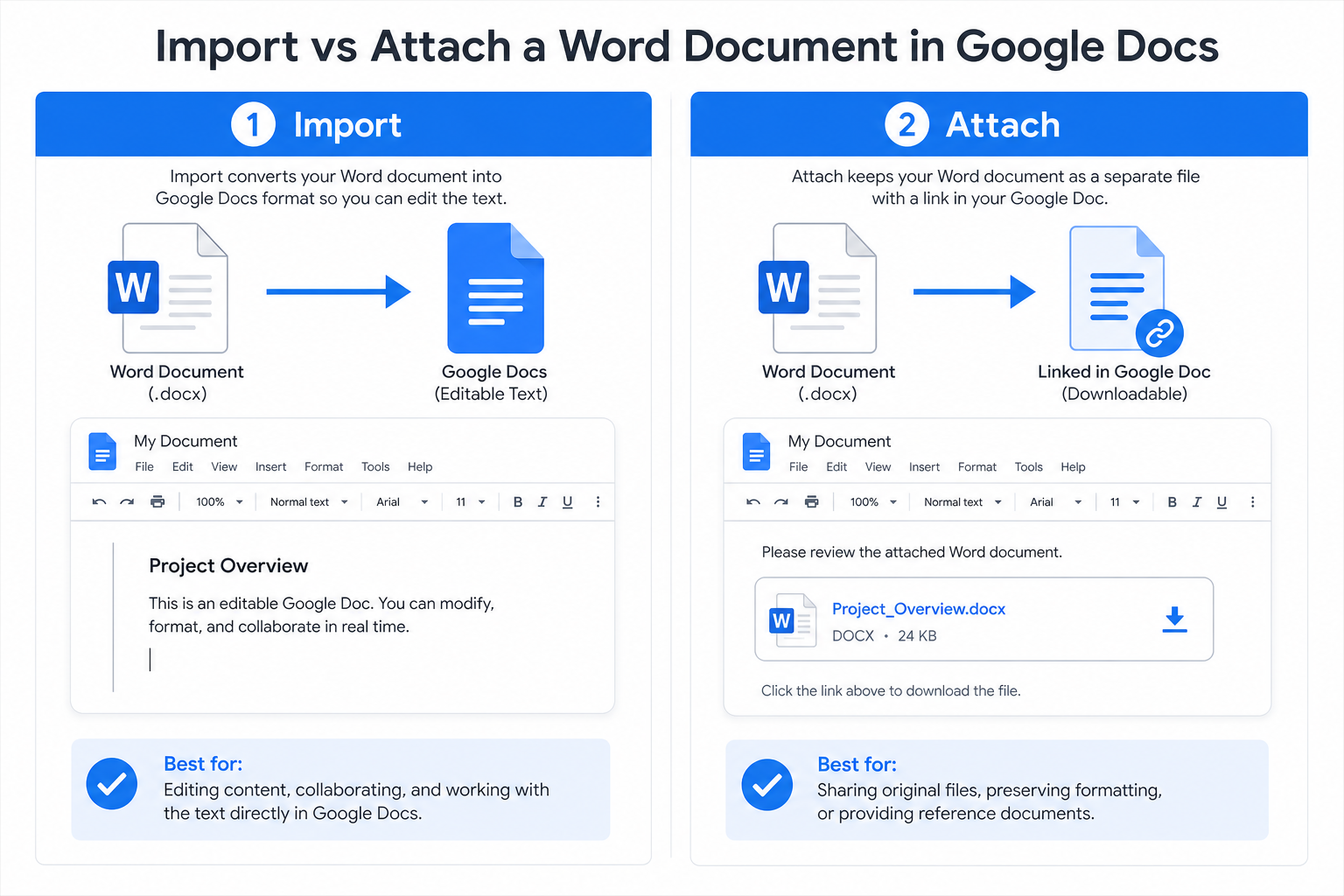
Quick answer: Upload your Word file to Google Drive first, then in Google Docs use Insert → Link or Insert → Building blocks → File chip to embed the file.
Why Attach Word Documents to Google Docs?
Attaching a Word file (instead of copying and pasting text) gives you four practical advantages:
Keep everything in one place — Store your main Google Doc and supporting Word files together.
Protect the original formatting — Layouts, fonts, and tables stay intact in the .docx file.
Make collaboration easier — Teammates can download the attachment without leaving the doc.
Simplify sharing — No need to send a separate Google Drive link in email or chat.
Method 1: Attach Word as a Link (Most Common)
This built-in option adds a clickable link that opens or downloads your Word file from Google Drive.
Upload your Word file to Google Drive first.
Open your Google Doc and place the cursor where you want the attachment.
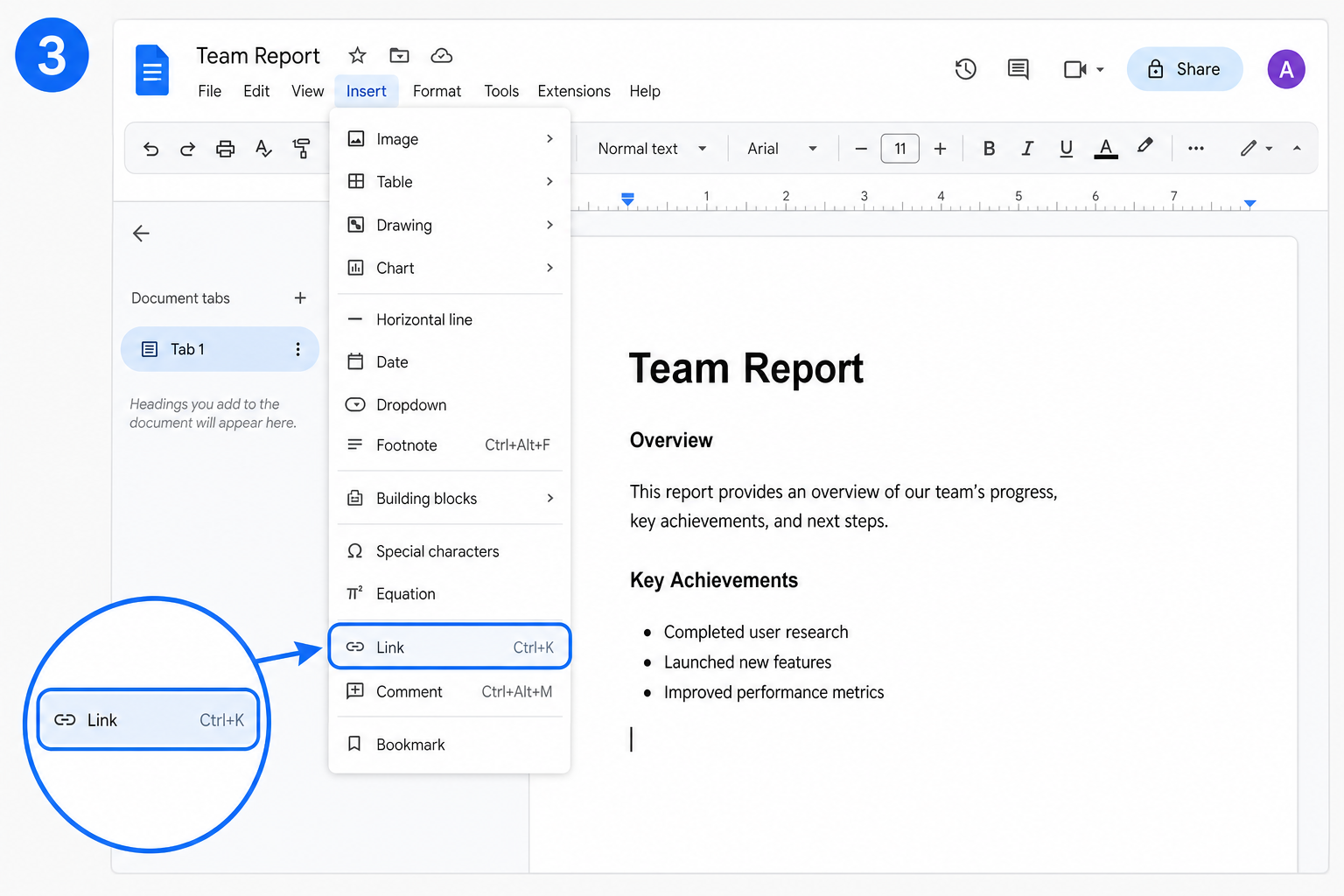
Click Insert → Link (or press Ctrl+K on Mac).
Select your Word file from My Drive, edit the display text if needed, and click Apply.
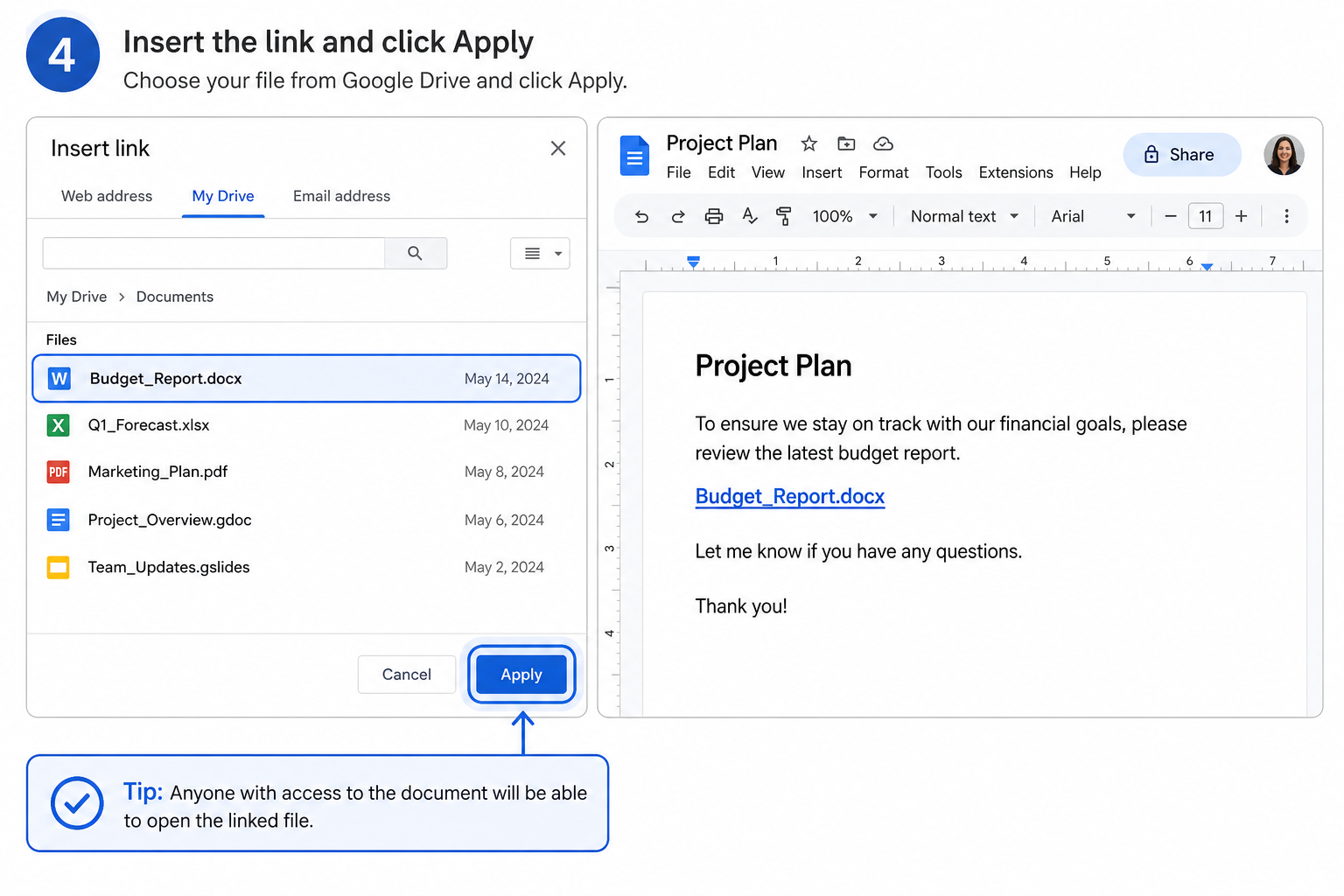
Readers can click the link to preview or download the full Word document.
Best for: Clean layouts when you want a simple text link instead of a visible file card.
Method 2: Attach Word as a File Chip
A file chip embeds a small, clickable file card directly in your document—easy to spot at a glance.
Upload the Word document to Google Drive.
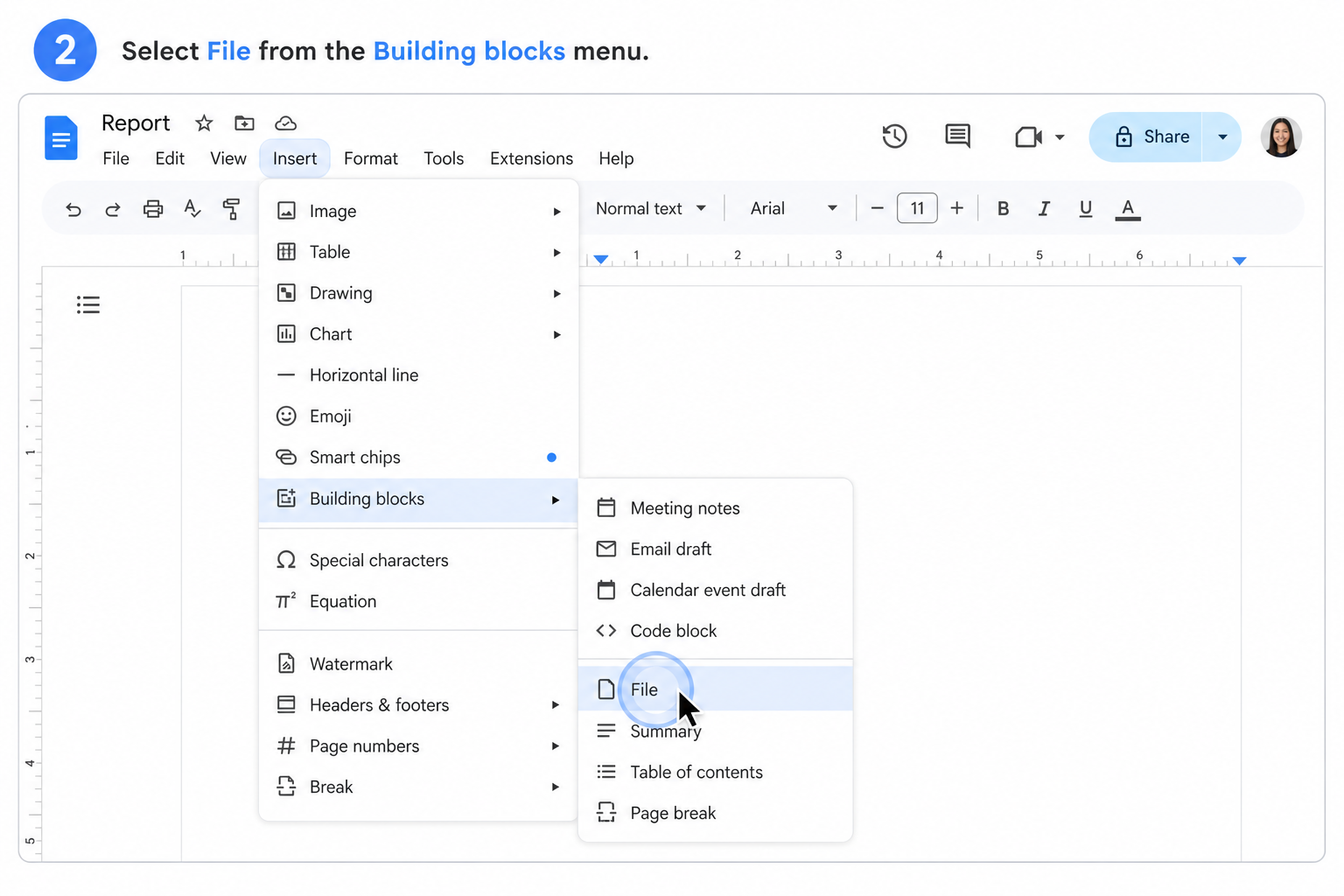
In Google Docs, click Insert → Building blocks → File chip.
Choose the Word file from your Drive list.
The file chip appears in your doc. Hover to preview; click to open or download.
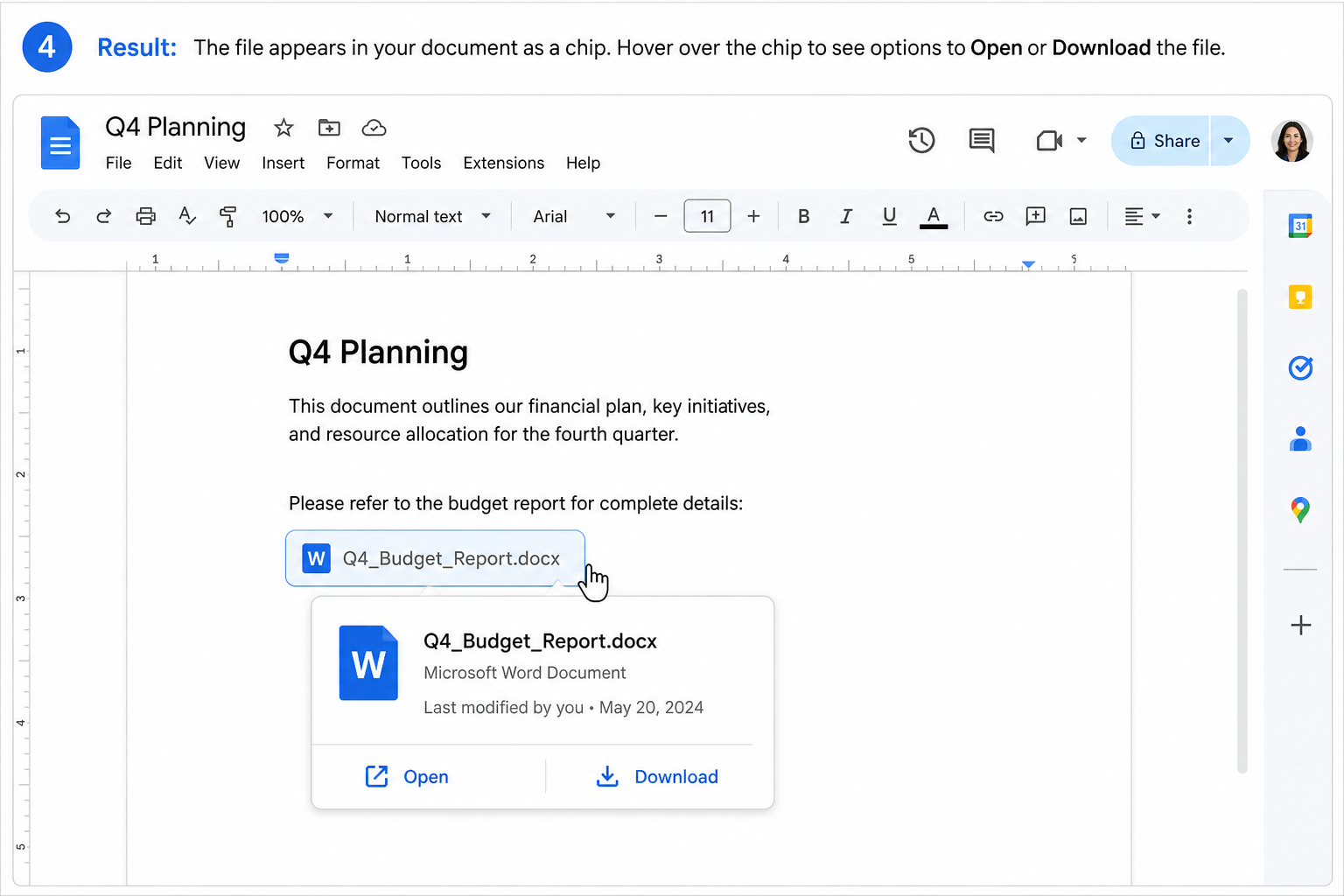
Best for: Reports, handouts, or team docs where the attachment should stand out visually.
Practical Tips
Don't delete the source file — The link or chip points to the file on Drive. If you remove it, the attachment breaks.
Stay under 50 MB — Very large Word files may fail to insert or load slowly.
Check sharing settings — Make sure collaborators have view or download access to the attached file.
Label your links clearly — Use descriptive text (e.g., "Q4 Budget Report.docx") so readers know what they're downloading.
Frequently Asked Questions (FAQ)
What's the difference between attaching and importing a Word file?
Import turns Word content into editable Google Docs text. Attach keeps the complete .docx file as a downloadable add-on inside your doc.
Why can't I attach my Word document to Google Docs?
Usually the file isn't fully uploaded to Google Drive yet, or you don't have permission to access it. Upload the file to Drive first, then try inserting the link or file chip again.
Do attached Word files use my Google Drive storage?
Yes. The attachment is a reference to the file on Drive—the original Word document still counts toward your storage quota.
Conclusion
Attaching a Word document to Google Docs takes just a minute once your file is on Drive. Use a link for a minimal, text-only look, or a file chip when you want a visible attachment card.
Either way, you'll keep related files together, preserve original formatting, and make life easier for anyone reviewing or downloading your work.
Use Word, Excel, and PPT for FREE

'%3e%3cpath%20d='M19.9911%204.11386V6.471H18.5894C18.0775%206.471%2017.7322%206.57814%2017.5536%206.79243C17.3751%207.00671%2017.2858%207.32814%2017.2858%207.75671V9.44421H19.9019L19.5536%2012.0871H17.2858V18.8639H14.5536V12.0871H12.2769V9.44421H14.5536V7.49779C14.5536%206.39064%2014.8632%205.53201%2015.4822%204.92189C16.1013%204.31177%2016.9257%204.00671%2017.9554%204.00671C18.8304%204.00671%2019.509%204.04243%2019.9911%204.11386Z'%20fill='%23333333'/%3e%3c/g%3e%3cdefs%3e%3cclipPath%20id='clip0_2938_8199'%3e%3crect%20width='16'%20height='16'%20fill='white'%20transform='translate(8%204.00671)'/%3e%3c/clipPath%3e%3c/defs%3e%3c/svg%3e)
'%3e%3cpath%20d='M17.5237%2010.7813L23.4811%204H22.0699L16.8949%209.88693L12.7648%204H8L14.2469%2012.9029L8%2020.0133H9.4112L14.8725%2013.7952L19.2352%2020.0133H24M9.92053%205.04213H12.0885L22.0688%2019.0224H19.9003'%20fill='%23333333'/%3e%3c/g%3e%3cdefs%3e%3cclipPath%20id='clip0_2938_8200'%3e%3crect%20width='16'%20height='16.0134'%20fill='white'%20transform='translate(8%204)'/%3e%3c/clipPath%3e%3c/defs%3e%3c/svg%3e)


