

'%3e%3cpath%20d='M8%200C12.4183%200%2016%203.58172%2016%208C16%2012.4183%2012.4183%2016%208%2016C3.58172%2016%200%2012.4183%200%208C0%203.58172%203.58172%200%208%200ZM11.6162%204.38379C11.2257%203.99337%2010.5927%203.99338%2010.2021%204.38379L8%206.58594L5.79785%204.38379C5.40732%203.99334%204.77429%203.99329%204.38379%204.38379C3.99331%204.77429%203.99335%205.40733%204.38379%205.79785L6.58594%208L4.38379%2010.2021C3.99348%2010.5927%203.99341%2011.2257%204.38379%2011.6162C4.77426%2012.0066%205.40734%2012.0065%205.79785%2011.6162L8%209.41406L10.2021%2011.6162C10.5927%2012.0066%2011.2257%2012.0067%2011.6162%2011.6162C12.0067%2011.2257%2012.0066%2010.5927%2011.6162%2010.2021L9.41406%208L11.6162%205.79785C12.0066%205.40735%2012.0066%204.77429%2011.6162%204.38379Z'%20fill='%23080E17'%20fill-opacity='0.46'/%3e%3c/g%3e%3cdefs%3e%3cclipPath%20id='clip0_3761_713'%3e%3crect%20width='16'%20height='16'%20fill='white'/%3e%3c/clipPath%3e%3c/defs%3e%3c/svg%3e)




'%3e%3cpath%20fill-rule='evenodd'%20clip-rule='evenodd'%20d='M21.4999%2010.9993C21.4999%205.20009%2016.7986%200.498901%2010.9993%200.498901C5.19994%200.498901%200.498657%205.20009%200.498657%2010.9993C0.498657%2016.2404%204.33858%2020.5844%209.35855%2021.3722V14.0346H6.69238V10.9993H9.35855V8.68594C9.35855%206.05427%2010.9262%204.60062%2013.3248%204.60062C14.4736%204.60062%2015.6753%204.80571%2015.6753%204.80571V7.38979H14.3512C13.0468%207.38979%2012.64%208.19921%2012.64%209.0296V10.9993H15.5523L15.0867%2014.0346H12.64V21.3722C17.66%2020.5844%2021.4999%2016.2404%2021.4999%2010.9993Z'%20fill='%231568EA'/%3e%3c/g%3e%3c/svg%3e)


'%3e%3cpath%20d='M2.42045%2022.1876H6.31818V12.7217L0.75%208.54553V20.5171C0.75%2021.4414%201.49892%2022.1876%202.42045%2022.1876Z'%20fill='%234285F4'/%3e%3cpath%20d='M19.682%2022.1876H23.5797C24.5041%2022.1876%2025.2502%2021.4387%2025.2502%2020.5171V8.54553L19.682%2012.7217'%20fill='%2334A853'/%3e%3cpath%20d='M19.682%205.48293V12.7216L25.2502%208.54543V6.31816C25.2502%204.25236%2022.8921%203.07469%2021.2411%204.31361'%20fill='%23FBBC04'/%3e%3cpath%20d='M6.31824%2012.7217V5.48303L13.0001%2010.4944L19.6819%205.48303V12.7217L13.0001%2017.733'%20fill='%23EA4335'/%3e%3cpath%20d='M0.75%206.31816V8.54543L6.31818%2012.7216V5.48293L4.75909%204.31361C3.10534%203.07469%200.75%204.25236%200.75%206.31816Z'%20fill='%23C5221F'/%3e%3c/g%3e%3cdefs%3e%3cclipPath%20id='clip0_2954_7305'%3e%3crect%20width='24.5'%20height='18.375'%20fill='white'%20transform='translate(0.75%203.8125)'/%3e%3c/clipPath%3e%3c/defs%3e%3c/svg%3e)


If Adobe’s updater keeps interrupting your work, restarts an app at the wrong time, or runs in the background when you need a stable version, you can take control of when updates happen. The method depends on which Adobe updater is involved: Acrobat and Reader have their own update preferences, Windows and macOS use background services, and Creative Cloud manages app updates separately.
Before you switch anything off, keep one rule in mind: updates often contain security fixes. Disabling auto-updates is reasonable for a controlled workflow, but plan a manual check once a month instead of abandoning updates entirely. This guide shows how to disable each Adobe updater and how to verify that it stays off.
How to Disable Adobe Updater on Windows and macOS
Disable Adobe Updater in Acrobat or Reader
The first stop is the easiest one and usually the only one personal users need. Acrobat and Acrobat Reader let you decide whether updates install automatically. The exact wording varies by version, but the option lives in the same area.
Open Acrobat or Acrobat Reader.
On Windows, select Menu > Preferences. On macOS, select Acrobat > Preferences or Acrobat Reader > Preferences.
Choose General in the left sidebar.
In the Application Startup section, clear Automatically install updates. If you see an update drop-down instead, choose the option that does not download or install updates automatically.
Select OK and restart the app if prompted.
You can still update manually from Help > Check for Updates. Use that option when you are ready to install a security patch or need a feature that arrived in a newer version.
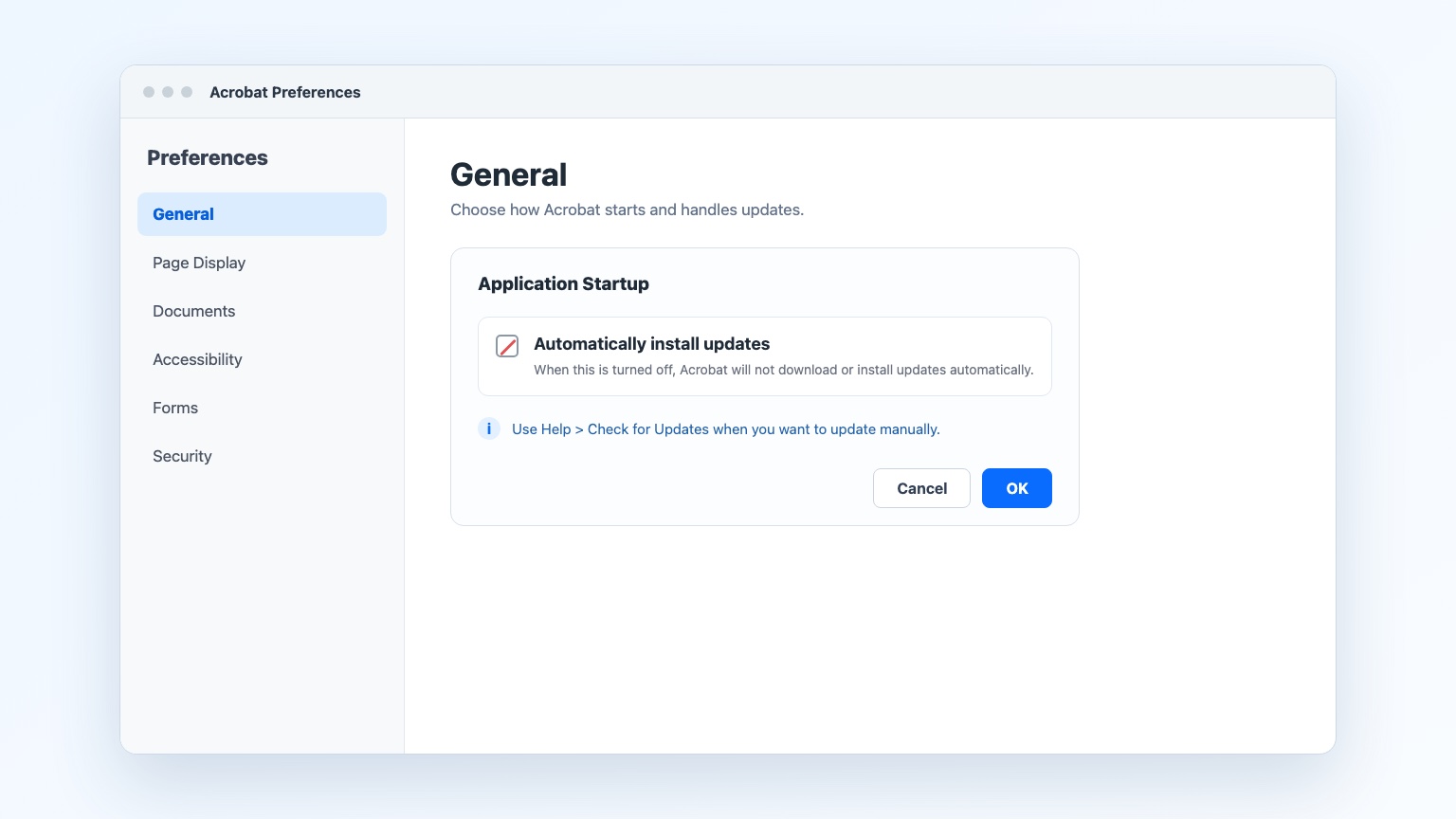
Disable automatic updates in Acrobat preferences


Disable Adobe Updater in Windows Services
Acrobat’s preference stops the app from checking on its own, but a Windows service can still run in the background. The service is often named Adobe Acrobat Update Service; its internal name is commonly AdobeARMservice. Disable this service only if you want to stop automatic updates for that installation.
Press Win + R, type services.msc, and press Enter.
Scroll to Adobe Acrobat Update Service. If it is not visible, select a row and type A to jump through the list, or use Action > Find.
Right-click the service and choose Properties.
If the service is running, select Stop.
Set Startup type to Disabled, then select Apply > OK.
Do not disable every Adobe service. Licensing, cloud sync, and helper services have different jobs. Leave Adobe Genuine Service, Acrobat licensing components, and Creative Cloud sync services alone unless your administrator gives you a specific reason to change them.
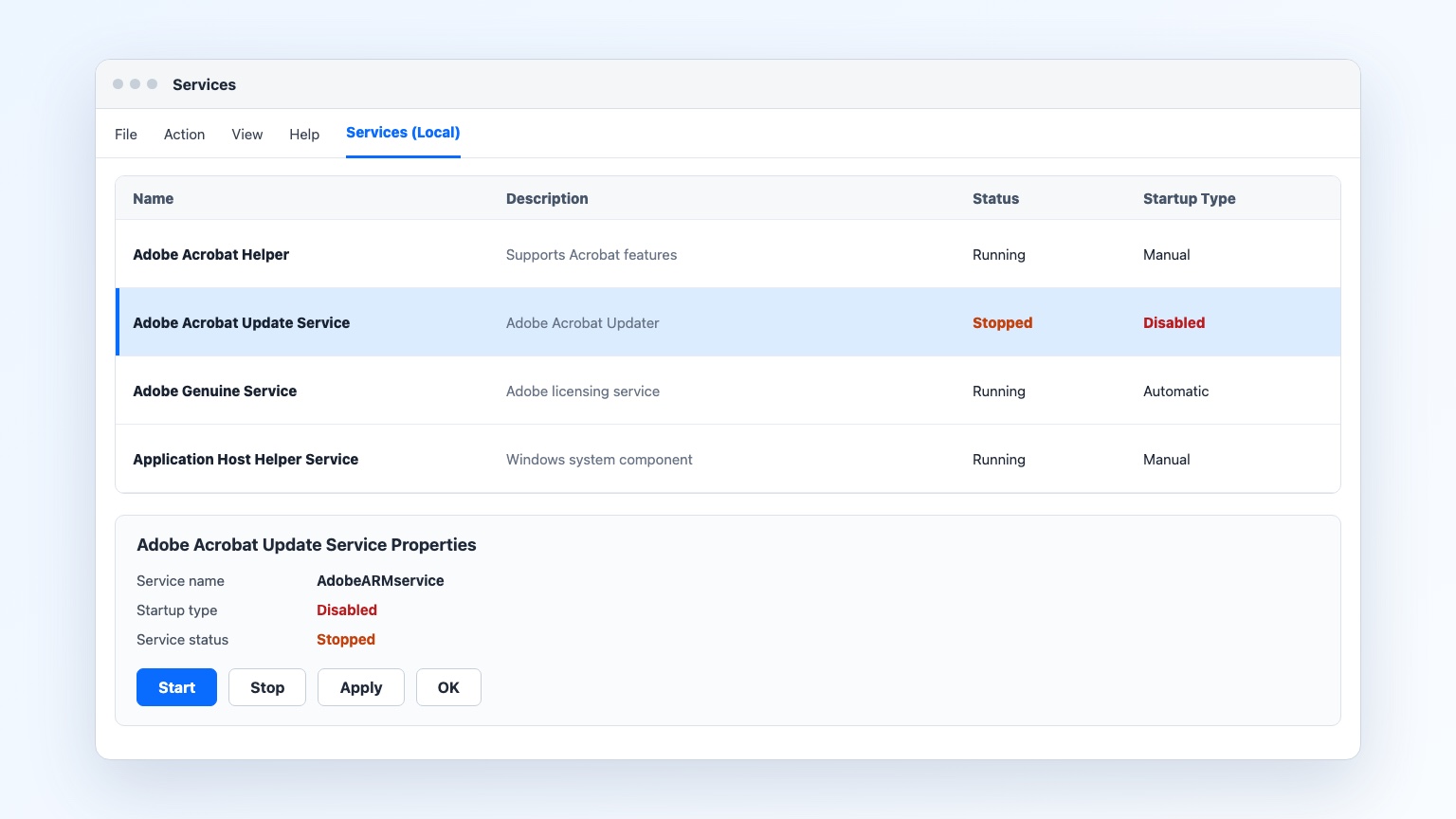
Adobe Acrobat Update Service disabled
Disable Adobe Updater in Task Scheduler
Some Acrobat versions register update tasks in Task Scheduler. Disabling the service does not always remove these tasks, so check this list as well, especially after a major upgrade.
Press Win + R, type taskschd.msc, and press Enter.
In the left pane, expand Task Scheduler Library.
Look for an entry beginning with Adobe Acrobat Update Task.
Right-click the task, select Disable, and close Task Scheduler.
Restart your PC and open Task Scheduler again to confirm that the status still says Disabled.
If no Adobe update task appears, skip this section. A missing task is not a problem.
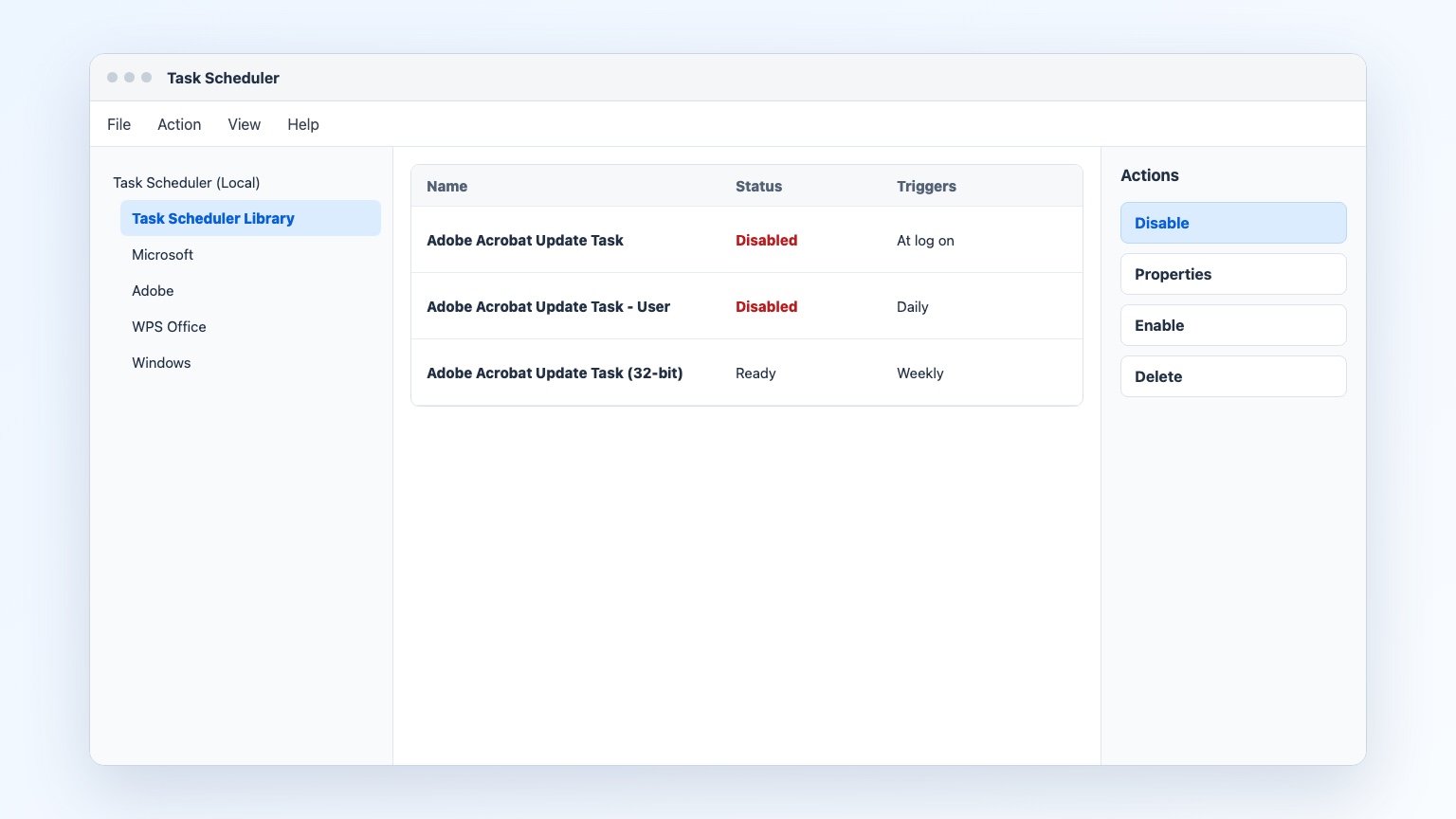
Disable Adobe Acrobat Update Task
Disable Adobe Updater on macOS
On macOS, start with the app preference you already changed. If the Adobe updater still appears in the background, inspect its launch jobs before removing anything.
Quit Acrobat or Reader completely.
Open Terminal from Applications > Utilities.
Run
launchctl print gui/$(id -u) | grep -i adobeto see Adobe launch jobs for your user.If an updater job appears, use
launchctl bootout gui/$(id -u)/LABELfor a user launch agent. For a system daemon, usesudo launchctl bootout system/LABEL. Replace LABEL with the exact job name returned by the first command.Run the list command again to confirm that the updater job is gone.
Do not delete the .plist files. Disabling the current job is easier to reverse, and a major Adobe update may register it again. Check after each update.
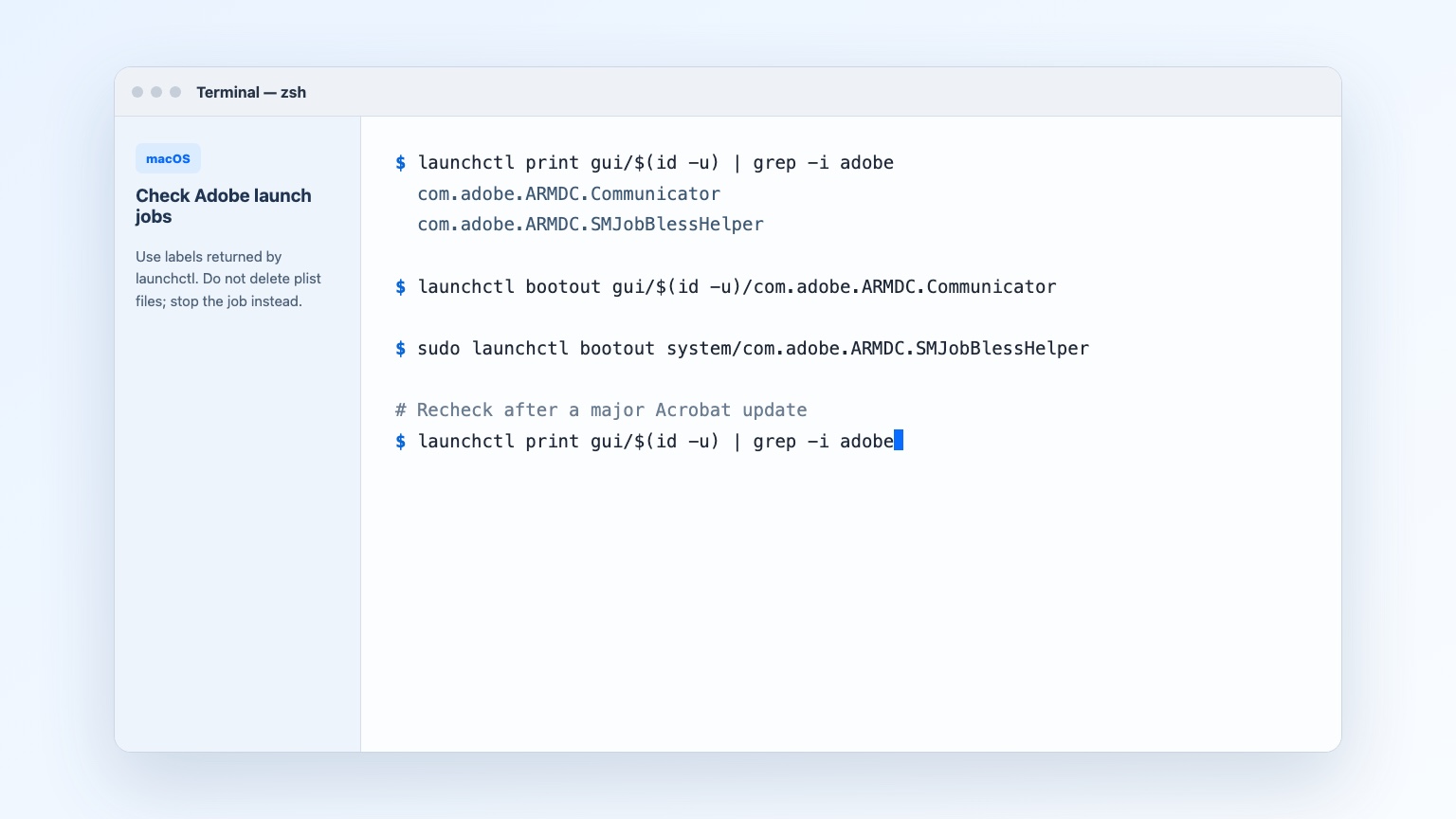
Stop Adobe updater on macOS Terminal
Disable Adobe Updater for Creative Cloud Apps
The Creative Cloud desktop app controls updates for Photoshop, Illustrator, Premiere Pro, and other Creative Cloud applications. Turning off auto-update here does not change Acrobat Reader’s update preference, so treat it as a separate step.
Open the Creative Cloud desktop app and sign in if needed.
Select the gear icon or Preferences.
Open General.
Turn off Auto-update or Automatically keep Adobe apps up to date. The label depends on your version of the app.
Open Apps, select More actions in the Installed apps panel, then choose Manage auto-update and set the apps you manage to manual updates.
Select Done.
If your account is managed by an organization, these options may be locked. Ask your IT administrator to change the update policy in the Adobe Admin Console.
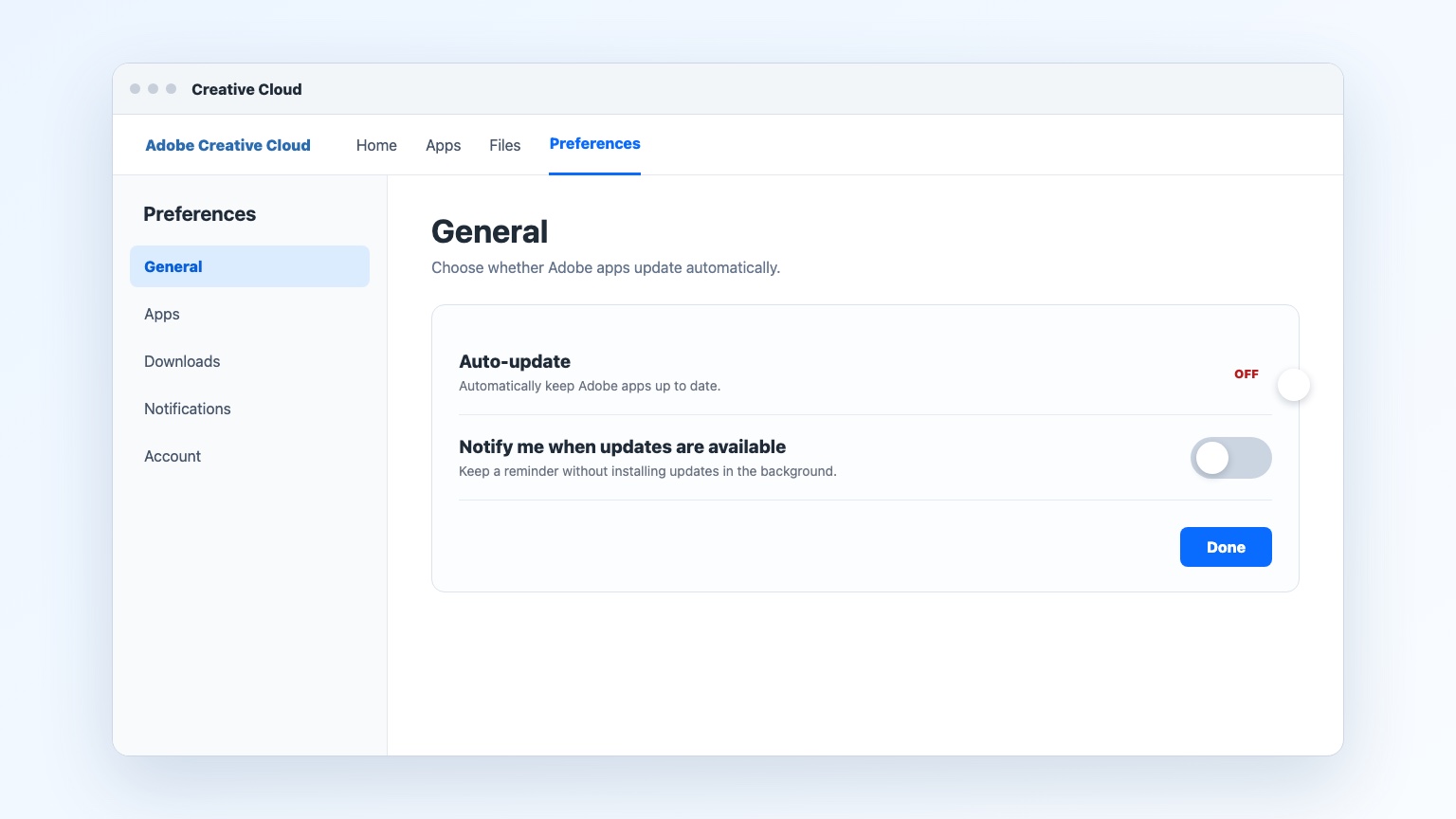
Turn off Creative Cloud auto-update setting
The Best Free Alternative: WPS Office
If Acrobat is the main reason you are dealing with update prompts, WPS Office offers a lighter alternative for everyday PDF and document work. It is not a replacement for professional tools such as Photoshop or Premiere Pro, but it can handle the tasks that send most people to Acrobat in the first place: reading, editing, converting, filling, and organizing PDFs.
| What matters | WPS Office | Adobe Acrobat |
|---|---|---|
| Update experience | Update settings stay in the app, so there is no separate Acrobat updater service to manage. | Automatic updater can run through services and scheduled tasks. |
| PDF workflow | Read, edit, convert, merge, compress, fill, and sign in one lightweight suite. | Deep PDF feature set, with many advanced tools reserved for paid plans. |
| Everyday documents | Writer, Spreadsheet, Presentation, and PDF tools share one workspace. | Focused primarily on PDF and document-centric workflows. |
| AI assistance | AI tools support writing, PDF summaries, and spreadsheet insights. | AI capabilities vary by Adobe product and subscription level. |
| Templates and setup | Familiar interface and ready-made templates reduce onboarding time. | Purpose-built for PDF-heavy teams and advanced review workflows. |
| Cost and access | Free core tools with optional paid upgrades. | Subscription pricing for most advanced capabilities. |
Faster path for routine PDF tasks: open, edit, convert, and fill common documents without managing a separate Adobe updater service.
One app for everyday office files: work with Word, Excel, PowerPoint, and PDF files in a familiar Microsoft-like interface.
Easy to try alongside Adobe: keep Creative Cloud for pro design work and use WPS PDF tools for lighter document tasks.
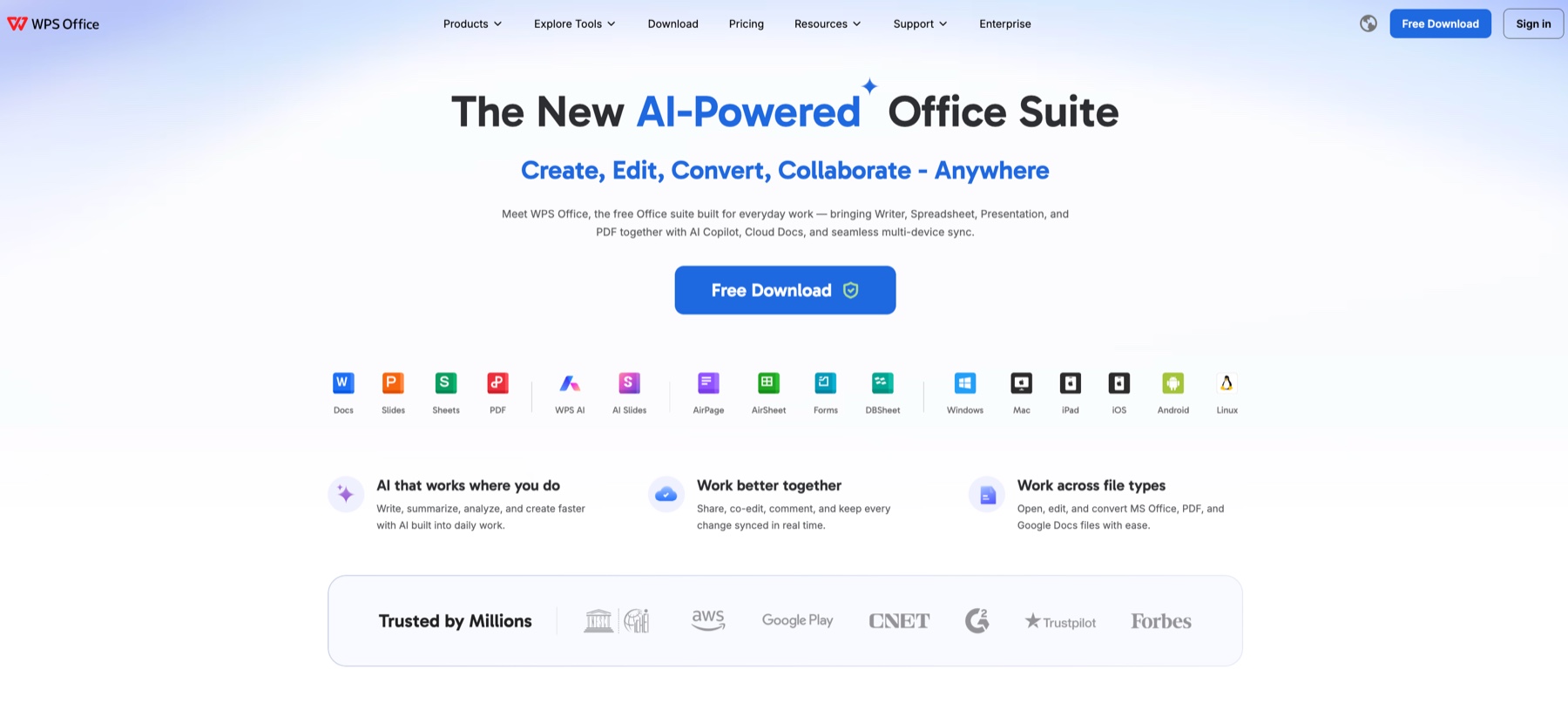
WPS Office free PDF alternative
FAQs
Does disabling Adobe updater stop every Adobe app from updating?
No. Acrobat or Reader, Creative Cloud apps, and other Adobe products can use different update settings. Disable each one where you need control, then check the others before assuming that every automatic update is off.
Is Adobe Acrobat Update Service safe to disable?
That service is dedicated to Acrobat updates, so disabling it normally does not remove licensing, cloud sync, or document features. If a work computer is managed by IT, follow the organization’s update policy instead of changing local services.
Why did the Adobe updater come back after an app update?
Major updates, repairs, and reinstallations can restore services, tasks, or launch jobs. Recheck Windows Services, Task Scheduler, or macOS launch jobs after a significant Adobe update.
How do I update Adobe apps manually after disabling automatic updates?
In Acrobat or Reader, use Help > Check for Updates. For Creative Cloud applications, open the Creative Cloud desktop app, go to Apps, and install the update you choose. Put a monthly reminder in your calendar so security fixes are not forgotten.
Should I disable Adobe Genuine Service to stop Adobe updater?
No. Adobe Genuine Service checks whether Adobe software is genuine and licensed; it is not the same as the Acrobat updater. Disabling unrelated Adobe services can create licensing or sync problems without stopping the updater you are targeting.


'%3e%3cpath%20d='M19.9911%204.11386V6.471H18.5894C18.0775%206.471%2017.7322%206.57814%2017.5536%206.79243C17.3751%207.00671%2017.2858%207.32814%2017.2858%207.75671V9.44421H19.9019L19.5536%2012.0871H17.2858V18.8639H14.5536V12.0871H12.2769V9.44421H14.5536V7.49779C14.5536%206.39064%2014.8632%205.53201%2015.4822%204.92189C16.1013%204.31177%2016.9257%204.00671%2017.9554%204.00671C18.8304%204.00671%2019.509%204.04243%2019.9911%204.11386Z'%20fill='%23333333'/%3e%3c/g%3e%3cdefs%3e%3cclipPath%20id='clip0_2938_8199'%3e%3crect%20width='16'%20height='16'%20fill='white'%20transform='translate(8%204.00671)'/%3e%3c/clipPath%3e%3c/defs%3e%3c/svg%3e)
'%3e%3cpath%20d='M17.5237%2010.7813L23.4811%204H22.0699L16.8949%209.88693L12.7648%204H8L14.2469%2012.9029L8%2020.0133H9.4112L14.8725%2013.7952L19.2352%2020.0133H24M9.92053%205.04213H12.0885L22.0688%2019.0224H19.9003'%20fill='%23333333'/%3e%3c/g%3e%3cdefs%3e%3cclipPath%20id='clip0_2938_8200'%3e%3crect%20width='16'%20height='16.0134'%20fill='white'%20transform='translate(8%204)'/%3e%3c/clipPath%3e%3c/defs%3e%3c/svg%3e)


